Excel manipulation is a crucial aspect of many modern web applications, from data analysis to report generation. Node.js, with its non-blocking I/O model and rich ecosystem, is an excellent choice for backend development. When combined with Spire.XLS for JavaScript, you can unlock a world of possibilities for handling Excel files efficiently.
This guide will walk you through the process of integrating Spire.XLS for JavaScript into your Node.js projects, covering everything from initial setup to generating a simple Excel document.
- Benefits of Using Spire.XLS for JavaScript in Node.js Projects
- Set Up Your Environment
- Integrate Spire.XLS for JavaScript in Your Project
- Create and Save Excel Files Using JavaScript
Benefits of Using Spire.XLS for JavaScript in Node.js Projects
Node.js is a great option for developing scalable network applications. When paired with Spire.XLS for JavaScript, you get a robust solution for handling Excel files. Here are some key features and benefits of using Spire.XLS for JavaScript in Node.js projects:
- Comprehensive Excel Support: Spire.XLS for JavaScript supports a wide range of Excel features, including formulas, charts, pivot tables, and more.
- High Performance: The library is optimized for speed, ensuring that your application remains responsive even when handling large datasets.
- Cross-Platform Compatibility: With Node.js, you can run your application on any platform that supports JavaScript, including Windows, macOS, and Linux.
- Secure and Reliable: The library is designed to be secure, with features like data validation and encryption to protect your data.
By leveraging the strengths of both Node.js and Spire.XLS for JavaScript, you can build powerful applications that handle Excel files with ease.
Set Up Your Environment
Step 1
Download and install Node.js from the official website. Make sure to choose the version that matches your operating system.
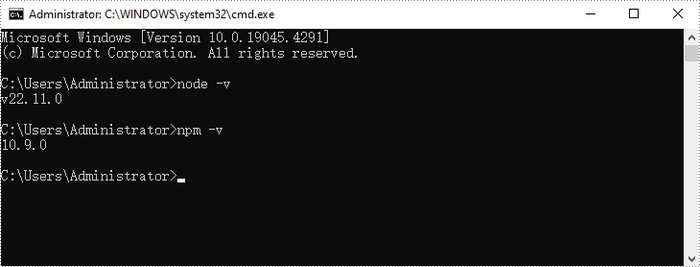
After the installation is complete, you can verify that Node.js and npm are installed correctly, along with the version numbers, by entering the following commands in CMD:
node -v
npm -v
Step 2
Initialize a Node.js project:
npm init -y
Installation dependencies:
npm install adm-zip@^0.5.16
Configure packaging.json:
{
	"name": "nodejstest",
    "version": "1.0.0",
    "description": "Simple test project to generate HelloWorld.xlsx using spire.xls.js",
    "main": "index.js",
    "type": "module",
    "scripts": {
      "start": "node --experimental-modules --experimental-wasm-modules --experimental-vm-modules index.js"
    },
    "dependencies": {
      "adm-zip": "^0.5.16"
    }
  }
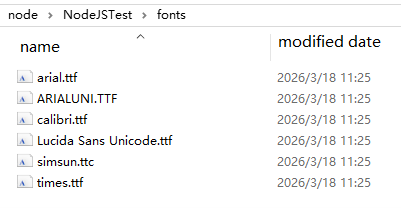
Customize folder in the root directory to put some font files, you can customize and add fonts based on the font used in your documents.
Integrate Spire.XLS for JavaScript in Your Project
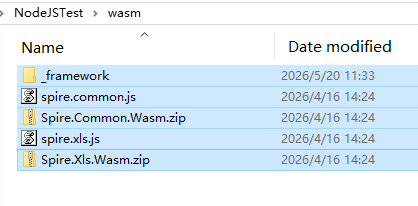
Download Spire.XLS for JavaScript and unzip it to a location on your disk. The downloaded product package integrates Spire.Doc for JavaScript, Spire.XLS for JavaScript, Spire.PDF for JavaScript, and Spire.Presentation for JavaScript. To use the features of Spire.XLS for JavaScript, customize the folder in the root directory, this tutorial defined the 'wasm' folder, and copy the corresponding files (spire.xls.js, Spire.Xls.Wasm.zip, spire.common.js, Spire.Common.Wasm.zip, and the _framework folder) to the “wasm” folder.
Add the 'index.js' file to the root directory of the project and set the following content to create a simple Excel file
- JavaScript
//NodeJSTest----create "HelloWorld.xlsx"
import fs from 'fs/promises';
import path from 'path';
import { fileURLToPath } from 'url';
import AdmZip from 'adm-zip';

const __filename = fileURLToPath(import.meta.url);
const __dirname = path.dirname(__filename);

async function extractWasmFiles() {
    const wasmDir = path.join(__dirname, 'wasm');
    const frameworkDir = path.join(wasmDir, '_framework');
    await fs.mkdir(frameworkDir, { recursive: true });

    for (const zipName of ['Spire.Common.Wasm.zip', 'Spire.Xls.Wasm.zip']) {
        const zipPath = path.join(wasmDir, zipName);
        try {
            await fs.access(zipPath);
            new AdmZip(zipPath).extractAllTo(wasmDir, true);
        } catch { }
    }
}

async function main() {
    try {
        await extractWasmFiles();
        const { spirexls } = await import('./wasm/spire.xls.js');
        const spire = globalThis.spire;
        if (!spire) throw new Error('WASM module not loaded correctly');

        const outputDir = path.join(__dirname, 'output');
        await fs.mkdir(outputDir, { recursive: true });

        const fontsPath = path.join(__dirname, 'fonts');
        try {
            await fs.access(fontsPath);
            spire.copyLocalPathToVFS(fontsPath, '/Library/Fonts/');
        } catch { }

        // Create a new workbook
        const workbook = new spirexls.Workbook();

        // Clear default worksheets
        workbook.Worksheets.Clear();

        // Add a new worksheet named "MySheet"
        const sheet = workbook.Worksheets.Add("MySheet");

        // Set text for the "A1" range
        sheet.Range.get("A1").Text = "Hello World";

        // Set the column width to auto fit
        sheet.Range.get("A1").AutoFitColumns();

        // Define the output file name
        const outputFileName = 'HelloWorld.xlsx';

        // Save the workbook to the specified path
        workbook.SaveToFile({ fileName: outputFileName, version: spirexls.ExcelVersion.Version2010 });

        const outputFile = path.join(outputDir, outputFileName);
        spire.copyFileFromFSToLocalStorage(outputFileName, outputFile);
        workbook.Dispose();

        console.log(`Document saved to ${outputFile}`);
    } catch (error) {
        console.error(error);
        process.exit(1);
    }
}

main();
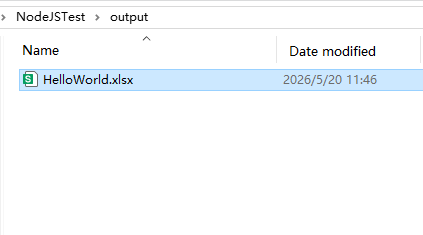
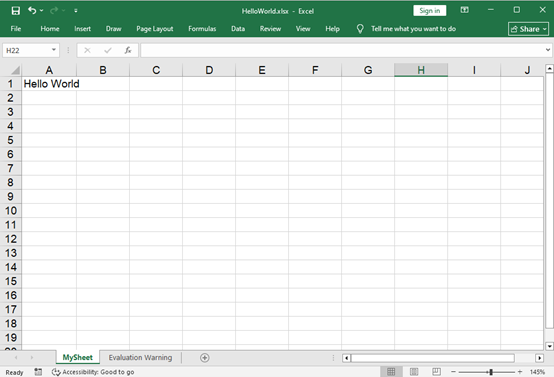
Using “npm start” run the program, you will find the generated Word file in the designated file path.
Apply for a Temporary License
If you'd like to remove the evaluation message from the generated documents, or to get rid of the function limitations, please request a 30-day trial license for yourself.