
Once a report is final, the formulas inside it turn from helper into liability: a reference to another sheet, to another file, or to a row that has since been deleted, and any one of those changes can turn a whole column of numbers into #REF!. When the file is archived or sent outside the team, the safe move is to replace each formula with the result it has just calculated — the same numbers, no longer depending on anything else. The detail sheet, on the other hand, may still need its formulas in order to be maintained, so it cannot be stripped along with the rest. What really has to be decided is the scope: the whole workbook, or one range inside it. ClearContent in Spire.XLS for JavaScript clears the cell's contents and leaves its formatting alone, so writing the result back keeps the thousands separator in an amount and the display style of a date exactly as they were. Spire.XLS for JavaScript does all of this in the browser on WebAssembly, handling input and output files through a virtual file system (VFS) with no backend service.
This article covers two core feature points:
For installation and project setup, see Integrating Spire.XLS for JavaScript in a React Project. The examples below assume Spire.XLS is installed and the WebAssembly module has been initialised.
Delete the formulas of the whole workbook
When a report is archived, sent out, or handed to someone who has no business seeing the logic behind it, the formulas are the liability: cross-sheet references, external links, rows deleted afterwards — any one of those changes can make the numbers go dead. Replacing each formula with the result it has just calculated turns the file into a snapshot that depends on nothing else and no longer changes: numbers, formatting and totals all still there, only each cell has been fixed in place. A whole-book delivery is the most common case, so the first approach walks every worksheet in the workbook. The steps are:
- Load the font and the test data file into the VFS.
- Load the workbook with
workbook.LoadFromFile. - Walk every worksheet using
workbook.Worksheets.Count. - Walk the cells of that worksheet with
sheet.Range.Cells, which covers the used range of the sheet. - Test whether the cell holds a formula with
cell.HasFormula. - If it does, take the result it has calculated with
cell.FormulaValue. - Clear the formula with
cell.Clear(xlsModule.ExcelClearOptions.ClearContent)— contents only, the formatting stays where it is. - Write the result taken in the previous step back into the cell with
cell.Value2. - Save the workbook with
workbook.SaveToFile.
The complete code example below shows how to delete the formulas of a whole workbook in React:
function App() {
  const removeAllFormulas = async () => {
    // get the Spire.XLS WASM module
    const xlsModule = window.wasmModule?.spirexls;

    // check that the module is ready
    if (!xlsModule) {
      alert('Spire.Xls is not ready yet');
      return;
    }

    // load the font and the test data file into the VFS
    await window.spire.FetchFileToVFS('ARIAL.TTF', '/Library/Fonts/', `${process.env.PUBLIC_URL}/font/`);
    const inputFileName = 'RemoveFormulas.xlsx';
    await window.spire.FetchFileToVFS(inputFileName, '', `${process.env.PUBLIC_URL}data/`);

    // load the workbook
    const workbook = new xlsModule.Workbook();
    workbook.LoadFromFile({ fileName: inputFileName });

    // walk every worksheet and every cell looking for formulas
    for (let i = 0; i < workbook.Worksheets.Count; i++) {
      const sheet = workbook.Worksheets.get(i);

      for (const cell of sheet.Range.Cells) {
        // only a formula cell needs work: take the result it has calculated, clear the cell, then write the result back
        if (cell.HasFormula) {
          const value = cell.FormulaValue;
          cell.Clear(xlsModule.ExcelClearOptions.ClearContent);
          cell.Value2 = value;
        }
      }
    }

    // save the workbook
    const outputFileName = 'RemoveAllFormulas.xlsx';
    workbook.SaveToFile({ fileName: outputFileName });

    // dispose of the workbook to free resources
    workbook.Dispose();

    // read the result file from the VFS and start the download
    const fileArray = window.dotnetRuntime.Module.FS.readFile(outputFileName);
    const blob = new Blob([fileArray], { type: 'application/vnd.openxmlformats-officedocument.spreadsheetml.sheet' });
    const url = URL.createObjectURL(blob);
    const a = document.createElement('a');
    a.href = url;
    a.download = outputFileName;
    a.click();
    URL.revokeObjectURL(url);
  };

  return (
    <div style={{ textAlign: 'center', height: '300px' }}>
      <h1>Delete Formulas but Keep the Values in Excel</h1>
      <button id="remove-all-formulas" onClick={removeAllFormulas}>Remove the formulas of the whole workbook</button>
    </div>
  );
}

export default App;
After running, deleting the formulas of a whole workbook and keeping the values:
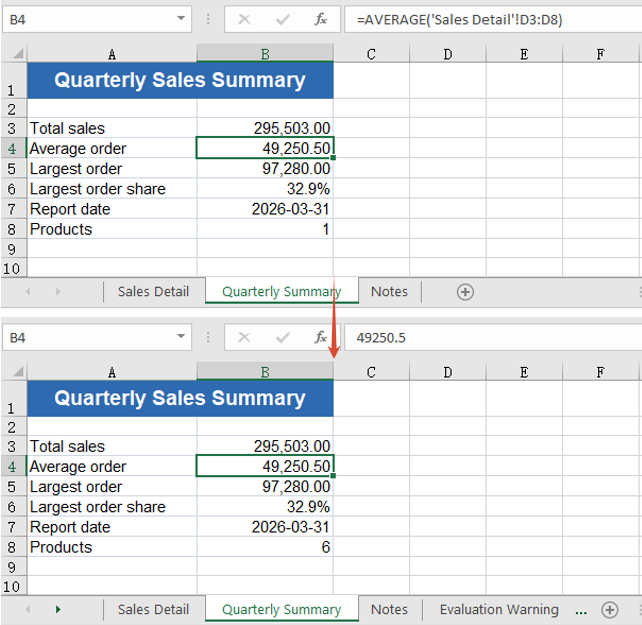
Delete the formulas of one range
Within a single worksheet, some cells will never change again and are best frozen into values, while others have to follow whatever else moves and must keep their formulas. Narrowing the scope down to a range lets both needs live in the same sheet, and the formulas outside the range are untouched. The steps are:
- Load the font and the test data file into the VFS.
- Load the workbook with
workbook.LoadFromFile. - Take the first worksheet with
workbook.Worksheets.get(0). - Mark out the stretch to process with
sheet.Range.get('D3:D10'). - Walk the cells inside the range with
range.Cells; cells outside it never enter the loop. - Test whether the cell holds a formula with
cell.HasFormula. - If it does, take the result it has calculated with
cell.FormulaValue. - Clear the formula with
cell.Clear(xlsModule.ExcelClearOptions.ClearContent). - Write the result back into the cell with
cell.Value2. - Save the workbook with
workbook.SaveToFile.
The complete code example below shows how to delete the formulas of one range in React:
function App() {
  const removeFormulasInRange = async () => {
    // get the Spire.XLS WASM module
    const xlsModule = window.wasmModule?.spirexls;

    // check that the module is ready
    if (!xlsModule) {
      alert('Spire.Xls is not ready yet');
      return;
    }

    // load the font and the test data file into the VFS
    await window.spire.FetchFileToVFS('ARIAL.TTF', '/Library/Fonts/', `${process.env.PUBLIC_URL}/font/`);
    const inputFileName = 'RemoveFormulas.xlsx';
    await window.spire.FetchFileToVFS(inputFileName, '', `${process.env.PUBLIC_URL}data/`);

    // load the workbook
    const workbook = new xlsModule.Workbook();
    workbook.LoadFromFile({ fileName: inputFileName });

    // take the first worksheet and narrow the range down to the amount column
    const sheet = workbook.Worksheets.get(0);
    const range = sheet.Range.get('D3:D10');

    for (const cell of range.Cells) {
      if (cell.HasFormula) {
        const value = cell.FormulaValue;
        cell.Clear(xlsModule.ExcelClearOptions.ClearContent);
        cell.Value2 = value;
      }
    }

    // save the workbook
    const outputFileName = 'RemoveFormulasInRange.xlsx';
    workbook.SaveToFile({ fileName: outputFileName });

    // dispose of the workbook to free resources
    workbook.Dispose();

    // read the result file from the VFS and start the download
    const fileArray = window.dotnetRuntime.Module.FS.readFile(outputFileName);
    const blob = new Blob([fileArray], { type: 'application/vnd.openxmlformats-officedocument.spreadsheetml.sheet' });
    const url = URL.createObjectURL(blob);
    const a = document.createElement('a');
    a.href = url;
    a.download = outputFileName;
    a.click();
    URL.revokeObjectURL(url);
  };

  return (
    <div style={{ textAlign: 'center', height: '300px' }}>
      <h1>Delete Formulas but Keep the Values in Excel</h1>
      <button id="remove-formulas-in-range" onClick={removeFormulasInRange}>Remove the formulas of one range</button>
    </div>
  );
}

export default App;
After running, deleting the formulas of one range:
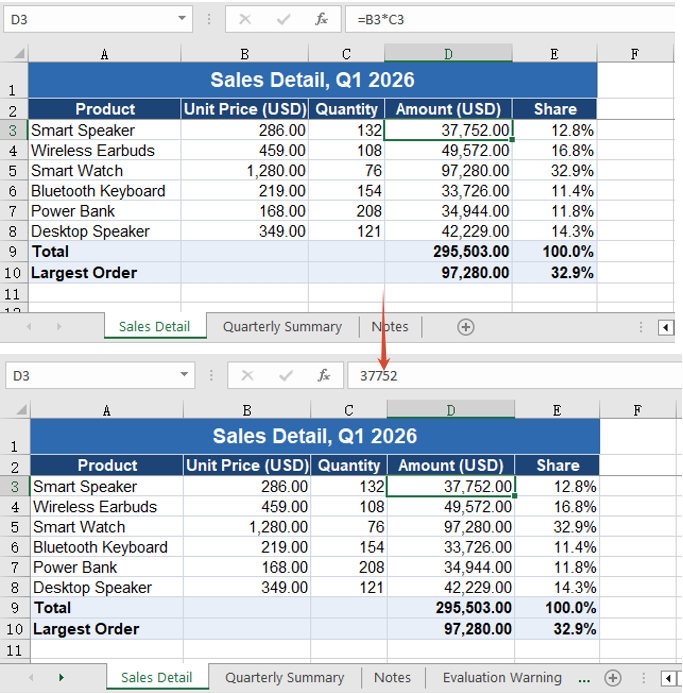
FAQ
Does clearing a formula also wipe the cell's number format and fill?
Cause: Clearing a cell goes through Clear, and what it clears is decided by the ExcelClearOptions passed in. ClearAll or ClearFormat wipes the formatting along with everything else; ClearContent clears the contents only.
Solution: Pass ClearContent. The number format, the font and the fill all stay where they were, and the value written back is still shown the way it was — an amount keeps its thousands separator and two decimals, and a date still reads 2026-03-31 rather than the serial number 46112.
Why does cell.Value not give me the result a formula calculated?
Cause: While a cell still carries a formula, cell.Value returns the formula itself rather than its result.
Solution: Read the result with FormulaValue, or with FormulaNumberValue when only the number is wanted. Once the formula has been cleared and replaced by a value, Value returns that number.
// a cell that still has its formula: Value is the formula text, the result is in
// FormulaValue / FormulaNumberValue
const formula = cell.Value;                 // "=B5*C5"
const result = cell.FormulaNumberValue;     // 97280
Get a Free License
Spire.XLS for JavaScript offers a 30-day full-featured free trial license with no functional limitations. Apply here to evaluate before purchasing.

