Export Excel charts and shapes as standalone images is a critical feature for enhancing data visualization workflows. Converting charts and shapes into image formats enables seamless integration of dynamic data into reports, dashboards, or presentations, ensuring compatibility across platforms where Excel files might not be natively supported. By programmatically generating images from Excel charts and shapes within web applications using Spire.XLS for JavaScript API, developers can automate export workflows, ensure consistent visualization, and deliver dynamically updated visuals to end-users without extra manual processing steps.
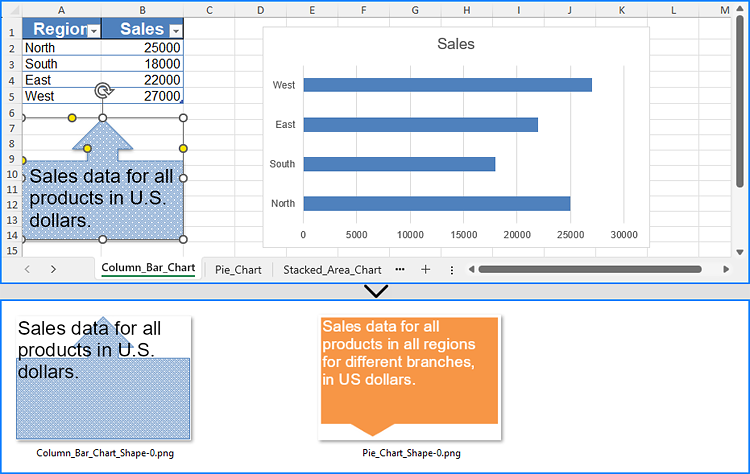
In this article, we will explore how to use Spire.XLS for Java Script to save charts and shapes in Excel workbooks as images using JavaScript in React applications.
Install Spire.XLS for JavaScript
To get started with saving Excel charts and shapes as images in a React application, you can either download Spire.XLS for JavaScript from our website or install it via npm with the following command:
npm i spire.office
The downloaded product package has been integrated Spire.Doc for JavaScript,Spire.XLS for JavaScript,Spire.PDF for JavaScript,Spire.Presentation for JavaScript. To use the functionality of Spire.XLS for JavaScript, you need to copy the corresponding files (spire.xls.js, Spire.Xls.Wasm.zip, spire.common.js, Spire.Common.Wasm.zip, and _framework) to the project's "public" folder. At the same time, in order to ensure text rendering, the related font files can be added with custom paths. In the following example, the font addition path is: public\static\font.
For more details, refer to the documentation: How to Integrate Spire.XLS for JavaScript in a React Project
Save Excel Charts to Images with JavaScript
By processing Excel files using the Spire.XLS WebAssembly module, we can utilize the Workbook.SaveChartAsImage() method to save a specific chart from an Excel worksheet as an image and store it in the virtual file system (VFS). The saved image can then be downloaded or used for further processing.
The detailed steps are as follows:
- Load the Spire.Xls.js file to initialize the WebAssembly module.
- Fetch the Excel file and font files into the VFS using the window.spire.FetchFileToVFS() method.
- Create a Workbook instance using the new wasmModule.Workbook() method.
- Load the Excel file into the Workbook instance using the Workbook.LoadFromFile() method.
- Retrieve a specific worksheet or iterate through all worksheets using the Workbook.Worksheets.get() method.
- Iterate though the charts and save them as images using the Workbook.SaveChartAsImage() method, specifying the worksheet and chart index as parameters.
- Save the images to the VFS using the image.Save() method.
- Download the images or use them as needed.
- JavaScript
import React, { useState, useEffect } from 'react';
import JSZip from 'jszip';

function App() {
  const [wasmModule, setWasmModule] = useState(null);
  // Load Spire.XLS
  useEffect(() => {
    (async () => {
      try {
        const publicUrl = process.env.PUBLIC_URL || '';
        const spireModule = await import(/* webpackIgnore: true */ `${publicUrl}/spire.xls.js`);
        const rawModule = spireModule.default || spireModule;
        window.wasmModule = typeof rawModule === 'function'
          ? await rawModule({ locateFile: p => p.endsWith('.wasm') ? `${publicUrl}/${p}` : p })
          : rawModule;
        setWasmModule(window.wasmModule);
      } catch (error) {
        console.error('Failed to load spire.xls.js WASM module:', error);
      }
    })();
  }, []);

  // Function to convert charts to images
  const SaveExcelChartAsImage = async () => {
    const wasmModule = window.wasmModule.spirexls;

    if (wasmModule) {
      // Load font into virtual file system (VFS)
      await window.spire.FetchFileToVFS('Arial.ttf', '/Library/Fonts/', `${process.env.PUBLIC_URL}/static/font/`);

      // Load Excel file into virtual file system (VFS)
      const inputFileName = 'in.xlsx';
      await window.spire.FetchFileToVFS(inputFileName, '', `${process.env.PUBLIC_URL}/static/data/`);

      // Create an images folder in the VFS
      const imageFolderName = `Images`;
      window.dotnetRuntime.Module.FS.mkdirTree(imageFolderName);

      // Create a new workbook
      const workbook = new wasmModule.Workbook();

      // Load the Excel file from VFS
      workbook.LoadFromFile(inputFileName);

      // Iterate through each worksheet in the workbook
      for (let i = 0; i < workbook.Worksheets.Count; i++) {
        // Get the current worksheet
        const sheet = workbook.Worksheets.get(i);
        // Iterate through each chart in the worksheet
        for (let j = 0; j < sheet.Charts.Count; j++) {
          // Save the current chart to an image
          let image = workbook.SaveChartAsImage({ worksheet: sheet, chartIndex: j })
          // Save the image to the VFS
          let filePath = `${imageFolderName}/${sheet.Name}_chart-${j}.png`;
          image.Save(filePath);
        }
      }

      // Recursive function to add a directory and its contents to a ZIP
      const addFilesToZip = (folderPath, zipFolder) => {
        const items = window.dotnetRuntime.Module.FS.readdir(folderPath);
        items.filter(item => item !== "." && item !== "..").forEach((item) => {
          const itemPath = `${folderPath}/${item}`;

          try {
            // Try to read file data
            const fileData = window.dotnetRuntime.Module.FS.readFile(itemPath);
            zipFolder.file(item, fileData);
          } catch (error) {
            if (error.code === 'EISDIR') {
              // If it is a directory, create a new folder in the ZIP and recurse into it
              const zipSubFolder = zipFolder.folder(item);
              addFilesToZip(itemPath, zipSubFolder);
            } else {
              // Handle other errors
              console.error(`Error processing ${itemPath}:`, error);
            }
          }
        });
      };

      // Package the image folder into a ZIP file
      const zip = new JSZip();
      addFilesToZip(imageFolderName, zip);

      // Generate a Blob from the resulting ZIP file and trigger download
      zip.generateAsync({ type: "blob" })
        .then(function (content) {
          const link = document.createElement('a');
          link.href = URL.createObjectURL(content);
          link.download = 'chartToimg.zip';
          document.body.appendChild(link);
          link.click();
          document.body.removeChild(link);
          URL.revokeObjectURL(link.href);
        }).catch(function (err) {
          console.error("Error generating ZIP file:", err);
        });
    }
  };

  return (
    <div style={{ textAlign: 'center', height: '300px' }}>
      <h1>Save Excel Charts as Images Using JavaScript in React</h1>
      <button onClick={SaveExcelChartAsImage} disabled={!wasmModule}>
        Export Charts
      </button>
    </div>
  );
}

export default App;

Save Excel Shapes to Images with JavaScript
We can retrieve shapes from an Excel worksheet using the Worksheet.PrstGeomShapes.get() method and save them as images using the shape.SaveToImage() method. The images can then be stored in the virtual file system (VFS) and downloaded or used for further processing.
Below are the detailed steps:
- Load the Spire.Xls.js file to initialize the WebAssembly module.
- Fetch the Excel file and font files into the VFS using the window.spire.FetchFileToVFS() method.
- Create a Workbook instance using the new wasmModule.Workbook() method.
- Load the Excel file into the Workbook instance using the Workbook.LoadFromFile() method.
- Retrieve a specific worksheet or iterate through all worksheets using the Workbook.Worksheets.get() method.
- Get a shape from the worksheet or iterate through all shapes using the Worksheet.PrstGeomShapes.get() method.
- Save the shapes as images using the shape.SaveToImage() method.
- Save the images to the VFS using the image.Save() method.
- Download the images or use them as needed.
- JavaScript
import React, { useState, useEffect } from 'react';
import JSZip from 'jszip';

function App() {
  const [wasmModule, setWasmModule] = useState(null);
  // Load Spire.XLS
  useEffect(() => {
    (async () => {
      try {
        const publicUrl = process.env.PUBLIC_URL || '';
        const spireModule = await import(/* webpackIgnore: true */ `${publicUrl}/spire.xls.js`);
        const rawModule = spireModule.default || spireModule;
        window.wasmModule = typeof rawModule === 'function'
          ? await rawModule({ locateFile: p => p.endsWith('.wasm') ? `${publicUrl}/${p}` : p })
          : rawModule;
        setWasmModule(window.wasmModule);
      } catch (error) {
        console.error('Failed to load spire.xls.js WASM module:', error);
      }
    })();
  }, []);

  // Function to convert shapes to images
  const SaveExcelShapeAsImage = async () => {
    const wasmModule = window.wasmModule.spirexls;

    if (wasmModule) {
      // Load font into virtual file system (VFS)
      await window.spire.FetchFileToVFS('Arial.ttf', '/Library/Fonts/', `${process.env.PUBLIC_URL}/static/font/`);

      // Load Excel file into virtual file system (VFS)
      const inputFileName = 'Shape.xlsx';
      await window.spire.FetchFileToVFS(inputFileName, '', `${process.env.PUBLIC_URL}/static/data/`);

      // Create an images folder in the VFS
      const imageFolderName = `Images`;
      window.dotnetRuntime.Module.FS.mkdirTree(imageFolderName);

      // Create a new workbook
      const workbook = new wasmModule.Workbook();

      // Load the Excel file from VFS
      workbook.LoadFromFile(inputFileName);

      // Iterate through each worksheet in the workbook
      for (let i = 0; i < workbook.Worksheets.Count; i++) {
        // Get the current worksheet
        const sheet = workbook.Worksheets.get(i);
        // Iterate through each shape in the worksheet
        for (let j = 0; j < sheet.PrstGeomShapes.Count; j++) {
          // Get the current shape
          const shape = sheet.PrstGeomShapes.get(j);
          // Save the shape to an image
          const image = shape.SaveToImage();
          // Save the image to the VFS
          let filePath = `${imageFolderName}/${sheet.Name}_shape-${j}.png`;
          image.Save(filePath);
        }
      }

      // Recursive function to add a directory and its contents to a ZIP
      const addFilesToZip = (folderPath, zipFolder) => {
        const items = window.dotnetRuntime.Module.FS.readdir(folderPath);
        items.filter(item => item !== "." && item !== "..").forEach((item) => {
          const itemPath = `${folderPath}/${item}`;

          try {
            // Try to read file data
            const fileData = window.dotnetRuntime.Module.FS.readFile(itemPath);
            zipFolder.file(item, fileData);
          } catch (error) {
            if (error.code === 'EISDIR') {
              // If it is a directory, create a new folder in the ZIP and recurse into it
              const zipSubFolder = zipFolder.folder(item);
              addFilesToZip(itemPath, zipSubFolder);
            } else {
              // Handle other errors
              console.error(`Error processing ${itemPath}:`, error);
            }
          }
        });
      };

      // Package the image folder into a ZIP file
      const zip = new JSZip();
      addFilesToZip(imageFolderName, zip);

      // Generate a Blob from the resulting ZIP file and trigger download
      zip.generateAsync({ type: "blob" })
        .then(function (content) {
          const link = document.createElement('a');
          link.href = URL.createObjectURL(content);
          link.download = 'shapeToimg.zip';
          document.body.appendChild(link);
          link.click();
          document.body.removeChild(link);
          URL.revokeObjectURL(link.href);
        }).catch(function (err) {
          console.error("Error generating ZIP file:", err);
        });
    }
  };

  return (
    <div style={{ textAlign: 'center', height: '300px' }}>
      <h1>Save Excel Shapes as Images Using JavaScript in React</h1>
      <button onClick={SaveExcelShapeAsImage} disabled={!wasmModule}>
        Export Shapes
      </button>
    </div>
  );
}

export default App;
Get a Free License
To fully experience the capabilities of Spire.XLS for JavaScript without any evaluation limitations, you can request a free 30-day trial license.