PowerPoint presentations often contain sensitive or proprietary information, making it essential to secure them from unauthorized access or modifications. Whether you're sharing a presentation with colleagues, clients, or stakeholders, protecting your slides ensures that your content remains intact and confidential. On the other hand, there may be times when you need to unprotect a presentation to make edits or updates. In this guide, we'll explore how to protect and unprotect PowerPoint presentations programmatically in React using Spire.Presentation for JavaScript.
- Protect a PowerPoint Presentation with a Password
- Make a PowerPoint Presentation Read-Only
- Remove Password Protection from a PowerPoint Presentation
- Remove Read-Only Setting from a PowerPoint Presentation
Install Spire.Presentation for JavaScript
To get started with protecting and unprotecting PowerPoint presentations in a React application, you can either download Spire.Presentation for JavaScript from the official website or install it via npm with the following command:
npm i spire.office
The downloaded product package integrates Spire.Doc for JavaScript, Spire.XLS for JavaScript, Spire.PDF for JavaScript, and Spire.Presentation for JavaScript. To use Spire.Presentation for JavaScript functionality, you need to copy the corresponding files (spire.presentation.js, Spire.Presentation.Wasm.zip, spire.common.js, Spire.Common.Wasm.zip, and the _framework folder) to the public folder of your project. Additionally, to ensure proper text rendering, font files can be added to a custom path of your choice. In the following example, the font addition path is: public\static\font.
For more details, refer to the documentation: How to Integrate Spire.Presentation for JavaScript in a React Project.
Protect a PowerPoint Presentation with a Password
Setting a password on a PowerPoint presentation is an effective way to ensure that only authorized users can access its content. By using the Presentation.Encrypt() method of Spire.Presentation for JavaScript, developers can encrypt a PowerPoint presentation with ease. The key steps are as follows.
- Create an object of the Presentation class.
- Load a PowerPoint presentation using the Presentation.LoadFromFile() method.
- Encrypt the presentation with a password using the Presentation.Encrypt() method.
- Save the resulting presentation using the Presentation.SaveToFile() method.
- JavaScript
import React, { useState, useEffect } from 'react';

function App() {
   const [wasmModule, setWasmModule] = useState(null);
   useEffect(() => {
    (async () => {
      try {
        const publicUrl = process.env.PUBLIC_URL || '';
        const spireModule = await import(/* webpackIgnore: true */ `${publicUrl}/spire.presentation.js`);
        const rawModule = spireModule.default || spireModule;
        window.wasmModule = typeof rawModule === 'function'
          ? await rawModule({ locateFile: p => p.endsWith('.wasm') ? `${publicUrl}/${p}` : p })
          : rawModule;
        setWasmModule(window.wasmModule);
      } catch (error) {
        console.error('Failed to load spire.presentation.js:', error);
      }
    })();
  }, []);


  const ProtectPowerPointPresentation = async () => {
    const wasmModule = window.wasmModule.spirepresentation;

    if (wasmModule) {
      // Specify the input file paths
      let inputFileName  = "Sample.pptx";
      await window.spire.FetchFileToVFS(inputFileName , '',  `${process.env.PUBLIC_URL}static/data/`);
      await window.spire.FetchFileToVFS("arial.ttf","/Library/Fonts/",`${process.env.PUBLIC_URL}static/font/`);

      // Create a Presentation instance and load the PowerPoint file from the virtual file system
      const ppt =new wasmModule.Presentation();
      ppt.LoadFromFile(inputFileName);

      // Define the password
      let password = "e-iceblue";

      // Protect the PowerPoint file with the password
      ppt.Encrypt(password);

      // Define the output file name
      const outputFileName = "Encrypted.pptx";

      // Save the resulting PowerPoint file
      ppt.SaveToFile({ file: outputFileName, fileFormat: wasmModule.FileFormat.Pptx2013 });


      // Read the generated image file from VFS
      const imageFileArray = window.dotnetRuntime.Module.FS.readFile(outputFileName);

      // Create a Blog object from the image file
      const imageBlob = new Blob([imageFileArray], { type: "application/vnd.openxmlformats-officedocument.presentationml.presentation" });

      // Create a URL for the Blob
      const url = URL.createObjectURL(imageBlob);

      // Create an anchor element to trigger the download
      const a = document.createElement('a');
      a.href = url;
      a.download = outputFileName;
      document.body.appendChild(a);
      a.click();
      document.body.removeChild(a);
      URL.revokeObjectURL(url);

      // Clean up resources
      ppt.Dispose();
    }
  };

  return (
    <div style={{ textAlign: 'center', height: '300px' }}>
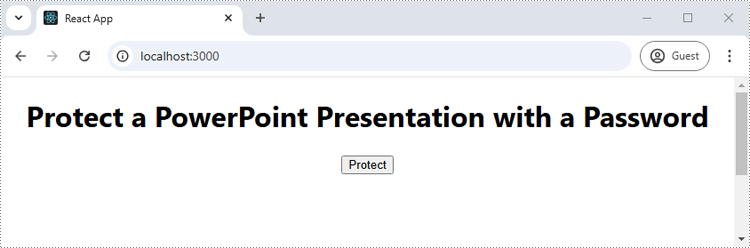
      <h1>Protect a PowerPoint Presentation with a Password</h1>
      <button onClick={ProtectPowerPointPresentation} disabled={!wasmModule}>
        Protect
      </button>
    </div>
  );
}


export default App;
Run the code to launch the React app at localhost:3000. Once it's running, click on the "Protect" button to protect the PowerPoint presentation with a password:
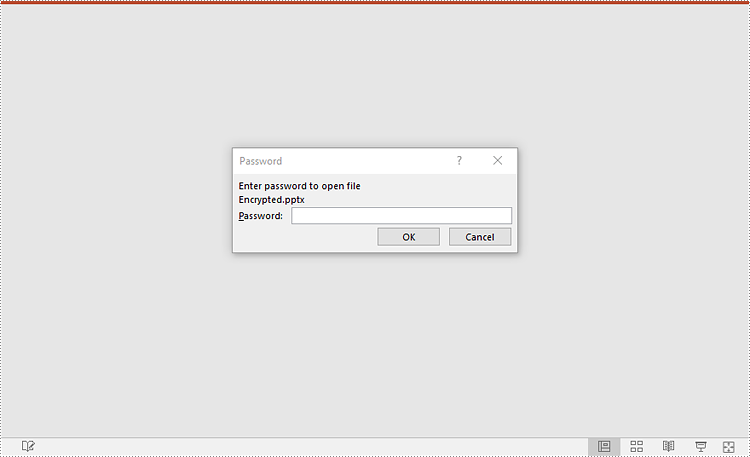
Upon opening the output presentation, a dialog box will appear, prompting you to enter a password to gain access to the file:
Make a PowerPoint Presentation Read-Only
Enabling the read-only setting prevents others from making changes to a PowerPoint presentation while still allowing them to view it. Spire.Presentation for JavaScript offers the Presentation.Protect() method to achieve this purpose. The key steps are as follows.
- Create an object of the Presentation class.
- Load a PowerPoint presentation using the Presentation.LoadFromFile() method.
- Make the presentation read-only using the Presentation.Protect() method.
- Save the resulting presentation using the Presentation.SaveToFile() method.
- JavaScript
import React, { useState, useEffect } from 'react';

function App() {
   const [wasmModule, setWasmModule] = useState(null);
   useEffect(() => {
    (async () => {
      try {
        const publicUrl = process.env.PUBLIC_URL || '';
        const spireModule = await import(/* webpackIgnore: true */ `${publicUrl}/spire.presentation.js`);
        const rawModule = spireModule.default || spireModule;
        window.wasmModule = typeof rawModule === 'function'
          ? await rawModule({ locateFile: p => p.endsWith('.wasm') ? `${publicUrl}/${p}` : p })
          : rawModule;
        setWasmModule(window.wasmModule);
      } catch (error) {
        console.error('Failed to load spire.presentation.js:', error);
      }
    })();
  }, []);


  const MakePresentationReadOnly = async () => {
    const wasmModule = window.wasmModule.spirepresentation;

    if (wasmModule) {
      // Specify the input file paths
      let inputFileName  = "Sample.pptx";
      await window.spire.FetchFileToVFS(inputFileName , '',  `${process.env.PUBLIC_URL}static/data/`);
      await window.spire.FetchFileToVFS("arial.ttf","/Library/Fonts/",`${process.env.PUBLIC_URL}static/font/`);

      // Create a Presentation instance and load the PowerPoint file from the virtual file system
      const ppt =new wasmModule.Presentation();
      ppt.LoadFromFile(inputFileName);

      // Define the password
      let password = "e-iceblue";

      // Protect the PowerPoint file with the password
      ppt.Protect(password);

      // Define the output file name
      const outputFileName = "ReadOnly.pptx";

      // Save the resulting PowerPoint file
      ppt.SaveToFile({ file: outputFileName, fileFormat: wasmModule.FileFormat.Pptx2013 });

      // Read the generated image file from VFS
      const imageFileArray = window.dotnetRuntime.Module.FS.readFile(outputFileName);

      // Create a Blog object from the image file
      const imageBlob = new Blob([imageFileArray], { type: "application/vnd.openxmlformats-officedocument.presentationml.presentation" });

      // Create a URL for the Blob
      const url = URL.createObjectURL(imageBlob);

      // Create an anchor element to trigger the download
      const a = document.createElement('a');
      a.href = url;
      a.download = outputFileName;
      document.body.appendChild(a);
      a.click();
      document.body.removeChild(a);
      URL.revokeObjectURL(url);

      // Clean up resources
      ppt.Dispose();
    }
  };

  return (
    <div style={{ textAlign: 'center', height: '300px' }}>
      <h1>Make a PowerPoint Presentation Read-Only</h1>
      <button onClick={MakePresentationReadOnly} disabled={!wasmModule}>
        Start
      </button>
    </div>
  );
}

export default App;

Remove Password Protection from a PowerPoint Presentation
If password protection is no longer needed, it can be easily removed to allow unrestricted access to the presentation using the Presentation.RemoveEncryption() method. The key steps are as follows.
- Create an object of the Presentation class.
- Load a password-protected PowerPoint presentation with its password using the Presentation.LoadFromFile() method.
- Remove password protection from the presentation using the Presentation.RemoveEncryption() method.
- Save the resulting presentation using the Presentation.SaveToFile() method.
- JavaScript
import React, { useState, useEffect } from 'react';

function App() {
   const [wasmModule, setWasmModule] = useState(null);
   useEffect(() => {
    (async () => {
      try {
        const publicUrl = process.env.PUBLIC_URL || '';
        const spireModule = await import(/* webpackIgnore: true */ `${publicUrl}/spire.presentation.js`);
        const rawModule = spireModule.default || spireModule;
        window.wasmModule = typeof rawModule === 'function'
          ? await rawModule({ locateFile: p => p.endsWith('.wasm') ? `${publicUrl}/${p}` : p })
          : rawModule;
        setWasmModule(window.wasmModule);
      } catch (error) {
        console.error('Failed to load spire.presentation.js:', error);
      }
    })();
  }, []);


  const RemoveEncryptionFromPresentation = async () => {
    const wasmModule = window.wasmModule.spirepresentation;

    if (wasmModule) {
      // Specify the input file paths
      let inputFileName  = "Encrypted.pptx";
      await window.spire.FetchFileToVFS(inputFileName , '',  `${process.env.PUBLIC_URL}static/data/`);
      await window.spire.FetchFileToVFS("arial.ttf","/Library/Fonts/",`${process.env.PUBLIC_URL}static/font/`);

      // Create a Presentation instance and load the PowerPoint file from the virtual file system
      const ppt =new wasmModule.Presentation();
      ppt.LoadFromFile({file: inputFileName, password: "e-iceblue"});

      //Remove the password encryption
      ppt.RemoveEncryption();

      // Define the output file name
      const outputFileName = "Decrypted.pptx";

      // Save the resulting PowerPoint file
      ppt.SaveToFile({ file: outputFileName, fileFormat: wasmModule.FileFormat.Pptx2013 });

      // Read the generated image file from VFS
      const imageFileArray = window.dotnetRuntime.Module.FS.readFile(outputFileName);

      // Create a Blog object from the image file
      const imageBlob = new Blob([imageFileArray], { type: "application/vnd.openxmlformats-officedocument.presentationml.presentation" });

      // Create a URL for the Blob
      const url = URL.createObjectURL(imageBlob);

      // Create an anchor element to trigger the download
      const a = document.createElement('a');
      a.href = url;
      a.download = outputFileName;
      document.body.appendChild(a);
      a.click();
      document.body.removeChild(a);
      URL.revokeObjectURL(url);

      // Clean up resources
      ppt.Dispose();
    }
  };

  return (
    <div style={{ textAlign: 'center', height: '300px' }}>
      <h1>Remove Password Protection from a PowerPoint Presentation</h1>
      <button onClick={RemoveEncryptionFromPresentation} disabled={!wasmModule}>
        Start
      </button>
    </div>
  );
}

export default App;

Remove Read-Only Setting from a PowerPoint Presentation
Disabling the read-only setting allows others to edit the presentation and make necessary changes. By using the Presentation.RemoveProtect() method, developers can remove the read-only setting from a PowerPoint presentation. The key steps are as follows.
- Create an object of the Presentation class.
- Load a PowerPoint presentation that has been made as read-only using the Presentation.LoadFromFile() method.
- Remove the read-only setting from the presentation using the Presentation.RemoveProtect() method.
- Save the resulting presentation using the Presentation.SaveToFile() method.
- JavaScript
import React, { useState, useEffect } from 'react';

function App() {
   const [wasmModule, setWasmModule] = useState(null);
   useEffect(() => {
    (async () => {
      try {
        const publicUrl = process.env.PUBLIC_URL || '';
        const spireModule = await import(/* webpackIgnore: true */ `${publicUrl}/spire.presentation.js`);
        const rawModule = spireModule.default || spireModule;
        window.wasmModule = typeof rawModule === 'function'
          ? await rawModule({ locateFile: p => p.endsWith('.wasm') ? `${publicUrl}/${p}` : p })
          : rawModule;
        setWasmModule(window.wasmModule);
      } catch (error) {
        console.error('Failed to load spire.presentation.js:', error);
      }
    })();
  }, []);


  const RemoveReadOnlyFromPresentation = async () => {
    const wasmModule = window.wasmModule.spirepresentation;

    if (wasmModule) {
      // Specify the input file paths
      let inputFileName  = "ReadOnly.pptx";
      await window.spire.FetchFileToVFS(inputFileName , '',  `${process.env.PUBLIC_URL}static/data/`);
      await window.spire.FetchFileToVFS("arial.ttf","/Library/Fonts/",`${process.env.PUBLIC_URL}static/font/`);

      // Create a Presentation instance and load the PowerPoint file from the virtual file system
      const ppt =new wasmModule.Presentation();
      ppt.LoadFromFile({file: inputFileName, password: "e-iceblue"});

      // Remove the read-only setting from the presentation
      ppt.RemoveProtect();

      // Define the output file name
      const outputFileName = "RemoveReadOnly.pptx";

      // Save the resulting PowerPoint file
      ppt.SaveToFile({ file: outputFileName, fileFormat: wasmModule.FileFormat.Pptx2013 });

      // Read the generated image file from VFS
      const imageFileArray = window.dotnetRuntime.Module.FS.readFile(outputFileName);

      // Create a Blog object from the image file
      const imageBlob = new Blob([imageFileArray], { type: "application/vnd.openxmlformats-officedocument.presentationml.presentation" });

      // Create a URL for the Blob
      const url = URL.createObjectURL(imageBlob);

      // Create an anchor element to trigger the download
      const a = document.createElement('a');
      a.href = url;
      a.download = outputFileName;
      document.body.appendChild(a);
      a.click();
      document.body.removeChild(a);
      URL.revokeObjectURL(url);

      // Clean up resources
      ppt.Dispose();
    }
  };

    return (
    <div style={{ textAlign: 'center', height: '300px' }}>
      <h1>Remove Read-Only Setting from a PowerPoint Presentation</h1>
      <button onClick={RemoveReadOnlyFromPresentation} disabled={!wasmModule}>
        Start
      </button>
    </div>
  );
}

export default App;

Get a Free License
To fully experience the capabilities of Spire.Presentation for JavaScript without any evaluation limitations, you can request a free 30-day trial license.