
Contracts, bids, and other multi-page documents get a cross-page seal before they go out, so that every page carries a fragment of the seal — if the other party swaps or reorders pages, the fragments no longer line up. With paper you stamp the whole stack at once; an electronic PDF has no equivalent gesture: paste the seal image on whole and every page shows a complete seal, which serves no cross-page purpose.
This article shows how to add a cross-page seal to a multi-page contract with Spire.PDF for JavaScript. Built on WebAssembly, it loads, modifies, and saves PDF documents directly in the browser, so the whole process stays local and files are read and written through a virtual file system (VFS) with no backend service required.
For installation and project configuration, refer to Integrating Spire.PDF for JavaScript in a React Project. The following example assumes Spire.PDF is installed and the WebAssembly module has been initialized.
Add a Cross-Page Seal
A cross-page seal cuts one seal into as many pieces as there are pages, leaving one piece on each page, so that flipping through the pages rebuilds the complete seal. The cutting is carried by a PdfTemplate: the template's bounds are the clipping area, so shifting the seal one strip width further left on each successive page makes exactly that page's strip show through, and Canvas.DrawTemplate drops it at the right edge of the page.
function App() {
  const addCrossPageSeal = async () => {
    // Get the Spire.PDF WASM module
    const pdfModule = window.wasmModule?.spirepdf;

    // Make sure the module is ready
    if (!pdfModule) {
      alert('Spire.PDF is not ready yet');
      return;
    }

    // Load the document to be sealed and the seal image into the VFS
    const inputFileName = 'Number.pdf';
    const sealFileName = 'Seal.png';
    await window.spire.FetchFileToVFS(inputFileName, '', `${process.env.PUBLIC_URL}/data/`);
    await window.spire.FetchFileToVFS(sealFileName, '', `${process.env.PUBLIC_URL}/data/`);

    // Create a PdfDocument object and load the document
    const doc = new pdfModule.PdfDocument();
    doc.LoadFromFile(inputFileName);

    // Load the seal image; its width and height are in pixels, treated as points (1 px = 1 pt) when laid out
    const seal = pdfModule.PdfImage.FromFile(sealFileName);

    // Overall scale of the seal, and the scaled seal width and height
    const scale = 0.55;
    const sealWidth = seal.Width * scale;
    const sealHeight = seal.Height * scale;

    // Split the seal evenly by page count, one strip per page
    const pageCount = doc.Pages.Count;
    const stripWidth = sealWidth / pageCount;

    // Draw the i-th strip of the seal at the right edge of each page
    for (let i = 0; i < pageCount; i++) {
      const page = doc.Pages.get_Item(i);

      // The template bounds are the clipping area: one strip wide and as tall as the seal
      const template = new pdfModule.PdfTemplate({ width: stripWidth, height: sealHeight });
      template.Graphics.ScaleTransform(scale, scale);

      // Shift the seal one more strip to the left on every page, so the next strip shows through
      template.Graphics.DrawImage({ image: seal, x: -(i * seal.Width) / pageCount, y: 0 });

      // Every page uses the same spot: 24 points in from the right edge, vertically centered
      const x = page.Canvas.ClientSize.Width - 24 - stripWidth;
      const y = (page.Canvas.ClientSize.Height - sealHeight) / 2;
      page.Canvas.DrawTemplate({ template: template, location: new pdfModule.PointF(x, y) });
    }

    // Save to the VFS
    const outputFileName = 'Cross-Page-Seal.pdf';
    doc.SaveToFile(outputFileName);
    doc.Close();

    // Read the generated file from the VFS and trigger a download
    const fileArray = window.dotnetRuntime.Module.FS.readFile(outputFileName);
    const blob = new Blob([fileArray], { type: 'application/pdf' });
    const url = URL.createObjectURL(blob);
    const a = document.createElement('a');
    a.href = url;
    a.download = outputFileName;
    a.click();
    URL.revokeObjectURL(url);
  };

  return (
    <div style={{ textAlign: 'center', height: '300px' }}>
      <h1>Add a Cross-Page Seal</h1>
      <button onClick={addCrossPageSeal}>
        Add Seal
      </button>
    </div>
  );
}

export default App;
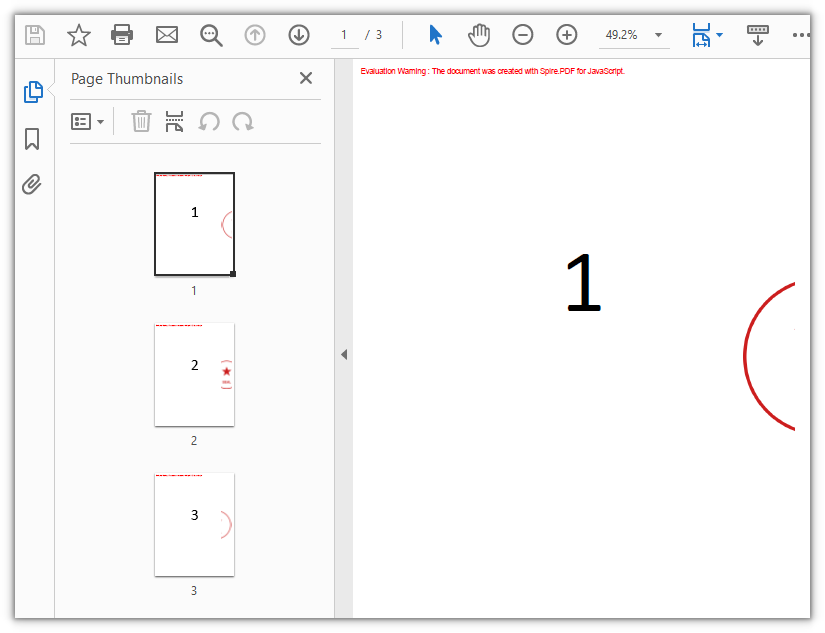
The contract after the cross-page seal is applied: each page carries one fragment of the seal at its right edge, and turning to the last page shows the right half of the seal:
FAQ
Why does each page show only a narrow slice of the seal
Reason: A cross-page seal is by definition cut evenly across the pages, so each page carries only the strip seal width / page count. The more pages, the narrower the fragment on each page — that is by design: a narrow fragment at a fixed position is what makes a single swapped page impossible to line back up.
Solution: The page count is decided by the document, so to make the seal more prominent the only lever is to enlarge the whole seal, and the fragments grow with it:
// Raise 0.55, say to 0.8: the whole seal and every page's fragment grow together
const scale = 0.8;
const sealWidth = seal.Width * scale;
The seal is so large it covers the body text
Reason: PdfImage.Width and Height report pixel values, and without scaling they are laid out at 1 pixel = 1 point. A 400×400-pixel seal takes up 400 points of width, while an A4 page is only 595 points wide, so it will cover the body text.
Solution: Scale it down proportionally inside the template with ScaleTransform, and convert the seal width, seal height, and strip width by the same factor — all three must come from one source, or the strips will not line up with the placement:
const scale = 0.55;
const sealWidth = seal.Width * scale;
const sealHeight = seal.Height * scale;
const stripWidth = sealWidth / pageCount;
Get a Free License
If you wish to remove the evaluation message from the result document or remove feature limitations, please contact sales to obtain a temporary license valid for 30 days.

