
Text (4)
A product rename, a wording change, a company name typed wrong in a template — edits like these are awkward once they land in a PDF. When the source document is not at hand, the only options are to export the whole page as an image and lay text over it, or to delete the original text in a reader and type a replacement in by hand. Contracts and manuals make this worse: the same name can be scattered across body text, bullet lists and closing notes, and fixing each one by hand is slow and easy to miss.
Spire.PDF for JavaScript loads, edits and saves PDF documents in the browser on WebAssembly, so a rename is only a matter of locating the text and writing it back, with files read and written through a virtual file system (VFS) and no backend involved. The four sections below cover replacing the first match, replacing every match (together with three switches: recoloring, match mode and replacement area), covering the original word with a background color, and drawing a rectangle over the original before redrawing the new word. In the sample the old and new names are the same length, so the layout does not shift after replacement.
This article covers four core features:
- Replace the First Match
- Replace All Matches
- Replace by Covering
- Draw a Rectangle to Cover the Original and Redraw the Text
For installation and project configuration, see Integrate Spire.PDF for JavaScript into a React Project. The examples below assume Spire.PDF is installed and the WebAssembly module is initialized.
Replace the First Match
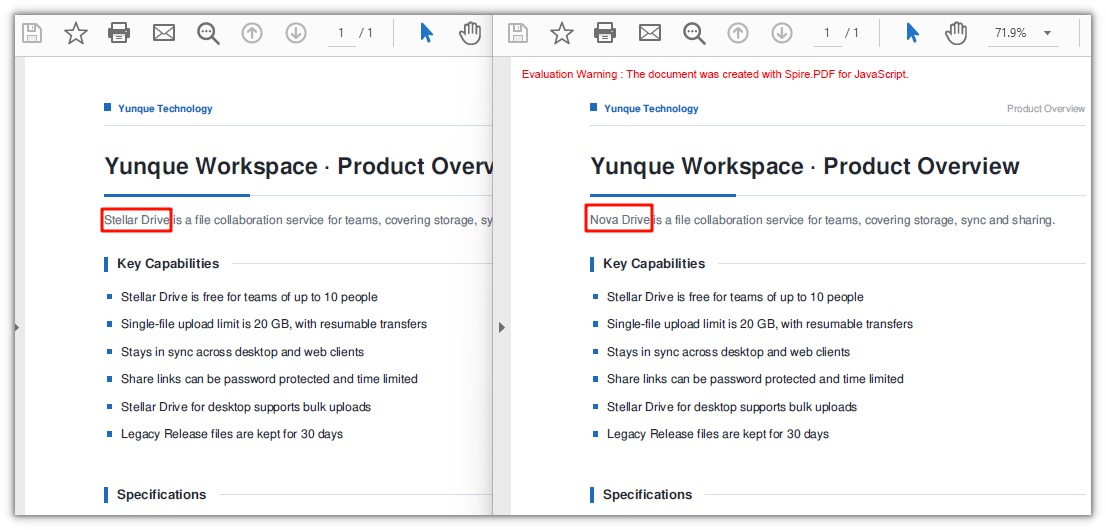
Spire.PDF for JavaScript provides the PdfTextReplacer class for turning text on a page into another piece of text. It is built per page, and ReplaceText replaces only the first match it finds, returning the number of replacements actually made (1 here); any remaining occurrences of the same name on the page are left as they are.
function App() {
  const replaceFirstMatch = async () => {
    // Get the Spire.PDF WASM module
    const pdfModule = window.wasmModule?.spirepdf;

    // Check whether the module is ready
    if (!pdfModule) {
      alert('Spire.PDF is not ready yet');
      return;
    }

    // Load the font into the VFS
    await window.spire.FetchFileToVFS('ARIAL.TTF', '/Library/Fonts/', `${process.env.PUBLIC_URL}/font/`);

    // Load the PDF file to be processed into the VFS
    const inputFileName = 'ProductOverview.pdf';
    await window.spire.FetchFileToVFS(inputFileName, "", `${process.env.PUBLIC_URL}/data/`);

    // Create a PdfDocument object and load the PDF document
    let doc = new pdfModule.PdfDocument();
    doc.LoadFromFile(inputFileName);

    // Take the first page; the replacement is limited to this page
    let page = doc.Pages.get_Item(0);

    // Create the text replacer and replace only the first match
    const replacer = new pdfModule.PdfTextReplacer(page);
    replacer.ReplaceText('Stellar Drive', 'Nova Drive');

    const outputFileName = 'ReplaceFirstMatch.pdf';
    doc.SaveToFile(outputFileName);
    doc.Close();

    // Read the generated file from the VFS and trigger the download
    const fileArray = window.dotnetRuntime.Module.FS.readFile(outputFileName);
    const blob = new Blob([fileArray], { type: 'application/pdf' });
    const url = URL.createObjectURL(blob);
    const a = document.createElement('a');
    a.href = url;
    a.download = outputFileName;
    a.click();
    URL.revokeObjectURL(url);
  };

  return (
    <div style={{ textAlign: 'center', height: '300px' }}>
      <h1>Replace the First Match</h1>
      <button onClick={replaceFirstMatch}>
        Replace
      </button>
    </div>
  );
}

export default App;
Only the first match is replaced:
Replace All Matches
Spire.PDF for JavaScript also provides PdfTextReplacer.ReplaceAllText(), which swaps every matching piece of text on the page in one go. It takes the same arguments as ReplaceText and likewise returns the number of replacements. It also has a three-argument overload, ReplaceAllText(old, new, color), which recolors the text as it replaces it.
function App() {
  const replaceAllMatches = async () => {
    // Get the Spire.PDF WASM module
    const pdfModule = window.wasmModule?.spirepdf;

    // Check whether the module is ready
    if (!pdfModule) {
      alert('Spire.PDF is not ready yet');
      return;
    }

    // Load the font into the VFS
    await window.spire.FetchFileToVFS('ARIAL.TTF', '/Library/Fonts/', `${process.env.PUBLIC_URL}/font/`);

    // Load the PDF file to be processed into the VFS
    const inputFileName = 'ProductOverview.pdf';
    await window.spire.FetchFileToVFS(inputFileName, "", `${process.env.PUBLIC_URL}/data/`);

    // Create a PdfDocument object and load the PDF document
    let doc = new pdfModule.PdfDocument();
    doc.LoadFromFile(inputFileName);

    let page = doc.Pages.get_Item(0);

    // The third argument is a color, recoloring the new word as it is written
    const replacer = new pdfModule.PdfTextReplacer(page);
    replacer.ReplaceAllText('Stellar Drive', 'Nova Drive', pdfModule.Color.get_Red());

    const outputFileName = 'ReplaceAllMatches.pdf';
    doc.SaveToFile(outputFileName);
    doc.Close();

    // Read the generated file from the VFS and trigger the download
    const fileArray = window.dotnetRuntime.Module.FS.readFile(outputFileName);
    const blob = new Blob([fileArray], { type: 'application/pdf' });
    const url = URL.createObjectURL(blob);
    const a = document.createElement('a');
    a.href = url;
    a.download = outputFileName;
    a.click();
    URL.revokeObjectURL(url);
  };

  return (
    <div style={{ textAlign: 'center', height: '300px' }}>
      <h1>Replace All Matches</h1>
      <button onClick={replaceAllMatches}>
        Replace
      </button>
    </div>
  );
}

export default App;
All old name are replaced, and the new name is recolored red at the same time:

Beyond recoloring,
PdfTextReplacer.Optionshas two more switches.ReplaceTypedecides what counts as a match: by default only an identical string is accepted, and it can be switched toIgnoreCase,WholeWordorRegex.SetReplacementArealimits the replacement to a rectangle, whichPdfTextFindercan work out first:
const replacer = new pdfModule.PdfTextReplacer(page);
// Ignore case
replacer.Options.ReplaceType = pdfModule.ReplaceActionType.IgnoreCase;

// Limit the replacement to a rectangle
const finds = new pdfModule.PdfTextFinder(page).Find('Stellar Drive');
replacer.Options.SetReplacementArea(finds.get(0).Bounds[0]);

// Call it once the options are set
const count = replacer.ReplaceAllText('Stellar Drive', 'Nova Drive');
Replace by Covering
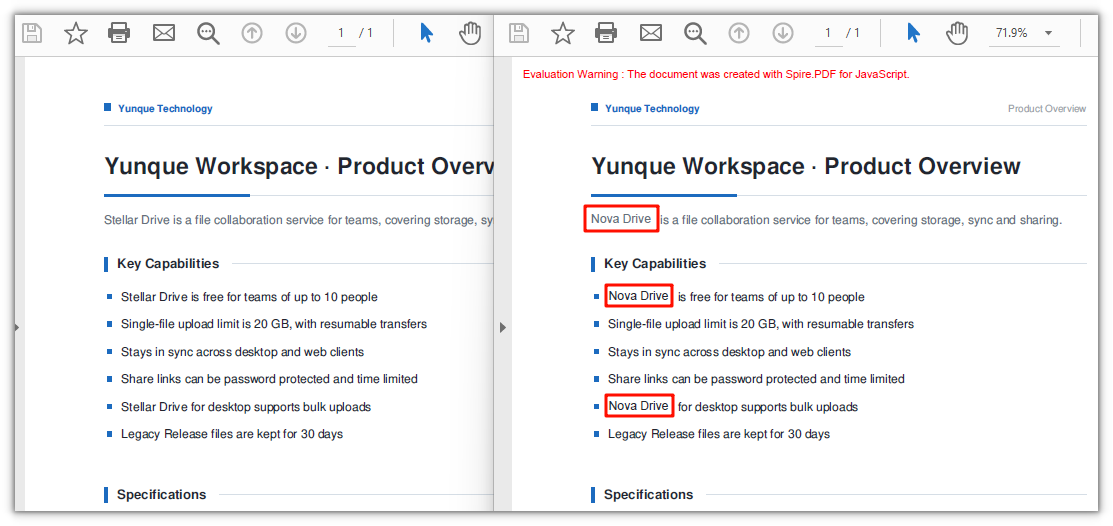
Spire.PDF for JavaScript also provides PdfTextFragment.ApplyRecoverString(), which covers a located piece of text in place: it lays a background color over the original and then writes the new text in the same position. It spares you from working out coordinates and redrawing by hand. The price is that only the background color can be chosen: the new text is drawn with the font resolved from the VFS and keeps the original foreground color, and with a white background the seam is invisible. When the font and the color need to change as well, see the redrawing approach in the next section.
function App() {
  const replaceByCovering = async () => {
    // Get the Spire.PDF WASM module
    const pdfModule = window.wasmModule?.spirepdf;

    // Check whether the module is ready
    if (!pdfModule) {
      alert('Spire.PDF is not ready yet');
      return;
    }

    // Load the fonts used by the document into the VFS
    await window.spire.FetchFileToVFS('ARIAL.TTF', '/Library/Fonts/', `${process.env.PUBLIC_URL}/font/`);

    // Load the PDF file to be processed into the VFS
    const inputFileName = 'ProductOverview.pdf';
    await window.spire.FetchFileToVFS(inputFileName, "", `${process.env.PUBLIC_URL}/data/`);

    // Create a PdfDocument object and load the PDF document
    let doc = new pdfModule.PdfDocument();
    doc.LoadFromFile(inputFileName);

    let page = doc.Pages.get_Item(0);

    // Locate the target text with a finder first
    const finder = new pdfModule.PdfTextFinder(page);
    const finds = finder.Find('Stellar Drive');

    // Cover each hit in turn: the second argument is the background color,
    // and the third one, true, writes the new text as Unicode
    for (let i = 0; i < finds.length; i++) {
      finds.get(i).ApplyRecoverString('Nova Drive', pdfModule.Color.get_White(), true);
    }

    const outputFileName = 'RecoverReplace.pdf';
    doc.SaveToFile(outputFileName);
    doc.Close();

    // Read the generated file from the VFS and trigger the download
    const fileArray = window.dotnetRuntime.Module.FS.readFile(outputFileName);
    const blob = new Blob([fileArray], { type: 'application/pdf' });
    const url = URL.createObjectURL(blob);
    const a = document.createElement('a');
    a.href = url;
    a.download = outputFileName;
    a.click();
    URL.revokeObjectURL(url);
  };

  return (
    <div style={{ textAlign: 'center', height: '300px' }}>
      <h1>Replace by Covering</h1>
      <button onClick={replaceByCovering}>
        Replace
      </button>
    </div>
  );
}

export default App;
A document where the original text is covered with a white background and the new word is written in its place:
Draw a Rectangle to Cover the Original and Redraw the Text
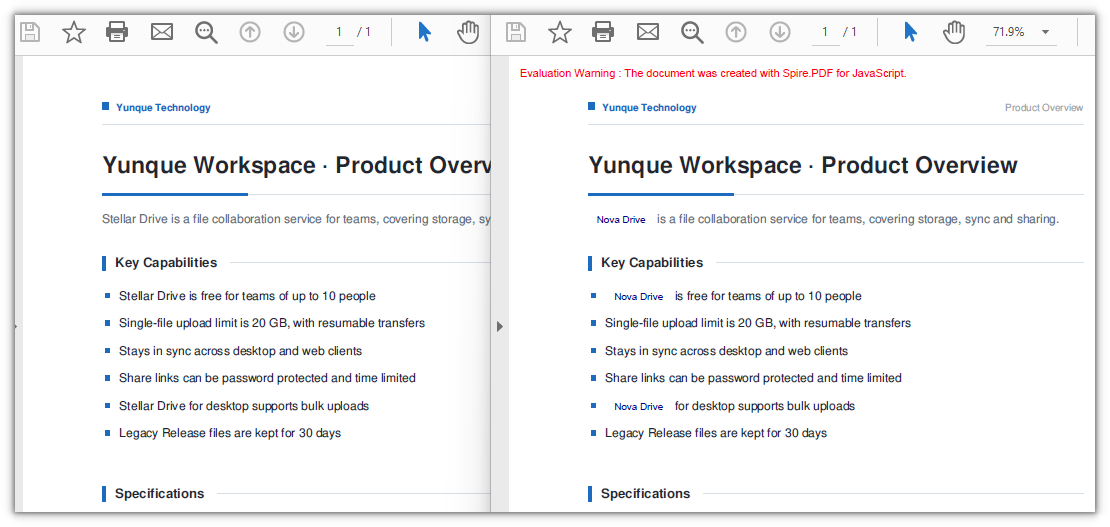
The first three sections all work on the text layer. This one takes a different tack: use PdfTextFinder to get the position of the keyword, draw a white rectangle to cover the original text, and then write the new text inside that rectangle. Compared with ApplyRecoverString, the extra freedom is that you choose the font, size and color yourself.
function App() {
  const replaceByDrawing = async () => {
    // Get the Spire.PDF WASM module
    const pdfModule = window.wasmModule?.spirepdf;

    // Check whether the module is ready
    if (!pdfModule) {
      alert('Spire.PDF is not ready yet');
      return;
    }

    // Load the font into the VFS
    await window.spire.FetchFileToVFS('ARIAL.TTF', '/Library/Fonts/', `${process.env.PUBLIC_URL}/font/`);

    // Load the PDF file to be processed into the VFS
    const inputFileName = 'ProductOverview.pdf';
    await window.spire.FetchFileToVFS(inputFileName, "", `${process.env.PUBLIC_URL}/data/`);

    // Create a PdfDocument object and load the PDF document
    let doc = new pdfModule.PdfDocument();
    doc.LoadFromFile(inputFileName);

    let page = doc.Pages.get_Item(0);

    // Locate the target text with a finder first
    const finder = new pdfModule.PdfTextFinder(page);
    const finds = finder.Find('Stellar Drive');

    // The white rectangle that covers the original, plus the new word's font and color
    const white = pdfModule.PdfBrushes.get_White();
    const FONT_SIZE = 9;
    const font = new pdfModule.PdfTrueTypeFont({ fontFile: '/Library/Fonts/ARIAL.TTF', size: FONT_SIZE });
    const brush = new pdfModule.PdfSolidBrush({ pdfRGBColor: new pdfModule.PdfRGBColor({ color: pdfModule.Color.get_DarkBlue() }) });

    // Turn LineLimit off so the text is not clipped to the box
    const format = new pdfModule.PdfStringFormat();
    format.LineLimit = false;
    // Set the alignment of the text
    format.Alignment = pdfModule.PdfTextAlignment.Center;
    format.LineAlignment = pdfModule.PdfVerticalAlignment.Middle;

    for (let i = 0; i < finds.length; i++) {
      const rec = finds.get(i).Bounds[0];

      // Cover the original text with a white rectangle first
      page.Canvas.DrawRectangle({ brush: white, rectangle: rec });

      // Write the new word straight into the hit box
      page.Canvas.DrawString({ s: 'Nova Drive', font: font, brush: brush, layoutRectangle: rec, format: format });
    }

    const outputFileName = 'DrawRectangleAndText.pdf';
    doc.SaveToFile(outputFileName);
    doc.Close();

    // Read the generated file from the VFS and trigger the download
    const fileArray = window.dotnetRuntime.Module.FS.readFile(outputFileName);
    const blob = new Blob([fileArray], { type: 'application/pdf' });
    const url = URL.createObjectURL(blob);
    const a = document.createElement('a');
    a.href = url;
    a.download = outputFileName;
    a.click();
    URL.revokeObjectURL(url);
  };

  return (
    <div style={{ textAlign: 'center', height: '300px' }}>
      <h1>Draw a Rectangle to Cover the Original and Redraw the Text</h1>
      <button onClick={replaceByDrawing}>
        Replace
      </button>
    </div>
  );
}

export default App;
A document where a white rectangle covers the original text and the new word is written directly inside the hit box:
FAQ
The old name can still be found and copied after replacement
Cause: ApplyRecoverString is a visual-layer operation — it lays a background color over the original text and draws the new word on top, while the original text object stays in the text layer, so searching or copying in a reader still returns the old name. Measured on the covering replacement, the occurrence count of the old word is unchanged while the new word gains four hits.
Fix: When a real replacement at the content level is needed, switch to PdfTextReplacer; in its output the old word disappears from the text layer and the new word enters it. Measured, the four occurrences of the old word drop to 0 and the new word rises from 1 to 5:
// Content-level replacement: the old text no longer remains
const replacer = new pdfModule.PdfTextReplacer(page);
replacer.ReplaceAllText('Stellar Drive', 'Nova Drive');
Following the official sample's white rectangle plus DrawString redraw, the white background appears but the new text does not
Cause: The official sample follows the same approach as the fourth section here — locate the position with PdfTextFinder, draw a white rectangle to cover the original text, then paint the new text with Canvas.DrawString. The white rectangle is fine, but the redraw step has a trap:
- The rectangle overload of
DrawStringis governed byPdfStringFormat.LineLimit, which defaults totrueand clips the text to the box; the hit box hugs the glyphs tightly, so if its height is 11 points (exactly the font size) it cannot hold a full line height, and the whole line is clipped away — the new text appears neither on the page nor in the text layer.
Fix: Pass a PdfStringFormat with LineLimit turned off and the hit box can be used as the layout box as it is (which is what the fourth section does).
const format = new pdfModule.PdfStringFormat();
format.LineLimit = false;

page.Canvas.DrawString({ s: 'Nova Drive', font: font, brush: brush, layoutRectangle: rec, format: format });
Get a Free License
If you want to remove the evaluation message from the result document, or get past the feature limits, contact sales for a 30-day temporary license.
Draw Superscripts and Subscripts in PDF Using JavaScript in React
2026-09-24 01:55:35 Written by Nina TangFormulas, chemical formulas, unit symbols, and footnote markers all carry superscripts and subscripts: a² + b² = c², H₂SO₄, 30m². Laying them out in a PDF is not a matter of drawing one line of plain text — the raised characters have to be smaller than the body text with their baseline lifted or dropped, and being a few points off is enough to break the expression apart.
This article shows how to use Spire.PDF for JavaScript to draw superscripts and subscripts on PDF pages. It runs on WebAssembly to create and save PDF documents directly in the browser, doing all the work locally and reading and writing files through a virtual file system (VFS) with no backend involved.
This article covers two core features:
For installation and project configuration, see Integrate Spire.PDF for JavaScript into a React Project. The examples below assume Spire.PDF is installed and the WebAssembly module is initialized.
Draw Superscripts and Subscripts
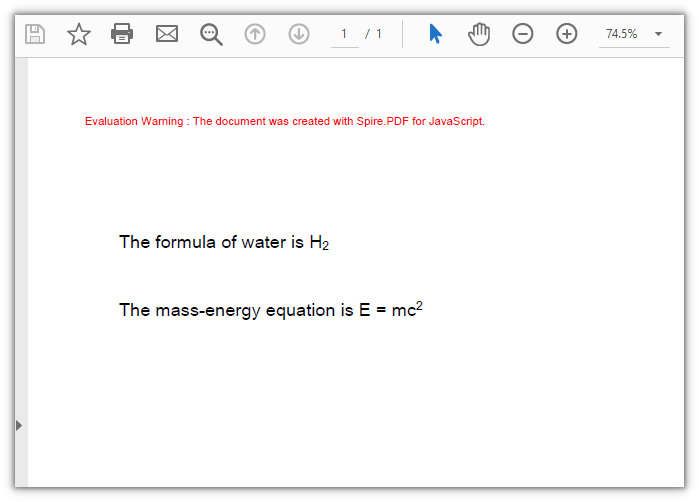
Whether text is raised or lowered comes from SubSuperScript on PdfStringFormat: PdfSubSuperScript.SuperScript lifts the baseline and shrinks the glyphs, while SubScript drops it. It applies to the whole run drawn by one DrawString call, so the body text and the marker are drawn as two runs, with the second anchored at the width measured by MeasureString.
function App() {
  const drawSuperAndSubScript = async () => {
    // Get the Spire.PDF WASM module
    const pdfModule = window.wasmModule?.spirepdf;

    // Check whether the module is ready
    if (!pdfModule) {
      alert('Spire.PDF is not ready yet');
      return;
    }

    // Load the font into the VFS for the page text
    await window.spire.FetchFileToVFS('ARIAL UNICODE MS.TTF', '/Library/Fonts/', `${process.env.PUBLIC_URL}/font/`);

    // Create a PDF document and add a blank page
    const doc = new pdfModule.PdfDocument();
    const page = doc.Pages.Add();

    const font = new pdfModule.PdfTrueTypeFont({ fontFile: '/Library/Fonts/ARIAL UNICODE MS.TTF', size: 16 });
    const brush = new pdfModule.PdfSolidBrush({ pdfRGBColor: new pdfModule.PdfRGBColor({ color: pdfModule.Color.get_Black() }) });

    // Subscript: draw the body text as usual
    let text = 'The formula of water is H';
    page.Canvas.DrawString({ s: text, font: font, brush: brush, x: 40, y: 110 });

    // Measure the body text so the subscript lands right after its right edge
    let x = 40 + font.MeasureString({ text: text }).Width;

    // SubSuperScript set to SubScript shrinks this run and drops it below the baseline
    const subFormat = new pdfModule.PdfStringFormat();
    subFormat.SubSuperScript = pdfModule.PdfSubSuperScript.SubScript;
    page.Canvas.DrawString({ s: '2', font: font, brush: brush, x: x, y: 110, format: subFormat });

    // Superscript: also two runs, with the anchor continuing after the body text
    text = 'The mass-energy equation is E = mc';
    page.Canvas.DrawString({ s: text, font: font, brush: brush, x: 40, y: 170 });
    x = 40 + font.MeasureString({ text: text }).Width;

    // SubSuperScript set to SuperScript shrinks this run and lifts it above the baseline
    const superFormat = new pdfModule.PdfStringFormat();
    superFormat.SubSuperScript = pdfModule.PdfSubSuperScript.SuperScript;
    page.Canvas.DrawString({ s: '2', font: font, brush: brush, x: x, y: 170, format: superFormat });

    // Define the output file name and save the document
    const outputFileName = 'SuperscriptAndSubscript.pdf';
    doc.SaveToFile(outputFileName);
    doc.Close();

    // Read the generated file from the VFS and trigger a download
    const fileArray = window.dotnetRuntime.Module.FS.readFile(outputFileName);
    const blob = new Blob([fileArray], { type: 'application/pdf' });
    const url = URL.createObjectURL(blob);
    const a = document.createElement('a');
    a.href = url;
    a.download = outputFileName;
    a.click();
    URL.revokeObjectURL(url);
  };

  return (
    <div style={{ textAlign: 'center', height: '300px' }}>
      <h1>Draw Superscripts and Subscripts</h1>
      <button onClick={drawSuperAndSubScript}>
        Draw
      </button>
    </div>
  );
}

export default App;
The subscript and the superscript drawn with the two SubSuperScript values:
Control the Scale and Offset of Superscripts and Subscripts
SubSuperScript sets a whole run to one form, so superscripts and subscripts that alternate with body text inside a line have to be laid out by hand: measure how wide the run you just drew is with MeasureString, advance x, then switch to a smaller font and offset y in points. You pick the size and the lift — nothing is bound to the ratio the library has built in.
function App() {
  const drawInlineSuperAndSubScript = async () => {
    // Get the Spire.PDF WASM module
    const pdfModule = window.wasmModule?.spirepdf;

    // Check whether the module is ready
    if (!pdfModule) {
      alert('Spire.PDF is not ready yet');
      return;
    }

    // Load the font into the VFS for the page text
    await window.spire.FetchFileToVFS('ARIAL UNICODE MS.TTF', '/Library/Fonts/', `${process.env.PUBLIC_URL}/font/`);

    // Create a PDF document and add a blank page
    const doc = new pdfModule.PdfDocument();
    const page = doc.Pages.Add();

    const brush = new pdfModule.PdfSolidBrush({ pdfRGBColor: new pdfModule.PdfRGBColor({ color: pdfModule.Color.get_Black() }) });

    // Body text at 16 points; the markers get their own size, 10 points here
    const BASE_SIZE = 16;
    const MARK_SIZE = 10;
    const baseFont = new pdfModule.PdfTrueTypeFont({ fontFile: '/Library/Fonts/ARIAL UNICODE MS.TTF', size: BASE_SIZE });
    const markFont = new pdfModule.PdfTrueTypeFont({ fontFile: '/Library/Fonts/ARIAL UNICODE MS.TTF', size: MARK_SIZE });

    // Superscripts lift 8 points, subscripts drop 6; the y axis points down, so a lift is a subtraction
    const SUPER_RISE = 8;
    const SUB_SINK = 6;

    // Draw run by run: after each run, measure it with its own font and push x to its right edge
    const writeRuns = (runs, lineY) => {
      let x = 40;
      runs.forEach((run) => {
        const runFont = run.kind === 'base' ? baseFont : markFont;
        // The anchor is the top-left of the run and the baseline sits one font size below it,
        // so a smaller run makes up that difference first
        const baselineFix = run.kind === 'base' ? 0 : BASE_SIZE - MARK_SIZE;
        const riseFix = run.kind === 'super' ? -SUPER_RISE : run.kind === 'sub' ? SUB_SINK : 0;
        const runY = lineY + baselineFix + riseFix;
        page.Canvas.DrawString({ s: run.s, font: runFont, brush: brush, x: x, y: runY });
        x += runFont.MeasureString({ text: run.s }).Width;
      });
    };

    // Formula: a² + b² = c²
    writeRuns([
      { s: 'a', kind: 'base' }, { s: '2', kind: 'super' },
      { s: ' + b', kind: 'base' }, { s: '2', kind: 'super' },
      { s: ' = c', kind: 'base' }, { s: '2', kind: 'super' },
    ], 110);

    // Chemical formula: H₂SO₄
    writeRuns([
      { s: 'H', kind: 'base' }, { s: '2', kind: 'sub' },
      { s: 'SO', kind: 'base' }, { s: '4', kind: 'sub' },
    ], 170);

    // Define the output file name and save the document
    const outputFileName = 'InlineSuperscriptAndSubscript.pdf';
    doc.SaveToFile(outputFileName);
    doc.Close();

    // Read the generated file from the VFS and trigger a download
    const fileArray = window.dotnetRuntime.Module.FS.readFile(outputFileName);
    const blob = new Blob([fileArray], { type: 'application/pdf' });
    const url = URL.createObjectURL(blob);
    const a = document.createElement('a');
    a.href = url;
    a.download = outputFileName;
    a.click();
    URL.revokeObjectURL(url);
  };

  return (
    <div style={{ textAlign: 'center', height: '300px' }}>
      <h1>Control the Scale and Offset of Superscripts and Subscripts</h1>
      <button onClick={drawInlineSuperAndSubScript}>
        Draw
      </button>
    </div>
  );
}

export default App;
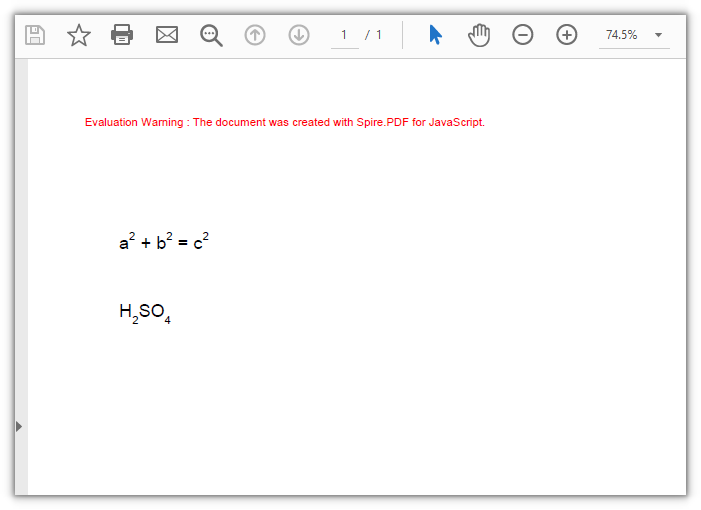
Body text and smaller markers joined up run by run, one line of formula and one of chemical formula:
FAQ
Why did the whole line turn into a superscript
Cause: SubSuperScript lives on PdfStringFormat, and it applies to every character drawn by that one DrawString call, not to a few of them. Put the body text and the superscript into the same call and both are shrunk and raised together.
Solution: split it into two calls — the body text with no format, the marker on its own with the format, anchored at the width measured by MeasureString:
// Body text, no format
page.Canvas.DrawString({ s: 'E = mc', font: font, brush: brush, x: 40, y: 170 });

// Measure the body text, then set only the marker run as a superscript
const x = 40 + font.MeasureString({ text: 'E = mc' }).Width;
const superFormat = new pdfModule.PdfStringFormat();
superFormat.SubSuperScript = pdfModule.PdfSubSuperScript.SuperScript;
page.Canvas.DrawString({ s: '2', font: font, brush: brush, x: x, y: 170, format: superFormat });
Hand-placed superscripts and subscripts do not line up, or leave a gap
Cause: The anchor is the top-left corner of the run, not the baseline — the baseline sits one font size below that corner, so shrinking the font also shortens the drop to the baseline. Hand a superscript an offset worked out from the body text's anchor and the baseline shift you get is not the one you asked for: the smaller marker rises further than intended, while a subscript can end up sitting right on the baseline. Advance x using a width measured with the wrong font and the runs either overlap or leave a gap.
Solution: Turn the baseline shift you want back into an anchor — anchor plus font size gives the baseline — and measure the width with the font you actually draw with:
// The baseline of the body text sits one font size below its anchor
const baselineY = lineY + BASE_SIZE;

// To lift the superscript 8 points, the anchor is the target baseline minus its own font size
const superY = baselineY - 8 - MARK_SIZE;
page.Canvas.DrawString({ s: '2', font: markFont, brush: brush, x: x, y: superY });

// Measure with the font that actually draws the run
x += markFont.MeasureString({ text: '2' }).Width;
There is no parameter for making the superscript larger or smaller
Cause: PdfStringFormat exposes SubSuperScript as a switch only. The scale factor and the lift are fixed by the library, with no public value to adjust.
Solution: lay the markers out by hand when you need a different ratio — draw them with a smaller font object and set the offset in points yourself (see feature 2).
Get a Free License
If you want to remove the evaluation message from the resulting documents, or lift the feature limits, contact sales for a temporary license valid for 30 days.
Adding text to a PDF usually sits at the end of a generation pipeline: document numbers, review comments, annotations, or a line of pale text laid over a chart. Typing it in by hand is fine for a few pages, but once the text has to follow the data — a number that changes per copy, a note angled into the page corner, pale text sitting on top of a chart — manual layout stops keeping up.
This article shows how to use Spire.PDF for JavaScript to draw text on PDF pages, including text filled with a gradient, text laid out inside a rectangle, and text that is rotated, transformed, or semi-transparent. It runs on WebAssembly to create and save PDF documents directly in the browser, doing all the work locally and reading and writing files through a virtual file system (VFS) with no backend involved.
This article covers four core features:
For installation and project configuration, see Integrate Spire.PDF for JavaScript into a React Project. The examples below assume Spire.PDF is installed and the WebAssembly module is initialized.
Draw Text with a Color Gradient
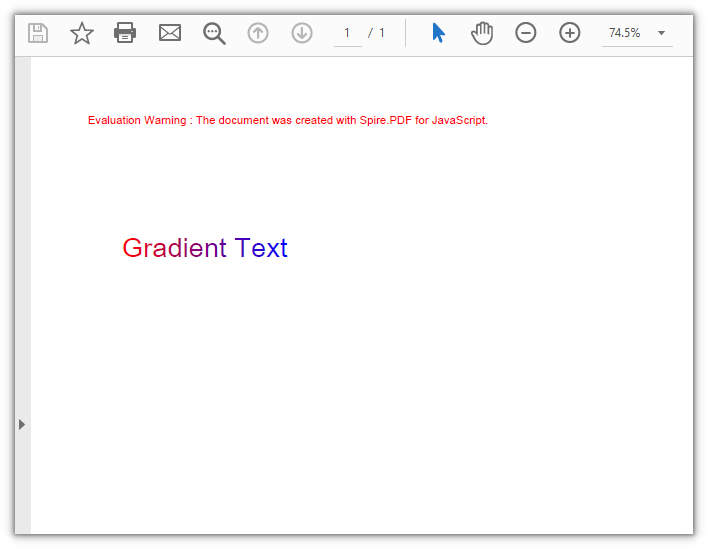
The color of text comes from the brush passed to DrawString. Swap in a gradient brush — PdfLinearGradientBrush — and the glyphs transition from one color to another along a given direction: mode sets the direction, and the rect on the brush bounds where the gradient starts and ends.
function App() {
  const drawGradientText = async () => {
    // Get the Spire.PDF WASM module
    const pdfModule = window.wasmModule?.spirepdf;

    // Check whether the module is ready
    if (!pdfModule) {
      alert('Spire.PDF is not ready yet');
      return;
    }

    // Load the font into the VFS
    await window.spire.FetchFileToVFS('ARIAL UNICODE MS.TTF', '/Library/Fonts/', `${process.env.PUBLIC_URL}/font/`);

    // Create a PDF document and add a blank page
    const doc = new pdfModule.PdfDocument();
    const page = doc.Pages.Add();

    const font = new pdfModule.PdfTrueTypeFont({ fontFile: '/Library/Fonts/ARIAL UNICODE MS.TTF', size: 24 });
    const text = 'Gradient Text';

    // Measure this line of text so the gradient spans exactly its width
    const textWidth = font.MeasureString({ text: text }).Width;

    // Horizontal gradient: from red to blue
    const gradient = new pdfModule.PdfLinearGradientBrush({
      rect: new pdfModule.RectangleF({ x: 40, y: 90, width: textWidth, height: 40 }),
      color1: new pdfModule.PdfRGBColor({ color: pdfModule.Color.get_Red() }),
      color2: new pdfModule.PdfRGBColor({ color: pdfModule.Color.get_Blue() }),
      mode: pdfModule.PdfLinearGradientMode.Horizontal,
    });

    // Align the text anchor with the left edge of the gradient rectangle so both colors sweep the whole line
    page.Canvas.DrawString({ s: text, font: font, brush: gradient, x: 40, y: 110 });

    // Define the output file name and save the document
    const outputFileName = 'GradientText.pdf';
    doc.SaveToFile(outputFileName);
    doc.Close();

    // Read the generated file from the VFS and trigger a download
    const fileArray = window.dotnetRuntime.Module.FS.readFile(outputFileName);
    const blob = new Blob([fileArray], { type: 'application/pdf' });
    const url = URL.createObjectURL(blob);
    const a = document.createElement('a');
    a.href = url;
    a.download = outputFileName;
    a.click();
    URL.revokeObjectURL(url);
  };

  return (
    <div style={{ textAlign: 'center', height: '300px' }}>
      <h1>Draw Text with a Color Gradient</h1>
      <button onClick={drawGradientText}>
        Draw
      </button>
    </div>
  );
}

export default App;
When the gradient rectangle matches the text width, red to blue sweeps across the entire line:
Draw Text Laid Out Inside a Rectangle
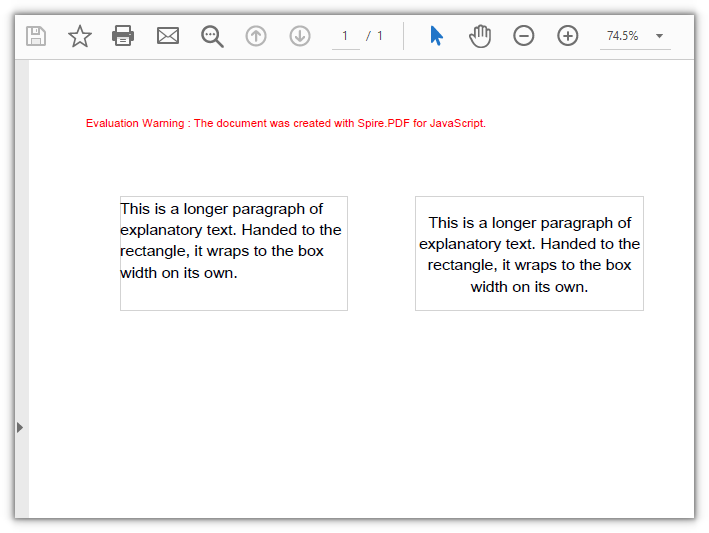
DrawString takes either a pair of coordinates or a layout rectangle, layoutRectangle. With a rectangle, the text wraps to the width of the box on its own, so you don't have to work out where each line breaks. Combined with alignment and lineAlignment from PdfStringFormat, you get more control over how the text is aligned.
function App() {
  const drawTextInRectangle = async () => {
    // Get the Spire.PDF WASM module
    const pdfModule = window.wasmModule?.spirepdf;

    // Check whether the module is ready
    if (!pdfModule) {
      alert('Spire.PDF is not ready yet');
      return;
    }

    // Load the font into the VFS for the page text
    await window.spire.FetchFileToVFS('ARIAL UNICODE MS.TTF', '/Library/Fonts/', `${process.env.PUBLIC_URL}/font/`);

    // Create a PDF document and add a blank page
    const doc = new pdfModule.PdfDocument();
    const page = doc.Pages.Add();

    const font = new pdfModule.PdfTrueTypeFont({ fontFile: '/Library/Fonts/ARIAL UNICODE MS.TTF', size: 14 });
    const brush = new pdfModule.PdfSolidBrush({ pdfRGBColor: new pdfModule.PdfRGBColor({ color: pdfModule.Color.get_Black() }) });
    const borderPen = new pdfModule.PdfPen({ pdfRGBColor: new pdfModule.PdfRGBColor({ color: pdfModule.Color.get_LightGray() }), width: 1 });

    const text = 'This is a longer paragraph of explanatory text. Handed to the rectangle, it wraps to the box width on its own.';

    // Left box: left-aligned wrapping by default, text starts at the top-left corner of the box
    const leftBox = new pdfModule.RectangleF({ x: 40, y: 80, width: 200, height: 100 });
    page.Canvas.DrawRectangle({ pen: borderPen, rectangle: leftBox });
    page.Canvas.DrawString({ s: text, font: font, brush: brush, layoutRectangle: leftBox });

    // Right box: the same text, centered horizontally and vertically inside the box
    const rightBox = new pdfModule.RectangleF({ x: 300, y: 80, width: 200, height: 100 });
    page.Canvas.DrawRectangle({ pen: borderPen, rectangle: rightBox });
    const center = new pdfModule.PdfStringFormat({
      alignment: pdfModule.PdfTextAlignment.Center,
      lineAlignment: pdfModule.PdfVerticalAlignment.Middle,
    });
    page.Canvas.DrawString({ s: text, font: font, brush: brush, layoutRectangle: rightBox, format: center });

    // Define the output file name and save the document
    const outputFileName = 'TextInRectangle.pdf';
    doc.SaveToFile(outputFileName);
    doc.Close();

    // Read the generated file from the VFS and trigger a download
    const fileArray = window.dotnetRuntime.Module.FS.readFile(outputFileName);
    const blob = new Blob([fileArray], { type: 'application/pdf' });
    const url = URL.createObjectURL(blob);
    const a = document.createElement('a');
    a.href = url;
    a.download = outputFileName;
    a.click();
    URL.revokeObjectURL(url);
  };

  return (
    <div style={{ textAlign: 'center', height: '300px' }}>
      <h1>Draw Text Laid Out Inside a Rectangle</h1>
      <button onClick={drawTextInRectangle}>
        Draw
      </button>
    </div>
  );
}

export default App;
The same paragraph wraps inside a 200-point-wide box, while the right box adds horizontal and vertical centering:
Draw Rotated and Transformed Text
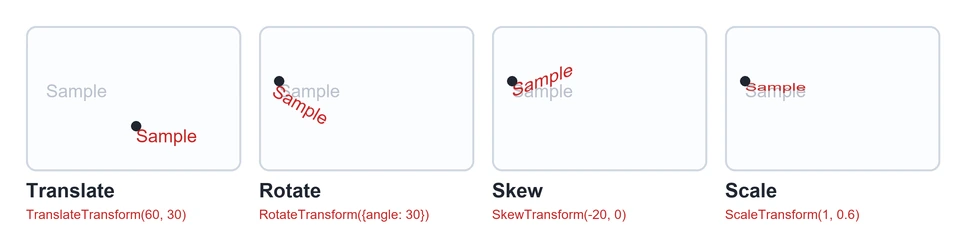
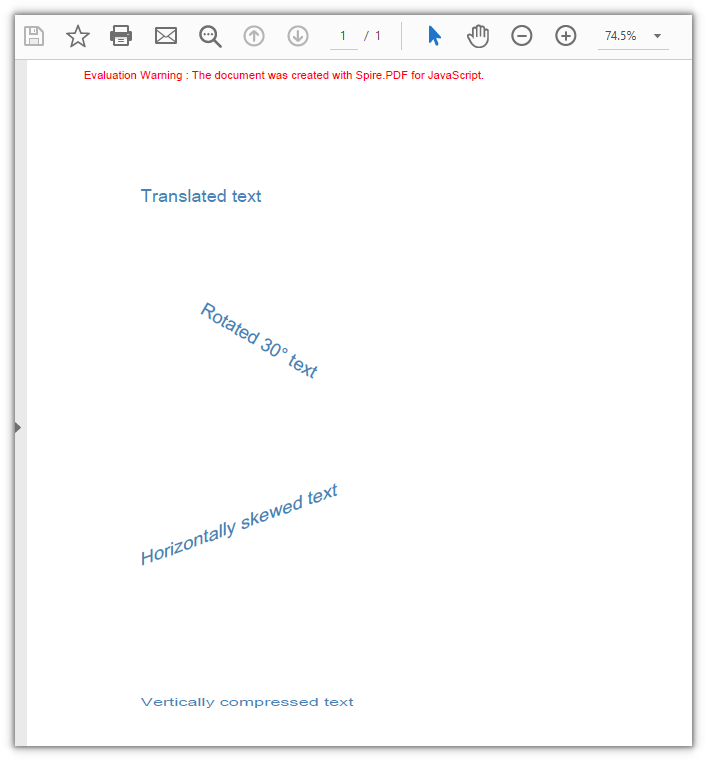
Rotation and deformation of text come from the canvas rather than from font parameters: you turn the canvas first, then draw on it. Four methods cover the common cases:
| API | Effect | Parameters and units |
|---|---|---|
TranslateTransform(dx, dy) |
Moves the canvas origin to the target position | Offset in points |
RotateTransform({ angle }) |
Rotates around the canvas origin | Angle; a positive value is clockwise on this canvas |
SkewTransform(angleX, angleY) |
Skews the axes so text runs along a slanted line | Skew angle; with (-20, 0) the right end of the line lifts |
ScaleTransform(scaleX, scaleY) |
Scales the canvas by a factor | Scale factors for both axes; (1, 0.6) compresses vertically to 0.6 |
The four transforms applied to the same sample line of text (gray is before the transform, red is after, and the dot marks the anchor point):
function App() {
  const drawTransformedText = async () => {
    // Get the Spire.PDF WASM module
    const pdfModule = window.wasmModule?.spirepdf;

    // Check whether the module is ready
    if (!pdfModule) {
      alert('Spire.PDF is not ready yet');
      return;
    }

    // Load the font into the VFS for the page text
    await window.spire.FetchFileToVFS('ARIAL UNICODE MS.TTF', '/Library/Fonts/', `${process.env.PUBLIC_URL}/font/`);

    // Create a PDF document and add a blank page
    const doc = new pdfModule.PdfDocument();
    const page = doc.Pages.Add();

    const font = new pdfModule.PdfTrueTypeFont({ fontFile: '/Library/Fonts/ARIAL UNICODE MS.TTF', size: 16 });
    const brush = new pdfModule.PdfSolidBrush({ pdfRGBColor: new pdfModule.PdfRGBColor({ color: pdfModule.Color.get_SteelBlue() }) });

    // Translation: move only the origin to the anchor point, shifting the text as a whole
    let state = page.Canvas.Save();
    page.Canvas.TranslateTransform(60, 110);
    page.Canvas.DrawString({ s: 'Translated text', font: font, brush: brush, x: 0, y: 0 });
    page.Canvas.Restore({ state: state });

    // Rotation: move the origin to the anchor point, then rotate 30°
    state = page.Canvas.Save();
    page.Canvas.TranslateTransform(120, 210);
    page.Canvas.RotateTransform({ angle: 30 });
    page.Canvas.DrawString({ s: 'Rotated 30° text', font: font, brush: brush, x: 0, y: 0 });
    page.Canvas.Restore({ state: state });

    // Skew: horizontal shear of -20°, lifting the right end of the line
    state = page.Canvas.Save();
    page.Canvas.TranslateTransform(60, 430);
    page.Canvas.SkewTransform(-20, 0);
    page.Canvas.DrawString({ s: 'Horizontally skewed text', font: font, brush: brush, x: 0, y: 0 });
    page.Canvas.Restore({ state: state });

    // Transform: compress vertically to 0.6, squashing the glyphs
    state = page.Canvas.Save();
    page.Canvas.TranslateTransform(60, 560);
    page.Canvas.ScaleTransform(1, 0.6);
    page.Canvas.DrawString({ s: 'Vertically compressed text', font: font, brush: brush, x: 0, y: 0 });
    page.Canvas.Restore({ state: state });

    // Define the output file name and save the document
    const outputFileName = 'TransformText.pdf';
    doc.SaveToFile(outputFileName);
    doc.Close();

    // Read the generated file from the VFS and trigger a download
    const fileArray = window.dotnetRuntime.Module.FS.readFile(outputFileName);
    const blob = new Blob([fileArray], { type: 'application/pdf' });
    const url = URL.createObjectURL(blob);
    const a = document.createElement('a');
    a.href = url;
    a.download = outputFileName;
    a.click();
    URL.revokeObjectURL(url);
  };

  return (
    <div style={{ textAlign: 'center', height: '300px' }}>
      <h1>Draw Rotated and Transformed Text</h1>
      <button onClick={drawTransformedText}>
        Transform
      </button>
    </div>
  );
}

export default App;
Text drawn with four canvas transforms: translation, rotation, horizontal skew, and vertical compression:
Draw Semi-Transparent Text
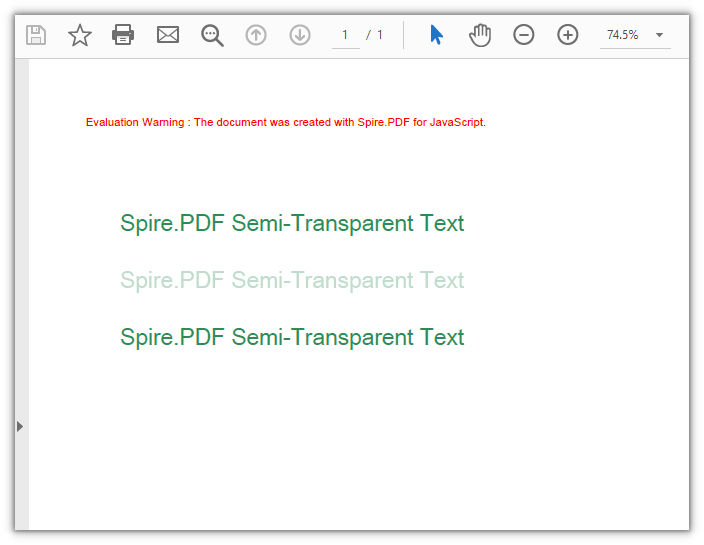
SetTransparency is set on the canvas: alphaBrush and alphaPen control how transparent the fill and the stroke are, taking a decimal between 0 and 1 (0 fully transparent, 1 opaque), and blendMode decides how the text composites with what lies underneath. It takes effect for everything drawn from the moment it is set, so wrap it in Save and Restore — otherwise the content that follows fades as well.
function App() {
  const drawTransparentText = async () => {
    // Get the Spire.PDF WASM module
    const pdfModule = window.wasmModule?.spirepdf;

    // Check whether the module is ready
    if (!pdfModule) {
      alert('Spire.PDF is not ready yet');
      return;
    }

    // Load the font into the VFS for the page text
    await window.spire.FetchFileToVFS('ARIAL UNICODE MS.TTF', '/Library/Fonts/', `${process.env.PUBLIC_URL}/font/`);

    // Create a PDF document and add a blank page
    const doc = new pdfModule.PdfDocument();
    const page = doc.Pages.Add();

    const font = new pdfModule.PdfTrueTypeFont({ fontFile: '/Library/Fonts/ARIAL UNICODE MS.TTF', size: 20 });
    const brush = new pdfModule.PdfSolidBrush({ pdfRGBColor: new pdfModule.PdfRGBColor({ color: pdfModule.Color.get_SeaGreen() }) });
    const text = 'Spire.PDF Semi-Transparent Text';

    // First line: opaque, as a reference
    page.Canvas.DrawString({ s: text, font: font, brush: brush, x: 40, y: 90 });

    // Turn on transparency: both the fill and the stroke alpha are set to 0.3
    const state = page.Canvas.Save();
    page.Canvas.SetTransparency({ alphaPen: 0.3, alphaBrush: 0.3, blendMode: pdfModule.PdfBlendMode.Normal });
    page.Canvas.DrawString({ s: text, font: font, brush: brush, x: 40, y: 140 });

    // Restore the canvas state so drawing outside this block goes back to opaque
    page.Canvas.Restore({ state: state });
    page.Canvas.DrawString({ s: text, font: font, brush: brush, x: 40, y: 190 });

    // Define the output file name and save the document
    const outputFileName = 'TransparentText.pdf';
    doc.SaveToFile(outputFileName);
    doc.Close();

    // Read the generated file from the VFS and trigger a download
    const fileArray = window.dotnetRuntime.Module.FS.readFile(outputFileName);
    const blob = new Blob([fileArray], { type: 'application/pdf' });
    const url = URL.createObjectURL(blob);
    const a = document.createElement('a');
    a.href = url;
    a.download = outputFileName;
    a.click();
    URL.revokeObjectURL(url);
  };

  return (
    <div style={{ textAlign: 'center', height: '300px' }}>
      <h1>Draw Semi-Transparent Text</h1>
      <button onClick={drawTransparentText}>
        Draw
      </button>
    </div>
  );
}

export default App;
The same line drawn three times: opaque, at alpha 0.3, and opaque again after Restore:
FAQ
Text lands outside the page, or its vertical position is reversed
Cause: The canvas origin sits at the top-left corner of the page (inset by the page margins), the y axis points down, and the unit is the point. The anchor marks the top-left corner of the line, not the text baseline. Working from the assumption that the origin is at the bottom-left with the y axis pointing up puts the text on the opposite side, or even outside the drawable area — the sample page is A4 with 40-point top and bottom margins, leaving a usable height of 762 points, and a line drawn below roughly y = 740 points is clipped.
Solution: Lay the text out from the top-left corner with y increasing downwards. To measure from the bottom of the page instead, subtract from the usable height:
// Height of the drawable area (762 points for A4 with 40-point margins)
const height = page.Canvas.ClientSize.Height;

// Draw 100 points above the bottom of the drawable area
page.Canvas.DrawString({ s: 'Text near the bottom of the page', font: font, brush: brush, x: 40, y: height - 100 });
Gradient text shows only a single color, or the transition is incomplete
Cause: The rect on a PdfLinearGradientBrush bounds where the gradient starts and ends, in absolute canvas coordinates, independent of the text anchor. When the rectangle does not cover the whole line, the text only lands on one segment of the gradient, which looks like a flat color. In a test with the rectangle starting at x = 0 and the text anchored at x = 40, the left edge of the text was already a third of the way through the gradient, and the red-to-blue transition was no longer complete.
Solution: Use MeasureString to get the text width, then make the rectangle the same width as the text and align its start with the anchor point, so the gradient sweeps across the whole line:
// Use the text width as the width of the gradient rectangle
const textWidth = font.MeasureString({ text: text }).Width;

const gradient = new pdfModule.PdfLinearGradientBrush({
  rect: new pdfModule.RectangleF({ x: 40, y: 90, width: textWidth, height: 40 }),
  color1: new pdfModule.PdfRGBColor({ color: pdfModule.Color.get_Red() }),
  color2: new pdfModule.PdfRGBColor({ color: pdfModule.Color.get_Blue() }),
  mode: pdfModule.PdfLinearGradientMode.Horizontal,
});

// Align the anchor with the left edge of the rectangle
page.Canvas.DrawString({ s: text, font: font, brush: gradient, x: 40, y: 110 });
Get a Free License
If you want to remove the evaluation message from the resulting documents, or lift the feature limits, contact sales for a temporary license valid for 30 days.
Find and Highlight Text in PDF Documents Using JavaScript in React
2026-09-23 02:11:57 Written by Nina TangA contract or a report of a few dozen pages lands on your desk, and you need to confirm where a certain clause or amount appears and how many times. Going through it page by page by eye is easy to get wrong. Marking the hits is the least effort, but find-and-highlight in a desktop application is hard to fit into a web workflow, and screenshotting every page to annotate it is not realistic either.
Spire.PDF for JavaScript loads, processes and saves PDF documents in the browser on WebAssembly, so finding and highlighting happen entirely locally, reading and writing files through a virtual file system (VFS) with no backend involved. This article uses PdfTextFinder to implement three ways of finding and highlighting: the whole document, a given area, and a regular expression.
This article covers three core features:
- Find and Highlight All Matches
- Find and Highlight Within an Area
- Find and Highlight by Regular Expression
For installation and project configuration, see Integrate Spire.PDF for JavaScript into a React Project. The examples below assume Spire.PDF is installed and the WebAssembly module is initialized.
Find and Highlight All Matches
PdfTextFinder locates given text in the text layer of a page. It works page by page: build one finder for each page of the document and you can find every match across the whole file at once. Each hit is highlighted by calling HighLight(), which is yellow by default; pass a color when different keywords have to be told apart.
function App() {
  const findAndHighlightAll = async () => {
    // Get the Spire.PDF WASM module
    const pdfModule = window.wasmModule?.spirepdf;

    // Check whether the module is ready
    if (!pdfModule) {
      alert('Spire.PDF is not ready yet');
      return;
    }

    // Load the PDF file to be processed into the VFS
    const inputFileName = 'Flowers.pdf';
    await window.spire.FetchFileToVFS(inputFileName, "", `${process.env.PUBLIC_URL}/data/`);

    // Create a PdfDocument object and load the PDF document
    let doc = new pdfModule.PdfDocument();
    doc.LoadFromFile(inputFileName);

    // Search page by page and highlight every hit
    for (let i = 0; i < doc.Pages.Count; i++) {
      const finder = new pdfModule.PdfTextFinder(doc.Pages.get_Item(i));
      finder.Options.Parameter = pdfModule.TextFindParameter.IgnoreCase;
      const finds = finder.Find('Ornamental');
      for (let j = 0; j < finds.length; j++) {
        finds.get(j).HighLight();
      }
    }

    // Save the document
    const outputFileName = 'FindAndHighlight.pdf';
    doc.SaveToFile(outputFileName);
    doc.Close();

    // Read the generated file from the VFS and trigger the download
    const fileArray = window.dotnetRuntime.Module.FS.readFile(outputFileName);
    const blob = new Blob([fileArray], { type: 'application/pdf' });
    const url = URL.createObjectURL(blob);
    const a = document.createElement('a');
    a.href = url;
    a.download = outputFileName;
    a.click();
    URL.revokeObjectURL(url);
  };

  return (
    <div style={{ textAlign: 'center', height: '300px' }}>
      <h1>Find and Highlight All Matches</h1>
      <button onClick={findAndHighlightAll}>
        Find and Highlight
      </button>
    </div>
  );
}

export default App;
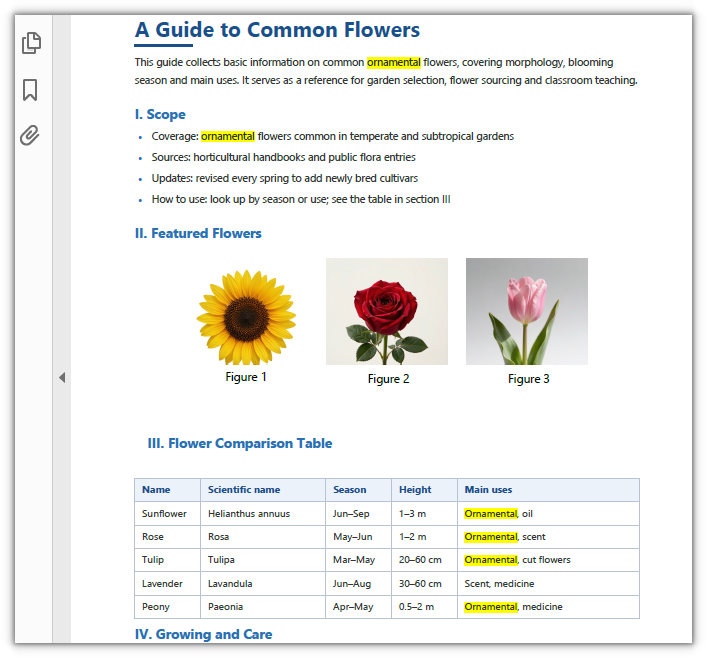
Every Ornamental in the document is highlighted:
Find and Highlight Within an Area
Text that reads the same on a page is often only partly worth marking. PdfTextFinder also provides Options.Area, which narrows the search to a rectangle; matches that fall outside it are not returned, and therefore not highlighted. The rectangle is described in page coordinates, with the origin at the top-left corner of the page and units in points.
function App() {
  const findAndHighlightInArea = async () => {
    // Get the Spire.PDF WASM module
    const pdfModule = window.wasmModule?.spirepdf;

    // Check whether the module is ready
    if (!pdfModule) {
      alert('Spire.PDF is not ready yet');
      return;
    }

    // Load the PDF file to be processed into the VFS
    const inputFileName = 'Flowers.pdf';
    await window.spire.FetchFileToVFS(inputFileName, "", `${process.env.PUBLIC_URL}/data/`);

    // Create a PdfDocument object and load the PDF document
    let doc = new pdfModule.PdfDocument();
    doc.LoadFromFile(inputFileName);

    // Set the search range: page coordinates, origin at the top-left, units in points
    const area = new pdfModule.RectangleF({ x: 60, y: 488, width: 420, height: 160 });

    const finder = new pdfModule.PdfTextFinder(doc.Pages.get_Item(0));
    finder.Options.Parameter = pdfModule.TextFindParameter.IgnoreCase;
    finder.Options.Area = area;

    // Only matches that fall inside the rectangle are returned
    const finds = finder.Find('Ornamental');
    for (let j = 0; j < finds.length; j++) {
      finds.get(j).HighLight();
    }

    // Save the document
    const outputFileName = 'HighlightInArea.pdf';
    doc.SaveToFile(outputFileName);
    doc.Close();

    // Read the generated file from the VFS and trigger the download
    const fileArray = window.dotnetRuntime.Module.FS.readFile(outputFileName);
    const blob = new Blob([fileArray], { type: 'application/pdf' });
    const url = URL.createObjectURL(blob);
    const a = document.createElement('a');
    a.href = url;
    a.download = outputFileName;
    a.click();
    URL.revokeObjectURL(url);
  };

  return (
    <div style={{ textAlign: 'center', height: '300px' }}>
      <h1>Find and Highlight Within an Area</h1>
      <button onClick={findAndHighlightInArea}>
        Find and Highlight
      </button>
    </div>
  );
}

export default App;
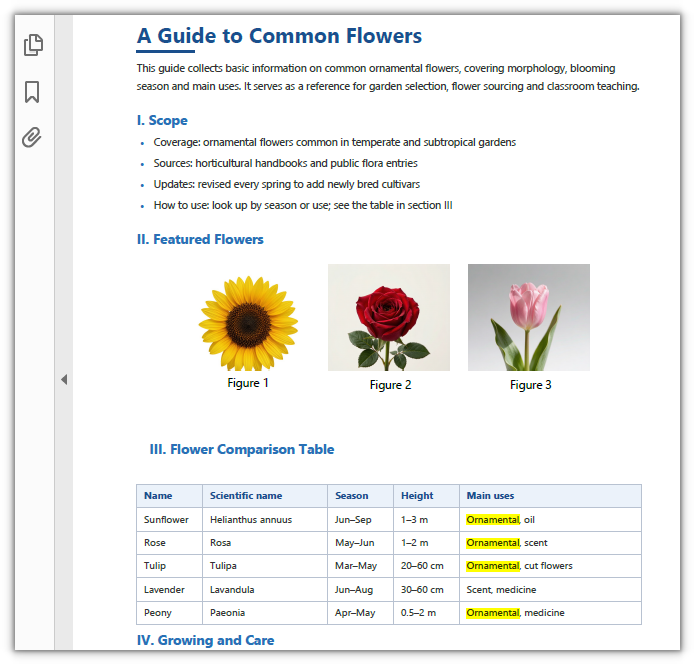
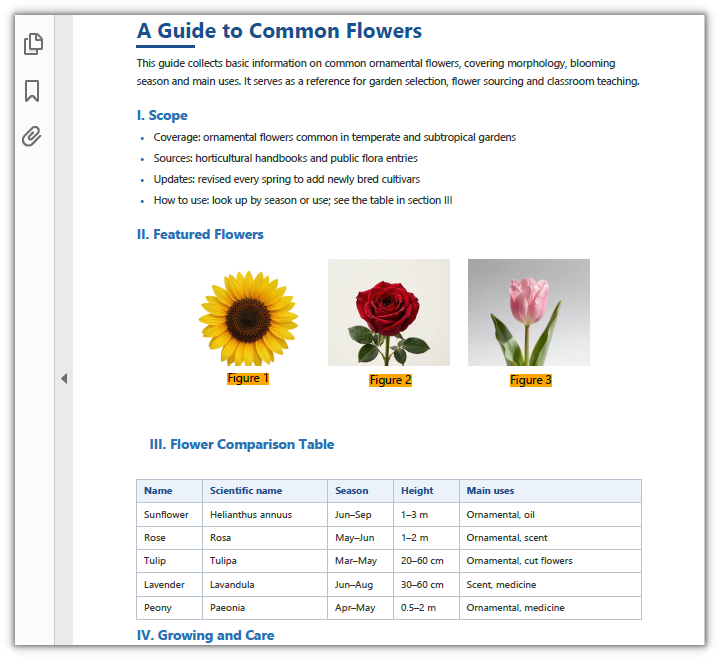
Only the Ornamental inside the comparison table is highlighted; the body text and the list stay as they are:
Find and Highlight by Regular Expression
The target is not necessarily a fixed set of characters. Options.Parameter decides the matching rule; set it to Regex and the argument to Find() becomes a regular expression, so targets that share a shape but differ in content can be circled in one pattern. The default value matches by substring, which is what the previous two sections do, and the same enumeration also offers IgnoreCase and WholeWord.
function App() {
  const findAndHighlightByRegex = async () => {
    // Get the Spire.PDF WASM module
    const pdfModule = window.wasmModule?.spirepdf;

    // Check whether the module is ready
    if (!pdfModule) {
      alert('Spire.PDF is not ready yet');
      return;
    }

    // Load the PDF file to be processed into the VFS
    const inputFileName = 'Flowers.pdf';
    await window.spire.FetchFileToVFS(inputFileName, "", `${process.env.PUBLIC_URL}/data/`);

    // Create a PdfDocument object and load the PDF document
    let doc = new pdfModule.PdfDocument();
    doc.LoadFromFile(inputFileName);

    // Match page by page with a regular expression and highlight every hit
    for (let i = 0; i < doc.Pages.Count; i++) {
      const finder = new pdfModule.PdfTextFinder(doc.Pages.get_Item(i));
      finder.Options.Parameter = pdfModule.TextFindParameter.Regex;
      const finds = finder.Find('Figure\\s*\\d');
      for (let j = 0; j < finds.length; j++) {
        finds.get(j).HighLight({ color: pdfModule.Color.get_Orange() });
      }
    }

    // Save the document
    const outputFileName = 'HighlightByRegex.pdf';
    doc.SaveToFile(outputFileName);
    doc.Close();

    // Read the generated file from the VFS and trigger the download
    const fileArray = window.dotnetRuntime.Module.FS.readFile(outputFileName);
    const blob = new Blob([fileArray], { type: 'application/pdf' });
    const url = URL.createObjectURL(blob);
    const a = document.createElement('a');
    a.href = url;
    a.download = outputFileName;
    a.click();
    URL.revokeObjectURL(url);
  };

  return (
    <div style={{ textAlign: 'center', height: '300px' }}>
      <h1>Find and Highlight by Regular Expression</h1>
      <button onClick={findAndHighlightByRegex}>
        Find and Highlight
      </button>
    </div>
  );
}

export default App;
The three figure captions are matched by the pattern and highlighted in orange:
FAQ
The highlight works, but it is missing from the reader's comments panel
Cause: HighLight() writes into the page content, not into PDF annotations. The highlight block is written to the page's content stream when the document is saved, so the file grows by roughly 2 KB, and no annotation object is added to the output — reading it back with PyMuPDF gives an empty set from page.annots().
Fix: Treat the highlight as page graphics. It displays the same way as an annotation; it simply has no annotation identity, so it cannot be selected, deleted or recolored one by one in the reader. When highlights have to be managed as annotations, record the hit positions before saving and keep that list on the application side.
The search area is set, but nothing is highlighted
Cause: Options.Area uses page coordinates (origin at the top-left corner of the page, units in points). If the rectangle is too small or mispositioned, every match falls outside it. It also takes effect on the current page only — in a multi-page document, apply the same rectangle to the finder of the page you want.
Fix: Measure the target region in whole-page coordinates first, then narrow it down. In the sample below the comparison table falls within x≈60–480 and y≈488–648, so RectangleF({ x: 60, y: 488, width: 420, height: 160 }) frames it exactly, and the body text and list outside the rectangle are not matched:
// Search the current page only, and match inside this rectangle only
const finder = new pdfModule.PdfTextFinder(doc.Pages.get_Item(0));
finder.Options.Area = new pdfModule.RectangleF({ x: 60, y: 488, width: 420, height: 160 });
When the coordinates are uncertain, run the search once without Area and read the actual position from each hit's finds.get(i).Bounds[0] to work back to the rectangle.
The same regex matches a Chinese document but fails on a Japanese one
Cause: A regular expression matches the actual characters in the PDF text layer, not meanings. The dash that separates the ranges is not the same across the three samples: Chinese and English use – (U+2013), while Japanese uses the full-width tilde ~ (U+FF5E), so a pattern with only one of them hits only one kind of document.
Fix: Put the dashes in a character class so that both spellings work at once:
// Number ranges: 6–9 / 1–3 m / 6~9月 all match
finder.Options.Parameter = pdfModule.TextFindParameter.Regex;
const finds = finder.Find('[0-9]+\\s*[–-~]\\s*[0-9]+');
Get a Free License
If you want to remove the evaluation message from the result document, or get past the feature limits, contact sales for a 30-day temporary license.
