
Form Fields (5)
Once a table has been turned into a PDF, the data is sealed up together with the layout. Send the same document to ten people and what comes back is ten separately filled-in PDFs; to move the contents of one onto a different template, the only way is to copy it off the screen one field at a time. The form fields themselves do have names and the values do hang off those names, but as soon as you leave a reader, that structure can no longer be pulled back out.
This article uses Spire.PDF for JavaScript to export the values in a form's fields to a data file, then import that data file back into a blank form. ExportData and ImportData both support Xml, Fdf, and XFdf — the three are nothing more than a difference of DataFormat enum values, called in exactly the same way, differing only in the structure of the file written out. The code below runs the whole flow with XML, with the FDF and XFDF versions listed alongside in comments; uncomment to switch. Spire.PDF for JavaScript reads and writes documents in the browser on top of WebAssembly, so the whole process happens locally, going through a virtual file system (VFS) to read and write files, with no backend involved.
This article covers two core features:
For installation and project configuration, see Integrate Spire.PDF for JavaScript in a React Project. The examples below assume Spire.PDF is installed and the WebAssembly module is initialized.
Export PDF Form Data
PdfFormWidget.ExportData writes the values in a form's fields out to a single data file, with the format given by the second parameter, DataFormat. The three formats hold the same set of field values; they differ in file structure:
| Data format | File structure |
|---|---|
DataFormat.Xml |
Adobe form data XML — the field name is the element name, the value is the element content |
DataFormat.Fdf |
Forms Data Format (FDF) — a text structure starting with %FDF-, where /T holds the field name and /V the value |
DataFormat.XFdf |
XFDF, standard XML — one <field name="…"> per field, with the value inside <value> |
The third parameter is the form name; for an unnamed AcroForm, pass an empty string.
function App() {
  const exportFormData = async () => {
    // Get the Spire.PDF WASM module
    const pdfModule = window.wasmModule?.spirepdf;

    // Check that the module is ready
    if (!pdfModule) {
      alert('Spire.PDF is not ready yet');
      return;
    }

    // Load the PDF file to be exported into the VFS
    const inputFileName = 'CustomerInformationForm.pdf';
    await window.spire.FetchFileToVFS(inputFileName, "", `${process.env.PUBLIC_URL}/data/`);

    // Create a PdfDocument object and load the PDF document
    const doc = new pdfModule.PdfDocument();
    doc.LoadFromFile(inputFileName);

    // Build a PdfFormWidget from the document's form handle to reach the data export API
    const formWidget = new pdfModule.PdfFormWidget(doc.Form.H);

    // This demo exports XML
    const dataFiles = [
      { fileName: 'FormData.xml', format: pdfModule.DataFormat.Xml },
      // { fileName: 'FormData.fdf', format: pdfModule.DataFormat.Fdf },
      // { fileName: 'FormData.xfdf', format: pdfModule.DataFormat.XFdf },
    ];

    for (const item of dataFiles) {
      // The third parameter is the form name; pass an empty string for an unnamed form
      formWidget.ExportData(item.fileName, item.format, '');
    }
    doc.Close();

    // Read the generated file from the VFS and trigger the download
    for (const item of dataFiles) {
      const fileArray = window.dotnetRuntime.Module.FS.readFile(item.fileName);
      const blob = new Blob([fileArray], { type: 'application/octet-stream' });
      const url = URL.createObjectURL(blob);
      const a = document.createElement('a');
      a.href = url;
      a.download = item.fileName;
      a.click();
      URL.revokeObjectURL(url);
    }
  };

  return (
    <div style={{ textAlign: 'center', height: '300px' }}>
      <h1>Export Form Data</h1>
      <button onClick={exportFormData}>
        Export
      </button>
    </div>
  );
}

export default App;
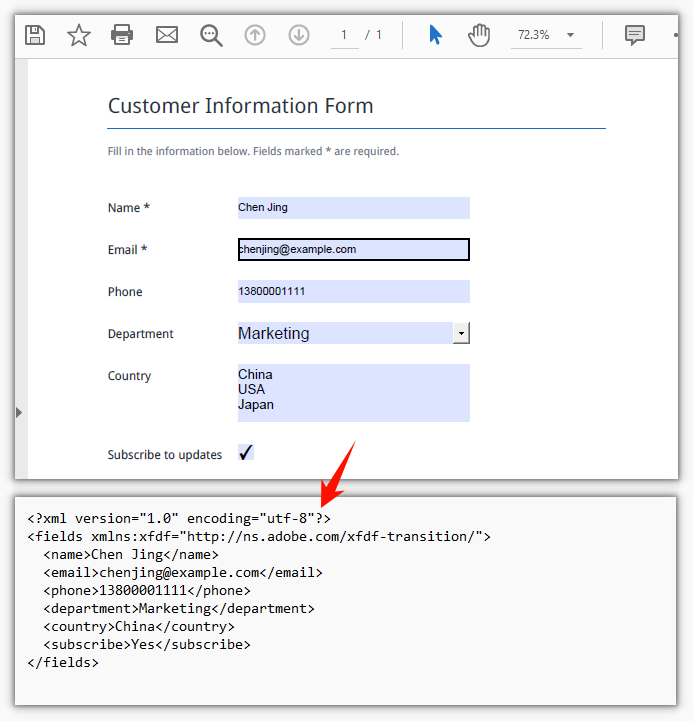
The exported XML form data file:
Import PDF Form Data
PdfFormWidget.ImportData reads a data file and writes the values back into the form fields by field name; the second parameter, DataFormat, only determines how the file is parsed and has nothing to do with the file extension — the same for all three formats.
What gets imported is the blank form. The template goes out empty, and once the data files come back the values are filled in one by one — with a lot of fields there is no need to key everything in a second time.
function App() {
  const importFormData = async () => {
    // Get the Spire.PDF WASM module
    const pdfModule = window.wasmModule?.spirepdf;

    // Check that the module is ready
    if (!pdfModule) {
      alert('Spire.PDF is not ready yet');
      return;
    }

    // Load the blank form to be filled into the VFS
    const inputFileName = 'BlankCustomerInformationForm.pdf';
    await window.spire.FetchFileToVFS(inputFileName, "", `${process.env.PUBLIC_URL}/data/`);

    // This demo refills from the XML data file
    const dataFiles = [
      { fileName: 'FormData.xml', format: pdfModule.DataFormat.Xml, outputFileName: 'ImportedXMLData.pdf' },
      // { fileName: 'FormData.fdf', format: pdfModule.DataFormat.Fdf, outputFileName: 'ImportedFDFData.pdf' },
      // { fileName: 'FormData.xfdf', format: pdfModule.DataFormat.XFdf, outputFileName: 'ImportedXFDFData.pdf' },
    ];

    for (const item of dataFiles) {
      // The data file also has to be loaded into the VFS first
      await window.spire.FetchFileToVFS(item.fileName, "", `${process.env.PUBLIC_URL}/data/`);

      const doc = new pdfModule.PdfDocument();
      doc.LoadFromFile(inputFileName);

      // Read the data file and write the values back into the fields by name
      const formWidget = new pdfModule.PdfFormWidget(doc.Form.H);
      formWidget.ImportData(item.fileName, item.format);

      doc.SaveToFile(item.outputFileName);
      doc.Close();

      // Read the generated file from the VFS and trigger the download
      const fileArray = window.dotnetRuntime.Module.FS.readFile(item.outputFileName);
      const blob = new Blob([fileArray], { type: 'application/pdf' });
      const url = URL.createObjectURL(blob);
      const a = document.createElement('a');
      a.href = url;
      a.download = item.outputFileName;
      a.click();
      URL.revokeObjectURL(url);
    }
  };

  return (
    <div style={{ textAlign: 'center', height: '300px' }}>
      <h1>Import Form Data</h1>
      <button onClick={importFormData}>
        Import
      </button>
    </div>
  );
}

export default App;
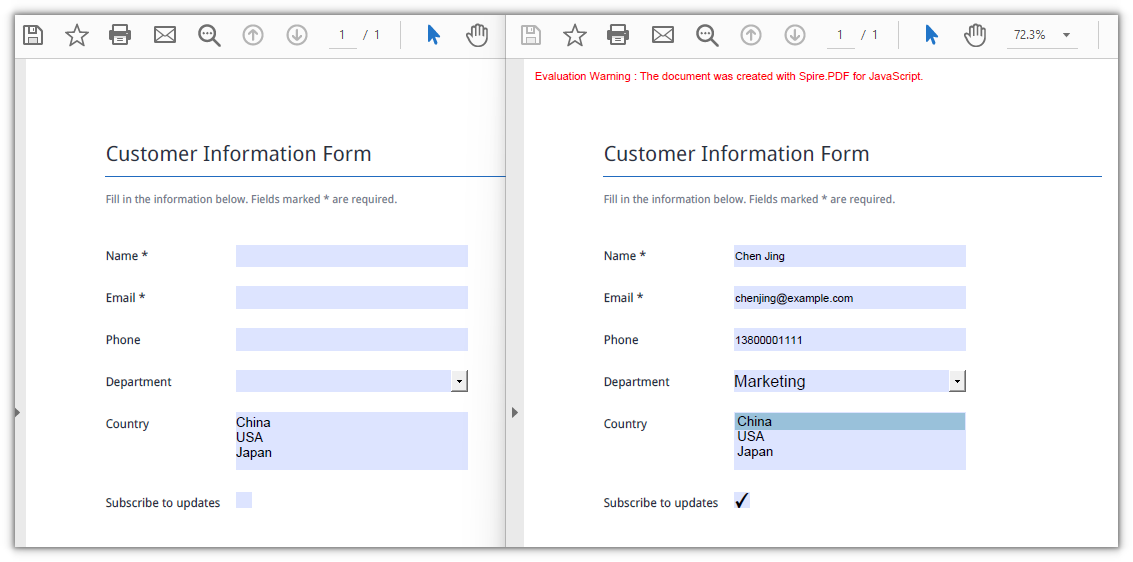
The form after the XML data has been imported:
FAQ
Some fields are still empty after import
Cause: Import matches by field name, so the names in the data file have to be exactly the same as the field names in the form, case and spaces included. A field that doesn't match is skipped outright — no error and no return value saying so; only the fields that do match get a value.
Solution: Walk the field collection first and print out the real names, then check the data file against them:
const fields = formWidget.FieldsWidget;
for (let i = 0; i < fields.Count; i++) {
  console.log(fields.get_Item({ index: i }).Name);
}
Which of the three data formats should you choose
Cause: All three hold the same field values; the difference is structure and tool support. Fdf is the smallest, starts with %FDF-, and suits passing data between form programs only; XFdf and Xml are both XML, so they can be opened and read directly and diffed with text tools, which makes them safer for moving between tools; Xml puts the field name right in the element name, the most straightforward structure of the three.
Solution: Use Fdf for round trips inside a program; use XFdf when the file goes into version control, needs a human eye, or has to talk to another system; use Xml when all you need is a readable list of field names and values.
Import throws Xml_MessageWithErrorPosition or "not a valid FDF file"
Cause: ImportData parses the file as whatever format the second parameter names, and never looks at the extension. When the content doesn't match the format, it fails at the first step: XML reports Xml_MessageWithErrorPosition, Xml_InvalidRootData, and a non-FDF file reports The source is not a valid FDF file because it does not start with "%FDF-".
Solution: Pass the DataFormat that matches the file's real format, and use the original exported data file rather than another format after re-saving it.
Get a Free License
If you want to remove the evaluation message from the result document, or to get rid of the feature limitations, contact sales for a temporary license valid for 30 days.
A form-based PDF keeps its whole value in what was filled in, but once the file is filed away or handed over, that data is locked inside the layout. To find out what a field holds you have to open a reader and copy it out one by one; with a few dozen fields, transcribing by hand is slow and easy to get wrong. Before those values can be validated, imported into a database, or used to track an order, the program has to be able to read them out first.
This article shows how to extract form field values from an existing PDF with Spire.PDF for JavaScript: walk the field collection, determine each field's type, then read the current value of each text box, list box, combo box, radio button, and check box by type. Spire.PDF for JavaScript is built on WebAssembly and opens and parses documents in the browser, so the whole read happens locally. Files are read and written through a virtual file system (VFS), with no backend involved.
This article covers one core feature:
For installation and project configuration, see Integrate Spire.PDF for JavaScript in a React Project. The examples below assume Spire.PDF is installed and the WebAssembly module is initialized.
Extract All Form Field Values
Spire.PDF for JavaScript provides PdfFormWidget to take over the form fields already present in a document; FieldsWidget is its field collection, and fields can be pulled out one by one by index. The value properties are not uniform across field types: a text box keeps its value on Text, a check box is judged by Checked, list boxes and combo boxes split into an option collection and a selected value, and a radio button is read straight from Value. So once a field is in hand, dispatch on its type and then read the matching value, writing the type name into the result alongside it — you never need to know in advance which fields the document contains.
function App() {
  const getAllFieldValues = async () => {
    // Get the Spire.PDF WASM module
    const pdfModule = window.wasmModule?.spirepdf;

    // Check that the module is ready
    if (!pdfModule) {
      alert('Spire.PDF is not ready yet');
      return;
    }

    // Load the PDF file to be read into the VFS
    const inputFileName = 'ApplicationForm.pdf';
    await window.spire.FetchFileToVFS(inputFileName, "", `${process.env.PUBLIC_URL}/data/`);

    // Create a PdfDocument object and load the PDF document
    const doc = new pdfModule.PdfDocument();
    doc.LoadFromFile(inputFileName);

    // Build a PdfFormWidget from the document's form handle; FieldsWidget is its field collection
    const formWidget = new pdfModule.PdfFormWidget(doc.Form.H);
    const fields = formWidget.FieldsWidget;

    let report = '';

    // Walk the field collection, check each type, and read the matching value
    for (let i = 0; i < fields.Count; i++) {
      const field = fields.get_Item({ index: i });

      // Both the type name and the value are filled in by the type dispatch
      let type = 'Unknown';
      let value = '(Unrecognized field type)';

      if (field instanceof pdfModule.PdfTextBoxFieldWidget) {
        // Text box field: read Text directly
        type = 'TextBox';
        value = field.Text;
      } else if (field instanceof pdfModule.PdfListBoxWidgetFieldWidget) {
        // List box field: Values holds every option, SelectedValue is the current one
        const options = [];
        for (let j = 0; j < field.Values.Count; j++) {
          options.push(field.Values.get_Item(j).Value);
        }
        type = 'ListBox';
        value = `Selected ${field.SelectedValue}, options ${options.join(', ')}`;
      } else if (field instanceof pdfModule.PdfComboBoxWidgetFieldWidget) {
        // Combo box field: like a list box, it has an option collection and a selected value
        const options = [];
        for (let j = 0; j < field.Values.Count; j++) {
          options.push(field.Values.get_Item(j).Value);
        }
        type = 'ComboBox';
        value = `Selected ${field.SelectedValue}, options ${options.join(', ')}`;
      } else if (field instanceof pdfModule.PdfRadioButtonListFieldWidget) {
        // Radio button field: Value is the selected item
        type = 'RadioButton';
        value = `Selected ${field.Value}`;
      } else if (field instanceof pdfModule.PdfCheckBoxWidgetFieldWidget) {
        // Check box field: Checked gives the state, not Value
        type = 'CheckBox';
        value = field.Checked ? 'Checked' : 'Not checked';
      }

      report += `Field "${field.Name}" (${type}): ${value}\n`;
    }

    const outputFileName = 'AllFieldValues.txt';
    window.dotnetRuntime.Module.FS.writeFile(outputFileName, report);
    doc.Close();

    // Read the generated file from the VFS and trigger the download
    const fileArray = window.dotnetRuntime.Module.FS.readFile(outputFileName);
    const blob = new Blob([fileArray], { type: 'text/plain' });
    const url = URL.createObjectURL(blob);
    const a = document.createElement('a');
    a.href = url;
    a.download = outputFileName;
    a.click();
    URL.revokeObjectURL(url);
  };

  return (
    <div style={{ textAlign: 'center', height: '300px' }}>
      <h1>Extract Form Field Values</h1>
      <button onClick={getAllFieldValues}>
        Extract values
      </button>
    </div>
  );
}

export default App;
The values collected by walking every form field:

FAQ
A check box's Value doesn't give you its state
Cause: The check box widget (PdfCheckBoxWidgetFieldWidget) has no Value property — reading it gets you undefined. A check box tracks its state through export values: Off when it is not ticked, Yes or a custom export value when it is. A string value cannot tell you whether the box is checked.
Solution: Use Checked for the state:
// Check the state with Checked, not Value
const checked = field.Checked;
Should a list box or combo box be read with SelectedValue or Values
Cause: For these two fields Values is the full option set — walking it gives you every choice, and each entry is a PdfListWidgetItem whose .Value is the option text, so the item has to be unwrapped one more time; the item the user actually selected lives on SelectedValue. Treat Values as the value and what you get is not the filled-in result.
Solution: Read SelectedValue for the current value; walk Values only when you need to show the available range:
// The text of the currently selected item
const selected = field.SelectedValue;

// Every available option
const options = [];
for (let j = 0; j < field.Values.Count; j++) {
  options.push(field.Values.get_Item(j).Value);
}
Loading an encrypted PDF throws "Can not open an encrypted document. The password is invalid."
Cause: Reading a form means the document has to open first; when the document is password-protected, LoadFromFile without the password throws during loading, and no empty document comes back.
Solution: Pass the open password as the second argument to LoadFromFile:
doc.LoadFromFile(inputFileName, 'spire123');
Get a Free License
If you want to remove the evaluation message from the result document, or to get rid of the feature limitations, contact sales for a temporary license valid for 30 days.
Once a table has been turned into a PDF, the data is sealed up together with the layout. Send the same document to ten people and what comes back is ten separately filled-in PDFs; to move the contents of one onto a different template, the only way is to copy it off the screen one field at a time. The form fields themselves do have names and the values do hang off those names, but as soon as you leave a reader, that structure can no longer be pulled back out.
This article uses Spire.PDF for JavaScript to export the values in a form's fields to a data file, then import that data file back into a blank form. ExportData and ImportData both support Xml, Fdf, and XFdf — the three are nothing more than a difference of DataFormat enum values, called in exactly the same way, differing only in the structure of the file written out. The code below runs the whole flow with XML, with the FDF and XFDF versions listed alongside in comments; uncomment to switch. Spire.PDF for JavaScript reads and writes documents in the browser on top of WebAssembly, so the whole process happens locally, going through a virtual file system (VFS) to read and write files, with no backend involved.
This article covers two core features:
For installation and project configuration, see Integrate Spire.PDF for JavaScript in a React Project. The examples below assume Spire.PDF is installed and the WebAssembly module is initialized.
Export PDF Form Data
PdfFormWidget.ExportData writes the values in a form's fields out to a single data file, with the format given by the second parameter, DataFormat. The three formats hold the same set of field values; they differ in file structure:
| Data format | File structure |
|---|---|
DataFormat.Xml |
Adobe form data XML — the field name is the element name, the value is the element content |
DataFormat.Fdf |
Forms Data Format (FDF) — a text structure starting with %FDF-, where /T holds the field name and /V the value |
DataFormat.XFdf |
XFDF, standard XML — one <field name="…"> per field, with the value inside <value> |
The third parameter is the form name; for an unnamed AcroForm, pass an empty string.
function App() {
  const exportFormData = async () => {
    // Get the Spire.PDF WASM module
    const pdfModule = window.wasmModule?.spirepdf;

    // Check that the module is ready
    if (!pdfModule) {
      alert('Spire.PDF is not ready yet');
      return;
    }

    // Load the PDF file to be exported into the VFS
    const inputFileName = 'CustomerInformationForm.pdf';
    await window.spire.FetchFileToVFS(inputFileName, "", `${process.env.PUBLIC_URL}/data/`);

    // Create a PdfDocument object and load the PDF document
    const doc = new pdfModule.PdfDocument();
    doc.LoadFromFile(inputFileName);

    // Build a PdfFormWidget from the document's form handle to reach the data export API
    const formWidget = new pdfModule.PdfFormWidget(doc.Form.H);

    // This demo exports XML
    const dataFiles = [
      { fileName: 'FormData.xml', format: pdfModule.DataFormat.Xml },
      // { fileName: 'FormData.fdf', format: pdfModule.DataFormat.Fdf },
      // { fileName: 'FormData.xfdf', format: pdfModule.DataFormat.XFdf },
    ];

    for (const item of dataFiles) {
      // The third parameter is the form name; pass an empty string for an unnamed form
      formWidget.ExportData(item.fileName, item.format, '');
    }
    doc.Close();

    // Read the generated file from the VFS and trigger the download
    for (const item of dataFiles) {
      const fileArray = window.dotnetRuntime.Module.FS.readFile(item.fileName);
      const blob = new Blob([fileArray], { type: 'application/octet-stream' });
      const url = URL.createObjectURL(blob);
      const a = document.createElement('a');
      a.href = url;
      a.download = item.fileName;
      a.click();
      URL.revokeObjectURL(url);
    }
  };

  return (
    <div style={{ textAlign: 'center', height: '300px' }}>
      <h1>Export Form Data</h1>
      <button onClick={exportFormData}>
        Export
      </button>
    </div>
  );
}

export default App;
The exported XML form data file:
Import PDF Form Data
PdfFormWidget.ImportData reads a data file and writes the values back into the form fields by field name; the second parameter, DataFormat, only determines how the file is parsed and has nothing to do with the file extension — the same for all three formats.
What gets imported is the blank form. The template goes out empty, and once the data files come back the values are filled in one by one — with a lot of fields there is no need to key everything in a second time.
function App() {
  const importFormData = async () => {
    // Get the Spire.PDF WASM module
    const pdfModule = window.wasmModule?.spirepdf;

    // Check that the module is ready
    if (!pdfModule) {
      alert('Spire.PDF is not ready yet');
      return;
    }

    // Load the blank form to be filled into the VFS
    const inputFileName = 'BlankCustomerInformationForm.pdf';
    await window.spire.FetchFileToVFS(inputFileName, "", `${process.env.PUBLIC_URL}/data/`);

    // This demo refills from the XML data file
    const dataFiles = [
      { fileName: 'FormData.xml', format: pdfModule.DataFormat.Xml, outputFileName: 'ImportedXMLData.pdf' },
      // { fileName: 'FormData.fdf', format: pdfModule.DataFormat.Fdf, outputFileName: 'ImportedFDFData.pdf' },
      // { fileName: 'FormData.xfdf', format: pdfModule.DataFormat.XFdf, outputFileName: 'ImportedXFDFData.pdf' },
    ];

    for (const item of dataFiles) {
      // The data file also has to be loaded into the VFS first
      await window.spire.FetchFileToVFS(item.fileName, "", `${process.env.PUBLIC_URL}/data/`);

      const doc = new pdfModule.PdfDocument();
      doc.LoadFromFile(inputFileName);

      // Read the data file and write the values back into the fields by name
      const formWidget = new pdfModule.PdfFormWidget(doc.Form.H);
      formWidget.ImportData(item.fileName, item.format);

      doc.SaveToFile(item.outputFileName);
      doc.Close();

      // Read the generated file from the VFS and trigger the download
      const fileArray = window.dotnetRuntime.Module.FS.readFile(item.outputFileName);
      const blob = new Blob([fileArray], { type: 'application/pdf' });
      const url = URL.createObjectURL(blob);
      const a = document.createElement('a');
      a.href = url;
      a.download = item.outputFileName;
      a.click();
      URL.revokeObjectURL(url);
    }
  };

  return (
    <div style={{ textAlign: 'center', height: '300px' }}>
      <h1>Import Form Data</h1>
      <button onClick={importFormData}>
        Import
      </button>
    </div>
  );
}

export default App;
The form after the XML data has been imported:
FAQ
Some fields are still empty after import
Cause: Import matches by field name, so the names in the data file have to be exactly the same as the field names in the form, case and spaces included. A field that doesn't match is skipped outright — no error and no return value saying so; only the fields that do match get a value.
Solution: Walk the field collection first and print out the real names, then check the data file against them:
const fields = formWidget.FieldsWidget;
for (let i = 0; i < fields.Count; i++) {
  console.log(fields.get_Item({ index: i }).Name);
}
Which of the three data formats should you choose
Cause: All three hold the same field values; the difference is structure and tool support. Fdf is the smallest, starts with %FDF-, and suits passing data between form programs only; XFdf and Xml are both XML, so they can be opened and read directly and diffed with text tools, which makes them safer for moving between tools; Xml puts the field name right in the element name, the most straightforward structure of the three.
Solution: Use Fdf for round trips inside a program; use XFdf when the file goes into version control, needs a human eye, or has to talk to another system; use Xml when all you need is a readable list of field names and values.
Import throws Xml_MessageWithErrorPosition or "not a valid FDF file"
Cause: ImportData parses the file as whatever format the second parameter names, and never looks at the extension. When the content doesn't match the format, it fails at the first step: XML reports Xml_MessageWithErrorPosition, Xml_InvalidRootData, and a non-FDF file reports The source is not a valid FDF file because it does not start with "%FDF-".
Solution: Pass the DataFormat that matches the file's real format, and use the original exported data file rather than another format after re-saving it.
Get a Free License
If you want to remove the evaluation message from the result document, or to get rid of the feature limitations, contact sales for a temporary license valid for 30 days.
Add, Fill, and Delete PDF Form Fields Using JavaScript in React
2026-09-24 01:18:58 Written by Nina TangRegistration forms, sign-up sheets, and questionnaires go out as blank PDFs and come back needing to be filled in by hand, one file at a time. The forms themselves change too — a missing text box, an extra checkbox nobody uses anymore — and every change means opening desktop software like Acrobat. That is endurable for one or two files; in bulk it is nothing but manual clicking.
This article shows how to add, fill, and delete PDF form fields with Spire.PDF for JavaScript. It is built on WebAssembly and loads, modifies, and saves PDF documents directly in the browser. The whole process runs locally and reads and writes files through a virtual file system (VFS), with no backend involved.
This article covers three core features:
For installation and project configuration, see Integrate Spire.PDF for JavaScript into a React Project. The examples below assume Spire.PDF is installed and the WebAssembly module is initialized.
Add Form Fields
Spire.PDF for JavaScript provides a complete set of form field classes covering text boxes, check boxes, radio buttons, combo boxes, list boxes, buttons, and signature fields. They all work the same way: create an instance on the page, position it with Bounds, and hand it to doc.Form.Fields.Add(). When you load an existing document, set doc.AllowCreateForm to true first.
| Class | Description |
|---|---|
PdfTextBoxField |
Text box field |
PdfCheckBoxField |
Check box field |
PdfRadioButtonListField |
Radio button field |
PdfComboBoxField |
Combo box field |
PdfListBoxField |
List box field |
PdfButtonField |
Button field |
PdfSignatureField |
Signature field |
Bounds, BorderWidth, BorderStyle, Required, ReadOnly, Visible, and ToolTip are shared by every field type.
function App() {
  const addFormFields = async () => {
    // Get the Spire.PDF WASM module
    const pdfModule = window.wasmModule?.spirepdf;

    // Check that the module is ready
    if (!pdfModule) {
      alert('Spire.PDF is not ready yet');
      return;
    }

    // Load the PDF file into the VFS
    const inputFileName = 'BlankRegistrationForm.pdf';
    await window.spire.FetchFileToVFS(inputFileName, "", `${process.env.PUBLIC_URL}/data/`);

    // Create a PdfDocument object and load the PDF
    let doc = new pdfModule.PdfDocument();
    doc.LoadFromFile(inputFileName);

    // Form creation must be enabled explicitly for an existing document
    doc.AllowCreateForm = true;

    let page = doc.Pages.get_Item(0);
    let uiFont = new pdfModule.PdfFont({
      fontFamily: pdfModule.PdfFontFamily.Helvetica,
      size: 10
    });
    const box = (x, y, width, height) => new pdfModule.RectangleF({ x, y, width, height });
    const border = 0.75;

    // 1. Text box: name
    let nameBox = new pdfModule.PdfTextBoxField(page, 'name');
    nameBox.Bounds = box(178, 168, 210, 20);
    nameBox.BorderWidth = border;
    nameBox.BorderStyle = pdfModule.PdfBorderStyle.Solid;
    nameBox.Font = uiFont;
    doc.Form.Fields.Add(nameBox);

    // 2. Text box: email
    let emailBox = new pdfModule.PdfTextBoxField(page, 'email');
    emailBox.Bounds = box(178, 206, 210, 20);
    emailBox.BorderWidth = border;
    emailBox.BorderStyle = pdfModule.PdfBorderStyle.Solid;
    emailBox.Font = uiFont;
    doc.Form.Fields.Add(emailBox);

    // 3. Combo box: department
    let departmentBox = new pdfModule.PdfComboBoxField(page, 'department');
    departmentBox.Bounds = box(178, 244, 210, 20);
    departmentBox.BorderWidth = border;
    departmentBox.Font = uiFont;
    ['Engineering', 'Marketing', 'Sales', 'Support'].forEach(function (item) {
      departmentBox.Items.Add(new pdfModule.PdfListFieldItem({ text: item, value: item.toLowerCase() }));
    });
    doc.Form.Fields.Add(departmentBox);

    // 4. Radio buttons: gender, each option is a PdfRadioButtonListItem
    let genderBox = new pdfModule.PdfRadioButtonListField(page, 'gender');
    ['male', 'female'].forEach(function (value, index) {
      let item = new pdfModule.PdfRadioButtonListItem();
      item.Bounds = box(185.5 + index * 110, 285.5, 13, 13);
      item.BorderWidth = border;
      item.Value = value;
      genderBox.Items.Add(item);
    });
    doc.Form.Fields.Add(genderBox);

    // 5. List box: education
    let educationBox = new pdfModule.PdfListBoxField(page, 'education');
    educationBox.Bounds = box(178, 320, 210, 52);
    educationBox.BorderWidth = border;
    educationBox.Font = uiFont;
    ['Bachelor', 'Master', 'Doctor'].forEach(function (item) {
      educationBox.Items.Add(new pdfModule.PdfListFieldItem({ text: item, value: item.toLowerCase() }));
    });
    doc.Form.Fields.Add(educationBox);

    // 6. Check box: agree to terms
    let agreeBox = new pdfModule.PdfCheckBoxField(page, 'agree_terms');
    agreeBox.Bounds = box(178, 392, 15, 15);
    agreeBox.BorderWidth = border;
    agreeBox.Style = pdfModule.PdfCheckBoxStyle.Check;
    agreeBox.Required = true;
    doc.Form.Fields.Add(agreeBox);

    // 7. Signature field: reserve a place to sign
    let signatureBox = new pdfModule.PdfSignatureField(page, 'signature');
    signatureBox.Bounds = box(178, 424, 210, 40);
    doc.Form.Fields.Add(signatureBox);

    // 8. Button: submit
    let submitButton = new pdfModule.PdfButtonField(page, 'submit');
    submitButton.Bounds = box(72, 478, 90, 26);
    submitButton.Text = 'Submit';
    submitButton.HighlightMode = pdfModule.PdfHighlightMode.Push;
    doc.Form.Fields.Add(submitButton);

    const outputFileName = 'AddFormFields.pdf';
    doc.SaveToFile(outputFileName);
    doc.Close();

    // Read the generated file from the VFS and trigger the download
    const fileArray = window.dotnetRuntime.Module.FS.readFile(outputFileName);
    const blob = new Blob([fileArray], { type: 'application/pdf' });
    const url = URL.createObjectURL(blob);
    const a = document.createElement('a');
    a.href = url;
    a.download = outputFileName;
    a.click();
    URL.revokeObjectURL(url);
  };

  return (
    <div style={{ textAlign: 'center', height: '300px' }}>
      <h1>Add Form Fields</h1>
      <button onClick={addFormFields}>
        Add fields
      </button>
    </div>
  );
}

export default App;
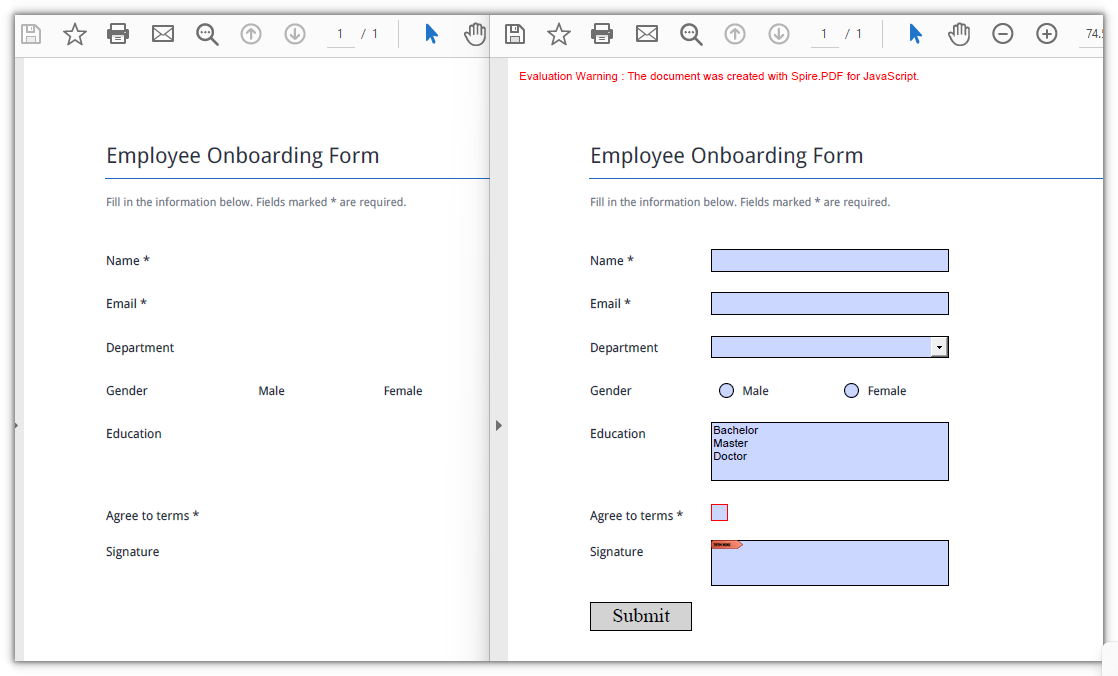
The blank registration form now carries a text box, check box, radio buttons, combo box, list box, button, and signature field:
Fill Form Fields
Filling an existing form means working from the widget side: PdfFormWidget wraps the document's form, FieldsWidget hands out the field instances one by one, and after checking the type you cast to the matching subclass to write a value — Text for text boxes, Checked for check boxes, SelectedIndex for combo boxes. Fields are told apart by Name, so a single pass fills the whole form.
function App() {
  const fillFormFields = async () => {
    // Get the Spire.PDF WASM module
    const pdfModule = window.wasmModule?.spirepdf;

    // Check that the module is ready
    if (!pdfModule) {
      alert('Spire.PDF is not ready yet');
      return;
    }

    // Load the PDF file to be filled into the VFS
    const inputFileName = 'EmployeeRegistrationForm.pdf';
    await window.spire.FetchFileToVFS(inputFileName, "", `${process.env.PUBLIC_URL}/data/`);

    // Create a PdfDocument object and load the PDF
    let doc = new pdfModule.PdfDocument();
    doc.LoadFromFile(inputFileName);

    // Get the widget collection from the form
    let formWidget = new pdfModule.PdfFormWidget(doc.Form.H);

    for (let i = 0; i < formWidget.FieldsWidget.Count; i++) {
      let field = formWidget.FieldsWidget.get_Item({ index: i });

      // Text box: assign Text directly
      if (field instanceof pdfModule.PdfTextBoxFieldWidget) {
        switch (field.Name) {
          case 'name':
            field.Text = 'Jane Doe';
            break;
          case 'email':
            field.Text = '[email protected]';
            break;
        }
      }

      // Combo box: SelectedIndex takes an array of indices
      if (field instanceof pdfModule.PdfComboBoxWidgetFieldWidget) {
        if (field.Name === 'department') {
          field.SelectedIndex = [1];
        }
      }

      // Check box: set Checked to true to tick it
      if (field instanceof pdfModule.PdfCheckBoxWidgetFieldWidget) {
        if (field.Name === 'agree_terms') {
          field.Checked = true;
        }
      }
    }

    const outputFileName = 'FillFormFields.pdf';
    doc.SaveToFile(outputFileName);
    doc.Close();

    // Read the generated file from the VFS and trigger the download
    const fileArray = window.dotnetRuntime.Module.FS.readFile(outputFileName);
    const blob = new Blob([fileArray], { type: 'application/pdf' });
    const url = URL.createObjectURL(blob);
    const a = document.createElement('a');
    a.href = url;
    a.download = outputFileName;
    a.click();
    URL.revokeObjectURL(url);
  };

  return (
    <div style={{ textAlign: 'center', height: '300px' }}>
      <h1>Fill Form Fields</h1>
      <button onClick={fillFormFields}>
        Fill form
      </button>
    </div>
  );
}

export default App;
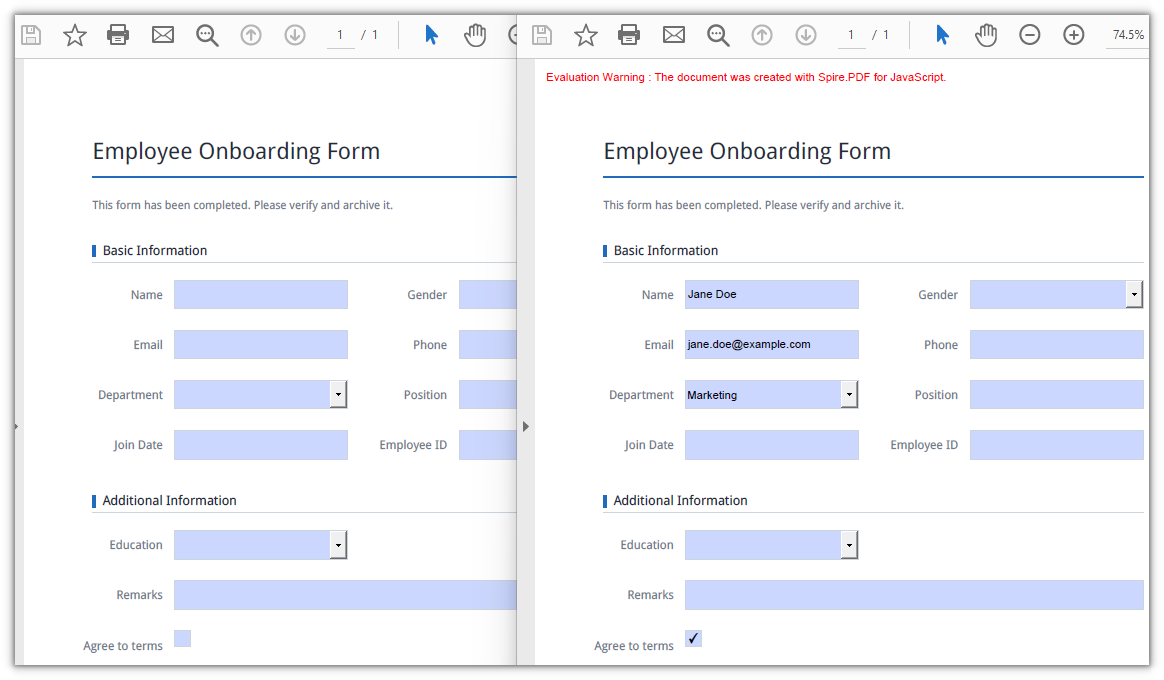
The text box, combo box, and check box have each been given their values:
Delete Form Fields
Deleting also starts from FieldsWidget: locate the target instance by Name, then call Remove() to take it out of the field collection. Locating by field name is safer than by index — a document whose layout has changed will not lose the wrong field.
function App() {
  const deleteFormField = async () => {
    // Get the Spire.PDF WASM module
    const pdfModule = window.wasmModule?.spirepdf;

    // Check that the module is ready
    if (!pdfModule) {
      alert('Spire.PDF is not ready yet');
      return;
    }

    // Load the PDF file into the VFS
    const inputFileName = 'EmployeeRegistrationForm.pdf';
    await window.spire.FetchFileToVFS(inputFileName, "", `${process.env.PUBLIC_URL}/data/`);

    // Create a PdfDocument object and load the PDF
    let doc = new pdfModule.PdfDocument();
    doc.LoadFromFile(inputFileName);

    let form = doc.Form;
    if (form != null) {
      let formWidget = new pdfModule.PdfFormWidget(form.H);

      // Locate the target field by name and remove it
      for (let i = 0; i < formWidget.FieldsWidget.Count; i++) {
        let field = formWidget.FieldsWidget.get_Item({ index: i });
        if (field.Name === 'name') {
          formWidget.FieldsWidget.Remove(field);
          break;
        }
      }
    }

    const outputFileName = 'DeleteFormField.pdf';
    doc.SaveToFile(outputFileName);
    doc.Close();

    // Read the generated file from the VFS and trigger the download
    const fileArray = window.dotnetRuntime.Module.FS.readFile(outputFileName);
    const blob = new Blob([fileArray], { type: 'application/pdf' });
    const url = URL.createObjectURL(blob);
    const a = document.createElement('a');
    a.href = url;
    a.download = outputFileName;
    a.click();
    URL.revokeObjectURL(url);
  };

  return (
    <div style={{ textAlign: 'center', height: '300px' }}>
      <h1>Delete Form Fields</h1>
      <button onClick={deleteFormField}>
        Delete field
      </button>
    </div>
  );
}

export default App;
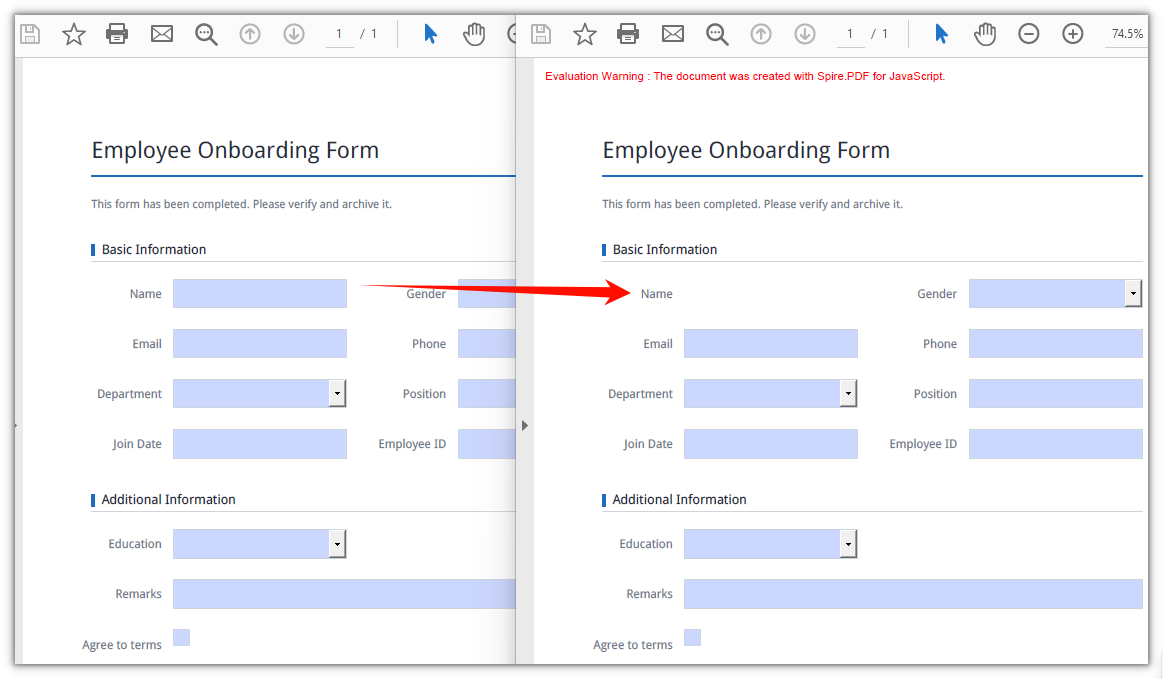
The Name text box has been removed from the form:
FAQ
New form fields cannot be clicked in the reader
Cause: AllowCreateForm defaults to false. When you open an existing document with LoadFromFile, Spire.PDF keeps the document's original form structure and does not allow fields to be appended, so doc.Form.Fields.Add() throws no error but the saved document has no new fields.
Fix: Turn the property on after loading the document and before adding fields:
doc.LoadFromFile(inputFileName);
doc.AllowCreateForm = true;
Fields are still empty after filling
Cause: The field name in the case branch is not character-for-character identical to the real name in the document. PDF field names are case-sensitive and keep leading and trailing spaces, so a name such as company_name (with a trailing space) never matches company_name written in code. Another common mistake is assigning values to objects taken from doc.Form.Fields — those fields have no widget properties such as Text.
Fix: Print every field name before filling and copy from the output. Assignments must land on the *FieldWidget instances that PdfFormWidget returns:
let formWidget = new pdfModule.PdfFormWidget(doc.Form.H);
for (let i = 0; i < formWidget.FieldsWidget.Count; i++) {
  console.log(formWidget.FieldsWidget.get_Item({ index: i }).Name);
}
Deleting one field makes the fields after it disappear too
Cause: Remove() changes FieldsWidget.Count immediately, and every field after the removed element shifts up by one position. If you iterate forward and remove inside the loop, the next iteration has already skipped past the element that moved into that slot.
Fix: break after a single removal; to delete several, collect the targets by name and process them one by one, or iterate backwards from the end:
// Iterate backwards and remove every field whose name starts with temp_
for (let i = formWidget.FieldsWidget.Count - 1; i >= 0; i--) {
  let field = formWidget.FieldsWidget.get_Item({ index: i });
  if (field.Name.startsWith('temp_')) {
    formWidget.FieldsWidget.Remove(field);
  }
}
Get a Free License
If you want to remove the evaluation message from the result documents, or to get rid of the feature limitations, contact sales for a temporary license valid for 30 days.
Archiving is usually the next step after a form is filled in. PDF form fields are exactly where that falls apart: the file looks complete, but the controls are still live, so the recipient can edit an amount, a date or a signature box, and some viewers re-validate the form as it opens. Turning that file into something nobody can change means pressing the controls and their values into the page content.
This article uses Spire.PDF for JavaScript to flatten PDF form fields. It runs on WebAssembly, loading, modifying and saving documents in the browser, and reads and writes files through a virtual file system (VFS) with no backend involved.
This article covers two core features:
For installation and project configuration, see Integrate Spire.PDF for JavaScript into a React Project. The examples below assume Spire.PDF is installed and the WebAssembly module has been initialized.
Flatten the Whole Form
Spire.PDF for JavaScript provides the PdfForm.IsFlatten property to flatten an entire form in one pass. After it is set to true, every field in the document is converted into static page content together with its current value, and the saved PDF has no interactive controls left. The text stays in the text layer, so it can still be selected, copied and searched.
function App() {
  const flattenWholeForm = async () => {
    // Get the Spire.PDF WASM module
    const pdfModule = window.wasmModule?.spirepdf;

    // Check that the module is ready
    if (!pdfModule) {
      alert('Spire.PDF is not ready yet');
      return;
    }

    // Load the PDF file to be processed into the VFS
    const inputFileName = 'EmployeeRegistrationForm.pdf';
    await window.spire.FetchFileToVFS(inputFileName, "", `${process.env.PUBLIC_URL}/data/`);

    // Create a PdfDocument object and load the PDF document
    let doc = new pdfModule.PdfDocument();
    doc.LoadFromFile(inputFileName);

    // Flatten the entire form in one pass
    doc.Form.IsFlatten = true;

    const outputFileName = 'FlattenWholeForm.pdf';
    doc.SaveToFile(outputFileName);
    doc.Close();

    // Read the generated file from the VFS and trigger the download
    const fileArray = window.dotnetRuntime.Module.FS.readFile(outputFileName);
    const blob = new Blob([fileArray], { type: 'application/pdf' });
    const url = URL.createObjectURL(blob);
    const a = document.createElement('a');
    a.href = url;
    a.download = outputFileName;
    a.click();
    URL.revokeObjectURL(url);
  };

  return (
    <div style={{ textAlign: 'center', height: '300px' }}>
      <h1>Flatten the whole form</h1>
      <button onClick={flattenWholeForm}>
        Flatten now
      </button>
    </div>
  );
}

export default App;
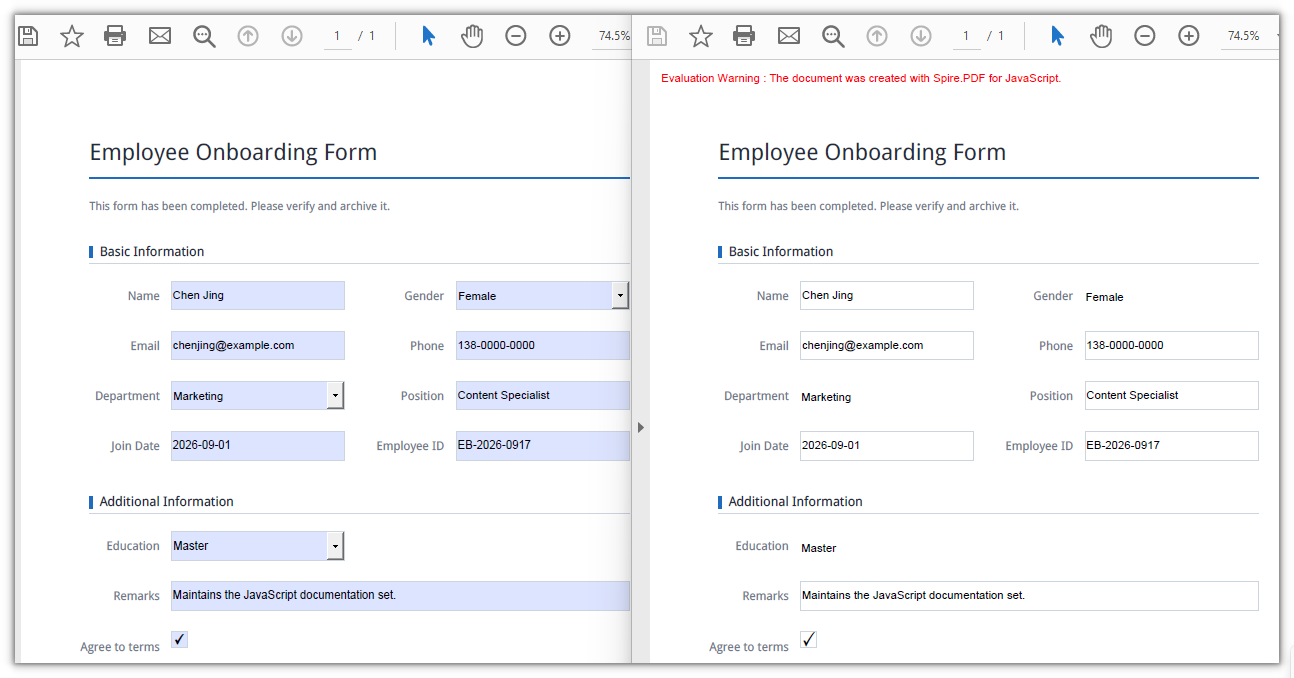
Every input box disappears and the values remain on the page as plain text:
Flatten a Selected Field
Spire.PDF for JavaScript also provides the PdfField.Flatten property for field-level flattening. Take the field instance by Name from the FieldsWidget collection of a PdfFormWidget; only the field you pick is fixed and the rest stay editable — freezing an email address that has already been verified, for example, while leaving the date column for the recipient to fill in.
function App() {
  const flattenSelectedField = async () => {
    // Get the Spire.PDF WASM module
    const pdfModule = window.wasmModule?.spirepdf;

    // Check that the module is ready
    if (!pdfModule) {
      alert('Spire.PDF is not ready yet');
      return;
    }

    // Load the PDF file to be processed into the VFS
    const inputFileName = 'EmployeeRegistrationForm.pdf';
    await window.spire.FetchFileToVFS(inputFileName, "", `${process.env.PUBLIC_URL}/data/`);

    // Create a PdfDocument object and load the PDF document
    let doc = new pdfModule.PdfDocument();
    doc.LoadFromFile(inputFileName);

    // Get the widget collection from the form
    let formWidget = new pdfModule.PdfFormWidget(doc.Form.H);

    // Pick the target field by name and flatten only that one
    for (let i = 0; i < formWidget.FieldsWidget.Count; i++) {
      let field = formWidget.FieldsWidget.get_Item({ index: i });
      if (field.Name === 'email') {
        field.Flatten = true;
      }
    }

    const outputFileName = 'FlattenSelectedField.pdf';
    doc.SaveToFile(outputFileName);
    doc.Close();

    // Read the generated file from the VFS and trigger the download
    const fileArray = window.dotnetRuntime.Module.FS.readFile(outputFileName);
    const blob = new Blob([fileArray], { type: 'application/pdf' });
    const url = URL.createObjectURL(blob);
    const a = document.createElement('a');
    a.href = url;
    a.download = outputFileName;
    a.click();
    URL.revokeObjectURL(url);
  };

  return (
    <div style={{ textAlign: 'center', height: '300px' }}>
      <h1>Flatten a selected field</h1>
      <button onClick={flattenSelectedField}>
        Flatten now
      </button>
    </div>
  );
}

export default App;
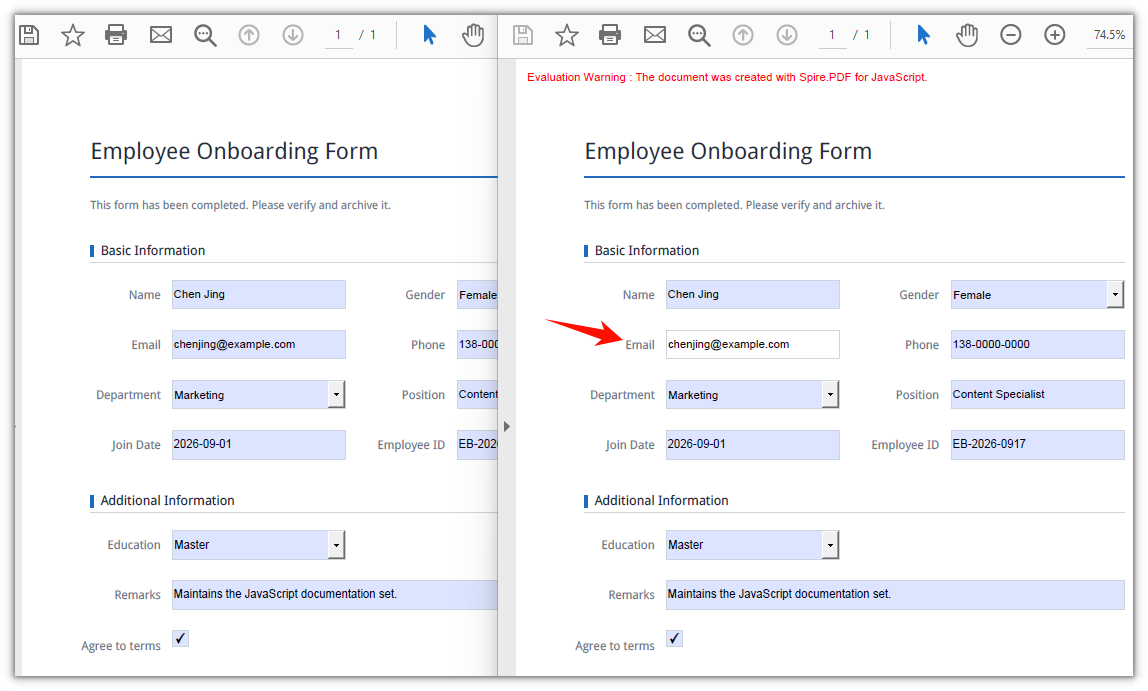
Only the email input box disappears; the remaining fields are still editable controls:
Frequently Asked Questions
The fields are still clickable in the viewer after setting IsFlatten
Reason: The code mixes up two field collections. For an AcroForm produced by another tool, doc.Form.Fields frequently reads back no fields at all — in this article's sample document Count reads 0, and calling get_Item() on it throws ArgumentOutOfRange_IndexMustBeLess. Even when it does return entries, those PdfField objects have no control properties such as Text or Checked, so changing them leaves the page untouched.
Solution: Use doc.Form.IsFlatten alone to flatten the whole form; it does not depend on any collection. As soon as you work field by field — selecting by name, writing a value, flattening one field — go through PdfFormWidget:
let formWidget = new pdfModule.PdfFormWidget(doc.Form.H);
for (let i = 0; i < formWidget.FieldsWidget.Count; i++) {
  console.log(formWidget.FieldsWidget.get_Item({ index: i }).Name);
}
How do I tell whether a PDF has already been flattened
Reason: PdfForm.IsFlatten is a write instruction, not a state flag. Reload the flattened output and doc.Form.IsFlatten still reads false — in testing the document already had 0 fields at that point.
Solution: Check the field count instead; a FieldsWidget.Count of 0 means no interactive controls are left:
let formWidget = new pdfModule.PdfFormWidget(doc.Form.H);
const hasFormFields = formWidget.FieldsWidget.Count > 0;
Only the selected field was flattened, but its value was not baked in
Reason: Name is compared character by character, so it is case-sensitive and keeps leading and trailing spaces. Write company_name when the document actually has company_name (with a trailing space) and the loop never matches — and it raises no error, it just saves the file unchanged.
Solution: Print every field name first and copy from that output. Both the comparison and the assignment have to run on the *FieldWidget instance that FieldsWidget returns:
for (let i = 0; i < formWidget.FieldsWidget.Count; i++) {
  console.log(formWidget.FieldsWidget.get_Item({ index: i }).Name);
}
Get a Free License
If you want to remove the evaluation message from the result document or lift the feature limits, contact our sales team for a temporary license valid for 30 days.
