
Attachments (2)
A PDF document can carry attachments — images, spreadsheets, supplementary notes — and distribute them together with the document. This "document package" form is common in contracts, quotations, and reports. Attachments in a PDF exist in two forms: document attachments, which are attached to the whole document and listed together in the reader's "Attachments" panel, and annotation attachments, which appear as paperclip icons on a page and open the attached file when double-clicked. When we receive a PDF with attachments, we often need to pull the attachments out for separate use, and these two kinds of attachments are read in different ways, requiring different APIs.
Spire.PDF for JavaScript processes PDF documents directly in the browser based on WebAssembly, managing input and output files through a virtual file system (VFS) with no backend service required. The two kinds of attachments are read through different entry points, but both yield the file name and content through FileName and Data: document attachments use PdfDocument.Attachments with PdfEmbeddedFileSpecification, while annotation attachments require visiting PdfPage.Annotations page by page and filtering out PdfAttachmentAnnotationWidget.
This article covers two core features:
For installation and project setup, see Integrate Spire.PDF for JavaScript in a React Project. The examples below assume that Spire.PDF is installed and that the WebAssembly module has been initialized.
Related Knowledge
Attachments in a PDF file come in two kinds: document-level attachments and annotation-level attachments. The table below explains the differences between them and how each is represented in Spire.PDF for JavaScript.
| Attachment Type | Representation | Definition |
|---|---|---|
| Document attachment | PdfDocument.Attachments, read through PdfEmbeddedFileSpecification |
An attachment added at the document level is not displayed on the PDF page, but can be viewed in the "Attachments" panel of a PDF reader. |
| Annotation attachment | PdfAttachmentAnnotationWidget |
A file attached as an annotation can be found on the page or in the "Attachments" panel. An annotation attachment appears as a paperclip icon on the page; you can double-click the icon to open the file while reading the document. |
Extract Attachments from a PDF Document
PdfDocument.Attachments returns all document-level attachments. Iterate the collection, and after wrapping each attachment with new PdfEmbeddedFileSpecification(attachment.H), write the attachment content into the VFS through its FileName and Data. Once everything has been written out, use JSZip to package the files into a single zip file for download. This approach suits saving or migrating all attachments of a document at once.
import JSZip from 'jszip';

function App() {
  const extractDocumentAttachments = async () => {
    // Get the Spire.PDF WASM module
    const pdfModule = window.wasmModule?.spirepdf;

    // Check whether the module is ready
    if (!pdfModule) {
      alert('Spire.PDF is not ready yet');
      return;
    }

    // Load the PDF file to be processed into the VFS
    const inputFileName = 'SampleWithAttachments.pdf';
    await window.spire.FetchFileToVFS(inputFileName, "", `${process.env.PUBLIC_URL}/data/`);

    // Create a PdfDocument object and load the PDF document
    let doc = new pdfModule.PdfDocument();
    doc.LoadFromFile(inputFileName);

    // Get the attachment collection of the document
    let collection = doc.Attachments;

    // Create a temporary directory in the VFS to hold the extracted attachments
    const outputDirectoryName = 'attachmentFiles/';
    window.dotnetRuntime.Module.FS.mkdirTree(outputDirectoryName);

    // Take out each attachment and write it into the temporary directory under its own file name
    for (let i = 0; i < collection.Count; i++) {
      let attachment = collection.get_Item(i);

      // Wrap the underlying handle H with PdfEmbeddedFileSpecification to read the attachment content
      let embeddedFileSpecification = new pdfModule.PdfEmbeddedFileSpecification(attachment.H);
      window.dotnetRuntime.Module.FS.writeFile(
        outputDirectoryName + embeddedFileSpecification.FileName,
        embeddedFileSpecification.Data
      );
    }

    // Release the document resources
    doc.Close();

    // Package all attachments in the temporary directory into a single zip file
    const zip = new JSZip();
    let items = await window.dotnetRuntime.Module.FS.readdir(outputDirectoryName);
    items = items.filter((item) => item !== '.' && item !== '..');
    for (const item of items) {
      const fileData = window.dotnetRuntime.Module.FS.readFile(outputDirectoryName + item);
      zip.file(item, fileData);
    }
    const zipBlob = await zip.generateAsync({ type: 'blob' });

    // Trigger the download
    const outputFileName = 'DocumentAttachments.zip';
    const url = URL.createObjectURL(zipBlob);
    const a = document.createElement('a');
    a.href = url;
    a.download = outputFileName;
    a.click();
    URL.revokeObjectURL(url);
  };

  return (
    <div style={{ textAlign: 'center', height: '300px' }}>
      <h1>Extract Attachments from a PDF Document</h1>
      <button onClick={extractDocumentAttachments}>
        Start Extraction
      </button>
    </div>
  );
}

export default App;
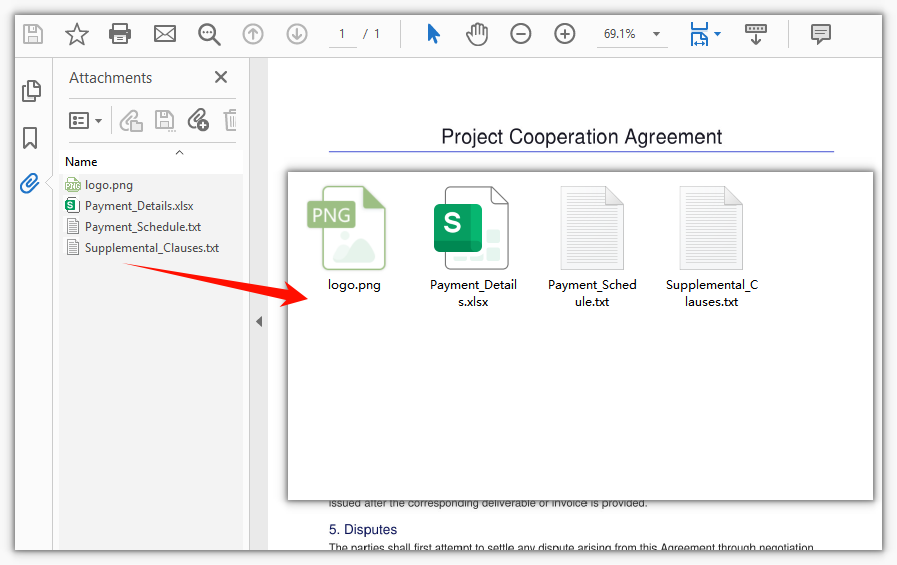
The zip file packaged from all document-level attachments after batch export
Extract Attachments from PDF Annotations
Annotation attachments are read differently from document attachments: they belong to page annotations and cannot be obtained through doc.Attachments. You first iterate doc.Pages to visit PdfPage.Annotations page by page, then use instanceof to test whether each annotation is a PdfAttachmentAnnotationWidget (an attachment annotation). For the matched annotations, FileName and Data are the name and content of the attached file. Because attachment annotations may be spread across different pages, the outer loop must cover every page to extract all annotation attachments in the document.
import JSZip from 'jszip';

function App() {
  const extractAnnotationAttachments = async () => {
    // Get the Spire.PDF WASM module
    const pdfModule = window.wasmModule?.spirepdf;

    // Check whether the module is ready
    if (!pdfModule) {
      alert('Spire.PDF is not ready yet');
      return;
    }

    // Load the PDF file to be processed into the VFS
    const inputFileName = 'AnnotationAttachmentSample.pdf';
    await window.spire.FetchFileToVFS(inputFileName, "", `${process.env.PUBLIC_URL}/data/`);

    // Create a PdfDocument object and load the PDF document
    let doc = new pdfModule.PdfDocument();
    doc.LoadFromFile(inputFileName);

    // Create a temporary directory in the VFS to hold the extracted attachments
    const outputDirectoryName = 'annotationFiles/';
    window.dotnetRuntime.Module.FS.mkdirTree(outputDirectoryName);

    // Iterate page by page and extract attachments from the annotations
    for (let p = 0; p < doc.Pages.Count; p++) {
      let page = doc.Pages.get_Item(p);

      // Get the annotation collection of the current page
      let annotations = page.Annotations;

      for (let i = 0; i < annotations.Count; i++) {
        let annotation = annotations.get_Item(i);

        // Handle only attachment annotations; skip other annotations (text, link, and so on)
        if (annotation instanceof pdfModule.PdfAttachmentAnnotationWidget) {
          // FileName is the attached file name, and Data is the binary content of the attachment
          window.dotnetRuntime.Module.FS.writeFile(
            outputDirectoryName + annotation.FileName,
            annotation.Data
          );
        }
      }
    }

    // Release the document resources
    doc.Close();

    // Package all attachments in the temporary directory into a single zip file
    const zip = new JSZip();
    let items = await window.dotnetRuntime.Module.FS.readdir(outputDirectoryName);
    items = items.filter((item) => item !== '.' && item !== '..');
    for (const item of items) {
      const fileData = window.dotnetRuntime.Module.FS.readFile(outputDirectoryName + item);
      zip.file(item, fileData);
    }
    const zipBlob = await zip.generateAsync({ type: 'blob' });

    // Trigger the download
    const outputFileName = 'AnnotationAttachments.zip';
    const url = URL.createObjectURL(zipBlob);
    const a = document.createElement('a');
    a.href = url;
    a.download = outputFileName;
    a.click();
    URL.revokeObjectURL(url);
  };

  return (
    <div style={{ textAlign: 'center', height: '300px' }}>
      <h1>Extract Attachments from PDF Annotations</h1>
      <button onClick={extractAnnotationAttachments}>
        Start Extraction
      </button>
    </div>
  );
}

export default App;
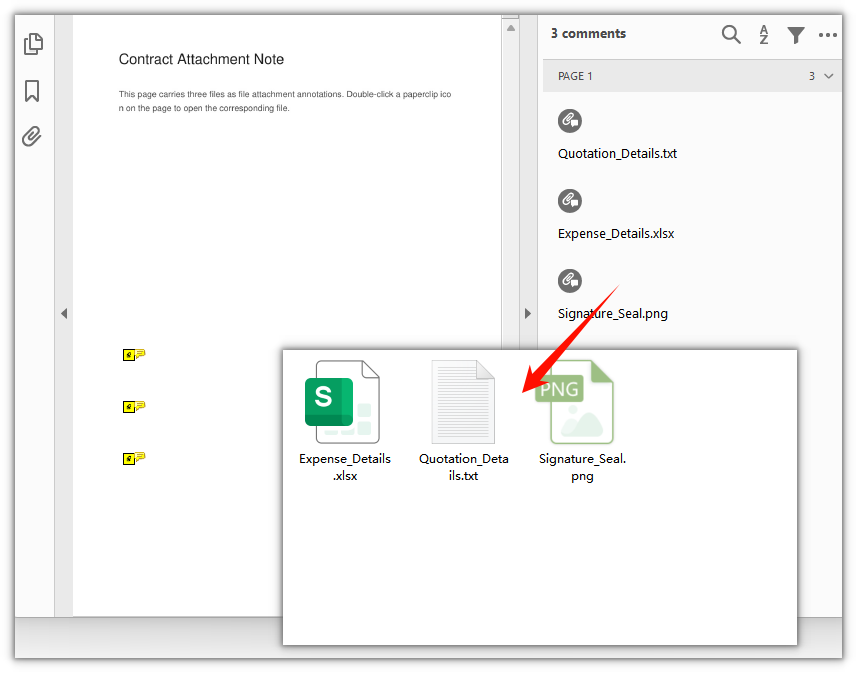
The zip file packaged from the attachments extracted from page annotations
FAQ
Why don't the paperclip attachments visible on the page show up in doc.Attachments
Cause: Attachments in a PDF fall into two levels, document-level and annotation-level. PdfDocument.Attachments returns only document-level attachments (listed in the reader's "Attachments" panel), whereas the paperclip icons on a page are annotation-level attachments — part of the page annotations — and never appear in the Attachments collection.
Solution: To extract annotation attachments, visit the page annotation collection page by page and filter for attachment annotations by type:
for (let p = 0; p < doc.Pages.Count; p++) {
  let annotations = doc.Pages.get_Item(p).Annotations;
  for (let i = 0; i < annotations.Count; i++) {
    if (annotations.get_Item(i) instanceof pdfModule.PdfAttachmentAnnotationWidget) {
      // Handle the attachment annotation
    }
  }
}
Why must the type be checked when iterating page.Annotations
Cause: A page can hold many kinds of annotations at the same time, such as text annotations, link annotations, and stamp annotations, and their properties differ. Only the attachment annotation PdfAttachmentAnnotationWidget provides FileName and Data; reading these two properties on an arbitrary annotation is not reliable.
Solution: Use instanceof PdfAttachmentAnnotationWidget to test the type first, then read the properties:
let annotation = annotations.get_Item(i);
if (annotation instanceof pdfModule.PdfAttachmentAnnotationWidget) {
  let fileName = annotation.FileName;
  let data = annotation.Data;
}
Why only some of the annotation attachments are extracted
Cause: Annotation attachments are attached to a specific page, and different pages may each carry some. If you visit only doc.Pages.get_Item(0), attachment annotations on the remaining pages are missed.
Solution: Iterate doc.Pages in an outer loop and examine the annotation collection of every page:
for (let p = 0; p < doc.Pages.Count; p++) {
  let annotations = doc.Pages.get_Item(p).Annotations;
  // Examine the annotations of this page one by one
}
Get a Free License
If you want to remove the evaluation message from the result documents or get rid of the feature limitations, please contact sales to obtain a temporary license valid for 30 days.
PDF is a fixed-layout format that is easy to distribute, yet a single PDF usually carries only the body of a document. In practice you often want to hand over supporting material together with the main document, such as a contract bundled with its signed images, or a report bundled with the source data behind it, so that everything stays together for archiving and circulation. PDF attachments (embedded files) provide a standard way to do this: a PDF can carry files of any type in its embedded-file tree, and a recipient who opens one PDF finds both the main document and the supporting files in the viewer’s “Attachments” panel, with no need to request them separately.
Spire.PDF for JavaScript is built on WebAssembly, so it loads, draws, and saves PDFs directly in the browser and manages input and output files through a virtual file system (VFS), with no backend service required. Working with attachments comes down to two operations: adding—wrap a file into an attachment with PdfAttachment and add it to the document’s attachment collection through doc.Attachments.Add; and removing—delete a specified attachment from the doc.Attachments collection with Attachments.RemoveAt(index). Both revolve around the PdfDocument.Attachments collection.
This article covers two key operations:
For installation and project setup, refer to How to Integrate Spire.PDF for JavaScript in a React Project. The examples below assume Spire.PDF is installed and the WebAssembly module has been initialized.
Add an Attachment to a PDF Document
To add an attachment, first load the container PDF and the file to embed into the virtual file system, then wrap the file with PdfAttachment (name, data, description, and MIME type) and add it to doc.Attachments. The attachment is not drawn on the page; it is stored in the PDF’s embedded-file tree, where you can view and save it from the viewer’s “Attachments” panel. This example embeds a logo.png into a lease agreement.
function App() {
  const addAttachment = async () => {
    // Get the Spire.PDF WASM module
    const pdfModule = window.wasmModule?.spirepdf;

    // Check whether the module is ready
    if (!pdfModule) {
      alert('Spire.PDF is not ready yet');
      return;
    }

    // Load the container PDF file into the VFS
    const inputFileName = 'Lease_Agreement_EN.pdf';
    await window.spire.FetchFileToVFS(inputFileName, "", `${process.env.PUBLIC_URL}/data/`);

    // Load the image file to embed as an attachment into the VFS
    const attachFileName = 'logo.png';
    await window.spire.FetchFileToVFS(attachFileName, "", `${process.env.PUBLIC_URL}/data/`);

    // Create a PdfDocument object and load the PDF document
    let doc = new pdfModule.PdfDocument();
    doc.LoadFromFile(inputFileName);

    // Create the attachment and set its file name, description, and MIME type
    let attachment = new pdfModule.PdfAttachment({ fileName: attachFileName });
    attachment.Data = window.dotnetRuntime.Module.FS.readFile(attachFileName);
    attachment.Description = 'Company logo attached to the agreement';
    attachment.MimeType = 'image/png';

    // Add the attachment to the document's attachment collection
    doc.Attachments.Add({ attachment: attachment });

    // Define the output file name and save the document
    const outputFileName = 'Agreement_With_Attachment.pdf';
    doc.SaveToFile(outputFileName);
    doc.Close();

    // Read the generated file from the VFS and trigger a download
    const fileArray = window.dotnetRuntime.Module.FS.readFile(outputFileName);
    const blob = new Blob([fileArray], { type: 'application/pdf' });
    const url = URL.createObjectURL(blob);
    const a = document.createElement('a');
    a.href = url;
    a.download = outputFileName;
    a.click();
    URL.revokeObjectURL(url);
  };

  return (
    <div style={{ textAlign: 'center', height: '300px' }}>
      <h1>Add Attachment To PDF</h1>
      <button onClick={addAttachment}>
        Generate
      </button>
    </div>
  );
}

export default App;
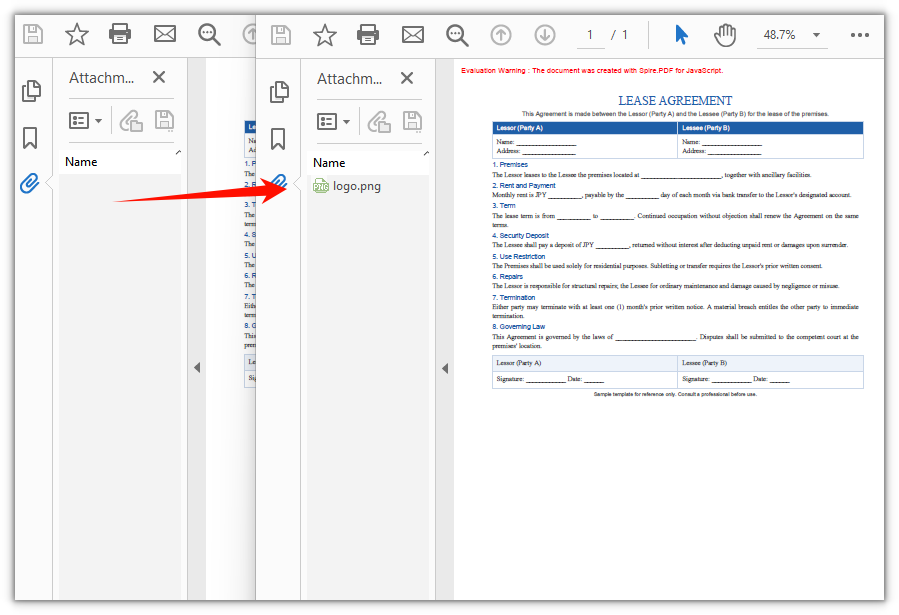
Agreement with the logo.png attachment embedded
Remove an Attachment from a PDF Document
To remove a specified attachment, call Attachments.RemoveAt(index) on the attachment collection; the index is zero-based (check Count first to confirm how many attachments there are). This example loads a sample document that already contains attachments and deletes its first one. To remove every attachment from the document at once, call attachments.Clear() instead.
function App() {
  const deleteAttachments = async () => {
    // Get the Spire.PDF WASM module
    const pdfModule = window.wasmModule?.spirepdf;

    // Check whether the module is ready
    if (!pdfModule) {
      alert('Spire.PDF is not ready yet');
      return;
    }

    // Load the PDF file that contains attachments into the VFS
    const inputFileName = 'SampleWithAttachments.pdf';
    await window.spire.FetchFileToVFS(inputFileName, "", `${process.env.PUBLIC_URL}/data/`);

    // Create a PdfDocument object and load the PDF document
    let doc = new pdfModule.PdfDocument();
    doc.LoadFromFile(inputFileName);

    // Get the document's attachment collection
    let attachments = doc.Attachments;

    // Remove the attachment at the given index (zero-based; here the first one)
    attachments.RemoveAt(0);

    // Define the output file name and save the document
    const outputFileName = 'Attachment_Removed.pdf';
    doc.SaveToFile(outputFileName);
    doc.Close();

    // Read the generated file from the VFS and trigger a download
    const fileArray = window.dotnetRuntime.Module.FS.readFile(outputFileName);
    const blob = new Blob([fileArray], { type: 'application/pdf' });
    const url = URL.createObjectURL(blob);
    const a = document.createElement('a');
    a.href = url;
    a.download = outputFileName;
    a.click();
    URL.revokeObjectURL(url);
  };

  return (
    <div style={{ textAlign: 'center', height: '300px' }}>
      <h1>Delete Attachments From PDF</h1>
      <button onClick={deleteAttachments}>
        Generate
      </button>
    </div>
  );
}

export default App;
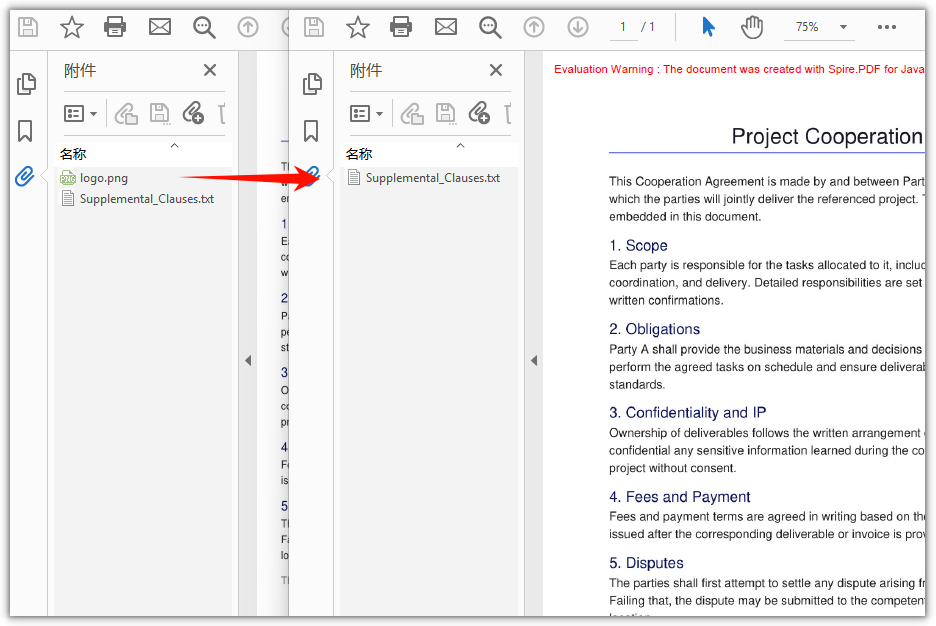
PDF document after the first attachment is removed
Frequently Asked Questions
How do I check whether a PDF contains attachments and how many there are
Reason: Before removing or reading attachments, you usually want to know whether the document has any attachments and how many, to avoid invalid operations on an empty collection.
Solution: All attachments of a document live in the doc.Attachments collection; its Count property returns the number of attachments, and a value of 0 means there are none. To read a single attachment, access it by index with get_Item(index):
// Get the document's attachment collection and the number of attachments
let attachments = doc.Attachments;
let count = attachments.Count;
Which properties should I set when adding an attachment
Reason: If you only assign the file bytes without a name and description, the item is displayed incompletely in the viewer’s “Attachments” panel and the recipient cannot tell what the file is.
Solution: The commonly used properties of PdfAttachment are fileName (the file name the recipient sees), Description (a one-line description), and MimeType (the content type); assign the file bytes to Data. After setting them, Add the attachment to the collection so the panel shows it with its name and description:
// Create the attachment and set its file name, data, description, and MIME type
let attachment = new pdfModule.PdfAttachment({ fileName: 'logo.png' });
attachment.Data = window.dotnetRuntime.Module.FS.readFile('logo.png');
attachment.Description = 'Company logo attached to the agreement';
attachment.MimeType = 'image/png';
doc.Attachments.Add({ attachment: attachment });
Can I embed file types other than images as attachments
Reason: Examples often demonstrate attachments with images, which can make it look as if PDF attachments only accept images.
Solution: A PDF attachment is essentially an embedded file that carries arbitrary bytes, with no restriction on the type. As long as you load the file into the virtual file system, read its bytes into Data with FS.readFile, and set MimeType to the matching content type, files such as Word, Excel, PDF, or archives can all be embedded as attachments. Embedding a PDF appendix, for example:
// Load the PDF appendix to embed and add it as an attachment
const attachName = 'Product_Appendix.pdf';
await window.spire.FetchFileToVFS(attachName, "", `${process.env.PUBLIC_URL}/data/`);
let attachment = new pdfModule.PdfAttachment({ fileName: attachName });
attachment.Data = window.dotnetRuntime.Module.FS.readFile(attachName);
attachment.MimeType = 'application/pdf';
doc.Attachments.Add({ attachment: attachment });
Get a Free License
If you wish to delete the evaluation message from the resulting documents, or to get rid of function limitations, please contact sales to obtain a valid 30-day temporary license.
