A field is the part of a Word document that changes with its environment: the date follows the day the document is opened, the page number follows pagination, and the file name follows where the file is saved. A date typed into the body loses its meaning once that moment has passed; a field yields the value of the moment each time the document is opened. In reports, contracts and templates generated in bulk by a program, fields also let the document maintain for itself what each line should show, while the program only has to write the field code.
This article uses Spire.Doc for JavaScript to add, refresh and place fields at the end of a quarterly business report. The whole process runs in the browser on WebAssembly, requires no Office installation and depends on no backend service; the document is read and written locally, and the library never sends the file to a server.
This article covers three features:
- Add Date, File Name and Page Fields
- Update Fields and Lock the Displayed Result
- Insert a Date Field at the Head, Middle and Tail of a Paragraph
A field consists of two parts: the field code (for example DATE \@ "MMMM d, yyyy", which states what is to be calculated) and the field result (the text Word displays after calculating it). When a program inserts a field it writes the field code, and the result depends on whether an update has been run. The article uses the following members:
| Member | Purpose |
|---|---|
paragraph.AppendField(name, FieldType) |
Inserts a field at the end of the paragraph; the first argument doubles as the initial display text |
field.Code |
Reads or writes the field code, with any format switch |
field.Update() |
Recalculates the result of the field |
field.FieldText |
Reads the text the field currently displays |
field.IsLocked |
Locks the field result so that later updates no longer change it |
Document.Fields |
All fields in the document, including those in headers and footers |
For installation and project setup, refer to Integrating Spire.Doc for JavaScript in a React Project. The examples below assume that Spire.Doc is installed and the WebAssembly module is initialized. The sample document is a one-page quarterly business report, Sample.docx, and the fields are appended in the notes area at the end of the report.
Add Date, File Name and Page Fields
Date, file name and page fields are added with paragraph.AppendField(name, FieldType). The first argument and the second argument set the initial display text and the field type respectively, and the complete field code is written afterwards with field.Code. The three fields serve different purposes in a document:
| Call | What it inserts | Typical use |
|---|---|---|
AppendField('Date', FieldType.FieldDate) |
A date field, displayed in the format held in the field code | The date a report is generated, a signing date |
AppendField('FileName', FieldType.FieldFileName) |
A file name field, whose result is the file name of the current document | The file identity on a printed copy |
AppendField('1', FieldType.FieldPage) |
A page field, whose result is the number of the page it sits on | Page order in the body or the footer |
The specific steps are as follows:
- Get the Spire.Doc WASM module and confirm that it is ready.
- Load the fonts and the sample document, create a
Documentobject and loadSample.docx. - Append a paragraph at the end of the body with
Section.AddParagraph(). - Write the labels in turn, and call
Paragraph.AppendField()to insert the date, file name and page fields, setting the field codes of the date and file name fields. - Save the result with
Document.SaveToFile(), read it back from the VFS and trigger a browser download.
The code for adding date, file name and page fields is as follows:
import React from 'react';

function App() {
  const addFields = async () => {
    // Get the Spire.Doc WASM module
    const docModule = window.wasmModule?.spiredoc;

    if (!docModule) {
      alert('Spire.Doc is not ready yet');
      return;
    }

    // Load the sample document
    await window.spire.FetchFileToVFS('Sample.docx', '', `${process.env.PUBLIC_URL}/data/`);

    const doc = new docModule.Document();
    doc.LoadFromFile('Sample.docx');

    // Append a paragraph at the end of the body; the fields go into it in turn
    const paragraph = doc.Sections.get_Item(0).AddParagraph();

    // Date field: the first argument is the initial display text, and Code then sets the field code
    paragraph.AppendText('Generated on: ');
    const dateField = paragraph.AppendField('Date', docModule.FieldType.FieldDate);
    dateField.Code = 'DATE \\@ "MMMM d, yyyy"';
    dateField.Update();

    // File name field: the result is the file name of the current document
    paragraph.AppendText('\nFile name: ');
    const fileField = paragraph.AppendField('FileName', docModule.FieldType.FieldFileName);
    fileField.Update();

    // Page field: the initial text is a placeholder number, and the page it lands on is shown once opened
    paragraph.AppendText('\nPage: ');
    const pageField = paragraph.AppendField('1', docModule.FieldType.FieldPage);

    // Save the result file
    const outputFileName = 'ReportWithFields.docx';
    doc.SaveToFile({ fileName: outputFileName, fileFormat: docModule.FileFormat.Docx2013 });
    doc.Dispose();

    // Read the generated file from the VFS and trigger the download
    const fileArray = window.dotnetRuntime.Module.FS.readFile(outputFileName);
    const blob = new Blob([fileArray], { type: 'application/vnd.openxmlformats-officedocument.wordprocessingml.document' });
    const url = URL.createObjectURL(blob);
    const a = document.createElement('a');
    a.href = url;
    a.download = outputFileName;
    a.click();
    URL.revokeObjectURL(url);
  };

  return (
    <div style={{ textAlign: 'center', height: '300px' }}>
      <h1>Add Fields</h1>
      <button onClick={addFields}>Insert Fields</button>
    </div>
  );
}

export default App;
The document after adding date, file name and page fields at the end of the report:
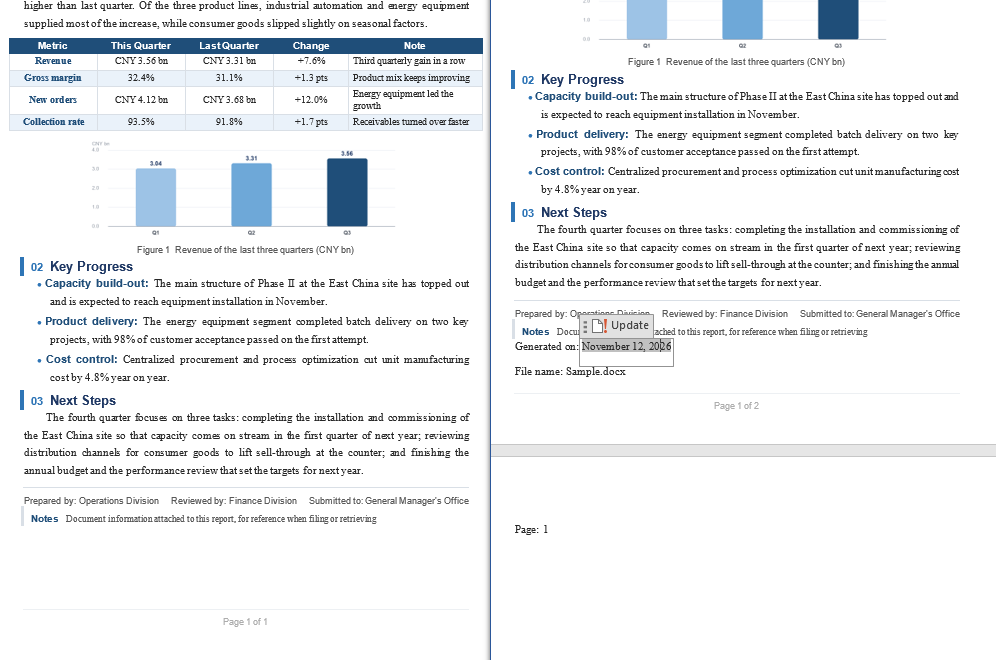
Format Switches in the Field Code
The format of the date result is decided by the field code. A format switch is written as a backslash plus @, for example DATE \@ "MMMM d, yyyy"; inside a JavaScript string the backslash itself has to be escaped once more, so the line reads 'DATE \\@ "MMMM d, yyyy"'. Format symbols are case-sensitive: M stands for the month, while m stands for the minute in some combinations; d stands for the day and dd for a two-digit day.
When no format switch is written, the date field uses the default format, measured here as 11/11/2026, which does not match the date style normally used in the rest of a document. A document that needs a consistent appearance should spell the format out in the field code.
Update Fields and Lock the Displayed Result
Updating a field and locking its displayed result means recalculating the field code once and fixing the text it produces. Field.Update() performs the recalculation and Field.IsLocked freezes the result. Before the update a field carries only its initial display text; after the update it holds content that matches the current time and file name.
The specific steps are as follows:
- Get the Spire.Doc WASM module and confirm that it is ready.
- Load the fonts and the sample document, create a
Documentobject and loadSample.docx. - Append a paragraph, insert the archive date field and set its field code.
- Walk
Document.Fields, callField.Update()on each field and readFieldText. - Lock the archive date field, save the result file and trigger the download.
The code for updating fields and locking the displayed result is as follows:
function App() {
  const updateFields = async () => {
    // Get the Spire.Doc WASM module
    const docModule = window.wasmModule?.spiredoc;

    if (!docModule) {
      alert('Spire.Doc is not ready yet');
      return;
    }

    // Load the sample document
    await window.spire.FetchFileToVFS('Sample.docx', '', `${process.env.PUBLIC_URL}/data/`);

    const doc = new docModule.Document();
    doc.LoadFromFile('Sample.docx');

    // Insert the archive date field in the notes area
    const paragraph = doc.Sections.get_Item(0).AddParagraph();
    paragraph.AppendText('Archive date: ');
    const archiveField = paragraph.AppendField('Date', docModule.FieldType.FieldDate);
    archiveField.Code = 'DATE \\@ "MMMM d, yyyy"';

    // Refresh every field in the document; Document.Fields also contains the page field in the footer
    for (let i = 0; i < doc.Fields.Count; i++) {
      const field = doc.Fields.get_Item(i);
      field.Update();
      console.log(field.FieldText);
    }

    // Lock the archive date so the result stays at the date calculated this time
    archiveField.IsLocked = true;
    paragraph.AppendText(' (locked)');

    // Save the result file
    const outputFileName = 'ReportWithArchiveDate.docx';
    doc.SaveToFile({ fileName: outputFileName, fileFormat: docModule.FileFormat.Docx2013 });
    doc.Dispose();

    // Read the generated file from the VFS and trigger the download
    const fileArray = window.dotnetRuntime.Module.FS.readFile(outputFileName);
    const blob = new Blob([fileArray], { type: 'application/vnd.openxmlformats-officedocument.wordprocessingml.document' });
    const url = URL.createObjectURL(blob);
    const a = document.createElement('a');
    a.href = url;
    a.download = outputFileName;
    a.click();
    URL.revokeObjectURL(url);
  };

  return (
    <div style={{ textAlign: 'center', height: '300px' }}>
      <h1>Update Fields</h1>
      <button onClick={updateFields}>Update and Lock</button>
    </div>
  );
}

export default App;
The document after updating every field and locking the archive date:
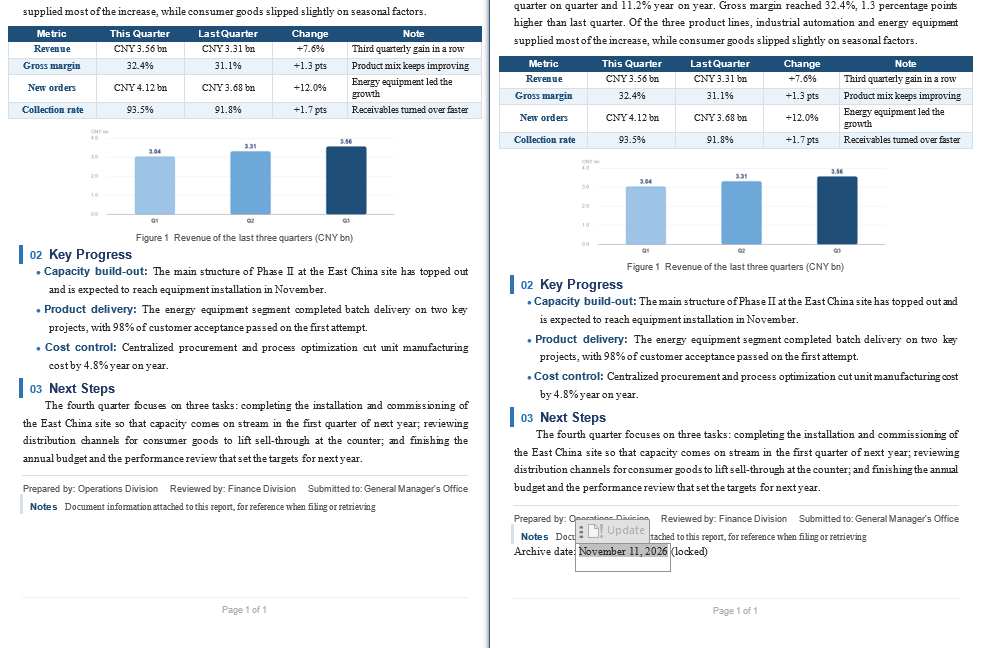
Update Every Field in the Document at Once
Document.Fields is the collection of all fields in the document, and Count and get_Item(index) walk it one by one; fields in headers and footers are included as well. The collection itself has no batch update method, so Field.Update() has to be called in an index loop:
// Update one by one, starting from index 0
for (let i = 0; i < doc.Fields.Count; i++) {
  doc.Fields.get_Item(i).Update();
}
To decide which fields need updating, filter first by field.Code or field.Type and refresh only the fields that change with time, such as the date and the file name; fields in the footer that do not need to change can be skipped.
Locking and Unlocking
While Field.IsLocked is true, the field does not change on update, which suits documents kept for archiving or audit that need a fixed point in time. Locking only prevents updates and does not affect reading: Field.FieldText still returns the value normally. To restore dynamic updating, set IsLocked back to false.
Insert a Date Field at the Head, Middle and Tail of a Paragraph
Placing a date field at the head, middle and tail of a paragraph comes down to the order in which AppendField is called. AppendField only appends the field to the end of the paragraph, so the position of a field in the paragraph is decided by its order relative to AppendText: insert the field before writing any text and it sits at the head; alternate text and fields and it lands in the middle.
The specific steps are as follows:
- Get the Spire.Doc WASM module and confirm that it is ready.
- Load the fonts and the sample document, create a
Documentobject and loadSample.docx. - Append an empty paragraph and first call
Paragraph.AppendField()for the date field at the head. - Write the middle text and insert the second date field, then write the tail text and insert the third date field.
- Call
Field.Update()on each field, save the result file and trigger the download.
The code for inserting a date field at the head, middle and tail of a paragraph is as follows:
function App() {
  const positionFields = async () => {
    // Get the Spire.Doc WASM module
    const docModule = window.wasmModule?.spiredoc;

    if (!docModule) {
      alert('Spire.Doc is not ready yet');
      return;
    }

    // Load the sample document
    await window.spire.FetchFileToVFS('Sample.docx', '', `${process.env.PUBLIC_URL}/data/`);

    const doc = new docModule.Document();
    doc.LoadFromFile('Sample.docx');

    const paragraph = doc.Sections.get_Item(0).AddParagraph();

    // Head: a field inserted while the paragraph still holds no text ends up in front
    const headField = paragraph.AppendField('Date', docModule.FieldType.FieldDate);
    headField.Code = 'DATE \\@ "MMMM d, yyyy"';

    // Middle: write the lead-in, insert the field, then write what follows
    paragraph.AppendText('  The data in this report is current as of ');
    const middleField = paragraph.AppendField('Date', docModule.FieldType.FieldDate);
    middleField.Code = 'DATE \\@ "MMMM d, yyyy"';

    // Tail: a field inserted after the body text ends up last in the paragraph
    paragraph.AppendText(', and the report was completed on ');
    const tailField = paragraph.AppendField('Date', docModule.FieldType.FieldDate);
    tailField.Code = 'DATE \\@ "MMMM d, yyyy"';

    paragraph.AppendText('.');

    // Refresh the three fields separately to get the current date
    [headField, middleField, tailField].forEach((field) => field.Update());

    // Save the result file
    const outputFileName = 'ReportWithDatePositions.docx';
    doc.SaveToFile({ fileName: outputFileName, fileFormat: docModule.FileFormat.Docx2013 });
    doc.Dispose();

    // Read the generated file from the VFS and trigger the download
    const fileArray = window.dotnetRuntime.Module.FS.readFile(outputFileName);
    const blob = new Blob([fileArray], { type: 'application/vnd.openxmlformats-officedocument.wordprocessingml.document' });
    const url = URL.createObjectURL(blob);
    const a = document.createElement('a');
    a.href = url;
    a.download = outputFileName;
    a.click();
    URL.revokeObjectURL(url);
  };

  return (
    <div style={{ textAlign: 'center', height: '300px' }}>
      <h1>Position Fields</h1>
      <button onClick={positionFields}>Insert by Position</button>
    </div>
  );
}

export default App;
The document with the date field at the head, middle and tail of the paragraph:
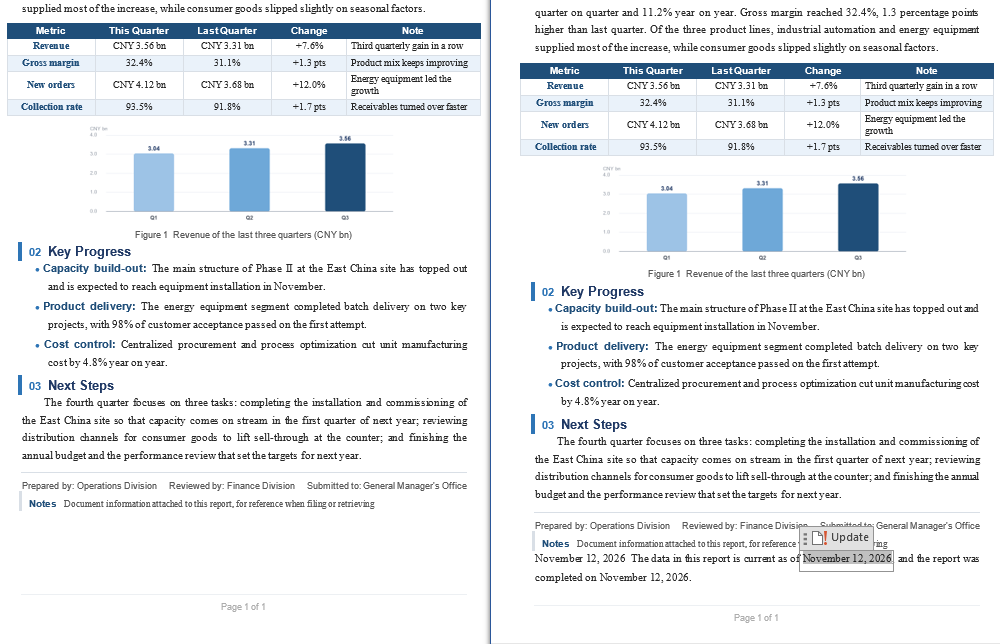
Check Where a Field Landed in the Paragraph
The order of a paragraph's child objects matches the call order exactly. To check which position a field actually occupies, walk paragraph.ChildObjects: every text range, field mark and field takes one element, with the index starting at 0.
// Print the type of every child object to see where each field actually landed
for (let i = 0; i < paragraph.ChildObjects.Count; i++) {
  console.log(i, paragraph.ChildObjects.get_Item(i).DocumentObjectType);
}
A complete field expands into four child objects: Field (the begin marker), FieldMark (the separator), the TextRange that carries the result text, and a final FieldMark (the end marker). So when estimating a position by index, a run of text and a field are separated by more than one element.
FAQ
Why does an inserted field show text such as Date or 1
Cause: for an ordinary field such as a date or a page number, the first argument of AppendField is the text the field shows before it is updated. Setting Code only rewrites the field code and nothing has been recalculated yet, so the result stays at the initial text.
Fix: call Field.Update() once after setting the field code, then read Field.FieldText to confirm the result:
const dateField = paragraph.AppendField('Date', docModule.FieldType.FieldDate);
dateField.Code = 'DATE \\@ "MMMM d, yyyy"';
dateField.Update();
console.log(dateField.FieldText);  // the runtime date, for example November 11, 2026
Why does the date show as 11/11/2026 after the update
Cause: when the field code carries no format switch, the date field uses the default format, measured here as 11/11/2026, which does not match the date style used in the rest of the document.
Fix: spell the date format out in the field code so that the date field matches the rest of the document:
// Pin the date to the month-day-year form
dateField.Code = 'DATE \\@ "MMMM d, yyyy"';
Why does the page field not change after Update() is called
Cause: a page number depends on the layout of the document, and the same field yields different values on different pages. The result of such a field is computed by layout, and in this test Field.Update() did not rewrite the text it already displayed.
Fix: keep the page field in the footer and let Word fill it in during layout and export; when the total page count has to be known in advance, get the pagination from Document.GetPageCount() and check against that rather than against the text of the page field.
Why does Word not update the fields on open after IsUpdateFields is set
Cause: Document.IsUpdateFields is a readable and writable property, but in the current version of Spire.Doc for JavaScript a .docx saved after setting it to true was measured to contain no w:updateFields marker, so Word does not refresh fields on open because of it.
Fix: when the field results have to be definite, call Field.Update() on each field before saving (see "Update Every Field in the Document at Once" above) so that the calculated results are written into the document instead of relying on an update at open time.
Can a field be inserted into the middle of an existing paragraph
Cause: AppendField only appends to the end of the paragraph and offers no argument for inserting at a position. Removing the field from ChildObjects and inserting it again does not work either: in a paragraph a field consists of the begin marker, the separator, the result text and the end marker together, and moving one of them alone breaks the structure, so the next Field.Update() throws.
Fix: write the field in the target order before the paragraph takes shape. When an existing paragraph needs the field in the middle, create a new paragraph and write it again in the order "text, field, text"; the original text can be taken out with paragraph.Text and filled in piece by piece:
// The writing order of the new paragraph decides where the field lands
const paragraph = doc.Sections.get_Item(0).AddParagraph();
paragraph.AppendText('The report was prepared on ');
const dateField = paragraph.AppendField('Date', docModule.FieldType.FieldDate);
dateField.Code = 'DATE \\@ "MMMM d, yyyy"';
paragraph.AppendText(', and it has three parts.');
dateField.Update();
Get a Free License
Spire.Doc for JavaScript offers a 30-day full-featured free trial license with no functional limitations. Apply here to evaluate before purchasing.