
When a Word document has to travel between machines and environments, fonts are the part most likely to break: open a carefully laid out document on another computer and the glyph shapes, the font sizes and even the pagination can change. The safe approach is to first take stock of the fonts the document actually uses, then embed the fonts that must be preserved together with the document itself. Spire.Doc for JavaScript performs all of this in the browser via WebAssembly, using a virtual file system (VFS) to manage input and output files — no backend server required.
This article covers two core features:
For installation and project setup, refer to Integrating Spire.Doc for JavaScript in a React Project. The examples below assume Spire.Doc is installed and the WebAssembly module is initialized.
Get the List of Fonts Used in the Document
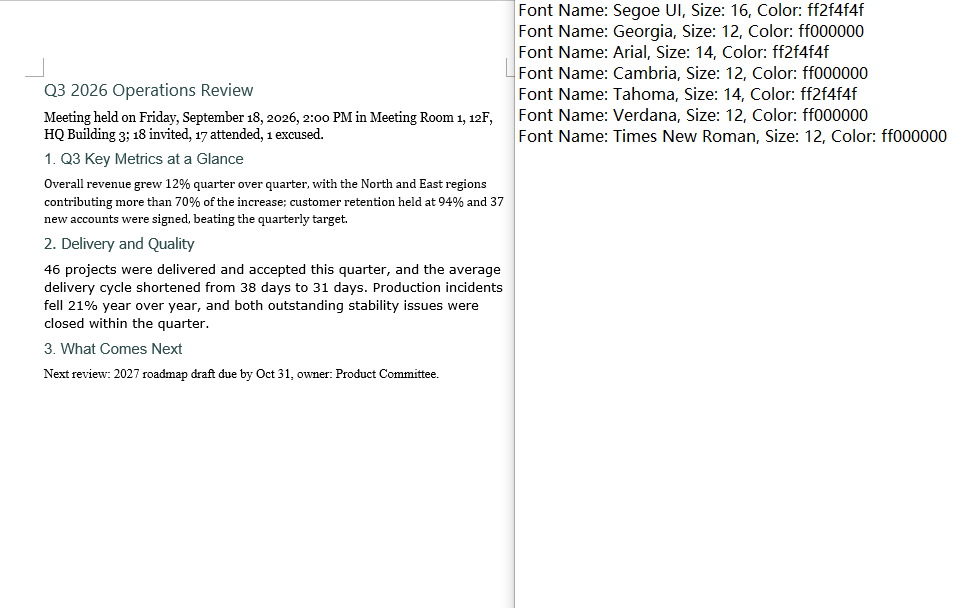
Listing the fonts involves three steps: first, load the target Word document into the WASM virtual file system via FetchFileToVFS; then instantiate a Document, load the document, walk down through section → paragraph → child object and read the font name, the font size and the text color from the CharacterFormat of every TextRange, de-duplicating on the combination of the three; finally, join the results into text and write it to VFS, read it back and wrap it as a Blob to trigger a browser download.
The de-duplication step deserves attention: a Map key has to be a primitive type that can be compared by value. Use an object such as { size, name } as the key and every iteration creates a brand-new reference, so Map never finds an existing entry and the de-duplication silently does nothing. The key here is therefore a string built from the font name, the font size and the color.
function App() {
  const GetListOfUsingFonts = async () => {
    const docModule = window.wasmModule?.spiredoc;
    if (!docModule) {
      alert('Spire.Doc is not ready yet');
      return;
    }

    // Load the target Word document into VFS
    const inputFileName = "GetListOfUsingFonts.docx";
    await window.spire.FetchFileToVFS(inputFileName, "", `${process.env.PUBLIC_URL}static/data/`);

    // Create a Document instance and load the document
    const doc = new docModule.Document();
    doc.LoadFromFile(inputFileName);

    // De-duplicate on "font name|size|color"
    const fontMap = new Map();

    // Walk through every section
    for (let i = 0; i < doc.Sections.Count; i++) {
      const section = doc.Sections.get_Item(i);

      // Walk through every paragraph in the section
      for (let j = 0; j < section.Body.Paragraphs.Count; j++) {
        const paragraph = section.Body.Paragraphs.get_Item(j);

        // Walk through every child object in the paragraph
        for (let k = 0; k < paragraph.ChildObjects.Count; k++) {
          const obj = paragraph.ChildObjects.get_Item(k);
          if (!(obj instanceof docModule.TextRange)) continue;

          const format = obj.CharacterFormat;
          const key = `${format.FontName}|${format.FontSize}|${format.TextColor.Name}`;

          fontMap.set(key, {
            name: format.FontName,
            size: format.FontSize,
            color: format.TextColor.Name
          });
        }
      }
    }

    // Build the output content
    const lines = [];
    for (const font of fontMap.values()) {
      lines.push(`Font Name: ${font.name}, Size: ${font.size}, Color: ${font.color}`);
    }

    // Define the output file name and write it to VFS
    const outputFileName = "GetListOfUsingFonts_out.txt";
    window.dotnetRuntime.Module.FS.writeFile(outputFileName, lines.join("\n"));

    const modifiedFileArray = window.dotnetRuntime.Module.FS.readFile(outputFileName);
    const blob = new Blob([modifiedFileArray], { type: 'text/plain' });
    const url = URL.createObjectURL(blob);
    const a = document.createElement('a');
    a.href = url;
    a.download = outputFileName;
    a.click();
    URL.revokeObjectURL(url);

    doc.Dispose();
  };

  return (
    <div style={{ textAlign: 'center', height: '300px' }}>
      <h1>Get the Fonts Used in a Word Document</h1>
      <button onClick={GetListOfUsingFonts}>Generate</button>
    </div>
  );
}
export default App;
The text file produced by the font list sample
Embed a Private Font
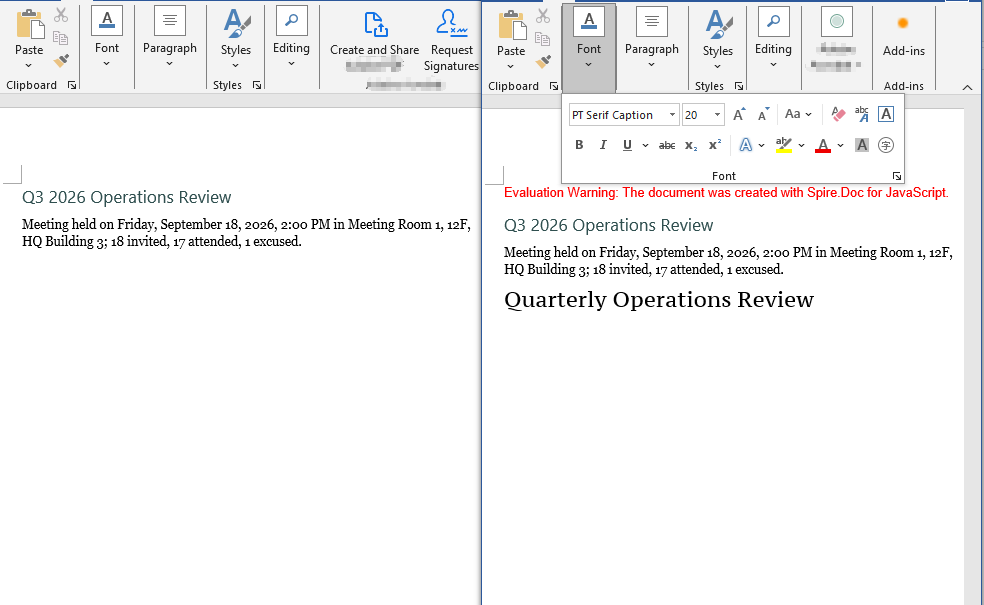
Embedding a private font also involves three steps: first, load the font file to embed together with the document into the WASM virtual file system via FetchFileToVFS; then instantiate a Document, load the document, write a run that uses the font, set EmbedFontsInFile to true and call AddPrivateFont to register the path and the registration name of the font file; finally, save the document, read it back from VFS and wrap it as a Blob to trigger a browser download.
EmbedFontsInFile and AddPrivateFont only take effect at save time and must both be called before SaveToFile. The first argument of PrivateFontPath is the name the font is registered under inside the document, and it has to match the value assigned to CharacterFormat.FontName exactly, or Word will not find a match.
function App() {
  const EmbedPrivateFont = async () => {
    const docModule = window.wasmModule?.spiredoc;
    if (!docModule) {
      alert('Spire.Doc is not ready yet');
      return;
    }

    // Load the private font file to embed into VFS
    await window.spire.FetchFileToVFS("PT Serif Caption.ttf", "/Library/Fonts/", `${process.env.PUBLIC_URL}static/font/`);

    // Load the target Word document into VFS
    const inputFileName = "EmbedPrivateFont.docx";
    await window.spire.FetchFileToVFS(inputFileName, "", `${process.env.PUBLIC_URL}static/data/`);

    // Create a Document instance and load the document
    const doc = new docModule.Document();
    doc.LoadFromFile(inputFileName);

    // Append a paragraph at the end of the first section and apply the private font
    const p = doc.Sections.get_Item(0).AddParagraph();
    const range = p.AppendText("Quarterly Operations Review");
    range.CharacterFormat.FontName = "PT Serif Caption";
    range.CharacterFormat.FontSize = 20;

    // Turn on font embedding and register the private font file with the document
    doc.EmbedFontsInFile = true;
    doc.AddPrivateFont(new docModule.PrivateFontPath("PT Serif Caption", "PT Serif Caption.ttf"));

    // Define the output file name
    const outputFileName = "EmbedPrivateFont_out.docx";

    // Save the document to VFS
    doc.SaveToFile({ fileName: outputFileName, fileFormat: docModule.FileFormat.Docx2013 });
    doc.Dispose();

    const modifiedFileArray = window.dotnetRuntime.Module.FS.readFile(outputFileName);
    const blob = new Blob([modifiedFileArray], { type: 'application/vnd.openxmlformats-officedocument.wordprocessingml.document' });
    const url = URL.createObjectURL(blob);
    const a = document.createElement('a');
    a.href = url;
    a.download = outputFileName;
    a.click();
    URL.revokeObjectURL(url);
  };

  return (
    <div style={{ textAlign: 'center', height: '300px' }}>
      <h1>Embed a Private Font in a Word Document</h1>
      <button onClick={EmbedPrivateFont}>Generate</button>
    </div>
  );
}
export default App;
The document produced after the private font has been embedded
FAQ
The same font appears many times in the output font list
Cause: If the code follows the pattern "store the font name and the font size in an object, then use that object as the Map key", the de-duplication never works. Objects are reference types in JavaScript and Map compares keys by reference rather than by value; every object created inside the loop is a fresh reference, so fontMap.has(font) always returns false. The list then ends up with one line for every TextRange in the document, and the same font repeats over and over.
Solution: Use a primitive type as the key instead — join the fields that take part in the de-duplication into a string (such as font name|size|color), so that fonts with identical content get the same key:
const format = obj.CharacterFormat;

// Use a string as the key: identical content means the same entry, so de-duplication works
const key = `${format.FontName}|${format.FontSize}|${format.TextColor.Name}`;
fontMap.set(key, {
  name: format.FontName,
  size: format.FontSize,
  color: format.TextColor.Name
});
If all you need is de-duplication at the level of font names, collect format.FontName in a Set instead.
The font is embedded, but another computer still shows a substitute
Cause: There are three common cases. The first is the timing of the call — AddPrivateFont only registers the font file with the in-memory document object, while the font table and the font parts are actually written into the docx during the save, so EmbedFontsInFile = true and AddPrivateFont(...) both have to come before SaveToFile; leave out EmbedFontsInFile and the font file is not written at all. The second is a font name mismatch — the first argument of PrivateFontPath is the registration name used inside the document and must match the value of CharacterFormat.FontName exactly, spaces and letter case included, or the match fails over a single character. The third is the embedding permission of the font file itself — the fsType bits in the OS/2 table of some commercial fonts forbid embedding, and Word simply ignores those fonts, in which case the only options are to use another font or a licensed version that permits embedding.
Solution: Keep every font embedding setting together before the save, and make sure the registration name matches the font name character for character:
// Keep the font name and the registration name exactly the same
const FONT_NAME = "PT Serif Caption";

const range = p.AppendText("Quarterly Operations Review");
range.CharacterFormat.FontName = FONT_NAME;
range.CharacterFormat.FontSize = 20;

// Turn on embedding and register the font file; both must come before SaveToFile
doc.EmbedFontsInFile = true;
doc.AddPrivateFont(new docModule.PrivateFontPath(FONT_NAME, "PT Serif Caption.ttf"));

doc.SaveToFile({ fileName: outputFileName, fileFormat: docModule.FileFormat.Docx2013 });
Get a Free License
Spire.Doc for JavaScript offers a 30-day full-featured free trial license with no functional limitations. Apply here to evaluate before purchasing.

