C#/VB.NET: Create, Read, or Update Excel Documents
Excel spreadsheet is a widely used file format that enables users to organize, analyze, and present data in a tabular format. The ability to interact with Excel files programmatically is highly valuable, as it allows automation and integration of Excel functionality into software applications. This capability is particularly useful when working with large datasets, performing complex calculations, or when data needs to be dynamically generated or updated. In this article, you will learn how to create, read, or update Excel documents in C# and VB.NET using Spire.XLS for .NET.
- Create an Excel File in C#, VB.NET
- Read Data of a Worksheet in C#, VB.NET
- Update an Excel File in C#, VB.NET
Install Spire.XLS for .NET
To begin with, you need to add the DLL files included in the Spire.XLS for .NET package as references in your .NET project. The DLL files can be either downloaded from this link or installed via NuGet.
PM> Install-Package Spire.XLS
Create an Excel File in C#, VB.NET
Spire.XLS for .NET offers a variety of classes and interfaces that you can use to create and edit Excel documents. Here is a list of important classes, properties and methods involved in this article.
| Member | Description |
| Workbook class | Represents an Excel workbook model. |
| Workbook.Worksheets.Add() method | Adds a worksheet to workbook. |
| Workbook.SaveToFile() method | Saves the workbook to an Excel document. |
| Worksheet class | Represents a worksheet in a workbook. |
| Worksheet.Range property | Gets a specific cell or cell range from worksheet. |
| Worksheet.Range.Value property | Gets or sets the value of a cell. |
| Worksheet.Rows property | Gets a collection of rows in worksheet. |
| Worksheet.InsertDataTable() method | Imports data from DataTable to worksheet. |
| CellRange class | Represents a cell or cell range in worksheet. |
The following are the steps to create an Excel document from scratch using Spire.XLS for .NET.
- Create a Workbook object.
- Add a worksheet using Workbook.Worksheets.Add() method.
- Write data to a specific cell through Worksheet.Range.Value property.
- Import data from a DataTable to the worksheet using Worksheet.InsertDataTable() method.
- Save the workbook to an Excel document using Workbook.SaveToFile() method.
- C#
- VB.NET
using Spire.Xls;
using System.Data;

namespace CreateExcelSpreadsheet
{
    class Program
    {
        static void Main(string[] args)
        {
            //Create a Workbook object
            Workbook wb = new Workbook();

            //Remove default worksheets
            wb.Worksheets.Clear();

            //Add a worksheet and name it "Employee"
            Worksheet sheet = wb.Worksheets.Add("Employee");

            //Merge the cells between A1 and G1
            sheet.Range["A1:G1"].Merge();

            //Write data to A1 and apply formatting to it
            sheet.Range["A1"].Value = "Basic Information of Employees of Huanyu Automobile Company";
            sheet.Range["A1"].HorizontalAlignment = HorizontalAlignType.Center;
            sheet.Range["A1"].VerticalAlignment = VerticalAlignType.Center;
            sheet.Range["A1"].Style.Font.IsBold = true;
            sheet.Range["A1"].Style.Font.Size = 13F;

            //Set row height of the first row
            sheet.Rows[0].RowHeight = 30F;

            //Create a DataTable
            DataTable dt = new DataTable();
            dt.Columns.Add("Name");
            dt.Columns.Add("Gender");
            dt.Columns.Add("Birth Date");
            dt.Columns.Add("Educational Background");
            dt.Columns.Add("Contact Number");
            dt.Columns.Add("Position");
            dt.Columns.Add("ID");
            dt.Rows.Add("Allen", "Male", "1990-02-10", "Bachelor", "24756854", "Mechanic", "0021");
            dt.Rows.Add("Patrick", "Male", "1985-06-08", "Master", "59863247", "Mechanic", "0022");
            dt.Rows.Add("Jenna", "Female", "1989-11-25", "Bachelor", "79540352", "Sales", "0023");
            dt.Rows.Add("Tommy", "Male", "1988-04-16", "Master", "52014060", "Mechanic", "0024");
            dt.Rows.Add("Christina", "Female", "1998-01-21", "Bachelor", "35401489", "HR", "0025");

            //Import data from DataTable to worksheet
            sheet.InsertDataTable(dt, true, 2, 1, true);

            //Set row height of a range
            sheet.Range["A2:G7"].RowHeight = 15F;

            //Set column width
            sheet.Range["A2:G7"].Columns[2].ColumnWidth = 15F;
            sheet.Range["A2:G7"].Columns[3].ColumnWidth = 21F;
            sheet.Range["A2:G7"].Columns[4].ColumnWidth = 15F;

            //Set border style of a range
            sheet.Range["A2:G7"].BorderAround(LineStyleType.Medium);
            sheet.Range["A2:G7"].BorderInside(LineStyleType.Thin);
            sheet.Range["A2:G2"].BorderAround(LineStyleType.Medium);
            sheet.Range["A2:G7"].Borders.KnownColor = ExcelColors.Black;

            //Save to a .xlsx file
            wb.SaveToFile("NewSpreadsheet.xlsx", FileFormat.Version2016);
        }
    }
}
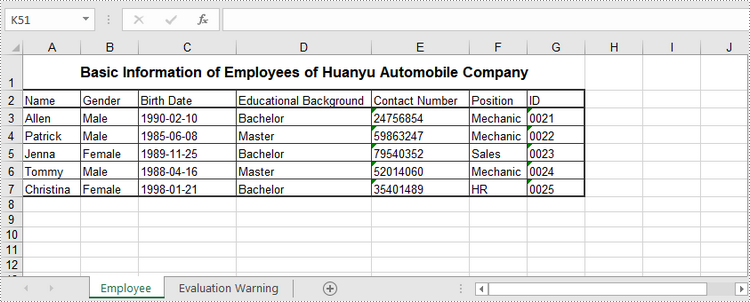
Read Data of a Worksheet in C#, VB.NET
The Worksheet.Range.Value property returns number value or text value of a cell as a string. To get data of a whole worksheet or a cell range, loop through the cells within it. The following are the steps to get data of a worksheet using Spire.XLS for .NET.
- Create a Workbook object.
- Load an Excel document using Workbook.LoadFromFile() method.
- Get a specific worksheet through Workbook.Worksheets[index] property.
- Get the cell range containing data though Worksheet.AllocatedRange property.
- Iterate through the rows and columns to get cells within the range, and return the value of each cell through CellRange.Value property.
- C#
- VB.NET
using Spire.Xls;

namespace ReadExcelData
{
    class Program
    {
        static void Main(string[] args)
        {
            //Create a Workbook object
            Workbook wb = new Workbook();

            //Load an existing Excel file
            wb.LoadFromFile(@"C:\Users\Administrator\Desktop\NewSpreadsheet.xlsx");

            //Get the first worksheet
            Worksheet sheet = wb.Worksheets[0];

            //Get the cell range containing data
            CellRange locatedRange = sheet.AllocatedRange;

            //Iterate through the rows
            for (int i = 0;i < locatedRange.Rows.Length;i++)
            {
                //Iterate through the columns
                for (int j = 0; j < locatedRange.Rows[i].ColumnCount; j++)
                {
                    //Get data of a specific cell
                    Console.Write(locatedRange[i + 1, j + 1].Value + "  ");

                }
                Console.WriteLine();
            }
        }
    }
}
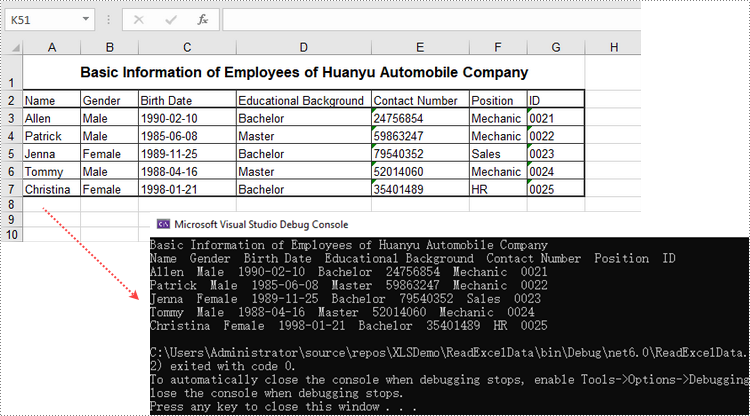
Update an Excel Document in C#, VB.NET
To change the value of a certain cell, just re-assign a value to it through Worksheet.Range.Value property. The following are the detailed steps.
- Create a Workbook object.
- Load an Excel document using Workbook.LoadFromFile() method.
- Get a specific worksheet through Workbook.Worksheets[index] property.
- Change the value of a particular cell though Worksheet.Range.Value property.
- Save the workbook to an Excel file using Workbook.SaveToFile() method.
- C#
- VB.NET
using Spire.Xls;

namespace UpdateCellValue
{
    class Program
    {
        static void Main(string[] args)
        {
            //Create a Workbook object
            Workbook wb = new Workbook();

            //Load an existing Excel file
            wb.LoadFromFile(@"C:\Users\Administrator\Desktop\NewSpreadsheet.xlsx");

            //Get the first worksheet
            Worksheet sheet = wb.Worksheets[0];

            //Change the value of a specific cell
            sheet.Range["A1"].Value = "Updated Value";

            //Save to file
            wb.SaveToFile("Updated.xlsx", ExcelVersion.Version2016);
        }
    }
}
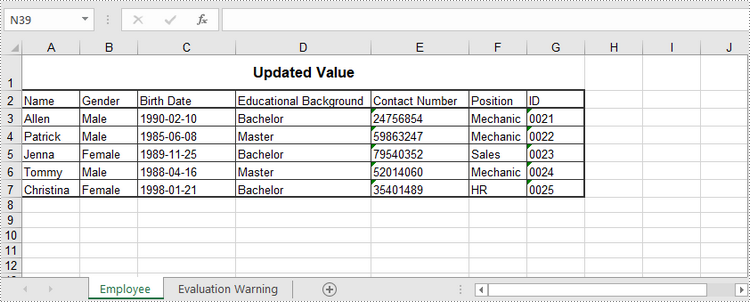
Apply for a Temporary License
If you'd like to remove the evaluation message from the generated documents, or to get rid of the function limitations, please request a 30-day trial license for yourself.
Load/Save Excel VBA in C#, VB.NET
By running VBA within the Office applications, developers/programmers can build customized solutions and programs to enhance the capabilities of those applications. The VBA function of Excel is very powerful. Below I will show you how to use VBA by Spire.XLS.
VBA is the acronym for VB.NET for Applications. It is an implementation of Microsoft's event-driven programming language VB.NET 6 and its associated integrated development environment (IDE), which are built into most Microsoft Office applications. VBA is closely related to VB.NET and uses the VB.NET Runtime Library, but can normally only run code within a host application rather than as a standalone program. It can be used to control one application from another via OLE Automation.
Spire.XLS for .NET is a professional Excel .NET component that can be linked into any type of .NET 2.0, 3.5 or 4.0 projects, either ASP.NET web sites or Windows Forms application. Spire.XLS for .NET offers a combination of APIs and GUI controls for speeding up Excel programming in .NET platform-create new Excel documents from scratch, edit existing Excel documents and convert Excel files. At the same time, Spire.XLS supports VBA and it can load/Save Excel VBA.
Here comes to the steps:
- Write a template with VBA program with which you can execute your work in Excel.
- Create another workbook to load the VBA template.
In this demo, it generates a new worksheet named "test" with the VBA template we provide.
Please check the codes as below:
using Spire.Xls;

namespace NumberFormat
{
    class Program
    {
        static void Main(string[] args)
        {
            //Create a workbook
            Workbook workbook = new Workbook();

            //Initailize worksheet
            workbook.LoadFromFile("VBASample.xls");
            Worksheet sheet = workbook.Worksheets[0];

            //VBA function
            sheet.Range["A1"].Text = "test";

            //Save the file
            workbook.SaveToFile("Sample.xls",ExcelVersion.Version97to2003);

            //Launch the file
            System.Diagnostics.Process.Start("Sample.xls");
        }
    }
}
Imports Spire.Xls

Module Module1

    Sub Main()
        'Create a workbook
        Dim workbook As New Workbook()

        'Initailize worksheet
        workbook.LoadFromFile("VBASample.xls")
        Dim sheet As Worksheet = workbook.Worksheets(0)

        'VBA function
        sheet.Range("A1").Text = "test"

        'Save doc file.
        workbook.SaveToFile("Sample.xls",ExcelVersion.Version97to2003)

        'Launching the MS Word file.
        System.Diagnostics.Process.Start("Sample.xls")
    End Sub
End Module
Marker Designer: Generate Excel Reports from Templates in .NET
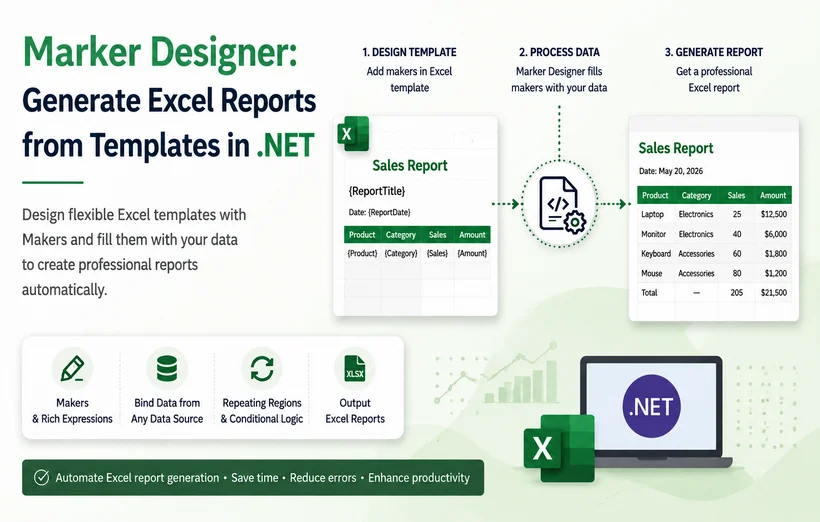
Generating dynamic Excel reports is a core requirement for most enterprise .NET applications. Yet, traditional automation approaches often create more problems than they solve. When code is tightly coupled to specific layouts, even a minor design change—moving a logo or adding a column—can trigger costly rewrites and endless debugging cycles.
The Marker Designer feature in Spire.XLS for .NET reimagines this workflow. It establishes a clean separation between presentation and logic: designers build visually polished templates in native Excel, while developers write simple, decoupled C# code that focuses solely on data retrieval. The engine acts as an intelligent bridge—parsing placeholders, injecting data, expanding rows, and adjusting formulas automatically, all while preserving every detail of the original formatting.
In this article, we will explore how to use the Marker Designer feature to import data into Excel. We’ll cover its core concepts, syntax, supported data sources, and practical code examples—from simple variable replacement to complex data‑driven reports with automatic formula recalculation.
- Understanding Marker Designer Architecture
- Install Spire.XLS for .NET
- Example 1: Basic Text Variable Replacement
- Example 2: Populate Templates from a DataTable
- Example 3: Import Arrays to Excel Rows and Columns
- Example 4: Dynamic Auto-Adjusting Formulas
- Practical: Auto Populate Excel Template from an External Data File
- Frequently Asked Questions
Understanding Marker Designer Architecture
Core Components
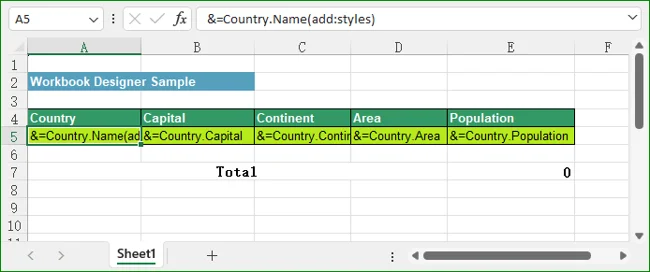
Marker: A special text string placed in an Excel cell that tells Spire.XLS where to insert data and which data field to use. Every marker starts with the prefix &=, followed by a data source identifier and a field name.
- Example:
&=Party.FullName - This marker tells the engine to replace the cell content with the “FullName” field from the “Party” data source.
Designer Spreadsheet: A standard Excel file (.xls or .xlsx) that serves as a reusable template. It typically contains:
- Visual formatting (colors, fonts, borders)
- Predefined Excel formulas
- Marker designers in cells where data should be inserted
Marker Syntax Reference
All markers begin with the prefix &= and are placed directly in cells of your Excel template. The standard syntax formats:
- &=DataSource.FieldName: References a field from a structured data source such as a DataTable column.
- &=[Data Source].[Field Name]: Used when data source or field names contain spaces.
- &=VariableName: References a single-value parameter or variable.
Supported Data Sources
Marker Designer supports a wide range of .NET data types. Data sources are registered in code via dedicated methods on the MarkerDesigner object:
| Data Source Type | Method |
|---|---|
| DataTable | AddDataTable(string paraName, DataTable dataTable) |
| DataTable with row limit | AddDataTable(string paraName, DataTable dataTable, int rowCount) |
| DataView | AddDataView(string paraName, DataView dataView) |
| DataColumn | AddDataColumn(string paraName, DataColumn paramValue) |
| Array | AddArray(string paraName, Object[] paramValues) |
| Parameter (single value) | AddParameter(string paraName, Object paramValue) |
Advanced Marker Parameters
Parameters are appended in parentheses after the field name and provide granular control over the rendering behavior.
add:styles: Inherits all cell formatting (font, fill color, borders, number format) from the marker cell and applies it to all expanded data rows.
- Example:
&=Country.Name(add:styles) - Pro Tip: Apply add:styles only to the first marker cell in a template row. The engine automatically propagates formatting to all other expanded cells.
Horizontal: Fills data horizontally (across columns) instead of the default vertical (down rows) direction.
- Example:
&=Products.Name(horizontal) - Use Case: This is particularly useful for creating cross-tabular reports, comparative charts, or filling out header columns for specific date ranges.
Install Spire.XLS for .NET
Option 1: Install via NuGet (Recommended)
Package Manager Console:
Install-Package Spire.XLS
Or search for “Spire.XLS” within NuGet Package Manager UI in Visual Studio.
Option 2: Manual DLL Reference
- Download the Spire.XLS package and extract the files.
- In Visual Studio, right-click References > Add Reference > Browse, then select the appropriate Spire.Xls.dll based on your target framework.
Example 1: Basic Text Variable Replacement
This example demonstrates how to bind a single text value to a marker, ideal for report titles, dates, or summary labels.
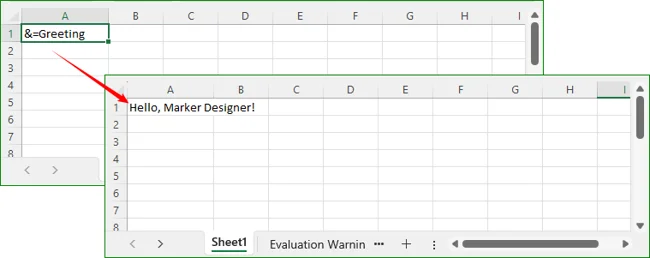
Template Preparation: In cell A1 of Template1.xlsx, place the marker: &=Greeting.
C# Code:
using Spire.Xls;

class Program
{
    static void Main()
    {
        // Load template workbook
        Workbook workbook = new Workbook();
        workbook.LoadFromFile("Template1.xlsx");

        // Add a simple parameter
        workbook.MarkerDesigner.AddParameter("Greeting", "Hello, Marker Designer!");

        // Apply all markers
        workbook.MarkerDesigner.Apply();

        // Save the result
        workbook.SaveToFile("Output.xlsx", ExcelVersion.Version2016);
        workbook.Dispose();
    }
}
Result: Cell A1 will display: Hello, Marker Designer!
Example 2: Populate Templates from a DataTable
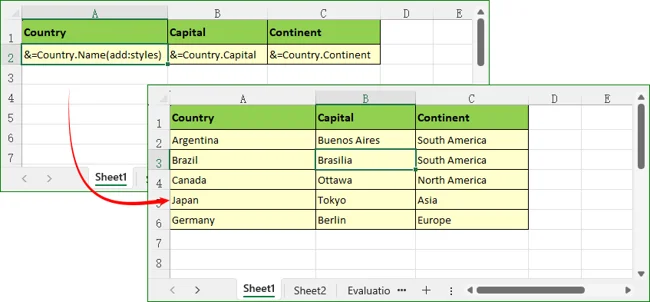
This is the most widely used scenario for generating tabular business reports. Data from a DataTable is populated vertically into a formatted template.
C# code to import DataTable:
using System.Data;
using Spire.Xls;

class Program
{
    static void Main()
    {
        // Create sample DataTable
        DataTable dt = new DataTable("Country");
        dt.Columns.Add("Name", typeof(string));
        dt.Columns.Add("Capital", typeof(string));
        dt.Columns.Add("Continent", typeof(string));

        dt.Rows.Add("Argentina", "Buenos Aires", "South America");
        dt.Rows.Add("Brazil", "Brasilia", "South America");
        dt.Rows.Add("Canada", "Ottawa", "North America");
        dt.Rows.Add("Japan", "Tokyo", "Asia");
        dt.Rows.Add("Germany", "Berlin", "Europe");

        // Load template
        Workbook workbook = new Workbook();
        workbook.LoadFromFile("CountryTemplate.xlsx");
        Worksheet sheet = workbook.Worksheets[0];

        // Register DataTable with Marker Designer
        // The name "Country" must match the prefix in &=Country.Name
        workbook.MarkerDesigner.AddDataTable("Country", dt);

        // Apply markers – data expands downward automatically
        workbook.MarkerDesigner.Apply();

        // Optional: Auto-fit columns
        //sheet.AllocatedRange.AutoFitColumns();
        //sheet.AllocatedRange.AutoFitRows();

        // Save output
        workbook.SaveToFile("CountryReport.xlsx", ExcelVersion.Version2016);
        workbook.Dispose();
    }
}
Result: The template row (row 2) expands to 5 rows of data, with header formatting preserved and styles inherited.
In real-world projects, source data is typically stored in a separate Excel file rather than being constructed inline in code. You can combine Spire.XLS's data export capability with Marker Designer to read raw data from one workbook and populate it into a pre-formatted template workbook.
Example 3: Import Arrays to Excel Rows and Columns
This example demonstrates how to bind a simple one‑dimensional array to fill a column or row with sequential values.
using Spire.Xls;

class Program
{
    static void Main()
    {
        // Load template workbook
        Workbook workbook = new Workbook();
        workbook.LoadFromFile("ArrayTemplate.xlsx");

        // Add array data source
        string[] products = { "Apple", "Banana", "Cherry", "Durian" };
        workbook.MarkerDesigner.AddArray("ProductList", products);

        // Apply markers
        workbook.MarkerDesigner.Apply();

        workbook.SaveToFile("ArrayOutput.xlsx", ExcelVersion.Version2016);
        workbook.Dispose();
    }
}
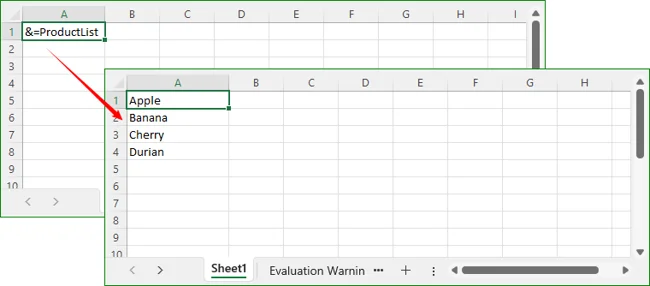
Result: The array values fill vertically from A1 to A4.
Horizontal Fill
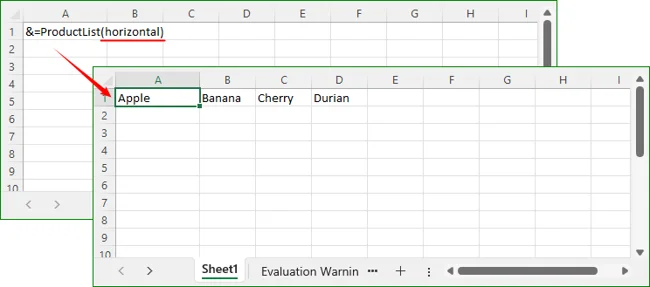
To fill horizontally, you could modify the marker to &=ProductList(horizontal), and the array would span A1 to D1.
Example 4: Dynamic Auto-Adjusting Formulas
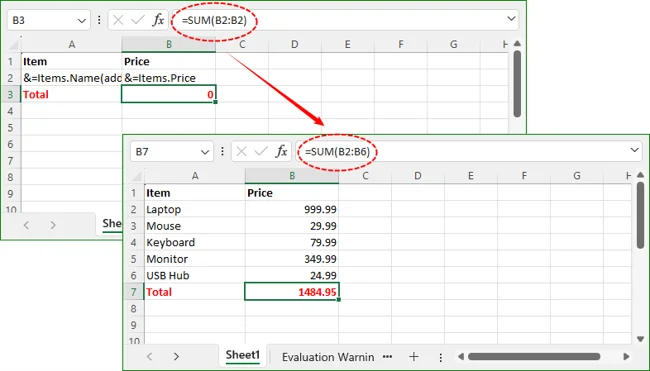
When data expands vertically, formulas referencing marker rows automatically adjust their range. Place summary formulas in the row immediately after the marker row, and they will shift down correctly.
using System.Data;
using Spire.Xls;
class Program
{
    static void Main()
    {
        // Prepare sample data
        DataTable items = new DataTable("Items");
        items.Columns.Add("Name", typeof(string));
        items.Columns.Add("Price", typeof(decimal));
        items.Rows.Add("Laptop", 999.99);
        items.Rows.Add("Mouse", 29.99);
        items.Rows.Add("Keyboard", 79.99);
        items.Rows.Add("Monitor", 349.99);
        items.Rows.Add("USB Hub", 24.99);

        // Create workbook and build template inline
        Workbook workbook = new Workbook();
        workbook.LoadFromFile("FormulaTemplate.xlsx");

        // Bind data source
        workbook.MarkerDesigner.AddDataTable("Items", items);

        // Apply markers – formula range expands automatically
        workbook.MarkerDesigner.Apply();

        // Recalculate all formulas to get actual values
        workbook.CalculateAllValue();

        // Save result
        workbook.SaveToFile("FormulaReport.xlsx", ExcelVersion.Version2016);
        workbook.Dispose();
    }
}
Result: Original template formula “=SUM(B2:B2)” auto‑updates to “=SUM(B2:B6)” after row expansion to cover all generated data rows.
Practical: Auto Populate Excel Template from an External Data File
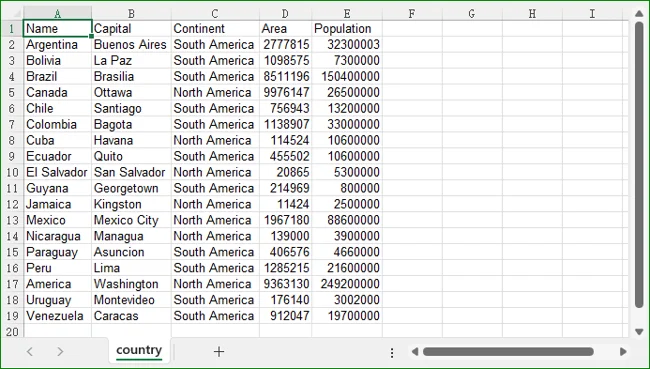
Very often, your application receives raw data files (e.g., an export from a legacy system, a CSV converted to Excel, or a weekly operational report) that contain only numbers and text but lack any visual styling. Separately, your design team maintains a beautifully formatted “Template.xlsx” file containing headers, logos, color schemes, and the markers.
This example bridges the gap by reading the raw data from a source file, converting it into a DataTable, and injecting it into the styled template—all programmatically.
The template file containing formatted headers with markers:
The data source file containing unformatted data:
C# Code:
using Spire.Xls;
using System.Data;

class Program
{
    static void Main(string[] args)
    {
        // 1. Create a new workbook instance and load the DESIGN template.
        Workbook workbook = new Workbook();
        workbook.LoadFromFile("C:\\Users\\Administrator\\Desktop\\MarkerDesigner.xls");

        // 2. Fetch the raw data from a SEPARATE source file.
        DataTable dt = ExportTable();

        // 3. (Optional) Retrieve row count for logging or validation purposes.
        int rowCount = dt.Rows.Count;

        // 4. Get the first worksheet (where your markers are located).
        Worksheet sheet = workbook.Worksheets[0];

        // 5. Bind the extracted DataTable to the MarkerDesigner engine.
        // The name "Country" must match the marker in the template (e.g., &=Country.Name).
        workbook.MarkerDesigner.AddDataTable("Country", dt);
        workbook.MarkerDesigner.Apply();

        // 6. AutoFit rows and columns to ensure all content is fully visible.
        sheet.AllocatedRange.AutoFitRows();
        sheet.AllocatedRange.AutoFitColumns();

        // 7. Recalculate all formulas in the workbook.
        workbook.CalculateAllValue();

        // 8. Save the modified workbook.
        workbook.SaveToFile("Output_MarkerDesigner.xlsx", ExcelVersion.Version2016);

        // 9. Dispose of the workbook object to release memory and file locks.
        workbook.Dispose();
    }

    // Helper method to load data from a specific data-source Excel file.
    static DataTable ExportTable()
    {
        // Instantiate a new workbook to act purely as a data reader.
        Workbook workbook = new Workbook();

        // Load the raw data file (this could be an export from a CRM, ERP, etc.).
        workbook.LoadFromFile("C:\\Users\\Administrator\\Desktop\\MarkerDesigner-DataSample.xls");

        // Initialize the first worksheet where the data resides.
        Worksheet sheet = workbook.Worksheets[0];

        // Export the entire range of the worksheet into a DataTable.
        return sheet.ExportDataTable();
    }
}
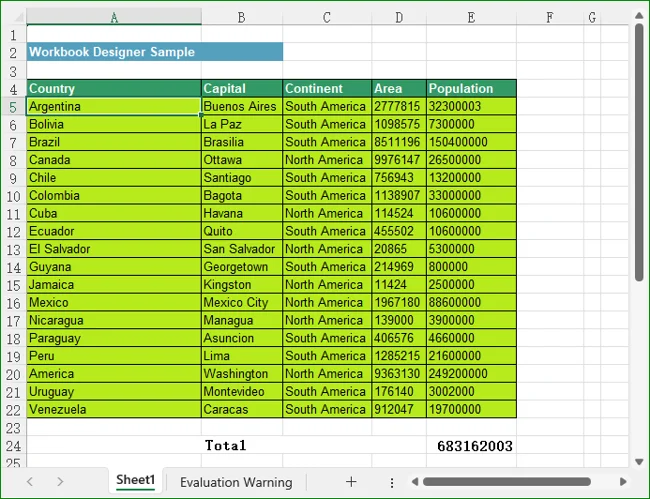
Result: The output file contains formatted headers and styles from the template, with rows dynamically populated from the data file.
Conclusion
Marker Designer streamlines Excel report generation by decoupling visual design from data logic, reducing development effort and improving maintainability. With support for multiple data sources, configurable single‑value marker parameters, and automatic formula adaptation, it provides a flexible solution for building dynamic Excel documents in .NET applications.
Whether you are generating simple parameterized reports, complex tabular datasets, or summary reports with calculated fields, Marker Designer in Spire.XLS for .NET delivers a declarative, low‑code approach to Excel automation that saves hundreds of hours of development effort.
Frequently Asked Questions
Can I use multiple data sources in a single template?
A: Yes. You can register multiple data sources (DataTables, arrays, parameters) in the same workbook. Each marker references its corresponding data source by name, and all markers are processed in a single Apply() call.
Does the add:styles parameter work on multiple columns?
A: You only need to apply add:styles to the very first marker cell in a template row. The engine captures the style from that cell and propagates it horizontally across all the newly created cells in that row. If you apply it to a middle column, the style propagation may not extend correctly to preceding columns.
How do I control the number of rows populated from a DataTable?
A: Use the AddDataTable overload with the rowCount parameter to limit the maximum number of rows populated from the data source. This is useful for preview scenarios or paginated reports.
Can I use MarkerDesigner with existing Excel files that already contain data?
A: Yes. You can load any Excel file, register data sources, and apply markers. The engine will update only the cells containing markers, leaving other content untouched.
Save Excel Document in C#, VB.NET
Automation of an Excel file allows us to doing various operations in C#/VB.NET. Any loss in these operations may result in unexpected negative consequences for developers and the clients of the developers. That means we must find a solution that enables us to Save Excel with no loss in quality of our operations. This section will demonstrate how to fast save Excel file with perfect performance as directly operations in Excel files.
Spire.Xls for .NET is a professional component that enables developers directly manages Excel operation regardless whether Microsoft Excel is installed on or not. With Spire.Xls for .NET, we can save Excel to what we want it to be. Any kind of trial and evaluation on Spire.Xls for .NET is always welcomed; so now please feel free to download Spire.Xls for .NET and then follow our guide to save perfect Excel or try other function of Spire.Xls for .NET.
Spire.Xls for .NET allows us to create a new Excel file, write data in to it, edit the input data and then save Excel file.
using Spire.Xls;
namespace Excel_save
{
   class Program
    {
        static void Main(string[] args)
        {
           //Create a new workbook
            Workbook workbook = new Workbook();
           //Initialize worksheet
            Worksheet sheet = workbook.Worksheets[0];
           //Append text
            sheet.Range["A1"].Text = "Demo: Save Excel in .NET";
           //Save it as Excel file
            workbook.SaveToFile("Sample.xls",ExcelVersion.Version97to2003);
           //Launch the file
           System.Diagnostics.Process.Start(workbook.FileName);
        }
    }
}
Imports Spire.Xls
Namespace Excel_save
	Class Program
		Private Shared Sub Main(args As String())
			'Create a new workbook
			Dim workbook As New Workbook()
			'Initialize worksheet
			Dim sheet As Worksheet = workbook.Worksheets(0)
			'Append text
			sheet.Range("A1").Text = "Demo: Save Excel in .NET"
			'Save it as Excel file
			workbook.SaveToFile("Sample.xls",ExcelVersion.Version97to2003)
			'Launch the file
			System.Diagnostics.Process.Start(workbook.FileName)
		End Sub
	End Class
End Namespace