Operate Word Hyperlinks with JavaScript in React
Hyperlinks are essential interactive elements in Word documents, widely used to link to web pages, email addresses, internal document locations, or external files. Spire.Doc for JavaScript runs entirely in the browser via WebAssembly, enabling you to insert, find, modify, and remove hyperlinks directly using a virtual file system (VFS) to manage fonts and files — no backend server required.
This article covers three core features:
For installation and project setup, refer to Integrating Spire.Doc for JavaScript in a React Project. The examples below assume Spire.Doc is installed and the WebAssembly module is initialized.
1. Insert Hyperlinks
Inserting hyperlinks involves three steps: first, load image files into the WASM virtual file system via FetchFileToVFS; then instantiate a Document, add paragraphs, and call AppendHyperlink to insert web links, email links, or image links; finally, save the document, read the generated file from VFS, wrap it as a Blob, and trigger a browser download.
function App() {
  const insertHyperlinks = async () => {
    // Get the Spire.Doc WASM module
    const docModule = window.wasmModule?.spiredoc;

    // Check if the module is ready
    if (!docModule) {
      alert('Spire.Doc is not ready yet');
      return;
    }

    const imageFileName = 'Spire.Doc.png';
    await window.spire.FetchFileToVFS(imageFileName, '', `${process.env.PUBLIC_URL}/data/`);

    // Create a document
    const doc = new docModule.Document();
    const section = doc.AddSection();

    // Insert a web link
    let paragraph = section.AddParagraph();
    paragraph.AppendText("Home page");
    paragraph.ApplyStyle({ builtinStyle: docModule.BuiltinStyle.Heading2 });
    paragraph = section.AddParagraph();
    paragraph.AppendHyperlink("www.e-iceblue.com", "www.e-iceblue.com", docModule.HyperlinkType.WebLink);

    // Insert an email link
    paragraph = section.AddParagraph();
    paragraph.AppendText("Contact US");
    paragraph.ApplyStyle({ builtinStyle: docModule.BuiltinStyle.Heading2 });
    paragraph = section.AddParagraph();
    paragraph.AppendHyperlink("mailto:[email protected]", "[email protected]", docModule.HyperlinkType.EMailLink);

    // Insert a link on an image
    paragraph = section.AddParagraph();
    paragraph.AppendText("Insert Link On Image");
    paragraph.ApplyStyle({ builtinStyle: docModule.BuiltinStyle.Heading2 });
    paragraph = section.AddParagraph();
    const picture = paragraph.AppendPicture({ imgFile: imageFileName });
    paragraph.AppendHyperlink("www.e-iceblue.com", picture, docModule.HyperlinkType.WebLink);

    // Define the output file name
    const outputFileName = "Hyperlink_output.docx";

    // Save the document
    doc.SaveToFile({ fileName: outputFileName, fileFormat: docModule.FileFormat.Docx2013 });

    // Read the generated file from VFS and trigger download
    const modifiedFileArray = window.dotnetRuntime.Module.FS.readFile(outputFileName);
    const blob = new Blob([modifiedFileArray], { type: 'application/vnd.openxmlformats-officedocument.wordprocessingml.document' });
    const url = URL.createObjectURL(blob);
    const a = document.createElement('a');
    a.href = url;
    a.download = outputFileName;
    a.click();
    URL.revokeObjectURL(url);
  };

  return (
    <div style={{ textAlign: 'center', height: '300px' }}>
      <h1>Insert Hyperlinks</h1>
      <button onClick={insertHyperlinks}>
        Generate
      </button>
    </div>
  );
}

export default App;
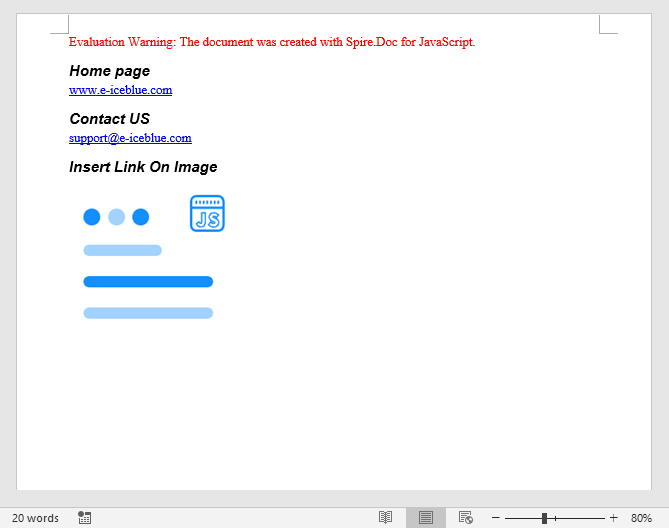
The resulting Word document contains clickable hyperlinks, including a text-based web link, an email link, and an image with an embedded hyperlink.
2. Find and Modify Hyperlinks
For existing Word documents that already contain hyperlinks, you can traverse the document object model to locate all hyperlink fields and read or modify their display text.
function App() {
  const findAndModifyHyperlinks = async () => {
    // Get the Spire.Doc WASM module
    const docModule = window.wasmModule?.spiredoc;

    // Check if the module is ready
    if (!docModule) {
      alert('Spire.Doc is not ready yet');
      return;
    }

    const inputFileName = 'Hyperlinks.docx';
    await window.spire.FetchFileToVFS(inputFileName, '', `${process.env.PUBLIC_URL}/data/`);

    // Load the document
    const doc = new docModule.Document();
    doc.LoadFromFile(inputFileName);

    // Traverse all hyperlinks in the document
    let hyperlinks = [];
    for (let i = 0; i < doc.Sections.Count; i++) {
      let section = doc.Sections.get_Item(i);
      for (let j = 0; j < section.Body.ChildObjects.Count; j++) {
        let sec = section.Body.ChildObjects.get_Item(j);
        if (sec.DocumentObjectType == docModule.DocumentObjectType.Paragraph) {
          for (let k = 0; k < sec.ChildObjects.Count; k++) {
            let para = sec.ChildObjects.get_Item(k);
            if (para.DocumentObjectType == docModule.DocumentObjectType.Field) {
              let field = para;
              if (field.Type == docModule.FieldType.FieldHyperlink) {
                hyperlinks.push(field);
              }
            }
          }
        }
      }
    }

    // Modify the display text of the first hyperlink
    hyperlinks[0].FieldText = "Spire.Doc component";

    // Define the output file name
    const outputFileName = "ModifyHyperlinkText_output.docx";

    // Save the document
    doc.SaveToFile({ fileName: outputFileName, fileFormat: docModule.FileFormat.Docx2013 });

    // Read the generated file from VFS and trigger download
    const modifiedFileArray = window.dotnetRuntime.Module.FS.readFile(outputFileName);
    const blob = new Blob([modifiedFileArray], { type: 'application/vnd.openxmlformats-officedocument.wordprocessingml.document' });
    const url = URL.createObjectURL(blob);
    const a = document.createElement('a');
    a.href = url;
    a.download = outputFileName;
    a.click();
    URL.revokeObjectURL(url);

    // Release resources
    doc.Dispose();
  };

  return (
    <div style={{ textAlign: 'center', height: '300px' }}>
      <h1>Find & Modify Hyperlinks</h1>
      <button onClick={findAndModifyHyperlinks}>
        Generate
      </button>
    </div>
  );
}

export default App;
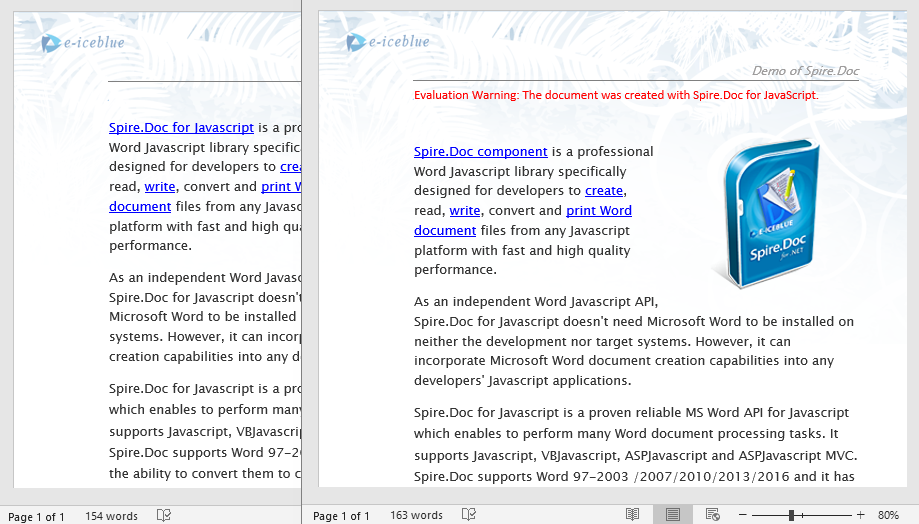
After traversing the document object model, you can read or modify the display text and target address of each hyperlink, making it easy to batch-update links.
3. Remove Hyperlinks
When hyperlinks in a document are no longer needed, you can remove them while keeping the associated text content. The key approach is to locate all hyperlink fields, then flatten the field structure so that only plain text remains without the hyperlink formatting.
// Find all hyperlinks in the document
function FindAllHyperlinks(document) {
  let docModule = window.wasmModule.spiredoc;
  let hyperlinks = [];
  for (let i = 0; i < document.Sections.Count; i++) {
    let section = document.Sections.get_Item(i);
    for (let j = 0; j < section.Body.ChildObjects.Count; j++) {
      let sec = section.Body.ChildObjects.get_Item(j);
      if (sec.DocumentObjectType == docModule.DocumentObjectType.Paragraph) {
        for (let k = 0; k < sec.ChildObjects.Count; k++) {
          let para = sec.ChildObjects.get_Item(k);
          if (para.DocumentObjectType == docModule.DocumentObjectType.Field) {
            let field = para;
            if (field.Type == docModule.FieldType.FieldHyperlink) {
              hyperlinks.push(field);
            }
          }
        }
      }
    }
  }
  return hyperlinks;
}

// Remove hyperlink formatting, keep only the text
function FormatFieldResultText(ownerBody, sepOwnerParaIndex, endOwnerParaIndex, sepIndex, endIndex) {
  let docModule = window.wasmModule.spiredoc;
  for (let i = sepOwnerParaIndex; i <= endOwnerParaIndex; i++) {
    let para = ownerBody.ChildObjects.get_Item(i);
    if (i == sepOwnerParaIndex && i == endOwnerParaIndex) {
      for (let j = sepIndex + 1; j < endIndex; j++) {
        let tr = para.ChildObjects.get_Item(j);
        tr.CharacterFormat.TextColor = docModule.Color.get_Black();
        tr.CharacterFormat.UnderlineStyle = docModule.UnderlineStyle.None;
      }
    } else if (i == sepOwnerParaIndex) {
      for (let j = sepIndex + 1; j < para.ChildObjects.Count; j++) {
        let tr = para.ChildObjects.get_Item(j);
        tr.CharacterFormat.TextColor = docModule.Color.get_Black();
        tr.CharacterFormat.UnderlineStyle = docModule.UnderlineStyle.None;
      }
    } else if (i == endOwnerParaIndex) {
      for (let j = 0; j < endIndex; j++) {
        let tr = para.ChildObjects.get_Item(j);
        tr.CharacterFormat.TextColor = docModule.Color.get_Black();
        tr.CharacterFormat.UnderlineStyle = docModule.UnderlineStyle.None;
      }
    } else {
      for (let j = 0; j < para.ChildObjects.Count; j++) {
        let tr = para.ChildObjects.get_Item(j);
        tr.CharacterFormat.TextColor = docModule.Color.get_Black();
        tr.CharacterFormat.UnderlineStyle = docModule.UnderlineStyle.None;
      }
    }
  }
}

function FlattenHyperlinks(field) {
  // Get the position indices of each hyperlink field component
  let ownerParaIndex = field.OwnerParagraph.OwnerTextBody.ChildObjects.IndexOf(field.OwnerParagraph);
  let fieldIndex = field.OwnerParagraph.ChildObjects.IndexOf(field);
  let sepOwnerPara = field.Separator.OwnerParagraph;
  let sepOwnerParaIndex = field.Separator.OwnerParagraph.OwnerTextBody.ChildObjects.IndexOf(field.Separator.OwnerParagraph);
  let sepIndex = field.Separator.OwnerParagraph.ChildObjects.IndexOf(field.Separator);
  let endIndex = field.End.OwnerParagraph.ChildObjects.IndexOf(field.End);
  let endOwnerParaIndex = field.End.OwnerParagraph.OwnerTextBody.ChildObjects.IndexOf(field.End.OwnerParagraph);

  // Remove hyperlink formatting (blue underlined text)
  FormatFieldResultText(field.Separator.OwnerParagraph.OwnerTextBody, sepOwnerParaIndex, endOwnerParaIndex, sepIndex, endIndex);

  // Remove the hyperlink field structure
  field.End.OwnerParagraph.ChildObjects.RemoveAt(endIndex);
  for (let i = sepOwnerParaIndex; i >= ownerParaIndex; i--) {
    if (i == sepOwnerParaIndex && i == ownerParaIndex) {
      for (let j = sepIndex; j >= fieldIndex; j--) {
        field.OwnerParagraph.ChildObjects.RemoveAt(j);
      }
    } else if (i == ownerParaIndex) {
      for (let j = field.OwnerParagraph.ChildObjects.Count - 1; j >= fieldIndex; j--) {
        field.OwnerParagraph.ChildObjects.RemoveAt(j);
      }
    } else if (i == sepOwnerParaIndex) {
      for (let j = sepIndex; j >= 0; j--) {
        sepOwnerPara.ChildObjects.RemoveAt(j);
      }
    } else {
      field.OwnerParagraph.OwnerTextBody.ChildObjects.RemoveAt(i);
    }
  }
}

function App() {
  const removeHyperlinks = async () => {
    // Get the Spire.Doc WASM module
    const docModule = window.wasmModule?.spiredoc;

    // Check if the module is ready
    if (!docModule) {
      alert('Spire.Doc is not ready yet');
      return;
    }

    const inputFileName = 'Hyperlinks.docx';
    await window.spire.FetchFileToVFS(inputFileName, '', `${process.env.PUBLIC_URL}/data/`);

    // Load the document
    const doc = new docModule.Document();
    doc.LoadFromFile(inputFileName);

    // Find all hyperlinks
    let hyperlinks = FindAllHyperlinks(doc);

    // Flatten all hyperlinks (remove hyperlink formatting, keep text)
    for (let i = hyperlinks.length - 1; i >= 0; i--) {
      FlattenHyperlinks(hyperlinks[i]);
    }

    // Define the output file name
    const outputFileName = "RemoveHyperlinks_output.docx";

    // Save the document
    doc.SaveToFile({ fileName: outputFileName, fileFormat: docModule.FileFormat.Docx2013 });

    // Read the generated file from VFS and trigger download
    const modifiedFileArray = window.dotnetRuntime.Module.FS.readFile(outputFileName);
    const blob = new Blob([modifiedFileArray], { type: 'application/vnd.openxmlformats-officedocument.wordprocessingml.document' });
    const url = URL.createObjectURL(blob);
    const a = document.createElement('a');
    a.href = url;
    a.download = outputFileName;
    a.click();
    URL.revokeObjectURL(url);

    // Release resources
    doc.Dispose();
  };

  return (
    <div style={{ textAlign: 'center', height: '300px' }}>
      <h1>Remove Hyperlinks</h1>
      <button onClick={removeHyperlinks}>
        Generate
      </button>
    </div>
  );
}

export default App;
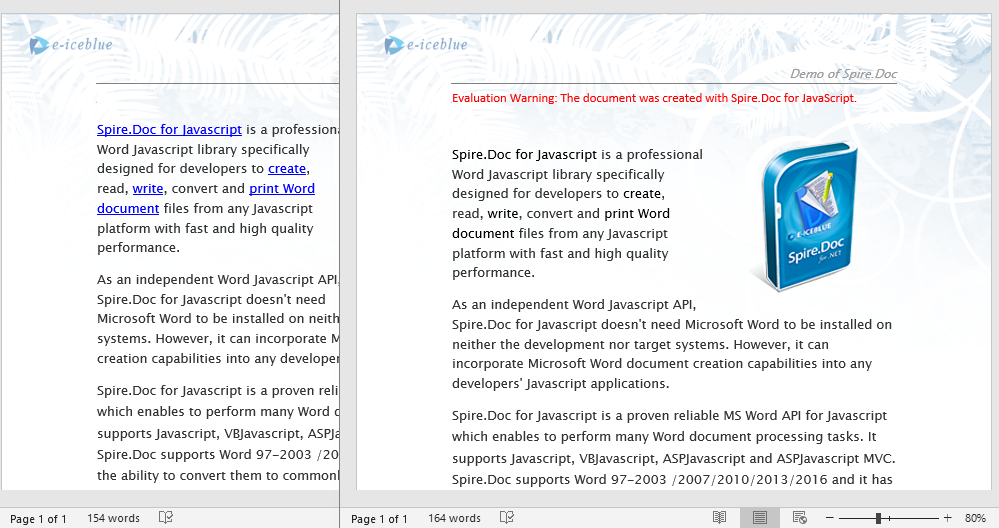
After removing the hyperlinks, the original link text remains as plain text, with the blue underline style cleared while the content stays unchanged.
FAQ
Inserted hyperlinks are not clickable in the document
Cause: The target URL format is incorrect, e.g., missing the protocol prefix (such as http:// or mailto:) so Word cannot recognize it as a valid clickable link.
Solution: Ensure web links use a complete URL and email links include the mailto: prefix:
// Correct web link
paragraph.AppendHyperlink("https://www.e-iceblue.com", "e-iceblue", wasmModule.HyperlinkType.WebLink);

// Correct email link
paragraph.AppendHyperlink("mailto:[email protected]", "[email protected]", wasmModule.HyperlinkType.EMailLink);
Text style is abnormal after removing hyperlinks
Cause: Only the hyperlink field structure was removed, but the text color and underline style were not reset to normal text formatting.
Solution: When flattening hyperlinks, also set the text color to black and the underline style to none:
tr.CharacterFormat.TextColor = wasmModule.Color.get_Black();
tr.CharacterFormat.UnderlineStyle = wasmModule.UnderlineStyle.None;
Get a Free License
Spire.Doc for JavaScript offers a 30-day full-featured free trial license with no functional limitations. Apply here to evaluate before purchasing.
Create Word Documents with JavaScript in React
Creating dynamic documents is essential for many applications. This guide will explore how to generate a Word document using Spire.Doc for JavaScript within a React environment. We will cover the essential features needed for effective document creation, including adding titles, headings, and paragraphs to structure your content effectively.
You'll also learn how to enhance your documents by incorporating images, creating lists for organized information, and adding tables to present data clearly. By the end of this tutorial, you'll be equipped with the skills to produce professional documents directly from your React applications.
- Add Titles, Headings, and Paragraphs to Word
- Add an Image to Word
- Add a List to Word
- Add a Table to Word
Install Spire.Doc for JavaScript
To get started with creating Word documents in a React application, you can either download Spire.Doc for JavaScript from our website or install it via npm with the following command:
npm i spire.officeThe downloaded product package integrates Spire.Doc for JavaScript, Spire.XLS for JavaScript, Spire.PDF for JavaScript, and Spire.Presentation for JavaScript. To use the features of Spire.Doc for JavaScript, you need to copy the corresponding files (spire.doc.js, Spire.Doc.Wasm.zip, spire.common.js, Spire.Common.Wasm.zip, and the _framework folder) to the public folder of your project. To ensure proper text rendering, you can add relevant font files with a custom path. In the following example, the font is added to the path: public\static\font.
For more details, refer to the documentation: How to Integrate Spire.Doc for JavaScript in a React Project
Add Titles, Headings, and Paragraphs to Word in React
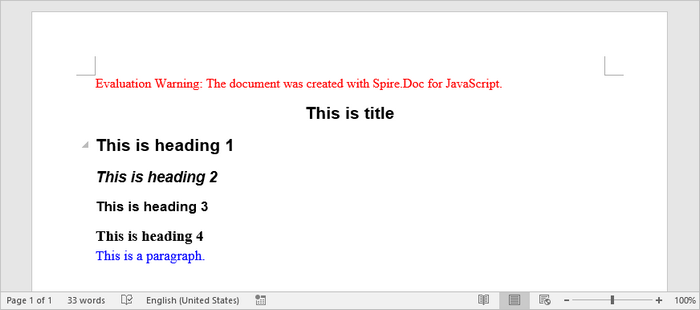
To add a title, headings, and paragraphs to a Word document, you primarily utilize the Document and Section classes provided by Spire.Doc for JavaScript. The AddParagraph() method creates new paragraphs, while AppendText() allows you to insert text into those paragraphs.
Paragraphs can be formatted using built-in styles (e.g., Title, Heading 1-4) for consistent structure, or customized with specific fonts, sizes, and colors through user-defined styles for tailored document design.
Steps for adding titles, headings, and parargraphs to a Word documents in React:
- Import the necessary font files into the virtual file system (VFS).
- Create a Document object using new wasmModule.Document().
- Include a new section in the document with Document.AddSection().
- Add paragraphs to the document using Section.AddParagraph().
- Use Paragraph.ApplyStyle() to apply built-in styles (Title, Heading1, Heading2, Heading3) to specific paragraphs.
- Define a custom paragraph style with new wasmModule.ParagraphStyle() and apply it to a designated paragraph.
- Save the document as a DOCX file and initiate the download.
- JavaScript
import React, { useState, useEffect } from 'react';

function App() {
  const [wasmModule, setWasmModule] = useState(null);
  // Load Spire.Doc
  useEffect(() => {
    (async () => {
      try {
        const publicUrl = process.env.PUBLIC_URL || '';
        const spireModule = await import(/* webpackIgnore: true */ `${publicUrl}/spire.doc.js`);
        const rawModule = spireModule.default || spireModule;
        window.wasmModule = typeof rawModule === 'function'
          ? await rawModule({ locateFile: p => p.endsWith('.wasm') ? `${publicUrl}/${p}` : p })
          : rawModule;
        setWasmModule(window.wasmModule);
      } catch (error) {
        console.error('Failed to load spire.doc.js WASM module:', error);
      }
    })();
  }, []);

  // Function to add text to word
  const AddText = async () => {
    const wasmModule = window.wasmModule.spiredoc;

    if (wasmModule) {
      // Load the font files into the virtual file system (VFS)
      await window.spire.FetchFileToVFS('times.ttf', '/Library/Fonts/', `${process.env.PUBLIC_URL}/static/font/`);
      await window.spire.FetchFileToVFS('timesbd.ttf', '/Library/Fonts/', `${process.env.PUBLIC_URL}/static/font/`);
      await window.spire.FetchFileToVFS('timesbi.ttf', '/Library/Fonts/', `${process.env.PUBLIC_URL}/static/font/`);
      await window.spire.FetchFileToVFS('timesi.ttf', '/Library/Fonts/', `${process.env.PUBLIC_URL}/static/font/`);

      // Create an instance of the Document class
      const doc = new wasmModule.Document();

      // Add a section
      let section = doc.AddSection();

      // Set page margins
      section.PageSetup.Margins.All = 60;

      // Add a title paragraph
      let title_para = section.AddParagraph();
      title_para.AppendText('This is title');
      title_para.ApplyStyle({ builtinStyle: wasmModule.BuiltinStyle.Title });

      // Add heading paragraphs
      let heading_one = section.AddParagraph();
      heading_one.AppendText('This is heading 1');
      heading_one.ApplyStyle({ builtinStyle: wasmModule.BuiltinStyle.Heading1 });

      let heading_two = section.AddParagraph();
      heading_two.AppendText('This is heading 2');
      heading_two.ApplyStyle({ builtinStyle: wasmModule.BuiltinStyle.Heading2 });

      let heading_three = section.AddParagraph();
      heading_three.AppendText('This is heading 3');
      heading_three.ApplyStyle({ builtinStyle: wasmModule.BuiltinStyle.Heading3 });

      let heading_four = section.AddParagraph();
      heading_four.AppendText('This is heading 4');
      heading_four.ApplyStyle({ builtinStyle: wasmModule.BuiltinStyle.Heading4 });

      // Add a normal paragraph
      let normal_para = section.AddParagraph();
      normal_para.AppendText('This is a paragraph.');

      // Create a paragraph style,specifying font name, font size, and text color
      let paragraph_style =new wasmModule.ParagraphStyle(doc);
      paragraph_style.Name = 'newStyle';
      paragraph_style.CharacterFormat.FontName = 'Times New Roman'
      paragraph_style.CharacterFormat.FontSize = 13;
      paragraph_style.CharacterFormat.TextColor = wasmModule.Color.get_Blue();

      // Add the style to the document
      doc.Styles.Add(paragraph_style);

      // Apply the style to the paragraph
      normal_para.ApplyStyle(paragraph_style.Name);

      // Save the document
      const outputFileName = 'output.docx';
      doc.SaveToFile({ fileName: outputFileName, fileFormat: wasmModule.FileFormat.Docx2013 });

      // Create a Blob for the downloaded file
      const modifiedFileArray =window.dotnetRuntime.Module.FS.readFile(outputFileName);
      const modifiedFile = new Blob([modifiedFileArray], { type: 'application/vnd.openxmlformats-officedocument.wordprocessingml.document' });
      const url = URL.createObjectURL(modifiedFile);

      // Trigger file download
      const a = document.createElement('a');
      a.href = url;
      a.download = outputFileName;
      document.body.appendChild(a);
      a.click();
      document.body.removeChild(a);
      URL.revokeObjectURL(url);

      // Clean up resources
      doc.Dispose();
    }
  };

  return (
    <div style={{ textAlign: 'center', height: '300px' }}>
      <h1>Add Text to a Word Document in React</h1>
      <button onClick={AddText} disabled={!wasmModule}>
        Generate
      </button>
    </div>
  );
}

export default App;
Run the code to launch the React app at localhost:3000. Click "Generate", and a "Save As" window will appear, prompting you to save the output file in your chosen folder.
Below is a screenshot of the generated Word file that includes a title, several headings, and a normal paragraph:
Add an Image to Word in React
Inserting images into a Word document involves using the AppendPicture() method, which allows you to add a picture to a specific paragraph. The process begins by loading the image file into the virtual file system (VFS), ensuring that the image is accessible for insertion.
Steps for adding an image to a Word doucment in React:
- Load an image file into the virtual file system (VFS).
- Create a Document object using new wasmModule.Document().
- Add a new section to the document with Document.AddSection().
- Insert a new paragraph in the section using Section.AddParagraph().
- Use the Paragraph.AppendPicture() method to add the loaded image to the paragraph.
- Save the document as a DOCX file and trigger the download.
- JavaScript
import React, { useState, useEffect } from 'react';

function App() {
  const [wasmModule, setWasmModule] = useState(null);
  // Load Spire.Doc
  useEffect(() => {
    (async () => {
      try {
        const publicUrl = process.env.PUBLIC_URL || '';
        const spireModule = await import(/* webpackIgnore: true */ `${publicUrl}/spire.doc.js`);
        const rawModule = spireModule.default || spireModule;
        window.wasmModule = typeof rawModule === 'function'
          ? await rawModule({ locateFile: p => p.endsWith('.wasm') ? `${publicUrl}/${p}` : p })
          : rawModule;
        setWasmModule(window.wasmModule);
      } catch (error) {
        console.error('Failed to load spire.doc.js WASM module:', error);
      }
    })();
  }, []);

  // Function to add image to word
  const AddImage = async () => {
    const wasmModule = window.wasmModule.spiredoc;

    if (wasmModule) {
      // Load the font files into the virtual file system (VFS)
      await window.spire.FetchFileToVFS('times.ttf', '/Library/Fonts/', `${process.env.PUBLIC_URL}/static/font/`);

      // Specify the input file name and the output file name
      const inputImageFile = 'logo.png';
      const outputFileName = 'output.docx';

      // Fetch the input file and add it to the VFS
      await window.spire.FetchFileToVFS(inputImageFile, '', `${process.env.PUBLIC_URL}/static/data/`);

      // Create an instance of the Document class
      const doc = new wasmModule.Document();

      // Add a section
      let section = doc.AddSection();

      // Set page margins
      section.PageSetup.Margins.All = 60;

      // Add a paragraph
      let image_para = section.AddParagraph();

      // Add an image to the paragraph
      image_para.AppendPicture({ imgFile: inputImageFile });

      // Save the document
      doc.SaveToFile({ fileName: outputFileName, fileFormat: wasmModule.FileFormat.Docx2013 });

      // Create a Blob for the downloaded file
      const modifiedFileArray = window.dotnetRuntime.Module.FS.readFile(outputFileName);
      const modifiedFile = new Blob([modifiedFileArray], { type: 'application/vnd.openxmlformats-officedocument.wordprocessingml.document' });
      const url = URL.createObjectURL(modifiedFile);

      // Trigger the download
      const a = document.createElement('a');
      a.href = url;
      a.download = outputFileName;
      document.body.appendChild(a);
      a.click();
      document.body.removeChild(a);
      URL.revokeObjectURL(url);

      // Clean up resources
      doc.Dispose();
    }
  };

  return (
    <div style={{ textAlign: 'center', height: '300px' }}>
      <h1>Add image to a Word Document in React</h1>
      <button onClick={AddImage} disabled={!wasmModule}>
        Generate
      </button>
    </div>
  );
}

export default App;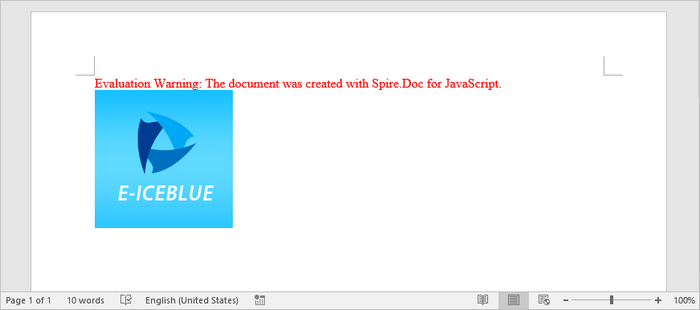
Add a List to Word in React
To create lists in your Word document, utilize the ListStyle class to define the appearance of your lists, such as bulleted or numbered formats. The ApplyStyle() method associates paragraphs with the defined list style, enabling consistent formatting across multiple items.
Steps for adding a list to a Word document in React:
- Load the required font files into the virtual file system (VFS).
- Create a Document object using new wasmModule.Document().
- Add a section to the document with Document.AddSection().
- Define a list style using doc.Styles.Add({ listType: wasmModule.ListType.Bulleted, name: "bulletedList" }).
- Insert several paragraphs in the section using Section.AddParagraph().
- Apply the defined list style to the paragraphs using Paragraph.ListFormat.ApplyStyle().
- Save the document as a DOCX file and trigger the download.
- JavaScript
import React, { useState, useEffect } from 'react';

function App() {
  const [wasmModule, setWasmModule] = useState(null);
  // Load Spire.Doc
  useEffect(() => {
    (async () => {
      try {
        const publicUrl = process.env.PUBLIC_URL || '';
        const spireModule = await import(/* webpackIgnore: true */ `${publicUrl}/spire.doc.js`);
        const rawModule = spireModule.default || spireModule;
        window.wasmModule = typeof rawModule === 'function'
          ? await rawModule({ locateFile: p => p.endsWith('.wasm') ? `${publicUrl}/${p}` : p })
          : rawModule;
        setWasmModule(window.wasmModule);
      } catch (error) {
        console.error('Failed to load spire.doc.js WASM module:', error);
      }
    })();
  }, []);

  // Function to add list to word
  const AddList = async () => {
    const wasmModule = window.wasmModule.spiredoc;

    if (wasmModule) {
      // Load the font files into the virtual file system (VFS)
      await window.spire.FetchFileToVFS('times.ttf', '/Library/Fonts/', `${process.env.PUBLIC_URL}/static/font/`);

      // Create an instance of the Document class
      const doc = new wasmModule.Document();

      // Add a section
      let section = doc.AddSection();

      // Set page margins
      section.PageSetup.Margins.All = 60;

      // Define a bullet list style
      let list_style = doc.Styles.Add({ listType: wasmModule.ListType.Bulleted, name: "bulletedList" });
      list_style.ListRef.Levels.get_Item(0).BulletCharacter = '\u00B7';
      list_style.ListRef.Levels.get_Item(0).CharacterFormat.FontName = 'Symbol';
      list_style.ListRef.Levels.get_Item(0).CharacterFormat.FontSize = 14;
      list_style.ListRef.Levels.get_Item(0).TextPosition = 20;


      // Add title paragraph
      let paragraph = section.AddParagraph();
      let text_range = paragraph.AppendText('Fruits:');
      paragraph.Format.AfterSpacing = 5;
      text_range.CharacterFormat.FontName = 'Times New Roman'
      text_range.CharacterFormat.FontSize = 14;

      // Add items to the bullet list
      const fruits = ['Apple', 'Banana', 'Watermelon', 'Mango'];
      fruits.forEach(fruit => {
        paragraph = section.AddParagraph();
        let text_range = paragraph.AppendText(fruit);
        paragraph.ListFormat.ApplyStyle(list_style.Name);
        paragraph.ListFormat.ListLevelNumber = 0;
        text_range.CharacterFormat.FontName = 'Times New Roman'
        text_range.CharacterFormat.FontSize = 14;
      });

      // Save the document
      const outputFileName = 'output.docx';
      doc.SaveToFile({ fileName: outputFileName, fileFormat: wasmModule.FileFormat.Docx2013 });

      // Create a Blob for the downloaded file
      const modifiedFileArray = window.dotnetRuntime.Module.FS.readFile(outputFileName);
      const modifiedFile = new Blob([modifiedFileArray], { type: 'application/vnd.openxmlformats-officedocument.wordprocessingml.document' });
      const url = URL.createObjectURL(modifiedFile);

      // Trigger file download
      const a = document.createElement('a');
      a.href = url;
      a.download = outputFileName;
      document.body.appendChild(a);
      a.click();
      document.body.removeChild(a);
      URL.revokeObjectURL(url);

      // Clean up resources
      doc.Dispose();
    }
  };

  return (
    <div style={{ textAlign: 'center', height: '300px' }}>
      <h1>Add Lists to a Word Document in React</h1>
      <button onClick={AddList} disabled={!wasmModule}>
        Generate
      </button>
    </div>
  );
}

export default App;
Add a Table to Word in React
To create tables, use the AddTable() method where you can specify the number of rows and columns with ResetCells(). Once the table is created, you can populate individual cells by using the AddParagraph() and AppendText() methods to insert text content. Additionally, the AutoFit() method can be employed to automatically adjust the table layout based on its contents, ensuring a clean and organized presentation of your data.
Steps for adding a table to a Word document in React:
- Load the required font files into the virtual file system (VFS).
- Create a Document object using new wasmModule.Document().
- Add a section to the document with Document.AddSection().
- Create a two-dimensional array to hold the table data, including headers and values.
- Use Section.AddTable() to create a table, specifying visibility options like borders.
- Call Table.ResetCells() to define the number of rows and columns in the table based on your data.
- Iterate through the data array, adding text to each cell using the TableCell.AddParagraph() and Paragraph.AppendText() methods.
- Use the Table.AutoFit() method to adjust the table size according to the content.
- Save the document as a DOCX file and trigger the download.
- JavaScript
import React, { useState, useEffect } from 'react';

function App() {
  const [wasmModule, setWasmModule] = useState(null);
  // Load Spire.Doc
  useEffect(() => {
    (async () => {
      try {
        const publicUrl = process.env.PUBLIC_URL || '';
        const spireModule = await import(/* webpackIgnore: true */ `${publicUrl}/spire.doc.js`);
        const rawModule = spireModule.default || spireModule;
        window.wasmModule = typeof rawModule === 'function'
          ? await rawModule({ locateFile: p => p.endsWith('.wasm') ? `${publicUrl}/${p}` : p })
          : rawModule;
        setWasmModule(window.wasmModule);
      } catch (error) {
        console.error('Failed to load spire.doc.js WASM module:', error);
      }
    })();
  }, []);

  // Function to add table to word
  const AddTable = async () => {
    const wasmModule = window.wasmModule.spiredoc;

    if (wasmModule) {
      // Load the font files into the virtual file system (VFS)
      await window.spire.FetchFileToVFS('times.ttf', '/Library/Fonts/', `${process.env.PUBLIC_URL}/static/font/`);

      // Create an instance of the Document class
      const doc = new wasmModule.Document();

      // Add a section
      let section = doc.AddSection();

      // Set page margins
      section.PageSetup.Margins.All = 60;

      // Define table data
      let data =
        [
          ['Product', 'Unit Price', 'Quantity', 'Sub Total'],
          ['A', '$29', '120', '$3,480'],
          ['B', '$35', '110', '$3,850'],
          ['C', '$68', '140', '$9,520'],
        ];

      // Add a table
      let table = section.AddTable({ showBorder: true });

      // Set row number and column number
      table.ResetCells(data.length, data[0].length);

      // Write data to cells
      for (let r = 0; r < data.length; r++) {
        let data_row = table.Rows.get_Item(r);
        data_row.Height = 20;
        data_row.HeightType = wasmModule.TableRowHeightType.Exactly;
        data_row.RowFormat.BackColor = wasmModule.Color.Empty();
        for (let c = 0; c < data[r].length; c++) {

          let cell = data_row.Cells.get_Item(c);
          cell.CellFormat.VerticalAlignment = wasmModule.VerticalAlignment.Middle;
          let text_range = cell.AddParagraph().AppendText(data[r][c]);
          text_range.CharacterFormat.FontName = 'Times New Roman'
          text_range.CharacterFormat.FontSize = 14;
        }
      }

      // Automatically fit the table to the cell content
      table.AutoFit(wasmModule.AutoFitBehaviorType.AutoFitToContents);

      // Save the document
      const outputFileName = 'output.docx';
      doc.SaveToFile({ fileName: outputFileName, fileFormat: wasmModule.FileFormat.Docx2013 });

      // Create a Blob for the downloaded file
      const modifiedFileArray = window.dotnetRuntime.Module.FS.readFile(outputFileName);
      const modifiedFile = new Blob([modifiedFileArray], { type: 'application/vnd.openxmlformats-officedocument.wordprocessingml.document' });
      const url = URL.createObjectURL(modifiedFile);

      // Trigger file download
      const a = document.createElement('a');
      a.href = url;
      a.download = outputFileName;
      document.body.appendChild(a);
      a.click();
      document.body.removeChild(a);
      URL.revokeObjectURL(url);

      // Clean up resources
      doc.Dispose();
    }
  };

  return (
    <div style={{ textAlign: 'center', height: '300px' }}>
      <h1>Add Tables to a Word Document in React</h1>
      <button onClick={AddTable} disabled={!wasmModule}>
        Generate
      </button>
    </div>
  );
}

export default App;
Get a Free License
To fully experience the capabilities of Spire.Doc for JavaScript without any evaluation limitations, you can request a free 30-day trial license.
Add a Watermark to Word Documents with JavaScript in React
Incorporating a watermark to Word documents is a simple yet impactful way to protect your content and assert ownership. Whether you're marking a draft as confidential or branding a business document, watermarks can convey essential information without distracting from your text.
In this article, you will learn how to add and customize watermarks in Word documents in a React application using Spire.Doc for JavaScript.
Install Spire.Doc for JavaScript
To get started with adding watermarks to Word in a React application, you can either download Spire.Doc for JavaScript from our website or install it via npm with the following command:
npm i spire.officeThe downloaded product package integrates Spire.Doc for JavaScript, Spire.XLS for JavaScript, Spire.PDF for JavaScript, and Spire.Presentation for JavaScript. To use the features of Spire.Doc for JavaScript, you need to copy the corresponding files (spire.doc.js, Spire.Doc.Wasm.zip, spire.common.js, Spire.Common.Wasm.zip, and the _framework folder) to the public folder of your project. To ensure proper text rendering, you can add relevant font files with a custom path. In the following example, the font is added to the path: public\static\font.
For more details, refer to the documentation: How to Integrate Spire.Doc for JavaScript in a React Project
Add a Text Watermark to Word in React
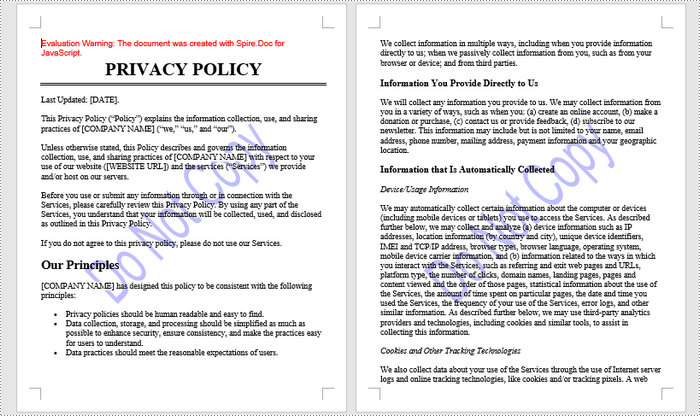
Spire.Doc for JavaScript provides the TextWatermark class, enabling users to create customizable text watermarks with their preferred text and font effects. Once the TextWatermark object is created, it can be applied to the entire document using the Document.Watermark property.
The steps to add a text watermark to Word in React are as follows:
- Load the necessary font file and input Word document into the virtual file system (VFS).
- Create a Document object using the new wasmModule.Document() method.
- Load the Word file using the Document.LoadFromFile() method.
- Create a TextWatermark object using the new wasmModule.TextWatermark() method.
- Customize the watermark's text, font size, font name, and color using the properties under the TextWatermark object.
- Apply the text watermark to the document using the Document.Watermark property.
- Save the document and trigger a download.
- JavaScript
import React, { useState, useEffect } from 'react';

function App() {
  const [wasmModule, setWasmModule] = useState(null);
  // Load Spire.Doc
  useEffect(() => {
    (async () => {
      try {
        const publicUrl = process.env.PUBLIC_URL || '';
        const spireModule = await import(/* webpackIgnore: true */ `${publicUrl}/spire.doc.js`);
        const rawModule = spireModule.default || spireModule;
        window.wasmModule = typeof rawModule === 'function'
          ? await rawModule({ locateFile: p => p.endsWith('.wasm') ? `${publicUrl}/${p}` : p })
          : rawModule;
        setWasmModule(window.wasmModule);
      } catch (error) {
        console.error('Failed to load spire.doc.js WASM module:', error);
      }
    })();
  }, []);

  // Function add a text watermark
  const AddWatermark = async () => {
    const wasmModule = window.wasmModule.spiredoc;

    if (wasmModule) {
      // Load the font files into the virtual file system (VFS)
      await window.spire.FetchFileToVFS('Arial.ttf', '/Library/Fonts/', `${process.env.PUBLIC_URL}/static/font/`);

      // Specify the input file name and the output file name
      const outputFileName = "TextWatermark.docx";
      const inputFileName = 'input.docx';

      // Fetch the input file and add it to the VFS
      await window.spire.FetchFileToVFS(inputFileName, '', `${process.env.PUBLIC_URL}/static/data/`);

      // Create an instance of the Document class
      const doc = new wasmModule.Document();

      // Load the Word document
      doc.LoadFromFile(inputFileName);

      // Create a TextWatermark instance
      let txtWatermark =new wasmModule.TextWatermark();

      // Set the text for the watermark
      txtWatermark.Text = "Do Not Copy";

      // Set the font size and name for the text
      txtWatermark.FontSize = 58;
      txtWatermark.FontName = "Arial"

      // Set the color of the text
      txtWatermark.Color = wasmModule.Color.get_Blue();

      // Set the layout of the watermark to diagonal
      txtWatermark.Layout = wasmModule.WatermarkLayout.Diagonal;

      // Apply the text watermark to the document
      doc.Watermark = txtWatermark;

      // Save the document to the specified path
      doc.SaveToFile({ fileName: outputFileName, fileFormat: wasmModule.FileFormat.Docx2013 });

      // Read the generated file from VFS
      const fileArray = window.dotnetRuntime.Module.FS.readFile(outputFileName);

      // Create a Blob object from the file
      const blob = new Blob([fileArray], { type: "application/vnd.openxmlformats-officedocument.wordprocessingml.document" });

      // Create a URL for the Blob
      const url = URL.createObjectURL(blob);

      // Create an anchor element to trigger the download
      const a = document.createElement('a');
      a.href = url;
      a.download = outputFileName;
      document.body.appendChild(a);
      a.click();
      document.body.removeChild(a);
      URL.revokeObjectURL(url);

      // Clean up resources
      doc.Dispose();
    }
  };

  return (
    <div style={{ textAlign: 'center', height: '300px' }}>
      <h1>Add a Text Watermark to Word in React</h1>
      <button onClick={AddWatermark} disabled={!wasmModule}>
        Generate
      </button>
    </div>
  );
}

export default App;
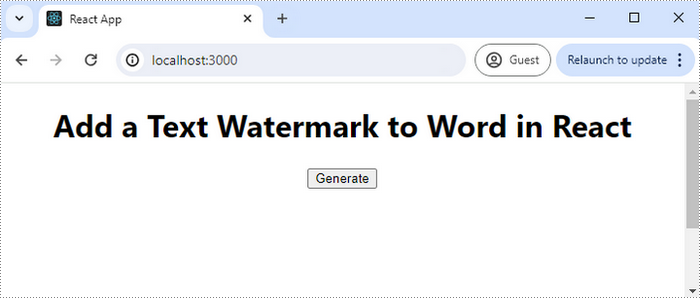
Run the code to launch the React app at localhost:3000. Click "Convert", and a "Save As" window will appear, prompting you to save the output file in your chosen folder.
Here is a screenshot of the generated Word file that includes a text watermark:
Add an Image Watermark to Word in React
Spire.Doc for JavaScript provides the PictrueWatermark to help configure the image resource, scaling, washout effect for image watermarks in Word. Once a PictureWatermak object is created, you can apply it to an entire document using the Document.Watermark property.
Steps to add an image watermark to a Word document in React:
- Load the image file and input Word document into the virtual file system (VFS).
- Create a Document object using the new wasmModule.Document() method.
- Load the Word file using the Document.LoadFromFile() method.
- Create a PictureWatermark object using the new wasmModule.PictureWatermark() method.
- Set the image resource, scaling, and washout effect for the watermark using the methods and properties under the PictureWatermark object.
- Apply the image watermark to the document using the Document.Watermark property.
- Save the document and trigger a download.
- JavaScript
import React, { useState, useEffect } from 'react';

function App() {
  const [wasmModule, setWasmModule] = useState(null);
  // Load Spire.Doc
  useEffect(() => {
    (async () => {
      try {
        const publicUrl = process.env.PUBLIC_URL || '';
        const spireModule = await import(/* webpackIgnore: true */ `${publicUrl}/spire.doc.js`);
        const rawModule = spireModule.default || spireModule;
        window.wasmModule = typeof rawModule === 'function'
          ? await rawModule({ locateFile: p => p.endsWith('.wasm') ? `${publicUrl}/${p}` : p })
          : rawModule;
        setWasmModule(window.wasmModule);
      } catch (error) {
        console.error('Failed to load spire.doc.js WASM module:', error);
      }
    })();
  }, []);

  // Function add an image watermark
  const AddWatermark = async () => {
    const wasmModule = window.wasmModule.spiredoc;

    if (wasmModule) {
      // Load the font files into the virtual file system (VFS)
      await window.spire.FetchFileToVFS('Arial.ttf', '/Library/Fonts/', `${process.env.PUBLIC_URL}/static/font/`);

      // Specify the input file name and the output file name
      const outputFileName = 'ImageWatermark.docx';
      const inputFileName = 'input.docx';
      const imageFileName = 'logo.png';

      // Fetch the input file and add it to the VFS
      await window.spire.FetchFileToVFS(inputFileName, '', `${process.env.PUBLIC_URL}/static/data/`);
      await window.spire.FetchFileToVFS(imageFileName, '', `${process.env.PUBLIC_URL}/static/data/`);

      // Create an instance of the Document class
      const doc = new wasmModule.Document();

      // Load the Word document
      doc.LoadFromFile(inputFileName);

      // Create a new PictureWatermark instance
      const pictureWatermark = new wasmModule.PictureWatermark();

      // Set the picture
      pictureWatermark.SetPicture(imageFileName);

      // Set the scaling factor of the image
      pictureWatermark.Scaling = 150;

      // Disable washout effect
      pictureWatermark.IsWashout = false;

      // Apply the image watermark to the document
      doc.Watermark = pictureWatermark;

      // Save the document to the specified path
      doc.SaveToFile({ fileName: outputFileName, fileFormat: wasmModule.FileFormat.Docx2013 });

      // Read the generated file from VFS
      const fileArray = window.dotnetRuntime.Module.FS.readFile(outputFileName);

      // Create a Blob object from the file
      const blob = new Blob([fileArray], { type: "application/vnd.openxmlformats-officedocument.wordprocessingml.document" });

      // Create a URL for the Blob
      const url = URL.createObjectURL(blob);

      // Create an anchor element to trigger the download
      const a = document.createElement('a');
      a.href = url;
      a.download = outputFileName;
      document.body.appendChild(a);
      a.click();
      document.body.removeChild(a);
      URL.revokeObjectURL(url);

      // Clean up resources
      doc.Dispose();
    }
  };

  return (
    <div style={{ textAlign: 'center', height: '300px' }}>
      <h1>Add an Image Watermark to Word in React</h1>
      <button onClick={AddWatermark} disabled={!wasmModule}>
        Generate
      </button>
    </div>
  );
}

export default App;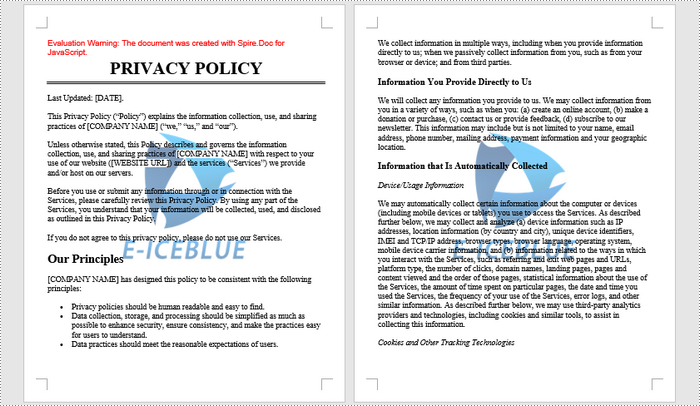
Get a Free License
To fully experience the capabilities of Spire.Doc for JavaScript without any evaluation limitations, you can request a free 30-day trial license.
Insert Images in Word with JavaScript in React
In MS word, images can quickly and easily convey complex information that may be difficult to explain in words alone. Whether you're creating a report, a presentation, a newsletter, or a simple document, adding images can make your content more engaging, informative, and visually appealing. In this article, you will learn how to add images to a Word document in React using Spire.Doc for JavaScript.
- Insert an Image in a Word Document in JavaScript
- Insert an Image at a Specified Location in Word in JavaScript
Install the JavaScript Library
To get started with inserting images in Word in a React application, you can either download Spire.Doc for JavaScript from our website or install it via npm with the following command:
npm i spire.officeThe downloaded product package integrates Spire.Doc for JavaScript, Spire.XLS for JavaScript, Spire.PDF for JavaScript, and Spire.Presentation for JavaScript. To use the features of Spire.Doc for JavaScript, you need to copy the corresponding files (spire.doc.js, Spire.Doc.Wasm.zip, spire.common.js, Spire.Common.Wasm.zip, and the _framework folder) to the public folder of your project. To ensure proper text rendering, you can add relevant font files with a custom path. In the following example, the font is added to the path: public\static\font.
For more details, refer to the documentation: How to Integrate Spire.Doc for JavaScript in a React Project
Insert an Image in a Word Document in JavaScript
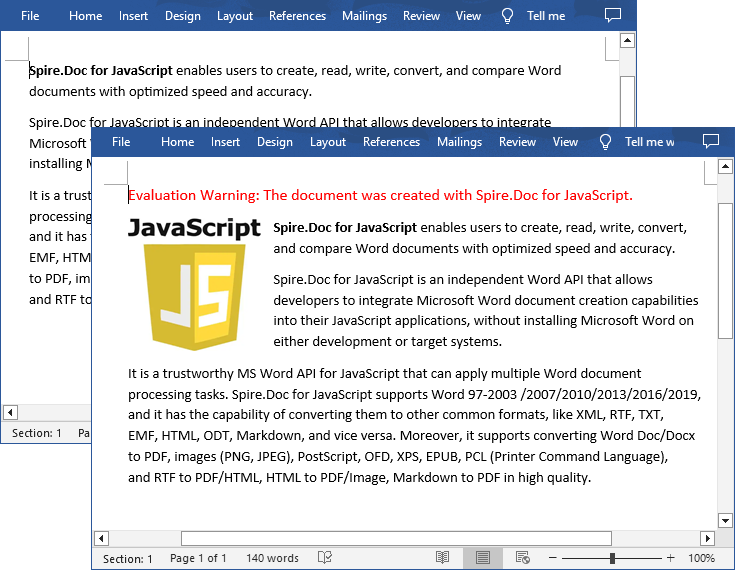
The Paragraph.AppendPicture() method offered by Spire.Doc for JavaScript allows to insert an image into a Word document. The following are the main steps to insert an image in Word and set its size, text wrapping style using JavaScript.
- Create a new document using the new wasmModule.Document() method.
- Load a Word document using the Document.LoadFromFile() method.
- Get a specified section in the document using the Document.Sections.get_Item() method.
- Get a specified paragraph in the section using the Section.Paragraphs.get_Item() method.
- Add an image to the specified paragraph using the Paragraph.AppendPicture() method.
- Set width, height and text wrapping style for the image.
- Save the result document using Document.SaveToFile() method.
- JavaScript
import React, { useState, useEffect } from 'react';

function App() {
  const [wasmModule, setWasmModule] = useState(null);
  // Load Spire.Doc
  useEffect(() => {
    (async () => {
      try {
        const publicUrl = process.env.PUBLIC_URL || '';
        const spireModule = await import(/* webpackIgnore: true */ `${publicUrl}/spire.doc.js`);
        const rawModule = spireModule.default || spireModule;
        window.wasmModule = typeof rawModule === 'function'
          ? await rawModule({ locateFile: p => p.endsWith('.wasm') ? `${publicUrl}/${p}` : p })
          : rawModule;
        setWasmModule(window.wasmModule);
      } catch (error) {
        console.error('Failed to load spire.doc.js WASM module:', error);
      }
    })();
  }, []);

  // Function to insert an image in Word
  const InsertWordImage = async () => {
    const wasmModule = window.wasmModule.spiredoc;

    if (wasmModule) {
      // Load the font files into the virtual file system (VFS)
      await window.spire.FetchFileToVFS('Arial.ttf', '/Library/Fonts/', `${process.env.PUBLIC_URL}/static/font/`);

      // Specify the input file name and the output file name
      const inputFileName = 'input.docx';
      const outputFileName = "InsertImage.docx";
      const imageFile = "logo.png";

      // Fetch the input file and add it to the VFS
      await window.spire.FetchFileToVFS(inputFileName, '', `${process.env.PUBLIC_URL}/static/data/`);
      await window.spire.FetchFileToVFS(imageFile, '', `${process.env.PUBLIC_URL}/static/data/`);

      // Create an instance of the Document class
      const doc = new wasmModule.Document();

      // Load the Word document
      doc.LoadFromFile({ fileName: inputFileName });

      // Get the first section
      const section = doc.Sections.get_Item(0);

      // Get the first paragraph
      const paragraph = section.Paragraphs.get_Item(0);

      // Add the image to the first paragraph
      let picture = paragraph.AppendPicture({ imgFile: imageFile });

      // Set image width and height
      picture.Width = 100;
      picture.Height = 100;

      // Set text wrapping style for the image
      picture.TextWrappingStyle = wasmModule.TextWrappingStyle.Square;

      // Save the result document
      doc.SaveToFile({ fileName: outputFileName, fileFormat: wasmModule.FileFormat.Docx });

      // Release resources
      doc.Dispose();

      // Read the generated Word file from VFS
      const modifiedFileArray = window.dotnetRuntime.Module.FS.readFile(outputFileName);

      // Create a Blob object from the Word file
      const modifiedFile = new Blob([modifiedFileArray], { type: "application/vnd.openxmlformats-officedocument.wordprocessingml.document" });

      // Create a URL for the Blob
      const url = URL.createObjectURL(modifiedFile);

      // Create an anchor element to trigger the download
      const a = document.createElement("a");
      a.href = url;
      a.download = outputFileName;
      document.body.appendChild(a);
      a.click();
      document.body.removeChild(a);
      URL.revokeObjectURL(url);
    }
  };

  return (
    <div style={{ textAlign: 'center', height: '300px' }}>
      <h1>Insert an Image in a Word Document Using JavaScript in React</h1>
      <button onClick={InsertWordImage} disabled={!wasmModule}>
        Execute
      </button>
    </div>
  );
}

export default App;
Run the code to launch the React app at localhost:3000. Once it's running, click on the "Execute" button to download the result file:
The input file and the result file:
Insert an Image at a Specified Location in Word in JavaScript
You can also place the image at any specified location in the Word document through the DocPicture.HorizontalPosition and DocPicture.VerticalPosition properties. The following are the main steps:
- Create a new document using the new wasmModule.Document() method.
- Add a section to the document using the Document.AddSection() method.
- Add a paragraph to the section using the Section.AddParagraph() method.
- Add text to the paragraph and set paragraph style.
- Add an image to the paragraph using the Paragraph.AppendPicture() method.
- Set the horizontal position and vertical position for the image through the DocPicture.HorizontalPosition and DocPicture.VerticalPosition properties.
- Set width, height and text wrapping style for the image.
- Save the result document using Document.SaveToFile() method.
- JavaScript
import React, { useState, useEffect } from 'react';

function App() {
  const [wasmModule, setWasmModule] = useState(null);
  // Load Spire.Doc
  useEffect(() => {
    (async () => {
      try {
        const publicUrl = process.env.PUBLIC_URL || '';
        const spireModule = await import(/* webpackIgnore: true */ `${publicUrl}/spire.doc.js`);
        const rawModule = spireModule.default || spireModule;
        window.wasmModule = typeof rawModule === 'function'
          ? await rawModule({ locateFile: p => p.endsWith('.wasm') ? `${publicUrl}/${p}` : p })
          : rawModule;
        setWasmModule(window.wasmModule);
      } catch (error) {
        console.error('Failed to load spire.doc.js WASM module:', error);
      }
    })();
  }, []);

  // Function to insert an image at a specified location in Word
  const InsertImage = async () => {
    const wasmModule = window.wasmModule.spiredoc;

    if (wasmModule) {
      // Load the font files into the virtual file system (VFS)
      await window.spire.FetchFileToVFS('Arial.ttf', '/Library/Fonts/', `${process.env.PUBLIC_URL}/static/font/`);

      // Specify the input file name and the output file name
      const outputFileName = "WordImage.docx";
      const imageFile = "logo.png";

      // Fetch the input file and add it to the VFS
      await window.spire.FetchFileToVFS(imageFile, '', `${process.env.PUBLIC_URL}/static/data/`);

      // Create an instance of the Document class
      const doc = new wasmModule.Document();

      // Add a section in the document
      let section = doc.AddSection();

      // Add a paragraph to the section
      let paragraph = section.AddParagraph();

      // Add text to the paragraph and set paragraph style
      paragraph.AppendText("The sample demonstrates how to insert an image at a specified location in a Word document.");
      paragraph.ApplyStyle({ builtinStyle: wasmModule.BuiltinStyle.Heading2 });

      //Add an image to the paragraph
      let picture = paragraph.AppendPicture({ imgFile: imageFile });

      // Set image position
      picture.HorizontalPosition = 150.0;
      picture.VerticalPosition = 70.0;

      // Set image width and height
      picture.Width = 100;
      picture.Height = 100;

      // Set text wrapping style for the image
      picture.TextWrappingStyle = wasmModule.TextWrappingStyle.Through;

      // Save the result document
      doc.SaveToFile({ fileName: outputFileName, fileFormat: wasmModule.FileFormat.Docx });

      // Release resources
      doc.Dispose();

      // Read the generated Word file from VFS
      const modifiedFileArray = window.dotnetRuntime.Module.FS.readFile(outputFileName);

      // Create a Blob object from the Word file
      const modifiedFile = new Blob([modifiedFileArray], { type: "application/vnd.openxmlformats-officedocument.wordprocessingml.document" });

      // Create a URL for the Blob
      const url = URL.createObjectURL(modifiedFile);

      // Create an anchor element to trigger the download
      const a = document.createElement("a");
      a.href = url;
      a.download = outputFileName;
      document.body.appendChild(a);
      a.click();
      document.body.removeChild(a);
      URL.revokeObjectURL(url);
    }
  };

  return (
    <div style={{ textAlign: 'center', height: '300px' }}>
      <h1>Insert an Image at a Specified Location in Word Using JavaScript in React</h1>
      <<button onClick={InsertImage} disabled={!wasmModule}>
      Execute
      </button>
    </div>
 );
}

export default App;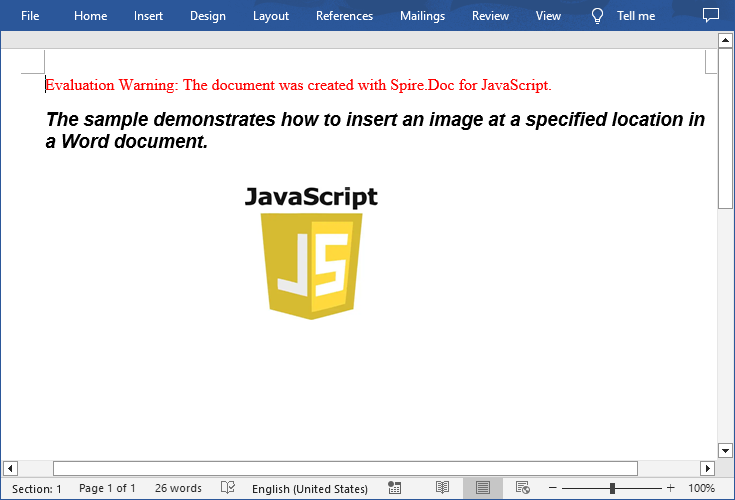
Get a Free License
To fully experience the capabilities of Spire.Doc for JavaScript without any evaluation limitations, you can request a free 30-day trial license.
Create a Table of Contents in a Word Document Using JavaScript in React
Automatically generating a table of contents (TOC) in a Word document using JavaScript within a React application streamlines document creation by eliminating manual updates and ensuring dynamic consistency. This approach is particularly valuable in scenarios where content length, structure, or headings frequently change, such as in report-generation tools, academic platforms, or documentation systems. By leveraging Spire.Doc for JavaScript's WebAssembly module and React’s reactive state management, developers can programmatically detect headings, organize hierarchical sections, and insert hyperlinked TOC entries directly into Word files. In this article, we will explore how to use Spire.Doc for JavaScript to insert tables of contents into Word documents with JavaScript in React applications.
- Insert a Default TOC into a Word Document Using JavaScript
- Insert a Custom TOC into a Word Document Using JavaScript
- Remove the Table of Contents from a Word Document
Install Spire.Doc for JavaScript
To get started with inserting tables of contents into Word documents in a React application, you can either download Spire.Doc for JavaScript from our website or install it via npm with the following command:
npm i spire.officeThe downloaded product package integrates Spire.Doc for JavaScript, Spire.XLS for JavaScript, Spire.PDF for JavaScript, and Spire.Presentation for JavaScript. To use the features of Spire.Doc for JavaScript, you need to copy the corresponding files (spire.doc.js, Spire.Doc.Wasm.zip, spire.common.js, Spire.Common.Wasm.zip, and the _framework folder) to the public folder of your project. To ensure proper text rendering, you can add relevant font files with a custom path. In the following example, the font is added to the path: public\static\font.
For more details, refer to the documentation: How to Integrate Spire.Doc for JavaScript in a React Project
Insert a Default TOC into a Word Document Using JavaScript
Spire.Doc for JavaScript offers a WebAssembly module for processing Word documents in JavaScript environments. You can load a Word document from the virtual file system using the Document.LoadFromFile() method and insert a table of contents (TOC) via the Paragraph.AppendTOC() method, which auto-generates based on the document’s titles. Finally, update the TOC with the Document.UpdateTableOfContents() method.
The detailed steps are as follows:
- Load the spire.doc.js file to initialize the WebAssembly module.
- Fetch the Word file to the virtual file system (VFS) using the window.spire.FetchFileToVFS() method.
- Create an instance of the Document class in the VFS using the new wasmModule.Document() method.
- Load the Word document from the VFS using the Document.LoadFromFile() method.
- Add a new section to the document using the Document.AddSection() method, and add a paragraph using the Section.AddParagraph() method.
- Insert the section after the cover section using the Document.Sections.Insert() method.
- Insert a TOC into the paragraph using the Paragraph.AppendTOC() method.
- Update the TOC using the Document.UpdateTableOfContents() method.
- Save the document to the VFS using the Document.SaveToFile() method.
- Read the document from the VFS and download it.
- JavaScript
import React, { useState, useEffect } from 'react';

function App() {
  const [wasmModule, setWasmModule] = useState(null);
  // Load Spire.Doc
  useEffect(() => {
    (async () => {
      try {
        const publicUrl = process.env.PUBLIC_URL || '';
        const spireModule = await import(/* webpackIgnore: true */ `${publicUrl}/spire.doc.js`);
        const rawModule = spireModule.default || spireModule;
        window.wasmModule = typeof rawModule === 'function'
          ? await rawModule({ locateFile: p => p.endsWith('.wasm') ? `${publicUrl}/${p}` : p })
          : rawModule;
        setWasmModule(window.wasmModule);
      } catch (error) {
        console.error('Failed to load spire.doc.js WASM module:', error);
      }
    })();
  }, []);

  // Function to insert a default table of contents into a Word document
  const InsertTOCWord = async () => {
    const wasmModule = window.wasmModule.spiredoc;

    if (wasmModule) {
      // Load the font files into the virtual file system (VFS)
      await window.spire.FetchFileToVFS('CALIBRI.ttf', '/Library/Fonts/', `${process.env.PUBLIC_URL}/static/font/`);

      // Specify the input and output file names
      const inputFileName = 'sample.docx';
      const outputFileName = 'DefaultTOC.docx';

      // Fetch the input file and add it to the VFS
      await window.spire.FetchFileToVFS(inputFileName, '', `${process.env.PUBLIC_URL}/static/data/`);

      // Create an instance of the Document class
      const doc = new wasmModule.Document();

      // Load the Word document
      doc.LoadFromFile({ fileName: inputFileName });

      // Create a new section
      const section = doc.AddSection();
      // Create a new paragraph
      const paragraph = section.AddParagraph();

      // Add a table of contents to the paragraph
      paragraph.AppendTOC(1, 2);

      // Insert the section after the cover section
      doc.Sections.Insert(1, section);

      // Update the table of contents
      doc.UpdateTableOfContents();

      // Save the document to the VFS
      doc.SaveToFile({ fileName: outputFileName, fileFormat: wasmModule.FileFormat.Docx2019 })

      // Read the document from the VFS and create a Blob to trigger the download
      const wordArray = await window.dotnetRuntime.Module.FS.readFile(outputFileName);
      const blob = new Blob([wordArray], { type: 'application/vnd.openxmlformats-officedocument.wordprocessingml.document' });
      const url = URL.createObjectURL(blob);
      const a = document.createElement('a');
      a.href = url;
      a.download = `${outputFileName}`;
      document.body.appendChild(a);
      a.click();
      document.body.removeChild(a);
      URL.revokeObjectURL(url);
    }
  };

  return (
    <div style={{ textAlign: 'center', height: '300px' }}>
      <h1>Insert Default Table of Contents Using JavaScript in React</h1>
      <button onClick={InsertTOCWord} disabled={!wasmModule}>
        Insert and Download
      </button>
    </div>
  );
}

export default App;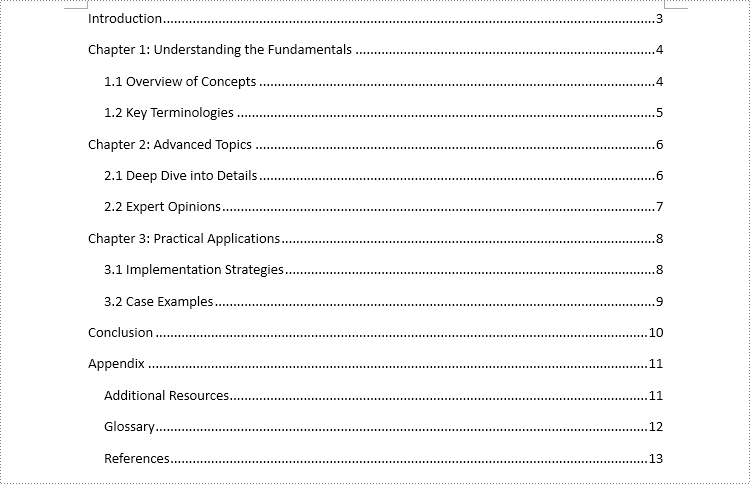
Insert a Custom TOC into a Word Document Using JavaScript
Spire.Doc for JavaScript also enables users to create a custom table of contents. By creating an instance of the TableOfContent class, you can customize title and page number display using switches. For instance, the switch "{\o "1-3" \n 1-1}" configures the TOC to display titles from level 1 to 3 while omitting page numbers for level 1 titles. After creating the instance, insert it into the document and assign it as the TOC of the document using the Document.TOC property.
The detailed steps are as follows:
- Load the spire.doc.js file to initialize the WebAssembly module.
- Fetch the Word file to the virtual file system (VFS) using the window.spire.FetchFileToVFS() method.
- Create an instance of the Document class in the VFS using the new wasmModule.Document() method.
- Load the Word document from the VFS using the Document.LoadFromFile() method.
- Add a new section to the document using the Document.AddSection() method, and add a paragraph using the Section.AddParagraph() method.
- Insert the section after the cover section using the Document.Sections.Insert() method.
- Create an instance of the TableOfContent class in the VFS using the new wasmModule.TableOfContent() method and specify the switch.
- Insert the TOC into the new paragraph using the Paragraph.Items.Add() method.
- Append the field separator and field end marks to complete the TOC field using the Paragraph.AppendFieldMark() method.
- Set the new TOC as the document’s TOC through the Document.TOC property.
- Update the TOC using the Document.UpdateTableOfContents() method.
- Save the document to the VFS using the Document.SaveToFile() method.
- Read the document from the VFS and download it.
- JavaScript
import React, { useState, useEffect } from 'react';

function App() {
  const [wasmModule, setWasmModule] = useState(null);
  // Load Spire.Doc
  useEffect(() => {
    (async () => {
      try {
        const publicUrl = process.env.PUBLIC_URL || '';
        const spireModule = await import(/* webpackIgnore: true */ `${publicUrl}/spire.doc.js`);
        const rawModule = spireModule.default || spireModule;
        window.wasmModule = typeof rawModule === 'function'
          ? await rawModule({ locateFile: p => p.endsWith('.wasm') ? `${publicUrl}/${p}` : p })
          : rawModule;
        setWasmModule(window.wasmModule);
      } catch (error) {
        console.error('Failed to load spire.doc.js WASM module:', error);
      }
    })();
  }, []);

  // Function to insert a default table of contents into a Word document
  const InsertTOCWord = async () => {
    const wasmModule = window.wasmModule.spiredoc;

    if (wasmModule) {
      // Load the font files into the virtual file system (VFS)
      await window.spire.FetchFileToVFS('CALIBRI.ttf', '/Library/Fonts/', `${process.env.PUBLIC_URL}/static/font/`);

      // Specify the input and output file names
      const inputFileName = 'sample.docx';
      const outputFileName = 'CustomTOC.docx';

      // Fetch the input file and add it to the VFS
      await window.spire.FetchFileToVFS(inputFileName, '', `${process.env.PUBLIC_URL}/static/data/`);

      // Create an instance of the Document class
      const doc = new wasmModule.Document();

      // Load the Word document
      doc.LoadFromFile({ fileName: inputFileName });

      // Add a new section and paragraph
      const section = doc.AddSection();
      const para = section.AddParagraph();

      // Insert the section after the cover section
      doc.Sections.Insert(1, section)

      // Create an instance of the TableOfContent class and specify the switch
      const toc = new wasmModule.TableOfContent(doc, '{\\o \”1-3\” \\n 1-1}');

      // Add the table of contents to the new paragraph
      para.Items.Add(toc);

      // Insert a field separator mark to the paragraph
      para.AppendFieldMark(wasmModule.FieldMarkType.FieldSeparator);

      // Insert a field end mark to the paragraph
      para.AppendFieldMark(wasmModule.FieldMarkType.FieldEnd);

      // Set the new TOC as the TOC of the document
      doc.TOC = toc;

      // Update the TOC
      doc.UpdateTableOfContents();

      // Save the document to the VFS
      doc.SaveToFile({ fileName: outputFileName, fileFormat: wasmModule.FileFormat.Docx2019});

      // Read the document from the VFS and create a Blob to trigger the download
      const wordArray = await window.dotnetRuntime.Module.FS.readFile(outputFileName);
      const blob = new Blob([wordArray], { type: 'application/vnd.openxmlformats-officedocument.wordprocessingml.document' });
      const url = URL.createObjectURL(blob);
      const a = document.createElement('a');
      a.href = url;
      a.download = `${outputFileName}`;
      document.body.appendChild(a);
      a.click();
      document.body.removeChild(a);
      URL.revokeObjectURL(url);
    }
  };

  return (
      <div style={{ textAlign: 'center', height: '300px' }}>
        <h1>Insert a Custom Table of Contents Using JavaScript in React</h1>
        <button onClick={InsertTOCWord} disabled={!wasmModule}>
          Insert and Download
        </button>
      </div>
  );
}

export default App;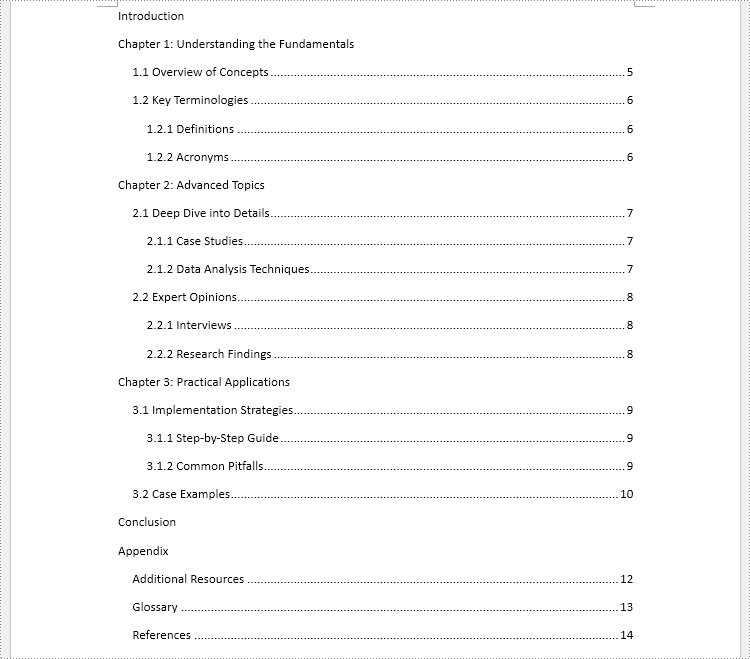
Remove the Table of Contents from a Word Document
Since TOC paragraphs have style names that start with "TOC", you can locate them by matching a regular expression on the paragraph style and then remove those paragraphs.
The detailed steps are as follows:
- Load the spire.doc.js file to initialize the WebAssembly module.
- Fetch the Word file to the virtual file system (VFS) using the window.spire.FetchFileToVFS() method.
- Create an instance of the Document class in the VFS using the new wasmModule.Document() method.
- Load the Word document from the VFS using the Document.LoadFromFile() method.
- Create an instance of the Regex class with the pattern "TOC\w+".
- Iterate through each section in the document and access its body using the Document.Sections.get_Item().Body property.
- Loop through the paragraphs in each section body and retrieve each paragraph's style via the Paragraph.StyleName property.
- Identify paragraphs whose style matches the regex using the Regex.IsMatch() method and remove them using the Section.Body.Paragraphs.RemoveAt() method.
- Save the document to the VFS using the Document.SaveToFile() method.
- Read the document from the VFS and download it.
- JavaScript
import React, { useState, useEffect } from 'react';

function App() {
  const [wasmModule, setWasmModule] = useState(null);
  // Load Spire.Doc
  useEffect(() => {
    (async () => {
      try {
        const publicUrl = process.env.PUBLIC_URL || '';
        const spireModule = await import(/* webpackIgnore: true */ `${publicUrl}/spire.doc.js`);
        const rawModule = spireModule.default || spireModule;
        window.wasmModule = typeof rawModule === 'function'
          ? await rawModule({ locateFile: p => p.endsWith('.wasm') ? `${publicUrl}/${p}` : p })
          : rawModule;
        setWasmModule(window.wasmModule);
      } catch (error) {
        console.error('Failed to load spire.doc.js WASM module:', error);
      }
    })();
  }, []);

  // Function to remove the table of contents from a Word document
  const RemoveTOC = async () => {
    const wasmModule = window.wasmModule.spiredoc;

    if (wasmModule) {
      // Load the font files into the virtual file system (VFS)
      await window.spire.FetchFileToVFS('CALIBRI.ttf', '/Library/Fonts/', `${process.env.PUBLIC_URL}/static/font/`);

      // Specify the input and output file names
      const inputFileName = 'sample.docx';
      const outputFileName = 'RemoveTOC.docx';

      // Fetch the input file and add it to the VFS
      await window.spire.FetchFileToVFS(inputFileName, '', `${process.env.PUBLIC_URL}/static/data/`);

      // Create an instance of the Document class
      const doc = new wasmModule.Document();

      // Load the Word document
      doc.LoadFromFile({ fileName: inputFileName });

      // Create a regex pattern to match the style name of TOC
      const regex = new wasmModule.Regex("TOC\\w+", wasmModule.RegexOptions.None);

      // Iterate through each section
      for (let i = 0; i < doc.Sections.Count; i++) {
        // Iterate through each paragraph in the section body
        const sectionBody = doc.Sections.get_Item(i).Body;
        for (let j = 0; j < sectionBody.Paragraphs.Count; j++) {
          // Check if the style name matches the regex pattern
          const paragraph = sectionBody.Paragraphs.get_Item(j);
          if (regex.IsMatch(paragraph.StyleName)) {
            // Remove the paragraph
            sectionBody.Paragraphs.RemoveAt(j)
            // Or remove the section
            //doc.Sections.RemoveAt(i)
            //i--
            j--
          }
        }
      }

      // Save the document to the VFS
      doc.SaveToFile({ fileName: outputFileName, fileFormat: wasmModule.FileFormat.Docx2019});

      // Read the document from the VFS and create a Blob to trigger the download
      const wordArray = await window.dotnetRuntime.Module.FS.readFile(outputFileName);
      const blob = new Blob([wordArray], { type: 'application/vnd.openxmlformats-officedocument.wordprocessingml.document' });
      const url = URL.createObjectURL(blob);
      const a = document.createElement('a');
      a.href = url;
      a.download = `${outputFileName}`;
      document.body.appendChild(a);
      a.click();
      document.body.removeChild(a);
      URL.revokeObjectURL(url);
    }
  };

  return (
      <div style={{ textAlign: 'center', height: '300px' }}>
        <h1>Remove TOC Using JavaScript in React</h1>
        <button onClick={RemoveTOC} disabled={!wasmModule}>
          Insert and Download
        </button>
      </div>
  );
}

export default App;
Get a Free License
To fully experience the capabilities of Spire.Doc for JavaScript without any evaluation limitations, you can request a free 30-day trial license.