TSV (Tab-Separated Values) files are commonly used to export data from databases, reporting systems, and other applications. While TSV is useful for exchanging raw data, converting TSV to Excel (XLSX) makes it easier to organize and format data, perform calculations, and create charts.
Whether you need to convert a single file or process multiple TSV files regularly, this guide covers four practical methods using Microsoft Excel, LibreOffice Calc, online tools, and C# for batch conversion.
TSV vs. Excel (XLSX): Key Differences
TSV and XLSX both store tabular data, but they serve different purposes. TSV is a plain-text format that uses tabs to separate fields, while XLSX is an Excel workbook format that supports additional features for data analysis and reporting.
| Feature | TSV | Excel (XLSX) |
|---|---|---|
| File structure | Plain text with tab-separated fields | Structured spreadsheet workbook |
| Multiple worksheets | Not supported | Supported |
| Cell formatting | Not supported | Fonts, colors, borders, and number formats |
| Formulas and charts | Not stored as spreadsheet features | Supported |
| Compatibility | Readable by text editors and many data-processing tools | Supported by Excel and compatible spreadsheet applications |
| Typical use | Data exchange and exports | Data analysis, reporting, and collaboration |
When should you convert TSV to Excel? XLSX is generally more suitable when you need to format data, perform calculations, or prepare reports. If you only need to exchange raw tabular data between applications, keeping the TSV format may be sufficient.
TSV is similar to CSV, except that it uses tabs instead of commas to separate fields. If your data is stored in CSV format, you can follow similar approaches to convert CSV to Excel.
Comparing TSV to Excel Conversion Methods
The right method depends on how many files you need to convert, which tools you have available, and whether you need to edit the data. Here's how the four options compare.
| Method | Best For | Limitations |
|---|---|---|
| Microsoft Excel | Importing TSV files with control over delimiters and column types | Requires Excel; manual processing |
| LibreOffice Calc | Free, offline TSV to XLSX conversion | Requires installation; manual processing |
| Online tools | Converting files without installing desktop software | Upload and privacy considerations; service limits vary |
| C# (.NET) | Batch conversion and automated TSV processing | Requires a .NET development environment |
Method 1: Convert TSV to Excel Using Microsoft Excel
If you have a TSV file exported from a database or reporting system, you can import it directly into Excel and save it as an XLSX workbook. Excel also lets you check the delimiter, file encoding, and column data types during import.
The following steps use Excel's built-in text import feature in Excel 2024 for Windows. The steps may vary slightly depending on your Excel version.
-
Open Microsoft Excel and create a blank workbook.
-
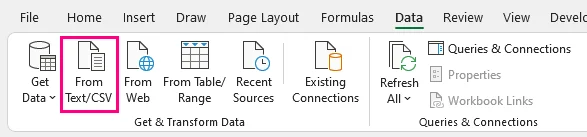
Go to Data > From Text/CSV.
-
Browse to your TSV file, select it, and click Import. If the file is not displayed, change the file filter to All Files.
-
In the import preview, set Delimiter to Tab and confirm that the data is separated into the correct columns.
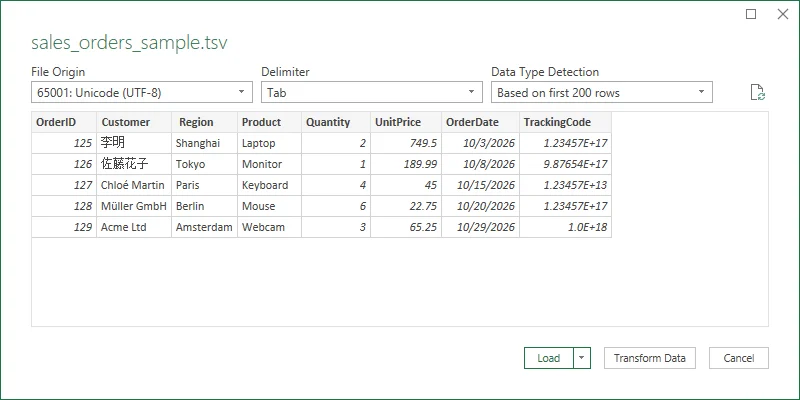
Excel's import preview with Tab selected as the delimiter.
-
If any characters appear incorrectly, check File Origin and select the encoding used by your TSV file, such as 65001: Unicode (UTF-8).
-
Click Load to import the data into a worksheet.
-
Go to File > Save As, select Excel Workbook (*.xlsx) as the file format, and choose a destination.
-
Click Save to complete the conversion.
Tip: To preserve leading zeros, long numbers, or date-like text, click Transform Data instead of Load in Step 6. In Power Query, remove or adjust any automatically generated Changed Type step, set the affected columns to Text, and then select Home > Close & Load to import the data.
Method 2: Save TSV as XLSX with LibreOffice Calc
If you don't have Microsoft Excel installed or prefer a free, offline solution, LibreOffice Calc is a practical alternative. You can open a TSV file, check how the data is separated into columns, and save it as an XLSX workbook.
-
Launch LibreOffice Calc.
-
Go to File > Open and browse to your TSV file.
-
Select the TSV file, choose Text CSV from the File type dropdown, and click Open.
-
In the Text Import dialog, select Separated by and check Tab. Uncheck any unnecessary separators.
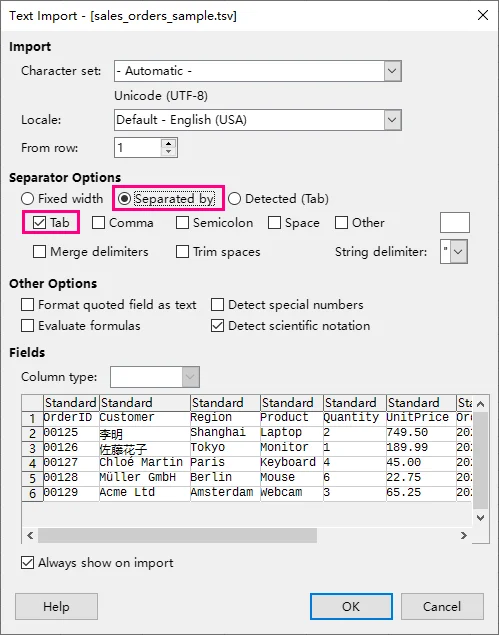
LibreOffice Calc's Text Import dialog showing TSV data separated into columns.
Note: The Text Import dialog may appear automatically, depending on your LibreOffice settings. If it does not appear, reopen the TSV file and enable Edit filter settings in the file-opening dialog, if available.
-
Check the preview and adjust Character Set if needed. To preserve leading zeros or other text-like values, select the relevant columns and set Column type to Text.
-
Click OK to import the data into Calc.
-
Go to File > Save As and select Excel 2007–365 (.xlsx) or the equivalent XLSX format available in your version.
-
Choose a filename and location, then click Save. If a format compatibility warning appears, select Use Excel 2007–365 Format (or the equivalent option) to keep the XLSX format.
Method 3: Convert TSV to Excel Online
Online tools let you convert TSV files to Excel without installing additional software. Google Sheets allows you to review and edit the data before downloading an XLSX file, while dedicated converters offer a faster option when you only need to change the file format.
Option 1: Use Google Sheets
Google Sheets is useful when you want to inspect, clean, or modify TSV data before exporting it to Excel.
-
Open Google Sheets and create a blank spreadsheet.
-
Go to File > Import.
-
Select the Upload tab and upload your TSV file.
-
Choose an import location, such as Replace spreadsheet.
-
Set Separator type to Tab if it is not detected automatically.
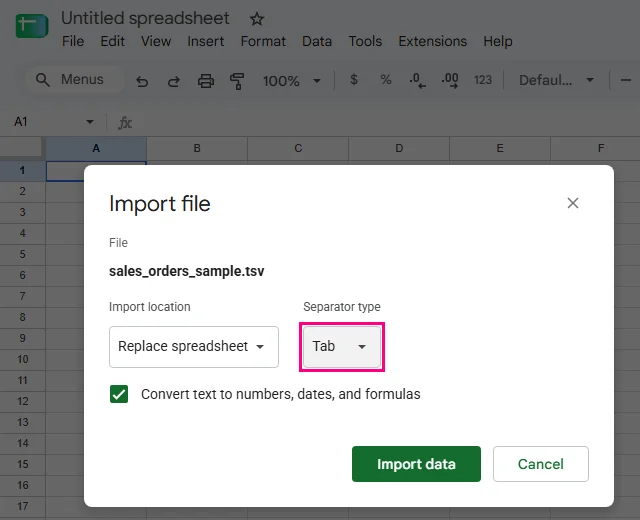
Google Sheets import settings for a TSV file.
-
If your file contains leading zeros or date-like text, consider disabling Convert text to numbers, dates, and formulas to avoid unwanted data conversions.
-
Click Import data to load the TSV content.
-
Review or edit the imported data as needed.
-
Go to File > Download > Microsoft Excel (.xlsx) to download the spreadsheet as an Excel workbook.
Option 2: Use an Online TSV to XLSX Converter
For a quick conversion without editing the spreadsheet, you can use a dedicated tool such as Ident Convert's TSV to XLSX converter.
-
Open the online converter.
-
Upload your
.tsvfile using the file selection area.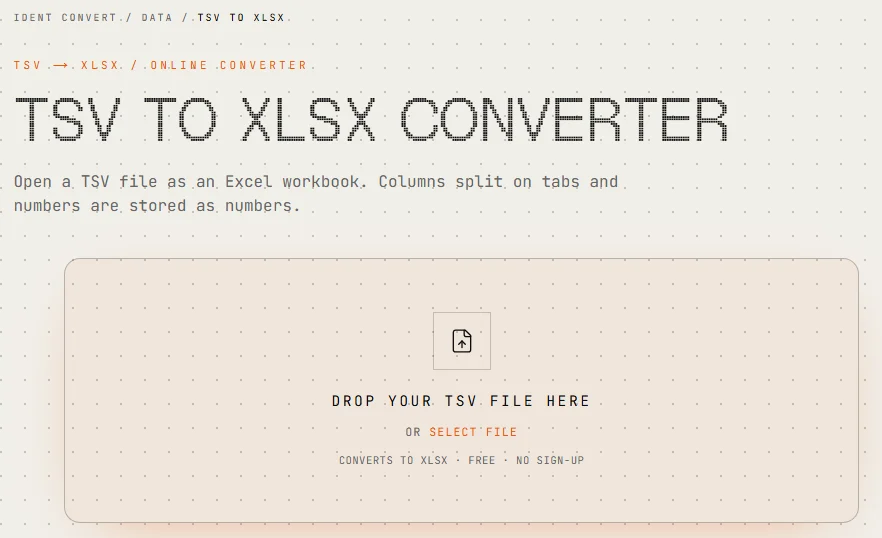
Ident Convert's TSV to XLSX conversion interface.
-
Click Convert File to generate the XLSX file.
-
Download the converted
.xlsxfile. -
Open the workbook to verify that the data was converted correctly.
Note: Online converters may have file-size limits or apply their own data-processing rules. For example, Ident Convert skips empty lines and may convert numeric values to Excel numbers. If preserving the exact data structure is important, check the output carefully. Avoid uploading confidential or sensitive files unless the service's data-handling policies meet your requirements.
Method 4: Batch Convert TSV to Excel in C#
Manually converting TSV files becomes inefficient when new files are generated daily or weekly. For recurring data exports, C# can automate the process by reading multiple TSV files from a folder and saving each one as an XLSX workbook without opening Microsoft Excel.
Install the Required Library
This example uses Spire.XLS for .NET, a spreadsheet processing library that supports reading tab-delimited files and exporting Excel workbooks without requiring Microsoft Office.
Starting with version 16.10.3, the library supports parsing TSV files.
Install version 16.10.3 through NuGet Package Manager Console:
Install-Package Spire.XLS -Version 16.10.3
Alternatively, use the .NET CLI:
dotnet add package Spire.XLS --version 16.10.3
Note: The library may add evaluation notices or impose functional limitations without a valid license. You can request a temporary license to test it without these restrictions.
Batch Convert TSV Files to Excel
Suppose you have a folder containing monthly sales data in TSV format:
TSVFiles/
    Sales_January.tsv
    Sales_February.tsv
    Sales_March.tsv
The following C# example loops through all TSV files in the folder, converts each one into an Excel workbook, and saves the results in a separate directory.
using System;
using System.IO;
using Spire.Xls;

class Program
{
    static void Main()
    {
        string inputFolder = @"D:\TSVFiles";
        string outputFolder = @"D:\ExcelFiles";

        // Create the output folder if it does not exist
        Directory.CreateDirectory(outputFolder);

        // Get all TSV files from the input folder
        string[] files = Directory.GetFiles(inputFolder, "*.tsv");

        foreach (string file in files)
        {
            Workbook workbook = new Workbook();

            try
            {
                // Load the TSV file using a tab delimiter
                workbook.LoadFromFile(file, "\t");

                // Generate the output XLSX file path
                string outputFile = Path.Combine(
                    outputFolder,
                    Path.GetFileNameWithoutExtension(file) + ".xlsx"
                );

                // Save the file in XLSX format
                workbook.SaveToFile(outputFile, FileFormat.Version2016);

                Console.WriteLine("Converted: " + outputFile);
            }
            finally
            {
                // Release workbook resources
                workbook.Dispose();
            }
        }
    }
}
The program finds all .tsv files in the input folder, loads each one using a tab delimiter, and saves it as an .xlsx file with the same base filename. Each workbook is disposed of after processing.
The same batch-processing approach can also be used for other spreadsheet conversions, such as converting XLSB files to XLSX.
Common TSV to Excel Conversion Issues
Although converting TSV to Excel is usually straightforward, some files may require extra care to ensure the data is imported correctly.
1. All Data Appears in One Column
- Cause: The application did not recognize the tab delimiter and treated each row as a single text value.
- Solution: Import the file again and explicitly select Tab as the delimiter. Check the preview to confirm that the data is separated into the correct columns.
2. Leading Zeros Disappear
-
Cause: Spreadsheet applications may interpret values such as
00125as numbers and remove the leading zeros. - Solution: Set identifier columns to Text during import. In Excel, use Power Query to control column types before loading the data. Once leading zeros are removed, changing the cell format to Text will not restore them.
3. Special Characters Are Displayed Incorrectly
- Cause: The file's character encoding does not match the encoding used during import.
- Solution: Check the original file's encoding and select the corresponding character set, such as UTF-8, in the import settings. This is particularly important for files containing accented characters, Chinese, Japanese, or other non-ASCII text.
4. Dates or Long Numbers Change After Conversion
- Cause: Spreadsheet applications may automatically convert date-like text into dates or interpret long numeric strings as numbers. Excel stores numeric values with up to 15 significant digits of precision, which can alter longer identifiers.
- Solution: Import date-like text and long numeric identifiers as Text when their exact values must be preserved. Compare the converted workbook with the original TSV file to check for unexpected changes.
Frequently Asked Questions
1. Can I Open a TSV File Directly in Excel Without Converting It?
Yes. Microsoft Excel can open TSV files and display their contents in rows and columns, provided the tab delimiter is recognized correctly. However, opening a TSV file does not automatically convert it to XLSX. To create an XLSX file, save the imported data as an Excel workbook.
2. Can I Convert a Large TSV File to Excel Without Losing Data?
It depends on the file size and structure. Excel worksheets support up to 1,048,576 rows and 16,384 columns. If your TSV file exceeds these limits, all its data cannot fit into a single worksheet.
For larger datasets, consider splitting the data across multiple worksheets or workbooks. Also check the converted data for unintended changes to identifiers, dates, or long numbers, even when the file is within Excel's size limits.
3. Can I Convert TSV to XLSX Without Installing Microsoft Excel?
Yes. You can use LibreOffice Calc, Google Sheets, or an online TSV to XLSX converter. Developers can also use C# spreadsheet libraries to generate XLSX files programmatically without installing Microsoft Office.
Conclusion
Converting TSV to Excel makes tab-delimited data easier to work with in a spreadsheet. Microsoft Excel, LibreOffice Calc, Google Sheets, and online converters offer practical options for individual files.
For recurring or large-scale conversions, C# can automate the process, reducing repetitive work and generating multiple XLSX files with consistent output formats.