In an era of instant digital access, extra friction to open a PDF quickly discourages users. Whether you distribute restaurant menus, product manuals, or event brochures, asking readers to type long URLs or download large files creates unnecessary drop-off. PDF QR codes bridge this gap between printed materials and digital documents. A single scan loads the PDF on a mobile device, turning static files into trackable, interactive content.
This guide will walk you through exactly how to create a QR code for a PDF, the tools that make it easy, and the best practices to ensure your codes actually get scanned.
- What is a PDF QR Code?
- Step-by-Step: How to Create a QR Code for a PDF
- Advanced: Programmatically Generate QR code for PDF in C#
- Best Practices for Reliable Scanning
- Frequently Asked Questions (FAQs)
What is a PDF QR Code?
A PDF QR code is a scannable, two-dimensional barcode that stores a link pointing to a hosted PDF file.
Common Misconception: The PDF file itself is not compressed or embedded into the QR code. Instead, the code acts as a digital signpost, directing the scanner to the secure online location where the document lives.
There are two common ways to make a QR code for a PDF:
- Direct Upload: Use a QR generator that hosts the PDF file for you.
- Host the PDF Online First: Store the PDF on your website or cloud storage first, then convert its public share link into a QR code.
This simple bridge between offline print and digital files is why PDF QR codes are popular for small businesses, marketers, educators, restaurants, and field teams.
Step-by-Step: How to Create a QR Code for a PDF
Step 1: Prepare and host your PDF
First, your PDF needs a public, shareable URL. A local file saved only on your computer cannot be turned into a working QR code.
Here are the common options to create a link for PDF:
| Hosting option | How to get the link | Best for |
|---|---|---|
| Your own website | Upload the file and copy its direct URL | Branding and full control |
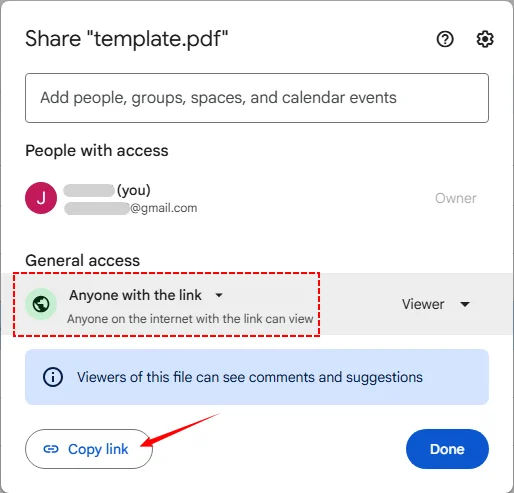
| Google Drive | Upload → Share → set "Anyone with the link can view" → copy link | Quick personal use |
| Dropbox / OneDrive | Enable public sharing and grab the direct download or preview link | Team workflows |
| QR generator built-in hosting | Upload the PDF directly inside the generator | One-off codes with no storage setup |
An example of using Google Drive:
✅ Performance tip: Compress large PDFs before uploading. Files under 10 MB load much faster on mobile data. Reduce image resolution, remove unused embedded fonts, and delete heavy assets to speed up loading.
Step 2: Choose a QR code generator
Pick a free or paid QR code generator that supports PDF or URL QR codes. Decide early if you need a static or dynamic code:
- Static QR: Fixed destination, cannot be edited later, usually free, no scan tracking.
- Dynamic QR: Editable target URL + scan analytics, typically requires paid or trial plans.
Step 3: Generate the code
Open your chosen generator.
- If it offers a "PDF" or "File" option, you can upload the document directly.
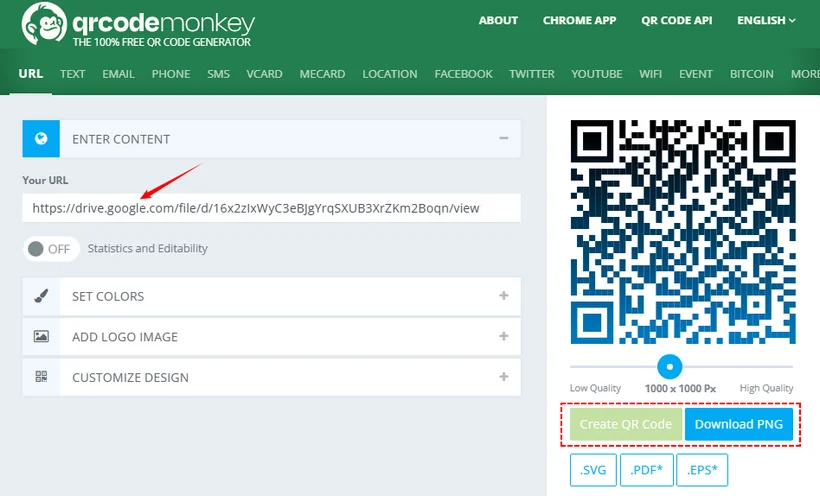
- Alternatively, paste the public URL of your hosted PDF into the "URL" or "Link" field.
Step 4: Customize your QR code
Most generators let you adjust colors, add a logo, change corner shapes, or add a frame matching your brand.
⚠️ Important rule: Always keep strong contrast. Dark modules on a light background scan far better than low-contrast or inverted color schemes. Don’t overload the design; too many decorative elements can break scanning.
Step 5: Export your QR code
Click the generate button, then download the file. Avoid low-resolution JPGs for posters or banners. Choose:
- SVG for printing (vector format stays crisp at any size).
- PNG for digital use and web graphics.
✅ Example use case: Use QRCode Monkey to generate a static QR code where the PDF destination will never change.
Advanced: Programmatically Generate QR code for PDF in C#
Manual QR creation works for one-off jobs, but it does not scale for bulk scenarios such as personalized invoices, event tickets, and serialized product labels. To automate this workflow, .NET developers can use Spire.Barcode to generate QR codes that point to your hosted PDFs. This robust library handles both the programmatic generation and the reading of QR codes directly within C#.
Install the package
dotnet add package Spire.Barcode
# or, in the Package Manager Console:
# Install-Package Spire.Barcode
C# code to create QR code from PDF
using Spire.Barcode;
using System.Drawing;
using System.Drawing.Imaging;

namespace GenerateQRCode
{
    class Program
    {
        static void Main(string[] args)
        {
            // Initialize barcode settings
            BarcodeSettings settings = new BarcodeSettings();
            // Specify the barcode type as QR Code
            settings.Type = BarCodeType.QRCode;
            // Set the QR code data to your PDF link
            settings.Data = "https://www.e-iceblue.com/article/toDownload.pdf";
            // Set the text to display (optional)
            settings.Data2D = "Scan to view the PDF file";
            settings.ShowTextOnBottom = true;
            settings.TextFont = new Font(FontFamily.GenericSansSerif, 16.0f);

            // Set data mode and error correction level
            settings.QRCodeDataMode = QRCodeDataMode.Auto;
            settings.QRCodeECL = QRCodeECL.H;
            // Set the width of bar module
            settings.X = 3.0f;

            // (Optional) Embed a logo image in the QR code
            //settings.QRCodeLogoImage = Image.FromFile("Logo.png");

            // Generate the QR code image
            BarCodeGenerator generator = new BarCodeGenerator(settings);
            Image qr = generator.GenerateImage();
            // Save the image to a file
            qr.Save("PDFQRCode.png", ImageFormat.Png);
        }
    }
}
What Each Setting Does
The BarcodeSettings class allows you to configure virtually every aspect of your QR code output, such as:
-
Barcode Type (
Type): The format of the code (e.g.,BarCodeType.QRCodefor 2D QR codes). -
Data Payload (
Data): The actual content encoded in the QR code (such as your hosted PDF URL). -
Caption Text (
Data2D): The custom text displayed beneath or alongside the 2D barcode. -
Data Encoding Mode (
QRCodeDataMode): How the data is encoded (e.g.,Auto,Numeric,AlphaNumber, orByte). -
Error Correction Level (
QRCodeECL): The amount of redundancy built into the code (Low, Medium, Quartile, or High) to ensure it remains scannable even if damaged or partially obscured. -
Embedded Logo (
QRCodeLogoImage): An image (like a company logo) to place in the center of the QR code.
The generated QR code links to a PDF:
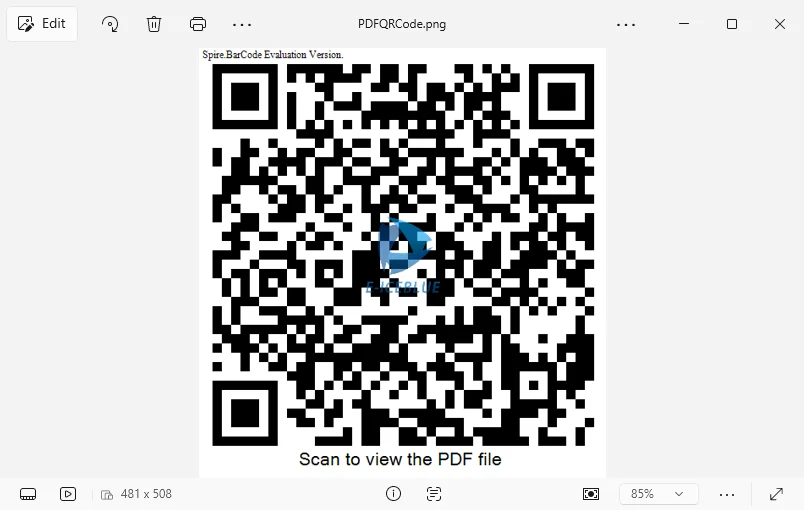
To remove evaluation watermarks, you can request a trial license.
Best Practices for Reliable Scanning
These rules apply to both manually generated and programmatically generated QR codes.
- Contrast first: Dark QR pattern on a solid light background. If placed over busy imagery, add a solid white box behind the code.
- Reserve a quiet zone: Leave empty white space around the QR code border. Do not crowd text, borders, or graphics right against it.
- Minimum print size: Use at least 2.5 cm × 2.5 cm for standard printed materials. Make it larger for posters and distant signage.
- Add clear call-to-action text: Write “Scan to view PDF menu,” “Scan for full manual,” or “Scan to download brochure.” Users may not know what the QR code does without context.
- Avoid distortion: Never stretch or squash the QR image. Keep the aspect ratio square.
- Watch file expiry: If using Google Drive or cloud links, confirm sharing settings do not expire or get restricted later.
Conclusion
Creating a QR code for a PDF is a simple but powerful way to modernize document sharing. With the right hosting setup and a simple QR generator—or just a few lines of C# code—you can turn any standard PDF into a trackable asset.
Keep your design clean, your file sizes small, and your links evergreen. Pick a generator, host your document, and start turning those scans into measurable results.
Frequently Asked Questions (FAQs)
Q: Can I create a QR code for a PDF for free?
A: Yes. Tools such as QRCode Monkey support free static QR codes for PDF links. Free dynamic QR codes with editable destinations and analytics are usually limited to trial plans.
Q: Do users need a special app to scan the code?
A: No. Native camera apps on modern iOS and Android devices scan QR codes directly. Users point the camera and tap the system notification to open the PDF.
Q: How do I convert PDF to QR code if I don't have a website?
A: Use a QR generator with built-in file hosting: upload the PDF directly inside the tool, and it hosts the file and generates the code for you. No website or cloud storage needed.
Q: Will my PDF QR code expire?
A: The QR code itself does not expire. Expiry depends on the hosted PDF link. If your hosting platform sets link expiration, or you remove the PDF file, scanning the QR code will return a broken link.