In our daily work and life, we often find ourselves needing to count the words in a PDF document. Unlike Microsoft Word, PDF files do not provide a native word count feature, and most PDF readers offer only limited support for word counting. This is because PDF files treat text as fixed visual elements rather than a continuous flow of words. If you are wondering how to count words in PDF documents easily, you are in the right place. This guide will introduce 3 highly effective solutions to solve this problem, covering everything from simple, direct online tools to automated scripts that can handle hundreds of documents at once.
- Count Words with Online Tools
- Count Words Using Adobe Acrobat and MS Word
- Word Count in PDF with Python
- Methods Comparison
Count Words in PDF with Online Word Counter
When it comes to getting a PDF word count, online counters are usually the first solution that comes to mind. They are incredibly lightweight, require zero installation, and work perfectly across all your devices. Instead of cluttering your computer with heavy software, you can get a quick answer directly inside your web browser and move on to other tasks.
How to do it:
- Step 1. Open your web browser and search for a trusted free online PDF word count tool.
- Step 2. Drag and drop your PDF file directly into the upload box.
- Step 3. After the file is uploaded and processed, the website will display the total word count.
Word count result using an online PDF tool: 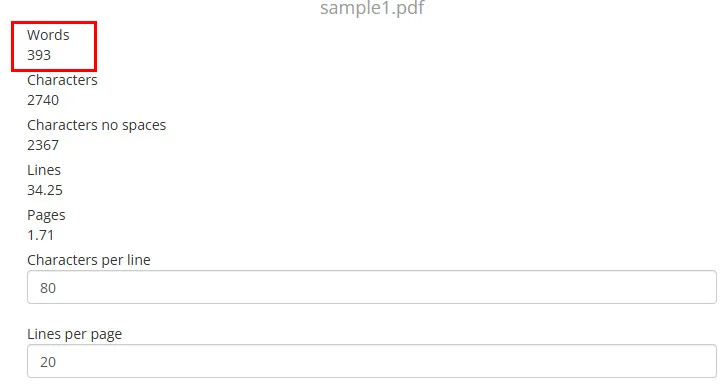
Privacy & Security Warning: It is not recommended to upload sensitive PDFs to free online websites. If your document contains business secrets, personal IDs, or financial data, skip this method entirely. Free tools are only safe for public, non-sensitive articles.
Count Words in a PDF Using Adobe Acrobat and MS Word
If you are working with legal documents, translation projects, or academic papers, accuracy is often more important than speed. In these cases, a desktop-based workflow can be a safer and more reliable choice than relying on online tools.
Unlike Microsoft Word, Adobe Acrobat does not provide a dedicated word count feature in all editions. A common workaround is to convert the PDF to Word and then use Word's built-in feature to check the word count.
Step-by-Step Guide:
- Step 1. Open your PDF file in Adobe Acrobat (or use the official Adobe Acrobat online converter).
- Step 2. Click Export PDF in the right pane and select Microsoft Word (.docx) as your output format.
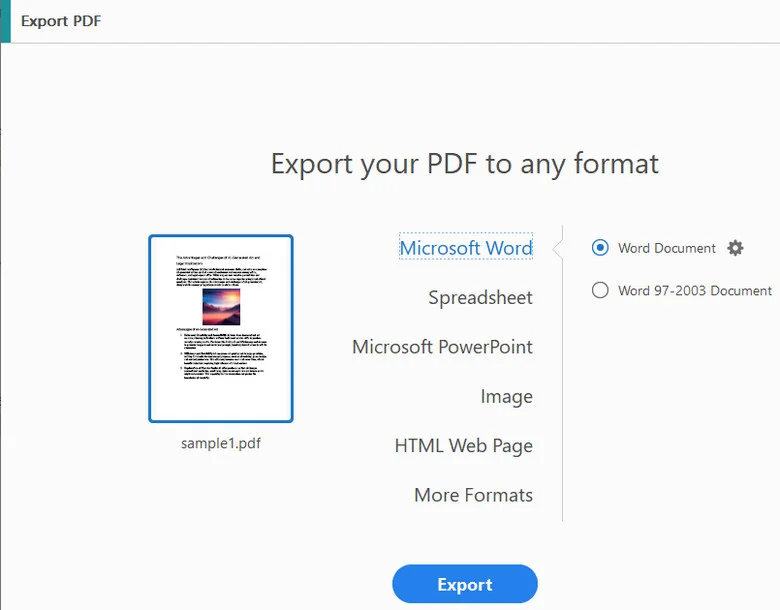
- Step 3. Save the newly generated file to your local computer.
- Step 4. Open the document in Microsoft Word, navigate to the Review tab, and click Word Count.
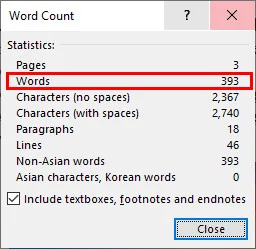
Note: Don't worry about your original file, this process simply creates a brand-new Word document, leaving your original PDF untouched.
How to Do Word Count in PDF with Python Automatically
Manually converting files works fine for one or two documents. But what if you are a developer or a data analyst with a folder full of 500 reports? Manually processing a large number of files can be time-consuming, making automation a more practical solution.
For developers, extracting text programmatically is often the most efficient way to count words in PDF files. You can automate PDF word counting with a short Python script. With the help of Free Spire.PDF for Python, you can extract the raw text programmatically and use regular expressions to count the words instantly.
Python Code Example
The code below shows how to count words of multiple PDF documents in one go:
import os
import re
from spire.pdf.common import *
from spire.pdf import *

# 1. Define the input folder directory
folder_path = "/input/pdfs/"

# 2. Configure text extraction options once
extractOptions = PdfTextExtractOptions()
extractOptions.IsExtractAllText = True

print("--- Word Count Report ---")

# 3. Loop through all files in the directory
for file_name in os.listdir(folder_path):
    # Process only PDF files
    if file_name.lower().endswith('.pdf'):
        file_path = os.path.join(folder_path, file_name)

        # Initialize Document object and load the current PDF
        doc = PdfDocument()
        doc.LoadFromFile(file_path)

        # Extract text from all pages of the current file
        total_text = ""
        for i in range(doc.Pages.Count):
            page = doc.Pages.get_Item(i)
            textExtractor = PdfTextExtractor(page)
            text = textExtractor.ExtractText(extractOptions)
            if text:
                total_text += text + "\n"
        doc.Close()

        # Count English words in the extracted text
        word_count = len(re.findall(r"\b[a-zA-Z]+(?:['-][a-zA-Z]+)*\b", total_text))

        # Print the file name and its corresponding word count
        print(f"File: {file_name} | Word Count: {word_count}")
Below is a preview of the batch word count results printed by the script:

Note: The word count is calculated using regular-expression matching on the extracted text. As different applications use different rules for handling numbers, hyphenated words, punctuation, headers, footers, and other special content, the result may differ slightly from the word count reported by Microsoft Word, Adobe Acrobat, or online PDF word counters.
Why use this?
This method is both fast and secure because your data never leaves your computer. If you are dealing with large-scale projects, utilizing Free Spire.PDF for Python brings several technical advantages over standard open-source tools:
- High-Fidelity Text Extraction: Unlike basic PDF parsers that often scramble text orders or mix up multi-column layouts, it accurately captures text streams based on the visual layout, ensuring your final count is as close to real human reading as possible.
- Excellent Performance on Large Files: It handles massive, multi-page documents smoothly without spending much system memory, thanks to its optimized internal memory release mechanisms.
- All-in-One Extensibility: If your PDF processing workflow grows in the future, you won't need to change tools. It fully supports advanced features like adding annotations, signing documents, or converting file formats under a single, unified codebase.
Just note that if your PDF contains scanned images instead of text, you will need to add an OCR (Optical Character Recognition) step to read the text first.
Which PDF Word Counter Should You Choose?
Choosing the right method depends on your current situation and the type of document you have. Here is a quick breakdown to help you pick the best tool for the job:
| Method | Accuracy | Speed | Privacy Safety | Best For |
|---|---|---|---|---|
| Online Tools | Medium | Fast | Low | Quick, public, and non-sensitive articles |
| Adobe to Word | High | Medium | High (100% Local) | Official docs, legal papers, and highly confidential files |
| Python Script | High | Fast (Bulk) | High (100% Local) | Developers, data analysts, and automated batch processing |
Conclusion
Counting words in PDF files doesn't have to be complicated. Whether you need a quick answer from an online tool, a reliable count through Word conversion, or an automated Python solution for batch processing, there is an option for every scenario. Choose the approach that matches your needs and start analyzing your PDF documents more efficiently.