Printing dozens of contracts, reports, or invoices one by one is a tedious time-waster. Whether you are preparing handouts for a meeting, producing legal documents, or simply organising your office paperwork, the ability to send a whole folder of Word files to the printer in one go can save you hours.
This article walks you through six practical methods to batch print .doc and .docx files—from effortless right-click tricks to a powerful developer‑oriented solution using Spire.Doc in C#. Pick the one that fits your workflow and start printing smarter today.
Overview of the methods covered:
- Method 1: Right-Click & Print from File Explorer
- Method 2: Drag and Drop Multiple Word Files via Print Queue Window
- Method 3: Merge Word Files First for a Unified Print Job
- Method 4: Use a Word Macro (VBA) to Print All Documents in a Folder
- Method 5: Silent Batch Printing with a PowerShell Script
- Method 6: Print Word Documents in C# Using Spire.Doc
Method 1: Right-Click & Print from File Explorer
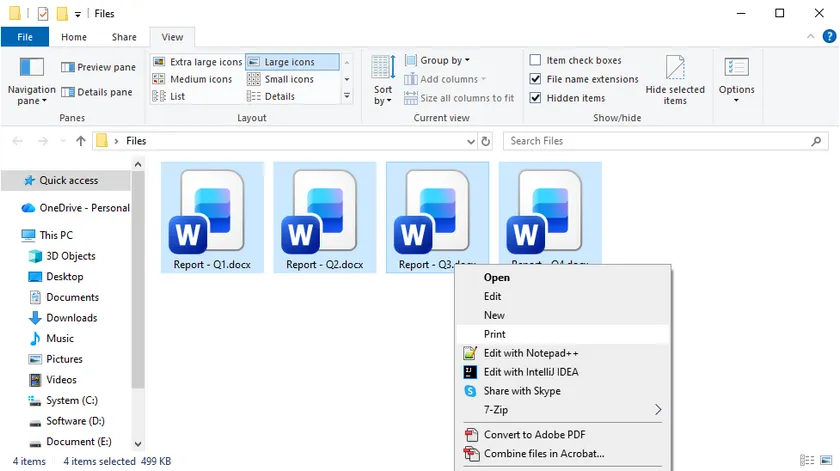
The simplest method requires zero extra tools and works instantly on any Windows PC. It’s perfect for quickly printing a handful of documents without installing any software. Simply select your files and let Windows handle the rest.
Steps:
- Open File Explorer and navigate to the folder containing your Word documents.
- Select the files you want to print: hold down the Ctrl key and click each one individually, or press Ctrl + A to select all.
- Right-click any highlighted file and choose Print from the context menu.
Windows will automatically open each document in Microsoft Word, send it to your default printer, and close Word when finished. Keep in mind that if your Word security settings display macro warnings or Protected View prompts, the process may pause until you manually confirm them. Still, for quick, occasional jobs this method is hard to beat.
Method 2: Drag and Drop Multiple Word Files via Print Queue Window
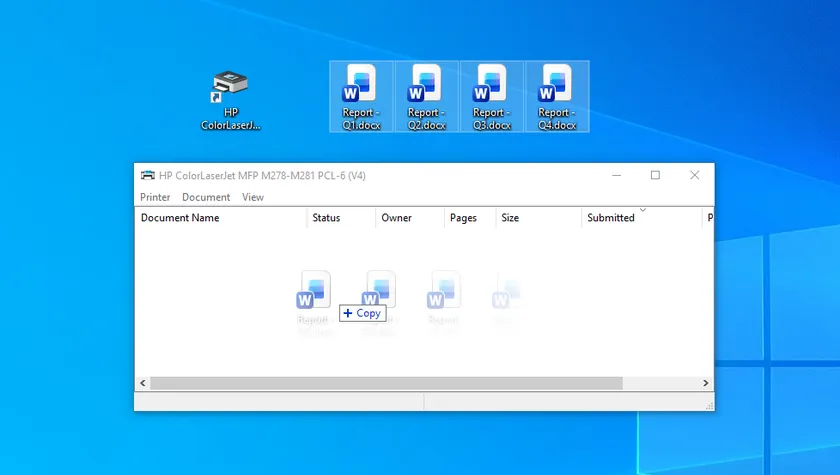
This native Windows drag-and-drop workflow enables batch printing of multiple Word documents—simply drag your files onto a dedicated printer desktop shortcut. This approach makes it easy to switch between different printers at will, making it ideal for office environments equipped with several printing devices.
Steps:
- Press Win + R, type control printers, then press Enter to launch the Devices and Printers window.
- Double-click your target printer icon to bring up its print queue window.
- Select all target Word files, then drag and drop them directly into the blank area of the open print queue window.
Files will populate the print job list automatically. Windows will open, print, and close each document sequentially.
Pro tip: You can also create a desktop printer shortcut for quick access, though dragging into the print queue window delivers more reliable results for batch tasks.
Method 3: Merge Word Files First for a Unified Print Job
If you want all separate Word files printed as one continuous, ordered document, this merging workflow is your optimal solution. It works exceptionally well for handouts, formal reports and booklets that require consistent page sequencing. Merging files ahead of printing removes tedious manual page sorting after output.
Steps:
- Launch Microsoft Word and create a blank new document.
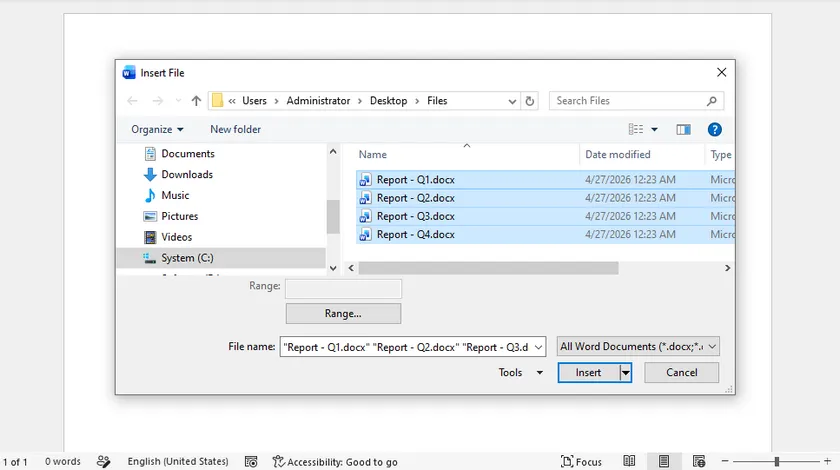
- Navigate to Insert > Object > Text from File (alternate paths: Insert > File or expand the Object drop-down menu on certain Word editions).
- Highlight all DOCX files to be merged, then click Insert . Files will assemble following your selected order.
- Hit Ctrl + P to open the print panel. Select either your physical printer or Microsoft Print to PDF , then confirm printing.
You will receive one cohesive document with uninterrupted page flow. Though merging takes a small amount of extra time, it prevents misordered pages and eliminates manual collation—ideal for bound documents and printed handouts.
Method 4: Use a Word Macro (VBA) to Print All Documents in a Folder
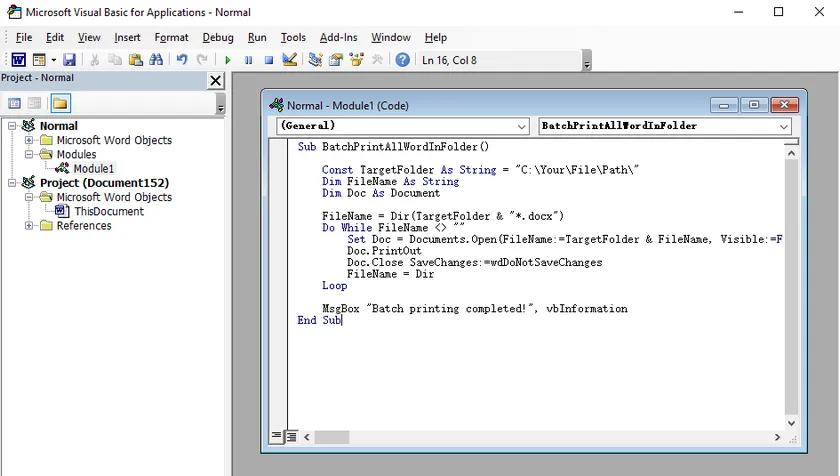
If you frequently print batches of documents from the same folder, a simple VBA macro can fully automate the process. This method runs directly inside Microsoft Word, requires no extra software, and can be set up for one-click printing. It’s an ideal built-in automation tool for regular, repeated printing tasks.
Steps:
- Open Microsoft Word and press Alt + F11 to open the VBA editor.
- Go to Insert > Module and paste the ready-to-use VBA code provided below.
- Replace the folder path in the code with your own directory.
- Press F5 to run the macro, or assign it to the Quick Access Toolbar for one-click printing.
VBA code:
Sub BatchPrintAllWordInFolder()

    Const TargetFolder As String = "C:\Your\File\Path\"
    Dim FileName As String
    Dim Doc As Document

    FileName = Dir(TargetFolder & "*.docx")
    Do While FileName <> ""
        Set Doc = Documents.Open(FileName:=TargetFolder & FileName, Visible:=False)
        Doc.PrintOut
        Doc.Close SaveChanges:=wdDoNotSaveChanges
        FileName = Dir
    Loop

    MsgBox "Batch printing completed!", vbInformation
End Sub
This method prints files silently in the background without opening windows. The only requirements are enabling macros and having Word installed — perfect for reliable personal or office desktop use.
Method 5: Silent Batch Printing with a PowerShell Script
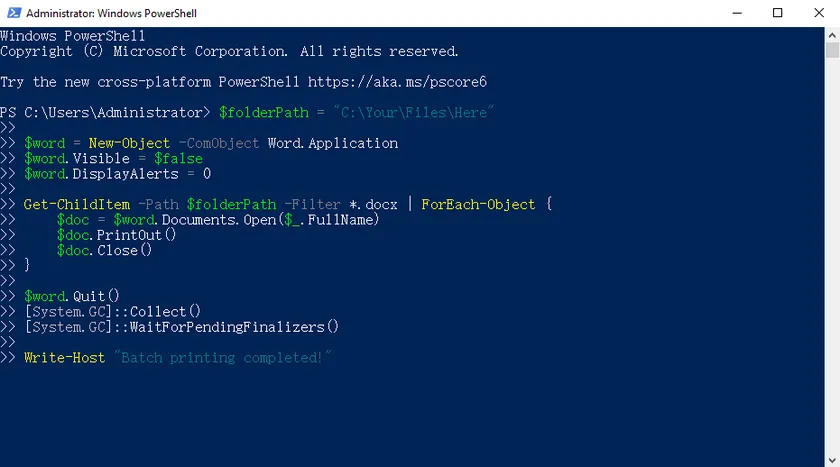
PowerShell offers a fast, lightweight, and script-based way to print multiple Word documents in the background—no windows, no pop-ups, and no manual interaction. This method is ideal for users who want fully automated printing, and it can even be scheduled with Windows Task Scheduler for automatic, timed jobs.
Steps:
- Open PowerShell from the Start Menu (no administrator rights required for basic printing).
- Copy and paste the simple batch-print script provided below.
- Change the
$folderPathvalue to your target document folder. - Run the script. Word will run silently in the background, print all your documents automatically, and close cleanly when finished.
PowerShell script:
$folderPath = "C:\Your\Files\Here"

$word = New-Object -ComObject Word.Application
$word.Visible = $false
$word.DisplayAlerts = 0

Get-ChildItem -Path $folderPath -Filter *.docx | ForEach-Object {
    $doc = $word.Documents.Open($_.FullName)
    $doc.PrintOut()
    $doc.Close()
}

$word.Quit()
[System.GC]::Collect()
[System.GC]::WaitForPendingFinalizers()

Write-Host "Batch printing completed!"
This method works without extra software, supports all Word formats, and delivers reliable, silent batch printing for both personal and office use.
Method 6: Print Word Documents in C# Using Spire.Doc
When you need a fully automated, high‑performance batch printing solution that runs on a server without Microsoft Office, Spire.Doc for .NET is the go‑to library. It gives you complete programmatic control over document printing, making it ideal for web applications, background services, or document management systems.
Why Use Spire.Doc for Batch Printing?
Spire.Doc is a standalone .NET library that reads, creates, and manipulates Word files without any dependency on Word itself. For batch printing, this means you can process thousands of documents reliably on a server, select a specific printer, set page ranges, and even handle print duplex—all through clean C# code.
Setting Up Spire.Doc in Your .NET Project
Install the package via NuGet Package Manager:
Install-Package Spire.Doc
Or use the .NET CLI: dotnet add package Spire.Doc. That’s it—no additional Office licences or installations.
C# Code Example: Print All Word Files from a Directory
Below is a complete console application that reads all .docx and .doc files from a folder and prints them silently with a standard print controller (no pop‑up dialog). The code also shows how to handle possible exceptions gracefully.
using Spire.Doc;
using System;
using System.Drawing.Printing;
using System.IO;

class BatchPrint
{
    static void Main(string[] args)
    {
        string folderPath = @"C:\DocumentsToPrint";
        string[] wordFiles = Directory.GetFiles(folderPath, "*.doc*");
        // Filter to .docx and .doc only
        string[] allowedExtensions = { ".docx", ".doc" };

        foreach (string filePath in wordFiles)
        {
            string ext = Path.GetExtension(filePath).ToLower();
            if (Array.Exists(allowedExtensions, e => e == ext))
            {
                try
                {
                    Console.WriteLine($"Printing: {Path.GetFileName(filePath)}");
                    Document doc = new Document();
                    doc.LoadFromFile(filePath);

                    PrintDocument printDoc = doc.PrintDocument;
                    // Suppress the print dialog for silent printing
                    printDoc.PrintController = new StandardPrintController();

                    // Optionally set printer name and copies
                    // printDoc.PrinterSettings.PrinterName = "My Specific Printer";
                    // printDoc.PrinterSettings.Copies = 2;

                    printDoc.Print();
                    doc.Close();
                }
                catch (Exception ex)
                {
                    Console.WriteLine($"Failed to print {filePath}: {ex.Message}");
                }
            }
        }
        Console.WriteLine("Batch print completed.");
    }
}
The logic is straightforward: get all files from the directory, check the extension, load each one into a Spire.Doc Document object, access its PrintDocument, set StandardPrintController to avoid the Windows print dialog, and call Print(). The loop ensures every valid Word document is printed sequentially.
The PrintDocument.PrinterSettings property opens the door to fine‑grained control. You can specify the exact printer with PrinterName, set the number of copies, choose a page range, or enable duplex printing. For more detailed introduction, refer to How to Print Word Documents in C#.
Quick Comparison: Which Batch Printing Method Suits You Best?
| Method | Requires Word? | Silent / No Pop-ups | Best For |
|---|---|---|---|
| Right‑click & Print | Yes | Possible interruptions | Occasional one‑off tasks |
| Drag to Printer Shortcut | Yes | Possible interruptions | Visual, quick daily use |
| Merge & Print to PDF | Yes | Yes (once merged) | Producing a single ordered printout |
| VBA Macro | Yes | Yes, if configured | Personal repetitive folders |
| PowerShell Script | Yes (COM) | Yes | Scheduled server‑side tasks |
| Spire.Doc with C# | No | Yes, fully silent | Server automation & integration |
Final Thoughts
Batch printing Word documents doesn’t have to be a chore. Start with the quick built‑in tricks, adopt a script when you need repeatability, and move to a dedicated library like Spire.Doc when your project demands a robust, Office‑free solution. Whichever route you take, the minutes you save will quickly add up to hours of reclaimed productivity. Now pick a method, load up your folder, and let the printer do the heavy lifting.
FAQs
Can I print Word documents without opening each one?
Yes. Methods 4, 5, and 6 all suppress the Word interface or work without it entirely. The PowerShell script and Spire.Doc both print silently in the background, while the VBA macro can hide the application window.
Does batch printing work with .doc and .docx files?
Absolutely. Every method described here handles both legacy .doc and modern .docx formats. When using Spire.Doc, the library seamlessly reads both formats without any conversion.
How do I select a specific printer when printing multiple files?
For the manual methods, set your desired printer as the default before starting. With the PowerShell script and the C# Spire.Doc example, you can programmatically set the printer name inside the code, giving you precise control without changing system defaults.