
Word documents often use tables to present data in reports, forms, and other structured content. When you need to sort, filter, or analyze that data, moving it to Excel makes it easier to work with. The best way to export a Word table to Excel depends on how many tables you need to transfer and whether you want to preserve their layout or automate the process. This guide covers four methods, from simple copy-and-paste to programmatic extraction with Python.
Method 1. Export Tables from Word to Excel with Copy and Paste
Copying and pasting is the simplest way to transfer a Word table to an Excel worksheet. It requires no special knowledge or technical skills and works especially well when you only need to move one or two tables.
- Step 1: Open the Word document and select the table you want to export.
- Step 2: Press Ctrl + C to copy the table.
- Step 3: Open Excel, select the destination cell, and press Ctrl + V to paste the table.
- Step 4: Adjust the formatting if needed.
Pros and Cons
- Pros: Quick and easy. It preserves much of the original table's layout and requires no additional tools.
- Cons: Manual copying takes time when a document contains many tables or when you need to process multiple Word files. Some formatting may also change after pasting.
Method 2. Convert a Word Table to Excel via HTML
If you have several tables in one Word document, saving the document as an HTML file can be a convenient alternative. HTML uses table elements to organize rows and cells, which Excel can recognize when opening the file. You can use this approach to import multiple tables without copying them one by one.
- Step 1: Open the Word document that contains the tables.
- Step 2: Go to File > Save As. Choose a location and select *Web Page (.htm; .html)* as the file type.
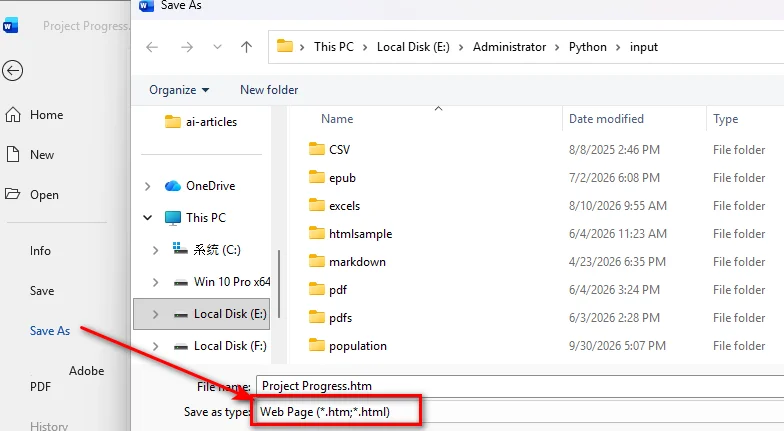
- Step 3: Open the HTML file in Excel.
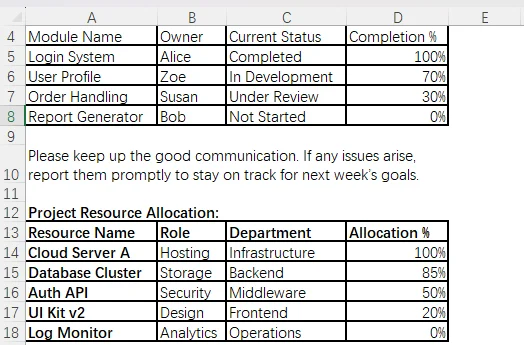
- Step 4: Check if the format and data are correct. Select File > Save As and save the file as an Excel Workbook.
Pros and Cons
- Pros: Simple to use and can export multiple tables from the same Word document at once.
- Cons: HTML conversion may change table formatting, column widths, or cell layouts. Complex tables may need manual adjustments after import.
Method 3. Export Word Tables to Excel Using VBA
Copying tables manually is not practical when you need to process documents regularly. VBA (Visual Basic for Applications) lets you automate this task directly in Microsoft Word. You can write a macro to loop through all tables, extract their cell contents, and place each table in a separate Excel worksheet.
Step 1. Open the VBA Editor
Open the Word document. Press Alt + F11 to launch the Visual Basic for Applications editor.
In the VBA editor, select Insert > Module to create a new module.
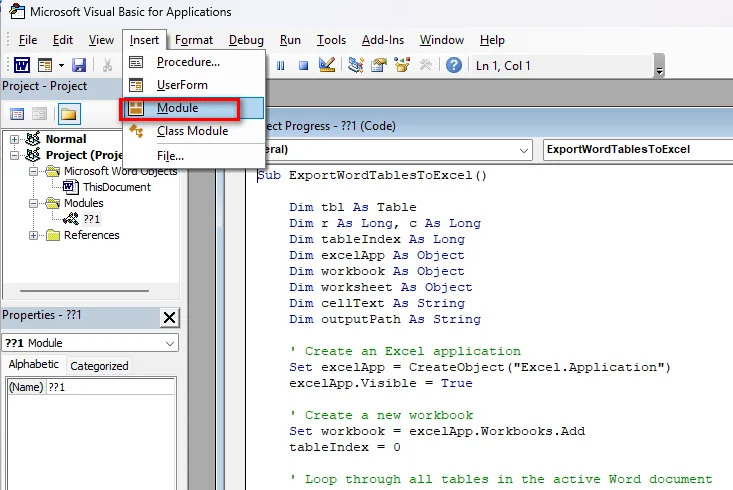
Step 2. Write a VBA Macro to Export Tables
The following macro uses Word's Tables collection to find every table in the active document. It then creates an Excel workbook and writes each table to a separate worksheet.
Sub ExportWordTablesToExcel()

    Dim tbl As Table
    Dim r As Long, c As Long
    Dim tableIndex As Long
    Dim excelApp As Object
    Dim workbook As Object
    Dim worksheet As Object
    Dim cellText As String
    Dim outputPath As String

    ' Create an Excel application
    Set excelApp = CreateObject("Excel.Application")
    excelApp.Visible = True

    ' Create a new workbook
    Set workbook = excelApp.Workbooks.Add
    tableIndex = 0

    ' Loop through all tables in the active Word document
    For Each tbl In ActiveDocument.Tables

        tableIndex = tableIndex + 1

        ' Use the first worksheet, then add more as needed
        If tableIndex = 1 Then
            Set worksheet = workbook.Worksheets(1)
        Else
            Set worksheet = workbook.Worksheets.Add
        End If

        worksheet.Name = "Table_" & tableIndex

        ' Loop through table rows and cells
        For r = 1 To tbl.Rows.Count
            For c = 1 To tbl.Rows(r).Cells.Count

                ' Remove Word's end-of-cell markers
                cellText = tbl.Rows(r).Cells(c).Range.Text
                cellText = Replace(cellText, Chr(13), "")
                cellText = Replace(cellText, Chr(7), "")

                ' Write the cell content to Excel
                worksheet.Cells(r, c).Value = cellText

            Next c
        Next r

        ' Auto-fit columns
        worksheet.Columns.AutoFit

    Next tbl

    ' Save the Excel workbook
    outputPath = ActiveDocument.Path & "\ExportedTables.xlsx"
    workbook.SaveAs outputPath

    ' Release the Excel objects
    workbook.Close
    excelApp.Quit

    Set worksheet = Nothing
    Set workbook = Nothing
    Set excelApp = Nothing

    MsgBox "Tables exported successfully!"

End Sub
Note: After adding the VBA macro, save the Word document as a Word Macro-Enabled Document (*.docm) to keep the macro code.
Step 3. Run the Macro
Return to the Word document and press Alt + F8 to open the Macro dialog. Select ExportWordTablesToExcel and click Run.
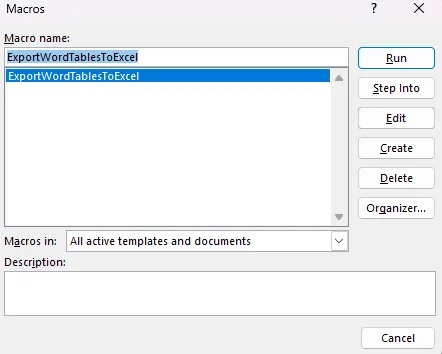
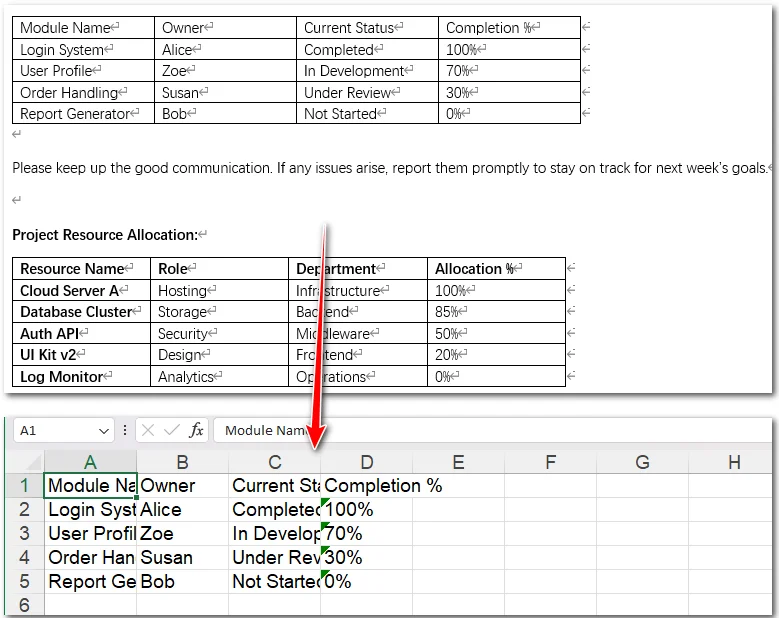
The macro creates an Excel workbook named ExportedTables.xlsx in the same folder as the Word document. Each Word table is placed in a separate worksheet.
Pros and Cons
- Pros: Automates the export process and handles multiple tables in one document. You can customize the macro to control worksheet names and data placement.
- Cons: Requires Microsoft Word and Excel to be installed. You also need to enable macros and have some basic VBA knowledge. Complex tables with merged cells may require additional handling.
Method 4. Export Tables from Word to Excel with Python
Python is a good choice when you need to automate table extraction or process multiple Word documents. It allows you to extract table data, organize it, and write it into Excel workbooks through code.
To do this, you can use Free Spire.Doc for Python and Free Spire.XLS for Python together. Free Spire.Doc for Python lets you load Word documents and access their tables, rows, and cells. Free Spire.XLS for Python provides the tools to create Excel workbooks, add worksheets, and write data into cells.
The following example shows how to use these two libraries to export Word tables to Excel.
Step 1. Install the Required Libraries
Install both libraries using pip:
pip install Spire.Doc.Free
pip install Spire.Xls.Free
Step 2. Extract Word Tables and Export Them to Excel
The following example loads a Word document, loops through its sections and tables, and writes each table to a separate Excel worksheet.
from spire.doc import Document
from spire.xls import Workbook, FileFormat

# Load the Word document
doc = Document()
doc.LoadFromFile("Sample.docx")

# Create an Excel workbook
workbook = Workbook()

# Remove the default worksheet
workbook.Worksheets.Clear()

# Loop through all sections in the Word document
for i in range(doc.Sections.Count):
    section = doc.Sections.get_Item(i)

    # Loop through all tables in the current section
    for j in range(section.Tables.Count):
        table = section.Tables.get_Item(j)

        # Create a separate worksheet for each table
        worksheet = workbook.Worksheets.Add(f"Table_{i+1}_{j+1}")

        # Loop through the table rows
        for r in range(table.Rows.Count):
            row = table.Rows.get_Item(r)

            # Loop through the cells in the current row
            for c in range(row.Cells.Count):
                cell = row.Cells.get_Item(c)

                # Extract text from all paragraphs in the cell
                cell_text = ""
                for p in range(cell.Paragraphs.Count):
                    paragraph = cell.Paragraphs.get_Item(p)
                    cell_text += paragraph.Text + " "

                # Write the extracted text to the corresponding Excel cell
                worksheet.SetCellValue(r + 1, c + 1, cell_text.strip())

# Save the Excel workbook
workbook.SaveToFile("WordTablesToExcel.xlsx", FileFormat.Version2016)

# Release resources
doc.Close()
workbook.Dispose()
Each Word table is exported to a separate worksheet named after its section and table index. For example, the first table in the first section goes to Table_1_1, while the second table goes to Table_1_2.
Pros and Cons
- Pros: Extracts multiple tables programmatically, supports batch processing, and does not require Microsoft Office desktop applications. You can also integrate the extraction process into larger Python workflows.
- Cons: Requires basic Python programming knowledge. The free versions are more suited for straightforward table export tasks.
Note: You can also use Free Spire.Doc to export Word tables to TXT files. Plain text files are lightweight, easy to read, and convenient for further text processing.
FAQs about Exporting Word Tables to Excel
1. How Do I Export Multiple Tables from Word to Excel at Once?
You can use VBA or Python to loop through all tables in a Word document and write them to separate Excel worksheets.
2. How Do I Convert a Word Table to Excel Without Losing Formatting?
Copying and pasting usually preserves basic formatting. HTML conversion may change the layout, while VBA and Python let you customize Excel formatting through additional code.
3. Can I Transfer Tables from Multiple Word Documents to One Excel File?
Yes. Use Python to loop through Word files in a folder, extract their tables with Free Spire.Doc, and write them into one Excel workbook with Free Spire.XLS. You can create a separate worksheet for each table or organize the data into shared worksheets.
4. Can I Convert a Scanned Word Table to Excel?
Not directly with standard table extraction methods. A scanned table is stored as an image. It's better to use an OCR tool to recognize the text and structure, then export the recognized data to Excel.
Conclusion
There are several ways to export tables from Word to Excel, depending on your needs. Copy and paste works well for a few simple tables, while HTML conversion offers a quick way to transfer multiple tables without coding. VBA is useful for automating tasks within Microsoft Office. If you need to extract tables programmatically or process multiple Word documents, Free Spire.Doc for Python and Free Spire.XLS for Python provide a practical solution. Choose the method that works best for your task and start transferring your Word tables to Excel.