In courts, law firms and compliance departments, electronic case file archiving is a high-frequency but tedious task. The materials of a single case are often scattered across dozens of PDFs — complaints, evidence lists, hearing transcripts, judgments — of varying counts and page lengths. Archiving means first organizing these loose materials into one complete volume that meets records-management standards, and then filling in an archive register that lists the name, creation date and page count of every material in the volume, for storage and later retrieval.
The traditional approach means switching between several tools: open each file to identify the material type, drag them into the conventional case-file order by hand, type out a cover page and a table of contents, then use image tools to add page numbers, watermarks and passwords separately. When the register is due, every material has to be opened all over again to copy out its name and page count by hand. With dozens of materials, this is slow and prone to mistakes or omissions.
The PDF AI capability of Spire.Agent.Office lets you describe the archiving requirements in natural language. The AI agent understands the request and handles two kinds of work automatically: turning loose materials into a well-formed volume, and extracting the volume's information into an archive register.
Comparison with Traditional SDK API
| Traditional Spire.Office for .NET API | Spire.Agent.Office | |
|---|---|---|
| Driving style | Write loops to iterate files plus code that orders, merges, stamps and encrypts, controlling every step | Describe the archiving requirements in natural language; the AI understands it and orchestrates the execution path |
| Code size | Case file consolidation usually needs 300-500 lines of C# (file enumeration, ordering, page merging, cover and contents generation, page-number drawing, watermark generation, encryption parameters, register reading, etc.) | About 10 lines of calling code + 1 natural-language instruction |
| Requirement change | Change the ordering/watermark style/register fields → change code → compile → redeploy | Modify the instruction and it takes effect immediately |
This article shows how to use the Spire.Agent.Office PDF AI capability to archive case files. Two cases demonstrate the two typical uses — "organizing the volume" and "registering the volume":
- Case 1: Merge case files into one volume
- Case 2: Extract material information and generate an archive register
For product installation and SpireToken configuration, please refer to Integrating Spire.Agent.Office in a .NET Project. The examples below assume that Spire.Agent.Office has been installed and SpireToken has been configured.
Case 1: Merge case files into one volume
The types of material in a case are fairly fixed, but their counts and page lengths are not: complaints, evidence lists, hearing transcripts, judgments and so on — each type may have several documents, of differing lengths. Archiving requires not only stitching them into one volume in the conventional case-file order, but also adding a cover page and a table of contents, giving the volume continuous page numbers and a unified case-number identifier, and encrypting it when it is handed over or stored to prevent leaks. Doing this by hand means switching between multiple tools, and the more materials there are, the more likely the order gets mixed up, the page numbers fail to run on, or the encryption is missed.
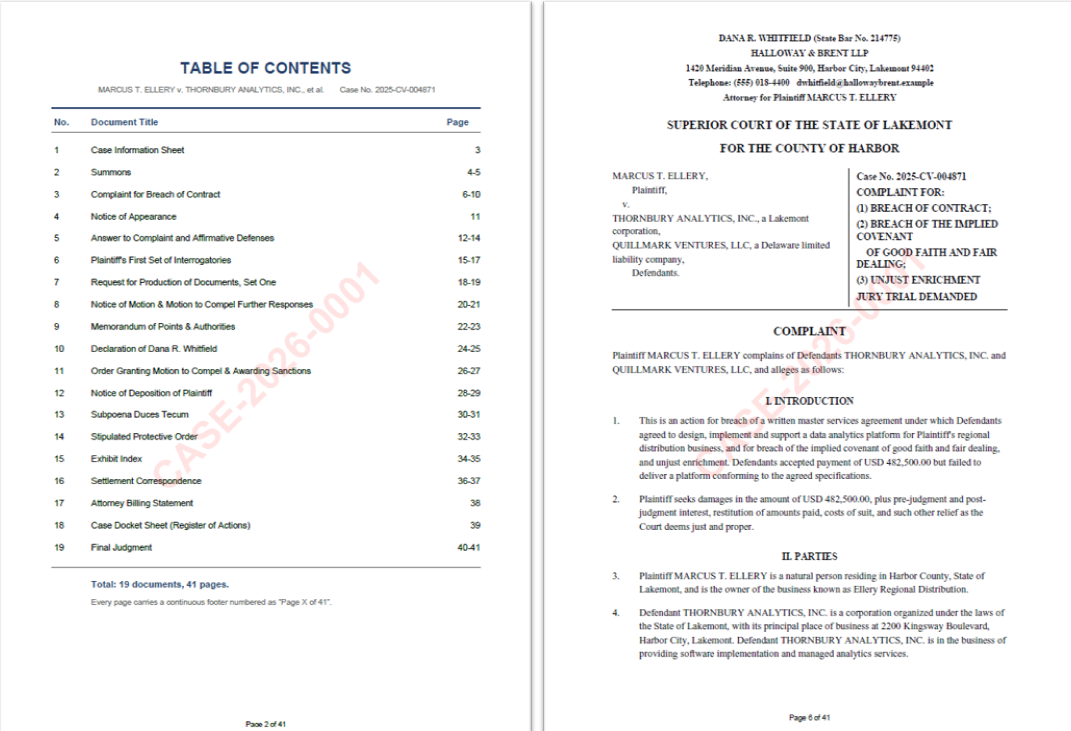
The example below uses the Spire.Agent.Office agent to read all the PDF materials among the attachments, merge them into one volume in the conventional case-file order, generate a cover page and a table of contents automatically, remove the original page numbers and add continuous footers, then stamp the case-number watermark and set an open password:
using Spire.Agent.Office.AI;
using Spire.Agent.Office.Extensions;
using Spire.Pdf;

// Folder containing the PDF materials to consolidate: every PDF in this folder is treated as an attachment
string attachmentDir = @"E:\case_files";  // folder that holds the PDF materials of one case
string[] attachmentPaths = Directory.GetFiles(attachmentDir, "*.pdf");

// PDF-related configuration
string inputPath = "";  // empty input: all materials to archive are among the attachments
string savePath = null;  // result path
string OutDir = @"E:\output";  // output directory (the merged and encrypted case file is saved here)
string key = "**************************";  // SpireToken key
string instruction =
    "Read all the PDF case materials among the attachments and complete the consolidation:" +
    "1. Merge all materials into a single case file PDF in the conventional order of case file documents, and generate a cover page and a table of contents page based on the content;" +
    "2. Remove the original page numbers and add continuous footers to the merged file, centered in the footer as 'Page X of Y', with a font size smaller than the body text so that no existing content is covered;" +
    "3. Add the case-number watermark 'CASE-2026-0001' to every page, rotated 45 degrees, red, without affecting readability;" +
    "4. Set the open password '2026@Case0001' for the case file PDF; this password only restricts opening the document and does not affect printing or copying;" +
    "5. Add a table of contents page and keep the layout, fonts and page settings of each original material;" +
    "Save the final result as a PDF file";

// Call the PDF document processing function
AIResult result = ExecuteDemoPDF(instruction, inputPath, savePath, key, OutDir, attachmentPaths);

// Execute PDF AI processing
static AIResult ExecuteDemoPDF(string instruction, string inputPath, string savePath, string key, string output, string[] attachmentPaths)
{
    // Create the AIOptions configuration object
    AIOptions options = new AIOptions();
    options.WorkDir = output;  // set the working directory to the output directory
    options.SpireToken = key;  // set the SpireToken key

    // Process the PDF document using a PdfDocument object
    using (PdfDocument pdf = new PdfDocument())
    {
        // The input file is empty so nothing is loaded; all files to process come from the attachments
        if (!string.IsNullOrEmpty(inputPath) && File.Exists(inputPath))
        {
            pdf.LoadFromFile(inputPath);
        }
        // Create the AI document processor
        AIDocumentProcessor processor = pdf.AI(options);

        // Execute the AI instruction
        return processor.ExecuteInstruction(pdf, instruction, savePath, attachmentPaths);
    }
}
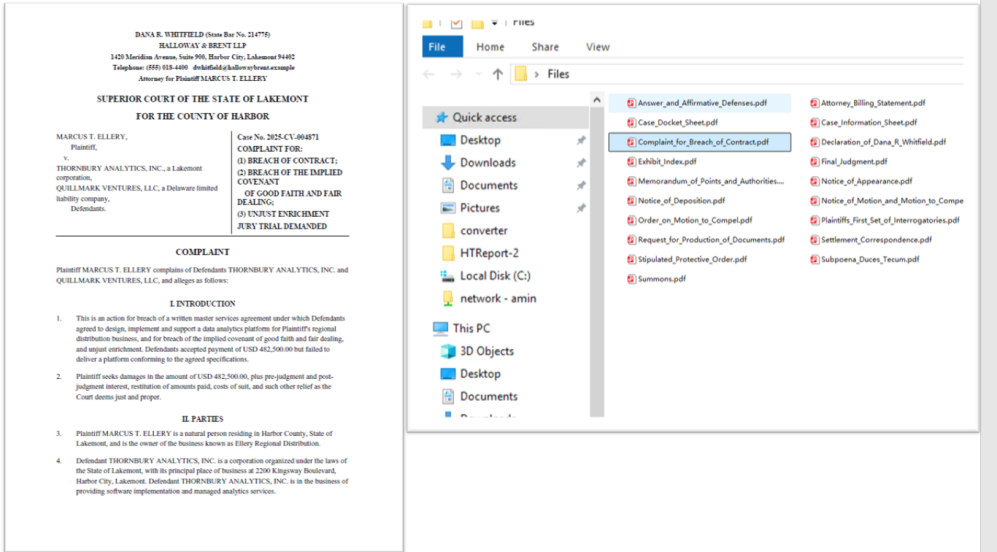
The PDF case materials to be consolidated
 The encrypted case file merged in order, with page numbers and watermark
Case 2: Extract material information and generate an archive register
Once the volume is organized, an archive register has to be filed together with it. The register lists the name, creation date and page count of every material in the volume, headed by the case number, the parties and the cause of action. All of this information is already inside the materials themselves, but the traditional approach can only copy it out by hand, opening each material one by one — with many materials, a wrong page count or date is almost unavoidable.
Unlike Case 1, this case does not modify any page. It only reads information: the input is the same set of PDF attachments, but the output is a newly generated register PDF.
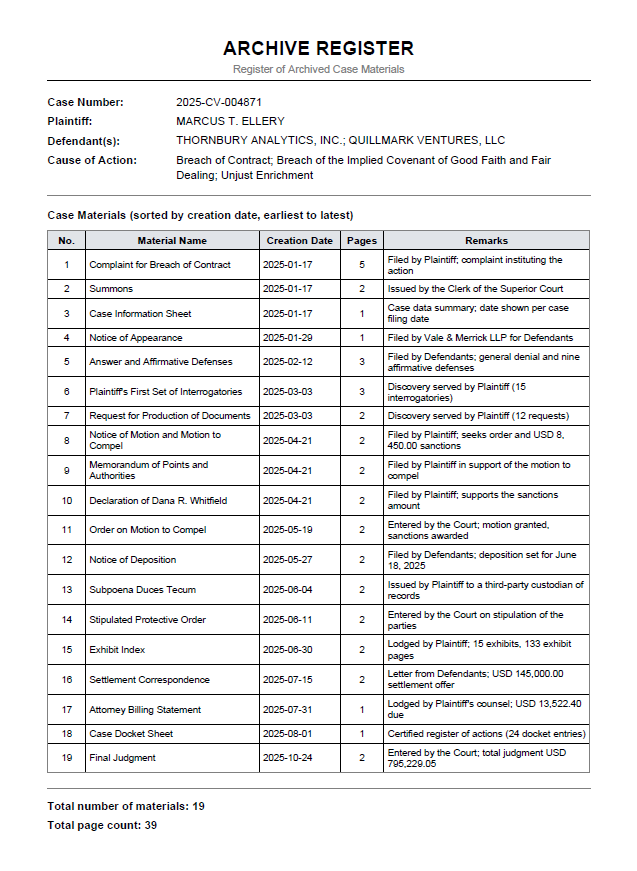
The example below uses the Spire.Agent.Office agent to read all the PDF materials among the attachments, extract the case information and the per-material information, sort them by creation date and compile an archive register:
using Spire.Agent.Office.AI;
using Spire.Agent.Office.Extensions;
using Spire.Pdf;

// Folder containing the PDF materials to register: every PDF in this folder is treated as an attachment
string attachmentDir = @"E:\case_files";  // folder that holds the PDF materials of one case
string[] attachmentPaths = Directory.GetFiles(attachmentDir, "*.pdf");

// PDF-related configuration
string inputPath = "";  // empty input: all materials to register are among the attachments
string savePath = null;  // result path
string OutDir = @"E:\output-register";  // output directory (the archive register is saved here)
string key = "**************************";  // SpireToken key
string instruction =
    "Read all the PDF case materials among the attachments, extract the information and compile an 'Archive Register':" +
    "1. Extract the basic case information from the materials: case number, plaintiff, defendant and cause of action;" +
    "2. Extract the material name, creation date and page count from each material;" +
    "3. Sort the materials from the earliest creation date to the latest;" +
    "4. Generate a PDF-format 'Archive Register' in the output directory, with columns: Serial Number, Material Name, Creation Date, Pages, Remarks;" +
    "5. List the case number, plaintiff, defendant and cause of action above the table, and summarize the number of materials and the total page count below it;" ;

// Call the PDF document processing function
AIResult result = ExecuteDemoPDF(instruction, inputPath, savePath, key, OutDir, attachmentPaths);

// Execute PDF AI processing
static AIResult ExecuteDemoPDF(string instruction, string inputPath, string savePath, string key, string output, string[] attachmentPaths)
{
    // Create the AIOptions configuration object
    AIOptions options = new AIOptions();
    options.WorkDir = output;  // set the working directory to the output directory
    options.SpireToken = key;  // set the SpireToken key

    // Process the PDF document using a PdfDocument object
    using (PdfDocument pdf = new PdfDocument())
    {
        // The input file is empty so nothing is loaded; all files to process come from the attachments
        if (!string.IsNullOrEmpty(inputPath) && File.Exists(inputPath))
        {
            pdf.LoadFromFile(inputPath);
        }
        // Create the AI document processor
        AIDocumentProcessor processor = pdf.AI(options);

        // Execute the AI instruction
        return processor.ExecuteInstruction(pdf, instruction, savePath, attachmentPaths);
    }
}
Generated archive register PDF
FAQ
Will the page numbers and watermark cover the body text?
Cause: Page numbers and watermarks are drawing layers overlaid on the page; a poorly chosen position or opacity can indeed cover the content.
Solution: Describe the position and style explicitly in the instruction (for example, "page numbers centered in the footer", "watermark rotated 45 degrees, red") and the AI will draw them as described. When adding page numbers and watermarks, Spire.Agent.Office does not change the original layout, fonts or page settings of the body text.
How is the merge order of the materials determined?
Cause: Case 1 arranges the materials in the conventional order of case file documents (complaint, evidence list, transcript, judgment and so on), while Case 2 sorts them by creation date. If a material type is unusual, or a creation date cannot be recognized, the result may not be as expected.
Solution: For Case 1, state the volume order directly in the instruction (for example, "arrange in the order of complaint, evidence list, hearing transcript, judgment"). For Case 2, make sure the materials carry a creation date, and add a fallback rule for those that genuinely lack one (for example, "materials without a date go last, with the remarks column marked 'date pending'").
Getting a SpireToken Key
- Contact [email protected] or visit https://www.e-iceblue.com/TemLicense.html to obtain a trial/commercial API key
Configure it in your code:
AIOptions options = new AIOptions();
options.SpireToken = key;
