Word documents often contain tables of sales records, financial figures, or other information that is easier to organize and analyze in Excel. Instead of copying the data into a spreadsheet manually, you can convert a Word file directly to XLSX using Python.
With Spire.Doc for Python, you can convert entire DOC or DOCX documents, export only their tables, convert a specific page, and batch-process multiple files without requiring Microsoft Word or Excel to be installed.
This tutorial demonstrates each approach with practical Python examples.
- Convert a Word Document to Excel in Python
- Convert Only Word Tables to Excel in Python
- Convert a Specific Page of a Word Document to Excel in Python
- Batch Convert Word Documents to Excel in Python
Install Spire.Doc for Python
Install the package from PyPI using pip:
pip install Spire.Doc
Direct Word-to-Excel conversion is supported in Spire.Doc for Python 14.4.2 and later. If you have an earlier version installed, upgrade the package using:
pip install --upgrade Spire.Doc
Convert a Word Document to Excel in Python
To convert a Word document to Excel, load the DOC or DOCX file using Document.LoadFromFile(), then call Document.SaveToFile() with FileFormat.XLSX. There is no need to create a workbook or copy table cells individually.
from spire.doc import Document, FileFormat

# Create a Document object
doc = Document()

try:
    # Load the Word document
    doc.LoadFromFile("Sample.docx")

    # Convert the Word document to Excel
    doc.SaveToFile("WordToExcel.xlsx", FileFormat.XLSX)

finally:
    # Release resources
    doc.Close()
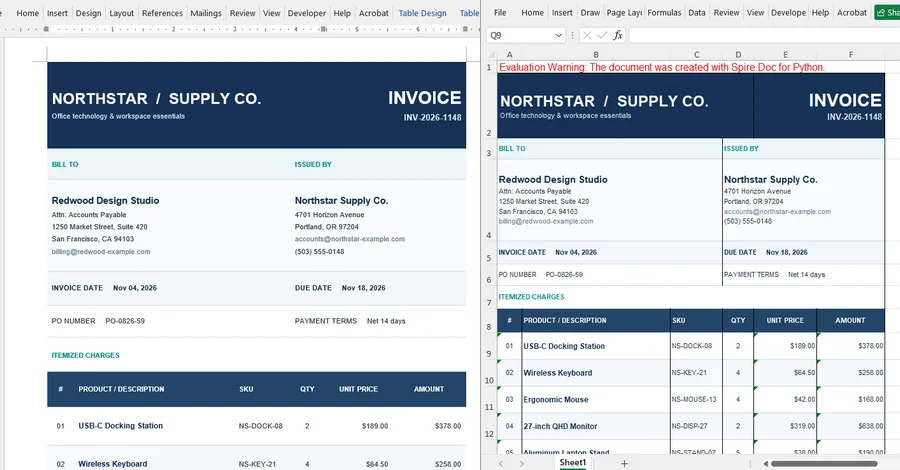
The resulting WordToExcel.xlsx file contains the exported Word content. For documents organized primarily around tables, this approach provides a straightforward way to move the data into a spreadsheet.
How Word Content Is Converted to Excel
Word and Excel use different document structures, so the result depends on the original content:
- Tables: Table rows and columns are mapped to Excel cells. Complex merged cells or table formatting may need review after conversion.
- Paragraphs: Text outside tables can also be transferred, but it may not form a regular spreadsheet structure.
- Sections: By default, each Word section is exported to a separate Excel worksheet. Multiple tables in the same section therefore appear in the same worksheet.
- Complex layouts: Floating elements, multi-column layouts, and certain page formatting may not be reproduced exactly.
- Data types: Numbers and dates originating as Word text may need to be converted to suitable Excel data types before you can use them in calculations.
Word-to-Excel conversion works best for documents with clearly structured tables. If you need a close visual reproduction of an entire page, a spreadsheet may not be the most suitable output format.
Convert Only Word Tables to Excel in Python
A Word report may contain headings, explanations, and several tables, while only the tabular data is needed in Excel. You can exclude the surrounding text by copying the tables into a new Word document and converting that document to XLSX.
The example below retrieves tables from every section of the source document. It creates a separate section for each table so that each table is exported to its own Excel worksheet.
from spire.doc import Document, FileFormat

# Create the source and destination documents
doc = Document()
table_doc = Document()

try:
    # Load the source Word document
    doc.LoadFromFile("Sample.docx")
    table_count = 0

    # Extract tables from all sections
    for i in range(doc.Sections.Count):
        section = doc.Sections.get_Item(i)

        for j in range(section.Tables.Count):
            table = section.Tables.get_Item(j)

            # Put each copied table in a separate section
            new_section = table_doc.AddSection()
            new_section.Tables.Add(table.Clone())
            table_count += 1

    # Convert the extracted tables to Excel
    if table_count > 0:
        table_doc.SaveToFile("WordTables.xlsx", FileFormat.XLSX)
    else:
        print("No tables found in the Word document.")

finally:
    # Release resources even if conversion fails
    table_doc.Close()
    doc.Close()
Section.Tables provides access to the tables in each Word section, and Table.Clone() copies a table without changing the source document. Adding each clone to a new section is important: the conversion maps Word sections to Excel worksheets, so creating one section per table produces one worksheet per table.
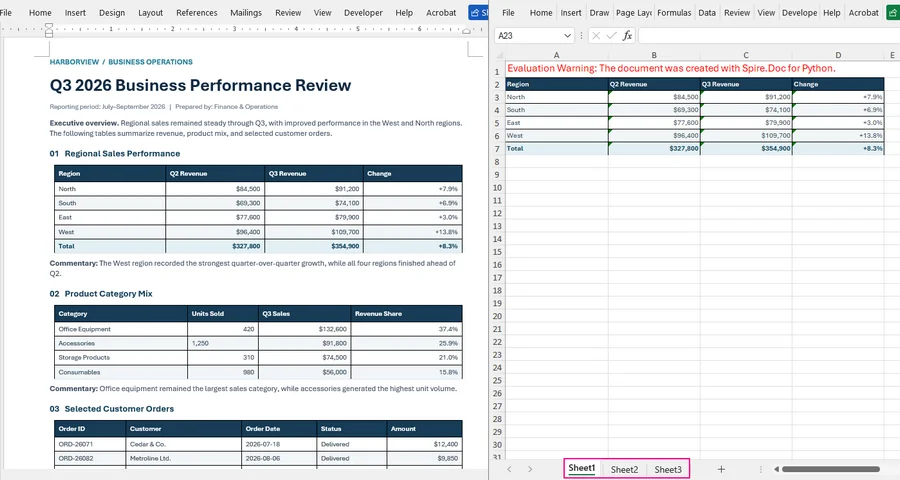
This method exports the tables themselves rather than just their plain-text values. If your goal is to read cell contents for use in Python data processing, see how to extract tables from Word documents in Python.
Convert a Specific Page of a Word Document to Excel in Python
Sometimes, you may only need to convert a particular page of a Word document, such as a financial summary or a page containing a data table. Instead of converting the entire document, you can use Document.ExtractPages() to extract the desired page into a new document and then save it as an Excel file.
The following example extracts page 2 from a multi-page Word document and converts it to XLSX.
from spire.doc import Document, FileFormat

# Create a Document object
doc = Document()
page_doc = None

try:
    # Load a multi-page Word document
    doc.LoadFromFile("MultiPageReport.docx")

    # Extract page 2 (page indices start at 0)
    page_doc = doc.ExtractPages(1, 1)

    # Convert the extracted page to Excel
    page_doc.SaveToFile("Page2.xlsx", FileFormat.XLSX)

finally:
    # Release resources
    if page_doc is not None:
        page_doc.Close()
    doc.Close()
Document.ExtractPages() takes two arguments: the starting page index and the number of pages to extract. Since page indices start at 0, ExtractPages(1, 1) extracts the second page. The extracted content is then saved as Page2.xlsx using FileFormat.XLSX.
Note: Word uses a flow-based layout, so page boundaries may vary depending on fonts and document formatting. If the extracted content does not match the expected page, check the document's pagination and page index.
Batch Convert Word Documents to Excel in Python
For recurring reports or folders of Word files, you can automate conversion with Python's pathlib module. The following script processes .doc and .docx files in a folder and saves a corresponding .xlsx file for each document. If one file cannot be converted, the script reports the error and continues with the remaining files.
Before running the script, create a WordFiles folder in your working directory and place the Word documents you want to convert inside it.
from pathlib import Path
from spire.doc import Document, FileFormat

input_folder = Path("WordFiles")
output_folder = Path("ExcelFiles")
output_folder.mkdir(parents=True, exist_ok=True)

for file in input_folder.iterdir():
    # Process Word files only; ignore temporary files
    if not file.is_file() or file.suffix.lower() not in (".doc", ".docx"):
        continue
    if file.name.startswith("~$"):
        continue

    doc = Document()
    try:
        # Load and convert the Word document
        doc.LoadFromFile(str(file))

        output_file = output_folder / f"{file.stem}.xlsx"
        doc.SaveToFile(str(output_file), FileFormat.XLSX)

    except Exception as e:
        print(f"Failed to convert {file.name}: {e}")

    finally:
        # Release resources after each conversion
        doc.Close()
For example, the script converts these source documents into separate Excel workbooks:
WordFiles/
    Report_January.docx
    Report_February.docx
    Report_March.doc

ExcelFiles/
    Report_January.xlsx
    Report_February.xlsx
    Report_March.xlsx
Note: The script processes only files directly inside WordFiles, not its subdirectories. It also skips temporary files beginning with ~$. If a .doc and a .docx file share the same base name, they will generate the same output path and one conversion may overwrite the other; use distinct filenames or adjust the naming rule.
FAQs About Word to Excel Conversion
Can I convert both DOC and DOCX files to Excel in Python?
Yes. Spire.Doc for Python can load both formats using Document.LoadFromFile(). You can save either one as an XLSX workbook using FileFormat.XLSX.
Do I need Microsoft Word or Excel installed?
No. The conversion is performed through Spire.Doc for Python and does not require Microsoft Office to be installed on the computer running the script.
Can I modify the Excel workbook after conversion?
Yes. If you need to adjust column widths, format cells, or add formulas, you can open the generated XLSX file with Spire.XLS for Python and make additional changes. Spire.Doc handles the conversion; Spire.XLS provides worksheet-level editing features.
Conclusion
Spire.Doc for Python can convert Word documents directly to XLSX using Document.SaveToFile() and FileFormat.XLSX. You can convert complete documents, export only tables, extract specific pages for conversion, or process multiple Word files in a batch. For the best results, start with well-structured Word tables and check the generated workbook if formatting or data types are important.
Get a Free License
To test the conversion features without evaluation limitations, request a free 30-day temporary license.
