When collecting or summarizing data, manual entry easily leads to inconsistent spelling and inconsistent names. A dropdown list fixes the available options so that entry only requires a selection, and when the options come from worksheet data, editing the source updates the list. This article uses Spire.XLS for JavaScript to create dropdown lists in the browser, with input and output files managed in a virtual file system (VFS) and no back-end service.
This article covers five core features:
- Create a dropdown list with fixed options
- Create a dropdown list from data on the same worksheet
- Create a dropdown list from data on another worksheet
- Create a dependent dropdown list
- Create a dependent dropdown list across worksheets
For installation and project configuration, see Integrating Spire.XLS for JavaScript in a React Project. The examples below assume that Spire.XLS is installed and the WebAssembly module has been initialized.
Create a dropdown list with fixed options
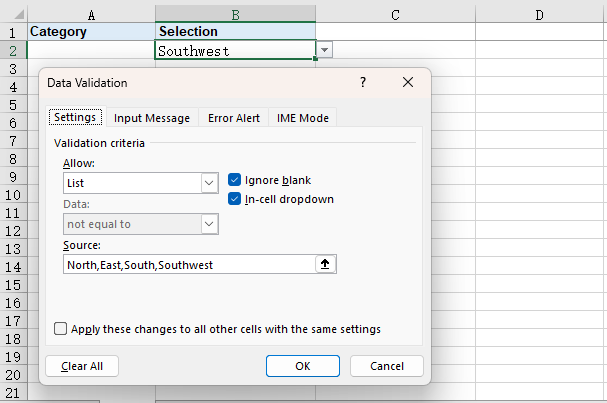
Fixed options suit scenarios with a small number of choices that do not change with the worksheet data, such as categories or statuses. Once a set of values is assigned as the available content of the target cell, the file opens with a dropdown list, and other input is handled according to the validation settings.
Writing and result for creating a dropdown list with fixed options:
| Writing | Result |
|---|---|
range.DataValidation.Values = values |
Assigns a set of fixed options to the target range |
The steps are:
- Load the font file and the Excel test file into the VFS with
window.spire.FetchFileToVFS. - Create a workbook with
new Workbook()and load the test file throughworkbook.LoadFromFile. - Get the entry worksheet with
workbook.Worksheets.get(0). - Assign the fixed option array to
sheet.Range.get('B2').DataValidation.Values. - Write the result file with
workbook.SaveToFile, release resources withworkbook.Dispose, and read the workbook from the VFS to trigger the download.
Below is the complete code example that creates a dropdown list with fixed options:
function App() {
  const createFixedDropdown = async () => {
    // Get the Spire.XLS WASM module
    const xlsModule = window.wasmModule?.spirexls;

    // Check that the module is ready
    if (!xlsModule) {
      alert('Spire.Xls is not ready yet');
      return;
    }

    // Load the font and the test data file into the VFS
    await window.spire.FetchFileToVFS('ARIAL.TTF', '/Library/Fonts/', `${process.env.PUBLIC_URL}/font/`);
    const inputFileName = 'DropdownData.xlsx';
    await window.spire.FetchFileToVFS(inputFileName, '', `${process.env.PUBLIC_URL}data/`);

    // Load the workbook
    const workbook = new xlsModule.Workbook();
    workbook.LoadFromFile({ fileName: inputFileName });

    // Get the entry worksheet
    const sheet = workbook.Worksheets.get(0);

    // Assign the fixed options to cell B2
    sheet.Range.get('B2').DataValidation.Values = ['North', 'East', 'South', 'Southwest'];

    // Save the result into the VFS
    const outputFileName = 'FixedOptionsDropdown.xlsx';
    workbook.SaveToFile({ fileName: outputFileName });

    // Dispose of the workbook to release its resources
    workbook.Dispose();

    // Read the result back out of the VFS and trigger the download
    const fileArray = window.dotnetRuntime.Module.FS.readFile(outputFileName);
    const blob = new Blob([fileArray], { type: 'application/vnd.openxmlformats-officedocument.spreadsheetml.sheet' });
    const url = URL.createObjectURL(blob);
    const a = document.createElement('a');
    a.href = url;
    a.download = outputFileName;
    a.click();
    URL.revokeObjectURL(url);
  };

  return (
    <div style={{ textAlign: 'center', height: '300px' }}>
      <h1>Create Excel Dropdown Lists in React</h1>
      <button id="fixed-options" onClick={createFixedDropdown}>Fixed Options</button>
    </div>
  );
}

export default App;
Workbook after creating a dropdown list with fixed options:
Create a dropdown list from data on the same worksheet
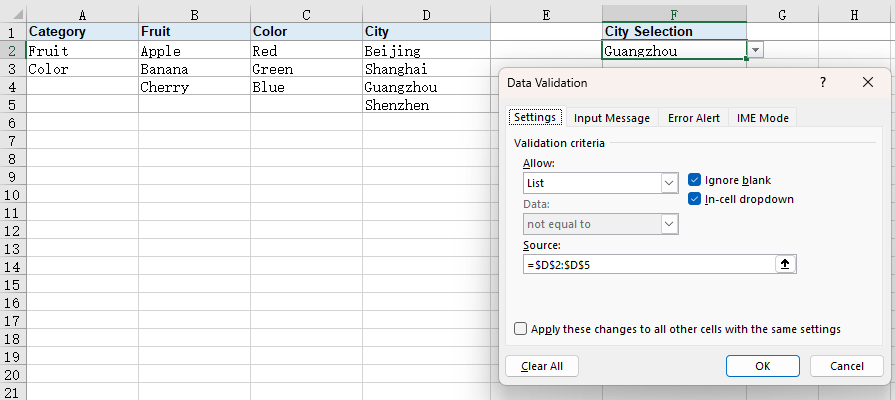
When the options are already stored in a column on the same worksheet, reference that range directly. The dropdown list stays linked to the source data, so editing the source updates the options without maintaining a second copy in code.
Writing and result for creating a dropdown list from data on the same worksheet:
| Writing | Result |
|---|---|
range.DataValidation.DataRange = sourceRange |
Uses the source range as the option source for the target range |
The steps are:
- Load the font file and the Excel test file into the VFS with
window.spire.FetchFileToVFS. - Create a workbook with
new Workbook()and load the test file throughworkbook.LoadFromFile. - Get the worksheet that holds the options with
workbook.Worksheets.get(1). - Assign the
D2:D5range of that worksheet toDataValidation.DataRangeof cell F2. - Write the result file with
workbook.SaveToFile, release resources withworkbook.Dispose, and read the workbook from the VFS to trigger the download.
Below is the complete code example that creates a dropdown list from data on the same worksheet:
function App() {
  const createSameSheetDropdown = async () => {
    // Get the Spire.XLS WASM module
    const xlsModule = window.wasmModule?.spirexls;

    // Check that the module is ready
    if (!xlsModule) {
      alert('Spire.Xls is not ready yet');
      return;
    }

    // Load the font and the test data file into the VFS
    await window.spire.FetchFileToVFS('ARIAL.TTF', '/Library/Fonts/', `${process.env.PUBLIC_URL}/font/`);
    const inputFileName = 'DropdownData.xlsx';
    await window.spire.FetchFileToVFS(inputFileName, '', `${process.env.PUBLIC_URL}data/`);

    // Load the workbook
    const workbook = new xlsModule.Workbook();
    workbook.LoadFromFile({ fileName: inputFileName });

    // Get the worksheet that holds the options
    const sheet = workbook.Worksheets.get(1);

    // Use D2:D5 as the dropdown options for cell F2
    sheet.Range.get('F2').DataValidation.DataRange = sheet.Range.get('D2:D5');

    // Save the result into the VFS
    const outputFileName = 'SameSheetDropdown.xlsx';
    workbook.SaveToFile({ fileName: outputFileName });

    // Dispose of the workbook to release its resources
    workbook.Dispose();

    // Read the result back out of the VFS and trigger the download
    const fileArray = window.dotnetRuntime.Module.FS.readFile(outputFileName);
    const blob = new Blob([fileArray], { type: 'application/vnd.openxmlformats-officedocument.spreadsheetml.sheet' });
    const url = URL.createObjectURL(blob);
    const a = document.createElement('a');
    a.href = url;
    a.download = outputFileName;
    a.click();
    URL.revokeObjectURL(url);
  };

  return (
    <div style={{ textAlign: 'center', height: '300px' }}>
      <h1>Create Excel Dropdown Lists in React</h1>
      <button id="same-sheet" onClick={createSameSheetDropdown}>Same-Sheet Data</button>
    </div>
  );
}

export default App;
Workbook after creating a dropdown list from data on the same worksheet:
Create a dropdown list from data on another worksheet
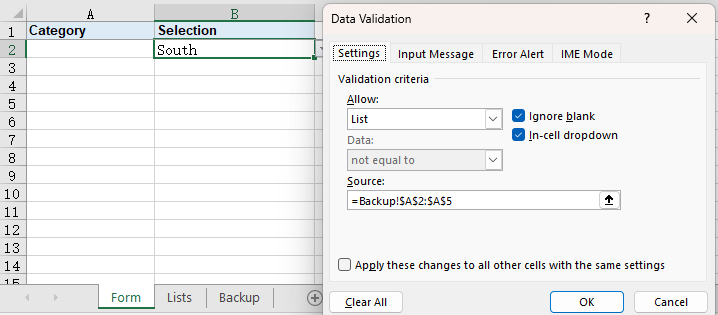
When the options live on another worksheet, the source data and the entry interface can be separated: the entry worksheet keeps only the cells to fill in, while the options are maintained in a data worksheet. Before referencing another worksheet, data validation must be allowed to use ranges outside the current sheet.
Writing and result for creating a dropdown list from data on another worksheet:
| Writing | Result |
|---|---|
workbook.Allow3DRangesInDataValidation = true |
Allows data validation to reference other worksheets |
range.DataValidation.DataRange = sourceRange |
Uses a source range on another worksheet as the option source |
The steps are:
- Load the font file and the Excel test file into the VFS with
window.spire.FetchFileToVFS. - Create a workbook with
new Workbook()and load the test file throughworkbook.LoadFromFile. - Get the entry worksheet with
workbook.Worksheets.get(0)and the options worksheet withworkbook.Worksheets.get(2). - Set
workbook.Allow3DRangesInDataValidationtotrue. - Assign the
A2:A5range of the options worksheet toDataValidation.DataRangeof cell B2 on the entry worksheet. - Write the result file with
workbook.SaveToFile, release resources withworkbook.Dispose, and read the workbook from the VFS to trigger the download.
Below is the complete code example that creates a dropdown list from data on another worksheet:
function App() {
  const createCrossSheetDropdown = async () => {
    // Get the Spire.XLS WASM module
    const xlsModule = window.wasmModule?.spirexls;

    // Check that the module is ready
    if (!xlsModule) {
      alert('Spire.Xls is not ready yet');
      return;
    }

    // Load the font and the test data file into the VFS
    await window.spire.FetchFileToVFS('ARIAL.TTF', '/Library/Fonts/', `${process.env.PUBLIC_URL}/font/`);
    const inputFileName = 'DropdownData.xlsx';
    await window.spire.FetchFileToVFS(inputFileName, '', `${process.env.PUBLIC_URL}data/`);

    // Load the workbook
    const workbook = new xlsModule.Workbook();
    workbook.LoadFromFile({ fileName: inputFileName });

    // Get the entry worksheet and the worksheet that holds the options
    const sheet = workbook.Worksheets.get(0);
    const backupSheet = workbook.Worksheets.get(2);

    // Allow data validation to reference other worksheets
    workbook.Allow3DRangesInDataValidation = true;

    // Use A2:A5 on the other worksheet as the dropdown options for cell B2
    sheet.Range.get('B2').DataValidation.DataRange = backupSheet.Range.get('A2:A5');

    // Save the result into the VFS
    const outputFileName = 'CrossSheetDropdown.xlsx';
    workbook.SaveToFile({ fileName: outputFileName });

    // Dispose of the workbook to release its resources
    workbook.Dispose();

    // Read the result back out of the VFS and trigger the download
    const fileArray = window.dotnetRuntime.Module.FS.readFile(outputFileName);
    const blob = new Blob([fileArray], { type: 'application/vnd.openxmlformats-officedocument.spreadsheetml.sheet' });
    const url = URL.createObjectURL(blob);
    const a = document.createElement('a');
    a.href = url;
    a.download = outputFileName;
    a.click();
    URL.revokeObjectURL(url);
  };

  return (
    <div style={{ textAlign: 'center', height: '300px' }}>
      <h1>Create Excel Dropdown Lists in React</h1>
      <button id="other-sheet" onClick={createCrossSheetDropdown}>Cross-Sheet Data</button>
    </div>
  );
}

export default App;
Workbook after creating a dropdown list from data on another worksheet:
Create a dependent dropdown list
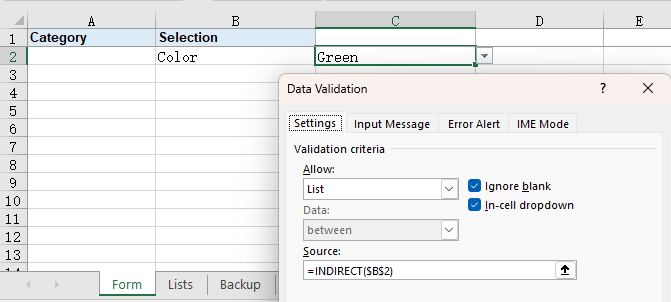
A dependent dropdown list links two lists: after the first cell selects a category, the second cell shows only the matching options. Each group of options is first defined as a named range, and INDIRECT switches the reference according to the value of the first cell, so no separate branch is needed for each category.
Writing and result for creating a dependent dropdown list:
| Writing | Result |
|---|---|
workbook.NameRanges.Add(name) |
Creates a named range with the given name |
namedRange.RefersToRange = sourceRange |
Points the named range to the option list |
range.DataValidation.AllowType = xlsModule.CellDataType.User |
Uses a custom formula to determine the available content |
range.DataValidation.Formula1 = formulaText |
Switches the option list according to the selected category |
The steps are:
- Load the font file and the Excel test file into the VFS with
window.spire.FetchFileToVFS. - Create a workbook with
new Workbook()and load the test file throughworkbook.LoadFromFile. - Get the worksheet that holds the categories and options with
workbook.Worksheets.get(1). - Use
workbook.NameRanges.Addto create the Fruit and Color named ranges, and point each one to its option list withRefersToRange. - Set up the category dropdown list in cell B2 of the entry worksheet, using the category column as the options.
- Set
DataValidation.AllowTypeof cell C2 toxlsModule.CellDataType.User, then setDataValidation.Formula1to=INDIRECT($B$2). - Write the result file with
workbook.SaveToFile, release resources withworkbook.Dispose, and read the workbook from the VFS to trigger the download.
Below is the complete code example that creates a dependent dropdown list:
function App() {
  const createDependentDropdown = async () => {
    // Get the Spire.XLS WASM module
    const xlsModule = window.wasmModule?.spirexls;

    // Check that the module is ready
    if (!xlsModule) {
      alert('Spire.Xls is not ready yet');
      return;
    }

    // Load the font and the test data file into the VFS
    await window.spire.FetchFileToVFS('ARIAL.TTF', '/Library/Fonts/', `${process.env.PUBLIC_URL}/font/`);
    const inputFileName = 'DropdownData.xlsx';
    await window.spire.FetchFileToVFS(inputFileName, '', `${process.env.PUBLIC_URL}data/`);

    // Load the workbook
    const workbook = new xlsModule.Workbook();
    workbook.LoadFromFile({ fileName: inputFileName });

    // Get the entry worksheet and the worksheet that holds the options
    const sheet = workbook.Worksheets.get(0);
    const listsSheet = workbook.Worksheets.get(1);

    // Create the Fruit named range and point it to the fruit option list
    const fruitName = workbook.NameRanges.Add('Fruit');
    fruitName.RefersToRange = listsSheet.Range.get('B2:B4');

    // Create the Color named range and point it to the color option list
    const colorName = workbook.NameRanges.Add('Color');
    colorName.RefersToRange = listsSheet.Range.get('C2:C4');

    // Set up the category dropdown list in B2
    sheet.Range.get('B2').DataValidation.DataRange = listsSheet.Range.get('A2:A3');

    // Set up the dependent dropdown list in C2
    sheet.Range.get('C2').DataValidation.AllowType = xlsModule.CellDataType.User;
    sheet.Range.get('C2').DataValidation.Formula1 = '=INDIRECT($B$2)';

    // Save the result into the VFS
    const outputFileName = 'DependentDropdown.xlsx';
    workbook.SaveToFile({ fileName: outputFileName });

    // Dispose of the workbook to release its resources
    workbook.Dispose();

    // Read the result back out of the VFS and trigger the download
    const fileArray = window.dotnetRuntime.Module.FS.readFile(outputFileName);
    const blob = new Blob([fileArray], { type: 'application/vnd.openxmlformats-officedocument.spreadsheetml.sheet' });
    const url = URL.createObjectURL(blob);
    const a = document.createElement('a');
    a.href = url;
    a.download = outputFileName;
    a.click();
    URL.revokeObjectURL(url);
  };

  return (
    <div style={{ textAlign: 'center', height: '300px' }}>
      <h1>Create Excel Dropdown Lists in React</h1>
      <button id="dependent" onClick={createDependentDropdown}>Dependent List</button>
    </div>
  );
}

export default App;
Workbook after creating a dependent dropdown list:
Create a dependent dropdown list across worksheets
When the entry worksheet and the options worksheet are separate, the dependent formula can reference the first dropdown cell across worksheets. The entry interface, the option data, and the dependent result can then be kept on different worksheets for easier maintenance.
Writing and result for creating a dependent dropdown list across worksheets:
| Writing | Result |
|---|---|
workbook.Allow3DRangesInDataValidation = true |
Allows data validation to reference other worksheets |
range.DataValidation.AllowType = xlsModule.CellDataType.User |
Uses a custom formula to determine the available content |
range.DataValidation.Formula1 = formulaText |
Switches the option list according to the selected category on another worksheet |
The steps are:
- Load the font file and the Excel test file into the VFS with
window.spire.FetchFileToVFS. - Create a workbook with
new Workbook()and load the test file throughworkbook.LoadFromFile. - Get the entry worksheet with
workbook.Worksheets.get(0), the options worksheet withworkbook.Worksheets.get(1), and the second entry worksheet withworkbook.Worksheets.get(2). - Use
workbook.NameRanges.Addto create the Fruit and Color named ranges, and point them to the option lists withRefersToRange. - Set
workbook.Allow3DRangesInDataValidationtotrueand set up the category dropdown list in cell B2 of the entry worksheet. - Set
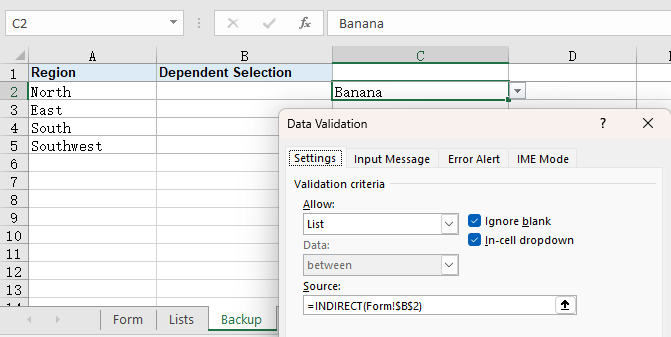
DataValidation.AllowTypeof cell C2 on the second entry worksheet toxlsModule.CellDataType.User, then setDataValidation.Formula1to=INDIRECT(Form!$B$2). - Write the result file with
workbook.SaveToFile, release resources withworkbook.Dispose, and read the workbook from the VFS to trigger the download.
Below is the complete code example that creates a dependent dropdown list across worksheets:
function App() {
  const createCrossSheetDependentDropdown = async () => {
    // Get the Spire.XLS WASM module
    const xlsModule = window.wasmModule?.spirexls;

    // Check that the module is ready
    if (!xlsModule) {
      alert('Spire.Xls is not ready yet');
      return;
    }

    // Load the font and the test data file into the VFS
    await window.spire.FetchFileToVFS('ARIAL.TTF', '/Library/Fonts/', `${process.env.PUBLIC_URL}/font/`);
    const inputFileName = 'DropdownData.xlsx';
    await window.spire.FetchFileToVFS(inputFileName, '', `${process.env.PUBLIC_URL}data/`);

    // Load the workbook
    const workbook = new xlsModule.Workbook();
    workbook.LoadFromFile({ fileName: inputFileName });

    // Get the entry worksheet, the options worksheet, and the second entry worksheet
    const sheet = workbook.Worksheets.get(0);
    const listsSheet = workbook.Worksheets.get(1);
    const backupSheet = workbook.Worksheets.get(2);

    // Create the Fruit named range and point it to the fruit option list
    const fruitName = workbook.NameRanges.Add('Fruit');
    fruitName.RefersToRange = listsSheet.Range.get('B2:B4');

    // Create the Color named range and point it to the color option list
    const colorName = workbook.NameRanges.Add('Color');
    colorName.RefersToRange = listsSheet.Range.get('C2:C4');

    // Allow data validation to reference other worksheets
    workbook.Allow3DRangesInDataValidation = true;

    // Set up the category dropdown list in B2 of the entry worksheet
    sheet.Range.get('B2').DataValidation.DataRange = listsSheet.Range.get('A2:A3');

    // Set up the cross-sheet dependent dropdown list in C2 of the second entry worksheet
    backupSheet.Range.get('C2').DataValidation.AllowType = xlsModule.CellDataType.User;
    backupSheet.Range.get('C2').DataValidation.Formula1 = '=INDIRECT(Form!$B$2)';

    // Save the result into the VFS
    const outputFileName = 'CrossSheetDependentDropdown.xlsx';
    workbook.SaveToFile({ fileName: outputFileName });

    // Dispose of the workbook to release its resources
    workbook.Dispose();

    // Read the result back out of the VFS and trigger the download
    const fileArray = window.dotnetRuntime.Module.FS.readFile(outputFileName);
    const blob = new Blob([fileArray], { type: 'application/vnd.openxmlformats-officedocument.spreadsheetml.sheet' });
    const url = URL.createObjectURL(blob);
    const a = document.createElement('a');
    a.href = url;
    a.download = outputFileName;
    a.click();
    URL.revokeObjectURL(url);
  };

  return (
    <div style={{ textAlign: 'center', height: '300px' }}>
      <h1>Create Excel Dropdown Lists in React</h1>
      <button id="cross-sheet-dependent" onClick={createCrossSheetDependentDropdown}>Cross-Sheet Dependent List</button>
    </div>
  );
}

export default App;
Workbook after creating a dependent dropdown list across worksheets:
FAQ
How can I hide the dropdown arrow
Cause: The arrow at the right edge of the cell is controlled by the IsSuppressDropDownArrow setting of the data validation. Its default is false, so the arrow is shown once a dropdown list is set.
Solution: Set the property to true; the arrow is hidden while the validation stays active:
const validation = sheet.Range.get('B2').DataValidation;
validation.Values = ['North', 'East', 'South', 'Southwest'];
validation.IsSuppressDropDownArrow = true;
Why does the dropdown list contain blank items
Cause: When the range assigned to DataValidation.DataRange contains empty cells, those empty cells are also treated as list items; the larger the range, the more blank items appear.
Solution: Point DataRange to the range that actually contains values. For example, when the options occupy only D2:D5, use sheet.Range.get('D2:D5') instead of expanding to D2:D8; adjust the range when new options are added.
Get a Free License
If you wish to delete the evaluation message from the resulting documents, or to get rid of function limitations, please contact sales to obtain a valid 30-day temporary license.
