Once a slide holds more than a handful of shapes, moving and aligning them one by one becomes slow, and a single misclick can break the spacing. Grouping related shapes into a unit lets them move and scale together while keeping their relative positions; ungrouping restores them as independent shapes when one of them needs a change.
This article uses Spire.Presentation for JavaScript to group and ungroup PowerPoint shapes in the browser. The whole process runs locally on the user's device through WebAssembly, requires no Office installation and no back-end service, and keeps the presentation from leaving the browser.
This article covers two core features:
For installation and project configuration, see Integrating Spire.Presentation for JavaScript in a React Project. The examples below assume that Spire.Presentation for JavaScript is installed and the WebAssembly module has been initialized.
Group PowerPoint Shapes
Diagrams often rely on a set of shapes that should be placed as one block: a cluster of callouts, a row of arrows, a small illustration. Selecting them one by one and operating on them together is awkward, and one slip moves the wrong shape. Grouping collects these shapes into a single unit, so later moves and scaling apply to the whole group while the relative positions inside stay unchanged.
| Usage | Result |
|---|---|
slide.Shapes.Count |
The total number of shapes on the current slide |
slide.Shapes.get_Item(i) |
Get the i-th shape by index |
slide.GroupShapes(shapes) |
Group the shapes in the array into one unit and return a GroupShape object |
The steps are:
- Get the Spire.Presentation WASM module and make sure it is ready, then load the font file and the presentation into the VFS.
- Create a
Presentationobject, callLoadFromFile()to load the presentation, and get the first slide withSlides.get_Item(0). - Loop over the slide with
Shapes.CountandShapes.get_Item(), adding the shapes to be grouped to an array. - Call
slide.GroupShapes()with the array; it returns the resultingGroupShapeobject. - Call
Presentation.SaveToFile()to save the result file andDispose()to release the presentation. - Read the result file from the VFS and trigger the browser download.
The code for grouping PowerPoint shapes is as follows:
function App() {
  const groupShapes = async () => {
    // Get the Spire.Presentation WASM module
    const pptModule = window.wasmModule?.spirepresentation;

    // Check that the module is ready
    if (!pptModule) {
      alert('Spire.Presentation is not ready yet');
      return;
    }

    // Load the font and the presentation into the VFS
    await window.spire.FetchFileToVFS('ARIAL.TTF', '/Library/Fonts/', `${process.env.PUBLIC_URL}/font/`);
    const inputFileName = 'Shapes.pptx';
    await window.spire.FetchFileToVFS(inputFileName, '', `${process.env.PUBLIC_URL}data/`);

    // Load the presentation and get the first slide
    const ppt = new pptModule.Presentation();
    ppt.LoadFromFile(inputFileName);
    const slide = ppt.Slides.get_Item(0);

    // Collect every shape on the slide
    const shapes = [];
    for (let i = 0; i < slide.Shapes.Count; i++) {
      shapes.push(slide.Shapes.get_Item(i));
    }

    // Group these shapes into a single unit
    slide.GroupShapes(shapes);

    // Save the result file
    const outputFileName = 'GroupShapes.pptx';
    ppt.SaveToFile({ file: outputFileName, fileFormat: pptModule.FileFormat.Pptx2013 });
    ppt.Dispose();

    // Read the generated file from the VFS and trigger the download
    const fileArray = window.dotnetRuntime.Module.FS.readFile(outputFileName);
    const blob = new Blob([fileArray], { type: 'application/vnd.openxmlformats-officedocument.presentationml.presentation' });
    const url = URL.createObjectURL(blob);
    const a = document.createElement('a');
    a.href = url;
    a.download = outputFileName;
    a.click();
    URL.revokeObjectURL(url);
  };

  return (
    <div style={{ textAlign: 'center', height: '300px' }}>
      <h1>Group and Ungroup Shapes</h1>
      <button onClick={groupShapes}>
        Group Shapes
      </button>
    </div>
  );
}

export default App;
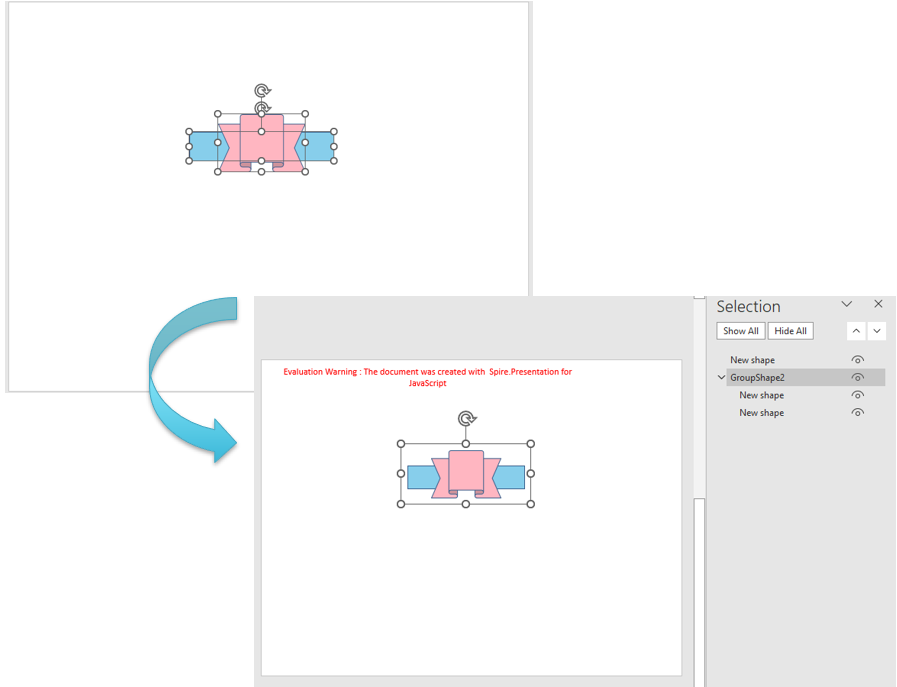
Presentation after grouping all shapes on the slide:
Ungroup PowerPoint Shapes
After a group is created, changing one member—its color, text, or position—requires ungrouping first. Ungrouping returns the member shapes to the slide's shape collection, removes the group itself, and leaves each shape at its original position and size.
| Usage | Result |
|---|---|
slide.Shapes.Count |
The total number of shapes on the current slide |
slide.Shapes.get_Item(i) |
Get the i-th shape by index |
shape instanceof pptModule.GroupShape |
Check whether the shape is a group shape |
slide.Ungroup(shape) |
Ungroup the shapes, return them to the slide, and remove the group itself |
The steps are:
- Get the Spire.Presentation WASM module and make sure it is ready, then load the font file and the presentation into the VFS.
- Create a
Presentationobject, callLoadFromFile()to load the presentation, and useSlides.get_Item()to get the slide that holds the group. - Loop from 0 over
Shapes.Countand get each shape on the slide withShapes.get_Item(i). - Check whether the shape is a group with
shape instanceof pptModule.GroupShape, and callslide.Ungroup()when it matches. - Call
Presentation.SaveToFile()to save the result file andDispose()to release the presentation, then read the file from the VFS and trigger the download.
The code for ungrouping PowerPoint shapes is as follows:
function App() {
  const ungroupShapes = async () => {
    // Get the Spire.Presentation WASM module
    const pptModule = window.wasmModule?.spirepresentation;

    // Check that the module is ready
    if (!pptModule) {
      alert('Spire.Presentation is not ready yet');
      return;
    }

    // Load the font and the presentation into the VFS
    await window.spire.FetchFileToVFS('ARIAL.TTF', '/Library/Fonts/', `${process.env.PUBLIC_URL}/font/`);
    const inputFileName = 'Shapes.pptx';
    await window.spire.FetchFileToVFS(inputFileName, '', `${process.env.PUBLIC_URL}data/`);

    // Load the presentation and get the second slide
    const ppt = new pptModule.Presentation();
    ppt.LoadFromFile(inputFileName);
    const slide = ppt.Slides.get_Item(1);

    // Loop over the shapes on the slide and ungroup any group
    for (let i = 0; i < slide.Shapes.Count; i++) {
      const shape = slide.Shapes.get_Item(i);
      if (shape instanceof pptModule.GroupShape) {
        slide.Ungroup(shape);
      }
    }

    // Save the result file
    const outputFileName = 'UngroupShapes.pptx';
    ppt.SaveToFile({ file: outputFileName, fileFormat: pptModule.FileFormat.Pptx2013 });
    ppt.Dispose();

    // Read the generated file from the VFS and trigger the download
    const fileArray = window.dotnetRuntime.Module.FS.readFile(outputFileName);
    const blob = new Blob([fileArray], { type: 'application/vnd.openxmlformats-officedocument.presentationml.presentation' });
    const url = URL.createObjectURL(blob);
    const a = document.createElement('a');
    a.href = url;
    a.download = outputFileName;
    a.click();
    URL.revokeObjectURL(url);
  };

  return (
    <div style={{ textAlign: 'center', height: '300px' }}>
      <h1>Group and Ungroup Shapes</h1>
      <button onClick={ungroupShapes}>
        Ungroup Shapes
      </button>
    </div>
  );
}

export default App;
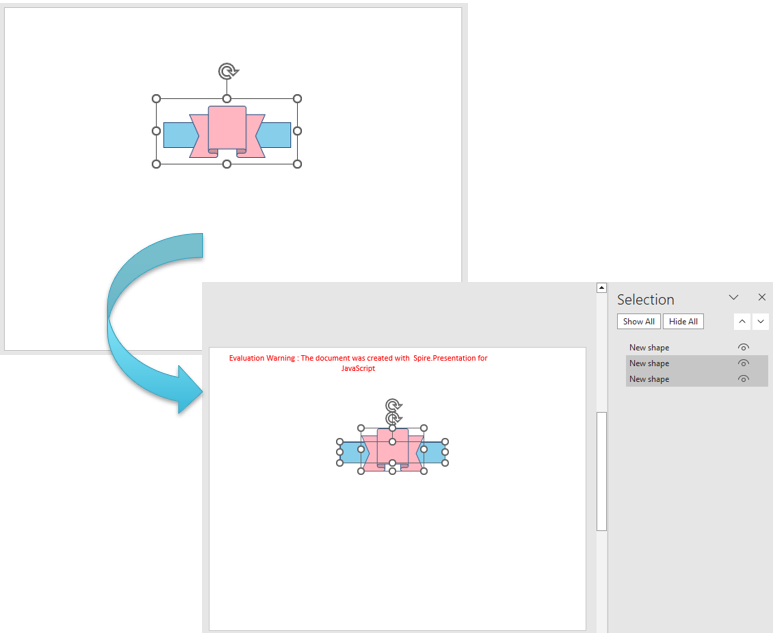
Presentation after ungrouping the shapes:
FAQ
Why does the number of shapes in the collection decrease after grouping
Cause: GroupShapes() collects the given shapes into a single group shape, and the group occupies only one position in the slide's shape collection, so the number of shapes in the collection decreases.
Solution: The member shapes are still there. Retrieve them one by one through the GroupShape.Shapes collection:
const group = slide.Shapes.get_Item(0);
const innerCount = group.Shapes.Count;
Can a single shape be grouped
Cause: Grouping merges multiple shapes into one unit; with only one shape there is nothing to merge.
Solution: Put at least two shapes into the array before calling GroupShapes(). Passing a single shape does not create a group, and the number of shapes on the slide stays the same.
How can only some of the shapes on a slide be grouped
Cause: GroupShapes() processes only the shapes in the array that is passed to it; the other shapes are not affected.
Solution: Pick the shapes you need by index, put them in an array, and pass it to GroupShapes():
slide.GroupShapes([slide.Shapes.get_Item(0), slide.Shapes.get_Item(2)]);
Get a Free License
If you wish to delete the evaluation message from the resulting documents, or to get rid of function limitations, please contact sales to obtain a valid 30-day temporary license.
