Some slides in a deck are not meant to be shown on the spot: internal figures, backup plans, or leftover content from the previous version. Deleting them means redoing the work for the next review. Leaving them in means a stray click can land on them during a presentation. Desktop software lets you right-click and hide one slide at a time, but in a web workflow that scattered clicking cannot join batch processing and is hard to hand off to a program.
This article uses Spire.Presentation for JavaScript to manage slide visibility in the browser: ISlide.Hidden hides or unhides a specific slide, and iterating over Slides unhides all of them at once. It runs on WebAssembly in the browser, needs no Office installation, does not depend on a backend, and reads and writes files locally through a virtual file system (VFS).
This article covers three core features:
For installation and project setup, see Integrate Spire.Presentation for JavaScript in a React project. The examples below assume Spire.Presentation is installed and the WebAssembly module is initialized.
Hide a Specific Slide
To handle a single slide, take it out by index and set Hidden.
The steps are:
- Get the Spire.Presentation WASM module and make sure it is ready.
- Load the sample presentation and fonts, create a
Presentationobject, and load the file. - Use
Slides.get_Item()to locate the slide by index and setHiddentotrue. - Use
Presentation.SaveToFile()to save the result. - Read the result from the VFS and trigger a browser download.
The code to hide a specific slide:
function App() {
  const hideSlide = async () => {
    // Get the Spire.Presentation WASM module
    const pptModule = window.wasmModule?.spirepresentation;

    // Check that the module is ready
    if (!pptModule) {
      alert('Spire.Presentation is not ready yet');
      return;
    }

    // Load the sample presentation and fonts
    await window.spire.FetchFileToVFS('DataBriefing.pptx', "", `${process.env.PUBLIC_URL}/data/`);
    await window.spire.FetchFileToVFS('ARIALUNI.TTF', "/Library/Fonts/", `${process.env.PUBLIC_URL}/font/`);

    // Create a Presentation instance and load the presentation
    const ppt = new pptModule.Presentation();
    ppt.LoadFromFile('DataBriefing.pptx');

    // Mark the 2nd slide as hidden
    ppt.Slides.get_Item(1).Hidden = true;

    // Save the result
    const outputFileName = 'HiddenSlideResult.pptx';
    ppt.SaveToFile({ file: outputFileName, fileFormat: pptModule.FileFormat.Pptx2013 });
    ppt.Dispose();

    // Read the generated file from the VFS and trigger a download
    const fileArray = window.dotnetRuntime.Module.FS.readFile(outputFileName);
    const blob = new Blob([fileArray], { type: 'application/vnd.openxmlformats-officedocument.presentationml.presentation' });
    const url = URL.createObjectURL(blob);
    const a = document.createElement('a');
    a.href = url;
    a.download = outputFileName;
    a.click();
    URL.revokeObjectURL(url);
  };

  return (
    <div style={{ textAlign: 'center', height: '300px' }}>
      <h1>Hide a Specific Slide</h1>
      <button onClick={hideSlide}>
        Hide the 2nd Slide
      </button>
    </div>
  );
}

export default App;
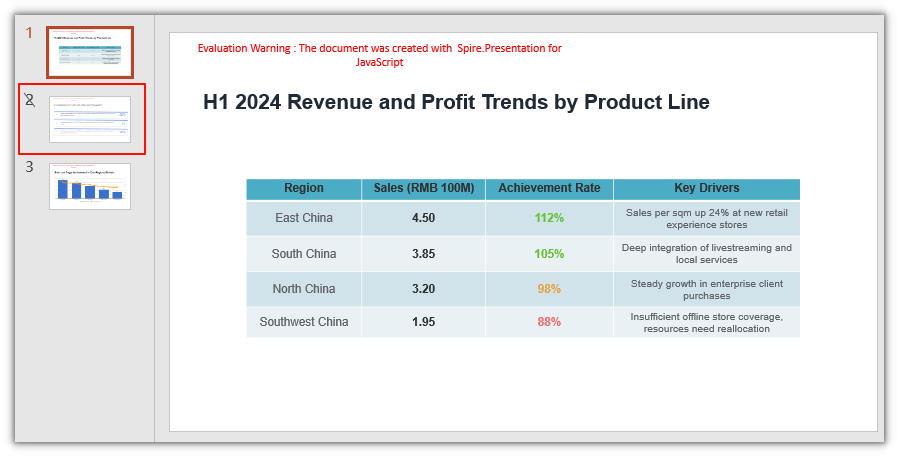
The 2nd slide's thumbnail carries a hidden marker, and the slide is skipped during a slideshow:
Unhide a Specific Slide
To restore a slide, locate it by index the same way and set Hidden back to false. To check whether a slide is currently hidden, read the boolean value of slide.Hidden:
slide.Hidden |
Meaning |
|---|---|
true |
Hidden; skipped by default in a slideshow and export |
false |
Shown normally |
The steps are:
- Get the Spire.Presentation WASM module and make sure it is ready.
- Load the presentation with hidden slides and fonts, create a
Presentationobject, and load the file. - Use
Slides.get_Item()to locate the slide by index and setHiddentofalse. - Use
Presentation.SaveToFile()to save the result. - Read the result from the VFS and trigger a browser download.
The code to unhide a specific slide:
function App() {
  const unhideSlide = async () => {
    // Get the Spire.Presentation WASM module
    const pptModule = window.wasmModule?.spirepresentation;

    // Check that the module is ready
    if (!pptModule) {
      alert('Spire.Presentation is not ready yet');
      return;
    }

    // Load the presentation with hidden slides and fonts
    await window.spire.FetchFileToVFS('PresentationWithHiddenSlides.pptx', "", `${process.env.PUBLIC_URL}/data/`);
    await window.spire.FetchFileToVFS('ARIALUNI.TTF', "/Library/Fonts/", `${process.env.PUBLIC_URL}/font/`);

    // Create a Presentation instance and load the presentation
    const ppt = new pptModule.Presentation();
    ppt.LoadFromFile('PresentationWithHiddenSlides.pptx');

    // Restore the 2nd slide to visible
    ppt.Slides.get_Item(1).Hidden = false;

    // Save the result
    const outputFileName = 'UnhiddenSlideResult.pptx';
    ppt.SaveToFile({ file: outputFileName, fileFormat: pptModule.FileFormat.Pptx2013 });
    ppt.Dispose();

    // Read the generated file from the VFS and trigger a download
    const fileArray = window.dotnetRuntime.Module.FS.readFile(outputFileName);
    const blob = new Blob([fileArray], { type: 'application/vnd.openxmlformats-officedocument.presentationml.presentation' });
    const url = URL.createObjectURL(blob);
    const a = document.createElement('a');
    a.href = url;
    a.download = outputFileName;
    a.click();
    URL.revokeObjectURL(url);
  };

  return (
    <div style={{ textAlign: 'center', height: '300px' }}>
      <h1>Unhide a Specific Slide</h1>
      <button onClick={unhideSlide}>
        Unhide the 2nd Slide
      </button>
    </div>
  );
}

export default App;
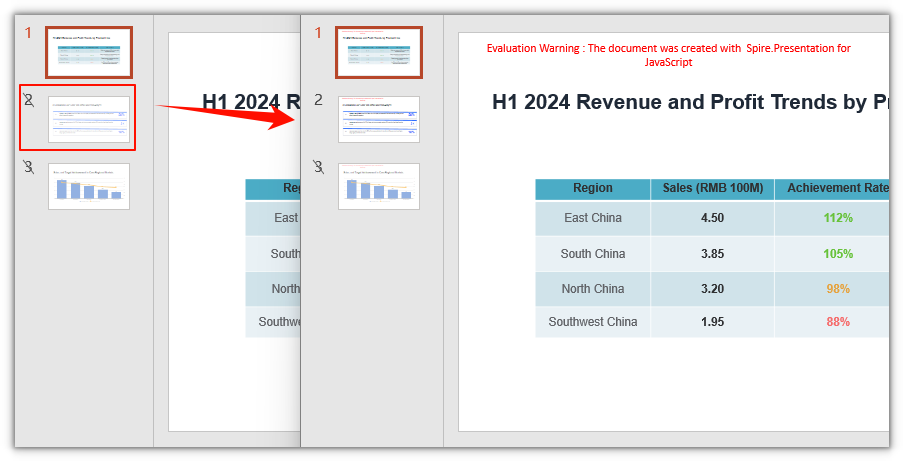
After the 2nd slide is restored, the 3rd slide stays hidden:
Unhide All Slides
When a deck hides several slides, hard-coding each index is tedious and easy to miss. Use Slides.Count to get the total, loop from 0 to Count - 1, and set Hidden to false on every slide to restore them all in one pass.
The steps are:
- Get the Spire.Presentation WASM module and make sure it is ready.
- Load the presentation with hidden slides and fonts, create a
Presentationobject, and load the file. - Loop over
Slidesand setHiddentofalseon every slide. - Use
Presentation.SaveToFile()to save the result. - Read the result from the VFS and trigger a browser download.
The code to unhide all slides:
function App() {
  const unhideAllSlides = async () => {
    // Get the Spire.Presentation WASM module
    const pptModule = window.wasmModule?.spirepresentation;

    // Check that the module is ready
    if (!pptModule) {
      alert('Spire.Presentation is not ready yet');
      return;
    }

    // Load the presentation with hidden slides and fonts
    await window.spire.FetchFileToVFS('PresentationWithHiddenSlides.pptx', "", `${process.env.PUBLIC_URL}/data/`);
    await window.spire.FetchFileToVFS('ARIALUNI.TTF', "/Library/Fonts/", `${process.env.PUBLIC_URL}/font/`);

    // Create a Presentation instance and load the presentation
    const ppt = new pptModule.Presentation();
    ppt.LoadFromFile('PresentationWithHiddenSlides.pptx');

    // Loop over all slides and unhide each one
    for (let i = 0; i < ppt.Slides.Count; i++) {
      ppt.Slides.get_Item(i).Hidden = false;
    }

    // Save the result
    const outputFileName = 'AllSlidesUnhiddenResult.pptx';
    ppt.SaveToFile({ file: outputFileName, fileFormat: pptModule.FileFormat.Pptx2013 });
    ppt.Dispose();

    // Read the generated file from the VFS and trigger a download
    const fileArray = window.dotnetRuntime.Module.FS.readFile(outputFileName);
    const blob = new Blob([fileArray], { type: 'application/vnd.openxmlformats-officedocument.presentationml.presentation' });
    const url = URL.createObjectURL(blob);
    const a = document.createElement('a');
    a.href = url;
    a.download = outputFileName;
    a.click();
    URL.revokeObjectURL(url);
  };

  return (
    <div style={{ textAlign: 'center', height: '300px' }}>
      <h1>Unhide All Slides</h1>
      <button onClick={unhideAllSlides}>
        Unhide All Slides
      </button>
    </div>
  );
}

export default App;
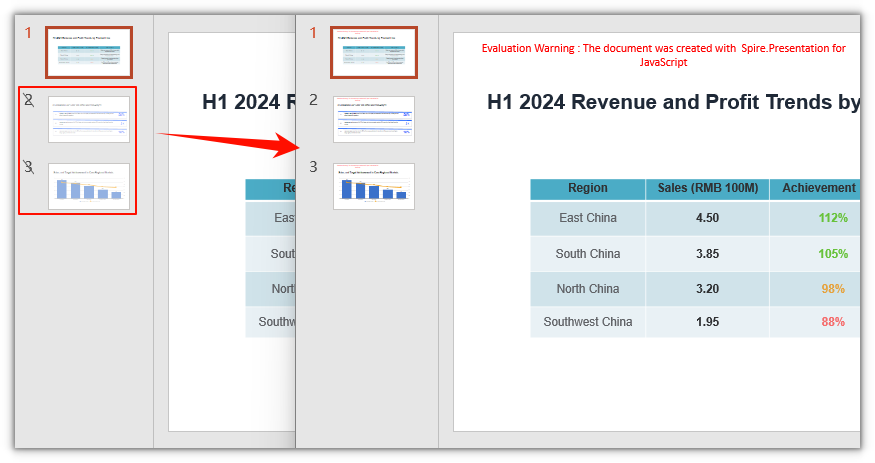
After restoring everything, none of the three slides carries a hidden marker:
FAQ
What is the difference between hiding and deleting a slide
Cause: Deleting removes the slide from the file entirely: the total drops by one, the later slides shift up, and the content cannot be recovered. Hiding only writes a state flag; the slide, its number, and its content all stay in place.
Solution: Use Hidden when you just do not want to show a slide for now. If the slide is truly no longer needed, delete it with Slides.RemoveAt() instead. A hidden slide can always be shown again by setting Hidden back to false.
Does a hidden slide appear during a slideshow
Cause: The hidden marker makes the slideshow skip the slide; it normally does not appear when playing from the start or in a loop.
Solution: No extra handling is needed. To show a hidden slide on stage, open it directly from the thumbnail pane, or temporarily unhide it before presenting. Hiding is not access control; it does not stop someone from deliberately opening the file.
Can I hide several slides at once
Cause: Hidden is a property of a single slide, and there is no API to set several at once.
Solution: Loop over the indexes. To hide non-adjacent slides, put the indexes in an array and iterate:
// Hide the 2nd, 4th, and 6th slides in order
for (const index of [1, 3, 5]) {
  ppt.Slides.get_Item(index).Hidden = true;
}
Do hidden slides appear in an exported PDF
Cause: When converting to PDF, hidden slides are exported by default; the hidden marker does not make the slide disappear.
Solution: To keep hidden slides out of the PDF, set Presentation.SaveToPdfOption.ContainHiddenSlides to false before export, so only visible slides are converted:
ppt.SaveToPdfOption.ContainHiddenSlides = false;
ppt.SaveToFile({ file: 'VisibleSlides.pdf', fileFormat: pptModule.FileFormat.PDF });
PDF pages have no hidden state, so every page can be flipped to normally after conversion. To keep the hidden state, keep the original PPTX.
Get a Free License
If you want to remove the evaluation message from the result, or lift the feature limits, contact sales for a 30-day temporary license.
