Once a deck grows past a dozen slides, finding your way around becomes painful: which slides are the opening, which are the appendix, is left to memory. PowerPoint sections group slides so the thumbnail pane collapses per section, and presenting, copying, and handing off all get easier. On the desktop you can right-click to build sections slide by slide, but that does not scale to batches of files or to a web workflow.
This article uses Spire.Presentation for JavaScript to add and remove PowerPoint sections in the browser. It runs on WebAssembly, needs no Office installation and no backend, and reads and writes files locally through a virtual file system (VFS).
This article covers four core tasks:
- Append a section to the end of a PowerPoint document
- Insert a section before a specific section
- Insert a section before a specific slide
- Remove sections from a PowerPoint document
For installation and project setup, see Integrate Spire.Presentation for JavaScript in a React project. The examples below assume Spire.Presentation is installed and the WebAssembly module is initialized.
Append a section to the end of a PowerPoint document
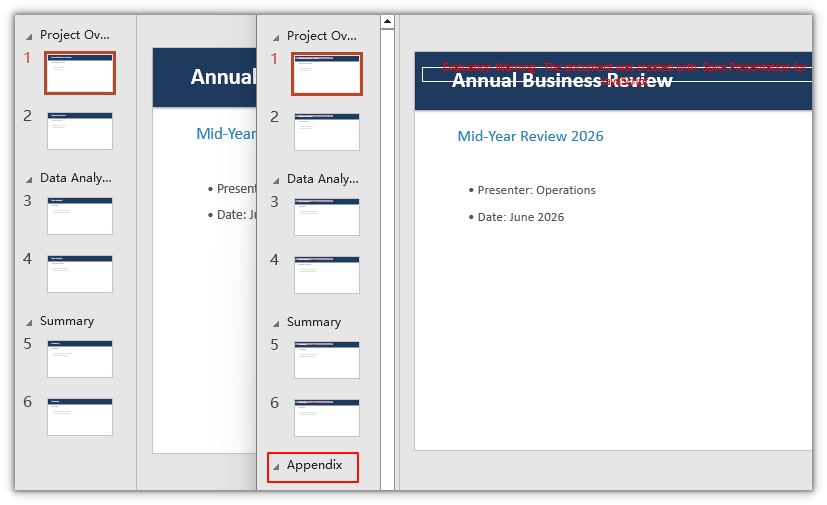
SectionList.Append() adds a section to the end of the section list. Its argument is the section name. The new section holds no slides by default and appears as a standalone section header in PowerPoint's section pane. This empty section does not change the page numbers or the grouping of existing slides.
Steps:
- Get the Spire.Presentation WASM module and make sure it is ready.
- Read the sample presentation and font, create a
Presentationobject, and load the file. - Call
Presentation.SectionList.Append()to add a section at the end. - Save the result with
Presentation.SaveToFile(). - Read the result from the VFS and trigger a browser download.
The code for appending a section:
function App() {
  const appendSection = async () => {
    // Get the Spire.Presentation WASM module
    const pptModule = window.wasmModule?.spirepresentation;

    // Check that the module is ready
    if (!pptModule) {
      alert('Spire.Presentation is not ready yet');
      return;
    }

    // Load the sample presentation and font
    await window.spire.FetchFileToVFS('PresentationWithSections.pptx', "", `${process.env.PUBLIC_URL}/data/`);
    await window.spire.FetchFileToVFS('ARIALUNI.TTF', "/Library/Fonts/", `${process.env.PUBLIC_URL}/font/`);

    // Create a Presentation instance and load the document
    const ppt = new pptModule.Presentation();
    ppt.LoadFromFile('PresentationWithSections.pptx');

    // Append an "Appendix" section to the end of the section list
    ppt.SectionList.Append('Appendix');

    // Save the result
    const outputFileName = 'AppendedSection.pptx';
    ppt.SaveToFile({ file: outputFileName, fileFormat: pptModule.FileFormat.Pptx2013 });
    ppt.Dispose();

    // Read the generated file from the VFS and trigger a download
    const fileArray = window.dotnetRuntime.Module.FS.readFile(outputFileName);
    const blob = new Blob([fileArray], { type: 'application/vnd.openxmlformats-officedocument.presentationml.presentation' });
    const url = URL.createObjectURL(blob);
    const a = document.createElement('a');
    a.href = url;
    a.download = outputFileName;
    a.click();
    URL.revokeObjectURL(url);
  };

  return (
    <div style={{ textAlign: 'center', height: '300px' }}>
      <h1>Append Section</h1>
      <button onClick={appendSection}>
        Append section
      </button>
    </div>
  );
}

export default App;
An "Appendix" section now sits at the end of the section list:
Insert a section before a specific section
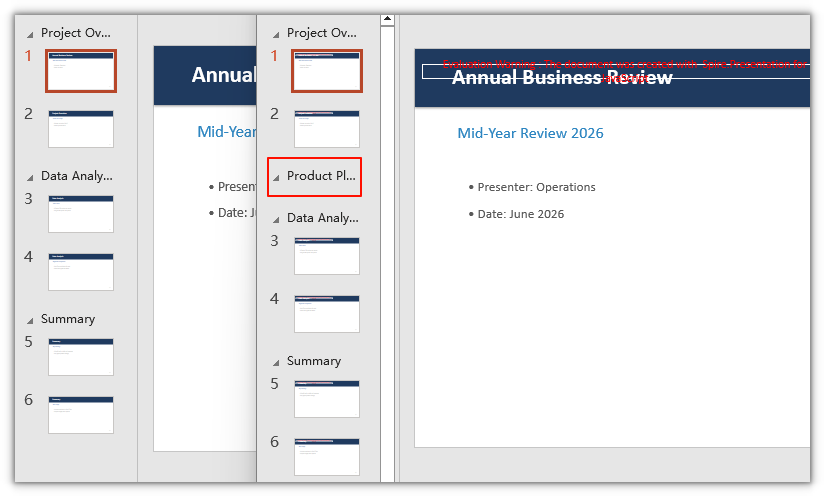
SectionList.Insert() inserts a section at a given position. The first argument is the section index, starting at 0. The new section is placed before that index, and the existing sections shift back one position.
Steps:
- Get the Spire.Presentation WASM module and make sure it is ready.
- Read the sample presentation and font, create a
Presentationobject, and load the file. - Call
Presentation.SectionList.Insert()to insert a new section before the "Data Analysis" section. - Save the result with
Presentation.SaveToFile(). - Read the result from the VFS and trigger a browser download.
The code for inserting a section before a specific section:
function App() {
  const insertSectionBeforeSection = async () => {
    // Get the Spire.Presentation WASM module
    const pptModule = window.wasmModule?.spirepresentation;

    // Check that the module is ready
    if (!pptModule) {
      alert('Spire.Presentation is not ready yet');
      return;
    }

    // Load the sample presentation and font
    await window.spire.FetchFileToVFS('PresentationWithSections.pptx', "", `${process.env.PUBLIC_URL}/data/`);
    await window.spire.FetchFileToVFS('ARIALUNI.TTF', "/Library/Fonts/", `${process.env.PUBLIC_URL}/font/`);

    // Create a Presentation instance and load the document
    const ppt = new pptModule.Presentation();
    ppt.LoadFromFile('PresentationWithSections.pptx');

    // Insert a new section at index 1, that is, before the "Data Analysis" section
    ppt.SectionList.Insert(1, 'Product Planning');

    // Save the result
    const outputFileName = 'InsertedSectionBeforeSection.pptx';
    ppt.SaveToFile({ file: outputFileName, fileFormat: pptModule.FileFormat.Pptx2013 });
    ppt.Dispose();

    // Read the generated file from the VFS and trigger a download
    const fileArray = window.dotnetRuntime.Module.FS.readFile(outputFileName);
    const blob = new Blob([fileArray], { type: 'application/vnd.openxmlformats-officedocument.presentationml.presentation' });
    const url = URL.createObjectURL(blob);
    const a = document.createElement('a');
    a.href = url;
    a.download = outputFileName;
    a.click();
    URL.revokeObjectURL(url);
  };

  return (
    <div style={{ textAlign: 'center', height: '300px' }}>
      <h1>Insert Section Before Section</h1>
      <button onClick={insertSectionBeforeSection}>
        Insert section
      </button>
    </div>
  );
}

export default App;
A "Product Planning" section is inserted before "Data Analysis":
Insert a section before a specific slide
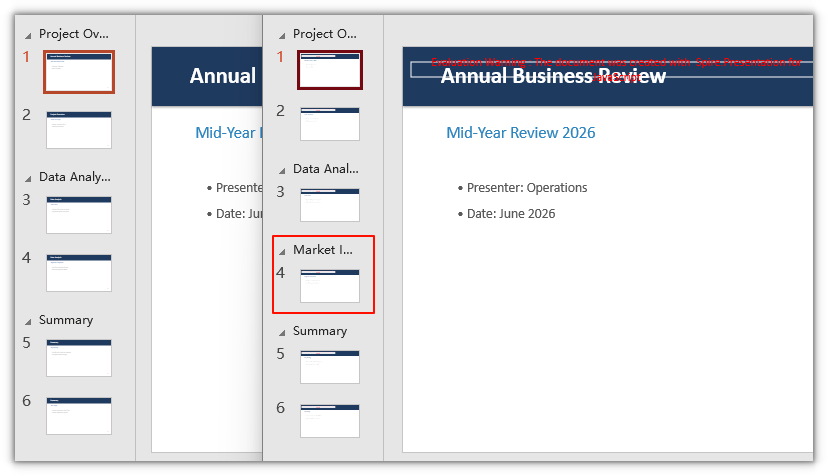
When you have a slide in hand but do not know which section it belongs to, the overload of SectionList.Add() that takes a slide solves it directly: pass the target slide, and the section boundary falls before that slide, so the slide and the slides after it in its original section move into the new section. The slide count does not change, and neither do the content or the order.
Steps:
- Get the Spire.Presentation WASM module and make sure it is ready.
- Read the sample presentation and font, create a
Presentationobject, and load the file. - Call
Presentation.SectionList.Add()to start a new section at the target slide. - Save the result with
Presentation.SaveToFile(). - Read the result from the VFS and trigger a browser download.
The code for inserting a section before a specific slide:
function App() {
  const insertSectionBeforeSlide = async () => {
    // Get the Spire.Presentation WASM module
    const pptModule = window.wasmModule?.spirepresentation;

    // Check that the module is ready
    if (!pptModule) {
      alert('Spire.Presentation is not ready yet');
      return;
    }

    // Load the sample presentation and font
    await window.spire.FetchFileToVFS('PresentationWithSections.pptx', "", `${process.env.PUBLIC_URL}/data/`);
    await window.spire.FetchFileToVFS('ARIALUNI.TTF', "/Library/Fonts/", `${process.env.PUBLIC_URL}/font/`);

    // Create a Presentation instance and load the document
    const ppt = new pptModule.Presentation();
    ppt.LoadFromFile('PresentationWithSections.pptx');

    // Target slide: the fourth slide (zero-based index 3)
    // Start a "Market Insights" section here, creating a new section boundary before this slide
    ppt.SectionList.Add('Market Insights', ppt.Slides.get_Item(3));

    // Save the result
    const outputFileName = 'InsertedSectionBeforeSlide.pptx';
    ppt.SaveToFile({ file: outputFileName, fileFormat: pptModule.FileFormat.Pptx2013 });
    ppt.Dispose();

    // Read the generated file from the VFS and trigger a download
    const fileArray = window.dotnetRuntime.Module.FS.readFile(outputFileName);
    const blob = new Blob([fileArray], { type: 'application/vnd.openxmlformats-officedocument.presentationml.presentation' });
    const url = URL.createObjectURL(blob);
    const a = document.createElement('a');
    a.href = url;
    a.download = outputFileName;
    a.click();
    URL.revokeObjectURL(url);
  };

  return (
    <div style={{ textAlign: 'center', height: '300px' }}>
      <h1>Insert Section Before Slide</h1>
      <button onClick={insertSectionBeforeSlide}>
        Insert section
      </button>
    </div>
  );
}

export default App;
A "Market Insights" section is split out starting at the fourth slide, while the first three slides stay in their original section:
Remove sections from a PowerPoint document
Use SectionList.RemoveAt() to remove a section by its position index; SectionList.RemoveAll() clears every section at once and returns the presentation to a section-free structure. Removing a section does not delete its slides: those pages merge into an adjacent section, and page numbers stay the same.
| Method | Purpose |
|---|---|
SectionList.RemoveAt(index) |
Remove the section at the given position |
SectionList.RemoveAll() |
Remove all sections |
Steps:
- Get the Spire.Presentation WASM module and make sure it is ready.
- Read the sample presentation and font, create a
Presentationobject, and load the file. - Call
Presentation.SectionList.RemoveAt()to remove the "Data Analysis" section. - Save the result with
Presentation.SaveToFile(). - Read the result from the VFS and trigger a browser download.
The code for removing a section:
function App() {
  const removeSection = async () => {
    // Get the Spire.Presentation WASM module
    const pptModule = window.wasmModule?.spirepresentation;

    // Check that the module is ready
    if (!pptModule) {
      alert('Spire.Presentation is not ready yet');
      return;
    }

    // Load the sample presentation and font
    await window.spire.FetchFileToVFS('PresentationWithSections.pptx', "", `${process.env.PUBLIC_URL}/data/`);
    await window.spire.FetchFileToVFS('ARIALUNI.TTF', "/Library/Fonts/", `${process.env.PUBLIC_URL}/font/`);

    // Create a Presentation instance and load the document
    const ppt = new pptModule.Presentation();
    ppt.LoadFromFile('PresentationWithSections.pptx');

    // Remove the "Data Analysis" section at index 1
    ppt.SectionList.RemoveAt(1);

    // Save the result
    const outputFileName = 'RemovedSection.pptx';
    ppt.SaveToFile({ file: outputFileName, fileFormat: pptModule.FileFormat.Pptx2013 });
    ppt.Dispose();

    // Read the generated file from the VFS and trigger a download
    const fileArray = window.dotnetRuntime.Module.FS.readFile(outputFileName);
    const blob = new Blob([fileArray], { type: 'application/vnd.openxmlformats-officedocument.presentationml.presentation' });
    const url = URL.createObjectURL(blob);
    const a = document.createElement('a');
    a.href = url;
    a.download = outputFileName;
    a.click();
    URL.revokeObjectURL(url);
  };

  return (
    <div style={{ textAlign: 'center', height: '300px' }}>
      <h1>Remove Section</h1>
      <button onClick={removeSection}>
        Remove section
      </button>
    </div>
  );
}

export default App;
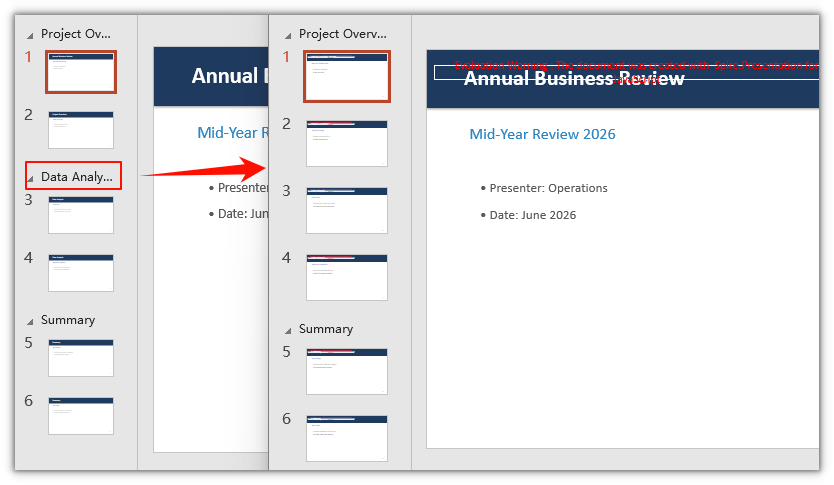
The example above removes one section. To clear all sections at once, use RemoveAll(); the slide count stays the same:
// Remove the second section
ppt.SectionList.RemoveAt(1)

// Remove every section
ppt.SectionList.RemoveAll()
FAQ
Is the section index zero-based or one-based
Cause: The indexes for SectionList.Insert() and SectionList.RemoveAt() are zero-based, the same as for Slides; the PowerPoint UI shows them as section 1, section 2, so the two differ by one.
Solution: Handle everything zero-based in code. To act on the second section you see in the UI, pass 1 to the method. When unsure, loop over SectionList.Count and print each section name by index to confirm the position.
Why does a newly added section have no slides
Cause: Append() and Insert() only create a section's name and grouping boundary; they do not place slides into it. A section is a grouping of slides, so a new section can start empty and shows as a section header with no thumbnails in the section pane.
Solution: Empty sections persist when you save and reopen the file. If you need slides in it, drag them under the section header in PowerPoint. To have a new section carry slides right away, use the overload with a slide argument, SectionList.Add(name, slide): the slide you pass becomes the first slide of the new section, the boundary falls before it, and the total slide count stays the same.
Does removing a section delete its slides
Cause: A section is only grouping information, so removing a section does not remove the slides. After RemoveAt() drops the group, the slides that belonged to it merge into an adjacent section, and the total number of slides stays the same.
Solution: If you only want to regroup, remove the section and the slides remain. To actually remove slide content, use Slides.RemoveAt() or Slides.Remove() to delete slides.
Can I remove several sections at once
Cause: RemoveAt() removes one section at a time, and each removal shifts the indexes of the sections after it forward by one.
Solution: When removing several, go from the end toward the front, or always remove index 0, to avoid index drift. To clear all sections, use RemoveAll() directly:
// Clear every section and keep the slides
ppt.SectionList.RemoveAll();
Get a Free License
If you want to remove the evaluation message from the output documents or lift the feature limits, contact sales for a 30-day temporary license.
