A product catalogue needs an appearance picture for every model, and an inspection record needs a site photo for every step. These pictures do not sit in body paragraphs; they are table content that moves with its row and column. Generating such documents calls for adding pictures into cells, while consolidating data calls for taking existing pictures out as they are, so that an image library or a reporting tool can process them further.
This article uses Spire.Doc for JavaScript to perform both operations in the browser. The process runs on WebAssembly in the browser, and documents are read and written through the virtual file system (VFS); no Office installation or backend service is required, and files always stay on the user's device.
This article covers two core features:
Both operations work on the same object hierarchy, only in opposite directions. A picture is not attached to the cell directly but to a paragraph inside the cell:
| Level | Access | Common members |
|---|---|---|
| Table | Body.Tables, Body.ChildObjects |
Rows, Rows.Count |
| Row | Table.Rows.get_Item(r) |
Cells, Cells.Count |
| Cell | TableRow.Cells.get_Item(c) |
AddParagraph, ChildObjects |
| Paragraph | Cell.AddParagraph() |
AppendPicture, AppendText, ChildObjects |
| Picture | Paragraph.ChildObjects |
ImageBytes, Width, Height |
Insertion walks from the top down to the paragraph and then appends the picture; extraction walks from the bottom up, takes the picture object first, and then names it by the row and column it belongs to.
For installation and project setup, refer to Integrating Spire.Doc for JavaScript in a React Project. The examples below assume that Spire.Doc is installed and the WebAssembly module is initialized.
Insert Pictures into Cells
The entry point for inserting a picture is the paragraph's AppendPicture() method; the cell itself has no picture method: first add a paragraph with Cell.AddParagraph(), then call the method on that paragraph. The argument has two forms, corresponding to the two sources of a picture file:
| Form | What is inserted |
|---|---|
paragraph.AppendPicture('Product-01.png') |
Reads a picture file from the VFS |
paragraph.AppendPicture({ imageBytes: bytes }) |
Uses picture bytes already in memory |
When no size is set, the picture is displayed by converting its own pixel size at 96 DPI: in the example a 640 × 480 pixel picture comes out as 480 × 360 pt, so Width and Height usually have to be set to align it with the layout.
The specific steps are as follows:
- Get the Spire.Doc WASM module and confirm that it is ready.
- Load the sample document and the product pictures, create a
Documentobject and load the file. - Take the product catalogue table and locate the cell in the "Product Drawing" column row by row.
- Add a paragraph with
Cell.AddParagraph(), callParagraph.AppendPicture()to insert a picture and set its size. - Save the result with
Document.SaveToFile(), read the file from the VFS and trigger a browser download.
The code for inserting pictures into cells is as follows:
function App() {
  const insertImagesIntoCells = async () => {
    // Get the Spire.Doc WASM module
    const docModule = window.wasmModule?.spiredoc;

    if (!docModule) {
      alert('Spire.Doc is not ready yet');
      return;
    }

    // Load the sample document and the product pictures
    await window.spire.FetchFileToVFS('ProductCatalog.docx', '', `${process.env.PUBLIC_URL}/data/`);

    const images = [
      'Product-01.png', 'Product-02.png', 'Product-03.png',
      'Product-04.png', 'Product-05.png', 'Product-06.png',
    ];
    for (const name of images) {
      await window.spire.FetchFileToVFS(name, '', `${process.env.PUBLIC_URL}/data/`);
    }

    const doc = new docModule.Document();
    doc.LoadFromFile('ProductCatalog.docx');

    // Index 0 is the 1×1 summary box on the cover; the product catalogue is the 2nd table
    const table = doc.Sections.get_Item(0).Body.Tables.get_Item(1);

    for (let r = 0; r < images.length; r++) {
      // Column 6 is the product drawing column; row 1 is the header
      const cell = table.Rows.get_Item(r + 1).Cells.get_Item(5);
      const paragraph = cell.AddParagraph();
      paragraph.Format.HorizontalAlignment = docModule.HorizontalAlignment.Center;

      const picture = paragraph.AppendPicture(images[r]);
      picture.Width = 90;
      picture.Height = 68;
    }

    const outputFileName = 'CatalogWithImages.docx';
    doc.SaveToFile({ fileName: outputFileName, fileFormat: docModule.FileFormat.Docx2013 });
    doc.Dispose();

    // Read the result file from the VFS and trigger the download
    const fileArray = window.dotnetRuntime.Module.FS.readFile(outputFileName);
    const blob = new Blob([fileArray], {
      type: 'application/vnd.openxmlformats-officedocument.wordprocessingml.document',
    });
    const url = URL.createObjectURL(blob);
    const a = document.createElement('a');
    a.href = url;
    a.download = outputFileName;
    a.click();
    URL.revokeObjectURL(url);
  };

  return (
    <div style={{ textAlign: 'center', height: '300px' }}>
      <h1>Insert Cell Pictures</h1>
      <button onClick={insertImagesIntoCells}>Insert Pictures</button>
    </div>
  );
}

export default App;
Inserting pictures into cells: page 1 before (left) and after (right):
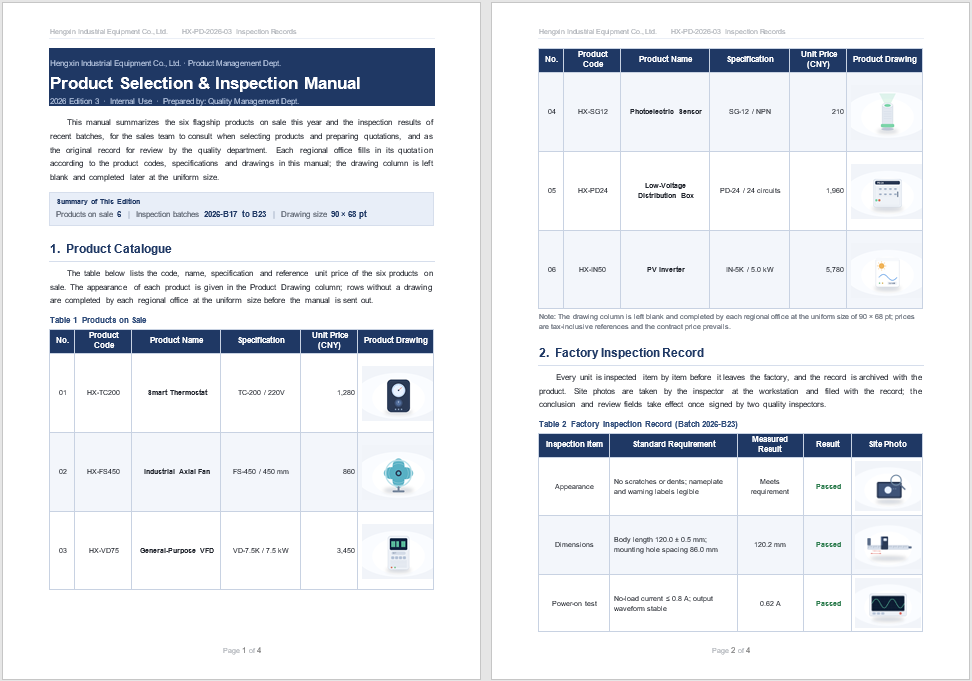
The Product Drawing column of the sample document is originally empty; the six rows are completed in one pass, each picture centred and displayed at 90 × 68 pt. The picture height plus the cell margins exceeds the reserved row height, so the six rows grow taller and the document goes from 3 pages to 4.
Unify Picture Sizes
The row height of a cell is decided by its content; if one picture in a row is taller, the whole row grows with it, and pictures across columns at different sizes leave the row heights uneven. Picture.Width and Height are in points, and setting both forces pictures of different ratios to one size.
When only the width is set, the height is converted automatically by the original ratio: in the example a 640 × 480 picture set to a width of 90 pt becomes 67.5 pt high.
const picture = paragraph.AppendPicture(images[r]);

// Width only: the height is converted automatically (a sample picture set to 90 pt wide becomes 67.5 pt high)
picture.Width = 90;

// Or set both: force pictures of different ratios to one size for a tidier layout
picture.Width = 90;
picture.Height = 68;
Pictures and Text in One Cell
A cell may hold both text and pictures, and their position is decided by the order of the paragraphs. Calling Cell.AddParagraph() twice places the picture above and the text below, which suits caption-style layouts such as "picture + model"; calling AppendText and then AppendPicture in one paragraph arranges them inline in that order, but the picture wraps to the next line when the cell is not wide enough.
// Option 1: two paragraphs, picture above and text below
const cell = table.Rows.get_Item(1).Cells.get_Item(5);

const pPic = cell.AddParagraph();
pPic.Format.HorizontalAlignment = docModule.HorizontalAlignment.Center;
const pic = pPic.AppendPicture('Product-01.png');
pic.Width = 90;
pic.Height = 68;

const pCap = cell.AddParagraph();
pCap.Format.HorizontalAlignment = docModule.HorizontalAlignment.Center;
pCap.AppendText('HX-TC200');

// Option 2: one paragraph, text and picture side by side
const cell2 = table.Rows.get_Item(2).Cells.get_Item(5);
const pLine = cell2.AddParagraph();
pLine.AppendText('FS-450 ');
const pic2 = pLine.AppendPicture('Product-02.png');
pic2.Width = 40;
pic2.Height = 30;
Picture and text in one cell: picture above text (row 1); text beside picture (row 2):
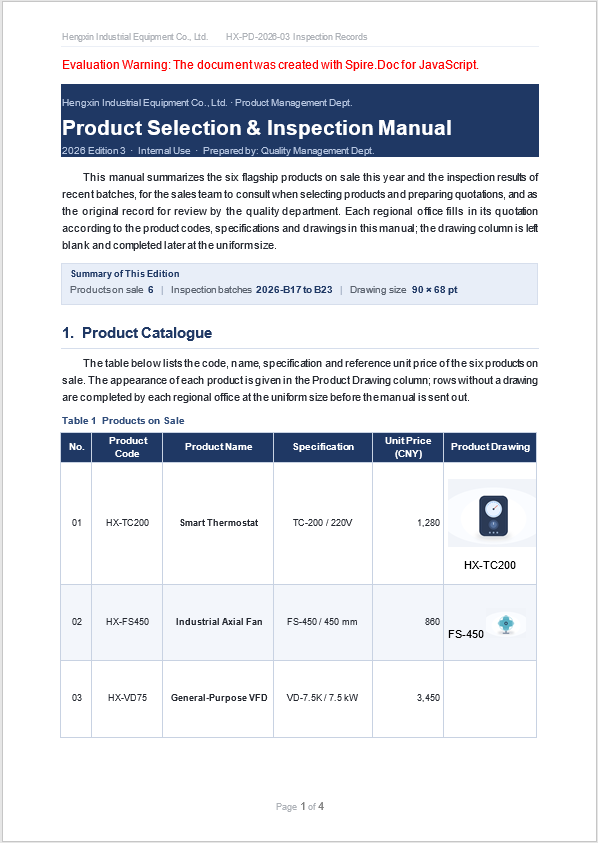
The two forms differ only in the number of paragraphs: several objects in one paragraph share one inline layout and wrap when they do not fit, while two paragraphs each occupy a line of their own and give more control over position.
Extract Pictures from Tables
Extraction has to go level by level through "table → row → cell → paragraph → picture". The ChildObjects of a cell contains paragraphs and possibly a nested table; pictures are attached to the ChildObjects of a paragraph, their type is DocumentObjectType.Picture, and the original data is provided by ImageBytes.
| Member | Description |
|---|---|
Cell.ChildObjects |
Objects in the cell, which may include a nested table besides paragraphs |
Paragraph.ChildObjects |
Inline objects in the paragraph, such as TextRange and Picture |
DocumentObjectType.Picture |
The type identifier of a picture object |
Picture.ImageBytes |
The original bytes of the picture (Uint8Array) |
Picture.Width, Height |
The display size of the picture (pt) |
Body.Tables counts every table in the body, including 1×1 single-cell tables used for layout; the summary box on the cover of the sample document is such a table, and it has to be counted when tables are taken by index.
The specific steps are as follows:
- Get the Spire.Doc WASM module and confirm that it is ready.
- Load the sample document and the font, create a
Documentobject and load the file. - Walk the body objects, filter out the tables, then enter paragraphs row by row and cell by cell.
- Check the object type in each paragraph, read
ImageBytesfor pictures and name them by row and column. - Package the pictures as a ZIP and trigger a browser download.
The code for extracting pictures from tables is as follows:
import React from 'react';
import JSZip from 'jszip';

function App() {
  const extractImagesFromTables = async () => {
    // Get the Spire.Doc WASM module
    const docModule = window.wasmModule?.spiredoc;

    if (!docModule) {
      alert('Spire.Doc is not ready yet');
      return;
    }

    await window.spire.FetchFileToVFS('ProductCatalog.docx', '', `${process.env.PUBLIC_URL}/data/`);
    await window.spire.FetchFileToVFS('ARIALUNI.TTF', '/Library/Fonts/', `${process.env.PUBLIC_URL}/font/`);

    const doc = new docModule.Document();
    doc.LoadFromFile('ProductCatalog.docx');

    const zip = new JSZip();

    // Walk one table; prefix records its position in the outer table
    const walkTable = (table, prefix) => {
      for (let r = 0; r < table.Rows.Count; r++) {
        const row = table.Rows.get_Item(r);
        for (let c = 0; c < row.Cells.Count; c++) {
          const cell = row.Cells.get_Item(c);

          // A cell may hold several pictures; number them in the order they appear
          let index = 0;
          for (let k = 0; k < cell.ChildObjects.Count; k++) {
            const child = cell.ChildObjects.get_Item(k);

            if (child.DocumentObjectType === docModule.DocumentObjectType.Paragraph) {
              for (let p = 0; p < child.ChildObjects.Count; p++) {
                const item = child.ChildObjects.get_Item(p);
                if (item.DocumentObjectType === docModule.DocumentObjectType.Picture) {
                  index++;
                  const name = `${prefix}-r${r + 1}c${c + 1}-${index}.png`;
                  zip.file(name, new Uint8Array(item.ImageBytes));
                }
              }
            } else if (child.DocumentObjectType === docModule.DocumentObjectType.Table) {
              // A nested table inside the cell is handled recursively
              walkTable(child, `${prefix}-r${r + 1}c${c + 1}.t`);
            }
          }
        }
      }
    };

    const body = doc.Sections.get_Item(0).Body;
    let tableIndex = 0;
    for (let i = 0; i < body.ChildObjects.Count; i++) {
      const obj = body.ChildObjects.get_Item(i);
      if (obj.DocumentObjectType !== docModule.DocumentObjectType.Table) continue;

      tableIndex++;
      walkTable(obj, `table-${tableIndex}`);
    }

    // Package the pictures as a ZIP and trigger the download
    const content = await zip.generateAsync({ type: 'blob' });
    const url = URL.createObjectURL(content);
    const a = document.createElement('a');
    a.href = url;
    a.download = 'TableImages.zip';
    a.click();
    URL.revokeObjectURL(url);

    doc.Dispose();
  };

  return (
    <div style={{ textAlign: 'center', height: '300px' }}>
      <h1>Extract Table Pictures</h1>
      <button onClick={extractImagesFromTables}>Extract Pictures</button>
    </div>
  );
}

export default App;
The sample document has 4 tables in its body, and extraction returns 5 pictures: 3 site photos from the inspection record, 1 inspection stamp in the conclusion row, and 1 traceability code inside the nested table of the review record. File names follow the pattern "table number-row-column-sequence", and a picture inside a nested table carries an extra .t segment so that its original position can be traced.
Pictures in Nested Tables
A cell can contain another table, and that table can contain pictures as well. Walking only the paragraphs of outer cells misses this content: the review record in the conclusion row of the sample is a four-row nested table, and the traceability code picture sits in one of its cells. A one-level walk returns 4 pictures; with recursion it returns 5.
// An object in the cell may also be a table; enter it and keep walking
} else if (child.DocumentObjectType === docModule.DocumentObjectType.Table) {
  walkTable(child, `${prefix}-r${r + 1}c${c + 1}.t`);
}
During recursion the position of the nested table is joined into the file name: table-3-r6c2.t-r4c2-1.png means the first picture in row 4, column 2 of the nested table inside the cell at row 6, column 2 of the third table.
Picture Formats and File Extensions
ImageBytes returns the original data of the picture as stored in the document, and the format depends on the original file; all pictures in the sample are PNG, with the byte header 89 50 4E 47. If the document stores a JPEG, the header is FF D8 FF, and naming the file .png in that case only helps recognition — some viewers or upload endpoints that validate by extension will reject it. When the exact extension matters, read the magic number at the head of the bytes and decide from it:
const getImageExtension = (bytes) => {
  if (bytes[0] === 0x89 && bytes[1] === 0x50) return 'png';
  if (bytes[0] === 0xff && bytes[1] === 0xd8) return 'jpg';
  if (bytes[0] === 0x47 && bytes[1] === 0x49) return 'gif';
  if (bytes[0] === 0x42 && bytes[1] === 0x4d) return 'bmp';
  return 'bin';
};

// Name the file with its real format
const ext = getImageExtension(item.ImageBytes);
zip.file(`${prefix}-r${r + 1}c${c + 1}-${index}.${ext}`, new Uint8Array(item.ImageBytes));
FAQ
Why Is the First Table in Body.Tables Not the Product Catalogue
Cause: Body.Tables counts every table in the body, including 1×1 single-cell tables used for layout. The "Summary of This Edition" box on the cover of the sample document is such a table, at index 0, and the product catalogue is actually at index 1.
Fix: read the text of the first cell in the header to confirm the target table, or walk Body.ChildObjects instead, filter tables by DocumentObjectType and count them in order. When body tables and layout tables have to be distinguished in document order, rely on Body.ChildObjects.
Why Do the Table Row Heights and Pagination Change After Pictures Are Inserted
Cause: the row height of a cell is decided by its content; when a picture is taller than the reserved row height, the whole row is stretched and the content after it moves down. In the example the six rows grow slightly taller and the document goes from 3 pages to 4.
Fix: scale the pictures to a uniform size such as 90 × 68 pt before insertion, and reserve the row height above the sum of the picture height and the cell margins, so that the page count changes much less.
Fewer Pictures Are Extracted Than Expected
Cause: a picture may sit in a nested table inside a cell, and walking only the paragraphs of outer cells misses it; if several pictures in one cell use the same file name, later ones overwrite earlier ones when packaging.
Fix: check for DocumentObjectType.Table in the cell walk and recurse into it; number pictures within a cell in the order they appear, e.g. -1, -2 in the example.
A Saved .png Does Not Open in Some Tools
Cause: ImageBytes returns the original data, and the extension does not necessarily match the content. All pictures in the sample are PNG; if a picture is stored as JPEG in the document, its byte header is FF D8 FF, and naming it .png makes strict viewers or upload endpoints reject it.
Fix: read the magic number at the head of the bytes to determine the format and name the file accordingly, as described in "Picture Formats and File Extensions".
Can a Picture from Memory Be Inserted Without a File
Yes. Pass the byte array to AppendPicture({ imageBytes: bytes }); without a size it is likewise converted at 96 DPI. Note that the byte array cannot be passed directly as the argument: that form reports an "ambiguous call", and imageBytes has to be written out to select the matching overload.
const bytes = window.dotnetRuntime.Module.FS.readFile('Product-04.png');
const picture = paragraph.AppendPicture({ imageBytes: bytes });
picture.Width = 90;
Get a Free License
Spire.Doc for JavaScript offers a 30-day full-featured free trial license with no functional limitations. Apply here to evaluate before purchasing.
