Equations in technical documents, inspection reports and lesson plans used to be pasted into Word as screenshots: they blur when enlarged, and changing a single subscript means taking a new screenshot; when the file is handed to someone else to edit, the equation cannot be selected or resized like body text either. Since Word 2007, Word has stored equations with OfficeMath, which makes an equation a native object in the document model: it can be edited, it scales with the font size, and it can be read and reused by a program.
This article uses Spire.Doc for JavaScript to write three sources — LaTeX, MathML and OMML — as native Word equations in the browser, and then to read the equations already in a document and export them as text. The whole process runs on WebAssembly on the client side, requires no Office installation and depends on no backend service; the document stays on the user's device throughout.
This article covers three features:
For installation and project setup, refer to Integrating Spire.Doc for JavaScript in a React Project. The examples below assume that Spire.Doc is installed and the WebAssembly module is initialized.
OfficeMath and the Three Input Formats
OfficeMath is a paragraph-level object and cannot exist on its own outside a paragraph. In use, create it in the document first, write the equation content with a conversion method, and then attach it to the target paragraph through ChildObjects.Add(). The three input formats map to three conversion methods, and all of them end up as the same native equation object:
| Method | Input | Suitable scenario |
|---|---|---|
FromLatexMathCode(latex) |
A LaTeX string | Equations written by hand, or generated in bulk from a template |
FromMathMLCode(mathML) |
A MathML string | Exported from a web page, mathematical software or a typesetting system |
FromOMMLCode(omml) |
An OMML string | Reusing an equation that already exists in a Word document |
The source only affects how the equation is written in. Once it has been written, inserting, laying out, reading and exporting behave the same way for all three. When choosing a format, therefore, simply take what the upstream side provides; there is no need to convert it first just for uniformity.
Insert an Equation from LaTeX
LaTeX is compact, well suited to writing by hand, and easy for a program to assemble from a template. The example uses a product quality statistics report, Report.docx, whose body reserves a line reading "Standard Deviation Formula:", and the code appends the equation to the end of that paragraph.
The specific steps are as follows:
- Get the Spire.Doc WASM module and confirm that it is ready.
- Load the fonts and
Report.docx, create aDocumentobject and load the document. - Walk the body paragraphs and find the one that contains "Standard Deviation Formula:".
- Create an
OfficeMathobject, write the equation withFromLatexMathCode(), and add it to the paragraph throughChildObjects.Add(). - Save the file as docx, read the result from the VFS and trigger a browser download.
The code for inserting an equation from LaTeX is as follows:
function App() {
  const insertLatexEquation = async () => {
    // Get the Spire.Doc WASM module
    const docModule = window.wasmModule?.spiredoc;

    if (!docModule) {
      alert('Spire.Doc is not ready yet');
      return;
    }

    // Load the fonts and the sample report
    await window.spire.FetchFileToVFS('ARIALUNI.TTF', '/Library/Fonts/', `${process.env.PUBLIC_URL}/font/`);
    await window.spire.FetchFileToVFS('Report.docx', '', `${process.env.PUBLIC_URL}/data/`);

    const doc = new docModule.Document();
    doc.LoadFromFile('Report.docx');

    // Find the formula placeholder paragraph
    let paragraph = null;
    const body = doc.Sections.get_Item(0).Body;
    for (let i = 0; i < body.ChildObjects.Count; i++) {
      const obj = body.ChildObjects.get_Item(i);
      if (obj.DocumentObjectType !== docModule.DocumentObjectType.Paragraph) continue;
      if (String(obj.Text || '').includes('Standard Deviation Formula:')) {
        paragraph = obj;
        break;
      }
    }

    if (!paragraph) {
      alert('Formula placeholder paragraph not found');
      doc.Dispose();
      return;
    }

    // Create the equation object, write it from LaTeX, then append it to the paragraph
    const math = new docModule.OfficeMath(doc);
    math.FromLatexMathCode('\\sigma = \\sqrt{\\frac{\\sum_{i=1}^{n}(x_i - \\bar{x})^2}{n}}');
    paragraph.ChildObjects.Add(math);

    // Save the result file
    const outputFileName = 'ReportWithEquation.docx';
    doc.SaveToFile({ fileName: outputFileName, fileFormat: docModule.FileFormat.Docx2013 });
    doc.Dispose();

    // Read the generated file from the VFS and trigger the download
    const fileArray = window.dotnetRuntime.Module.FS.readFile(outputFileName);
    const blob = new Blob([fileArray], {
      type: 'application/vnd.openxmlformats-officedocument.wordprocessingml.document',
    });
    const url = URL.createObjectURL(blob);
    const a = document.createElement('a');
    a.href = url;
    a.download = outputFileName;
    a.click();
    URL.revokeObjectURL(url);
  };

  return (
    <div style={{ textAlign: 'center', height: '300px' }}>
      <h1>Insert Math Equations</h1>
      <button onClick={insertLatexEquation}>Insert Equation</button>
    </div>
  );
}

export default App;
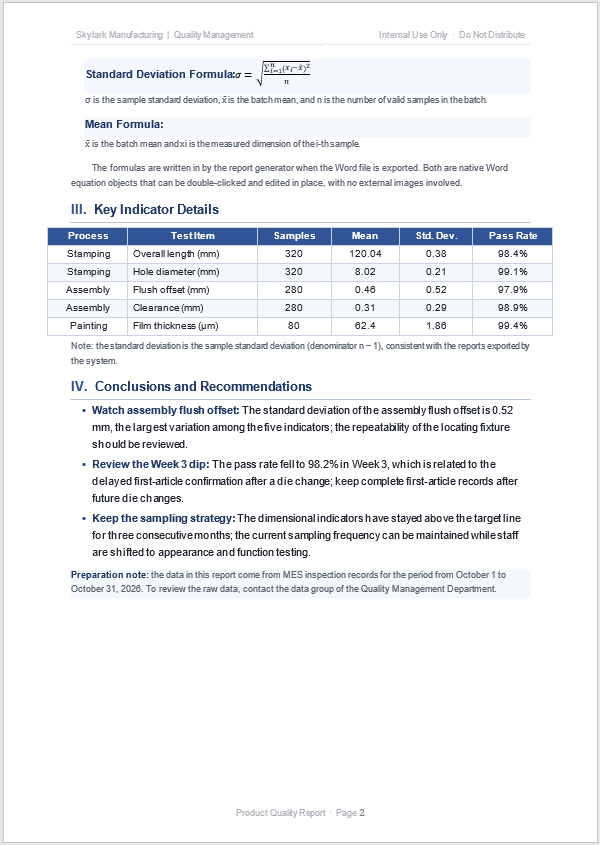
After insertion, the equation appears after "Standard Deviation Formula:", on the same line as the body text, and a double-click puts it into Word's equation editing state:
Backslash Escaping
LaTeX commands begin with a backslash, and a backslash is itself the escape character in a JavaScript string. In an ordinary string literal every backslash has to be written twice: \sigma becomes \\sigma, \frac becomes \\frac, and \bar{x} becomes \\bar{x}.
The omission often raises no error and instead quietly changes the content: \f is a form feed, \b is a backspace, \t is a tab and \n is a newline. '\frac{a}{b}' actually produces "form feed + rac{a}{b}", leaving the equation incomplete or distorted.
To avoid counting backslashes layer by layer, use String.raw to keep the original characters:
const latex = String.raw`\sigma = \sqrt{\frac{\sum_{i=1}^{n}(x_i - \bar{x})^2}{n}}`;
math.FromLatexMathCode(latex);
String.raw only changes how backslashes are handled; the equation content is exactly the same as above. The ${ in a template literal still triggers interpolation, and has to be dealt with separately when it occurs.
The conversion method itself does not check whether the LaTeX is complete. When a bracket is missing or a command is left unclosed, the result may be an empty denominator rather than an exception. When a program assembles equations, checking that brackets and commands are paired before conversion saves a good deal of time.
Mixing Text and Equations in One Paragraph
An equation is a child object of a paragraph, and the position where it is added is the position it occupies in the paragraph. Append the first piece of text, add the equation, and finally append the second piece of text, and the order "text — equation — text" is obtained:
const paragraph = doc.Sections.get_Item(0).AddParagraph();
paragraph.AppendText('The sample standard deviation ');
const math = new docModule.OfficeMath(doc);
math.FromLatexMathCode('\\sigma');
paragraph.ChildObjects.Add(math);
paragraph.AppendText(' measures dimensional variation.');
If the order has to be adjusted, reorganise ChildObjects in the same way. When an equation needs a line of its own, put it in a separate paragraph, and the layout will be more stable.
Why AppendText Does Not Produce an Equation
Whether an equation is rendered as OfficeMath depends on whether it is attached to the paragraph as an OfficeMath object. Hand a LaTeX string straight to AppendText() and ordinary text is written; it looks similar to an equation, but it cannot be edited and does not take part in equation layout.
// This produces text, not an equation
paragraph.AppendText('\\sigma = \\sqrt{x}');

// Create the equation object first, then add it to the paragraph
const math = new docModule.OfficeMath(doc);
math.FromLatexMathCode('\\sigma = \\sqrt{x}');
paragraph.ChildObjects.Add(math);
An OfficeMath that is created but never added to a paragraph through ChildObjects.Add() does not appear in the document either. Checking this step after writing an equation rules out most cases of "the equation has disappeared".
Insert Equations from MathML and OMML
Copying an equation from a web page or exporting it from mathematical software usually yields MathML; extracting one from a Word document yields OMML. Both formats can be written into an equation object directly, without converting them to LaTeX by hand first. The example continues in the document produced in the previous section, writing a mean formula into the line "Mean Formula:".
The specific steps are as follows:
- Load
ReportWithEquation.docxproduced in the previous section. - Walk the body paragraphs and locate the one that contains "Mean Formula:".
- Create an
OfficeMathobject and callFromMathMLCode()orFromOMMLCode()according to the source. - Add the equation to the paragraph through
ChildObjects.Add(). - Save the file and download the result.
The code for inserting equations from MathML and OMML is as follows (MathML first):
// Locate the "Mean Formula:" paragraph first
const body = doc.Sections.get_Item(0).Body;
let paragraph = null;
for (let i = 0; i < body.ChildObjects.Count; i++) {
  const obj = body.ChildObjects.get_Item(i);
  if (obj.DocumentObjectType !== docModule.DocumentObjectType.Paragraph) continue;
  if (String(obj.Text || '').includes('Mean Formula:')) {
    paragraph = obj;
    break;
  }
}

// Write the MathML into the equation object, then append it to the paragraph
const mathML = `
<math xmlns="http://www.w3.org/1998/Math/MathML">
  <mfrac>
    <mrow><mi>a</mi><mo>+</mo><mi>b</mi></mrow>
    <mn>2</mn>
  </mfrac>
</math>`;

const math = new docModule.OfficeMath(doc);
math.FromMathMLCode(mathML);
paragraph.ChildObjects.Add(math);
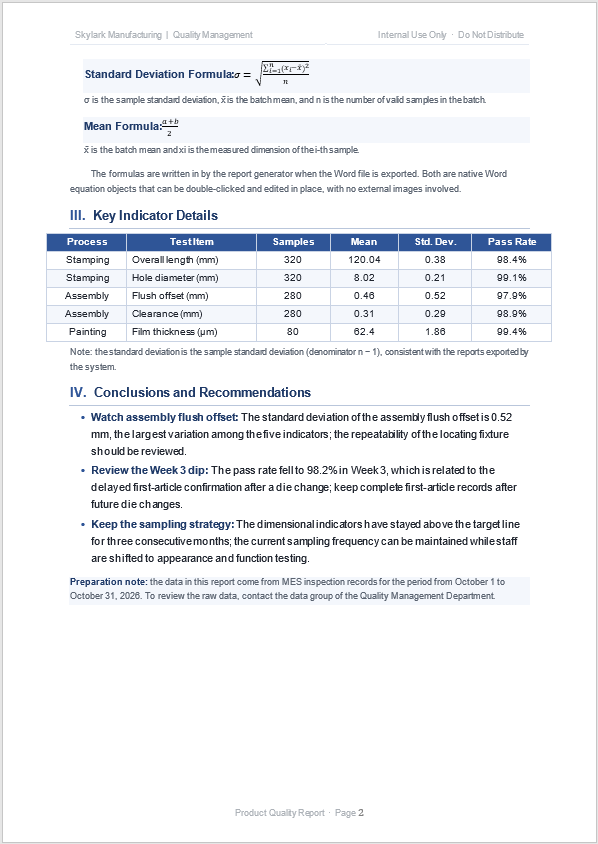
Once written, the fraction is indistinguishable from the one produced from LaTeX; both are native Word objects:
The Root Element and Namespace of a MathML Fragment
A MathML fragment must have <math> as its root element, with <mfrac>, <msqrt>, <mi> and other nodes inside. When selecting and copying from a web page, if only the inner nodes are framed, the fragment has no root, and parsing it often fails to produce the complete equation. After copying, check first that the string begins with <math and ends with </math>, and then hand it to FromMathMLCode().
The xmlns declaration on <math> is best kept as well. Fragments from different sources vary considerably in how the namespace is written, and keeping the original declaration reduces parsing differences; at the same time, MathML describes the structure of an equation, so styles such as font size and colour on the web page generally do not enter the document, and the equation has to be re-formatted with Word's body settings.
Where OMML Comes From
OMML is the internal format Word uses to store equations, and it is not usually written by hand. When an existing equation has to be reused, there are two routes: extract the <m:oMath> node from the XML of a docx, or generate an equation with FromLatexMathCode() first and take it out again with ToOfficeMathMLCode().
The OMML obtained can be handed back to FromOMMLCode() to produce the same equation in another position:
// Generate an equation and take out its OMML
const source = new docModule.OfficeMath(doc);
source.FromLatexMathCode('E = mc^2');
const omml = source.ToOfficeMathMLCode();

// Reuse this OMML in another paragraph
const copy = new docModule.OfficeMath(doc);
copy.FromOMMLCode(omml);
const target = doc.Sections.get_Item(0).AddParagraph();
target.AppendText('Mass-energy equivalence: ');
target.ChildObjects.Add(copy);
An OMML string carries its own m: and w: namespace declarations; pass it on as a whole and do not cut out only the inner nodes of <m:oMath>.
Read and Export Equations
Archiving equations, migrating content or building a search index all require turning the equations already in a Word document back into text. Reading follows the order "section → body → paragraph → child object": find the child objects whose type is OfficeMath, then call the corresponding conversion method.
The specific steps are as follows:
- Load
ReportWithMathML.docx, which contains the equations. - Walk the paragraphs of the body, section by section.
- Test the paragraph child objects for
DocumentObjectType.OfficeMath. - Call
ToLaTexMathCode(),ToMathMLCode()orToOfficeMathMLCode()and collect the results. - Serialize the results as JSON and trigger a browser download.
The code for reading and exporting equations is as follows:
const formulas = [];

for (let s = 0; s < doc.Sections.Count; s++) {
  const section = doc.Sections.get_Item(s);
  for (let i = 0; i < section.Body.ChildObjects.Count; i++) {
    const obj = section.Body.ChildObjects.get_Item(i);
    if (obj.DocumentObjectType !== docModule.DocumentObjectType.Paragraph) continue;

    for (let k = 0; k < obj.ChildObjects.Count; k++) {
      const child = obj.ChildObjects.get_Item(k);
      if (child.DocumentObjectType !== docModule.DocumentObjectType.OfficeMath) continue;

      formulas.push({
        latex: child.ToLaTexMathCode(),
        mathml: child.ToMathMLCode(),
      });
    }
  }
}

const json = JSON.stringify(formulas, null, 2);
const blob = new Blob([json], { type: 'application/json' });
const url = URL.createObjectURL(blob);
const a = document.createElement('a');
a.href = url;
a.download = 'Formulas.json';
a.click();
URL.revokeObjectURL(url);
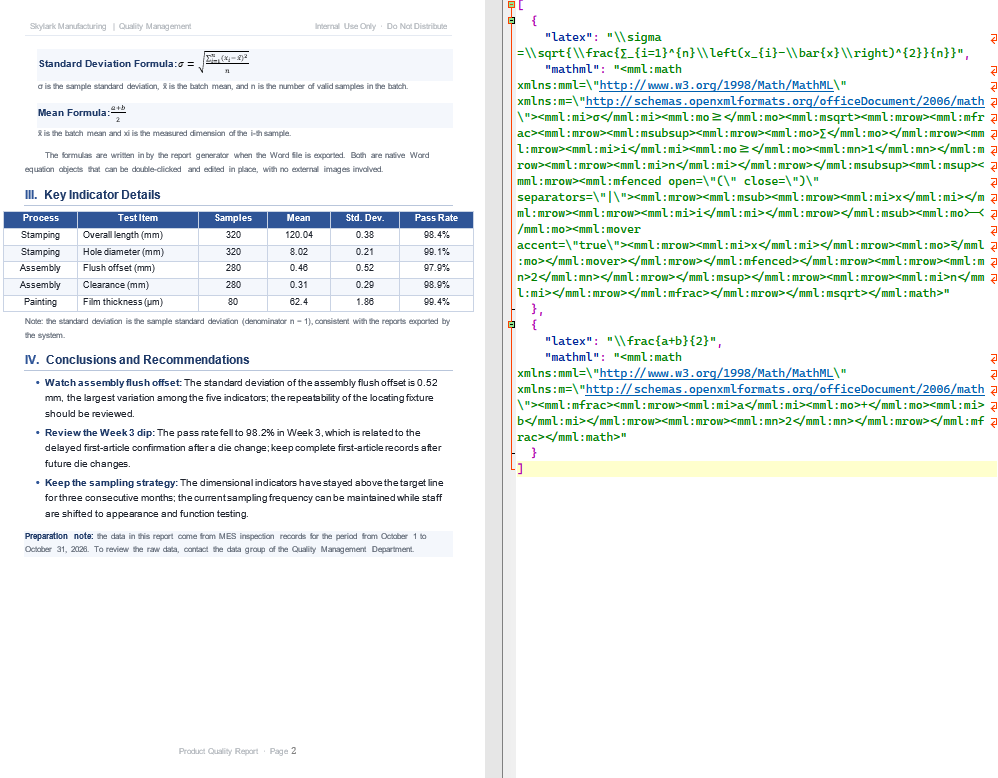
The sample document contains two equations, and the export result holds one record per equation:
What the Three Text Formats Are For
| Method | Output | Suitable use |
|---|---|---|
ToLaTexMathCode() |
A LaTeX string | Archiving, migration to another typesetting system |
ToMathMLCode() |
A MathML string | Cross-platform exchange, display on the web |
ToOfficeMathMLCode() |
An OMML string | Writing back into a Word document as-is |
All three methods only read; none of them modifies the original document. When the appearance of the equation has to be kept, save the original docx first; the exported text is better suited to indexing, backup or as an intermediate result for conversion.
Exported LaTeX Is Not Exactly What Was Written
The conversion passes through the OMML layer, so the LaTeX it outputs is a normalized form and is not necessarily identical to the input character by character. For example, the input:
'\\sigma = \\sqrt{\\frac{\\sum_{i=1}^{n}(x_i - \\bar{x})^2}{n}}'
comes back as:
\sigma =\sqrt{\frac{∑_{i=1}^{n}\left(x_{i}-\bar{x}\right)^{2}}{n}}
The summation symbol, the brackets and the braces are all written differently, while the meaning of the equation is unchanged. If a downstream system compares equations as strings, normalize the format before comparing, or switch to MathML / OMML as the exchange format, and the result will be more stable.
The Three Features Side by Side
| Task | Main method | Key point |
|---|---|---|
| Insert an equation from LaTeX | FromLatexMathCode() |
Backslashes need escaping |
| Insert an equation from MathML | FromMathMLCode() |
Keep the <math> root element |
| Insert an equation from OMML | FromOMMLCode() |
Comes from Word's internal format |
| Read and export equations | ToLaTexMathCode() and others |
Output is in normalized form |
The core of the equation approach is "use a native object, not an image". A native equation can be edited, scales with the font size, and is easy to extract and reuse later; only when an equation needs a fixed appearance and has to be shown outside its source file is it worth saving as an image.
FAQ
Why does an inserted equation show as plain text
Usually the LaTeX string was handed straight to AppendText(), which writes text rather than an equation object. Create an OfficeMath, write the content with FromLatexMathCode(), and add it to the document through the paragraph's ChildObjects.Add(), and it will be rendered as a native equation.
Why do the backslashes in LaTeX disappear
A JavaScript string treats the backslash as an escape character, and \f, \b and \t become control characters such as form feed, backspace and tab. Writing every backslash twice when writing LaTeX, or switching to a String.raw template, avoids this class of problem. Printing the string once before conversion makes it easy to see whether it has been escaped early.
Why does MathML copied from a web page fail to parse into an equation
The common cause is an incomplete fragment: only inner nodes such as <mfrac> were copied and the <math> root element is missing. Use a complete fragment that includes the root element, keep the original xmlns declaration, and the parse succeeds more often. If the fragment comes from a rich-text editor, also check that the tags are closed and the attribute quotes are complete.
Do the examples in this article require uploading the document to a server
No. Spire.Doc for JavaScript runs in the browser on WebAssembly, and the document is read and written locally through a virtual file system (VFS); insertion, saving and reading all happen locally, and the library itself does not send the file to a server. Whether the file leaves the device in the end depends on the other code you connect on the page.
Can several equations be inserted or exported at once
Yes. When inserting, create one OfficeMath object per equation and add each to its target paragraph; when exporting, walk every paragraph and child object and accumulate the results in an array. In a document with many equations, locate them by paragraph text or by order so that more than the first occurrence gets handled.
Get a Free License
Spire.Doc for JavaScript offers a 30-day full-featured free trial license with no functional limitations. Apply here to evaluate before purchasing.
