Document processing is an essential feature in many modern web applications, enabling tasks such as report generation and data management. Node.js, known for its non-blocking I/O model and extensive ecosystem, provides a powerful platform for backend development. By integrating Spire.Doc for JavaScript, you can streamline the creation and manipulation of Word documents effortlessly.
This guide will take you through the steps to integrate Spire.Doc for JavaScript into your Node.js projects, from initial setup to a basic usage example.
- Benefits of Using Spire.Doc for JavaScript in Node.js Projects
- Set Up Your Environment
- Integrate Spire.Doc for JavaScript in Your Project
- Create and Save Word Files Using JavaScript
Benefits of Using Spire.Doc for JavaScript in Node.js Projects
Node.js is a powerful runtime environment that allows developers to build scalable network applications using JavaScript. Spire.Doc for JavaScript, on the other hand, is a versatile library designed to manipulate Word documents within JavaScript environments. It provides a wide range of features, including document creation, editing, conversion, and more, making it a valuable tool for developers working with document-based applications.
Integrating Spire.Doc for JavaScript into your Node.js project offers numerous benefits, including:
- Efficient Document Management: Easily create, edit, and manage Word documents without the need for Microsoft Word.
- Scalability: Leverage Node.js's non-blocking I/O model to handle large volumes of document processing tasks efficiently.
- Cross-Platform Compatibility: Use Spire.Doc for JavaScript across various platforms, including Windows, macOS, and Linux.
- Ease of Integration: Seamlessly integrate Spire.Doc for JavaScript with other Node.js libraries and tools.
These benefits make Spire.Doc for JavaScript an ideal choice for developers looking to enhance their Node.js projects with robust document processing capabilities.
Set Up Your Environment
Step 1
Download and install Node.js from the official website. Make sure to choose the version that matches your operating system.
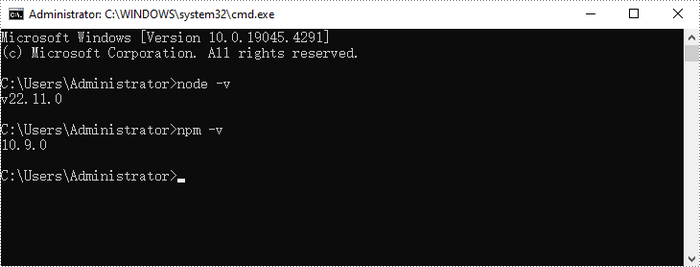
After the installation is complete, you can verify that Node.js and npm are installed correctly, along with the version numbers, by entering the following commands in CMD:
node -v
npm -v
Step 2
Initialize a Node.js project:
npm init -yInstallation dependencies:
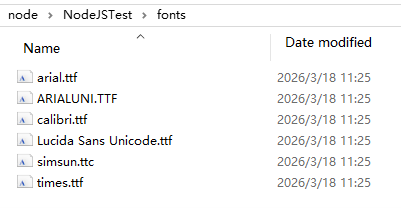
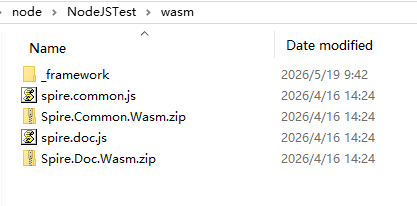
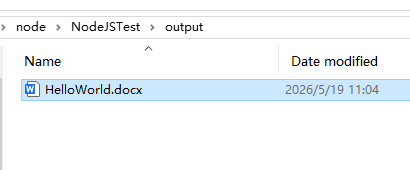
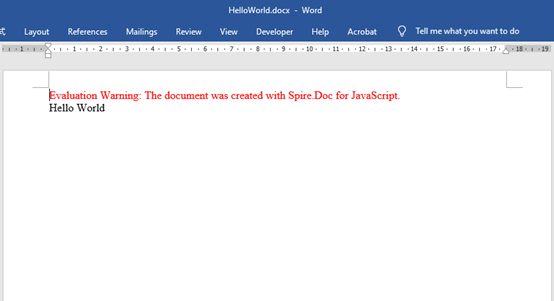
npm install adm-zip@^0.5.16 Configure packaging.json: Customize folder in the root directory to put some font files, you can customize and add fonts based on the font used in your documents. Download Spire.Doc for JavaScript from our website and unzip it to a location on your disk. The downloaded product package integrates Spire.Doc for JavaScript, Spire.XLS for JavaScript, Spire.PDF for JavaScript, and Spire.Presentation for JavaScript. To use the features of Spire.Doc for JavaScript, customize the folder in the root directory, this tutorial defined the 'wasm' folder, and copy the corresponding files (spire.doc.js, Spire.Doc.Wasm.zip, spire.common.js, Spire.Common.Wasm.zip, and the _framework folder) to the “wasm” folder. Add the 'index.js' file to the root directory of the project and set the following content to create a simple Word file Here is the entire JavaScript code: Using “npm start” run the program, you will find the generated Word file in the designated file path. If you'd like to remove the evaluation message from the generated documents, or to get rid of the function limitations, please request a 30-day trial license for yourself.
{
"name": "nodejstest",
"version": "1.0.0",
"description": "Simple test project to generate HelloWorld.docx using spire.doc.js",
"main": "index.js",
"type": "module",
"scripts": {
"start": "node --experimental-modules --experimental-wasm-modules --experimental-vm-modules index.js"
},
"dependencies": {
"adm-zip": "^0.5.16"
}
}
Integrate Spire.Doc for JavaScript in Your Project
//NodeJSTest----create "HelloWorld.docx"
import fs from 'fs/promises';
import path from 'path';
import { fileURLToPath } from 'url';
import AdmZip from 'adm-zip';
const __filename = fileURLToPath(import.meta.url);
const __dirname = path.dirname(__filename);
async function extractWasmFiles() {
const wasmDir = path.join(__dirname, 'wasm');
const frameworkDir = path.join(wasmDir, '_framework');
await fs.mkdir(frameworkDir, { recursive: true });
for (const zipName of ['Spire.Common.Wasm.zip', 'Spire.Doc.Wasm.zip']) {
const zipPath = path.join(wasmDir, zipName);
try {
await fs.access(zipPath);
new AdmZip(zipPath).extractAllTo(wasmDir, true);
} catch {}
}
}
async function main() {
try {
await extractWasmFiles();
const { spiredoc } = await import('./wasm/spire.doc.js');
const spire = globalThis.spire;
if (!spire) throw new Error('WASM module not loaded correctly');
const outputDir = path.join(__dirname, 'output');
await fs.mkdir(outputDir, { recursive: true });
const fontsPath = path.join(__dirname, 'fonts');
try {
await fs.access(fontsPath);
spire.copyLocalPathToVFS(fontsPath, '/Library/Fonts/');
} catch {}
const document = new spiredoc.Document();
document.AddSection().AddParagraph().AppendText('Hello World');
const outputFileName = 'HelloWorld2.docx';
document.SaveToFile({ fileName: outputFileName, fileFormat: spiredoc.FileFormat.Docx2013 });
const outputFile = path.join(outputDir, outputFileName);
spire.copyFileFromFSToLocalStorage(outputFileName, outputFile);
document.Dispose();
console.log(`Document saved to ${outputFile}`);
} catch (error) {
console.error(error);
process.exit(1);
}
}
main();
Apply for a Temporary License
