
Excel comments are useful for adding notes, sharing feedback, and explaining cell data. However, outdated or unnecessary comments can clutter a worksheet and expose information you no longer want to share. If you need to remove comments from Excel, you can use built-in features to delete them manually or automate the process with Python. This guide covers both methods, from removing a comment from a single cell to clearing all comments across an entire workbook.
Method 1: Remove Comments from Excel Using Built-in Features
Excel provides several ways to remove comments, depending on how many cells you want to clean up. You can delete a comment individually, remove comments from selected cells, or clear all comments from a worksheet.
1.1 Delete a Comment from a Single Cell
If you only need to remove one comment, you can delete it directly from the cell that contains it.
- Step 1. Open the worksheet and locate the cell with the comment you want to remove.
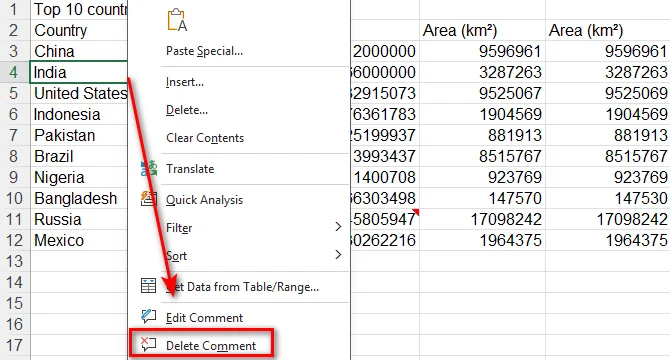
- Step 2. Right-click the cell and select Delete Comment or Delete Note, depending on your Excel version.
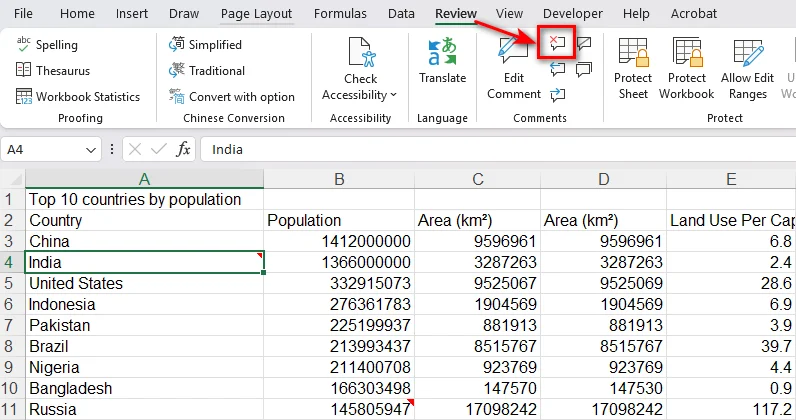
Alternatively, select the cell, go to the Review tab, and click Delete in the Comments group.
You may like: How to Add a Comment in Excel: From Manual to Automation
1.2 Remove Comments from Multiple Cells
When comments are scattered across several cells, you can select those cells together and delete their comments in one operation. This works for both adjacent and non-adjacent cells.
-
Step 1. Select the cells containing the comments you want to remove.
- For adjacent cells, click and drag to select the range.
- For non-adjacent cells, hold down Ctrl and click each cell.
-
Step 2. Open the Review tab and click Delete in the Comments group.
1.3 Clear All Comments in an Excel Worksheet
When you no longer need the comments in a worksheet, you can remove them all at once instead of deleting them individually. Excel provides two ways to do this: select the entire worksheet or use Go To Special to locate cells containing notes.
Option A. Select the Entire Worksheet
- Step 1. Open the worksheet you want to clean up. Click the triangle in the upper-left corner, where the row numbers and column letters meet, to select the entire worksheet.
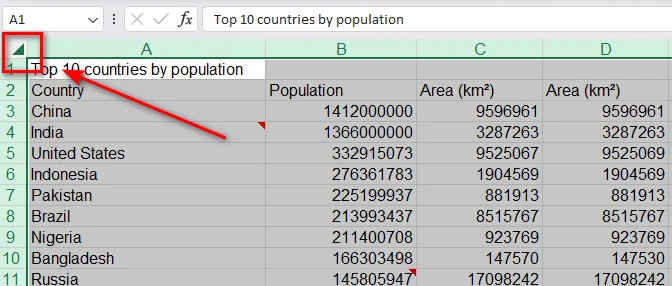
- Step 2. Go to the Review tab and click Delete in the Comments group.
Option B. Select Only Cells Containing Notes
If you're concerned about accidentally affecting other cells when selecting the entire worksheet, you can use Go To Special to find only the cells containing comments.
- Step 1. Press Ctrl + G to open the Go To dialog box.
- Step 2. Click Special.
- Step 3. Select Comments and click OK.
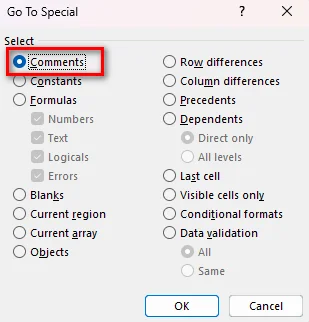
- Step 4. Go to the Review tab and click Delete.
Method 2: Remove Comments from Excel Using Python
Removing comments manually works well for individual cells or worksheets. However, when a workbook contains many worksheets, repeating the same steps is time-consuming. A Python script can automate this process, allowing you to remove comments from specific cells, individual worksheets, or an entire workbook in one go.
Free Spire.XLS for Python is a free Python library for working with Excel files. It provides APIs for accessing workbooks, worksheets, cells, and comments, making it possible to remove comments programmatically without installing Microsoft Excel. The following examples demonstrate how to use it for different comment-removal tasks.
2.1 Install Spire.XLS for Python
To get started, install Free Spire.XLS for Python using pip:
pip install Spire.Xls.Free
Or, you can download the package and install it manually. With the library installed, you can load an Excel workbook and start modifying its comments.
2.2 Remove a Comment from a Specific Cell
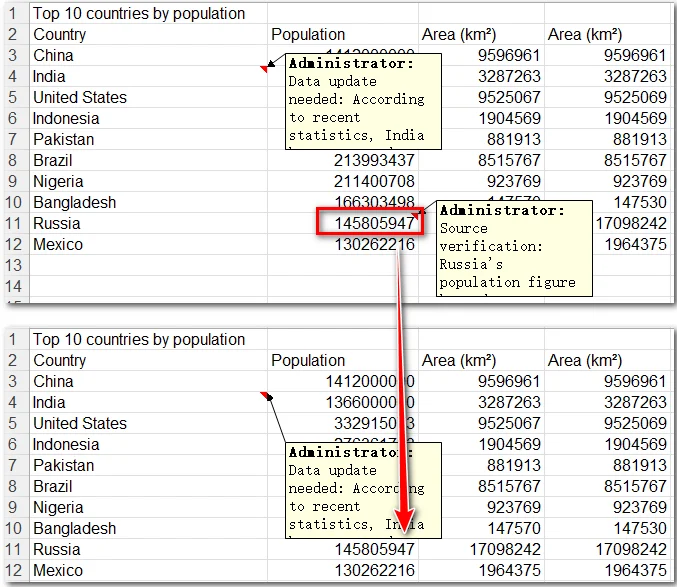
To remove a comment from a specific cell using Free Spire.XLS, you need to load the workbook, get the target worksheet and the target cell, then call the Comment.Remove() method on the cell's comment object.
Here is the complete Python code, and the script will delete the comment on B11 in the 3rd worksheet:
from spire.xls import *
from spire.xls.common import *

# Create a Workbook object
workbook = Workbook()

# Load the Excel file
workbook.LoadFromFile("Sample.xlsx")

# Get the 3rd worksheet
sheet = workbook.Worksheets[2]

# Remove the comment from cell B11
sheet.Range["B11"].Comment.Remove()

# Save the modified workbook
workbook.SaveToFile("removeacomment.xlsx", ExcelVersion.Version2013)

# Release resources
workbook.Dispose()
2.3 Remove All Comments from a Worksheet
To remove all comments from an Excel worksheet, you don't need to locate each cell individually. Free Spire.XLS provides the Worksheet.Comments collection, which can access all comments on the worksheet. You can iterate through this collection and call Remove() on each comment. But to avoid modifying the collection while iterating over it, first convert it to a list.
comments = list(sheet.Comments)
for comment in comments:
    comment.Remove()
Tip: The Worksheet.Comments collection also provides access to individual comment objects and their details, such as the comment text, author, and cell position. This is useful when you need to read or extract comment information before removing it.
2.4 Remove All Comments from an Excel Workbook
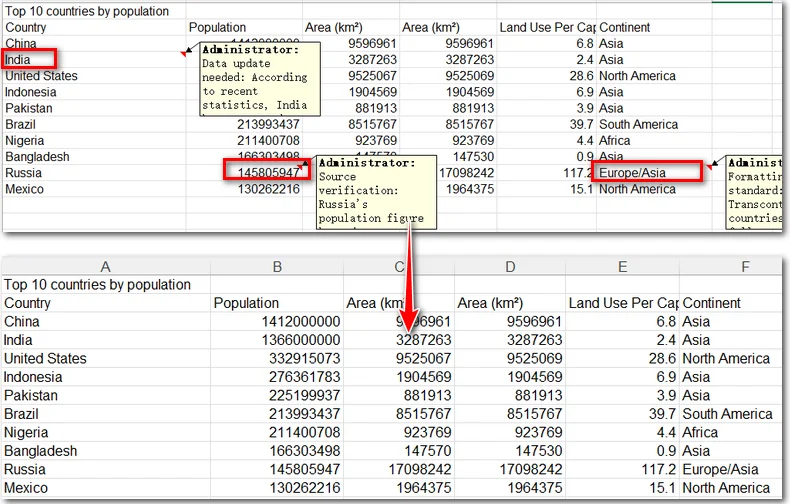
In the previous example, we used a loop to remove all comments from a single worksheet. To extend this operation to an entire Excel workbook, you can add another loop to iterate through all worksheets in the workbook. For each worksheet, access its Comments collection and remove the comments one by one.
Here is the complete code example:
from spire.xls import *
from spire.xls.common import *

# Create a Workbook object
workbook = Workbook()

# Load the Excel file
workbook.LoadFromFile("Sample.xlsx")

# Iterate through all worksheets
for sheet in workbook.Worksheets:

    # Get all comments in the current worksheet
    comments = list(sheet.Comments)

    # Remove each comment
    for comment in comments:
        comment.Remove()

# Save the workbook
workbook.SaveToFile("RemoveAllComments.xlsx", ExcelVersion.Version2013)

# Release resources
workbook.Dispose()
Conclusion
Whether you need to remove a few unwanted comments or clean up an entire Excel workbook, you don't have to delete them one by one. Excel's built-in tools are sufficient for occasional cleanup, while Free Spire.XLS for Python makes it easier to automate the process across multiple worksheets. If you regularly work with large Excel files, try using Python to simplify comment management and reduce repetitive work. You can also explore other Free Spire.XLS features to automate more Excel tasks.
FAQs
How Do I Quickly Delete All Comments in Excel?
Select the entire worksheet, then go to Review and click Delete in the Comments group. Repeat these steps for other sheets or use Free Spire.XLS to automate the process across a workbook.
Can I Remove Comments Without Deleting Cell Contents?
Yes. Use Delete Comment, not Clear Contents. You can also call Comment.Remove() in Free Spire.XLS for Python. Both methods preserve the cell's data and formatting.
What Is the Shortcut to Delete a Comment in Excel?
Excel has no universal keyboard shortcut for deleting a comment. On Windows, press Alt to display the ribbon key tips, then follow the on-screen letters to access the Review tab and Delete command.
What Is the Difference Between Comments and Notes in Excel?
In newer Excel versions, comments support threaded conversations and replies, while notes are traditional annotations attached to cells. The two have separate management options, so make sure you select the right type when deleting them.