On Monday, you need to load a spreadsheet into a DataFrame. By Wednesday, a client has sent a workbook template that must be updated without losing its charts. By Friday, the finance team needs the report exported to PDF, while the original workbook must remain password-protected. Choosing the best Excel library for Python means matching the library to these different jobs. A poor choice may not become apparent until later: charts disappear after saving, formulas have no usable calculated results, or a binary .xlsb workbook cannot be read by the library you selected.
To help developers make the right choice, we tested four libraries using shared test fixtures and a common 50,000-row dataset: pandas 3.1.0, openpyxl 3.1.5, XlsxWriter 3.3.1, and Spire.XLS for Python 16.8.2 (commercial). We evaluated file format support, workbook editing and preservation, formula handling, PDF and HTML conversion, workbook encryption, performance, memory use, installation requirements, and licensing. The results show what each library does well, where its limitations lie, and which option may be the best fit for different projects. This comparison focuses on three open-source libraries and one commercial SDK; other commercial solutions are outside its scope.
Which Python Excel Library Should You Choose?
Each of the three open-source libraries does one job very well, and Spire.XLS covers projects where those jobs have to run together. The table below gives the short version. The sections after it explain the reasoning and show the test data.
| Library | Best for | Long-term consideration |
|---|---|---|
| pandas | Data analysis | Requires other tools for workbook-level operations |
| openpyxl | Editing XLSX templates | No built-in formula calculation engine |
| XlsxWriter | Creating formatted reports | Cannot reopen existing workbooks |
| Spire.XLS | Multi-step Excel processing | Commercial license with vendor support and update options |
If you only need to read data into a DataFrame, pandas with the calamine engine is enough, and you can stop reading here. If your project is growing toward automation, see our guide to automating Excel writing in Python.
What Open-Source Python Excel Libraries Do Best
pandas, openpyxl and XlsxWriter are complementary rather than interchangeable. Each one wins at a single task, and that is why many projects end up using two or three of them side by side.
pandas: reading and analyzing tabular data
pandas turns a worksheet into a DataFrame, which is the right shape for analysis. With the calamine engine it reads .xlsx, .xlsb, .ods and .xls files, and it was the fastest reader in our test: 294 ms for 50,000 rows × 6 columns (median of five runs). Formatting is possible through Styler with jinja2, which fills and bolds cells as expected. In pandas 3.1, our number-format attempts did not take effect, and the cells stayed at General.
The boundary is conceptual. A DataFrame is not a workbook. Writing one back with to_excel rebuilds the file, so charts, images and pivot tables are not carried over. Formulas can be written but are not calculated. For more on reading, see reading Excel files in Python and the pandas Excel I/O documentation.
openpyxl: editing existing .xlsx and .xlsm files
openpyxl loads a workbook, lets you change it, and saves it. In our test workbook, a round trip kept charts, images, conditional formatting, data validation, merged cells, freeze panes, filters and pivot table parts, and Excel 16.0 opened the result without errors. It is a result for our fixtures, not a promise for every DrawingML shape or VBA project.
Its limits are specific. It supports four OOXML formats (.xlsx, .xlsm, .xltx, .xltm). It has no calculation engine, so formulas stay uncalculated. It cannot open password-protected files without an external tool such as msoffcrypto. Pivot tables can be preserved, but creating one means assembling the cache and definition by hand through the low-level add_pivot call. Its write_only mode used the least memory of any writer we tested, 79.4 MB. Documentation: openpyxl.
XlsxWriter: generating new reports
XlsxWriter writes new .xlsx files and writes them well. It supports formats, charts, images, conditional formatting, data validation and formulas with cached values. It was the fastest writer in our test at 1.74 s for 50,000 rows, ahead of every other method in this test, including pandas and openpyxl.
It cannot read or modify an existing file. It has no pivot table creation, no encryption and no .xlsb or .ods output. Documentation: XlsxWriter.
When Basic Excel Libraries Are Not Enough
Open-source libraries stop being enough when a task crosses the boundary between their specialties. Five situations show up repeatedly.
- Several file formats in one pipeline. pandas can read xls, xlsb and ods, but it returns a DataFrame and cannot save the edited workbook back in the same form. openpyxl and XlsxWriter do not handle those formats at all.
- Formulas that must be recalculated after an edit. openpyxl keeps formulas but cannot evaluate them. pandas writes formulas without results, and the cached value depends on the engine underneath: an empty value with openpyxl, a placeholder 0 with xlsxwriter. Excel recalculates on open, but any other reader sees nothing useful.
- Pivot tables and other complex objects. openpyxl can keep an existing pivot table but offers no high-level way to create one. XlsxWriter and pandas offer none.
- PDF, HTML or image output. Converting a worksheet to a paginated PDF needs an additional library, and you own the page layout, scaling and pagination.
- Password protection. None of the three open-source libraries can write a workbook that requires a password to open.
None of this makes the open-source tools a poor choice. The project simply grew past what a single-purpose tool covers, and the cost moves into glue code: format conversions, file handoffs between libraries, and separate dependency upgrades. Every extra tool adds its own dependency, its own exceptions and its own way of passing files along. For text-heavy pipelines that also parse PDFs, the same logic applies to document processing in Python.
What You Can Do with Spire.XLS for Python
Spire.XLS for Python is a commercial library that handles reading, editing, calculating, converting and protecting Excel files through one workbook object model. It does not need Microsoft Office installed. Here is what that covers in practice, with the boundaries stated.
Reading and writing multiple Excel formats
LoadFromFile opens .xls, .xlsx, .xlsm, .xlsb and .ods files, and SaveToFile writes to xlsx, xls, xlsb, xlsm, ods, csv, pdf, html and png. CSV is loaded with a delimiter argument, such as LoadFromFile("data.csv", ","). A typical case is an upstream system that exports .xlsb while the downstream consumer expects .xlsx or PDF.
from spire.xls import *

wb = Workbook()
wb.LoadFromFile("upstream.xlsb")
wb.SaveToFile("converted.xlsx", ExcelVersion.Version2016)
One compatibility note: in our test, Excel 16.0 opened the .xlsb and .ods files Spire.XLS produced, while pandas readers (pyxlsb and calamine) did not open those particular files. Regression-test legacy formats against whichever readers your downstream systems use.
Editing existing workbooks and creating pivot tables
Load a workbook, change it, save it. In our test workbook, charts, images, conditional formatting, data validation, merged cells, freeze panes, filters and pivot tables all survived the round trip, with no errors when Excel opened the file. Complex DrawingML shapes should still be checked against your real files.
Creating a pivot table takes two calls:
sheet = wb.Worksheets[0]
cache = wb.PivotCaches.Add(sheet.Range["A1:F20"])
pivot = sheet.PivotTables.Add("SalesPivot", sheet.Range["H3"], cache)
The source range must start with a header row, and these calls create the pivot table shell; row and value fields are configured afterwards. See create or operate pivot tables in Excel for the field configuration. In our test, Excel opened the resulting file and counted one pivot table.
Recalculating formulas and cached values
Three terms matter here: the formula, its cached result, and recalculation. A file with a formula but no cached result looks empty to any reader that does not calculate. Spire.XLS includes a calculation engine, so calling CalculateAllValue() computes the results before you save, and other tools reading the file can see them.
wb.LoadFromFile("model.xlsx")
wb.CalculateAllValue()
wb.SaveToFile("model_calculated.xlsx", ExcelVersion.Version2016)
openpyxl and pandas cannot do this step. XlsxWriter can store a cached value, but only if you supply the number yourself. For formula syntax and cell-level examples, see add or read formulas in Excel.
Converting Excel to PDF, HTML and images
For PDF, set the page layout first. With landscape orientation and fit-to-page scaling, our test chart fit on the page instead of being cut off.
sheet = wb.Worksheets[0]
sheet.PageSetup.Orientation = PageOrientationType.Landscape
sheet.PageSetup.FitToPagesWide = 1
sheet.PageSetup.FitToPagesTall = 1
wb.SaveToFile("report.pdf", FileFormat.PDF)
HTML output defaults to a frameset with a folder of assets. Setting HTMLOptions.ImageEmbedded = True produces a single self-contained file (61 KB in our test, with two images embedded as base64). Image export is available through ToImage. See our guide to converting Excel to PDF in Python for layout details. Trial-edition limits are covered in the licensing section below.
Protecting Excel workbooks with passwords
Protect("password") sets an open password. In our test the saved file became an encrypted container that could not be opened without the password, and Spire.XLS could reopen it when given the password. This suits report delivery and compliance cases. Permission-level protections, such as locking particular sheets, are configured separately; follow the official documentation for those. Note that in the two-string overload, the second argument of SaveToFile is a CSV delimiter, not a password.
Building a Multi-Step Excel Processing Workflow
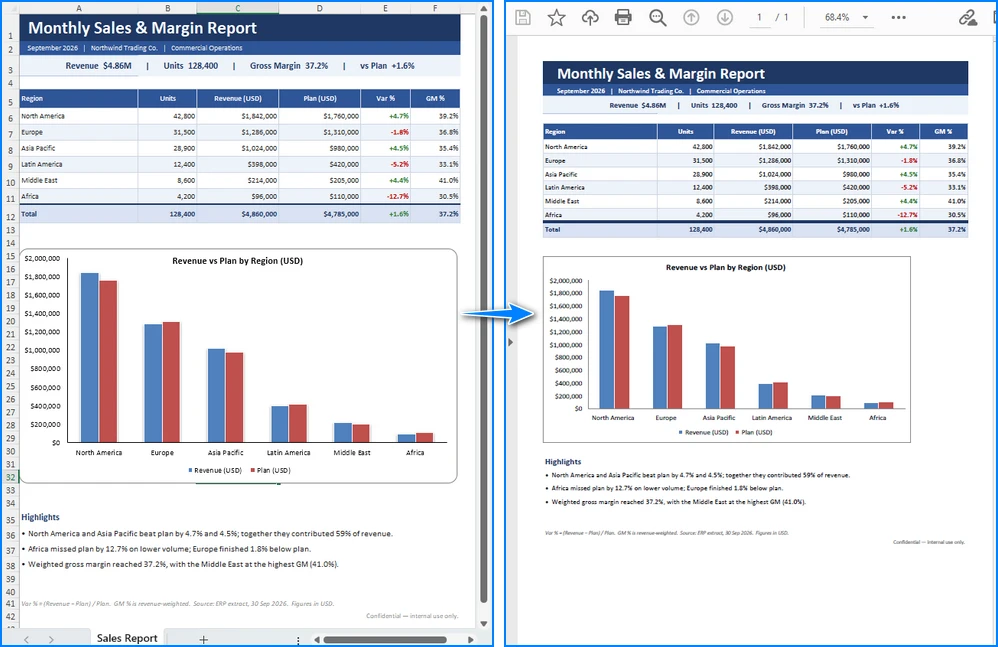
A monthly reporting service shows the difference clearly. The job: read an upstream .xlsb file, update its input figures, recalculate the formulas, produce a PDF, encrypt the Excel copy, and save it as .xlsx.
| pandas + openpyxl + 2 other tools | XlsxWriter | Spire.XLS | |
|---|---|---|---|
| Read .xlsb | ✅ (data only) | ❌ | ✅ |
| Keep workbook objects | No (on the xlsb path) | ❌ | ✅ |
| Recalculate formulas | ❌ | ❌ | ✅ |
| Export PDF | Needs extra library | Needs extra library | ✅ |
| Encrypt | Needs extra library | ❌ | ✅ |
| Dependencies for the job | 4 or more | 1 (writing only) | 1 |
The open-source route works, but it spreads the job across at least four tools: one to read the binary format, one to edit, one to render a PDF and one to encrypt, plus a converter if you need to keep workbook objects. Every handoff is a file written by one library and reread by another. With Spire.XLS the same steps run on one workbook object:
from spire.xls import *

wb = Workbook()
wb.LoadFromFile("monthly_input.xlsb")        # 1. read legacy format

sheet = wb.Worksheets[0]
sheet.Range["B2"].NumberValue = 125000        # 2. update an input value

wb.CalculateAllValue()                        # 3. recalculate formulas

sheet.PageSetup.Orientation = PageOrientationType.Landscape
sheet.PageSetup.FitToPagesWide = 1
sheet.PageSetup.FitToPagesTall = 1
wb.SaveToFile("monthly_report.pdf", FileFormat.PDF)   # 4. PDF

wb.Protect("s3cret")                          # 5. encrypt
wb.SaveToFile("monthly_report.xlsx", ExcelVersion.Version2016)
wb.Dispose()
Total development and maintenance cost
We did not measure time saved, and this article does not claim a number. The difference we can describe is complexity: how many steps, dependencies and interfaces the job involves.
| Dimension | Open-source combination | Spire.XLS |
|---|---|---|
| Integration | Data handoffs and format conversions between tools | One workbook API |
| Maintenance | Several components to upgrade and keep compatible | One product version line |
| Troubleshooting | Problems spread across separate projects | One entry point, plus vendor support |
| Support | Community and issue trackers | Official support channels, per license |
The summary is one Excel processing library, not one dependency. Your project will still use other packages. What changes is that the Excel steps share one object model.
Want to test the workflow yourself? Start with Free Spire.XLS for Python for xlsx reading and writing and small reports, or use the trial of Spire.XLS for Python to evaluate the full API.
Performance, Deployment, Support and Maintenance
Performance benchmarks
We ran each operation in its own process with one discarded warm-up run and then five measured runs, reporting the median. The dataset was 50,000 rows × 6 columns on a Windows x64 machine (8 logical cores, 7.8 GB RAM, Python 3.12).
| Task | Method | Median | Peak memory |
|---|---|---|---|
| Read | pandas (calamine) | 294 ms | 108.2 MB |
| Read | Spire.XLS | 1,456 ms | 312.2 MB |
| Read | openpyxl read_only
|
1,704 ms | 43.9 MB |
| Read | pandas (openpyxl engine) | 2,177 ms | 91.9 MB |
| Write | XlsxWriter | 1,744 ms | 118.8 MB |
| Write | pandas → xlsxwriter | 3,477 ms | 118.2 MB |
| Write | openpyxl write_only
|
3,803 ms | 79.4 MB |
| Write | Spire.XLS InsertArray (by column) |
3,987 ms | 325.2 MB |
| Write | pandas → openpyxl | 5,205 ms | 173.6 MB |
XlsxWriter is the fastest writer, pandas with calamine is the fastest reader, and openpyxl's write-only mode uses the least memory. Those specialized tools remain the better choice for raw throughput; Spire.XLS is the option when one workflow needs several Excel jobs. Its read, write and memory figures are in the table above. The reason to pick it is coverage, not throughput. These numbers come from one machine and one workload, so treat them as a reference rather than a ranking.
Deployment and compatibility
None of the four libraries needs Microsoft Office. Excel was installed on our test machine only to open the generated files for validation; no conversion launched an Excel process. All four ran on Python 3.14.6.
| pandas | openpyxl | XlsxWriter | Spire.XLS | |
|---|---|---|---|---|
| Install size | 45 MB (+ numpy 25 MB) | 1.8 MB | 1.6 MB | 70.6 MB |
| Cold import | 788 ms | 524 ms | 230 ms | 1,027 ms |
Spire.XLS is a larger install at 70.6 MB, although the pandas stack is comparable once numpy is included. For container images and cold starts, weigh that against the packages it can replace in a multi-step workflow.
Ongoing updates and product maintenance
The Spire.XLS product team confirms a monthly release cadence for the product line. For the Python package, the PyPI record shows regular releases in 2026: 16.2.0 (5 February), 16.4.0 (8 April), 16.5.0 (7 May), 16.6.0 (18 June), 16.7.1 (17 July) and 16.8.2 (25 August). Version 16.8.2 added support for the TEXTSPLIT formula function and fixed OFD-related issues, according to the official release notes. The Python package follows the same release line; check the release notes for the version you plan to deploy.
Technical support and developer resources
Spire.XLS for Python comes with API documentation, code examples, tutorials, a developer forum and email support. Commercial licenses include one year of free updates and technical support, under the license terms. Response targets depend on the license type. According to the paid-support page for this product, Developer OEM, Site and Small Business licenses list 48 working hours, Site OEM lists 24 working hours, and Gold and Platinum tiers offer 24-hour response with expert support. Confirm the current terms for your license on the support page before you buy.
For production and enterprise deployments, support is part of the selection criteria: a defined escalation path, documented response targets by license tier and prioritized handling on higher tiers. The open-source libraries rely on community forums and issue trackers for the same class of problem.
Beyond API coverage, a commercial library is also a maintenance relationship. Spire.XLS for Python is actively maintained, with regular releases that add functionality and address reported issues. Licensed users receive updates and technical support according to their license terms, and higher support tiers offer faster response targets and prioritized handling.
Free vs. Trial vs. Commercial Spire.XLS
Spire.XLS comes in three forms with different limits. Choose by what you need to verify.
| Edition | Version | Limits | Best for |
|---|---|---|---|
| Free Spire.XLS | 14.12.4 | .xlsx unlimited; .xls limited to 5 sheets × 200 rows; PDF limited to 3 pages; no watermark | Verifying xlsx read/write and small reports |
| Spire.XLS trial | 16.8.2 | Evaluation warning sheet and PDF watermark; non-image conversions limited to the first 10 pages | Evaluating the API and conversions of 10 pages or fewer |
| Commercial | 16.8.2 | None of the limits above (see license agreement) | Production |
In the trial and Free tests, xlsx reading and writing was not limited by rows or sheets. Per the vendor's limitation notes, image export is not affected by the 10-page limit. One practical detail: after the Free edition saves an .xls file, the in-memory workbook is truncated, so reload the source if you need to save both formats.
What does a commercial license provide?
A commercial license adds an update and support relationship on top of the API. It includes:
- one year of free updates
- one year of free technical support
- response times that depend on the license type
- 24-hour response and expert support at the Gold and Platinum tiers
- pre-purchase technical consultation by email and on the forum
Which Python Excel Library Fits Your Project?
Match the library to the number of jobs your pipeline has to do.
- Only reading data: use pandas with calamine.
- Only generating new reports: use XlsxWriter.
- Only editing existing templates: use openpyxl.
- Two or more advanced needs (multiple formats, recalculation, conversion, encryption, pivot tables): consider Spire.XLS, which also brings a maintained release cadence and a vendor support channel.
The rule we use: count the jobs, not the features. One job calls for a specialized tool. Two jobs are the point to start considering an integrated library, and three or more in one pipeline are where it clearly pays for itself. If you are at the boundary, run your real files through both approaches. Remember that fidelity results are specific to the files tested, and complex objects should always be verified on your own workbooks.
Ready to try it on your own files? Download Free Spire.XLS for Python or the trial edition, and read the Spire.XLS for Python documentation to see how the workflow above maps to your project.
Frequently Asked Questions
Which Python library can read and write Excel without Microsoft Office?
All four libraries here work without Office. pandas (via calamine or openpyxl) reads, XlsxWriter writes, openpyxl reads and writes .xlsx/.xlsm, and Spire.XLS reads and writes many formats. In our test, Excel was used only to check output files.
pandas vs openpyxl: which should I use?
Use pandas to load tabular data for analysis, and openpyxl to change a workbook while keeping its structure. pandas rewrites the file when saving, so objects like charts and pivot tables are not retained. openpyxl keeps them in the scenarios we tested.
Can openpyxl edit a workbook without losing charts or pivot tables?
In our test workbook, yes: charts, images, conditional formatting, data validation and pivot table parts were kept and Excel opened the file normally. Shapes beyond our fixtures, and VBA (which needs keep_vba=True), were not covered, so test your own files.
How do I convert Excel to PDF in Python without Excel installed?
Use a library that renders workbooks itself. With Spire.XLS, set landscape orientation and FitToPagesWide/FitToPagesTall, then save with FileFormat.PDF. The trial edition limits PDF output to 10 pages and adds a watermark.
Are these libraries free for commercial use?
pandas, openpyxl and XlsxWriter are open-source. Spire.XLS is a commercial product with a Free edition (xlsx unrestricted; .xls 5 sheets × 200 rows; PDF 3 pages) and a trial edition. Check each license for your use case.
Which library supports .xls, .xlsb and .ods?
pandas with the calamine engine reads all three. openpyxl does not support them, and XlsxWriter only writes .xlsx. Spire.XLS reads and writes xls, xlsb and ods, though you should test its xlsb and ods output against your own downstream readers.
How We Tested
We tested on 2 November 2026 with pandas 3.1.0, openpyxl 3.1.5, XlsxWriter 3.3.1 and Spire.XLS for Python 16.8.2 (trial), plus Free Spire.XLS 14.12.4 for edition limits. Hardware was Windows x64 with 8 logical cores and 7.8 GB RAM. The runtime was Python 3.12.13, with 3.14.6 used to check compatibility.
The feature fixtures were a three-sheet workbook with 20 rows, formulas, charts, images, conditional formatting, data validation, merged cells, freeze panes and filters, plus a separate pivot table fixture. Performance used 50,000 rows × 6 columns (1.18 MB), one discarded warm-up run, five measured runs and the median, with each operation in a separate process. Spire's bulk write is column-oriented, so its benchmark used six InsertArray calls rather than a two-dimensional insert. Microsoft Excel 16.0 was used only to open generated files and count charts and pivot tables.
Not covered: VBA, slicers, Power Query, million-row files, concurrency, and Linux or macOS runs. The benchmark is single-machine and single-workload, with some background CPU load of 12–22%. Maintenance and support details come from official public pages and PyPI records, not from our tests.