A scanned PDF sometimes starts with the last page and ends with the first. This can happen when a stack of paper is fed into a scanner in the wrong order. Instead of scanning everything again, you can reverse the pages in the existing PDF.
Reversing the page order changes the sequence in the saved document. For example, a four-page PDF changes from 1, 2, 3, 4 to 4, 3, 2, 1 , while the content on each page stays in place.
This guide explains four ways to reverse PDF page order: manually in Adobe Acrobat, manually in Preview on Mac, online with PDF24, and automatically using Python.
On this page:
- Reverse PDF Page Order Using Adobe Acrobat
- Reverse PDF Page Order on Mac Using Preview
- Reverse PDF Page Order Online with PDF24
- Reverse PDF Page Order Using Python
- Which Method Should You Choose?
- Frequently Asked Questions
- Conclusion
1. Reverse PDF Page Order Using Adobe Acrobat
If you already use Adobe Acrobat for PDF editing, you can rearrange pages through its Organize Pages tool. This displays the document as page thumbnails that you can drag into a new sequence. For short PDFs, it provides a straightforward way to reverse the order visually.
The workflow below uses manual rearrangement. You will need access to Acrobat’s page organization features; the free desktop Acrobat Reader is not sufficient for this method.
Steps
- Open your PDF in Adobe Acrobat.
- Open All tools and select Organize pages. In older interfaces, look under Tools > Organize Pages.
- Adjust the thumbnail size so that you can identify each page.
- Drag the last page before the first page.
- Move the next-to-last original page immediately after it.
- Continue until the original first page is at the end.
- Save the result under a new filename to keep the original available.
For a four-page document, move original page 4 to the beginning, place original page 3 after it, and then do the same with pages 2 and 1. The final sequence should be 4, 3, 2, 1 .
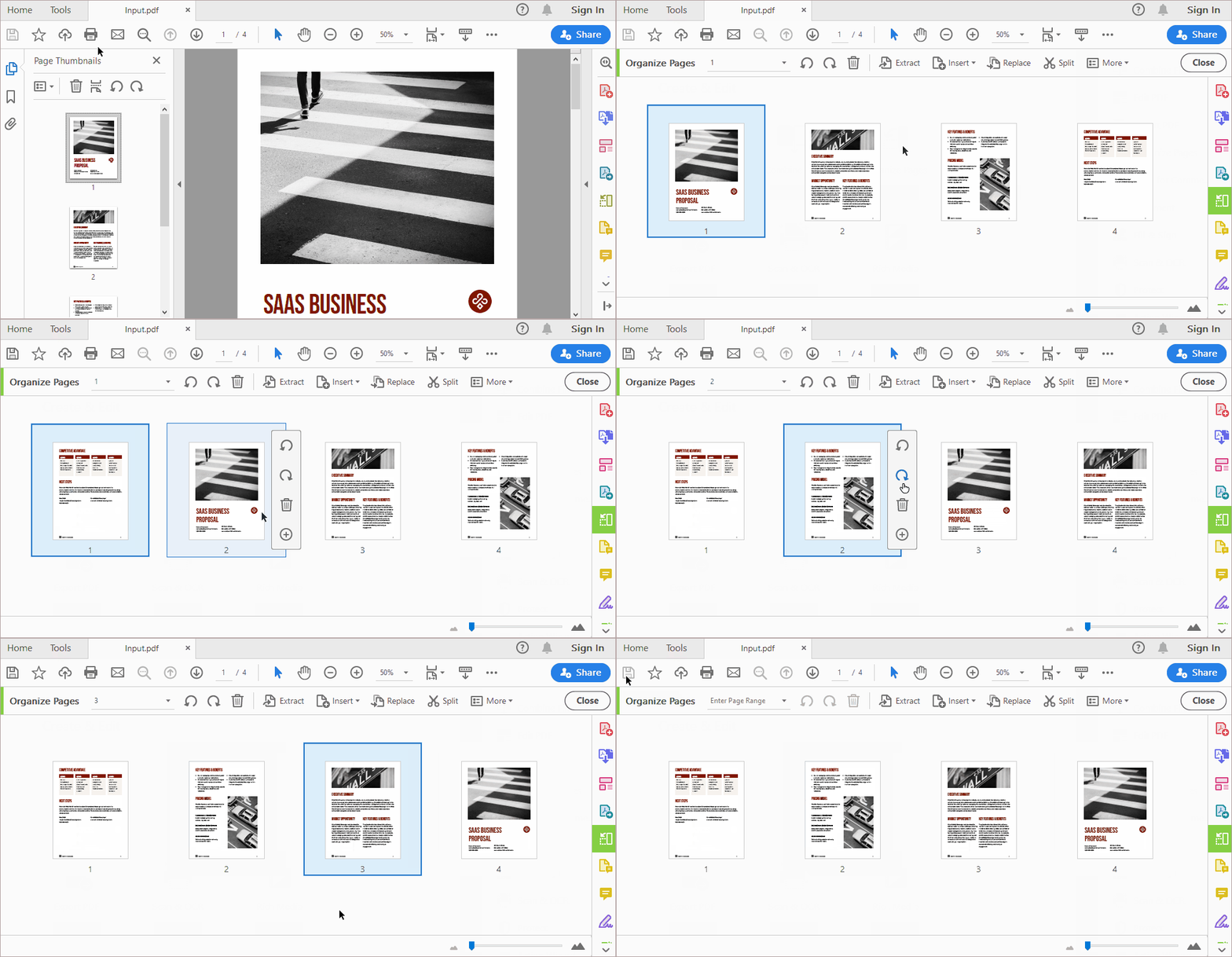
When checking the result, look at the content of each page. Thumbnail position numbers may update as pages move, so they do not necessarily identify the page’s original position.
Manual rearrangement works well for a short document, but moving dozens of pages individually can become time-consuming. For longer files, consider an automatic method below.
2. Reverse PDF Page Order on Mac Using Preview
Mac users can rearrange PDF pages in Preview , the viewer included with macOS. Its thumbnail sidebar lets you move pages within a document without installing a separate PDF editor.
As with the Acrobat workflow above, this method reverses the document through manual page movements.
Steps
- Make a copy of the PDF in Finder and open the copy in Preview. Working on a copy protects the original from automatic saving.
- Choose View > Thumbnails to display the pages in the sidebar.
- Drag the last page thumbnail above the first page.
- Drag the next-to-last original page directly below the page you just moved.
- Continue until all pages are in reverse order.
- Choose File > Save , then reopen the file to confirm the sequence.
For the same four-page example, the sidebar should show the original pages in the order 4, 3, 2, 1 .
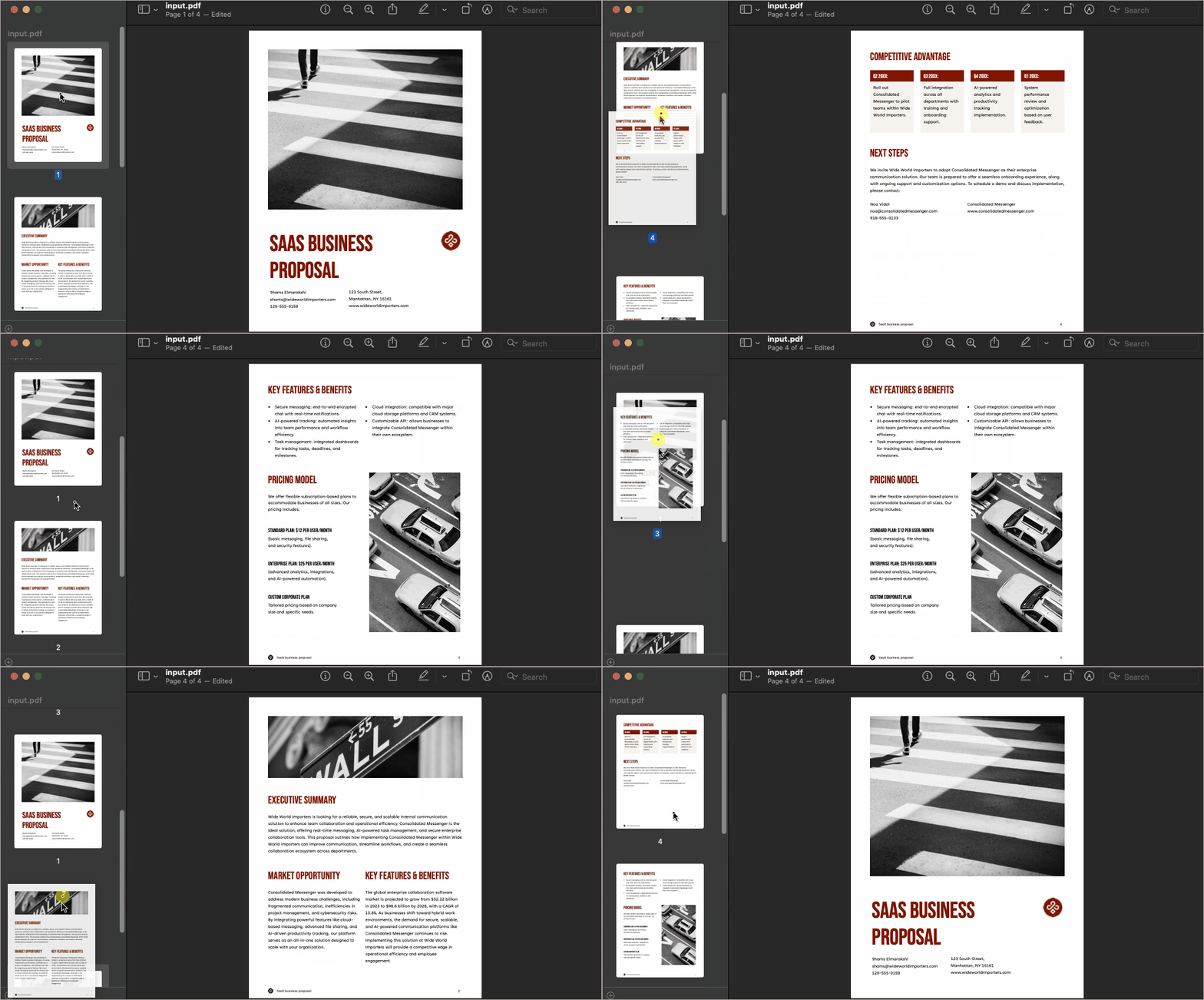
Preview is a convenient option for occasional edits on a Mac. However, because this workflow involves moving pages individually, it is best suited to documents with relatively few pages.
3. Reverse PDF Page Order Online with PDF24
If you want to reverse an entire document without dragging every page, an online tool can simplify the process. PDF24’s page rearrangement tool supports reversing all pages from back to front through a web browser.
Steps
- Open the PDF24 Rearrange PDF Pages tool.
- Select your PDF or drag it into the upload area.
- Wait for the document to upload and the page thumbnails to appear.
- Open the Select sorting method dropdown and choose From back to front .
- Check the thumbnails to confirm that the original last page now appears first.
- Apply the changes and download the resulting PDF.
- Open the downloaded file to verify the page order.
Unlike the two manual methods above, this approach reverses the whole sequence in one operation.
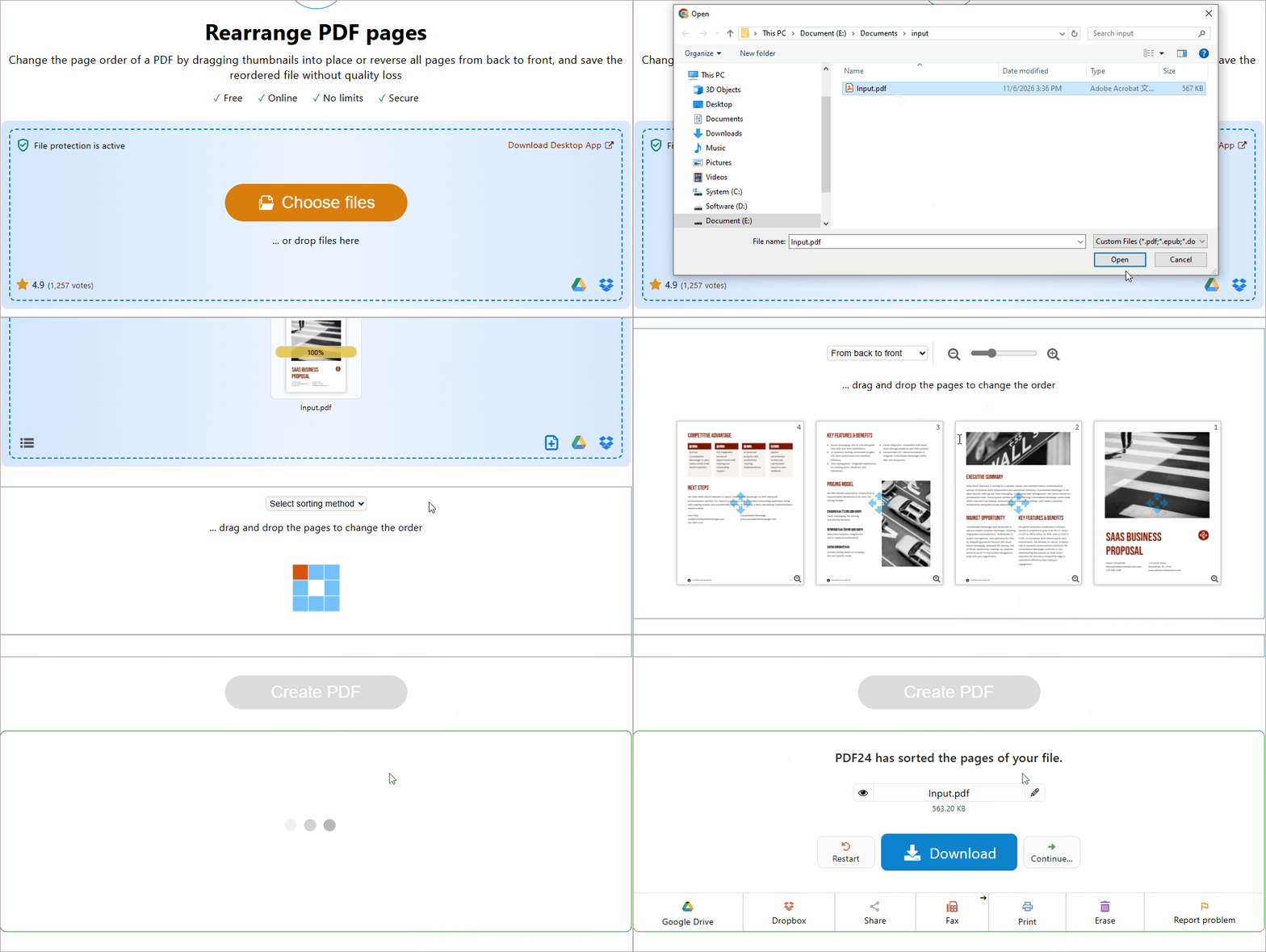
This workflow requires uploading the document to an online service. If the file needs to remain on your computer, use a desktop method or the local Python workflow described next.
4. Reverse PDF Page Order Using Python
For repeated tasks, a Python script removes the need to move thumbnails or upload documents manually. It can read the page count, generate a reversed list of page indices, and apply the new sequence automatically.
The following example uses Spire.PDF for Python, a PDF processing library that supports rearranging pages through its ReArrange() method. The script processes one PDF, and the same logic can later be incorporated into a folder-processing workflow.
Install Spire.PDF for Python
Install the package in your Python environment:
pip install Spire.PDF
Understand the Reversed Page Indices
The page collection uses zero-based indices. This means the first page has index 0, the second has index 1, and so on.
For a five-page PDF, the original indices are:
[0, 1, 2, 3, 4]
To reverse the document, the required sequence is:
[4, 3, 2, 1, 0]
The script generates this list dynamically using:
reverse_order = list(range(page_count - 1, -1, -1))
The three arguments passed to range() determine the sequence:
| Argument | Purpose |
|---|---|
page_count - 1 |
Starts at the last page index. |
-1 |
Sets the exclusive stopping point, allowing index0to be included. |
-1 |
Moves backward by one index at a time. |
Because the list is based on the document’s page count, you do not need to change it for PDFs of different lengths.
Rearrange the Pages and Save the PDF
Place Input.pdf in the script’s working directory, or replace the filenames with full paths. Then run the following code:
from spire.pdf import *

# Load the source PDF
pdf = PdfDocument()
pdf.LoadFromFile("Input.pdf")

# Build the page indices in reverse order
page_count = pdf.Pages.Count
reverse_order = list(range(page_count - 1, -1, -1))

# Apply the reversed page sequence
pdf.Pages.ReArrange(reverse_order)

# Save the result as a separate PDF
pdf.SaveToFile("Reversed.pdf", FileFormat.PDF)
pdf.Close()
The script performs four main operations:
-
Load the document:
LoadFromFile()opens the source PDF. -
Generate the reversed sequence:
Pages.Countsupplies the page count, andrange()builds the indices from last to first. -
Apply the new order:
ReArrange(reverse_order)rearranges the pages. -
Save and close:
SaveToFile()writes the output, andClose()releases the document’s resources.
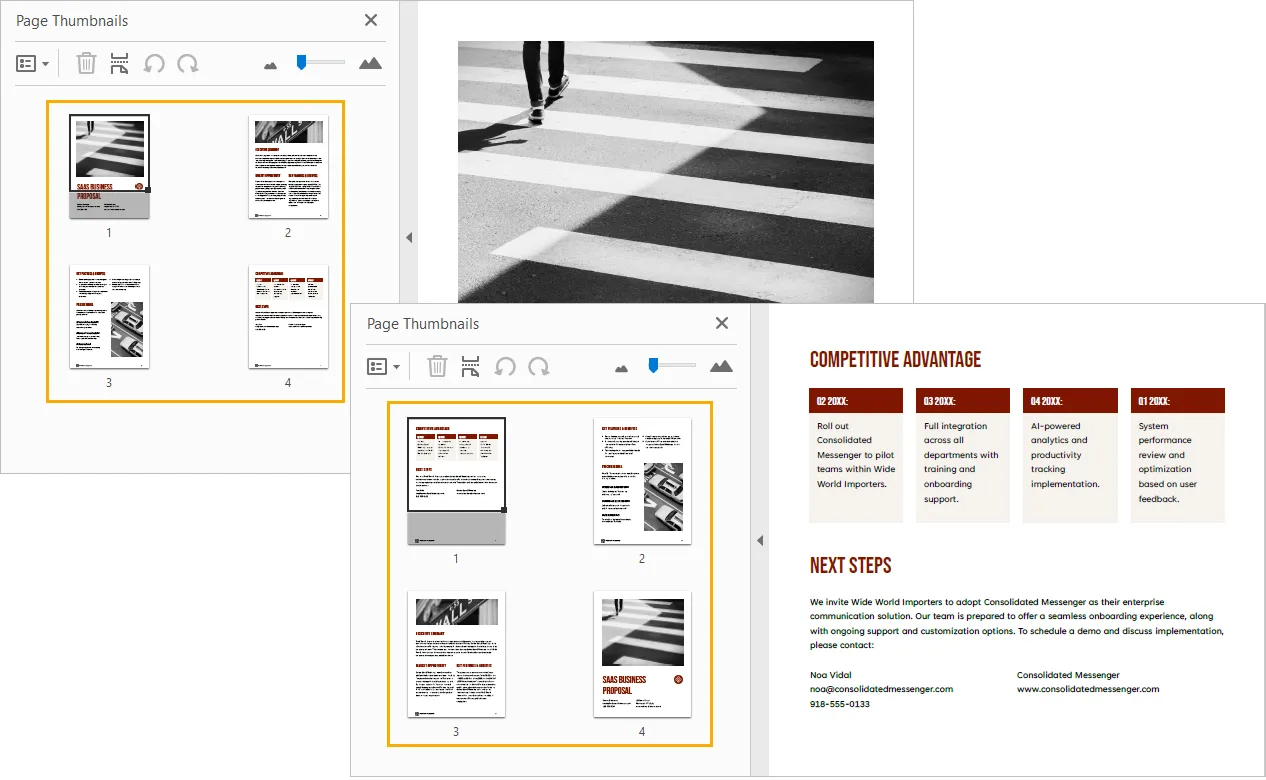
The original file remains available because the output uses a different filename. Open Reversed.pdf and compare its first and last pages with those of the source document.
Which Method Should You Choose?
The main choice is whether you want to move pages manually or reverse the entire document automatically.
| Method | How it reverses pages | File handling | Best fit |
|---|---|---|---|
| Adobe Acrobat | Manual thumbnail rearrangement | Local desktop workflow | Short PDFs when you already use Acrobat |
| Preview on Mac | Manual thumbnail rearrangement | Local desktop workflow | Occasional edits on a Mac |
| PDF24 online | Automatic reversal through a page-order control | Upload and download | One-off tasks without installing software |
| Python with Spire.PDF | Automatic reversal through code | Local processing after setup | Repeated tasks and integration into scripts |
For a short document, moving thumbnails may be sufficient. For a long document, PDF24 or Python avoids the repetitive work of moving every page individually.
Choose Python when the operation needs to become part of a repeatable process, such as handling incoming scanned documents or processing multiple files.
Frequently Asked Questions
Is reversing PDF page order the same as printing in reverse order?
No. Reversing the PDF’s page order changes the sequence in the saved document.
A printer’s reverse-order setting changes the order in which pages are printed, while the source PDF keeps its existing sequence. If the reversed order needs to appear when someone opens the file, rearrange the pages and save the PDF.
Will reversing the pages change the page numbers printed on them?
No. Page numbers that form part of the page content move with their pages. A page displaying “5” will still display “5” after becoming the first page in the document.
If you need new sequential page numbers, handle that as a separate editing step. Also remember that the viewer’s page position may differ from the number printed on the page.
Can I reverse the page order of a scanned PDF?
Yes. Reordering operates on PDF pages, so it does not require selectable text. You can reverse a scanned PDF without running OCR first.
However, reversing every page only fixes a completely backward sequence. If the front and back sides of scanned sheets are interleaved incorrectly, you will need a different page arrangement.
How can I reverse multiple PDF files using Python?
Place the load, reverse, save, and close operations inside a loop over the input files. Create a new PdfDocument for each file and save each result to a separate output folder.
The central operation remains the same: obtain the document’s page count, generate its reversed index list, and pass that list to ReArrange().
Conclusion
Reversing a PDF is straightforward once you choose a method suited to the document. Acrobat and Preview provide visual control for short files, while PDF24 offers an automatic online option. Python is the most useful choice when page reversal needs to run repeatedly or fit into an existing document processing workflow.
Whichever method you use, save a separate output file and check its first page, last page, and total page count before sharing it.