
PDFs often carry more whitespace than they need — scanned documents with thick borders, engineering drawings with generous margins, or invoices where only the center table matters. Cropping the page is the natural fix, but doing it in a browser-based workflow is not straightforward. Desktop tools break the web experience, and sending the file to a backend server raises privacy and compliance concerns.
This is where Spire.PDF for JavaScript comes in. It runs on WebAssembly and operates entirely inside the browser, loading and saving PDFs through a virtual file system (VFS) with no server round-trip. You can set the visible area of each page programmatically and let the user download the trimmed result — all client-side. For installation and project setup, refer to Integrate Spire.PDF for JavaScript in a React project. The examples below assume Spire.PDF is installed and the WebAssembly module is initialized.
CropBox and MediaBox: Two Page Boxes Explained
Every PDF page is defined by two rectangles, and understanding the difference between them is essential before you start cropping.
MediaBox describes the physical dimensions of the page — the full sheet of paper, so to speak. It is the outermost boundary and defines the coordinate space in which all content is placed. A standard A4 page has a MediaBox of approximately 595 × 842 points.
CropBox defines what the viewer actually displays. It is a sub-region of the MediaBox, and any content falling outside the CropBox is hidden from view. By default, the CropBox matches the MediaBox, which is why you normally see the entire page. When you shrink the CropBox, you are effectively telling the PDF reader, "Only show this portion of the page."
The key insight for cropping is that the CropBox is derived from the MediaBox. You read the full page dimensions from page.MediaBox.Width and page.MediaBox.Height, then compute a smaller rectangle — inset by whatever margin you want on each side — and assign it to page.CropBox. The x and y coordinates of the CropBox are measured from the top-left corner of the page, and width and height determine how much of the page is retained.
Crop All Pages with a Uniform Margin
The most common scenario is applying the same margin reduction to every page in a document. You iterate over doc.Pages, read each page's MediaBox, and set a CropBox that is inset by a fixed number of points on all four sides.
The example below trims 60 points off every edge of every page — enough to remove a wide white border or an unwanted frame:
function App() {
  const cropPdfPage = async () => {
    // Get the Spire.PDF WASM module
    const pdfModule = window.wasmModule?.spirepdf;

    // Check whether the module is ready
    if (!pdfModule) {
      alert('Spire.PDF is not ready yet');
      return;
    }

    // Load the PDF file to be cropped into the VFS
    const inputFileName = 'ToCrop.pdf';
    await window.spire.FetchFileToVFS(inputFileName, "", `${process.env.PUBLIC_URL}/data/`);

    // Create a PdfDocument object and load the PDF document
    let doc = new pdfModule.PdfDocument();
    doc.LoadFromFile(inputFileName);

    // Trim 60 points off every side
    const margin = 60;

    for (let i = 0; i < doc.Pages.Count; i++) {
      const page = doc.Pages.get_Item(i);

      // MediaBox gives the full extent of the page, from which the crop box is derived
      // (x and y are measured from the top-left corner of the page)
      const width = page.MediaBox.Width;
      const height = page.MediaBox.Height;

      page.CropBox = new pdfModule.RectangleF({
        x: margin,
        y: margin,
        width: width - margin * 2,
        height: height - margin * 2,
      });
    }

    const outputFileName = 'CropByMargins.pdf';
    doc.SaveToFile(outputFileName);
    doc.Close();

    // Read the generated file from the VFS and trigger the download
    const fileArray = window.dotnetRuntime.Module.FS.readFile(outputFileName);
    const blob = new Blob([fileArray], { type: 'application/pdf' });
    const url = URL.createObjectURL(blob);
    const a = document.createElement('a');
    a.href = url;
    a.download = outputFileName;
    a.click();
    URL.revokeObjectURL(url);
  };

  return (
    <div style={{ textAlign: 'center', height: '300px' }}>
      <h1>Crop PDF Pages</h1>
      <button onClick={cropPdfPage}>
        Crop PDF
      </button>
    </div>
  );
}

export default App;
Both pages are cropped by a 60-point margin, so the white margin and the frame around the page are removed:
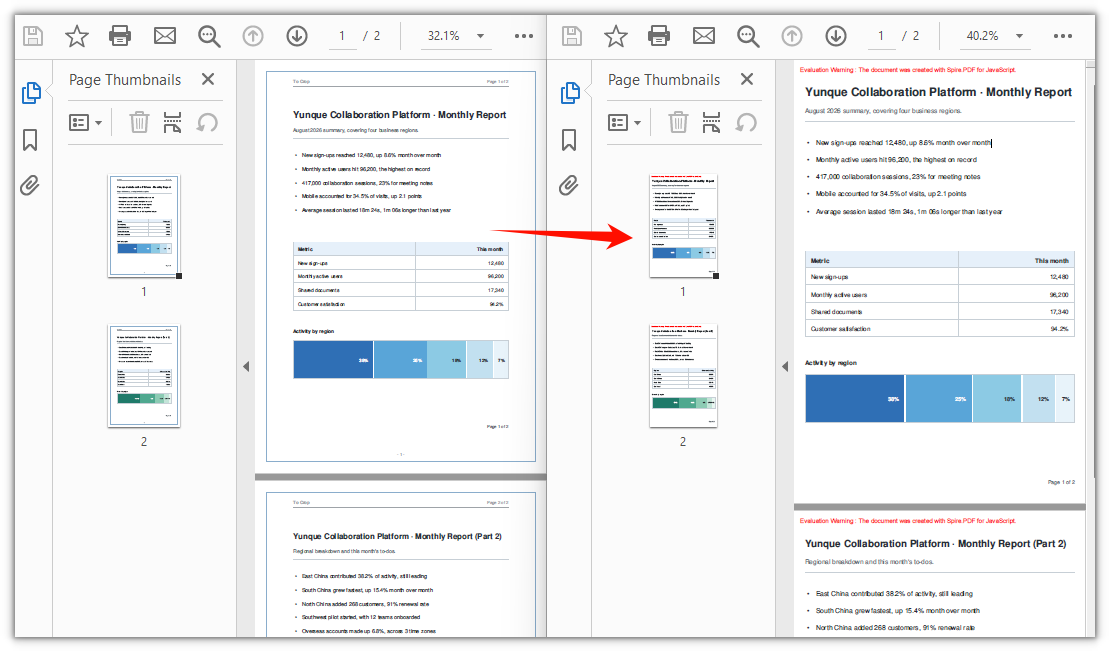
Adjust the margin value to control how aggressively the page is trimmed. A larger value removes more whitespace; a smaller value performs a subtler trim. Because the margin is applied uniformly to all four sides, this approach works best when the unwanted border is roughly equal on every edge — which is typically the case with scanned documents and exported drawings.
Single Page vs Whole Document Cropping
The loop in the previous section applies the same crop to every page. But CropBox is a page-level property — there is no document-wide cropping interface. The loop simply ensures that each page receives the same margin. This distinction matters when your pages have different needs.
When to crop the whole document: Use the loop approach when all pages share the same problem — for instance, a scanned batch where every page has the same scanner border, or a multi-page drawing set exported with identical margins. A single margin value keeps the code simple and the result consistent.
When to crop a single page: Drop the loop and assign the CropBox directly to the target page. This is useful when only one page needs trimming — for example, a cover page with an oversized logo, or an invoice where only the table region on page 2 should be visible. You can also apply different crop values to different pages by combining per-page logic inside the loop.
Here is how to crop just the first page, keeping a 400 × 500 point block starting at position (80, 80) from the top-left corner:
// Crop page 1 only: keep a 400 x 500 point block starting at (80, 80) from the top-left corner
const page = doc.Pages.get_Item(0);
page.CropBox = new pdfModule.RectangleF({ x: 80, y: 80, width: 400, height: 500 });
The x and y values specify where the visible region begins, measured from the top-left corner of the page. The width and height values define the size of that region. Everything outside this rectangle is hidden from the viewer.
Soft Cropping: What Happens to the Content
There is an important detail about CropBox that is easy to overlook: it performs a soft crop, not a hard one.
When you set the CropBox, you are changing the visible boundary of the page — the rectangle that PDF viewers display and that printers use as the page area. But the content that falls outside this boundary is not removed from the file. It is still there, just hidden. This has two practical consequences:
-
File size does not decrease. The cropped-away text, images, and vector graphics remain in the PDF data stream. If your goal is to reduce file size by trimming margins, setting the CropBox alone will not achieve that.
-
Cropped content is still searchable. Text outside the visible CropBox can still be found by search functions and copied by users who know how to select beyond the visible area. This is usually fine for margin trimming, but it means cropping is not a way to redact or securely remove sensitive information.
If you need to truly eliminate content — for redaction, file size reduction, or ensuring that hidden text cannot be recovered — you must rebuild the page. The approach is to create a new document, extract the visible content from the cropped page using page.CreateTemplate(), draw it onto a fresh page in the new document, and save the result. This produces a hard crop where the out-of-bounds content no longer exists in the file.
For most margin-trimming and whitespace-removal use cases, however, soft cropping with CropBox is exactly what you want: it is fast, simple, and produces a visually clean result without the overhead of rebuilding the document.
FAQ
Can I crop a single page instead of the whole document?
Yes. Since CropBox is a per-page property, there is no built-in "crop entire document" method — the loop in the main example is just a convenience for applying the same margin to every page. To crop only one page, skip the loop and assign the CropBox directly to that page:
// Crop page 1 only: keep a 400 x 500 point block starting at (80, 80) from the top-left corner
const page = doc.Pages.get_Item(0);
page.CropBox = new pdfModule.RectangleF({ x: 80, y: 80, width: 400, height: 500 });
How do I undo a crop?
Setting CropBox modifies the page box in place, and the document does not store the previous box. You might expect that assigning page.MediaBox back to page.CropBox would restore the original view, but this does not work as intended — the coordinates are applied relative to the origin of the current visible area, so only the dimensions change while the origin stays fixed. After a 60-point crop, reassigning the MediaBox dimensions still leaves the visible area starting at (60, 60).
The simplest solution is to reload the original file if you still have it. If only the cropped file is available, you can shift the origin back to the top-left corner using negative offsets and restore the full page dimensions:
// Undo when the crop offset was (offsetX, offsetY)
page.CropBox = new pdfModule.RectangleF({
  x: -offsetX,
  y: -offsetY,
  width: page.MediaBox.Width,
  height: page.MediaBox.Height,
});
The file did not get smaller and the cropped content is still searchable — why?
This is expected behavior. CropBox performs a soft crop: it changes only the visible boundary of the page, while content outside that boundary remains in the file and can still be found by text search or copy operations. If you need to physically remove the content from the PDF, setting the CropBox is not sufficient — you would need to rebuild the page by creating a new document, extracting the visible content with page.CreateTemplate(), drawing it onto a new page, and saving to a new file.