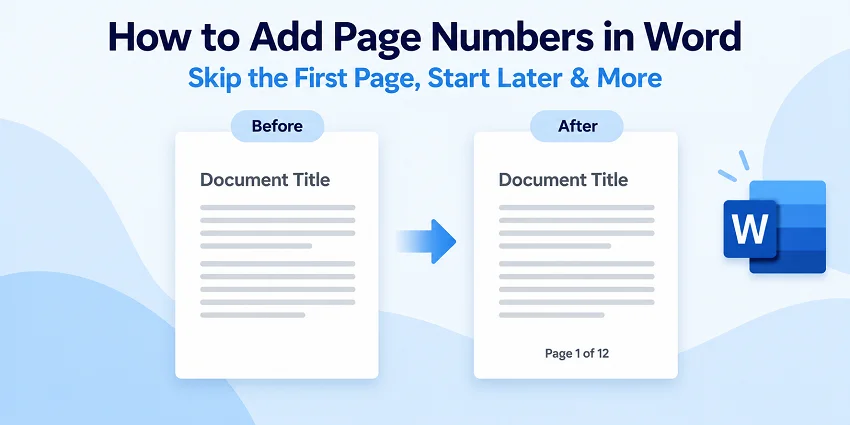
Adding page numbers in Microsoft Word is simple, but different documents often require different numbering setups. You might need to leave the cover page unnumbered, start numbering from a specific page, use Roman numerals for introductory pages, or display the total page count.
This guide explains the most useful page numbering options in desktop Word, shows how to insert page numbers in Word online, and demonstrates how to automate the task across multiple documents with Python.
Page Numbering Options at a Glance
The right approach depends on how you want page numbers to appear in your document. Use the table below to find the appropriate method and jump to its instructions.
| What You Want to Do | Recommended Approach |
|---|---|
| Number every page | Insert → Page Number |
| Hide the number on the first page | Enable Different First Page |
| Start numbering at 1 on page 3 or later | Insert a section break, unlink the relevant header or footer, and set the starting number |
| Use Roman numerals for the front matter | Configure page number formats by section |
| Display Page X of Y | Choose a Page X of Y numbering style |
| Change the number position or style | Use page number formatting options |
| Add page numbers in Word Online | Use Word for the web |
| Batch add page numbers to Word documents | Use Python automation |
The desktop instructions below use Microsoft Word for Windows. Menu names may differ slightly on Mac.
Insert Page Numbers in Word
For documents that need simple, consecutive numbering, Word's built-in page numbering feature lets you place numbers in headers, footers, or page margins. The numbers update automatically as pages are added or removed.
Step-by-Step Guide
-
Open your Word document.
-
Go to the Insert tab.
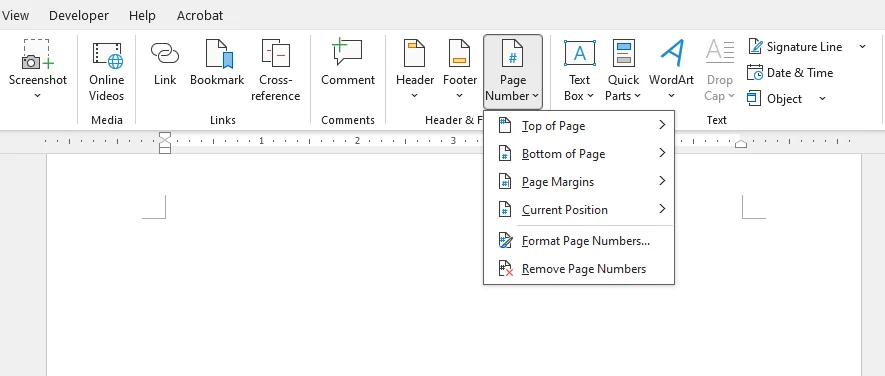
Click Insert > Page Number in the Header & Footer group. -
Choose a page number position.
Select one of the available options:- Top of Page: Places page numbers in the header.
- Bottom of Page: Places page numbers in the footer.
- Page Margins: Positions page numbers along the page margins.
- Current Position: Inserts a page number at the current cursor position, such as within an existing header or footer.
-
Select a numbering style.
Choose a layout from the gallery, such as a left-aligned, centered, or right-aligned number. -
Close the header or footer.
If Word opens the header or footer editing area, click Close Header and Footer or press Esc to return to your document.
By default, Word inserts consecutive page numbers starting from 1. For example, selecting Bottom of Page > Plain Number 2 places centered page numbers at the bottom of each page.
Hide Page Numbers on the First Page
Documents with a cover or title page often need page numbers on subsequent pages but not on the first page. Word handles this using Different First Page, which gives the first page a separate header or footer without requiring a section break.
Steps to Hide the Page Number on the First Page
-
First, insert page numbers using the steps above.
-
Double-click the header or footer area on the first page.
-
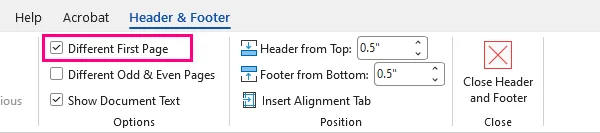
On the Header & Footer tab, select Different First Page.
-
If a page number remains on the first page, select it in the first-page header or footer and press Delete.
-
Click Close Header and Footer.
The first page no longer displays a page number, while the remaining pages continue to be numbered.
Note: Different First Page also creates a separate header and footer for the first page. If the original header or footer contains other information, you may need to add it back to the first-page header or footer.
Make the Second Page Start at 1 Instead of 2
By default, hiding the first page number does not change the numbering sequence. The second page still displays 2. To show 1 on the second page:
-
Double-click the header or footer containing the page numbers.
-
Go to the Insert tab, select Page Number > Format Page Numbers.
-
Under Page numbering, choose Start at.
-
Enter 0 and click OK.
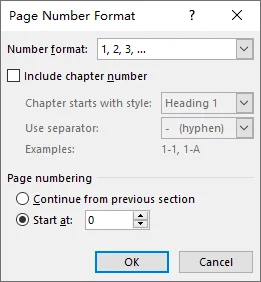
The page number on the first page remains hidden, and the second page displays 1.
Start Page Numbering from a Specific Page
Sometimes numbering should begin on page 3, page 4, or another later page. For example, a research paper might have a title page and table of contents, while the third page—the beginning of the main text—should display page number 1.
Word supports this by allowing you to configure page numbering in separate sections. A section break allows the introductory pages and main content to use independent numbering settings.
Step 1: Insert a Section Break
-
Place your cursor at the end of the content immediately before the page where numbering should begin.
-
Go to Layout > Breaks.
-
Under Section Breaks, select Next Page.
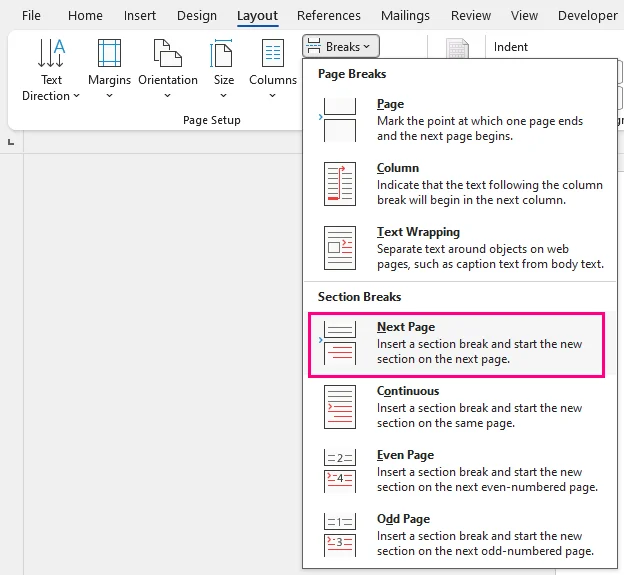
Word creates a new section starting on the next page.
Note: A regular page break only starts a new page, while a section break lets you control page numbering independently. If a manual page break already separates the two parts, replace it with a Next Page section break to avoid creating an extra blank page.
Step 2: Unlink the Header or Footer in the New Section
-
Double-click the header or footer on the first page of the new section, depending on where you want the page numbers to appear.
-
On the Header & Footer tab, click Link to Previous to turn it off.
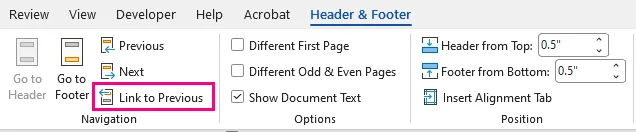
-
If the new section already contains a page number, remove it before inserting a new one, keeping any other header or footer content you want to preserve.
Word manages header and footer links separately, so make sure you unlink the area where the page numbers will appear.
Step 3: Insert Page Numbers and Set the Starting Number
-
With the cursor in the new section, go to Insert > Page Number.
-
Choose the position and style for the page numbers in the new section.
-
Select Page Number > Format Page Numbers.
-
Under Page numbering, select Start at and enter 1.
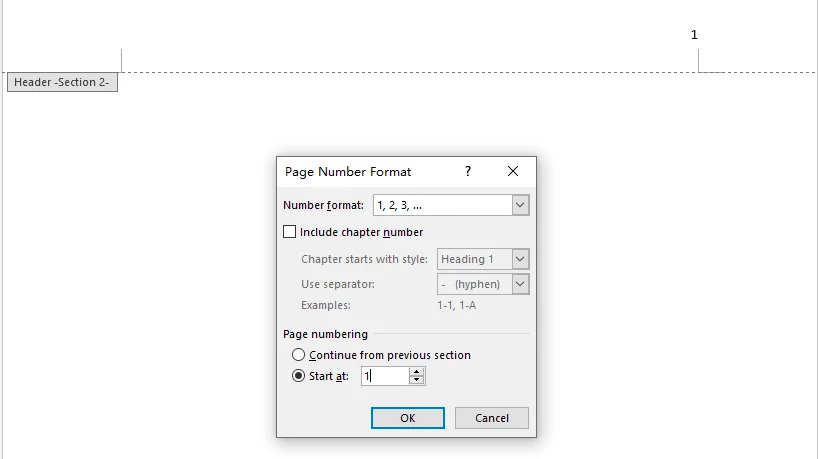
-
Click OK, then close the header or footer.
The new section now begins with page number 1. If the earlier section already contains page numbers, you can choose to keep or remove them according to your document layout.
Tip: If the number does not appear on the first page of the new section, check whether Different First Page is enabled. This setting can give the first page of each section a separate header or footer.
Use Different Page Number Formats in One Document
Long documents sometimes use Roman numerals (i, ii, iii) for preliminary pages and Arabic numbers (1, 2, 3) for the main text. For example, a thesis may number its abstract and table of contents with Roman numerals, then restart at 1 for Chapter 1.
To do this, assign different number formats to separate sections.
Steps to Use Roman Numerals and Arabic Numbers
-
Insert a section break.
Place your cursor at the end of the introductory content, then select Layout > Breaks > Next Page. -
Unlink the main section.
On the first page of the main section, double-click the header or footer where you want the page numbers to appear. Then turn off Link to Previous on the Header & Footer tab. -
Insert page numbers in the introductory section.
Return to the introductory section and choose Insert > Page Number, then select a position and style. -
Change the introductory numbering format.
Select Page Number > Format Page Numbers. Under Number format, choose i, ii, iii, .... Set Start at to i, then click OK.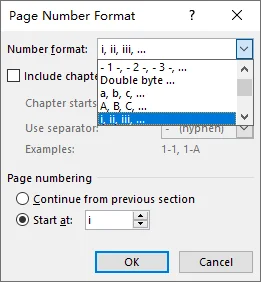
-
Insert page numbers in the main section.
Go to the main section and insert page numbers if they are not already present. -
Set the main numbering format.
Open Format Page Numbers again. Select 1, 2, 3, ... and set Start at to 1 so that the main content begins with page number 1. -
Apply the settings.
Click OK and close the header or footer.
Your document can now use Roman numerals for its introductory pages and Arabic numbers for the main content. For example:
| Document Part | Page Number |
|---|---|
| Abstract | i |
| Table of Contents | ii |
| List of Figures | iii |
| Chapter 1, first page | 1 |
| Chapter 1, second page | 2 |
If the document also includes an unnumbered cover page, you may need an additional section or a different first-page footer, depending on the layout.
Add Page X of Y in Word
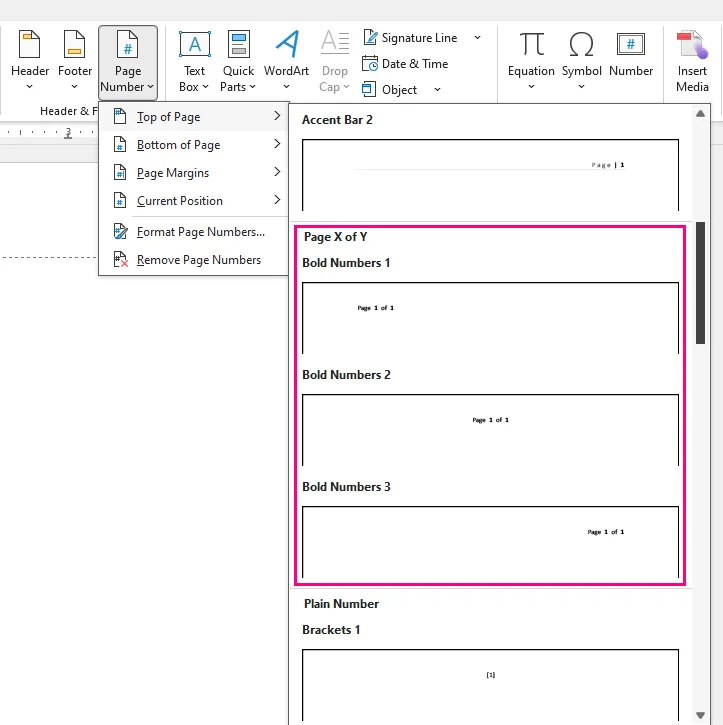
Sometimes readers need to know not only the current page number but also the total number of pages. Word's Page X of Y numbering format can display values such as Page 1 of 12 and Page 2 of 12.
Steps to Insert Page X of Y
-
Open your Word document. If it already has a header or footer, double-click that area and place the cursor where you want the page numbers to appear.
-
Go to Insert > Page Number.
-
Choose Current Position if you're working in an existing header or footer. Otherwise, select Top of Page or Bottom of Page.
-
Scroll through the available styles and select a Page X of Y format.
-
Click Close Header and Footer.
Word displays the current page number and total page count automatically.
How Page X of Y Works
Word uses dynamic fields to display page information:
- PAGE: Displays the current page number.
- NUMPAGES: Displays the total number of pages in the document.
These fields can update when the document's pagination changes.
Note: NUMPAGES counts all pages in the document, including cover pages without visible page numbers. For example, if a 12-page document has an unnumbered cover and numbering starts at 1 on the second page, that page may display Page 1 of 12.
To exclude the cover page from the total, place it in a separate section and use the SECTIONPAGES field instead of NUMPAGES in the main section. This works when all remaining pages belong to a single section, as SECTIONPAGES counts only the pages in the current section.
Change or Customize Page Numbers in Word
After inserting page numbers, you may need to adjust their position, appearance, or numbering style to match the document layout.
Change the Page Number Position or Alignment
- Double-click the header or footer containing the page number.
- Select the paragraph containing the page number.
- Use the alignment controls under Home > Paragraph to align it to the left, center, or right.
- Close the header or footer.
You can also choose a different layout from the Insert > Page Number gallery. However, applying a different layout may affect existing header or footer content. If your header or footer contains other information, consider adjusting its tab stops to reposition the page number without affecting the surrounding text.
Change the Font and Appearance
- Double-click the header or footer.
- Select the page number.
- Use the Home > Font controls to change the font, size, color, or other formatting.
- Close the header or footer.
Change the Numbering Format
To switch between Arabic numbers, Roman numerals, or letters:
- Open the header or footer in the section whose numbering format you want to change.
- Select Page Number > Format Page Numbers.
- Choose a different Number format.
- Click OK.
Remove Page Numbers
To remove page numbers, go to Insert > Page Number > Remove Page Numbers. If your header or footer contains other content you want to keep, double-click that area, select only the page number, and press Delete instead.
For documents with multiple sections or different first-page or odd/even headers and footers, check each relevant area and remove any remaining page numbers.
If you want to remove the header entirely, see our guide on how to remove headers in Word.
Add Page Numbers in Word Online
You can add page numbers directly in your browser using Word for the web, also known as Word Online, without installing the desktop application. It supports standard page numbering as well as a Page X of Y layout showing the total page count.
Step-by-Step Guide
- Open your document in Word for the web and switch to Editing view if necessary.
- Go to Insert > Page Numbers.
- To show the total number of pages, select Include Page Count. Then choose your preferred position and layout from the gallery.
- Review the page numbers in your document.
To remove page numbers, go to Insert > Page Numbers and select Remove Page Numbers at the bottom of the gallery.
To hide the page number on the first page, go to Insert > Header & Footer and enable Different First Page. If you need different numbering formats or sequences across sections, open the document in desktop Word.
For details, see Microsoft's instructions for page numbers in Word for the web.
Batch Add Page Numbers to Word Documents with Python
Adding page numbers manually works well for individual Word files. However, if you regularly handle dozens or hundreds of reports, contracts, or other documents, opening and editing each file can become time-consuming.
Python can automate this task across a folder of DOCX files. The example below uses Spire.Doc for Python to insert the Page X of Y format into multiple documents without requiring Microsoft Word to be installed.
Install Spire.Doc for Python
Install the library using pip:
pip install Spire.Doc
Batch Add Page Numbers to Multiple Word Files
Create a folder named input_docs and place your DOCX files inside it:
input_docs/
    annual_report.docx
    project_proposal.docx
    user_manual.docx
The script adds Page X of Y to the default footers of single- and multi-section Word documents. It assumes the source files do not already contain page numbers; documents with different first-page or odd/even footer layouts may require additional handling.
from pathlib import Path
from spire.doc import *
from spire.doc.common import *

# Define input and output folders
input_dir = Path("input_docs")
output_dir = Path("numbered_docs")

if not input_dir.is_dir():
    raise FileNotFoundError(f"Input folder not found: {input_dir}")

output_dir.mkdir(parents=True, exist_ok=True)

# Process all DOCX files
for file_path in sorted(input_dir.glob("*.docx")):
    # Skip temporary Word files
    if file_path.name.startswith("~$"):
        continue

    output_file = output_dir / file_path.name
    if output_file.exists():
        print(f"Skipped (already exists): {file_path.name}")
        continue

    doc = Document()
    try:
        doc.LoadFromFile(str(file_path))

        # Add Page X of Y to each independent footer
        for i in range(doc.Sections.Count):
            section = doc.Sections.get_Item(i)
            footer = section.HeadersFooters.Footer

            # Linked footers inherit the previous section's content
            if i > 0 and footer.LinkToPrevious:
                continue

            paragraph = footer.AddParagraph()
            paragraph.Format.HorizontalAlignment = HorizontalAlignment.Center
            paragraph.AppendText("Page ")
            paragraph.AppendField("PageNumber", FieldType.FieldPage)
            paragraph.AppendText(" of ")
            paragraph.AppendField("TotalPages", FieldType.FieldNumPages)

        # Save the numbered document
        doc.SaveToFile(str(output_file), FileFormat.Docx)
        print(f"Processed: {file_path.name}")

    except Exception as e:
        print(f"Failed: {file_path.name} - {e}")
    finally:
        doc.Dispose()
How the Code Works
The script performs four main operations:
-
Find Word documents:
Path.glob("*.docx")finds DOCX files ininput_docswithout searching subfolders. The script skips temporary Word files and files with an existing output copy. - Process document sections: It loops through each section and adds page numbers only to footers that are not linked to the previous section. Linked footers inherit the page-number fields without requiring another insertion.
-
Insert dynamic page numbers:
FieldType.FieldPagedisplays the current page number, whileFieldType.FieldNumPagesdisplays the total number of pages in the document. -
Save the results: Each successfully processed file is saved to
numbered_docsunder its original filename. If processing a file fails, the script reports the error and continues with the remaining files.
For example, the output folder may contain:
numbered_docs/
    annual_report.docx
    project_proposal.docx
    user_manual.docx
With standard numbering starting at 1, a 12-page report can display Page 1 of 12, while a five-page proposal can display Page 1 of 5. The fields are dynamic, so their displayed values may update when the document is opened in Word or its fields are refreshed.
Important: The script adds a new footer paragraph rather than replacing existing content. Check documents with existing footer text before processing them in bulk. It preserves each section's original page-numbering settings, including any numbering restarts.
For documents with different first-page or odd/even footer layouts, see how to insert and customize Word headers and footers with Python and adapt the script to handle the appropriate footer types.
Licensing note: The evaluation version of the library may add evaluation notices or impose functional limitations. You can request a free temporary license to remove these restrictions during testing.
Troubleshooting Common Word Page Numbering Issues
Page numbering problems in Word are often related to section breaks, header and footer settings, or numbering formats.
1. Page Numbers Are Not Showing on Every Page
Possible cause: The document uses Different First Page or Different Odd & Even Pages, or its sections have independently configured headers and footers.
How to fix: Double-click the header or footer and check whether Different First Page or Different Odd & Even Pages is enabled. If so, add page numbers to the appropriate header or footer areas. For documents with multiple sections, check each section as needed.
2. Page Numbers Restart at 1 Unexpectedly
Possible cause: A section is configured to restart numbering instead of continuing from the previous section.
How to fix: Click in the affected section, open its header or footer, and select Page Number > Format Page Numbers. Under Page numbering, choose Continue from previous section, then click OK.
3. Changes to Page Numbers in One Section Affect Another
Possible cause: The headers or footers of the sections are still linked.
How to fix: If you want to edit the page number in one section independently, open its header or footer and turn off Link to Previous before making changes. Headers and footers must be unlinked separately.
4. Page Numbers Display the Same Number on Every Page
Possible cause: A number was typed manually into the header or footer rather than inserted as a dynamic field.
How to fix: Remove the manually entered number and use Insert > Page Number to insert a page number field.
5. Page X of Y Shows an Unexpected Total
Possible cause: The total includes pages without visible numbers, such as cover or preliminary pages.
How to fix: Check whether you need the page count for the entire document or a particular section. Use NUMPAGES for the whole document or SECTIONPAGES for a section-specific count.
Conclusion
Microsoft Word provides several ways to add page numbers depending on the document layout. Standard numbering works for most files, while Different First Page, section breaks, and custom number formats handle more specific requirements.
For large collections of Word documents, Python provides an automated alternative that reduces repetitive editing and helps apply consistent page numbering across multiple files.