PowerPoint keeps content locked inside slides. Each page is its own canvas, and titles and body text sit in scattered shape frames. To move that content into documentation, a knowledge base, or an LLM pipeline, you first need to turn it back into editable plain text. Markdown is a good fit for that layer, and a Markdown file in a Git repository shows line-by-line diffs.
This article uses Spire.Presentation for JavaScript to convert PowerPoint to Markdown in the browser. You can convert the whole presentation, or export just one slide. Conversion runs locally on WebAssembly: the deck is read through a virtual file system (VFS), so the file never has to be uploaded to a server.
This article covers two core features:
For installation and project setup, see Integrate Spire.Presentation for JavaScript in a React project. The examples below assume Spire.Presentation is installed and the WebAssembly module is initialized.
Convert a whole PowerPoint to Markdown
Spire.Presentation for JavaScript provides the Presentation.SaveToFile() method. With FileFormat.Markdown, it exports the whole presentation to a single Markdown file.
The steps are:
- Get the Spire.Presentation WASM module and make sure it is ready.
- Fetch the sample presentation and font into the VFS, then create a
Presentationobject and load the file. - Call
Presentation.SaveToFile()withfileFormatset toFileFormat.Markdownto save it as a Markdown file. - Read the result from the VFS and trigger a browser download.
- Dispose of the
Presentationobject.
The following code converts a whole PowerPoint to Markdown:
function App() {
  const convertToMarkdown = async () => {
    // Get the Spire.Presentation WASM module
    const pptModule = window.wasmModule?.spirepresentation;

    // Make sure the module is ready
    if (!pptModule) {
      alert('Spire.Presentation is not ready yet');
      return;
    }

    // Load the sample presentation and font
    await window.spire.FetchFileToVFS('DataBriefing.pptx', "", `${process.env.PUBLIC_URL}/data/`);
    await window.spire.FetchFileToVFS('ARIALUNI.TTF', "/Library/Fonts/", `${process.env.PUBLIC_URL}/font/`);

    // Create a Presentation instance and load the presentation
    const ppt = new pptModule.Presentation();
    ppt.LoadFromFile('DataBriefing.pptx');

    // Save the whole presentation as a Markdown file
    const outputFileName = 'DataBriefing.md';
    ppt.SaveToFile({ file: outputFileName, fileFormat: pptModule.FileFormat.Markdown });
    ppt.Dispose();

    // Read the generated file from the VFS and trigger a download
    const fileArray = window.dotnetRuntime.Module.FS.readFile(outputFileName);
    const blob = new Blob([fileArray], { type: 'text/markdown' });
    const url = URL.createObjectURL(blob);
    const a = document.createElement('a');
    a.href = url;
    a.download = outputFileName;
    a.click();
    URL.revokeObjectURL(url);
  };

  return (
    <div style={{ textAlign: 'center', height: '300px' }}>
      <h1>Convert PowerPoint to Markdown</h1>
      <button onClick={convertToMarkdown}>
        Convert to Markdown
      </button>
    </div>
  );
}

export default App;
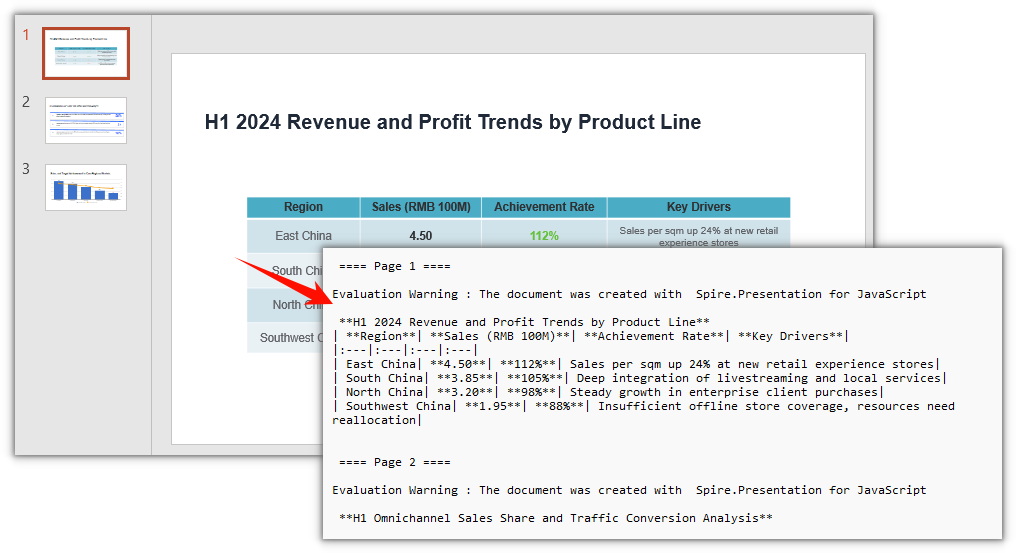
The Markdown file produced from the whole presentation:
Export a specific slide as Markdown
Spire.Presentation for JavaScript also provides the ISlide.SaveToFile() method, which exports a single slide to Markdown on its own.
The steps are:
- Get the Spire.Presentation WASM module and make sure it is ready.
- Fetch the sample presentation and font into the VFS, then create a
Presentationobject and load the file. - Take the target slide with
Presentation.Slides.get_Item(index). The index starts at 0. - Call
ISlide.SaveToFile()withfileFormatset toFileFormat.Markdownto save it as a Markdown file. - Read the result from the VFS and trigger a browser download, then release the resources.
The following code exports a specific slide as Markdown:
function App() {
  const convertSlideToMarkdown = async () => {
    // Get the Spire.Presentation WASM module
    const pptModule = window.wasmModule?.spirepresentation;

    // Make sure the module is ready
    if (!pptModule) {
      alert('Spire.Presentation is not ready yet');
      return;
    }

    // Load the sample presentation and font
    await window.spire.FetchFileToVFS('DataBriefing.pptx', "", `${process.env.PUBLIC_URL}/data/`);
    await window.spire.FetchFileToVFS('ARIALUNI.TTF', "/Library/Fonts/", `${process.env.PUBLIC_URL}/font/`);

    // Create a Presentation instance and load the presentation
    const ppt = new pptModule.Presentation();
    ppt.LoadFromFile('DataBriefing.pptx');

    // Get the second slide (index starts at 0)
    const slide = ppt.Slides.get_Item(1);

    // Save this single slide as a Markdown file
    const outputFileName = 'Slide-2.md';
    slide.SaveToFile(outputFileName, pptModule.FileFormat.Markdown);
    ppt.Dispose();

    // Read the generated file from the VFS and trigger a download
    const fileArray = window.dotnetRuntime.Module.FS.readFile(outputFileName);
    const blob = new Blob([fileArray], { type: 'text/markdown' });
    const url = URL.createObjectURL(blob);
    const a = document.createElement('a');
    a.href = url;
    a.download = outputFileName;
    a.click();
    URL.revokeObjectURL(url);
  };

  return (
    <div style={{ textAlign: 'center', height: '300px' }}>
      <h1>Export a specific slide as Markdown</h1>
      <button onClick={convertSlideToMarkdown}>
        Export slide 2
      </button>
    </div>
  );
}

export default App;
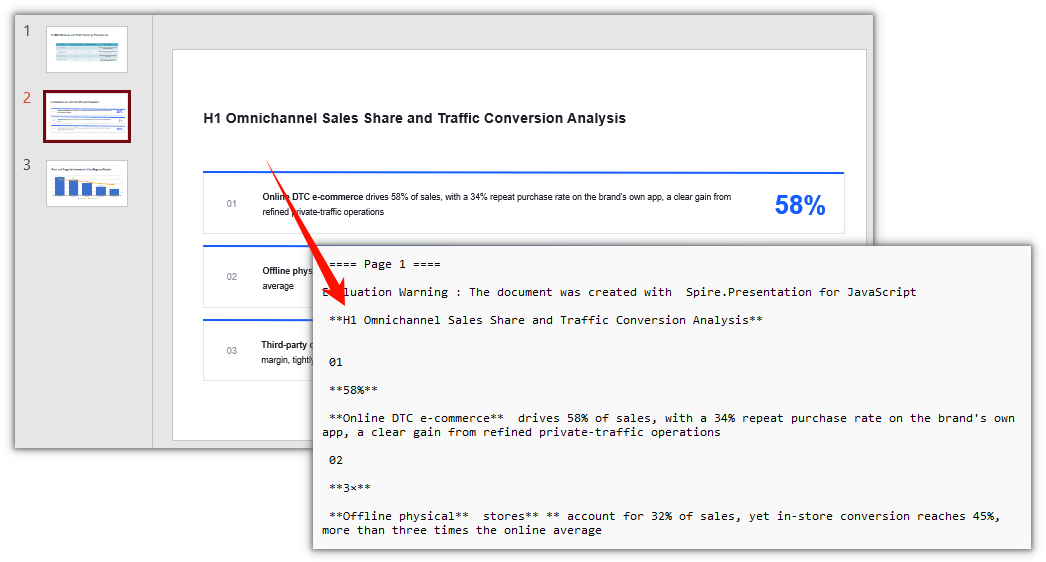
The Markdown file exported from slide 2:
Export multiple slides to Markdown at once
ISlide.SaveToFile() handles one slide per call. To split a deck into several files, loop over Slides and write one Markdown file per page:
// Loop over all slides and export each one to its own Markdown file
for (let i = 0; i < ppt.Slides.Count; i++) {
  const slide = ppt.Slides.get_Item(i);
  slide.SaveToFile(`Slide-${i + 1}.md`, pptModule.FileFormat.Markdown);
}
FAQ
Do I need Microsoft PowerPoint installed to convert
No. Spire.Presentation for JavaScript reads and writes presentations in the browser on WebAssembly. The conversion does not call a local PowerPoint installation and does not depend on Office components. The browser only needs to be able to load the WASM module.
How do the page separators differ between whole and single-slide export
When you convert the whole presentation, every slide is written into the same file in order, with separators running from ==== Page 1 ==== upward and matching the real page numbers. When you export one slide, the file contains only that page, the separator always starts at ==== Page 1 ====, and the original page number is not kept.
Why is there an evaluation warning line at the top of the exported Markdown
Without a license, Spire.Presentation writes an Evaluation Warning line at the start of each page. The line stays for the duration of the trial. Convert again after applying a license to remove it; see the free license note at the end of this article.
Are images and charts written to the Markdown
No. The conversion outputs the text layer: titles, paragraphs, lists, and tables are turned into the matching Markdown syntax. Images and charts on a slide keep only their extractable text, and the graphics themselves are not written to the file. If you need the images, export the page as an image separately with Slide.SaveAsImage().
Get a free license
To remove the evaluation message from result files or lift the feature limits, contact sales for a 30-day temporary license.
