A product rename, a wording change, a company name typed wrong in a template — edits like these are awkward once they land in a PDF. When the source document is not at hand, the only options are to export the whole page as an image and lay text over it, or to delete the original text in a reader and type a replacement in by hand. Contracts and manuals make this worse: the same name can be scattered across body text, bullet lists and closing notes, and fixing each one by hand is slow and easy to miss.
Spire.PDF for JavaScript loads, edits and saves PDF documents in the browser on WebAssembly, so a rename is only a matter of locating the text and writing it back, with files read and written through a virtual file system (VFS) and no backend involved. The four sections below cover replacing the first match, replacing every match (together with three switches: recoloring, match mode and replacement area), covering the original word with a background color, and drawing a rectangle over the original before redrawing the new word. In the sample the old and new names are the same length, so the layout does not shift after replacement.
This article covers four core features:
- Replace the First Match
- Replace All Matches
- Replace by Covering
- Draw a Rectangle to Cover the Original and Redraw the Text
For installation and project configuration, see Integrate Spire.PDF for JavaScript into a React Project. The examples below assume Spire.PDF is installed and the WebAssembly module is initialized.
Replace the First Match
Spire.PDF for JavaScript provides the PdfTextReplacer class for turning text on a page into another piece of text. It is built per page, and ReplaceText replaces only the first match it finds, returning the number of replacements actually made (1 here); any remaining occurrences of the same name on the page are left as they are.
function App() {
  const replaceFirstMatch = async () => {
    // Get the Spire.PDF WASM module
    const pdfModule = window.wasmModule?.spirepdf;

    // Check whether the module is ready
    if (!pdfModule) {
      alert('Spire.PDF is not ready yet');
      return;
    }

    // Load the font into the VFS
    await window.spire.FetchFileToVFS('ARIAL.TTF', '/Library/Fonts/', `${process.env.PUBLIC_URL}/font/`);

    // Load the PDF file to be processed into the VFS
    const inputFileName = 'ProductOverview.pdf';
    await window.spire.FetchFileToVFS(inputFileName, "", `${process.env.PUBLIC_URL}/data/`);

    // Create a PdfDocument object and load the PDF document
    let doc = new pdfModule.PdfDocument();
    doc.LoadFromFile(inputFileName);

    // Take the first page; the replacement is limited to this page
    let page = doc.Pages.get_Item(0);

    // Create the text replacer and replace only the first match
    const replacer = new pdfModule.PdfTextReplacer(page);
    replacer.ReplaceText('Stellar Drive', 'Nova Drive');

    const outputFileName = 'ReplaceFirstMatch.pdf';
    doc.SaveToFile(outputFileName);
    doc.Close();

    // Read the generated file from the VFS and trigger the download
    const fileArray = window.dotnetRuntime.Module.FS.readFile(outputFileName);
    const blob = new Blob([fileArray], { type: 'application/pdf' });
    const url = URL.createObjectURL(blob);
    const a = document.createElement('a');
    a.href = url;
    a.download = outputFileName;
    a.click();
    URL.revokeObjectURL(url);
  };

  return (
    <div style={{ textAlign: 'center', height: '300px' }}>
      <h1>Replace the First Match</h1>
      <button onClick={replaceFirstMatch}>
        Replace
      </button>
    </div>
  );
}

export default App;
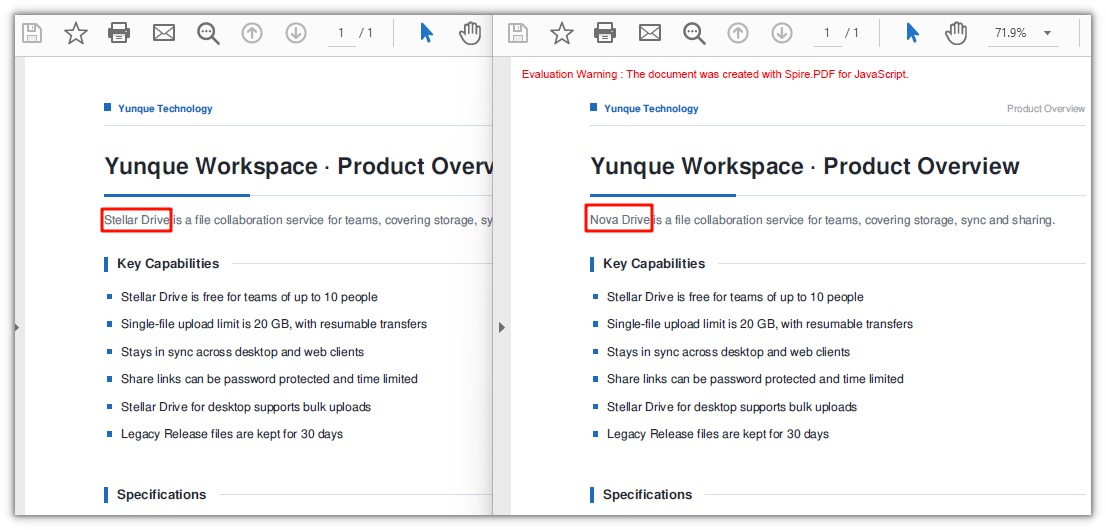
Only the first match is replaced:
Replace All Matches
Spire.PDF for JavaScript also provides PdfTextReplacer.ReplaceAllText(), which swaps every matching piece of text on the page in one go. It takes the same arguments as ReplaceText and likewise returns the number of replacements. It also has a three-argument overload, ReplaceAllText(old, new, color), which recolors the text as it replaces it.
function App() {
  const replaceAllMatches = async () => {
    // Get the Spire.PDF WASM module
    const pdfModule = window.wasmModule?.spirepdf;

    // Check whether the module is ready
    if (!pdfModule) {
      alert('Spire.PDF is not ready yet');
      return;
    }

    // Load the font into the VFS
    await window.spire.FetchFileToVFS('ARIAL.TTF', '/Library/Fonts/', `${process.env.PUBLIC_URL}/font/`);

    // Load the PDF file to be processed into the VFS
    const inputFileName = 'ProductOverview.pdf';
    await window.spire.FetchFileToVFS(inputFileName, "", `${process.env.PUBLIC_URL}/data/`);

    // Create a PdfDocument object and load the PDF document
    let doc = new pdfModule.PdfDocument();
    doc.LoadFromFile(inputFileName);

    let page = doc.Pages.get_Item(0);

    // The third argument is a color, recoloring the new word as it is written
    const replacer = new pdfModule.PdfTextReplacer(page);
    replacer.ReplaceAllText('Stellar Drive', 'Nova Drive', pdfModule.Color.get_Red());

    const outputFileName = 'ReplaceAllMatches.pdf';
    doc.SaveToFile(outputFileName);
    doc.Close();

    // Read the generated file from the VFS and trigger the download
    const fileArray = window.dotnetRuntime.Module.FS.readFile(outputFileName);
    const blob = new Blob([fileArray], { type: 'application/pdf' });
    const url = URL.createObjectURL(blob);
    const a = document.createElement('a');
    a.href = url;
    a.download = outputFileName;
    a.click();
    URL.revokeObjectURL(url);
  };

  return (
    <div style={{ textAlign: 'center', height: '300px' }}>
      <h1>Replace All Matches</h1>
      <button onClick={replaceAllMatches}>
        Replace
      </button>
    </div>
  );
}

export default App;
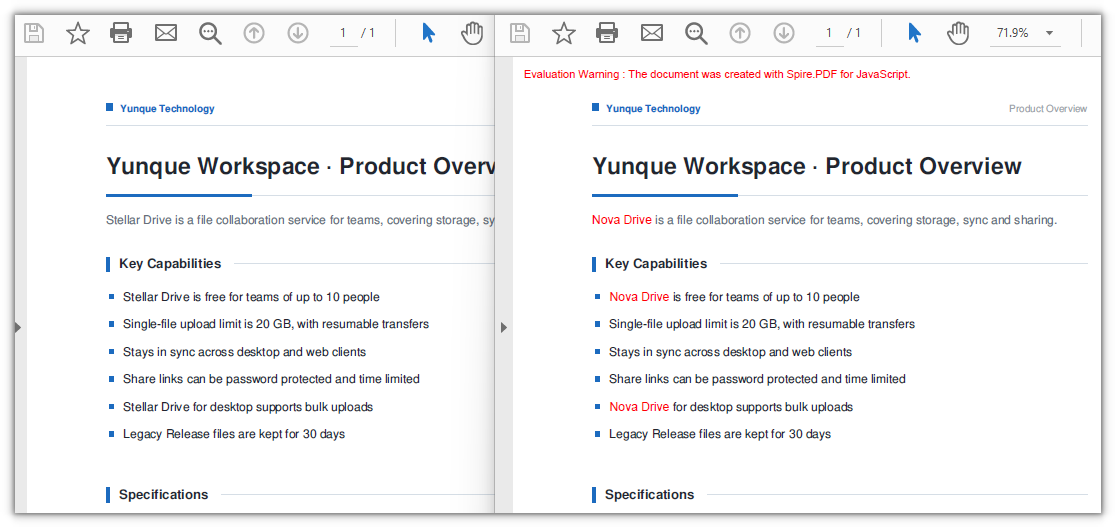
All old name are replaced, and the new name is recolored red at the same time:
Beyond recoloring,
PdfTextReplacer.Optionshas two more switches.ReplaceTypedecides what counts as a match: by default only an identical string is accepted, and it can be switched toIgnoreCase,WholeWordorRegex.SetReplacementArealimits the replacement to a rectangle, whichPdfTextFindercan work out first:
const replacer = new pdfModule.PdfTextReplacer(page);
// Ignore case
replacer.Options.ReplaceType = pdfModule.ReplaceActionType.IgnoreCase;

// Limit the replacement to a rectangle
const finds = new pdfModule.PdfTextFinder(page).Find('Stellar Drive');
replacer.Options.SetReplacementArea(finds.get(0).Bounds[0]);

// Call it once the options are set
const count = replacer.ReplaceAllText('Stellar Drive', 'Nova Drive');
Replace by Covering
Spire.PDF for JavaScript also provides PdfTextFragment.ApplyRecoverString(), which covers a located piece of text in place: it lays a background color over the original and then writes the new text in the same position. It spares you from working out coordinates and redrawing by hand. The price is that only the background color can be chosen: the new text is drawn with the font resolved from the VFS and keeps the original foreground color, and with a white background the seam is invisible. When the font and the color need to change as well, see the redrawing approach in the next section.
function App() {
  const replaceByCovering = async () => {
    // Get the Spire.PDF WASM module
    const pdfModule = window.wasmModule?.spirepdf;

    // Check whether the module is ready
    if (!pdfModule) {
      alert('Spire.PDF is not ready yet');
      return;
    }

    // Load the fonts used by the document into the VFS
    await window.spire.FetchFileToVFS('ARIAL.TTF', '/Library/Fonts/', `${process.env.PUBLIC_URL}/font/`);

    // Load the PDF file to be processed into the VFS
    const inputFileName = 'ProductOverview.pdf';
    await window.spire.FetchFileToVFS(inputFileName, "", `${process.env.PUBLIC_URL}/data/`);

    // Create a PdfDocument object and load the PDF document
    let doc = new pdfModule.PdfDocument();
    doc.LoadFromFile(inputFileName);

    let page = doc.Pages.get_Item(0);

    // Locate the target text with a finder first
    const finder = new pdfModule.PdfTextFinder(page);
    const finds = finder.Find('Stellar Drive');

    // Cover each hit in turn: the second argument is the background color,
    // and the third one, true, writes the new text as Unicode
    for (let i = 0; i < finds.length; i++) {
      finds.get(i).ApplyRecoverString('Nova Drive', pdfModule.Color.get_White(), true);
    }

    const outputFileName = 'RecoverReplace.pdf';
    doc.SaveToFile(outputFileName);
    doc.Close();

    // Read the generated file from the VFS and trigger the download
    const fileArray = window.dotnetRuntime.Module.FS.readFile(outputFileName);
    const blob = new Blob([fileArray], { type: 'application/pdf' });
    const url = URL.createObjectURL(blob);
    const a = document.createElement('a');
    a.href = url;
    a.download = outputFileName;
    a.click();
    URL.revokeObjectURL(url);
  };

  return (
    <div style={{ textAlign: 'center', height: '300px' }}>
      <h1>Replace by Covering</h1>
      <button onClick={replaceByCovering}>
        Replace
      </button>
    </div>
  );
}

export default App;
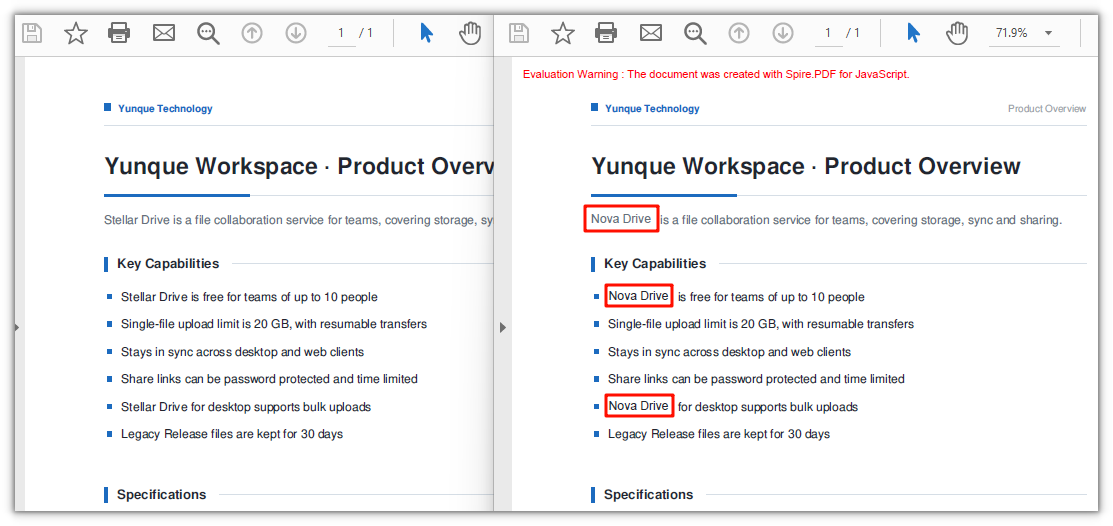
A document where the original text is covered with a white background and the new word is written in its place:
Draw a Rectangle to Cover the Original and Redraw the Text
The first three sections all work on the text layer. This one takes a different tack: use PdfTextFinder to get the position of the keyword, draw a white rectangle to cover the original text, and then write the new text inside that rectangle. Compared with ApplyRecoverString, the extra freedom is that you choose the font, size and color yourself.
function App() {
  const replaceByDrawing = async () => {
    // Get the Spire.PDF WASM module
    const pdfModule = window.wasmModule?.spirepdf;

    // Check whether the module is ready
    if (!pdfModule) {
      alert('Spire.PDF is not ready yet');
      return;
    }

    // Load the font into the VFS
    await window.spire.FetchFileToVFS('ARIAL.TTF', '/Library/Fonts/', `${process.env.PUBLIC_URL}/font/`);

    // Load the PDF file to be processed into the VFS
    const inputFileName = 'ProductOverview.pdf';
    await window.spire.FetchFileToVFS(inputFileName, "", `${process.env.PUBLIC_URL}/data/`);

    // Create a PdfDocument object and load the PDF document
    let doc = new pdfModule.PdfDocument();
    doc.LoadFromFile(inputFileName);

    let page = doc.Pages.get_Item(0);

    // Locate the target text with a finder first
    const finder = new pdfModule.PdfTextFinder(page);
    const finds = finder.Find('Stellar Drive');

    // The white rectangle that covers the original, plus the new word's font and color
    const white = pdfModule.PdfBrushes.get_White();
    const FONT_SIZE = 9;
    const font = new pdfModule.PdfTrueTypeFont({ fontFile: '/Library/Fonts/ARIAL.TTF', size: FONT_SIZE });
    const brush = new pdfModule.PdfSolidBrush({ pdfRGBColor: new pdfModule.PdfRGBColor({ color: pdfModule.Color.get_DarkBlue() }) });

    // Turn LineLimit off so the text is not clipped to the box
    const format = new pdfModule.PdfStringFormat();
    format.LineLimit = false;
    // Set the alignment of the text
    format.Alignment = pdfModule.PdfTextAlignment.Center;
    format.LineAlignment = pdfModule.PdfVerticalAlignment.Middle;

    for (let i = 0; i < finds.length; i++) {
      const rec = finds.get(i).Bounds[0];

      // Cover the original text with a white rectangle first
      page.Canvas.DrawRectangle({ brush: white, rectangle: rec });

      // Write the new word straight into the hit box
      page.Canvas.DrawString({ s: 'Nova Drive', font: font, brush: brush, layoutRectangle: rec, format: format });
    }

    const outputFileName = 'DrawRectangleAndText.pdf';
    doc.SaveToFile(outputFileName);
    doc.Close();

    // Read the generated file from the VFS and trigger the download
    const fileArray = window.dotnetRuntime.Module.FS.readFile(outputFileName);
    const blob = new Blob([fileArray], { type: 'application/pdf' });
    const url = URL.createObjectURL(blob);
    const a = document.createElement('a');
    a.href = url;
    a.download = outputFileName;
    a.click();
    URL.revokeObjectURL(url);
  };

  return (
    <div style={{ textAlign: 'center', height: '300px' }}>
      <h1>Draw a Rectangle to Cover the Original and Redraw the Text</h1>
      <button onClick={replaceByDrawing}>
        Replace
      </button>
    </div>
  );
}

export default App;
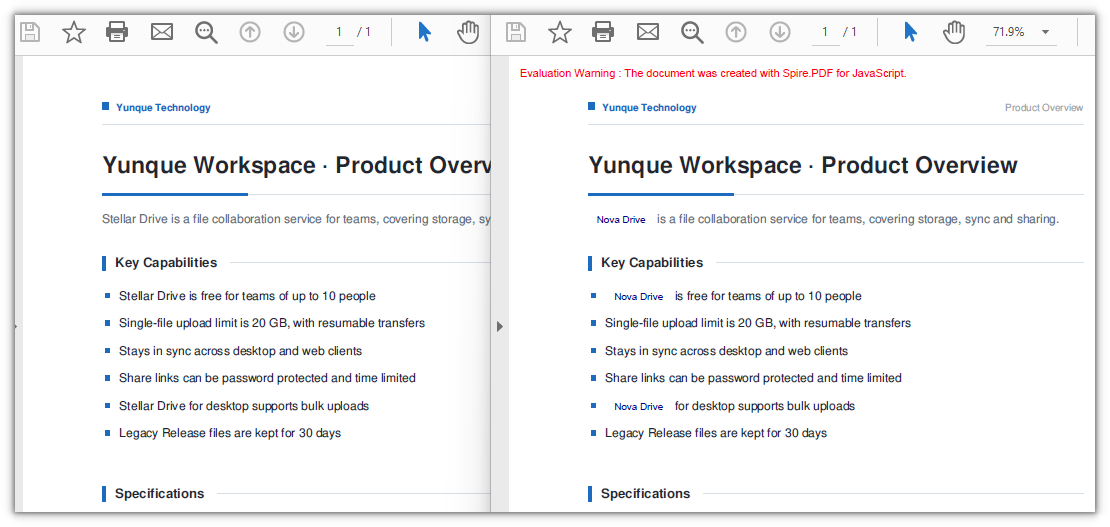
A document where a white rectangle covers the original text and the new word is written directly inside the hit box:
FAQ
The old name can still be found and copied after replacement
Cause: ApplyRecoverString is a visual-layer operation — it lays a background color over the original text and draws the new word on top, while the original text object stays in the text layer, so searching or copying in a reader still returns the old name. Measured on the covering replacement, the occurrence count of the old word is unchanged while the new word gains four hits.
Fix: When a real replacement at the content level is needed, switch to PdfTextReplacer; in its output the old word disappears from the text layer and the new word enters it. Measured, the four occurrences of the old word drop to 0 and the new word rises from 1 to 5:
// Content-level replacement: the old text no longer remains
const replacer = new pdfModule.PdfTextReplacer(page);
replacer.ReplaceAllText('Stellar Drive', 'Nova Drive');
Following the official sample's white rectangle plus DrawString redraw, the white background appears but the new text does not
Cause: The official sample follows the same approach as the fourth section here — locate the position with PdfTextFinder, draw a white rectangle to cover the original text, then paint the new text with Canvas.DrawString. The white rectangle is fine, but the redraw step has a trap:
- The rectangle overload of
DrawStringis governed byPdfStringFormat.LineLimit, which defaults totrueand clips the text to the box; the hit box hugs the glyphs tightly, so if its height is 11 points (exactly the font size) it cannot hold a full line height, and the whole line is clipped away — the new text appears neither on the page nor in the text layer.
Fix: Pass a PdfStringFormat with LineLimit turned off and the hit box can be used as the layout box as it is (which is what the fourth section does).
const format = new pdfModule.PdfStringFormat();
format.LineLimit = false;

page.Canvas.DrawString({ s: 'Nova Drive', font: font, brush: brush, layoutRectangle: rec, format: format });
Get a Free License
If you want to remove the evaluation message from the result document, or get past the feature limits, contact sales for a 30-day temporary license.
