Hyperlinks in a PDF are meant to save work: one click and you are there, no copying an address, no retyping it. The catch is that they are rarely there when you need them. A brand-new document should come with its download page, a contact address and a product link already in place. An older, already laid-out document should send the product name recurring in its body to the same introduction page. Doing it by hand means dragging a selection and pasting an address at every spot — and on a long document that never ends.
Moving the job into the browser is what Spire.PDF for JavaScript is for: it loads, modifies and saves PDF documents directly on WebAssembly, with PdfTextWebLink drawing visible link text in one step and PdfFileLinkAnnotation attaching a document link. Everything runs locally, reading and writing files through a virtual file system (VFS) with no backend involved.
This article covers two core tasks:
For installation and project setup, see Integrate Spire.PDF for JavaScript in a React project. The example below assumes Spire.PDF is installed and the WebAssembly module is initialized.
Add Hyperlinks to a PDF
When you build a document from scratch, everything on the page is decided by code, and links fall into a few kinds:
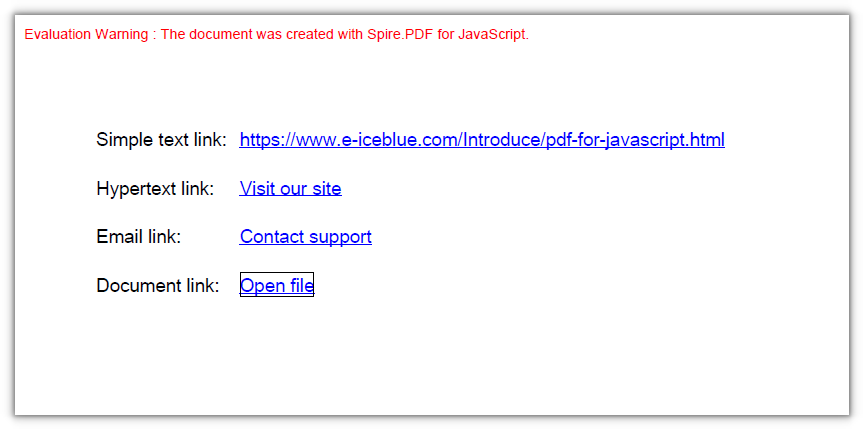
- Simple text link: the URL drawn as ordinary text, with no annotation attached; whether it is clickable is up to the viewer — Chrome and others auto-detect the URL and make it clickable — so it is here only for contrast with the explicitly linked ones.
- Hypertext link:
PdfTextWebLinkwithText,Url,FontandBrushset;DrawTextWebLink()draws the underlined link text in one step. - Document link:
PdfFileLinkAnnotation(hotspot rectangle, target file), with the rectangle defined by you.
function App() {
  const addLinksToNewPdf = async () => {
    // Get the Spire.PDF WASM module
    const pdfModule = window.wasmModule?.spirepdf;

    // Check that the module is ready
    if (!pdfModule) {
      alert('Spire.PDF is not ready yet');
      return;
    }

    // Drawing text needs a font; load it into the VFS first
    const fontVfs = '/Library/Fonts/ARIAL UNICODE MS.TTF';
    await window.spire.FetchFileToVFS('ARIAL UNICODE MS.TTF', '/Library/Fonts/', `${process.env.PUBLIC_URL}/font/`);

    // Create a blank document
    const doc = new pdfModule.PdfDocument();

    // Add a section and set its margins to 0: coordinates then equal page coordinates
    const section = doc.Sections.Add();
    section.PageSettings.Size = pdfModule.PdfPageSize.A4();
    const margins = new pdfModule.PdfMargins();
    margins.Top = 0;
    margins.Bottom = 0;
    margins.Left = 0;
    margins.Right = 0;
    section.PageSettings.Margins = margins;

    const page = section.Pages.Add();

    const font = new pdfModule.PdfTrueTypeFont({ fontFile: fontVfs, size: 13 });
    const linkFont = new pdfModule.PdfTrueTypeFont({ fontFile: fontVfs, size: 13, style: pdfModule.PdfFontStyle.Underline });
    const format = new pdfModule.PdfStringFormat({ alignment: pdfModule.PdfTextAlignment.Left });

    // Draw a plain line of text as a label
    const drawLabel = (text, y) => {
      page.Canvas.DrawString({
        s: text, font: font, brush: pdfModule.PdfBrushes.get_Black(), x: 60, y: y, format: format,
      });
    };

    // Draw a line of underlined text and hand back its rectangle as the hotspot
    const drawLinkText = (text, y) => {
      const size = linkFont.MeasureString({ text: text });
      page.Canvas.DrawString({
        s: text, font: linkFont, brush: pdfModule.PdfBrushes.get_Blue(), x: 160, y: y, format: format,
      });
      return new pdfModule.RectangleF({ x: 160, y: y, width: size.Width, height: size.Height });
    };

    const url = 'https://www.e-iceblue.com/Introduce/pdf-for-javascript.html';

    // 1) Simple text link: just the URL drawn as ordinary text, with no annotation attached (clickability depends on the viewer)
    let y = 80;
    drawLabel('Simple text link:', y);
    drawLinkText(url, y);

    // 2) Hypertext link: DrawTextWebLink draws the text and attaches the link in one step
    y += 34;
    drawLabel('Hypertext link:', y);
    const webLink = new pdfModule.PdfTextWebLink();
    webLink.Text = 'Visit our site';
    webLink.Url = url;
    webLink.Font = linkFont;
    webLink.Brush = pdfModule.PdfBrushes.get_Blue();
    webLink.DrawTextWebLink({ graphics: page.Canvas, location: new pdfModule.PointF(160, y) });

    // 3) Email link: same class, with a mailto: URL
    y += 34;
    drawLabel('Email link:', y);
    const mailLink = new pdfModule.PdfTextWebLink();
    mailLink.Text = 'Contact support';
    mailLink.Url = 'mailto:[email protected]';
    mailLink.Font = linkFont;
    mailLink.Brush = pdfModule.PdfBrushes.get_Blue();
    mailLink.DrawTextWebLink({ graphics: page.Canvas, location: new pdfModule.PointF(160, y) });

    // 4) Document link: hotspot rectangle + target file
    y += 34;
    drawLabel('Document link:', y);
    const fileName = 'Report.xlsx';
    const fileBounds = drawLinkText('Open file', y);
    page.Annotations.Add(new pdfModule.PdfFileLinkAnnotation(fileBounds, fileName));

    // Save the result document
    const outputFileName = 'HyperlinkSample.pdf';
    doc.SaveToFile(outputFileName);
    doc.Close();

    // Read the generated file from the VFS and trigger the download
    const fileArray = window.dotnetRuntime.Module.FS.readFile(outputFileName);
    const blob = new Blob([fileArray], { type: 'application/pdf' });
    const downloadUrl = URL.createObjectURL(blob);
    const a = document.createElement('a');
    a.href = downloadUrl;
    a.download = outputFileName;
    a.click();
    URL.revokeObjectURL(downloadUrl);
  };

  return (
    <div style={{ textAlign: 'center', height: '300px' }}>
      <h1>Add Hyperlinks</h1>
      <button onClick={addLinksToNewPdf}>
        Start Creating
      </button>
    </div>
  );
}

export default App;
All four links — simple text, hypertext, email and document — are in place in the new document:
Add Hyperlinks to Text
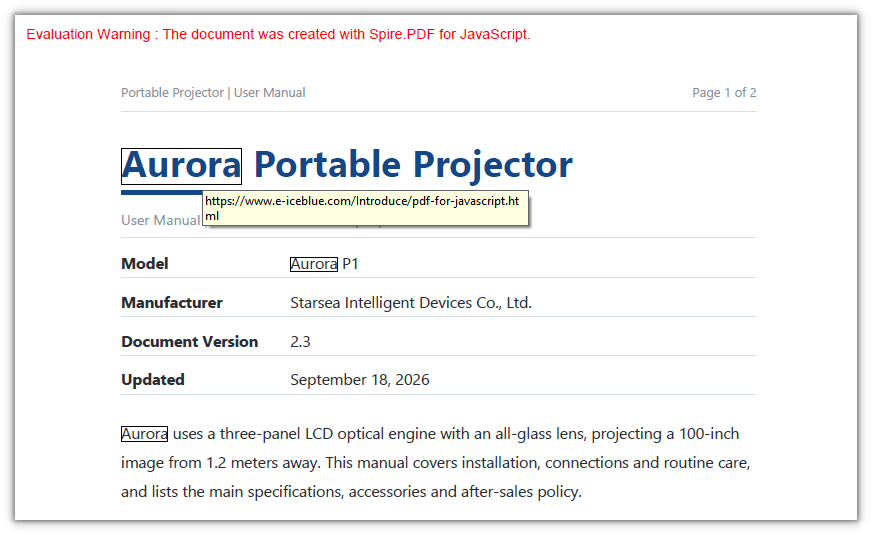
To add links to an existing document, work the other way round: find the position in the document first, then lay the link over it. PdfTextFinder searches the text of a given page by keyword, and each match carries a bounding rectangle. Build a PdfUriAnnotation from it and add it to the page annotation collection, and the link lands exactly on the original text instead of you doing the measuring.
function App() {
  const addHyperlinksToText = async () => {
    // Get the Spire.PDF WASM module
    const pdfModule = window.wasmModule?.spirepdf;

    // Check that the module is ready
    if (!pdfModule) {
      alert('Spire.PDF is not ready yet');
      return;
    }

    // Load the PDF to be processed into the VFS
    const inputFileName = 'ProductManual.pdf';
    await window.spire.FetchFileToVFS(inputFileName, "", `${process.env.PUBLIC_URL}/data/`);

    // Create a PdfDocument object and load the PDF
    let doc = new pdfModule.PdfDocument();
    doc.LoadFromFile(inputFileName);

    // Take the first page
    const page = doc.Pages.get_Item(0);

    // Search the page for the keyword; Parameter is case-sensitive by default, so switch to IgnoreCase
    const finder = new pdfModule.PdfTextFinder(page);
    finder.Options.Parameter = pdfModule.TextFindParameter.IgnoreCase;
    const finds = finder.Find('Aurora');

    // Create one link annotation for each match
    const linkUrl = 'https://www.e-iceblue.com/Introduce/pdf-for-javascript.html';
    for (let i = 0; i < finds.length; i++) {
      // The bounding rectangle of a match is the link hotspot
      const annotation = new pdfModule.PdfUriAnnotation({ rectangle: finds.get(i).Bounds[0] });
      annotation.Uri = linkUrl;

      // Attach the annotation to the page annotation collection
      page.Annotations.Add(annotation);
    }

    // Save the result document
    const outputFileName = 'HyperlinksAdded.pdf';
    doc.SaveToFile(outputFileName);
    doc.Close();

    // Read the generated file from the VFS and trigger the download
    const fileArray = window.dotnetRuntime.Module.FS.readFile(outputFileName);
    const blob = new Blob([fileArray], { type: 'application/pdf' });
    const downloadUrl = URL.createObjectURL(blob);
    const a = document.createElement('a');
    a.href = downloadUrl;
    a.download = outputFileName;
    a.click();
    URL.revokeObjectURL(downloadUrl);
  };

  return (
    <div style={{ textAlign: 'center', height: '300px' }}>
      <h1>Add Hyperlinks to Text</h1>
      <button onClick={addHyperlinksToText}>
        Start Adding
      </button>
    </div>
  );
}

export default App;
All three occurrences of Aurora now carry a hyperlink:
FAQ
Find() returns nothing even though the word is right there in the text
Cause: Options.Parameter defaults to TextFindParameter.None, which is case-sensitive, so searching for aurora will not match the capitalised Aurora; and the finder searches only the single page it was constructed with.
Fix: set it to IgnoreCase; to search the whole document, build one finder per page:
finder.Options.Parameter = pdfModule.TextFindParameter.IgnoreCase;
Measured: Aurora appears three times on page 1, and a case-sensitive search returns 0.
The link is there, but nothing shows up when the file is opened
Cause: this kind of link annotation is only a click hotspot — Spire generates no appearance stream (/AP) for it, and neither Chrome (PDFium) nor PyMuPDF (mupdf) draws a border for it; setting Border/Color only writes into the annotation dictionary (/Border [0 0 1], /C [0 0 1]) and stays invisible on the page.
Fix: the link is still clickable. In task 1 the hypertext, email, simple-text and document links all have their text drawn by the code, so they are visible to begin with; for a hotspot laid over existing text in task 2, do not rely on the annotation border — draw an underline at the link position with page.Canvas.DrawString().
Get a Free License
If you want to remove the evaluation message from the result document, or get past the feature limits, contact our sales team for a temporary 30-day license.
