TXT files are everywhere — exported logs, body text pasted out of Word, reports a system generates in bulk. To hand one to someone else you usually convert it to PDF first: a TXT has no notion of layout or paper, it just runs on and on, and the same file looks different on every device and in every editor. In the past you either opened it in a desktop program and saved as, or uploaded it to a server to convert — the former doesn't fit into a web flow, and the latter means the document leaves the user's machine.
This article shows how to convert TXT text to PDF with Spire.PDF for JavaScript. It runs on WebAssembly to generate and save PDF documents directly in the browser; the whole conversion happens locally, reading and writing files through a virtual file system (VFS), with no backend involved.
For installation and project setup, see Integrate Spire.PDF for JavaScript in a React project. The example below assumes Spire.PDF is installed and the WebAssembly module has been initialized.
Convert TXT Text to PDF
Spire.PDF for JavaScript provides PdfTextWidget to place a whole block of plain text onto a PDF page. Font, line spacing and alignment go to PdfStringFormat; when the text fills the current page, PdfTextLayout wraps and starts a new page on its own, so a long TXT needs no manual pagination.
function App() {
  const convertTxtToPdf = async () => {
    // Get the Spire.PDF WASM module
    const pdfModule = window.wasmModule?.spirepdf;

    // Check that the module is ready
    if (!pdfModule) {
      alert('Spire.PDF is not ready yet');
      return;
    }

    // Load a TrueType font into the virtual file system for the body text
    await window.spire.FetchFileToVFS('ARIAL UNICODE MS.TTF', '/Library/Fonts/', `${process.env.PUBLIC_URL}/font/`);

    // Load the TXT file to convert into the VFS
    const inputFileName = 'Product_Introduction.txt';
    await window.spire.FetchFileToVFS(inputFileName, "", `${process.env.PUBLIC_URL}/data/`);

    // Read the TXT bytes from the VFS and decode them to a string
    const textBytes = window.dotnetRuntime.Module.FS.readFile(inputFileName);
    const text = new TextDecoder('utf-8').decode(textBytes);

    // Create the document, section and page
    let doc = new pdfModule.PdfDocument();
    let section = doc.Sections.Add();
    let page = section.Pages.Add();

    // Use the embedded TrueType font for the body, and set line spacing and left alignment
    let font = new pdfModule.PdfTrueTypeFont({ fontFile: '/Library/Fonts/ARIAL UNICODE MS.TTF', size: 12 });
    let format = new pdfModule.PdfStringFormat();
    format.LineSpacing = 20;
    format.Alignment = pdfModule.PdfTextAlignment.Left;

    // Break to a new page when the page is full, so the overflow flows onto new pages
    let textLayout = new pdfModule.PdfTextLayout();
    textLayout.Break = pdfModule.PdfLayoutBreakType.FitPage;
    textLayout.Layout = pdfModule.PdfLayoutType.Paginate;

    // Start the text at the top-left of the page, leaving 20 points of room at the top
    let bounds = new pdfModule.RectangleF({
      location: new pdfModule.PointF(0, 20),
      size: page.Canvas.ClientSize
    });

    // Hold the whole text in a PdfTextWidget and hand it to the layout engine
    let textWidget = new pdfModule.PdfTextWidget({
      text: text,
      font: font,
      brush: pdfModule.PdfBrushes.get_Black()
    });
    textWidget.StringFormat = format;

    let layoutWidget = new pdfModule.PdfLayoutWidget(textWidget.H);
    layoutWidget.Draw({ page: page, layoutRectangle: bounds, format: textLayout });

    // Save the document
    const outputFileName = 'Product_Introduction.pdf';
    doc.SaveToFile(outputFileName);
    doc.Close();

    // Read the generated file from the VFS and trigger the download
    const fileArray = window.dotnetRuntime.Module.FS.readFile(outputFileName);
    const blob = new Blob([fileArray], { type: 'application/pdf' });
    const url = URL.createObjectURL(blob);
    const a = document.createElement('a');
    a.href = url;
    a.download = outputFileName;
    a.click();
    URL.revokeObjectURL(url);
  };

  return (
    <div style={{ textAlign: 'center', height: '300px' }}>
      <h1>Convert TXT Text to PDF</h1>
      <button onClick={convertTxtToPdf}>
        Start
      </button>
    </div>
  );
}

export default App;
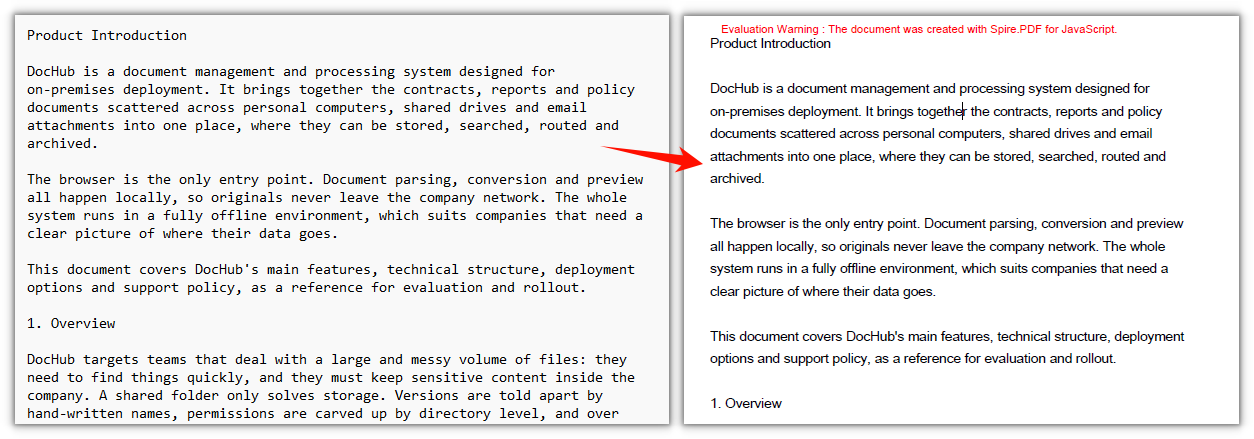
The generated PDF spreads the long TXT text across pages automatically:
FAQ
Chinese characters show up as boxes or blank after conversion
Cause: the Helvetica font PdfTextWidget uses by default is a PDF built-in Western font with Latin glyphs only. When it meets a Chinese character it has no glyph to use, and the character shows up blank or as a box on the page.
Solution: switch to PdfTrueTypeFont loaded from a font file that contains Chinese glyphs, and put that file into the VFS /Library/Fonts/ first:
// Read the font from the project's static directory into the VFS
await window.spire.FetchFileToVFS('ARIAL UNICODE MS.TTF', '/Library/Fonts/', `${process.env.PUBLIC_URL}/font/`);

// Point fontFile at the font path in the VFS
let font = new pdfModule.PdfTrueTypeFont({ fontFile: '/Library/Fonts/ARIAL UNICODE MS.TTF', size: 12 });
Long text doesn't paginate and only fills one page
Cause: PdfTextWidget only draws inside the rectangle you pass in, and content that overflows is not moved to the next page by itself — whether it paginates is decided by PdfTextLayout.Layout.
Solution: set PdfTextLayout.Layout to PdfLayoutType.Paginate and Break to PdfLayoutBreakType.FitPage, then pass that object as the format argument to Draw:
let textLayout = new pdfModule.PdfTextLayout();
textLayout.Break = pdfModule.PdfLayoutBreakType.FitPage;   // break as soon as a page is full
textLayout.Layout = pdfModule.PdfLayoutType.Paginate;      // paginate automatically

layoutWidget.Draw({ page: page, layoutRectangle: bounds, format: textLayout });
Tab indents in the TXT don't line up in the PDF
Cause: the text you read out is plain characters, and a tab is just a \t with no information about how many character widths it spans. During layout every \t is treated as the same width, so indentation that lined up through \t or extra spaces in the original no longer lines up in the PDF.
Solution: for table-like content that needs exact alignment, pad it out with spaces or draw it as a table instead; for plain prose meant to be read, output it as is.
Get a Free License
If you want to remove the evaluation message from the result document, or lift the feature limits, contact sales for a temporary license valid for 30 days.
