A PDF document is a static picture by default: readers can flip through and read it, but the document itself doesn't react to anything. To let a reader click an image to play a sound, or click an area to jump to a chosen page or open an embedded attachment, you attach an action to the document. Setting this up used to mean either a dedicated layout tool or generation on the server—the former asks a lot of the user, the latter means the file leaves the local machine.
Spire.PDF for JavaScript loads, modifies, and saves PDF documents in the browser via WebAssembly. Actions are generated entirely locally, reading and writing through a virtual file system (VFS), with no backend involved. This article uses PdfActionAnnotation to carry four actions: PdfGoToAction jumps to a page inside the document, PdfSoundAction plays audio when an image is clicked, PdfEmbeddedGoToAction opens an embedded attachment, and PdfLaunchAction opens a file outside the document.
This article covers four core features:
- Create a Go-To action
- Create a sound action
- Create an embedded file Go-To action
- Create a launch action
For installation and project setup, see Integrate Spire.PDF for JavaScript in a React project. The examples below assume Spire.PDF is installed and the WebAssembly module is initialized.
Create a Go-To action
A Go-To action carries the reading position from the current page to another spot in the document.
function App() {
  const addGoToAction = async () => {
    // Get the Spire.PDF WASM module
    const pdfModule = window.wasmModule?.spirepdf;

    // Check whether the module is ready
    if (!pdfModule) {
      alert('Spire.PDF is not ready yet');
      return;
    }

    // Load the font into the VFS font directory
    await window.spire.FetchFileToVFS('ARIAL.TTF', '/Library/Fonts/', `${process.env.PUBLIC_URL}/font/`);

    // Load the PDF to process into the VFS
    const inputFileName = 'SampleDocument.pdf';
    await window.spire.FetchFileToVFS(inputFileName, "", `${process.env.PUBLIC_URL}/data/`);

    // Create a PdfDocument object and load the document
    let doc = new pdfModule.PdfDocument();
    doc.LoadFromFile(inputFileName);

    // Put the jump entry on the first page, use the second page as the destination
    let firstPage = doc.Pages.get_Item(0);
    let secondPage = doc.Pages.get_Item(1);

    // Build the destination from the target page: top of the page, 100% zoom
    let destination = new pdfModule.PdfDestination({ page: secondPage });
    destination.Mode = pdfModule.PdfDestinationMode.Location;
    destination.Location = new pdfModule.PointF(0, 0);
    destination.Zoom = 1;

    // Wrap the destination in a Go-To action
    let action = new pdfModule.PdfGoToAction({ destination: destination });

    // Draw a button on the first page; the rectangle is the click hotspot
    let bounds = new pdfModule.RectangleF({ x: 72, y: 720, width: 200, height: 28 });
    let font = new pdfModule.PdfTrueTypeFont({ fontFile: '/Library/Fonts/ARIAL.TTF', size: 12 });
    let format = new pdfModule.PdfStringFormat({ alignment: pdfModule.PdfTextAlignment.Center, lineAlignment: pdfModule.PdfVerticalAlignment.Middle });
    firstPage.Canvas.DrawRectangle({ brush: pdfModule.PdfBrushes.get_LightGray(), rectangle: bounds });
    firstPage.Canvas.DrawString({ s: 'Go to page 2', font: font, brush: pdfModule.PdfBrushes.get_Black(), layoutRectangle: bounds, format: format });

    // The action annotation covers the button area; a click triggers the jump
    let annotation = new pdfModule.PdfActionAnnotation(bounds, action);
    firstPage.Annotations.Add(annotation);

    // Save the document
    const outputFileName = 'GoToAction.pdf';
    doc.SaveToFile(outputFileName);
    doc.Close();

    // Read the generated file from the VFS and trigger a download
    const fileArray = window.dotnetRuntime.Module.FS.readFile(outputFileName);
    const blob = new Blob([fileArray], { type: 'application/pdf' });
    const url = URL.createObjectURL(blob);
    const a = document.createElement('a');
    a.href = url;
    a.download = outputFileName;
    a.click();
    URL.revokeObjectURL(url);
  };

  return (
    <div style={{ textAlign: 'center', height: '300px' }}>
      <h1>Create a Go-To action</h1>
      <button onClick={addGoToAction}>
        Start
      </button>
    </div>
  );
}

export default App;
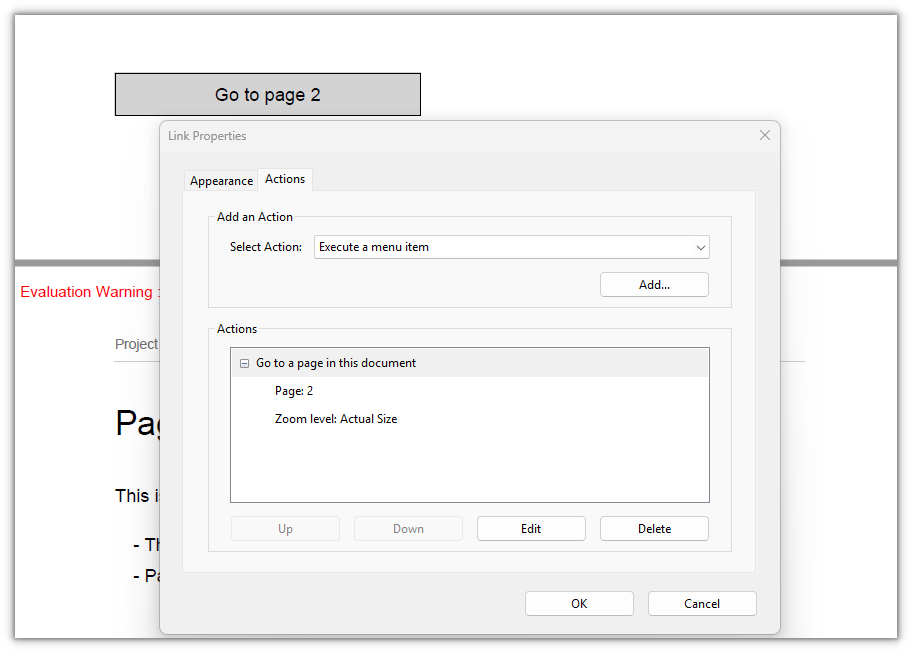
A "Go to page 2" button appears at the bottom of the first page; clicking it moves the reading position to the top of the second page:
Create a sound action
A sound action ships the audio with the document and plays it when you click an image on the page.
function App() {
  const addSoundAction = async () => {
    // Get the Spire.PDF WASM module
    const pdfModule = window.wasmModule?.spirepdf;

    // Check whether the module is ready
    if (!pdfModule) {
      alert('Spire.PDF is not ready yet');
      return;
    }

    // Load the PDF to process, the beep, and the icon into the VFS
    const inputFileName = 'SampleDocument.pdf';
    await window.spire.FetchFileToVFS(inputFileName, "", `${process.env.PUBLIC_URL}/data/`);
    const soundFileName = 'BeepSound.wav';
    await window.spire.FetchFileToVFS(soundFileName, "", `${process.env.PUBLIC_URL}/data/`);
    const iconFileName = 'SoundIcon.png';
    await window.spire.FetchFileToVFS(iconFileName, "", `${process.env.PUBLIC_URL}/data/`);

    // Create a PdfDocument object and load the document
    let doc = new pdfModule.PdfDocument();
    doc.LoadFromFile(inputFileName);

    // Get the first page
    let firstPage = doc.Pages.get_Item(0);

    // Build the sound action from the audio file
    let soundAction = new pdfModule.PdfSoundAction(soundFileName);

    // Sample format matching the audio: 16-bit, mono, signed PCM, 22050 Hz
    soundAction.Sound.Bits = 16;
    soundAction.Sound.Channels = pdfModule.PdfSoundChannels.Mono;
    soundAction.Sound.Encoding = pdfModule.PdfSoundEncoding.Signed;
    soundAction.Sound.Rate = 22050;

    // Playback: volume 0.5, loop, mix with other sounds, not synchronous
    soundAction.Volume = 0.5;
    soundAction.Repeat = true;
    soundAction.Mix = true;
    soundAction.Synchronous = false;

    // Draw the icon into a rectangle on the page; the rectangle is the click hotspot
    let icon = pdfModule.PdfImage.FromFile(iconFileName);
    let bounds = new pdfModule.RectangleF({ x: 72, y: 600, width: 160, height: 160 });
    firstPage.Canvas.DrawImage({ image: icon, rectangle: bounds });

    // The action annotation covers the icon; a click plays the audio
    let annotation = new pdfModule.PdfActionAnnotation(bounds, soundAction);
    firstPage.Annotations.Add(annotation);

    // Save the document
    const outputFileName = 'SoundAction.pdf';
    doc.SaveToFile(outputFileName);
    doc.Close();

    // Read the generated file from the VFS and trigger a download
    const fileArray = window.dotnetRuntime.Module.FS.readFile(outputFileName);
    const blob = new Blob([fileArray], { type: 'application/pdf' });
    const url = URL.createObjectURL(blob);
    const a = document.createElement('a');
    a.href = url;
    a.download = outputFileName;
    a.click();
    URL.revokeObjectURL(url);
  };

  return (
    <div style={{ textAlign: 'center', height: '300px' }}>
      <h1>Create a sound action</h1>
      <button onClick={addSoundAction}>
        Start
      </button>
    </div>
  );
}

export default App;
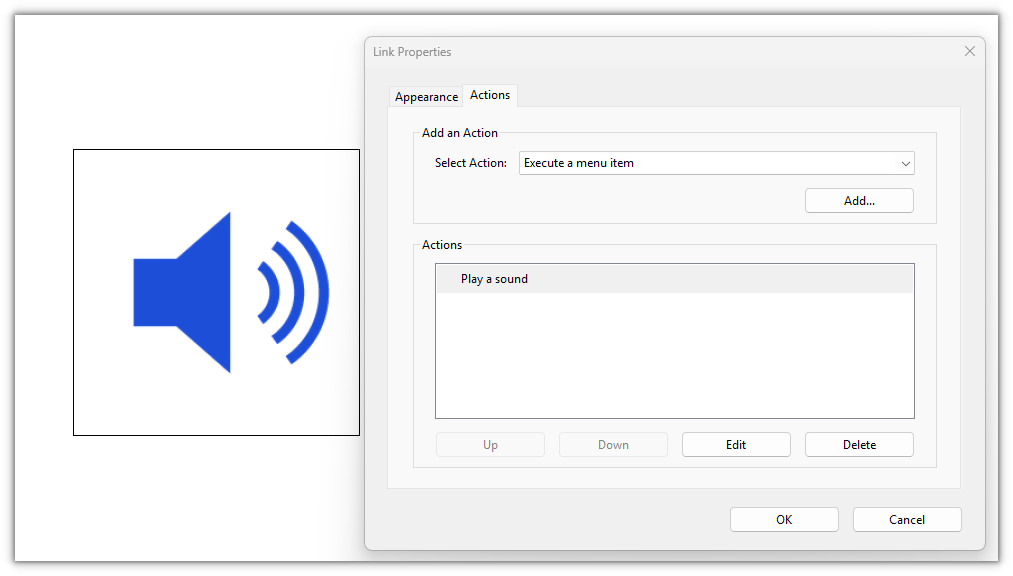
A speaker icon appears on the first page; clicking it plays the embedded audio. To play it automatically when the document opens instead, assign the same action to doc.AfterOpenAction—but whether it autoplays depends on the viewer, so click-to-play is usually more reliable:
Create an embedded file Go-To action
An embedded file Go-To action targets the "document with an attachment" case: add the attachment to the Attachments collection with PdfAttachment, then use PdfEmbeddedGoToAction to name which attachment to open and which page to land on.
function App() {
  const addEmbeddedGoToAction = async () => {
    // Get the Spire.PDF WASM module
    const pdfModule = window.wasmModule?.spirepdf;

    // Check whether the module is ready
    if (!pdfModule) {
      alert('Spire.PDF is not ready yet');
      return;
    }

    // Load the font into the VFS font directory
    await window.spire.FetchFileToVFS('ARIAL.TTF', '/Library/Fonts/', `${process.env.PUBLIC_URL}/font/`);

    // Load the main document and the attachment to embed into the VFS
    const inputFileName = 'SampleDocument.pdf';
    await window.spire.FetchFileToVFS(inputFileName, "", `${process.env.PUBLIC_URL}/data/`);
    const attachmentFileName = 'Attachment.pdf';
    await window.spire.FetchFileToVFS(attachmentFileName, "", `${process.env.PUBLIC_URL}/data/`);

    // Create a PdfDocument object and load the document
    let doc = new pdfModule.PdfDocument();
    doc.LoadFromFile(inputFileName);

    // Get the first page
    let firstPage = doc.Pages.get_Item(0);

    // Embed the attachment PDF into the document
    let attachment = new pdfModule.PdfAttachment(attachmentFileName);
    doc.Attachments.Add({ attachment: attachment });

    // Destination: the first page of the embedded file
    let destination = new pdfModule.PdfDestination({ page: firstPage });
    destination.Location = new pdfModule.PointF(0, 842);
    destination.Zoom = 1;

    // Build the embedded Go-To action from the attachment name and destination; true opens it in a new window
    let action = new pdfModule.PdfEmbeddedGoToAction(attachment.FileName, destination, true);

    // Draw a button on the first page; the rectangle is the click hotspot
    let bounds = new pdfModule.RectangleF({ x: 72, y: 720, width: 200, height: 28 });
    let font = new pdfModule.PdfTrueTypeFont({ fontFile: '/Library/Fonts/ARIAL.TTF', size: 12 });
    let format = new pdfModule.PdfStringFormat({ alignment: pdfModule.PdfTextAlignment.Center, lineAlignment: pdfModule.PdfVerticalAlignment.Middle });
    firstPage.Canvas.DrawRectangle({ brush: pdfModule.PdfBrushes.get_LightGray(), rectangle: bounds });
    firstPage.Canvas.DrawString({ s: 'Open embedded attachment', font: font, brush: pdfModule.PdfBrushes.get_Black(), layoutRectangle: bounds, format: format });

    // The action annotation covers the button area; a click opens the attachment
    let annotation = new pdfModule.PdfActionAnnotation(bounds, action);
    firstPage.Annotations.Add(annotation);

    // Save the document
    const outputFileName = 'EmbeddedGoToAction.pdf';
    doc.SaveToFile(outputFileName);
    doc.Close();

    // Read the generated file from the VFS and trigger a download
    const fileArray = window.dotnetRuntime.Module.FS.readFile(outputFileName);
    const blob = new Blob([fileArray], { type: 'application/pdf' });
    const url = URL.createObjectURL(blob);
    const a = document.createElement('a');
    a.href = url;
    a.download = outputFileName;
    a.click();
    URL.revokeObjectURL(url);
  };

  return (
    <div style={{ textAlign: 'center', height: '300px' }}>
      <h1>Create an embedded file Go-To action</h1>
      <button onClick={addEmbeddedGoToAction}>
        Start
      </button>
    </div>
  );
}

export default App;
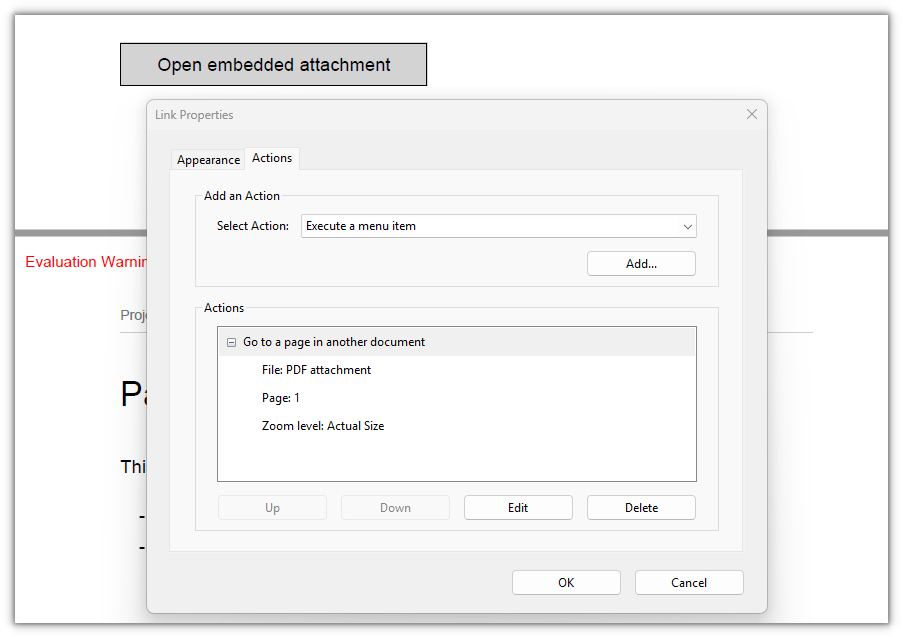
An "Open embedded attachment" button appears on the first page; clicking it opens the embedded attachment PDF in a new window:
Create a launch action
A launch action hands the click over to the operating system: the document records only a file path, and on click the OS opens that file with its associated application—the file itself is not in the PDF.
The key difference from the embedded file Go-To action in the previous section is where the file lives: the embedded one packs the file into the PDF and lands on a page inside it, so the file travels with the document; the launch action leaves only a path in the document and the PDF carries no such file, so nothing happens on click unless the target file sits in the same directory (or at a resolvable path). Many viewers also block launch actions outright for security.
function App() {
  const addLaunchAction = async () => {
    // Get the Spire.PDF WASM module
    const pdfModule = window.wasmModule?.spirepdf;

    // Check whether the module is ready
    if (!pdfModule) {
      alert('Spire.PDF is not ready yet');
      return;
    }

    // Load the font into the VFS font directory
    await window.spire.FetchFileToVFS('ARIAL.TTF', '/Library/Fonts/', `${process.env.PUBLIC_URL}/font/`);

    // Load the PDF to process into the VFS
    const inputFileName = 'SampleDocument.pdf';
    await window.spire.FetchFileToVFS(inputFileName, "", `${process.env.PUBLIC_URL}/data/`);

    // Create a PdfDocument object and load the document
    let doc = new pdfModule.PdfDocument();
    doc.LoadFromFile(inputFileName);

    // Get the first page
    let firstPage = doc.Pages.get_Item(0);

    // Build the launch action from an external file path. Relative means relative to the document's directory
    const targetFileName = 'Attachment.pdf';
    let action = new pdfModule.PdfLaunchAction(targetFileName, pdfModule.PdfFilePathType.Relative);
    action.IsNewWindow = true;

    // Draw a button on the first page; the rectangle is the click hotspot
    let bounds = new pdfModule.RectangleF({ x: 72, y: 720, width: 200, height: 28 });
    let font = new pdfModule.PdfTrueTypeFont({ fontFile: '/Library/Fonts/ARIAL.TTF', size: 12 });
    let format = new pdfModule.PdfStringFormat({ alignment: pdfModule.PdfTextAlignment.Center, lineAlignment: pdfModule.PdfVerticalAlignment.Middle });
    firstPage.Canvas.DrawRectangle({ brush: pdfModule.PdfBrushes.get_LightGray(), rectangle: bounds });
    firstPage.Canvas.DrawString({ s: 'Open external file', font: font, brush: pdfModule.PdfBrushes.get_Black(), layoutRectangle: bounds, format: format });

    // The action annotation covers the button area; a click hands the file to the OS
    let annotation = new pdfModule.PdfActionAnnotation(bounds, action);
    firstPage.Annotations.Add(annotation);

    // Save the document
    const outputFileName = 'LaunchAction.pdf';
    doc.SaveToFile(outputFileName);
    doc.Close();

    // Read the generated file from the VFS and trigger a download
    const fileArray = window.dotnetRuntime.Module.FS.readFile(outputFileName);
    const blob = new Blob([fileArray], { type: 'application/pdf' });
    const url = URL.createObjectURL(blob);
    const a = document.createElement('a');
    a.href = url;
    a.download = outputFileName;
    a.click();
    URL.revokeObjectURL(url);
  };

  return (
    <div style={{ textAlign: 'center', height: '300px' }}>
      <h1>Create a launch action</h1>
      <button onClick={addLaunchAction}>
        Start
      </button>
    </div>
  );
}

export default App;
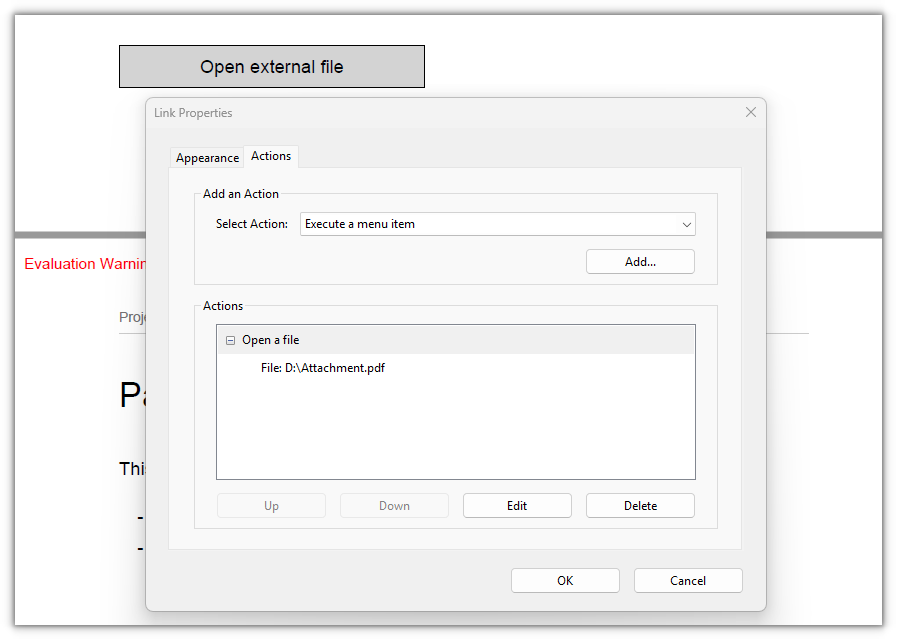
An "Open external file" button appears on the first page; clicking it hands Attachment.pdf in the same directory to the OS (the file must sit next to the PDF):
FAQ
The action annotation doesn't look clickable on the page
Cause: Actions are carried by PdfActionAnnotation, which only defines a hotspot and draws no appearance—once saved, the annotation dictionary holds only /Rect and /A, with no /AP appearance stream. Page renderers won't draw a border or underline for it, so an annotation alone gives the reader no hint of where to click.
Solution: Put the hotspot over a shape you draw yourself, using Canvas for the background and the text, with the annotation and the shape sharing the same coordinates:
let bounds = new pdfModule.RectangleF({ x: 72, y: 720, width: 200, height: 28 });
firstPage.Canvas.DrawRectangle({ brush: pdfModule.PdfBrushes.get_LightGray(), rectangle: bounds });
firstPage.Canvas.DrawString({ s: 'Go to page 2', font: font, brush: pdfModule.PdfBrushes.get_Black(), layoutRectangle: bounds, format: format });
firstPage.Annotations.Add(new pdfModule.PdfActionAnnotation(bounds, action));
The sound action does nothing after clicking the image
Cause: Both the action and the audio are written into the document—the annotation dictionary carries /A /S /Sound, and the audio is embedded as a stream—but whether a viewer plays embedded sound is up to the viewer, and some (especially built-in browser PDF viewers) don't play embedded audio by default.
Solution: Switch to a viewer that supports sound actions (such as Adobe Acrobat), where clicking the image plays it. The audio always ships with the document and depends on no external file.
The Go-To destination lands upside down
Cause: PdfDestination.Location, like the annotation rectangle, uses a top-left origin with y pointing down, and is converted to PDF's native bottom-left coordinates when written. If you give the y value with the bottom-left convention in mind, the destination comes out reversed.
Solution: Always give the value with a top-left origin; Location = new PointF(0, 0) means the top of the page:
let destination = new pdfModule.PdfDestination({ page: secondPage });
destination.Mode = pdfModule.PdfDestinationMode.Location;
destination.Location = new pdfModule.PointF(0, 0);
destination.Zoom = 1;
The launch action does nothing on click
Cause: A launch action leaves only a file path in the document (written as /A << /S /Launch /F ... >>); the target file is not in the PDF. If the file isn't in the document's directory (for a relative path) or the path can't be resolved, clicking does nothing—and many viewers block launch actions outright for security.
Solution: Put the target file in the same directory as the PDF before opening it; if you want the file to ship with the document, use the embedded file Go-To action instead and pack the file into the PDF rather than referencing an external path.
Get a Free License
To remove the evaluation message from the result documents, or to lift functional limits, contact sales for a 30-day temporary license.
