Line spacing determines the vertical distance between the lines within a paragraph. It directly affects how dense or airy the layout looks, how readable it is, and how many pages the same content occupies. Paragraph alignment determines how the text is distributed across the width of the page: centering the title, justifying the body, and aligning the signature to the right is a combination commonly used in official documents and reports.
Adjusting paragraphs one by one in desktop software is not difficult, but for documents generated in batches, or for processing pipelines that need to be embedded in a web page, manual operations are hard to reuse. This article uses Spire.Doc for JavaScript to perform the settings described above in the browser. The document is loaded through the virtual file system (VFS), saved after modification and downloaded directly. The whole process runs on the client side with WebAssembly, requires no Office installation and depends on no backend service.
This article covers two features:
The examples read Sample.docx from public/data; put that file into the public/data directory of the project before running them.
For installation and project setup, refer to Integrating Spire.Doc for JavaScript in a React Project. The examples below assume that Spire.Doc is installed and the WebAssembly module is initialized.
Set Line Spacing for Word Paragraphs
To set line spacing for Word paragraphs, the spacing is controlled by the paragraph's ParagraphFormat. LineSpacing specifies the value, in points, and LineSpacingRule specifies how that value is applied; only the two together produce the intended spacing:
| Member | Purpose |
|---|---|
ParagraphFormat.LineSpacing |
The line spacing value, in points |
ParagraphFormat.LineSpacingRule |
The line spacing rule; the value is AtLeast, Exactly or Multiple |
The body of the sample document uses single spacing. The following code sets the 3rd to the 7th paragraph (index 2 to 6) to a fixed value of 30 points and leaves the title and the prepared-by line unchanged.
The specific steps are as follows:
- Get the Spire.Doc WASM module and confirm that it is ready.
- Load the font, read the sample document into the VFS and load it as a
Document. - Get the paragraph collection of the first section, take the
ParagraphFormatof each paragraph and setLineSpacingandLineSpacingRule. - Save the result file with
SaveToFile(). - Read the result file from the VFS and trigger a browser download.
The code for setting the line spacing of Word paragraphs is as follows:
function App() {
  const setLineSpacing = async () => {
    // Get the Spire.Doc WASM module
    const wasmModule = window.wasmModule?.spiredoc;

    // Check if the module is ready
    if (!wasmModule) {
      alert('Spire.Doc is not ready yet');
      return;
    }

    // Load the document to be processed
    await window.spire.FetchFileToVFS('Sample.docx', '', `${process.env.PUBLIC_URL}/data/`);

    // Create a Document instance and load the document
    const doc = new wasmModule.Document();
    doc.LoadFromFile('Sample.docx');

    // Line spacing applies per paragraph, so take the paragraph collection of the first section
    const paragraphs = doc.Sections.get_Item(0).Paragraphs;

    // In the sample document the 3rd to the 7th paragraphs are the body; adjust the range for your own document
    for (let i = 2; i <= 6; i++) {
      const format = paragraphs.get_Item(i).Format;

      // Fixed line spacing: each line is 30 points high
      format.LineSpacing = 30;
      format.LineSpacingRule = wasmModule.LineSpacingRule.Exactly;
    }

    // Save the result file
    const outputFileName = 'SetLineSpacing.docx';
    doc.SaveToFile({ fileName: outputFileName, fileFormat: wasmModule.FileFormat.Docx2013 });
    doc.Dispose();

    // Read the generated file from the VFS and trigger the download
    const fileArray = window.dotnetRuntime.Module.FS.readFile(outputFileName);
    const blob = new Blob([fileArray], { type: 'application/vnd.openxmlformats-officedocument.wordprocessingml.document' });
    const url = URL.createObjectURL(blob);
    const a = document.createElement('a');
    a.href = url;
    a.download = outputFileName;
    a.click();
    URL.revokeObjectURL(url);
  };

  return (
    <div style={{ textAlign: 'center', height: '300px' }}>
      <h1>Set Line Spacing for Word Paragraphs</h1>
      <button onClick={setLineSpacing}>
        Set Line Spacing
      </button>
    </div>
  );
}

export default App;
The page after the body paragraphs have been set to a fixed line spacing of 30 points is shown below:

Three Values of the Line Spacing Rule
LineSpacingRule determines how the value of LineSpacing takes part in the layout. The common values are as follows:
| Value | Meaning | Example |
|---|---|---|
LineSpacingRule.AtLeast |
Minimum line spacing; the line height is no less than the given value in points | LineSpacing = 30 |
LineSpacingRule.Exactly |
Fixed line spacing; every line is exactly the given value in points high | LineSpacing = 30 |
LineSpacingRule.Multiple |
Multiple line spacing, based on single spacing (12 points) | write 18 for 1.5 lines, 24 for double |
The three rules are written as follows:
const format = paragraphs.get_Item(6).Format;

// Fixed line spacing: every line is fixed at 30 points
format.LineSpacing = 30;
format.LineSpacingRule = wasmModule.LineSpacingRule.Exactly;

// Minimum line spacing: the line is at least 30 points high and grows automatically with a larger font
format.LineSpacing = 30;
format.LineSpacingRule = wasmModule.LineSpacingRule.AtLeast;

// Multiple line spacing: 1.5 lines
format.LineSpacing = 18;
format.LineSpacingRule = wasmModule.LineSpacingRule.Multiple;
Fixed line spacing suits documents whose layout is already settled and whose page count has to be controlled. When the body mixes different font sizes, minimum or multiple line spacing keeps the larger text from crowding the adjacent lines. If the value is too small, fixed line spacing can make text overlap, so check the largest font size in the paragraph before applying it.
Set Paragraph Alignment in a Word Document
To set paragraph alignment in a Word document, specify an enumeration value through ParagraphFormat.HorizontalAlignment. Spire.Doc for JavaScript provides five common values:
| Value | Alignment effect |
|---|---|
HorizontalAlignment.Left |
Align left; the text sits against the left edge of the page |
HorizontalAlignment.Center |
Align center; the text is centered within the page width |
HorizontalAlignment.Right |
Align right; the text sits against the right edge of the page |
HorizontalAlignment.Justify |
Justify; every line except the last is aligned to both edges |
HorizontalAlignment.Distribute |
Distribute; the text is stretched to the full line width, including the last line |
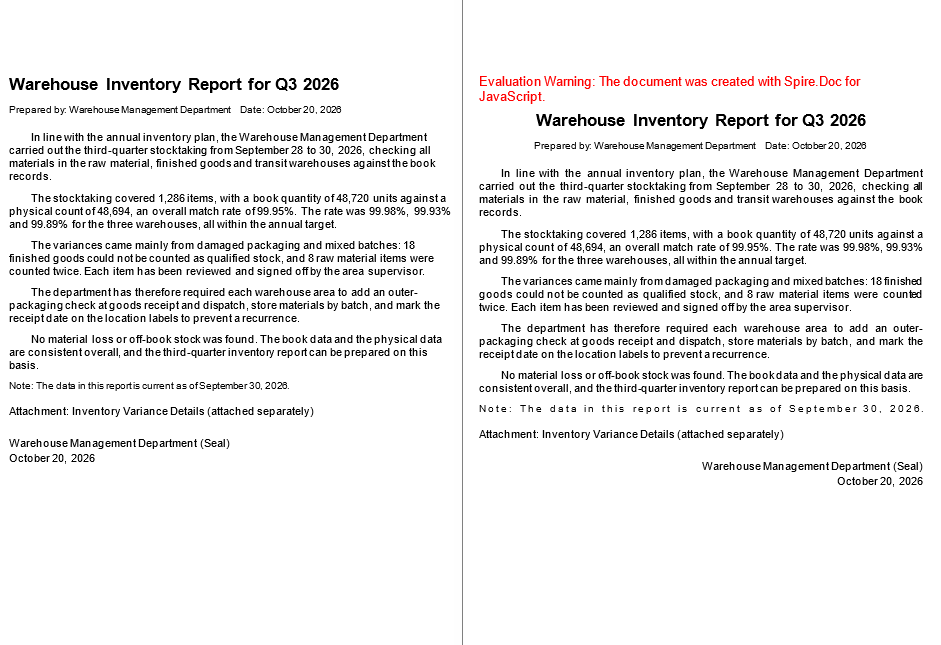
In the sample document the title is centered, the body is justified, the note is distributed, the attachment line is aligned left, and the signature and date are aligned right, which covers all five values above.
The specific steps are as follows:
- Get the Spire.Doc WASM module and confirm that it is ready.
- Load the font, read the sample document into the VFS and load it as a
Document. - Get the paragraph collection of the first section, take the target paragraph by index and set
ParagraphFormat.HorizontalAlignment. - Save the result file with
SaveToFile(). - Read the result file from the VFS and trigger a browser download.
The code for setting paragraph alignment in a Word document is as follows:
function App() {
  const setParagraphAlignment = async () => {
    // Get the Spire.Doc WASM module
    const wasmModule = window.wasmModule?.spiredoc;

    // Check if the module is ready
    if (!wasmModule) {
      alert('Spire.Doc is not ready yet');
      return;
    }

    // Load the document to be processed
    await window.spire.FetchFileToVFS('Sample.docx', '', `${process.env.PUBLIC_URL}/data/`);

    // Create a Document instance and load the document
    const doc = new wasmModule.Document();
    doc.LoadFromFile('Sample.docx');

    // Alignment also applies per paragraph, so take the paragraph collection of the first section
    const paragraphs = doc.Sections.get_Item(0).Paragraphs;

    // Center the title and the prepared-by line
    paragraphs.get_Item(0).Format.HorizontalAlignment = wasmModule.HorizontalAlignment.Center;
    paragraphs.get_Item(1).Format.HorizontalAlignment = wasmModule.HorizontalAlignment.Center;

    // Justify the body paragraphs
    for (let i = 2; i <= 6; i++) {
      paragraphs.get_Item(i).Format.HorizontalAlignment = wasmModule.HorizontalAlignment.Justify;
    }

    // Distribute the note
    paragraphs.get_Item(7).Format.HorizontalAlignment = wasmModule.HorizontalAlignment.Distribute;

    // Align the attachment line to the left
    paragraphs.get_Item(8).Format.HorizontalAlignment = wasmModule.HorizontalAlignment.Left;

    // Align the signature and the date to the right
    paragraphs.get_Item(9).Format.HorizontalAlignment = wasmModule.HorizontalAlignment.Right;
    paragraphs.get_Item(10).Format.HorizontalAlignment = wasmModule.HorizontalAlignment.Right;

    // Save the result file
    const outputFileName = 'SetParagraphAlignment.docx';
    doc.SaveToFile({ fileName: outputFileName, fileFormat: wasmModule.FileFormat.Docx2013 });
    doc.Dispose();

    // Read the generated file from the VFS and trigger the download
    const fileArray = window.dotnetRuntime.Module.FS.readFile(outputFileName);
    const blob = new Blob([fileArray], { type: 'application/vnd.openxmlformats-officedocument.wordprocessingml.document' });
    const url = URL.createObjectURL(blob);
    const a = document.createElement('a');
    a.href = url;
    a.download = outputFileName;
    a.click();
    URL.revokeObjectURL(url);
  };

  return (
    <div style={{ textAlign: 'center', height: '300px' }}>
      <h1>Set Paragraph Alignment in a Word Document</h1>
      <button onClick={setParagraphAlignment}>
        Set Paragraph Alignment
      </button>
    </div>
  );
}

export default App;
The page after the five alignments have been applied is shown below:
Difference Between Justify and Distribute
Both alignments adjust the spacing between characters, but over different ranges: justify adjusts only the lines other than the last one, while the last line keeps its natural width; distribute stretches the last line to the full width as well. In Latin text, distribute also spreads the surplus space evenly between the characters, and the effect is most noticeable on a short line.
// Justify: the last line keeps its natural width
paragraphs.get_Item(6).Format.HorizontalAlignment = wasmModule.HorizontalAlignment.Justify;

// Distribute: the last line is stretched to the full width as well
paragraphs.get_Item(7).Format.HorizontalAlignment = wasmModule.HorizontalAlignment.Distribute;
FAQ
What unit does line spacing use, and why does setting 1.5 not produce 1.5-line spacing
The value of LineSpacing is in points, and multiple line spacing is not entered as the multiplier itself. With LineSpacingRule.Multiple, single spacing is calculated as 12 points, so 1.5 lines corresponds to 18 and double spacing to 24; entering 1.5 directly produces spacing that is clearly too small. To apply multiple line spacing, set LineSpacingRule.Multiple and the converted point value together.
How should fixed line spacing and multiple line spacing be chosen
Fixed line spacing (Exactly) keeps every line at the same height, which makes the page count and the layout easy to predict, and suits official documents and reports with a settled layout. Multiple line spacing (Multiple) scales with the font size and is more reliable when the body mixes different font sizes. If a paragraph contains a large font or superscripts and subscripts, a fixed value that is too small may make the text overlap the adjacent line, so switch to minimum or multiple line spacing.
After applying justify, why is the last line of the paragraph not full width
Justify adjusts only the lines of a paragraph other than the last line; the last line is laid out at the natural width of the text, so a single-line paragraph shows almost no change. To make the last line fill the whole line as well, use Distribute instead.
Why does the line spacing of the other paragraphs not change when only one paragraph is set
Line spacing and alignment are both paragraph formatting and are stored on each paragraph individually, so changing one paragraph normally does not affect the others. For batch processing, iterate over the Paragraphs collection and assign the values paragraph by paragraph, or process only the index range that corresponds to the body. Paragraphs whose formatting has not been set directly inherit the definition from the style they belong to.
Get a Free License
Spire.Doc for JavaScript offers a 30-day full-featured free trial license with no functional limitations. Apply here to evaluate before purchasing.
