Templates usually carry a few lines that only make sense when there is data behind them — a supplementary note, a remark, an optional cc. With no data, the result you want is for that line and the space it takes up to disappear, rather than leaving a blank stretch that pushes the layout apart.
The related question is: when someone hands you a template, how do you find out which fields it holds and how they are grouped into regions? Expanding the field codes one by one to count them is not an option.
Spire.Doc for JavaScript does both — it hides what the merge has emptied and reports the structure — entirely in the browser via WebAssembly, using a virtual file system (VFS) to manage the template document, with no backend server required.
This article covers two core features:
- Hide empty paragraphs and regions after the merge
- Read the region names and the merge field name list
For installation and project setup, refer to Integrating Spire.Doc for JavaScript in a React Project. The examples below assume Spire.Doc is installed and the WebAssembly module is initialized.
Hide Empty Paragraphs and Regions After the Merge
Prepare the Template
On top of an ordinary contact letter, the template adds three constructs that may come out empty:
To: «Contact Name»
From: Customer Service
Subject: Requirement Confirmation
Fax.: «Fax»          Date: «Date»

«Optional Note»

«GroupStart:OptionalBlock»
«Optional Line 1»
«Optional Line 2»
«GroupEnd:OptionalBlock»

Note: «Optional Remark»

Message:
Dear «Contact Name»,
Thank you for getting back to us. We will contact you within two working days to confirm the exact delivery arrangements.
Sincerely,
Customer Service
The three are written differently, and between them they cover three cases:
«Optional Note»occupies a paragraph of its own — after the merge not a single character is left inside it;- the region
OptionalBlock— fenced by the two fields«GroupStart:OptionalBlock»and«GroupEnd:OptionalBlock», with both paragraphs in between holding nothing but a single field. A region marker is aMERGEFIELDfield in Word just like any other; only the field name is written asGroupStart:region name/GroupEnd:region name, and without quotation marks; Note: «Optional Remark»— the field and the label share one paragraph, so the line still holds the labelNote:after the merge.
The Code
function App() {
  const HideEmptyRegions = async () => {
    const docModule = window.wasmModule?.spiredoc;
    if (!docModule) {
      alert('Spire.Doc is not ready yet');
      return;
    }
    // Load the sample template into the virtual file system (VFS)
    let inputFileName = "HideEmptyRegions.docx";
    await window.spire.FetchFileToVFS(inputFileName, "", `${process.env.PUBLIC_URL}static/data/`);

    // Create a document and load the template
    let doc = new docModule.Document();
    doc.LoadFromFile(inputFileName);

    // Provide values for three fields only; the optional fields in the
    // template are left empty
    let fieldNames = ["Contact Name", "Fax", "Date"];
    let fieldValues = ["John Smith", "+1 (69) 123456", docModule.DateTime.get_Now().Date.ToString()];

    // Hide the paragraphs and the region that come out empty
    doc.MailMerge.HideEmptyParagraphs = true;
    doc.MailMerge.HideEmptyGroup = true;

    // Execute the mail merge
    doc.MailMerge.Execute(fieldNames, fieldValues);

    // Define the output file name
    const outputFileName = "HideEmptyRegions-result.docx";

    // Save the document
    doc.SaveToFile({ fileName: outputFileName, fileFormat: docModule.FileFormat.Docx2013 });

    doc.Dispose()

    // Read the saved file and convert it to a Blob
    const modifiedFileArray = window.dotnetRuntime.Module.FS.readFile(outputFileName);
    const blob = new Blob([modifiedFileArray], {type: "application/vnd.openxmlformats-officedocument.wordprocessingml.document"});
    const url = URL.createObjectURL(blob);
    const a = document.createElement('a');
    a.href = url;
    a.download = outputFileName;
    a.click();
    URL.revokeObjectURL(url);
  };

  return (
    <div style={{ textAlign: 'center', height: '300px' }}>
      <h1>Merge data and hide empty regions</h1>
      <button onClick={HideEmptyRegions}>Generate</button>
    </div>
  );
}
export default App;
Everything hangs on the two lines before Execute:
document.MailMerge.HideEmptyParagraphs = true;
document.MailMerge.HideEmptyGroup = true;
Both are boolean properties on MailMerge, both default to false, and both have to be turned on explicitly. Note that they must be set before Execute — the hiding happens during the merge, so changing them afterwards makes no difference.
fieldNames lists only three "main" fields; Optional Note, Optional Line 1/2 and Optional Remark are given no values at all, and therefore all come out empty after the merge.
The Result
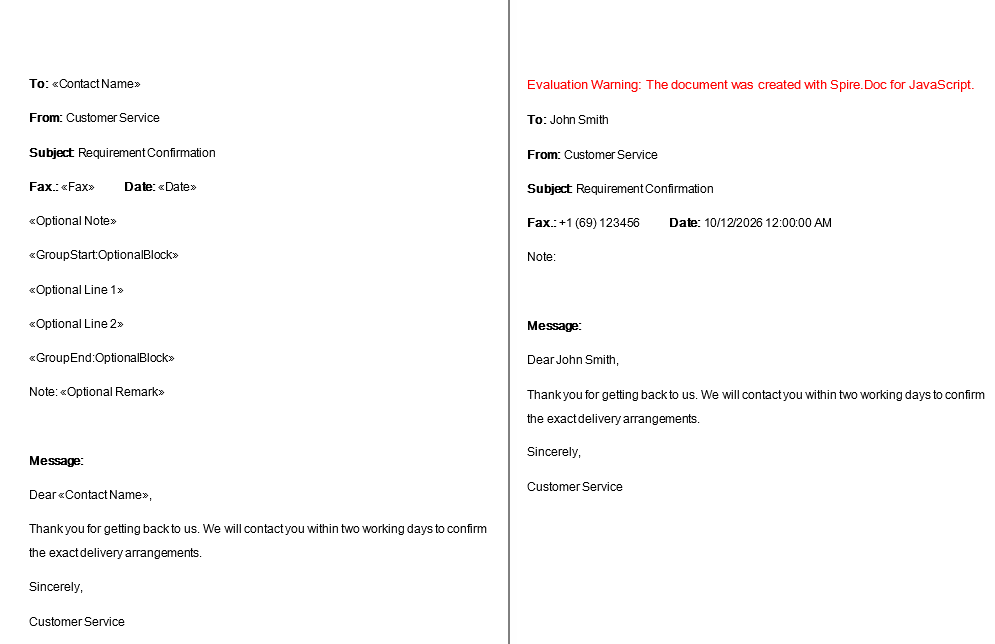
The output with both switches off (the control) set against the output with both on, compared paragraph by paragraph:
| What the template says | Both switches off | Both switches on |
|---|---|---|
«Optional Note» (a paragraph of its own) |
kept as a blank line | the whole paragraph disappears |
the region OptionalBlock (marker + two field paragraphs + closing marker) |
kept as 4 blank lines | all four paragraphs disappear |
Note: «Optional Remark» |
Note: |
Note: (kept) |
With the switches on, only these paragraphs are left in the body:
To: John Smith
From: Customer Service
Subject: Requirement Confirmation
Fax.: +1 (69) 123456          Date: 10/12/2026 12:00:00 AM
Note:
Message:
Dear John Smith,
Thank you for getting back to us. We will contact you within two working days to confirm the exact delivery arrangements.
Sincerely,
Customer Service
Two rules worth remembering:
- The test is whether the paragraph still holds text after the merge, not whether the field received a value. In the third construct
Optional Remarkis just as empty, but because the same paragraph still holds the labelNote:, the line is kept — only the field's position is left blank. To keep the label itself conditionally, the label has to be turned into a field value of its own. HideEmptyParagraphsis the property that actually deletes. SettingHideEmptyGrouptotrueon its own while leavingHideEmptyParagraphs = falseproduces output identical to leaving both switches off — the region still leaves its four blank lines behind. Only with both turned on does the region vanish together with the paragraphs inside it. So if all you want is for the blank lines to go away and you are not using regions, turning onHideEmptyParagraphsis enough.
Word output after the paragraphs and the region that merged to nothing have been hidden
Read the Region Names and the Merge Field Name List
The Approach
MailMerge has three methods for reading, each at a different granularity:
| Method | What it returns |
|---|---|
GetMergeGroupNames() |
every region name in the document |
GetMergeFieldNames({ groupName: "…" }) |
the merge field names inside the named region |
GetMergeFieldNames() |
every merge field name in the document |
The second method takes the region name inside an object, as a named argument. That is how the WebAssembly build handles an overloaded method — methods sharing a name are dispatched by argument count and argument name, so the call has to be written as { groupName: "Products" } rather than by passing a plain string.
Prepare the Template
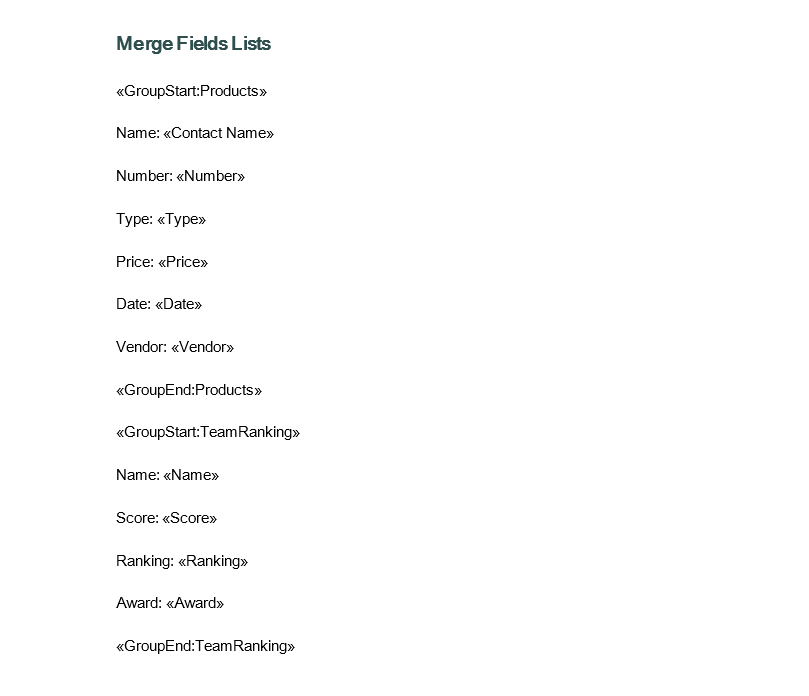
The template defines two regions, each holding several fields:
«GroupStart:Products»
Name: «Contact Name»
Number: «Number»
Type: «Type»
Price: «Price»
Date: «Date»
Vendor: «Vendor»
«GroupEnd:Products»

«GroupStart:TeamRanking»
Name: «Name»
Score: «Score»
Ranking: «Ranking»
Award: «Award»
«GroupEnd:TeamRanking»
Every field gets a paragraph of its own, and the region markers are paragraphs of their own too.
The Code
This sample reads the structure of a document and produces text, so the result goes into a TXT file:
function App() {
  const IdentifyMergeFieldName = async () => {
    const docModule = window.wasmModule?.spiredoc;
    if (!docModule) {
      alert('Spire.Doc is not ready yet');
      return;
    }
    // Load the sample template into the virtual file system (VFS)
    let inputFileName = "IdentifyMergeFieldNames.docx";
    await window.spire.FetchFileToVFS(inputFileName, "", `${process.env.PUBLIC_URL}static/data/`);

    // Create a document and load the template
    let doc = new docModule.Document();
    doc.LoadFromFile(inputFileName);

    // Read all region names
    let GroupNames = doc.MailMerge.GetMergeGroupNames();

    // Read the merge field names inside one region
    let MergeFieldNamesWithinRegion = doc.MailMerge.GetMergeFieldNames({ groupName: "Products" });

    // Read every merge field name in the document
    let MergeFieldNames = doc.MailMerge.GetMergeFieldNames();

    // Concatenate the results into text
    let content = [];
    content.push("----------------Group Names-----------------------------------------\n");
    for (let i = 0; i < GroupNames.length; i++) {
      content.push(GroupNames[i] + "\n");
    }
    content.push("----------------Merge field names within a specific group-----------\n");
    for (let j = 0; j < MergeFieldNamesWithinRegion.length; j++) {
      content.push(MergeFieldNamesWithinRegion[j] + "\n");
    }
    content.push("----------------All of the merge field names------------------------\n");
    for (let k = 0; k < MergeFieldNames.length; k++) {
      content.push(MergeFieldNames[k] + "\n");
    }

    // Write the TXT file
    const outputFileName = "IdentifyMergeFieldName-result.txt";
    window.dotnetRuntime.Module.FS.writeFile(outputFileName, content.join("\n"));

    // Close the document
    doc.Close();

    doc.Dispose()

    // Read the saved file and convert it to a Blob
    const modifiedFileArray = window.dotnetRuntime.Module.FS.readFile(outputFileName);
    const blob = new Blob([modifiedFileArray], {type: "text/plain"});
    const url = URL.createObjectURL(blob);
    const a = document.createElement('a');
    a.href = url;
    a.download = outputFileName;
    a.click();
    URL.revokeObjectURL(url);
  };

  return (
    <div style={{ textAlign: 'center', height: '300px' }}>
      <h1>Read the region and merge field names from a template</h1>
      <button onClick={IdentifyMergeFieldName}>Generate</button>
    </div>
  );
}
export default App;
Two things differ from the earlier samples:
- There is no call to
Execute. This only reads the template's structure without merging any data, so the three lists can be read straight after loading. - The output goes through
window.dotnetRuntime.Module.FS.writeFile(fileName, text), writing the string directly into the virtual file system before atext/plainBlob triggers the download. The sample finishes withdocument.Close(), because it never changes the document's content.
All three methods return a collection (GroupNames.length, indexed access), walked in the same way as Sections and Paragraphs.
The Result
The output file is laid out like this (the ---…--- lines are separators):
----------------Group Names-----------------------------------------

Products

TeamRanking

----------------Merge field names within a specific group-----------

Contact Name

Number

Type

Price

Date

Vendor

----------------All of the merge field names------------------------

Products

Contact Name

Number

Type

Price

Date

Vendor

Products

TeamRanking

Name

Score

Ranking

Award

TeamRanking
The three lists come out as:
Region names (2)
  Products, TeamRanking

Field names inside the Products region (6)
  Contact Name, Number, Type, Price, Date, Vendor

All field names (14 entries)
  Products, Contact Name, Number, Type, Price, Date, Vendor, Products,
  TeamRanking, Name, Score, Ranking, Award, TeamRanking
Two points are worth noting:
GetMergeFieldNames()with no argument counts the region markers themselves as field names.GroupStart:Productsis aMERGEFIELDfield in the document, so every region name turns up twice — once for the opening marker and once for the closing one. Among the 14 entries above,ProductsandTeamRankingeach appear twice. To get the real field names, either read region by region with thegroupNameversion, or filter the region names out of the full list.- The
groupNameversion returns only the real field names inside that region — none of the six results forProductscontains aGroupStart:orGroupEnd:marker.
Why is there an extra blank line between the entries? While the string is being assembled,
content.push(name + "\n")already puts a newline at the end of every entry, andcontent.join("\n")adds another one between the elements, so two newlines end up in a row. For a compact list, drop the"\n"from thepushcall:
content.push(GroupNames[i]);
Word output after the region and the merge field names have been read from the template
FAQ
The hiding switches are on and a blank line is still there
Cause: most likely that line still holds other text. The test for hiding is whether the paragraph is empty after the merge — as long as a single character is left in it (a fixed label such as Note:, for example), the whole paragraph is kept.
Solution: Check that the line you want hidden holds nothing but the field. If the label really does have to disappear together with the field, turn the label into a field value and pass it in as well:
let fieldNames = ["Contact Name", "Remark Label", "Remark"];
let fieldValues = ["John Smith", "Note: ", ""];
Setting HideEmptyGroup = true on its own has no effect
Cause: HideEmptyParagraphs is what actually deletes paragraphs. A region disappears as a whole because the paragraphs inside it are deleted one by one; the markers themselves trigger no extra deletion.
Solution: Turn both properties on. That is exactly why the sample writes both lines:
document.MailMerge.HideEmptyParagraphs = true;
document.MailMerge.HideEmptyGroup = true;
Should the hiding switches be set before or after Execute
Before Execute. The hiding of empty paragraphs and regions happens during the merge, so changing the properties once it has finished has no effect on the result that has already been produced.
GetMergeFieldNames errors out or returns nothing when a string is passed
Cause: It is an overloaded method. The WebAssembly build dispatches by argument name, so the region name has to be passed in an object with a key.
Solution: Write it as an object:
let fields = document.MailMerge.GetMergeFieldNames({ groupName: "Products" });
The region name must match the name after GroupStart: in the template exactly, case included.
Region names turn up in the result of GetMergeFieldNames()
Cause: Both the opening and the closing marker of a region are merge fields themselves, so they are counted into the full list and every region name appears twice.
Solution: To filter them out, collect the result of GetMergeGroupNames() into a set and drop those names:
let groups = document.MailMerge.GetMergeGroupNames();
let groupSet = {};
for (let i = 0; i < groups.length; i++) groupSet[groups[i]] = true;

let names = document.MailMerge.GetMergeFieldNames();
let realFields = [];
for (let i = 0; i < names.length; i++) {
  if (!groupSet[names[i]]) realFields.push(names[i]);
}
If you only need the fields of one particular region, the groupName version is less trouble — its result never contains markers.
The document defines regions but GetMergeGroupNames() returns 0
Cause: A region marker has to be written as MERGEFIELD GroupStart:region name, with the field name left unquoted. Written as MERGEFIELD "GroupStart:Products" (with quotes) it is treated as an ordinary merge field name and does not form a region.
Solution: Check the field codes of the two markers in the template:
{ MERGEFIELD  GroupStart:Products  \* MERGEFORMAT }
{ MERGEFIELD  GroupEnd:Products  \* MERGEFORMAT }
Also, GroupStart and GroupEnd have to come as a pair, with the region name written out in full and in matching case; a marker without its counterpart is not recognised as a region.
The TXT output opens as a single line in some editors
Cause: This sample writes plain text, and the line separator matters if the file is later saved as .txt and opened in Windows Notepad; the text Spire writes uses \n.
Solution: Open it in an editor such as VS Code or Notepad++, or replace "\n" with "\r\n" while the string is being assembled.
Get a Free License
Spire.Doc for JavaScript offers a 30-day full-featured free trial license with no functional limitations. Apply here to evaluate before purchasing.
