 |
|---|
Presentation content often ends up in a documentation site, a code repository or a knowledge base, where Markdown fits better: changes can be diffed line by line, and a static site generator can render the file as it stands. Transcribing the slides by hand takes time, and heading levels and list indentation tend to drift on the way across.
Spire.Presentation for Java reads a .pptx file on the server and writes Markdown, so no Microsoft PowerPoint installation is needed in the runtime environment.
Tutorial overview
Setting up the environment
Add Spire.Presentation for Java to the project before starting the conversion.
Why Spire.Presentation for Java
A PowerPoint presentation cannot export Markdown on its own, so the conversion needs a component that can parse the structure of the slides. Spire.Presentation for Java covers a whole deck, several consecutive slides and a single slide, with one method each for loading and writing, and no Office installation is required.
Installing Spire.Presentation for Java
For a Maven project, add the following configuration to the pom.xml file to import the JAR:
<repositories>
  <repository>
    <id>com.e-iceblue</id>
    <name>e-iceblue</name>
    <url>https://repo.e-iceblue.com/nexus/content/groups/public/</url>
  </repository>
</repositories>

<dependencies>
  <dependency>
    <groupId>e-iceblue</groupId>
    <artifactId>spire.presentation</artifactId>
    <version>11.10.4</version>
  </dependency>
</dependencies>
Without Maven, download the Spire.Presentation for Java package and add the JAR file to the project's classpath.
Convert PowerPoint presentations to Markdown
Titles, sections and tables are kept in the Markdown, and the result can go straight into a repository or a site generator. The scope is chosen to fit: the whole deck, several consecutive slides or a single slide. All three load the presentation the same way; the difference is whether Presentation or ISlide writes the file.
1. Convert a whole presentation to Markdown
Converting the whole deck needs no slide range: the file is read once and written once, in the order the slides are shown.
To convert a whole PowerPoint presentation to Markdown, loading and writing each take one method:
| Syntax | Result |
|---|---|
presentation.loadFromFile("data/Sample.pptx") |
Loads the presentation to convert from the project's data directory |
presentation.saveToFile("WholePresentation.md", FileFormat.Markdown) |
Writes the whole presentation to a Markdown file |
presentation.dispose() |
Releases the resources held by the Presentation object |
The steps are:
- Create a
Presentationobject withnew Presentation(). - Load the sample presentation with
presentation.loadFromFile. - Pass the output file name and
FileFormat.Markdowntopresentation.saveToFile. - Release the resources held by the Presentation object with
presentation.dispose.
import com.spire.presentation.*;

public class ConvertWholePresentation {

    public static void main(String[] args) throws Exception {
        // Create a Presentation object
        Presentation presentation = new Presentation();

        // Load the sample presentation
        presentation.loadFromFile("data/Sample.pptx");

        // Save the whole presentation as a Markdown file
        presentation.saveToFile("WholePresentation.md", FileFormat.Markdown);

        // Release the resources held by the Presentation object
        presentation.dispose();
    }
}
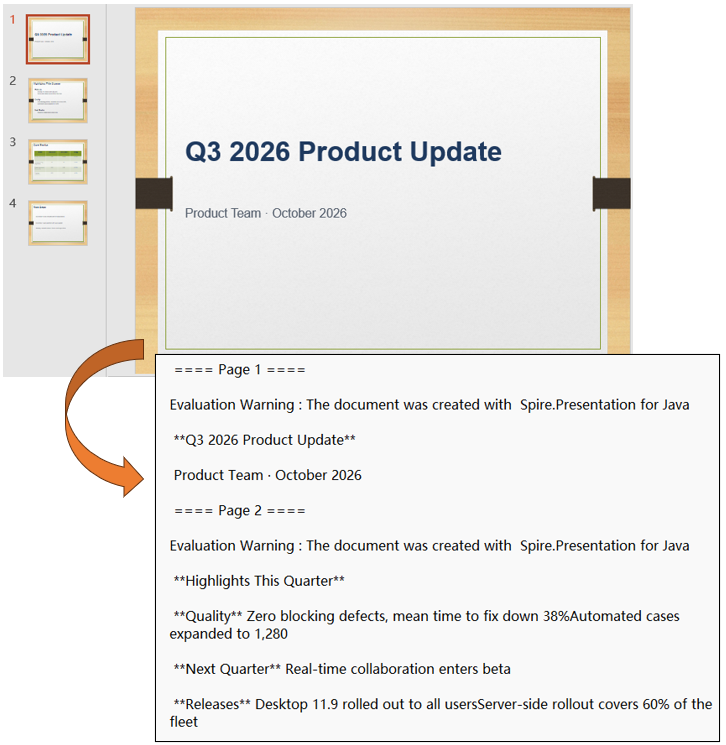
The Markdown file after converting the whole presentation:
2. Convert multiple slides to Markdown
When only part of a presentation is needed, pass a start and an end number and only that stretch is exported; nothing outside it reaches the result.
To convert multiple slides to Markdown, saveToFile takes a start and an end number ahead of the output file name and the target format:
| Syntax | Result |
|---|---|
presentation.saveToFile(1, 3, "SelectedSlides.md", FileFormat.Markdown) |
Writes slides 2 to 4 to a Markdown file |
The steps are:
- Create a
Presentationobject withnew Presentation(). - Load the sample presentation with
presentation.loadFromFile. - Pass the start number
1, the end number3, the output file name andFileFormat.Markdowntopresentation.saveToFile. - Release the resources held by the Presentation object with
presentation.dispose.
import com.spire.presentation.*;

public class ConvertSelectedSlides {

    public static void main(String[] args) throws Exception {
        // Create a Presentation object
        Presentation presentation = new Presentation();

        // Load the sample presentation
        presentation.loadFromFile("data/Sample.pptx");

        // Save slides 2 to 4 as a Markdown file
        presentation.saveToFile(1, 3, "SelectedSlides.md", FileFormat.Markdown);

        // Release the resources held by the Presentation object
        presentation.dispose();
    }
}
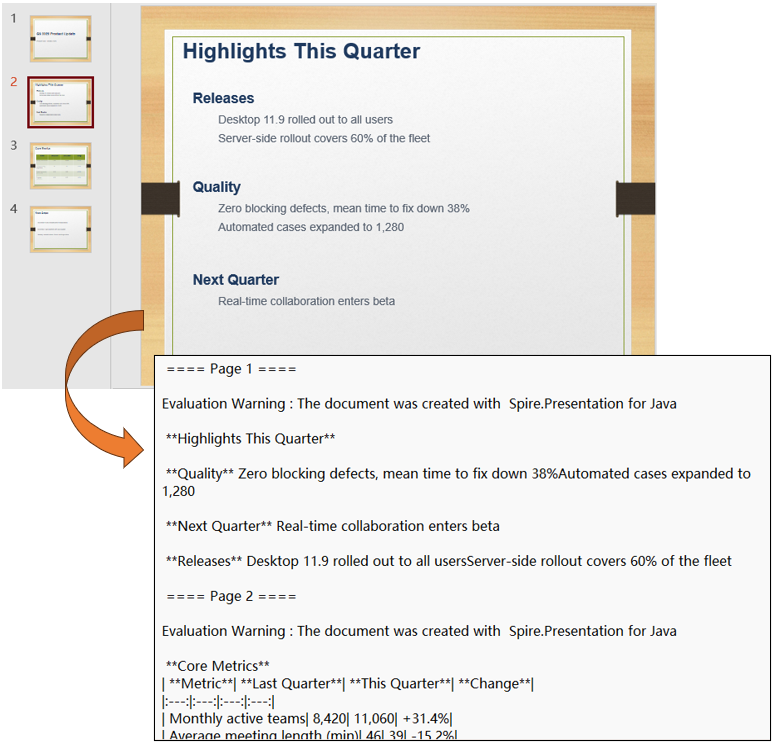
The Markdown file after converting slides 2 to 4:
3. Convert a specified slide to Markdown
When only one slide is needed, take it out of the slide collection and write it with ISlide; the result file holds that slide only.
To convert a specified slide to Markdown, the writing is done by the ISlide object taken out of the collection:
| Syntax | Result |
|---|---|
presentation.getSlides().get(1) |
Takes the second slide out of the collection and returns it as an ISlide |
slide.saveToFile("SingleSlide.md", FileFormat.Markdown) |
Writes that one slide to a Markdown file |
The steps are:
- Create a
Presentationobject withnew Presentation()and load the sample presentation withpresentation.loadFromFile. - Take the second slide by index with
presentation.getSlides().get(1)and assign it to anISlidevariable. - Pass the output file name and
FileFormat.Markdowntoslide.saveToFileto write that one slide out as a Markdown file. - Release the resources held by the Presentation object with
presentation.dispose.
import com.spire.presentation.*;

public class ConvertSingleSlide {

    public static void main(String[] args) throws Exception {
        // Create a Presentation object
        Presentation presentation = new Presentation();

        // Load the sample presentation
        presentation.loadFromFile("data/Sample.pptx");

        // Take the second slide out of the collection
        ISlide slide = presentation.getSlides().get(1);

        // Save that slide as a Markdown file
        slide.saveToFile("SingleSlide.md", FileFormat.Markdown);

        // Release the resources held by the Presentation object
        presentation.dispose();
    }
}
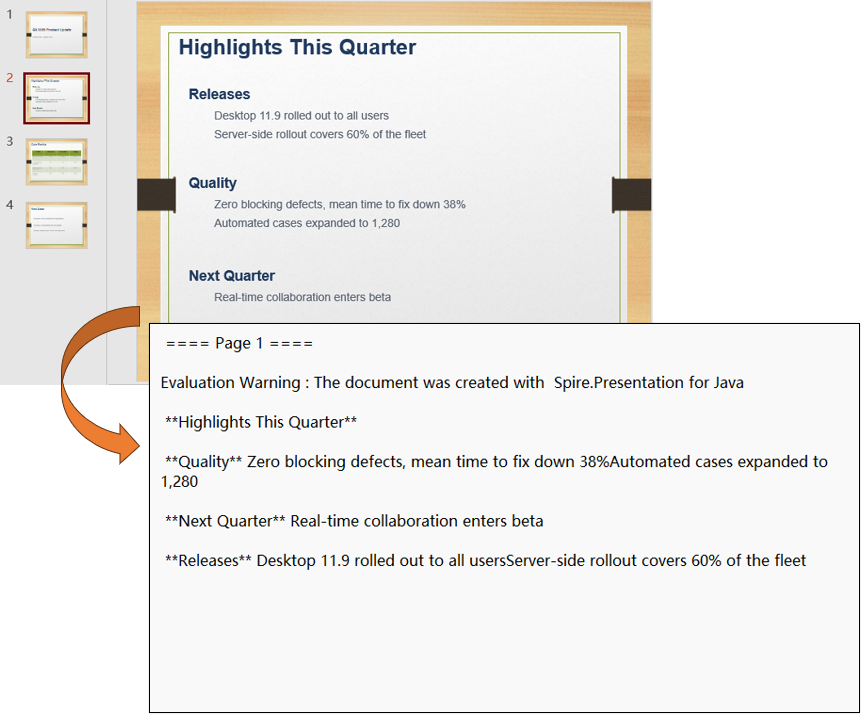
The Markdown file after converting the second slide:
Summary
Converting PowerPoint presentations to Markdown in Java is essentially reading the structure of the slides and writing it out as text. Markdown is lightweight and widely supported, which makes it a good fit for code repositories as well as documentation sites and knowledge bases. With Spire.Presentation for Java set up and the sample code in this article, the conversion can be automated, reducing manual work and improving efficiency.
If you'd like to remove the evaluation message from the generated documents, or to get rid of the function limitations, please request a 30-day trial license for yourself.
FAQ
Do the slide numbers in saveToFile start at 0 or at 1?
Cause: The start and end numbers of Presentation and the index of getSlides().get(index) all count 0 as the first slide, and both ends of the range are included. Passing 1 and 3 gives slides 2 to 4, three slides in all.
Solution: To export the first N slides, pass 0 and N - 1; getSlides().get(0) likewise takes the first slide. For a single slide, call slide.saveToFile on that slide instead of building a range.
Does the conversion require Microsoft PowerPoint to be installed?
Cause: Spire.Presentation for Java is a standalone Java library that parses .pptx files itself; it does not rely on other Office components.
Solution: The runtime environment needs only a JDK and the project dependencies; no Microsoft PowerPoint or other Office component is required.
Why are the images and speaker notes missing from the converted Markdown?
Cause: The Markdown result is text-based; images are not turned into image links, and speaker notes are not written to the result file.
Solution: To keep images and layout, convert to HTML or PDF instead; if images are needed, add image references to the converted file afterwards.
