As businesses increasingly rely on web-based platforms for data manipulation and sharing, the ability to programmatically protect or unprotect Excel files becomes crucial. These security settings not only ensure sensitive information is shielded from unauthorized access but also facilitate seamless collaboration among team members by allowing controlled access to specific data sets. By leveraging JavaScript in React, developers can implement these features natively, providing a robust solution to manage data confidentiality and integrity directly within their applications. In this article, we will explore how to use Spire.XLS for JavaScript to protect and unprotect Excel workbooks using JavaScript in React applications.
- Password-Protect an Excel Workbook using JavaScript
- Protect an Excel Worksheet with Specific Permissions
- Set Editable Ranges when Protect an Excel Worksheet
- Unprotect an Excel Worksheet with JavaScript
- Reset or Remove the Password of an Encrypted Excel Workbook
Install Spire.XLS for JavaScript
To get started with protecting and unprotecting Excel files in a React application, you can either download Spire.XLS for JavaScript from our website or install it via npm with the following command:
npm i spire.office
The downloaded product package has been integrated Spire.Doc for JavaScript,Spire.XLS for JavaScript,Spire.PDF for JavaScript,Spire.Presentation for JavaScript. To use the functionality of Spire.XLS for JavaScript, you need to copy the corresponding files (spire.xls.js, Spire.Xls.Wasm.zip, spire.common.js, Spire.Common.Wasm.zip, and _framework) to the project's "public" folder. At the same time, in order to ensure text rendering, the related font files can be added with custom paths. In the following example, the font addition path is: public\static\font.
For more details, refer to the documentation: How to Integrate Spire.XLS for JavaScript in a React Project
Password-Protect an Excel Workbook using JavaScript
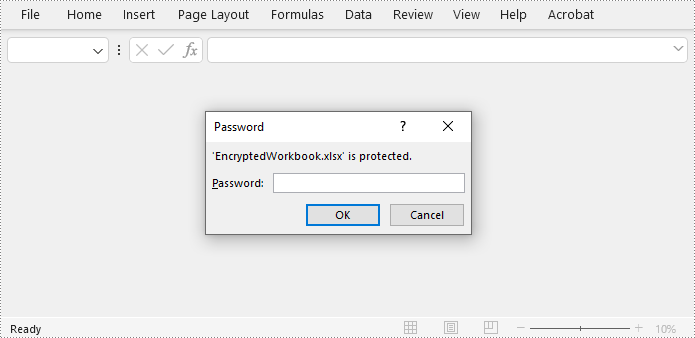
Spire.XLS for JavaScript offers the Workbook.Protect(filename: string) method to encrypt an Excel file with a password. This functionality allows developers to secure the entire Excel workbook. Below are the steps to implement this:
- Load the Spire.Xls.Base.js file to initialize the WebAssembly module.
- Load the Excel file to the virtual file system using the window.spire.FetchFileToVFS() method
- Create an instance of the Workbook class using the new wasmModule.Workbook() method.
- Load the Excel file to the Workbook instance using the Workbook.LoadFromFile() method.
- Protect the workbook with a password using the Workbook.Protect() method.
- Save the workbook to a file using Workbook.SaveToFile() method.
- Create a download link for the result file.
- JavaScript
import React, { useState, useEffect } from 'react';
function App() {
  const [wasmModule, setWasmModule] = useState(null);
  // Load Spire.XLS
  useEffect(() => {
    (async () => {
      try {
        const publicUrl = process.env.PUBLIC_URL || '';
        const spireModule = await import(/* webpackIgnore: true */ `${publicUrl}/spire.xls.js`);
        const rawModule = spireModule.default || spireModule;
        window.wasmModule = typeof rawModule === 'function'
          ? await rawModule({ locateFile: p => p.endsWith('.wasm') ? `${publicUrl}/${p}` : p })
          : rawModule;
        setWasmModule(window.wasmModule);
      } catch (error) {
        console.error('Failed to load spire.xls.js WASM module:', error);
      }
    })();
  }, []);

  //  Function to protect an Excel workbook with a password
  const EncryptExcel  = async () => {
    const wasmModule = window.wasmModule.spirexls;

    if (wasmModule) {
      // Load font into Virtual File System (VFS)
      await window.spire.FetchFileToVFS('Arial.ttf', '/Library/Fonts/', `${process.env.PUBLIC_URL}/static/font/`);


      // Load the Excel files into the virtual file system (VFS)
      let inputFileName = 'sample.xlsx';
      await window.spire.FetchFileToVFS(inputFileName, '', `${process.env.PUBLIC_URL}/static/data/`);


      // Create a new workbook
      let workbook = new wasmModule.Workbook();

      // Load an Excel document
      workbook.LoadFromFile({ fileName: inputFileName });

      // Encrypt the workbook with a password
      workbook.Protect('password')

      //Save result file
      const outputFileName = 'EncryptedWorkbook.xlsx';
      workbook.SaveToFile({ fileName: outputFileName, version: wasmModule.ExcelVersion.Version2016 });

      // Read the saved file and convert to Blob object
      const modifiedFileArray = window.dotnetRuntime.Module.FS.readFile(outputFileName);
      const modifiedFile = new Blob([modifiedFileArray], { type: 'application/vnd.openxmlformats-officedocument.spreadsheetml.sheet' });

      // Create a URL for the Blob and initiate download
      const url = URL.createObjectURL(modifiedFile);
      const a = document.createElement('a');
      a.href = url;
      a.download = outputFileName;
      document.body.appendChild(a);
      a.click();
      document.body.removeChild(a);
      URL.revokeObjectURL(url);

      // Clean up resources used by the workbook
      workbook.Dispose();
    }
  };

  return (
      <div style={{ textAlign: 'center', height: '300px' }}>
        <h1>Protect Excel Workbook Using JavaScript in React</h1>
        <button onClick={EncryptExcel} disabled={!wasmModule}>
          Encrypt and Download
        </button>
      </div>
  );
}

export default App;
Protect an Excel Worksheet with Specific Permissions
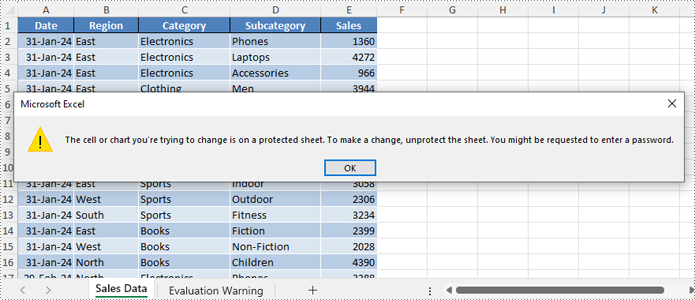
Spire.XLS for JavaScript enables developers to secure worksheets with specific permissions using the Worksheet.Protect() method, such as restricting edits while allowing formatting or filtering, or simply restricting all changes. The permissions are specified by the SheetProtectionType Enum class.
| Protection Type | Allow users to |
| Content | Modify or insert content. |
| DeletingColumns | Delete columns. |
| DeletingRows | Delete rows. |
| Filtering | Set filters. |
| FormattingCells | Format cells. |
| FormattingColumns | Format columns. |
| FormattingRows | Format rows. |
| InsertingColumns | Insert columns. |
| InsertingRows | Insert rows. |
| InsertingHyperlinks | Insert hyperlinks. |
| LockedCells | Select locked cells. |
| UnlockedCells | Select unlocked cells. |
| Objects | Modify drawing objects. |
| Scenarios | Modify saved scenarios. |
| Sorting | Sort data. |
| UsingPivotTables | Use the pivot table and pivot chart. |
| All | Do any operations listed above on the protected worksheet. |
| None | Do nothing on the protected worksheet. |
Follow these steps to protect a worksheet with specific permissions:
- Load the Spire.Xls.Base.js file to initialize the WebAssembly module.
- Load the Excel file into the virtual file system using the window.spire.FetchFileToVFS() method.
- Create a Workbook instance with the new wasmModule.Workbook() method.
- Load the Excel file into the Workbook using the Workbook.LoadFromFile() method.
- Retrieve the desired worksheet using the Workbook.Worksheets.get(index) method.
- Protect the worksheet and allow only filtering with the Worksheet.Protect(password, SheetProtectionType.None) method.
- Save the workbook using the Workbook.SaveToFile() method.
- Create a download link for the protected file.
- JavaScript
import React, { useState, useEffect } from 'react';
function App() {
  const [wasmModule, setWasmModule] = useState(null);
  // Load Spire.XLS
  useEffect(() => {
    (async () => {
      try {
        const publicUrl = process.env.PUBLIC_URL || '';
        const spireModule = await import(/* webpackIgnore: true */ `${publicUrl}/spire.xls.js`);
        const rawModule = spireModule.default || spireModule;
        window.wasmModule = typeof rawModule === 'function'
          ? await rawModule({ locateFile: p => p.endsWith('.wasm') ? `${publicUrl}/${p}` : p })
          : rawModule;
        setWasmModule(window.wasmModule);
      } catch (error) {
        console.error('Failed to load spire.xls.js WASM module:', error);
      }
    })();
  }, []);

  //  Function to protect an Excel worksheet with a password
  const EncryptExcelWorksheet = async () => {
    const wasmModule = window.wasmModule.spirexls;

    if (wasmModule) {
      // Load font into Virtual File System (VFS)
      await window.spire.FetchFileToVFS('Arial.ttf', '/Library/Fonts/', `${process.env.PUBLIC_URL}/static/font/`);


      // Load the Excel files into the virtual file system (VFS)
      let inputFileName = 'sample.xlsx';
      await window.spire.FetchFileToVFS(inputFileName, '', `${process.env.PUBLIC_URL}/static/data/`);


      // Create a new workbook
      let workbook = new wasmModule.Workbook();

      // Load an Excel document
      workbook.LoadFromFile({ fileName: inputFileName });

      // Get a worksheet
      const sheet = workbook.Worksheets.get(0);

      // Protect the worksheet with a specific permission
      sheet.Protect({ password: '123456', options: wasmModule.SheetProtectionType.None });

      //Save result file
      const outputFileName = 'ProtectedWorksheet.xlsx';
      workbook.SaveToFile({ fileName: outputFileName, version: wasmModule.ExcelVersion.Version2016 });

      // Read the saved file and convert to Blob object
      const modifiedFileArray = window.dotnetRuntime.Module.FS.readFile(outputFileName);
      const modifiedFile = new Blob([modifiedFileArray], { type: 'application/vnd.openxmlformats-officedocument.spreadsheetml.sheet' });

      // Create a URL for the Blob and initiate download
      const url = URL.createObjectURL(modifiedFile);
      const a = document.createElement('a');
      a.href = url;
      a.download = outputFileName;
      document.body.appendChild(a);
      a.click();
      document.body.removeChild(a);
      URL.revokeObjectURL(url);

      // Clean up resources used by the workbook
      workbook.Dispose();
    }
  };

  return (
    <div style={{ textAlign: 'center', height: '300px' }}>
      <h1>Protect Excel Worksheet Using JavaScript in React</h1>
      <button onClick={EncryptExcelWorksheet} disabled={!wasmModule}>
        Encrypt and Download
      </button>
    </div>
  );
}

export default App;
Set Editable Ranges when Protect an Excel Worksheet
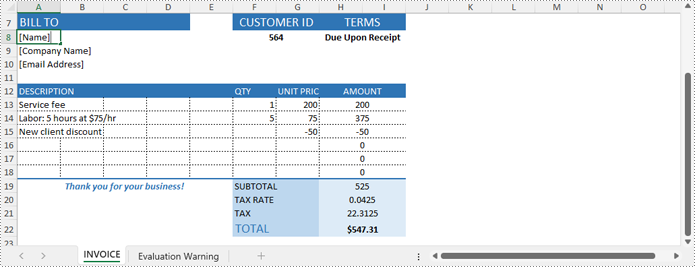
If certain cell ranges need to remain editable while protecting other areas, developers can use the Worksheet.AddAllowEditRange(name: string, range: CellRange) method to define editable ranges, and then protect the worksheet with specific permissions using the Worksheet.Protect({password: string, options: wasmModule.SheetProtectionType.All}) method.
The steps are as follows:
- Load the Spire.Xls.Base.js file to initialize the WebAssembly module.
- Load the Excel file into the virtual file system using the window.spire.FetchFileToVFS() method.
- Create a Workbook instance with the new wasmModule.Workbook() method.
- Load the Excel file into the Workbook using the Workbook.LoadFromFile() method.
- Obtain the desired worksheet using the Workbook.Worksheets.get(index) method.
- Get the cell ranges to allow editing using the Worksheet.Range.get() method.
- Add the cell ranges to editable ranges using the Worksheet.AddAllowEditRange() method.
- Protect the worksheet with the Worksheet.Protect({password: string, options: wasmModule.SheetProtectionType.All}) method.
- Save the workbook using the Workbook.SaveToFile() method.
- Create a download link for the protected file.
- JavaScript
import React, { useState, useEffect } from 'react';
function App() {
  const [wasmModule, setWasmModule] = useState(null);
  // Load Spire.XLS
  useEffect(() => {
    (async () => {
      try {
        const publicUrl = process.env.PUBLIC_URL || '';
        const spireModule = await import(/* webpackIgnore: true */ `${publicUrl}/spire.xls.js`);
        const rawModule = spireModule.default || spireModule;
        window.wasmModule = typeof rawModule === 'function'
          ? await rawModule({ locateFile: p => p.endsWith('.wasm') ? `${publicUrl}/${p}` : p })
          : rawModule;
        setWasmModule(window.wasmModule);
      } catch (error) {
        console.error('Failed to load spire.xls.js WASM module:', error);
      }
    })();
  }, []);

  //  Function to protect an Excel worksheet and add editable ranges
  const EncryptExcelWorksheetWithEditableRange = async () => {
    const wasmModule = window.wasmModule.spirexls;

    if (wasmModule) {
      // Load font into Virtual File System (VFS)
      await window.spire.FetchFileToVFS('Arial.ttf', '/Library/Fonts/', `${process.env.PUBLIC_URL}/static/font/`);


      // Load the Excel files into the virtual file system (VFS)
      let inputFileName = 'sample.xlsx';
      await window.spire.FetchFileToVFS(inputFileName, '', `${process.env.PUBLIC_URL}/static/data/`);


      // Create a new workbook
      let workbook = new wasmModule.Workbook();

      // Load an Excel document
      workbook.LoadFromFile({ fileName: inputFileName });

      // Get a worksheet
      const sheet = workbook.Worksheets.get(0);

      // Add editable ranges
      const range1 = sheet.Range.get('A8:A10');
      sheet.AddAllowEditRange({ title: "Editable Range 1", range: range1 });
      const range2 = sheet.Range.get('A13:G18');
      sheet.AddAllowEditRange({ title: "Editable Range 2", range: range2 });

      // Protect the worksheet
      sheet.Protect({ password: '123456', options: wasmModule.SheetProtectionType.All });

      //Save result file
      const outputFileName = 'EditableRanges.xlsx';
      workbook.SaveToFile({ fileName: outputFileName, version: wasmModule.ExcelVersion.Version2016 });

      // Read the saved file and convert to Blob object
      const modifiedFileArray = window.dotnetRuntime.Module.FS.readFile(outputFileName);
      const modifiedFile = new Blob([modifiedFileArray], { type: 'application/vnd.openxmlformats-officedocument.spreadsheetml.sheet' });

      // Create a URL for the Blob and initiate download
      const url = URL.createObjectURL(modifiedFile);
      const a = document.createElement('a');
      a.href = url;
      a.download = outputFileName;
      document.body.appendChild(a);
      a.click();
      document.body.removeChild(a);
      URL.revokeObjectURL(url);

      // Clean up resources used by the workbook
      workbook.Dispose();
    }
  };

  return (
    <div style={{ textAlign: 'center', height: '300px' }}>
      <h1>Protect Excel Worksheet with Editable Ranges Using JavaScript in React</h1>
      <button onClick={EncryptExcelWorksheetWithEditableRange} disabled={!wasmModule}>
        Encrypt and Download
      </button>
    </div>
  );
}

export default App;
Unprotect an Excel Worksheet with JavaScript
Developers can easily remove the password and unprotect an Excel worksheet by invoking the Worksheet.Unprotect(password: string) method, granting access and edit permissions to all users. The detailed steps are as follows:
- Load the Spire.Xls.Base.js file to initialize the WebAssembly module.
- Load the Excel file into the virtual file system using the window.spire.FetchFileToVFS() method.
- Create a Workbook instance with the new wasmModule.Workbook() method.
- Load the Excel file into the Workbook using the Workbook.LoadFromFile() method.
- Get the worksheet to unprotect using the Workbook.Worksheets.get() method.
- Remove the password protection using the Worksheet.Unprotect() method.
- Save the workbook using the Workbook.SaveToFile() method.
- Create a download link for the protected file.
- JavaScript
import React, { useState, useEffect } from 'react';
function App() {
  const [wasmModule, setWasmModule] = useState(null);
  // Load Spire.XLS
  useEffect(() => {
    (async () => {
      try {
        const publicUrl = process.env.PUBLIC_URL || '';
        const spireModule = await import(/* webpackIgnore: true */ `${publicUrl}/spire.xls.js`);
        const rawModule = spireModule.default || spireModule;
        window.wasmModule = typeof rawModule === 'function'
          ? await rawModule({ locateFile: p => p.endsWith('.wasm') ? `${publicUrl}/${p}` : p })
          : rawModule;
        setWasmModule(window.wasmModule);
      } catch (error) {
        console.error('Failed to load spire.xls.js WASM module:', error);
      }
    })();
  }, []);

  //  Function to unprotect an Excel worksheet
  const UnprotectExcelWorksheet = async () => {
    const wasmModule = window.wasmModule.spirexls;

    if (wasmModule) {
      // Load font into Virtual File System (VFS)
      await window.spire.FetchFileToVFS('Arial.ttf', '/Library/Fonts/', `${process.env.PUBLIC_URL}/static/font/`);


      // Load the Excel files into the virtual file system (VFS)
      let inputFileName = 'sample.xlsx';
      await window.spire.FetchFileToVFS(inputFileName, '', `${process.env.PUBLIC_URL}/static/data/`);


      // Create a new workbook
      let workbook = new wasmModule.Workbook();

      // Load an Excel document
      workbook.LoadFromFile({ fileName: inputFileName });

      // Get a worksheet
      const sheet = workbook.Worksheets.get(0);

      // Remove the password protection
      sheet.Unprotect('password');

      //Save result file
      const outputFileName = 'out.xlsx';
      workbook.SaveToFile({ fileName: outputFileName, version: wasmModule.ExcelVersion.Version2016 });

      // Read the saved file and convert to Blob object
      const modifiedFileArray = window.dotnetRuntime.Module.FS.readFile(outputFileName);
      const modifiedFile = new Blob([modifiedFileArray], { type: 'application/vnd.openxmlformats-officedocument.spreadsheetml.sheet' });

      // Create a URL for the Blob and initiate download
      const url = URL.createObjectURL(modifiedFile);
      const a = document.createElement('a');
      a.href = url;
      a.download = outputFileName;
      document.body.appendChild(a);
      a.click();
      document.body.removeChild(a);
      URL.revokeObjectURL(url);

      // Clean up resources used by the workbook
      workbook.Dispose();
    }
  };

  return (
    <div style={{ textAlign: 'center', height: '300px' }}>
      <h1>Unprotect Excel Worksheet Using JavaScript in React</h1>
      <button onClick={UnprotectExcelWorksheet} disabled={!wasmModule}>
        Unprotect and Download
      </button>
    </div>
  );
}

export default App;
Reset or Remove the Password of an Encrypted Excel Workbook
Spire.XLS for JavaScript provides the Workbook.OpenPassword property to specify the password for encrypted Excel workbooks, allowing developers to load and process them. After loading the encrypted workbook, developers can use the Workbook.Unprotect(password: string) method to remove the password or the Workbook.Protect(newPassword: string) method to set a new one. The steps are as follows:
- Load the Spire.Xls.Base.js file to initialize the WebAssembly module.
- Load the Excel file into the virtual file system using the window.spire.FetchFileToVFS() method.
- Create a Workbook instance with the new wasmModule.Workbook() method.
- Specify the password through the Workbook.OpenPassword property.
- Load the encrypted Excel file into the Workbook using the Workbook.LoadFromFile() method.
- Unprotect the workbook using the Workbook.Unprotect(password: string) method or set a new password using the Workbook.Protect(newPassword: string) method.
- Save the workbook using the Workbook.SaveToFile() method.
- Create a download link for the protected file.
- JavaScript
import React, { useState, useEffect } from 'react';
function App() {
  const [wasmModule, setWasmModule] = useState(null);
  // Load Spire.XLS
  useEffect(() => {
    (async () => {
      try {
        const publicUrl = process.env.PUBLIC_URL || '';
        const spireModule = await import(/* webpackIgnore: true */ `${publicUrl}/spire.xls.js`);
        const rawModule = spireModule.default || spireModule;
        window.wasmModule = typeof rawModule === 'function'
          ? await rawModule({ locateFile: p => p.endsWith('.wasm') ? `${publicUrl}/${p}` : p })
          : rawModule;
        setWasmModule(window.wasmModule);
      } catch (error) {
        console.error('Failed to load spire.xls.js WASM module:', error);
      }
    })();
  }, []);

  //  Function to unprotect an Excel workbook
  const RemoveResetExcelPassword = async () => {
    const wasmModule = window.wasmModule.spirexls;

    if (wasmModule) {
      // Load font into Virtual File System (VFS)
      await window.spire.FetchFileToVFS('Arial.ttf', '/Library/Fonts/', `${process.env.PUBLIC_URL}/static/font/`);


      // Load the Excel files into the virtual file system (VFS)
      let inputFileName = 'sample.xlsx';
      await window.spire.FetchFileToVFS(inputFileName, '', `${process.env.PUBLIC_URL}/static/data/`);


      // Create a new workbook
      let workbook = new wasmModule.Workbook();

      // Specify the password of the workbook
      workbook.OpenPassword = 'password';

      // Load an Excel document
      workbook.LoadFromFile({ fileName: inputFileName });

      // Get a worksheet
      const sheet = workbook.Worksheets.get(0);

      // Decrypt the workbook
      workbook.UnProtect('password')

      // Reset the password
      // workbook.Protect("NewPassword")

      //Save result file
      const outputFileName = 'DecryptedWorkbook.xlsx';
      workbook.SaveToFile({ fileName: outputFileName, version: wasmModule.ExcelVersion.Version2016 });

      // Read the saved file and convert to Blob object
      const modifiedFileArray = window.dotnetRuntime.Module.FS.readFile(outputFileName);
      const modifiedFile = new Blob([modifiedFileArray], { type: 'application/vnd.openxmlformats-officedocument.spreadsheetml.sheet' });

      // Create a URL for the Blob and initiate download
      const url = URL.createObjectURL(modifiedFile);
      const a = document.createElement('a');
      a.href = url;
      a.download = outputFileName;
      document.body.appendChild(a);
      a.click();
      document.body.removeChild(a);
      URL.revokeObjectURL(url);

      // Clean up resources used by the workbook
      workbook.Dispose();
    }
  };

  return (
    <div style={{ textAlign: 'center', height: '300px' }}>
      <h1>Remove the Password of Excel Workbook Using JavaScript in React</h1>
      <button onClick={RemoveResetExcelPassword} disabled={!wasmModule}>
        Decrypt and Download
      </button>
    </div>
  );
}

export default App;
Get a Free License
To fully experience the capabilities of Spire.XLS for JavaScript without any evaluation limitations, you can request a free 30-day trial license.