Get the Page Count of a PDF Document in React Using JavaScript
Validating the page count before an upload, estimating paper before a batch print, knowing the document's size before splitting it by page — in each of these cases what you need is a single number: how many pages the document has. Getting that number in the browser isn't straightforward. A rendering library only draws the pages, so you end up counting them yourself; sidestep that layer and the file has to go to a server to be parsed.
This article shows how to get the page count of a PDF document with Spire.PDF for JavaScript. It loads and parses PDF documents directly in the browser on top of WebAssembly, so everything happens locally. Files are read and written through a virtual file system (VFS), with no backend involved. This article walks through counting the total number of pages in a document.
For installation and project setup, see Integrate Spire.PDF for JavaScript in a React Project. The examples below assume Spire.PDF is installed and the WebAssembly module has been initialized.
Get the Page Count of a PDF Document
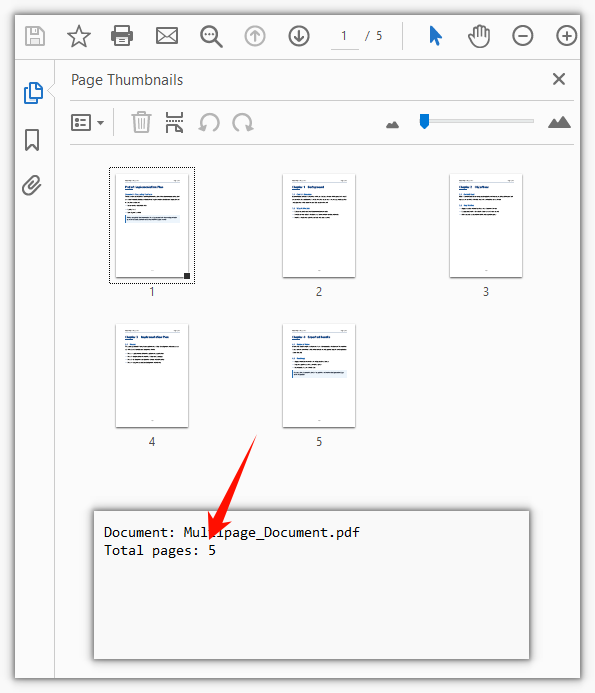
Once the document is loaded, doc.Pages is its page collection, and Count gives the number of pages in that collection — the document's total page count. There is no need to loop over the pages and tally them up.
function App() {
  const getPageCount = async () => {
    // Get the Spire.PDF WASM module
    const pdfModule = window.wasmModule?.spirepdf;

    // Check whether the module is ready
    if (!pdfModule) {
      alert('Spire.PDF is not ready yet');
      return;
    }

    // Load the PDF file to be counted into the VFS
    const inputFileName = 'Multipage_Document.pdf';
    await window.spire.FetchFileToVFS(inputFileName, '', `${process.env.PUBLIC_URL}/data/`);

    // Create a PdfDocument object and load the PDF document
    const doc = new pdfModule.PdfDocument();
    doc.LoadFromFile(inputFileName);

    // Pages is the document's page collection; Count is the total page count
    const pageCount = doc.Pages.Count;

    // Write the result to the VFS
    const outputFileName = 'PageCountResult.txt';
    const report = `Document: ${inputFileName}\r\nTotal pages: ${pageCount}`;
    window.dotnetRuntime.Module.FS.writeFile(outputFileName, report);
    doc.Close();

    // Read the generated file from the VFS and trigger the download
    const fileArray = window.dotnetRuntime.Module.FS.readFile(outputFileName);
    const blob = new Blob([fileArray], { type: 'text/plain' });
    const url = URL.createObjectURL(blob);
    const a = document.createElement('a');
    a.href = url;
    a.download = outputFileName;
    a.click();
    URL.revokeObjectURL(url);
  };

  return (
    <div style={{ textAlign: 'center', height: '300px' }}>
      <h1>Get PDF Page Count</h1>
      <button onClick={getPageCount}>
        Count Pages
      </button>
    </div>
  );
}

export default App;
The result is written to a text file that records the document's total page count:
FAQ
The page number shown in a reader doesn't match the total page count
Cause: Pages.Count counts physical pages — how many pages the document actually contains. The number shown in a reader comes from page labels (/PageLabels), which can be configured separately: excluding the cover from numbering, using roman numerals for the table of contents, restarting the body at 1. As a result, the 5th physical page may display as iii or 1 in a reader.
Solution: If what you need is the displayed number, read the page's own PageLabel instead of Count:
// What label the 5th physical page displays in a reader
const page = doc.Pages.get_Item(4);
console.log(page.PageLabel);
When the document has no page labels set, PageLabel returns an empty string — in that case the displayed number matches the physical page order, so Count is the answer.
Loading an encrypted PDF to count pages throws "Can not open an encrypted document. The password is invalid."
Cause: The document is protected by an open password, and without it LoadFromFile cannot read the content at all, so the page count is out of reach as well. This check happens at load time — it is thrown before Pages.Count is ever read.
Solution: Pass the open password as the second argument to LoadFromFile, then read the page count:
// The second argument is the open password
doc.LoadFromFile(inputFileName, 'spire123');
const pageCount = doc.Pages.Count;
Using Count as a loop bound throws an index-out-of-range error on the last page
Cause: Pages is zero-indexed, so the valid range is 0 to Count - 1. When the loop is written as i <= doc.Pages.Count, the final pass tries to fetch page number Count, and get_Item throws an out-of-range error — underneath it is .NET's ArgumentOutOfRangeException, which the WASM runtime wraps as a JS Error with the message ArgumentOutOfRange_IndexMustBeLess Arg_ParamName_Name, index. The error's name is just the generic Error, so match on that message.
Solution: Use < in the loop condition:
// The upper bound is Count - 1, so use < rather than <=
for (let i = 0; i < doc.Pages.Count; i++) {
  const page = doc.Pages.get_Item(i);
}
Get a Free License
If you want to remove the evaluation message from result documents, or lift the feature limits, contact sales for a 30-day temporary license.
Detect PDF Page Orientation and Rotation with JavaScript in React
Before printing, imposing or watermarking pages, you need to know whether each page is landscape or portrait: a document that mixes the two leaves blank edges when printed directly, and lands out of place when imposed. A page may also have been rotated as a whole, in which case the recorded page size no longer matches the direction you see. Picking those pages out before batch processing means flipping through them one at a time in desktop software.
This article shows how to detect PDF page rotation and display orientation with Spire.PDF for JavaScript. It is built on WebAssembly and loads and parses PDF documents directly in the browser, all locally, reading and writing files through a virtual file system (VFS) with no backend involved.
Two features are covered:
For installation and project setup, see Integrate Spire.PDF for JavaScript in a React project. The examples below assume Spire.PDF is installed and the WebAssembly module is initialized.
Detect page rotation
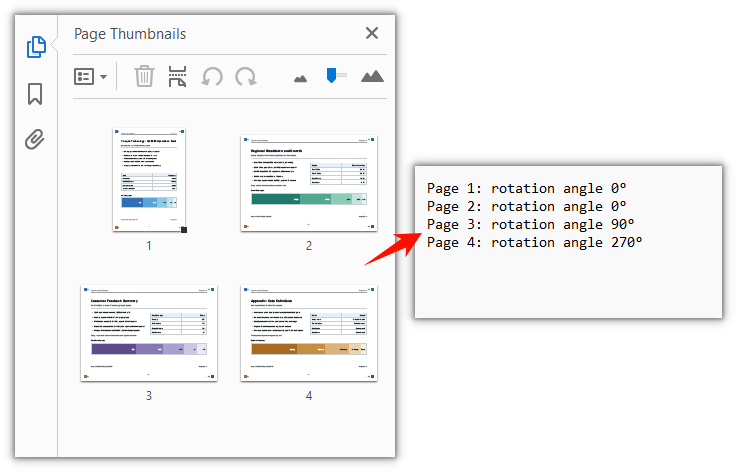
PdfPageBase.Rotation reads the angle a page has been rotated by; the value falls within the PdfPageRotateAngle enumeration of 0°, 90°, 180° and 270°.
function App() {
  const detectPageRotation = async () => {
    // Get the Spire.PDF WASM module
    const pdfModule = window.wasmModule?.spirepdf;

    // Check whether the module is ready
    if (!pdfModule) {
      alert('Spire.PDF is not ready yet');
      return;
    }

    // Load the PDF file to inspect into the VFS
    const inputFileName = 'PageOrientationSample.pdf';
    await window.spire.FetchFileToVFS(inputFileName, '', `${process.env.PUBLIC_URL}/data/`);

    // Create a PdfDocument object and load the PDF document
    const doc = new pdfModule.PdfDocument();
    doc.LoadFromFile(inputFileName);

    // The enumeration values are indices rather than angles, so map indices to degrees first
    const DEGREES = {
      [pdfModule.PdfPageRotateAngle.RotateAngle0.value]: 0,
      [pdfModule.PdfPageRotateAngle.RotateAngle90.value]: 90,
      [pdfModule.PdfPageRotateAngle.RotateAngle180.value]: 180,
      [pdfModule.PdfPageRotateAngle.RotateAngle270.value]: 270,
    };

    // Read the rotation angle page by page
    const lines = [];
    for (let i = 0; i < doc.Pages.Count; i++) {
      const page = doc.Pages.get_Item(i);
      lines.push(`Page ${i + 1}: rotation angle ${DEGREES[page.Rotation.value]}°`);
    }

    // Write the detection result into the VFS
    const outputFileName = 'PageRotationResult.txt';
    window.dotnetRuntime.Module.FS.writeFile(outputFileName, lines.join('\r\n'));
    doc.Close();

    // Read the generated file back from the VFS and trigger the download
    const fileArray = window.dotnetRuntime.Module.FS.readFile(outputFileName);
    const blob = new Blob([fileArray], { type: 'text/plain' });
    const url = URL.createObjectURL(blob);
    const a = document.createElement('a');
    a.href = url;
    a.download = outputFileName;
    a.click();
    URL.revokeObjectURL(url);
  };

  return (
    <div style={{ textAlign: 'center', height: '300px' }}>
      <h1>Detect Page Rotation</h1>
      <button onClick={detectPageRotation}>
        Start Detection
      </button>
    </div>
  );
}

export default App;
Detection result with the rotation angle recorded page by page:
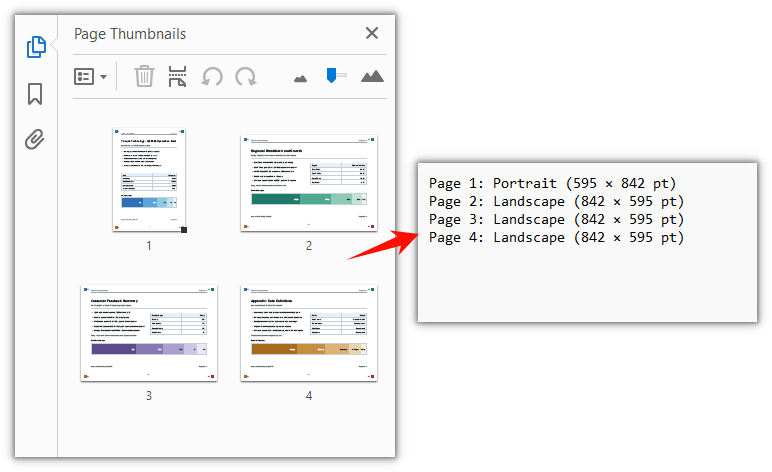
Detect page orientation
Whether a page is landscape or portrait cannot be told from its size alone: PdfPageBase.Size gives the width and height of the visible page box and does not include the rotation; when a page is rotated by 90° or 270°, the width and height have to be swapped to get the direction the page actually shows.
function App() {
  const detectPageOrientation = async () => {
    // Get the Spire.PDF WASM module
    const pdfModule = window.wasmModule?.spirepdf;

    // Check whether the module is ready
    if (!pdfModule) {
      alert('Spire.PDF is not ready yet');
      return;
    }

    // Load the PDF file to inspect into the VFS
    const inputFileName = 'PageOrientationSample.pdf';
    await window.spire.FetchFileToVFS(inputFileName, '', `${process.env.PUBLIC_URL}/data/`);

    // Create a PdfDocument object and load the PDF document
    const doc = new pdfModule.PdfDocument();
    doc.LoadFromFile(inputFileName);

    const { RotateAngle90, RotateAngle270 } = pdfModule.PdfPageRotateAngle;

    // Judge the display orientation page by page
    const lines = [];
    for (let i = 0; i < doc.Pages.Count; i++) {
      const page = doc.Pages.get_Item(i);
      const pageSize = page.Size;

      // Size excludes rotation: at 90° or 270° the width and height swap to give the displayed size
      const quarterTurn = page.Rotation === RotateAngle90 || page.Rotation === RotateAngle270;
      const width = quarterTurn ? pageSize.Height : pageSize.Width;
      const height = quarterTurn ? pageSize.Width : pageSize.Height;
      const orientation = width >= height ? 'Landscape' : 'Portrait';

      lines.push(`Page ${i + 1}: ${orientation} (${width.toFixed(0)} × ${height.toFixed(0)} pt)`);
    }

    // Write the detection result into the VFS
    const outputFileName = 'PageOrientationResult.txt';
    window.dotnetRuntime.Module.FS.writeFile(outputFileName, lines.join('\r\n'));
    doc.Close();

    // Read the generated file back from the VFS and trigger the download
    const fileArray = window.dotnetRuntime.Module.FS.readFile(outputFileName);
    const blob = new Blob([fileArray], { type: 'text/plain' });
    const url = URL.createObjectURL(blob);
    const a = document.createElement('a');
    a.href = url;
    a.download = outputFileName;
    a.click();
    URL.revokeObjectURL(url);
  };

  return (
    <div style={{ textAlign: 'center', height: '300px' }}>
      <h1>Detect Page Display Orientation</h1>
      <button onClick={detectPageOrientation}>
        Start Detection
      </button>
    </div>
  );
}

export default App;
Detection result after judging each page by its display orientation:
FAQ
page.Rotation.value returns 0, 1, 2, 3 instead of 0, 90, 180, 270
Cause: The four members of PdfPageRotateAngle — RotateAngle0, RotateAngle90, RotateAngle180, RotateAngle270 — carry the values 0, 1, 2, 3 in the WebAssembly binding, and .value returns that index rather than the angle. Writing page.Rotation.value === 90 is always false.
Solution: Build an index-to-angle map before using the value. Rotation is corrected with an index too — page.Rotation takes an index, so passing 90 is read as index 2 and writes 180° into the document:
// Index → angle
const DEGREES = {
  [pdfModule.PdfPageRotateAngle.RotateAngle0.value]: 0,
  [pdfModule.PdfPageRotateAngle.RotateAngle90.value]: 90,
  [pdfModule.PdfPageRotateAngle.RotateAngle180.value]: 180,
  [pdfModule.PdfPageRotateAngle.RotateAngle270.value]: 270,
};

// Set the current page to 90° — .value is the index
page.Rotation = pdfModule.PdfPageRotateAngle.RotateAngle90.value;
page.Size returns portrait dimensions for a page that clearly shows as landscape
Cause: PdfPageBase.Size and ActualSize return the width and height of the page's visible box — the CropBox if one was set, otherwise the MediaBox — and that value does not follow /Rotate. Page 3 of the sample document has a page box of 595 × 842 pt with /Rotate at 90°, so it renders as an 842 × 595 landscape page while Size still returns 595 × 842.
Solution: After reading Rotation, swap the width and height yourself:
const { RotateAngle90, RotateAngle270 } = pdfModule.PdfPageRotateAngle;
const quarterTurn = page.Rotation === RotateAngle90 || page.Rotation === RotateAngle270;

const width = quarterTurn ? page.Size.Height : page.Size.Width;
const height = quarterTurn ? page.Size.Width : page.Size.Height;
doc.Sections is empty in a loaded PDF, and PageSettings.Orientation cannot be read
Cause: Sections holds page settings, and LoadFromFile does not rebuild sections for pages that already exist, so doc.Sections.Count is 0 and a following doc.Sections.get_Item(0) throws Arg_IndexOutOfRangeException. PageSettings.Orientation describes the layout intent for a newly created page, not the direction recorded in the file.
Solution: For existing pages, read page-level properties only — doc.Pages.get_Item(i) followed by Rotation and Size. Leave PageSettings.Orientation for new pages added through Sections.Add():
// Inspecting existing pages
const page = doc.Pages.get_Item(0);
const angle = DEGREES[page.Rotation.value];

// Orientation only comes into play when creating a new page
const section = doc.Sections.Add();
section.PageSettings.Orientation = pdfModule.PdfPageOrientation.Landscape;
Get a Free License
If you want to remove the evaluation message from the result documents, or lift the feature limits, contact sales for a 30-day temporary license.
Crop PDF Pages with JavaScript in React
Scanned pages, drawings and electronic invoices often carry a wide white margin while the page size stays at its original spec; the opposite also happens, where only a small block of a page matters and the rest does not need to appear. Removing the extra part used to mean framing each page by hand in desktop software, or sending the file to a server — the first is hard to fit into a web workflow, the second means the document leaves the user's device.
This article shows how to crop PDF pages with Spire.PDF for JavaScript. It is built on WebAssembly and loads, modifies and saves PDF documents directly in the browser, all locally, reading and writing files through a virtual file system (VFS) with no backend involved. The steps are demonstrated on a two-page sample document.
For installation and project setup, see Integrate Spire.PDF for JavaScript in a React project. The examples below assume Spire.PDF is installed and the WebAssembly module is initialized.
Crop a PDF Page
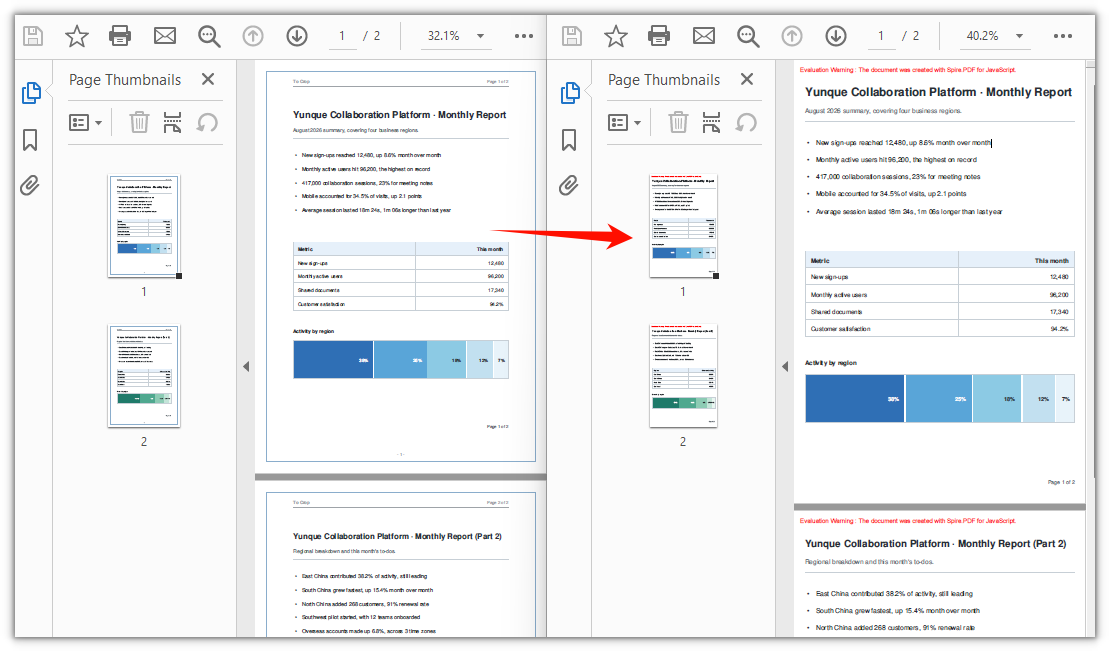
Cropping a page is done through page.CropBox, a RectangleF whose x and y are measured from the top-left corner of the page, while width and height decide how much is kept; content outside the box no longer shows up. Cropping the whole document by one uniform margin means walking doc.Pages and, for each page, giving up the distance on all four sides of its MediaBox.
function App() {
  const cropPdfPage = async () => {
    // Get the Spire.PDF WASM module
    const pdfModule = window.wasmModule?.spirepdf;

    // Check whether the module is ready
    if (!pdfModule) {
      alert('Spire.PDF is not ready yet');
      return;
    }

    // Load the PDF file to be cropped into the VFS
    const inputFileName = 'ToCrop.pdf';
    await window.spire.FetchFileToVFS(inputFileName, "", `${process.env.PUBLIC_URL}/data/`);

    // Create a PdfDocument object and load the PDF document
    let doc = new pdfModule.PdfDocument();
    doc.LoadFromFile(inputFileName);

    // Trim 60 points off every side
    const margin = 60;

    for (let i = 0; i < doc.Pages.Count; i++) {
      const page = doc.Pages.get_Item(i);

      // MediaBox gives the full extent of the page, from which the crop box is derived
      // (x and y are measured from the top-left corner of the page)
      const width = page.MediaBox.Width;
      const height = page.MediaBox.Height;

      page.CropBox = new pdfModule.RectangleF({
        x: margin,
        y: margin,
        width: width - margin * 2,
        height: height - margin * 2,
      });
    }

    const outputFileName = 'CropByMargins.pdf';
    doc.SaveToFile(outputFileName);
    doc.Close();

    // Read the generated file from the VFS and trigger the download
    const fileArray = window.dotnetRuntime.Module.FS.readFile(outputFileName);
    const blob = new Blob([fileArray], { type: 'application/pdf' });
    const url = URL.createObjectURL(blob);
    const a = document.createElement('a');
    a.href = url;
    a.download = outputFileName;
    a.click();
    URL.revokeObjectURL(url);
  };

  return (
    <div style={{ textAlign: 'center', height: '300px' }}>
      <h1>Crop PDF Pages</h1>
      <button onClick={cropPdfPage}>
        Crop PDF
      </button>
    </div>
  );
}

export default App;
Both pages are cropped by a 60-point margin, so the white margin and the frame around the page are removed:
FAQ
Can I crop a single page instead of the whole document
Why: CropBox is a page-level property; there is no "whole document" interface. The loop above exists only so that every page gets the same margin.
Solution: To crop one page only, drop the loop and assign to the target page directly. x and y are likewise measured from the top-left corner of the page:
// Crop page 1 only: keep a 400 x 500 point block starting at (80, 80) from the top-left corner
const page = doc.Pages.get_Item(0);
page.CropBox = new pdfModule.RectangleF({ x: 80, y: 80, width: 400, height: 500 });
How do I undo a crop
Why: CropBox changes the page box in place, and the document keeps no record of the original one. The instinct is to assign page.MediaBox back, but that has no effect — the coordinates are applied on top of the origin of the current visible area, so only the size changes and the origin stays put. After a 60-point crop, assigning MediaBox back still leaves the visible area starting at (60, 60).
Solution: If the original document is still around, loading it again is the simplest route. When only the cropped file is left, offset the origin back to the top-left corner with negative values and give the full page size:
// Undo when the crop offset was (offsetX, offsetY)
page.CropBox = new pdfModule.RectangleF({
  x: -offsetX,
  y: -offsetY,
  width: page.MediaBox.Width,
  height: page.MediaBox.Height,
});
The file didn't get smaller and the cropped content is still searchable
Why: CropBox is a soft crop — it only changes the visible box of the page, while content outside it stays in the file and can still be picked up by text search or copy.
Solution: If the goal is to actually remove the content from the page, setting CropBox is not enough; the page has to be rebuilt — create a new document of the same size, take the content out with page.CreateTemplate(), draw it onto a new page, and save to a new file.
Get a Free License
If you want to remove the evaluation message from the result document, or lift the feature limitations, contact sales for a temporary license valid for 30 days.
Copy PDF Pages in React with JavaScript
Adding the cover of a product manual to the front of a project description, merging pages 2 and 3 of a quotation into a contract, combining several reports into one summary — all of it comes down to moving pages from one PDF into another. Desktop software means opening two windows and dragging back and forth, and one wrong drop means starting over; with more pages, the resulting order is easy to get wrong. A different kind of trouble is mismatched page sizes: the cover is A5 and the target document is A4, so moving the page across as-is leaves a band of white space around it.
Spire.PDF for JavaScript loads, modifies and saves PDF documents directly in the browser based on WebAssembly, so the whole copying process runs locally and reads and writes files through a virtual file system (VFS), with no backend service required.
This article covers four core features. The first three move whole pages, carrying the source page's size, rotation and margins over as they are; the fourth takes only the page content, and how large a page it is drawn onto is up to you.
Move whole pages
- Copy a Single Page to a Specific Position
- Copy a Range of Pages to the End of a Document
- Copy Every Page of a Whole Document
Copy content (templates)
For installation and project configuration, refer to Integrating Spire.PDF for JavaScript in a React Project. The following examples assume Spire.PDF is installed and the WebAssembly module has been initialized.
Copy a Single Page to a Specific Position
Spire.PDF for JavaScript provides the PdfDocument.InsertPage method, which copies a page from another document into the current one and lets you choose which position it lands at. Leave the target index out and the page is appended to the end.
function App() {
  const copyPageAtPosition = async () => {
    // Get the Spire.PDF WASM module
    const pdfModule = window.wasmModule?.spirepdf;

    // Check whether the module is ready
    if (!pdfModule) {
      alert('Spire.PDF is not ready yet');
      return;
    }

    // Load both the source and the target document into the VFS
    const sourceFileName = 'SourceDocument.pdf';
    const targetFileName = 'TargetDocument.pdf';
    await window.spire.FetchFileToVFS(sourceFileName, "", `${process.env.PUBLIC_URL}/data/`);
    await window.spire.FetchFileToVFS(targetFileName, "", `${process.env.PUBLIC_URL}/data/`);

    // Load the two documents
    const sourceDoc = new pdfModule.PdfDocument();
    sourceDoc.LoadFromFile(sourceFileName);
    const targetDoc = new pdfModule.PdfDocument();
    targetDoc.LoadFromFile(targetFileName);

    // Copy page 1 of the source document to the front of the target document
    // pageIndex comes from the source document, resultPageIndex is where the copy lands
    targetDoc.InsertPage({ ldDoc: sourceDoc, pageIndex: 0, resultPageIndex: 0 });

    // Save the result document
    const outputFileName = 'CopyPageAtPosition.pdf';
    targetDoc.SaveToFile(outputFileName);
    sourceDoc.Close();
    targetDoc.Close();

    // Read the generated file from the VFS and trigger the download
    const fileArray = window.dotnetRuntime.Module.FS.readFile(outputFileName);
    const blob = new Blob([fileArray], { type: 'application/pdf' });
    const url = URL.createObjectURL(blob);
    const a = document.createElement('a');
    a.href = url;
    a.download = outputFileName;
    a.click();
    URL.revokeObjectURL(url);
  };

  return (
    <div style={{ textAlign: 'center', height: '300px' }}>
      <h1>Copy Page at Position</h1>
      <button onClick={copyPageAtPosition}>
        Start
      </button>
    </div>
  );
}

export default App;
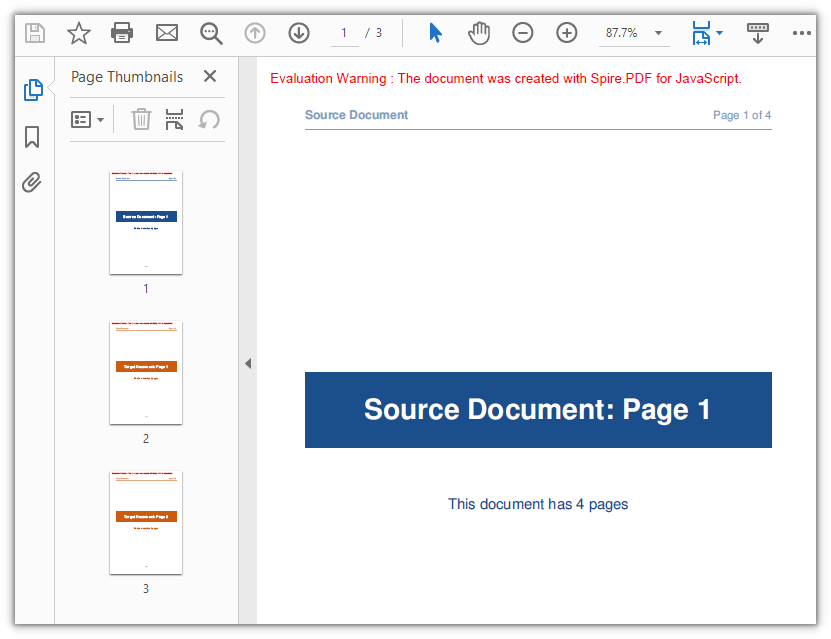
resultPageIndexis the only place among the four features where you control where the page lands: 0 puts it first, 1 puts it second, and passing the current page count is the same as appending it.
Page 1 of the source document now sits in front of the target document, which goes from 2 pages to 3:
Copy a Range of Pages to the End of a Document
Spire.PDF for JavaScript also provides the PdfDocument.InsertPageRange method, which copies a run of consecutive pages from the source document. It takes the source document plus a start and an end index, has no parameter for a target position, and always appends the result to the end of the current document.
function App() {
  const appendPageRange = async () => {
    // Get the Spire.PDF WASM module
    const pdfModule = window.wasmModule?.spirepdf;

    // Check whether the module is ready
    if (!pdfModule) {
      alert('Spire.PDF is not ready yet');
      return;
    }

    // Load both the source and the target document into the VFS
    const sourceFileName = 'SourceDocument.pdf';
    const targetFileName = 'TargetDocument.pdf';
    await window.spire.FetchFileToVFS(sourceFileName, "", `${process.env.PUBLIC_URL}/data/`);
    await window.spire.FetchFileToVFS(targetFileName, "", `${process.env.PUBLIC_URL}/data/`);

    // Load the two documents
    const sourceDoc = new pdfModule.PdfDocument();
    sourceDoc.LoadFromFile(sourceFileName);
    const targetDoc = new pdfModule.PdfDocument();
    targetDoc.LoadFromFile(targetFileName);

    // Append pages 2 to 3 of the source document to the end of the target document
    // Note: these are positional arguments, not an object; endIndex is inclusive
    targetDoc.InsertPageRange(sourceDoc, 1, 2);

    // Save the result document
    const outputFileName = 'CopyPageRange.pdf';
    targetDoc.SaveToFile(outputFileName);
    sourceDoc.Close();
    targetDoc.Close();

    // Read the generated file from the VFS and trigger the download
    const fileArray = window.dotnetRuntime.Module.FS.readFile(outputFileName);
    const blob = new Blob([fileArray], { type: 'application/pdf' });
    const url = URL.createObjectURL(blob);
    const a = document.createElement('a');
    a.href = url;
    a.download = outputFileName;
    a.click();
    URL.revokeObjectURL(url);
  };

  return (
    <div style={{ textAlign: 'center', height: '300px' }}>
      <h1>Copy Page Range</h1>
      <button onClick={appendPageRange}>
        Copy pages 2-3
      </button>
    </div>
  );
}

export default App;
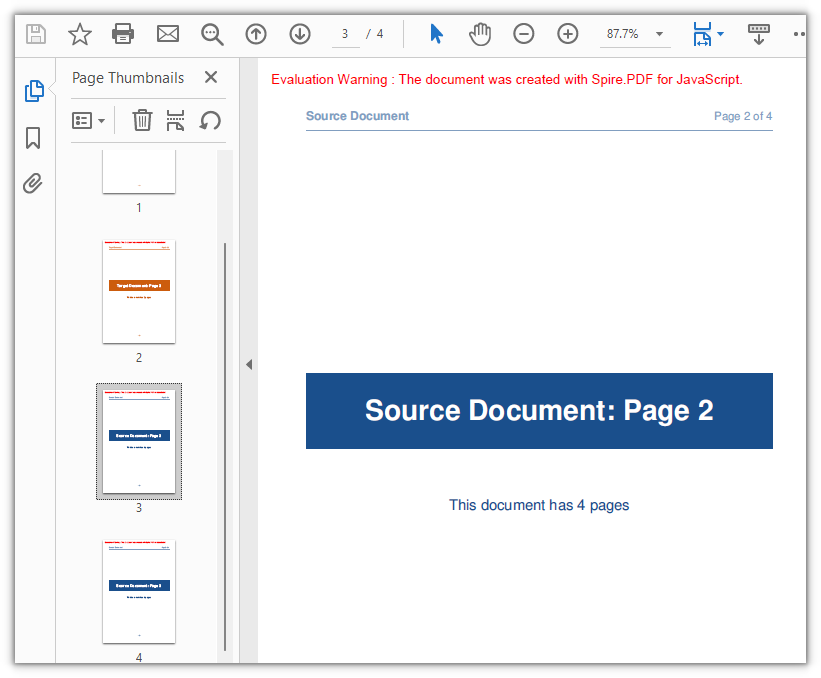
After pages 2 and 3 of the source document are appended, the document has 4 pages:
Copy Every Page of a Whole Document
When an entire document has to move, there is no need to work out the indices first: PdfDocument.AppendPage takes the source document object and appends all of its pages to the end of the current document in their original order. For merging several documents or attaching material to a report, just pass the documents in one after another.
function App() {
  const appendWholeDocument = async () => {
    // Get the Spire.PDF WASM module
    const pdfModule = window.wasmModule?.spirepdf;

    // Check whether the module is ready
    if (!pdfModule) {
      alert('Spire.PDF is not ready yet');
      return;
    }

    // Load both the source and the target document into the VFS
    const sourceFileName = 'SourceDocument.pdf';
    const targetFileName = 'TargetDocument.pdf';
    await window.spire.FetchFileToVFS(sourceFileName, "", `${process.env.PUBLIC_URL}/data/`);
    await window.spire.FetchFileToVFS(targetFileName, "", `${process.env.PUBLIC_URL}/data/`);

    // Load the two documents
    const sourceDoc = new pdfModule.PdfDocument();
    sourceDoc.LoadFromFile(sourceFileName);
    const targetDoc = new pdfModule.PdfDocument();
    targetDoc.LoadFromFile(targetFileName);

    // Use AppendPage when the whole document has to be copied; all pages are appended in order
    targetDoc.AppendPage({ doc: sourceDoc });

    // Save the result document
    const outputFileName = 'CopyAllPages.pdf';
    targetDoc.SaveToFile(outputFileName);
    sourceDoc.Close();
    targetDoc.Close();

    // Read the generated file from the VFS and trigger the download
    const fileArray = window.dotnetRuntime.Module.FS.readFile(outputFileName);
    const blob = new Blob([fileArray], { type: 'application/pdf' });
    const url = URL.createObjectURL(blob);
    const a = document.createElement('a');
    a.href = url;
    a.download = outputFileName;
    a.click();
    URL.revokeObjectURL(url);
  };

  return (
    <div style={{ textAlign: 'center', height: '300px' }}>
      <h1>Copy Whole Document</h1>
      <button onClick={appendWholeDocument}>
        Start
      </button>
    </div>
  );
}

export default App;
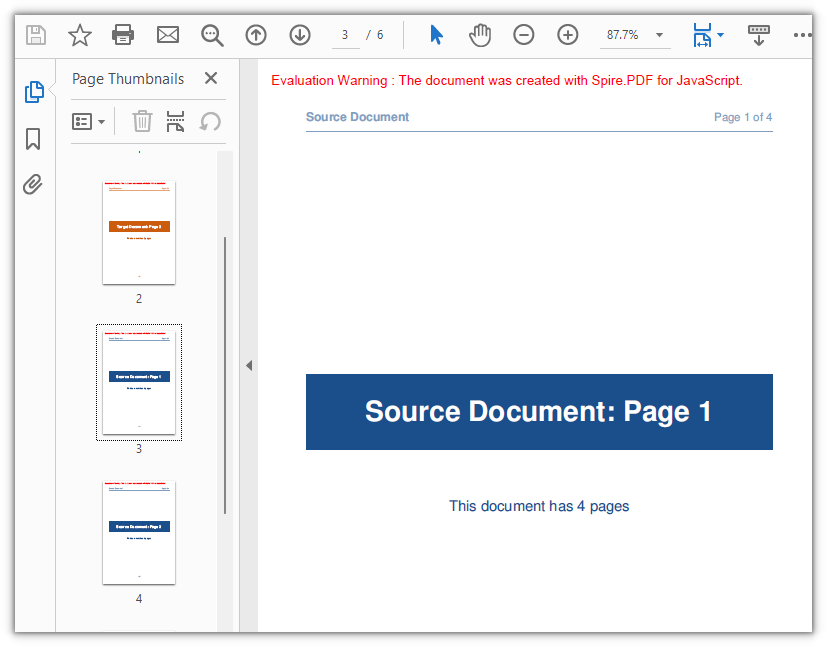
After all 4 pages of the source document are appended, the document has 6 pages:
Copy Page Content with a Page Template
Spire.PDF for JavaScript also provides the PdfPageBase.CreateTemplate method, which takes the content of one page as a PdfTemplate that Canvas.DrawTemplate then draws onto a newly created page. The first three methods move whole pages, so the new page inherits the source page's size; a template takes the content instead, leaving the page size, the drawing position and the number of times you draw it entirely up to you — the same template can be reused again and again.
function App() {
  const copyPageWithTemplate = async () => {
    // Get the Spire.PDF WASM module
    const pdfModule = window.wasmModule?.spirepdf;

    // Check whether the module is ready
    if (!pdfModule) {
      alert('Spire.PDF is not ready yet');
      return;
    }

    // Load the PDF file to work on into the VFS
    const inputFileName = 'SourceDocument.pdf';
    await window.spire.FetchFileToVFS(inputFileName, "", `${process.env.PUBLIC_URL}/data/`);

    // Load the document
    const doc = new pdfModule.PdfDocument();
    doc.LoadFromFile(inputFileName);

    // Take the page to be reused and turn it into a template: read the content once, draw it many times
    const sourcePage = doc.Pages.get_Item(0);
    const template = sourcePage.CreateTemplate();

    // First placement: insert an A4 page at position 2, a different size from the source,
    // and draw the content scaled to 297.6 x 421.6 at (80, 80)
    const page1 = doc.Pages.Insert(1, new pdfModule.SizeF(595.0, 842.0), new pdfModule.PdfMargins({ margin: 0.0 }));
    page1.Canvas.DrawTemplate(template, new pdfModule.PointF(80.0, 80.0), new pdfModule.SizeF(297.6, 421.6));

    // Second placement: insert another A4 page, drawing the same template smaller in the lower right
    const page2 = doc.Pages.Insert(2, new pdfModule.SizeF(595.0, 842.0), new pdfModule.PdfMargins({ margin: 0.0 }));
    page2.Canvas.DrawTemplate(template, new pdfModule.PointF(320.0, 460.0), new pdfModule.SizeF(200.0, 283.3));

    // Save the result document
    const outputFileName = 'CopyPageWithTemplate.pdf';
    doc.SaveToFile(outputFileName);
    doc.Close();

    // Read the generated file from the VFS and trigger the download
    const fileArray = window.dotnetRuntime.Module.FS.readFile(outputFileName);
    const blob = new Blob([fileArray], { type: 'application/pdf' });
    const url = URL.createObjectURL(blob);
    const a = document.createElement('a');
    a.href = url;
    a.download = outputFileName;
    a.click();
    URL.revokeObjectURL(url);
  };

  return (
    <div style={{ textAlign: 'center', height: '300px' }}>
      <h1>Copy Page with Template</h1>
      <button onClick={copyPageWithTemplate}>
        Start
      </button>
    </div>
  );
}

export default App;
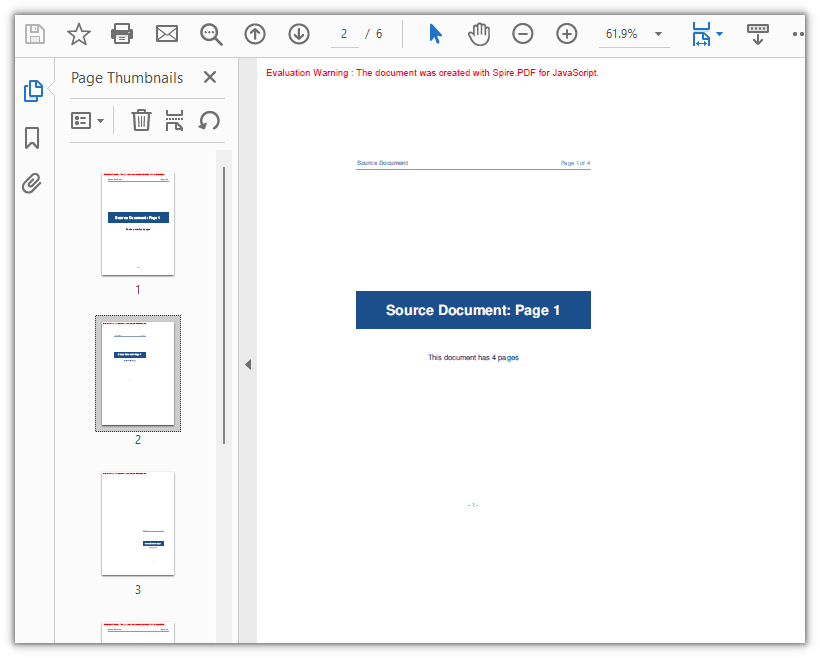
When the third argument of DrawTemplate is omitted, the template is drawn at its original coordinates without scaling — the new page is larger than the source, so the content occupies only one corner of it. Both the size of the new page and its margins come from Pages.Insert; in the example the margins are 0 on all four sides, which is what makes the drawing origin the top-left corner of the page.
The content of page 1 in the source document is scaled onto two new A4 pages, taking the document from 4 pages to 6:
Frequently Asked Questions
Creating a page with new PdfMargins(0.0) throws Arg_NullReferenceException
Cause: The PdfMargins constructor treats a single numeric argument as an internal handle, so new pdfModule.PdfMargins(0.0) does not give you a margins object — reading its Left or Top throws Arg_NullReferenceException, and using it to create a page does not produce the margins you expect.
Solution: Pass the margins as an object; for 0 on all four sides write { margin: 0.0 }:
// Zero margins on all four sides
const margins = new pdfModule.PdfMargins({ margin: 0.0 });

// Or set each side separately
const custom = new pdfModule.PdfMargins({ left: 20.0, top: 20.0, right: 20.0, bottom: 20.0 });
An out-of-range or reversed-range error is thrown when copying pages
Cause: Page indices start at 0 and endIndex is inclusive, so the valid range is 0 to Pages.Count - 1. Going outside it throws Index out of range, and a startIndex greater than endIndex throws The start index is greater then the end index.
Solution: Clamp the upper bound with Pages.Count before passing it in:
// To copy pages 2 to 4: start = 1, end = 3, with the page count as the upper bound
const start = 1;
const end = Math.min(3, sourceDoc.Pages.Count - 1);
targetDoc.InsertPageRange(sourceDoc, start, end);
A rotated page comes out with the wrong orientation after copying
Cause: CreateTemplate() takes the page content, and the page's rotation angle (/Rotate) is not part of the template. When the source page is rotated, the template's coordinate system no longer lines up with the target page — drawing it straight onto a new page with DrawTemplate puts the content outside the visible area, and the copy's Rotation is 0.
Solution: When the source page is rotated, use a whole-page copy instead; the content and the rotation angle travel together:
// Whole-page copy: the rotation angle comes with the page
targetDoc.InsertPage({ ldDoc: sourceDoc, pageIndex: 0, resultPageIndex: 1 });
If the template approach is required, temporarily zero the source page's rotation before taking the template, then restore the angle on both the source page and the copy:
const rotation = sourcePage.Rotation.value;

// Zero it temporarily so the template exports at the page's real coordinates
sourcePage.Rotation = 0;
const newPage = doc.Pages.Insert(1, sourcePage.Size, new pdfModule.PdfMargins({ margin: 0.0 }));
newPage.Canvas.DrawTemplate(sourcePage.CreateTemplate(), new pdfModule.PointF(0.0, 0.0));

// Restore the source page and give the copy the same angle
sourcePage.Rotation = rotation;
newPage.Rotation = rotation;
Get a Free License
If you would like to remove the evaluation message from the result documents or lift the feature limits, contact sales for a temporary 30-day license.
Rearrange PDF Pages in React Using JavaScript
Documents are often assembled from pieces: the cover, the body and the appendix arrive from different stages, and only before delivery does it turn out that the cover ended up after Chapter 2, or that a few pages need to change places. Only the page order has to change — not a word of the content — but without a PDF editor at hand the job stalls right there, and sending the file to a server means it leaves the user's device. This article shows how to rearrange PDF pages in a specified order in the browser with Spire.PDF for JavaScript. It loads, modifies and saves PDF documents based on WebAssembly, so the page order is rewritten entirely on the local machine, reading and writing files through a virtual file system (VFS), with no backend service required.
For installation and project configuration, refer to Integrating Spire.PDF for JavaScript in a React Project. The following examples assume Spire.PDF is installed and the WebAssembly module has been initialized.
Rearrange the Page Order
The page order is rewritten in a single call to PdfPageCollection.ReArrange(). The array of indices decides both where each page goes and how many pages the document has — as many indices as you pass, as many pages you get — so to keep every page, all indices from 0 to the page count minus one have to appear.
function App() {
  const rearrangePages = async () => {
    // Get the Spire.PDF WASM module
    const pdfModule = window.wasmModule?.spirepdf;

    // Check whether the module is ready
    if (!pdfModule) {
      alert('Spire.PDF is not ready yet');
      return;
    }

    // Load the PDF file to be processed into the VFS
    const inputFileName = 'Number.pdf';
    await window.spire.FetchFileToVFS(inputFileName, "", `${process.env.PUBLIC_URL}/data/`);

    // Create a PdfDocument object and load the PDF document
    let doc = new pdfModule.PdfDocument();
    doc.LoadFromFile(inputFileName);

    // The new page order: move the third page to the front and shift the rest down; indices start at 0
    const newOrder = [2, 0, 1, 3, 4];
    doc.Pages.ReArrange(newOrder);

    const outputFileName = 'Rearranged_Pages.pdf';
    doc.SaveToFile(outputFileName);
    doc.Close();

    // Read the generated file from the VFS and trigger the download
    const fileArray = window.dotnetRuntime.Module.FS.readFile(outputFileName);
    const blob = new Blob([fileArray], { type: 'application/pdf' });
    const url = URL.createObjectURL(blob);
    const a = document.createElement('a');
    a.href = url;
    a.download = outputFileName;
    a.click();
    URL.revokeObjectURL(url);
  };

  return (
    <div style={{ textAlign: 'center', height: '300px' }}>
      <h1>Rearrange PDF Pages</h1>
      <button onClick={rearrangePages}>
        Start Rearranging
      </button>
    </div>
  );
}

export default App;
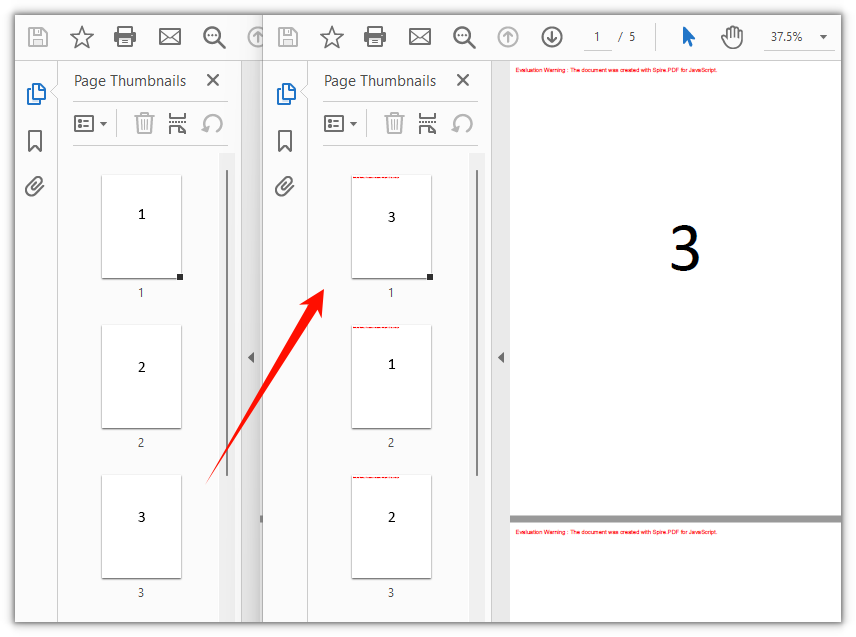
The document after the third page is moved to the front and the remaining pages shift down:
FAQ
The document has fewer pages after rearranging
Cause: ReArrange() rebuilds the page order from the array you pass, so a page whose index is missing from that array never makes it into the result document. Call ReArrange([1, 0]) on a five-page document and the output has two pages.
Solution: To keep the page count unchanged, the array length must equal doc.Pages.Count, with every index from 0 to doc.Pages.Count - 1 appearing exactly once:
// Indices start at 0: a five-page document uses 0, 1, 2, 3 and 4
const pageCount = doc.Pages.Count;
const fullOrder = Array.from({ length: pageCount }, (_, i) => i);
doc.Pages.ReArrange(fullOrder);
Calling ReArrange() reports "The page has existed."
Cause: The array contains a duplicate index, so the same original page is assigned to two positions. One page cannot occupy two positions at the same time, and Spire.PDF raises an error.
Solution: Make sure the array is a permutation of the original page indices — each index appears once and stays within range. For a five-page document the valid indices are 0 to 4.
How to swap only two pages
Cause: ReArrange() always works on the order of the whole document, and there is no shorter overload that swaps two pages on its own.
Solution: Still write the full order array, leaving the untouched positions at their original indices. The line below swaps the first and the second page:
// Swap the first two pages: 0 and 1 trade places, the rest stay put
const swappedOrder = [1, 0, 2, 3, 4];
doc.Pages.ReArrange(swappedOrder);
Get a Free License
If you wish to remove the evaluation message from the result document or remove feature limitations, please contact sales to obtain a temporary license valid for 30 days.
Set PDF Background Color or Background Image in React Using JavaScript
When a batch of documents has to look like one set, the quickest way is to give every page the same brand tint or letterhead pattern. Doing that used to mean going back to the source files and reworking the layout one by one, or stacking an image on each page by hand — the first requires that you still have the editable originals, and the second easily ends up covering the body text.
Editing the PDF directly in the browser sidesteps both. Spire.PDF for JavaScript loads, modifies and saves PDF documents on WebAssembly; the tint and the background image are written into the BackgroundColor and BackgroundImage properties of pages that already exist, drawn below the body text; files are read and written through a virtual file system (VFS), with no backend involved.
This article covers two core features:
For installation and project configuration, refer to Integrating Spire.PDF for JavaScript in a React Project. The following examples assume Spire.PDF is installed and the WebAssembly module has been initialized.
Set a Background Color on All PDF Pages
When the whole document needs one tint, assigning a Color to BackgroundColor page by page is enough. The property blends at an opacity of 0.25 by default, so set BackgroudOpacity to 1 when you want the solid color.
function App() {
  const setBackgroundColor = async () => {
    // Get the Spire.PDF WASM module
    const pdfModule = window.wasmModule?.spirepdf;

    // Check whether the module is ready
    if (!pdfModule) {
      alert('Spire.PDF is not ready yet');
      return;
    }

    // Load the PDF file to be processed into the VFS
    const inputFileName = 'Lease_Agreement_EN.pdf';
    await window.spire.FetchFileToVFS(inputFileName, "", `${process.env.PUBLIC_URL}/data/`);

    // Create a PdfDocument object and load the PDF document
    let doc = new pdfModule.PdfDocument();
    doc.LoadFromFile(inputFileName);

    // Custom tint: four ARGB channels, light blue here
    const backgroundColor = pdfModule.Color.FromArgb(255, 226, 240, 253);

    // Set the background color page by page
    for (let i = 0; i < doc.Pages.Count; i++) {
      const page = doc.Pages.get_Item(i);
      page.BackgroundColor = backgroundColor;
      // The default blend opacity is 0.25; set it to 1 for the solid color
      page.BackgroudOpacity = 1;
    }

    const outputFileName = 'SetBackgroundColor.pdf';
    doc.SaveToFile(outputFileName);
    doc.Close();

    // Read the generated file back from the VFS to trigger the download
    const fileArray = window.dotnetRuntime.Module.FS.readFile(outputFileName);
    const blob = new Blob([fileArray], { type: 'application/pdf' });
    const url = URL.createObjectURL(blob);
    const a = document.createElement('a');
    a.href = url;
    a.download = outputFileName;
    a.click();
    URL.revokeObjectURL(url);
  };

  return (
    <div style={{ textAlign: 'center', height: '300px' }}>
      <h1>Set PDF Background Color</h1>
      <button onClick={setBackgroundColor}>
        Start Setting
      </button>
    </div>
  );
}

export default App;
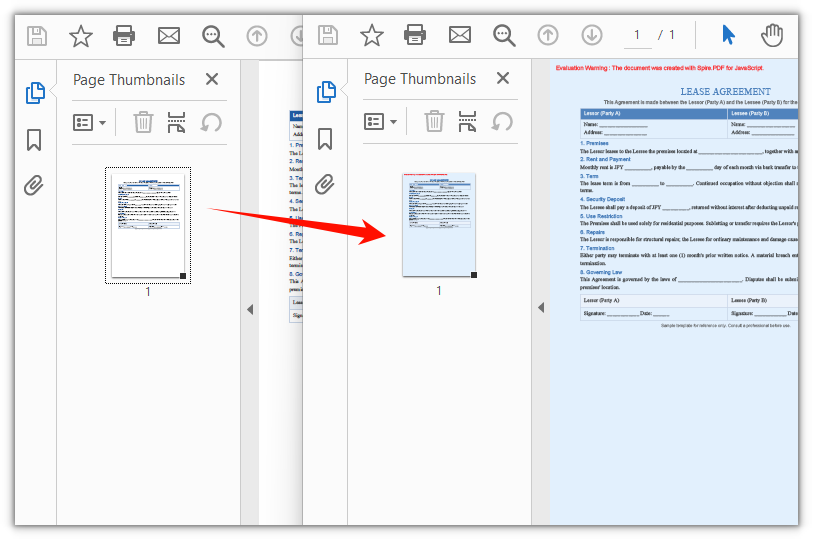
With the light blue background applied, the lease agreement takes on the same tint throughout:
Set a Background Image on All PDF Pages
To lay a full-page image underneath, hand it to BackgroundImage: it takes an image stream opened in the virtual file system and stretches it to fill the page content area, with BackgroudOpacity controlling how strongly it shows.
function App() {
  const setBackgroundImage = async () => {
    // Get the Spire.PDF WASM module
    const pdfModule = window.wasmModule?.spirepdf;

    // Check whether the module is ready
    if (!pdfModule) {
      alert('Spire.PDF is not ready yet');
      return;
    }

    // Load the PDF file to be processed and the background image into the VFS
    const inputFileName = 'Lease_Agreement_EN.pdf';
    const imageFileName = 'Background.png';
    await window.spire.FetchFileToVFS(inputFileName, "", `${process.env.PUBLIC_URL}/data/`);
    await window.spire.FetchFileToVFS(imageFileName, "", `${process.env.PUBLIC_URL}/data/`);

    // Create a PdfDocument object and load the PDF document
    let doc = new pdfModule.PdfDocument();
    doc.LoadFromFile(inputFileName);

    // Open the background image as a file stream in the VFS; every page shares one stream
    const imageStream = new window.spire.Stream(imageFileName);

    // Lay the image down page by page; it stretches to fill the page content area
    for (let i = 0; i < doc.Pages.Count; i++) {
      const page = doc.Pages.get_Item(i);
      page.BackgroundImage = imageStream;
      page.BackgroudOpacity = 1;
    }

    const outputFileName = 'SetBackgroundImage.pdf';
    doc.SaveToFile(outputFileName);
    doc.Close();

    // Read the generated file back from the VFS to trigger the download
    const fileArray = window.dotnetRuntime.Module.FS.readFile(outputFileName);
    const blob = new Blob([fileArray], { type: 'application/pdf' });
    const url = URL.createObjectURL(blob);
    const a = document.createElement('a');
    a.href = url;
    a.download = outputFileName;
    a.click();
    URL.revokeObjectURL(url);
  };

  return (
    <div style={{ textAlign: 'center', height: '300px' }}>
      <h1>Set PDF Background Image</h1>
      <button onClick={setBackgroundImage}>
        Start Setting
      </button>
    </div>
  );
}

export default App;
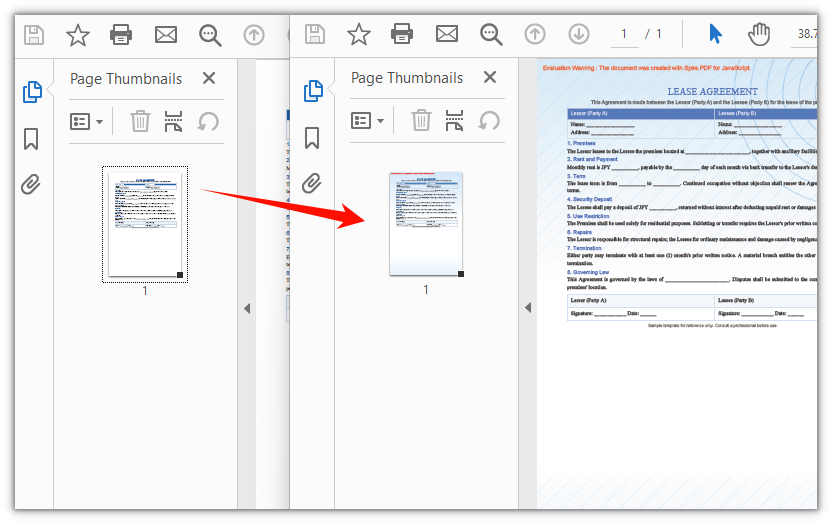
The same background image fills every page, and the body text stays legible:
FAQ
The background color comes out much paler than expected
Cause: BackgroudOpacity (note the missing "n" in the spelling) defaults to 0.25, so the background is blended onto the page at 25% opacity and even a dark color washes out.
Solution: Set BackgroudOpacity to 1 for the solid color; pick a value between 0.3 and 0.8 if you want it softened.
page.BackgroundColor = backgroundColor;
// 1 gives the solid color; a smaller value blends it in more faintly
page.BackgroudOpacity = 1;
The background does not reach the page edges
Cause: The background is only painted inside the page content area (ClientSize). A loaded PDF usually has no margins, so the background covers the whole page; a page created with Pages.Add() carries the default 40-point margins, and that band stays uncolored.
Solution: Create the page with zero margins, and the background covers the whole page:
// Pass a zero-margin object as the second argument; the content area then matches the page
const page = doc.Pages.Add(pdfModule.PdfPageSize.A4(), new pdfModule.PdfMargins());
I only want a background on one page
Cause: BackgroundColor and BackgroundImage are page-level properties: they apply only to the page you assign them on and are not carried over to the rest of the document.
Solution: Fetch the page by index and set it there; no loop needed:
// Handle only page 1 and leave the rest as they are
const page = doc.Pages.get_Item(0);
page.BackgroundColor = pdfModule.Color.FromArgb(255, 226, 240, 253);
page.BackgroudOpacity = 1;
Get a Free License
If you wish to remove the evaluation message from the result document or remove feature limitations, please contact sales to obtain a temporary license valid for 30 days.
Rotate PDF Pages in React Using JavaScript
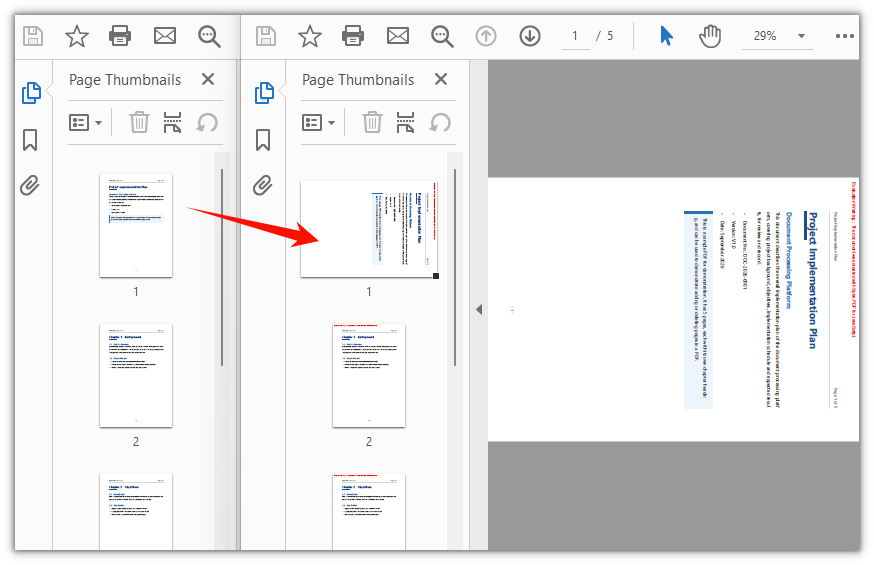
A scanned page that landed sideways, a landscape table sandwiched between portrait pages, or a document you want turned as a whole before printing — none of these need to be re-laid out. The rotation angle is a property of the PDF page itself; changing it only affects how the page is displayed, and the content on the page stays as it is.
Spire.PDF for JavaScript loads, modifies and saves PDF documents directly in the browser based on WebAssembly, reading and writing files through a virtual file system (VFS), with no backend service required.
This article covers two core features:
For installation and project configuration, refer to Integrating Spire.PDF for JavaScript in a React Project. The following examples assume Spire.PDF is installed and the WebAssembly module has been initialized.
Rotate a New Page
To give every page in a section the same orientation, one setting on the section is enough: section.PageSettings.Rotate takes PdfPageRotateAngle.RotateAngle90, and all pages in that section are rotated 90 degrees clockwise. RotateAngle180 and RotateAngle270 are also available, and leaving it unset means no rotation.
function App() {
  const createRotatedPdf = async () => {
    // Get the Spire.PDF WASM module
    const pdfModule = window.wasmModule?.spirepdf;

    // Check whether the module is ready
    if (!pdfModule) {
      alert('Spire.PDF is not ready yet');
      return;
    }

    // Load the font into the VFS for the page text
    await window.spire.FetchFileToVFS('ARIAL UNICODE MS.TTF', '/Library/Fonts/', `${process.env.PUBLIC_URL}/font/`);

    // Create a blank document
    const doc = new pdfModule.PdfDocument();

    // Add a section; every page in it shares a 90-degree clockwise rotation
    const section = doc.Sections.Add();
    section.PageSettings.Size = pdfModule.PdfPageSize.A4();
    section.PageSettings.Rotate = pdfModule.PdfPageRotateAngle.RotateAngle90;

    // Add a page to the section
    const page = section.Pages.Add();

    // Draw a line of text on the page
    const font = new pdfModule.PdfTrueTypeFont({ fontFile: '/Library/Fonts/ARIAL UNICODE MS.TTF', size: 14 });
    page.Canvas.DrawString({
      s: 'This page is set to rotate 90 degrees at creation time',
      font: font,
      brush: pdfModule.PdfBrushes.get_Black(),
      x: 40,
      y: 60,
      format: new pdfModule.PdfStringFormat({ alignment: pdfModule.PdfTextAlignment.Left })
    });

    // Save and read back from the VFS to trigger the download
    const outputFileName = 'RotatedDocument.pdf';
    doc.SaveToFile(outputFileName);
    doc.Close();

    const fileArray = window.dotnetRuntime.Module.FS.readFile(outputFileName);
    const blob = new Blob([fileArray], { type: 'application/pdf' });
    const url = URL.createObjectURL(blob);
    const a = document.createElement('a');
    a.href = url;
    a.download = outputFileName;
    a.click();
    URL.revokeObjectURL(url);
  };

  return (
    <div style={{ textAlign: 'center', height: '300px' }}>
      <h1>Create a Rotated PDF</h1>
      <button onClick={createRotatedPdf}>
        Start Creating
      </button>
    </div>
  );
}

export default App;
If you only want to pass the angle while creating a page, the overload
doc.Pages.Add(size, margins, rotation)works as well.
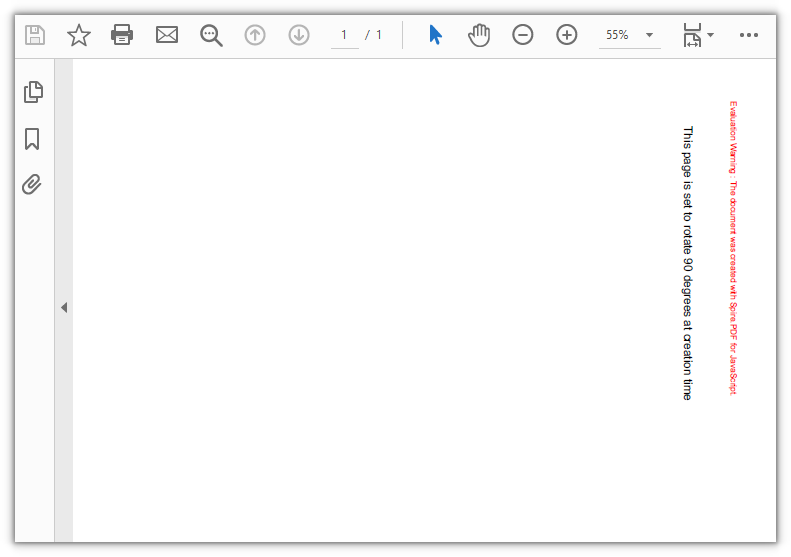
The A4 page is set to a 90-degree rotation at creation time:
Rotate an Existing Page
To change the orientation of an existing document, note that the angle lives in the page's own Rotation property: read the current value first, then add this call's rotation to it. What gets written back is the enum value of PdfPageRotateAngle (0 for no rotation, 1 for 90 degrees), not the angle itself.
function App() {
  const rotateExistingPage = async () => {
    // Get the Spire.PDF WASM module
    const pdfModule = window.wasmModule?.spirepdf;

    // Check whether the module is ready
    if (!pdfModule) {
      alert('Spire.PDF is not ready yet');
      return;
    }

    // Load the PDF file to be processed into the VFS
    const inputFileName = 'Multipage_Document.pdf';
    await window.spire.FetchFileToVFS(inputFileName, '', `${process.env.PUBLIC_URL}/data/`);

    // Create a PdfDocument object and load the PDF document
    const doc = new pdfModule.PdfDocument();
    doc.LoadFromFile(inputFileName);

    // Take the first page and add this call's rotation to its current angle
    const page = doc.Pages.get_Item(0);
    let rotation = page.Rotation.value + pdfModule.PdfPageRotateAngle.RotateAngle90.value;

    // The enum value only runs from 0 to 3; 4 means a full turn, back to no rotation
    if (rotation === 4) {
      rotation = 0;
    }
    page.Rotation = rotation;

    // Save and read back from the VFS to trigger the download
    const outputFileName = 'RotatedPage.pdf';
    doc.SaveToFile(outputFileName);
    doc.Close();

    const fileArray = window.dotnetRuntime.Module.FS.readFile(outputFileName);
    const blob = new Blob([fileArray], { type: 'application/pdf' });
    const url = URL.createObjectURL(blob);
    const a = document.createElement('a');
    a.href = url;
    a.download = outputFileName;
    a.click();
    URL.revokeObjectURL(url);
  };

  return (
    <div style={{ textAlign: 'center', height: '300px' }}>
      <h1>Rotate a Specific Page</h1>
      <button onClick={rotateExistingPage}>
        Start Rotating
      </button>
    </div>
  );
}

export default App;
Only the first page is rotated 90 degrees, the remaining pages keep their orientation:
FAQ
Why does assigning to Rotation report "Value is not an integer"
Cause: The write side of page.Rotation only accepts an integer. Passing a PdfPageRotateAngle enum object directly throws Assert failed: Value is not an integer: PdfPageRotateAngle.RotateAngle90 (object).
Solution: Take the enum's value and assign that:
page.Rotation = pdfModule.PdfPageRotateAngle.RotateAngle90.value;
Why does the page end up rotated 180 degrees after I pass 90
Cause: The enum values of PdfPageRotateAngle are 0, 1, 2 and 3, standing for 0, 90, 180 and 270 degrees. That value is what the write side expects, not the angle. Writing page.Rotation = 90 throws no error but does not give you 90 degrees, and looking the value up with PdfPageRotateAngle.fromValue(90) throws Invalid value for spirepdfPdfPageRotateAngle.
Solution: Convert to the enum value before writing:
// 90 degrees
page.Rotation = pdfModule.PdfPageRotateAngle.RotateAngle90.value;

// 180 degrees
page.Rotation = pdfModule.PdfPageRotateAngle.RotateAngle180.value;
Why does the rotation argument on section.Pages.Add(...) have no effect
Cause: The overload that takes a rotation argument, Add(size, margins, rotation), only works on doc.Pages. On section.Pages the argument is ignored, and the page orientation is decided by the PageSettings.Rotate of the section it belongs to. The /Rotate entry in the file stays 0, the page is not rotated, and no error is raised.
Solution: Pick one of the two forms below, and do not pass the argument to section.Pages:
// Form 1: set it on the section, applying to every page in that section
section.PageSettings.Rotate = pdfModule.PdfPageRotateAngle.RotateAngle90;
section.Pages.Add();

// Form 2: create the page on doc.Pages and pass the angle
const page = doc.Pages.Add(
  pdfModule.PdfPageSize.A4(),
  new pdfModule.PdfMargins(),
  pdfModule.PdfPageRotateAngle.RotateAngle90
);
A page can still be adjusted on its own after it has been created; page.Rotation overrides the section setting:
// Rotate only the second page to 180 degrees, leaving the rest untouched
doc.Pages.get_Item(1).Rotation = pdfModule.PdfPageRotateAngle.RotateAngle180.value;
Get a Free License
If you wish to remove the evaluation message from the result document or remove feature limitations, please contact sales to obtain a temporary license valid for 30 days.
Adding or Deleting PDF Pages in React with JavaScript
A PDF document is organized page by page, and reading, printing and archiving all follow that structure. In practice, you often need to adjust the pages of an existing PDF: add a signature page to a contract, append a summary page at the end of a report, or remove a page that no longer belongs. Doing this with desktop software or a server-side re-layout means exporting and uploading files back and forth. Handling it directly in the browser keeps the document on the user's device and shortens the whole path.
Spire.PDF for JavaScript loads, modifies and saves PDF documents directly in the browser based on WebAssembly, managing input and output files through a virtual file system (VFS), with no backend service required.
This article covers three core features:
For installation and project configuration, refer to Integrating Spire.PDF for JavaScript in a React Project. The following examples assume Spire.PDF is installed and the WebAssembly module has been initialized.
Adding a Page to a PDF
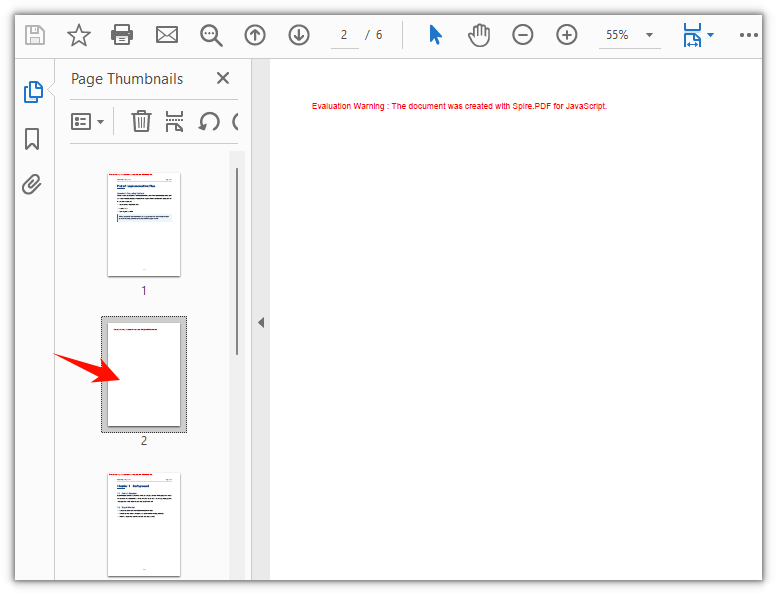
Adding a page means inserting one item into the PdfPageCollection. Use Pages.Insert(index) to insert at a specific position; the index is 0-based, and the pages after the insertion point shift back by one. Here the blank page goes into the second position and the existing pages move onward, which suits adding a page in the middle of a document.
function App() {
  const addPageToPdf = async () => {
    // Get the Spire.PDF WASM module
    const pdfModule = window.wasmModule?.spirepdf;

    // Check whether the module is ready
    if (!pdfModule) {
      alert('Spire.PDF is not ready yet');
      return;
    }

    // Load the PDF file into the VFS
    const inputFileName = 'Multipage_Document.pdf';
    await window.spire.FetchFileToVFS(inputFileName, "", `${process.env.PUBLIC_URL}/data/`);

    // Create a PdfDocument object and load the PDF document
    let doc = new pdfModule.PdfDocument();
    doc.LoadFromFile(inputFileName);

    // Insert a blank page as the second page (the index is 0-based, so index 1 is the second page)
    doc.Pages.Insert(1);

    // Define the output file name and save the document
    const outputFileName = 'Page_Inserted.pdf';
    doc.SaveToFile(outputFileName);
    doc.Close();

    // Read the generated file from the VFS and trigger the download
    const fileArray = window.dotnetRuntime.Module.FS.readFile(outputFileName);
    const blob = new Blob([fileArray], { type: 'application/pdf' });
    const url = URL.createObjectURL(blob);
    const a = document.createElement('a');
    a.href = url;
    a.download = outputFileName;
    a.click();
    URL.revokeObjectURL(url);
  };

  return (
    <div style={{ textAlign: 'center', height: '300px' }}>
      <h1>Add a Page to PDF</h1>
      <button onClick={addPageToPdf}>
        Start Adding
      </button>
    </div>
  );
}

export default App;
The PDF document after a blank page is inserted as the second page
Adding a Blank Page at the End of a Document
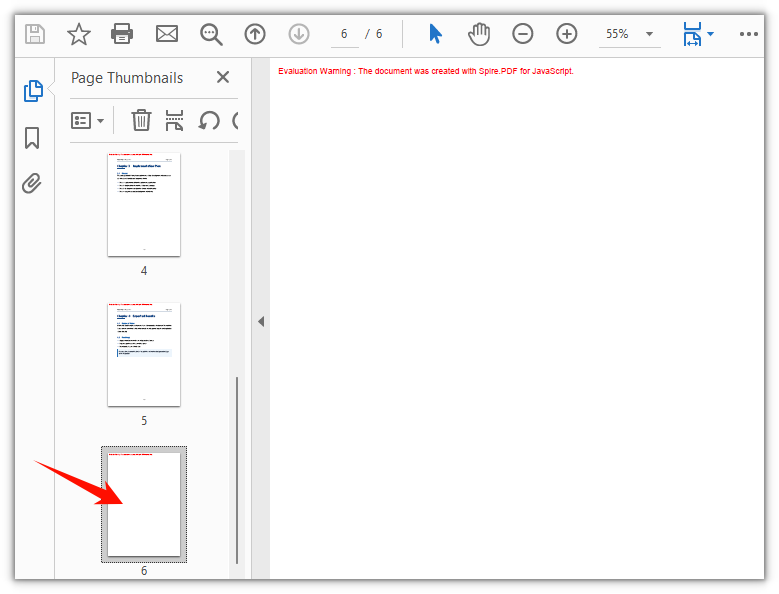
Spire.PDF for JavaScript also provides the Pages.Add() method, which appends a blank page at the end of a document. It uses A4 as the default page size and 40-point margins on all four sides; when needed, you can set the page size and margins yourself.
function App() {
  const appendPageToPdf = async () => {
    // Get the Spire.PDF WASM module
    const pdfModule = window.wasmModule?.spirepdf;

    // Check whether the module is ready
    if (!pdfModule) {
      alert('Spire.PDF is not ready yet');
      return;
    }

    // Load the PDF file into the VFS
    const inputFileName = 'Multipage_Document.pdf';
    await window.spire.FetchFileToVFS(inputFileName, "", `${process.env.PUBLIC_URL}/data/`);

    // Create a PdfDocument object and load the PDF document
    let doc = new pdfModule.PdfDocument();
    doc.LoadFromFile(inputFileName);

    // Append a blank A4 page with zero margins on all four sides
    doc.Pages.Add(pdfModule.PdfPageSize.A4(), new pdfModule.PdfMargins(0.0, 0.0));

    // Define the output file name and save the document
    const outputFileName = 'Page_Appended.pdf';
    doc.SaveToFile(outputFileName);
    doc.Close();

    // Read the generated file from the VFS and trigger the download
    const fileArray = window.dotnetRuntime.Module.FS.readFile(outputFileName);
    const blob = new Blob([fileArray], { type: 'application/pdf' });
    const url = URL.createObjectURL(blob);
    const a = document.createElement('a');
    a.href = url;
    a.download = outputFileName;
    a.click();
    URL.revokeObjectURL(url);
  };

  return (
    <div style={{ textAlign: 'center', height: '300px' }}>
      <h1>Append a Blank Page to PDF</h1>
      <button onClick={appendPageToPdf}>
        Start Adding
      </button>
    </div>
  );
}

export default App;
The PDF document after a blank A4 page is appended at the end
Deleting a Page from a PDF
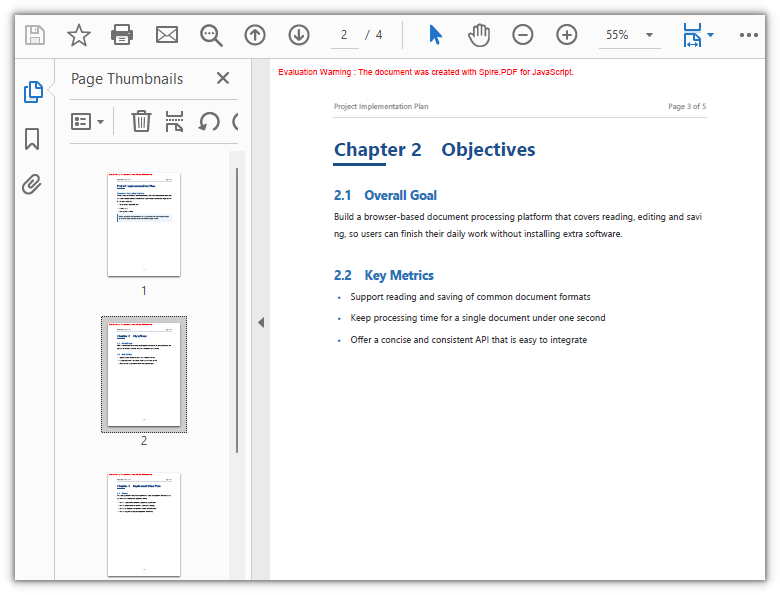
Deleting a page also works through the page collection: Pages.RemoveAt(index) removes one page by index, starting at 0, and the indexes of the pages after it shift forward by one. Before writing the delete logic, check the current page count with Pages.Count so the index stays in range. Here the second page of the sample document is removed and the remaining pages keep their original order.
function App() {
  const deletePageFromPdf = async () => {
    // Get the Spire.PDF WASM module
    const pdfModule = window.wasmModule?.spirepdf;

    // Check whether the module is ready
    if (!pdfModule) {
      alert('Spire.PDF is not ready yet');
      return;
    }

    // Load the PDF file into the VFS
    const inputFileName = 'Multipage_Document.pdf';
    await window.spire.FetchFileToVFS(inputFileName, "", `${process.env.PUBLIC_URL}/data/`);

    // Create a PdfDocument object and load the PDF document
    let doc = new pdfModule.PdfDocument();
    doc.LoadFromFile(inputFileName);

    // Delete the second page (the index is 0-based, so index 1 is the second page)
    doc.Pages.RemoveAt(1);

    // Define the output file name and save the document
    const outputFileName = 'Page_Deleted.pdf';
    doc.SaveToFile(outputFileName);
    doc.Close();

    // Read the generated file from the VFS and trigger the download
    const fileArray = window.dotnetRuntime.Module.FS.readFile(outputFileName);
    const blob = new Blob([fileArray], { type: 'application/pdf' });
    const url = URL.createObjectURL(blob);
    const a = document.createElement('a');
    a.href = url;
    a.download = outputFileName;
    a.click();
    URL.revokeObjectURL(url);
  };

  return (
    <div style={{ textAlign: 'center', height: '300px' }}>
      <h1>Delete a Page from PDF</h1>
      <button onClick={deletePageFromPdf}>
        Start Deleting
      </button>
    </div>
  );
}

export default App;
The PDF document after the second page is deleted
FAQ
How do I set the page size and margins of a new blank page
Reason: Pages.Add and Pages.Insert create blank pages of a regular size with default margins. When a new page has to match a specific paper size or margin, both values need to be passed in.
Solution: The paper size comes from PdfPageSize, such as PdfPageSize.A4() or PdfPageSize.A3(); the margins come from PdfMargins, where the two-argument form new PdfMargins(0.0, 0.0) sets both the vertical and horizontal margins to 0. To control each side separately, pass the named fields:
// A blank A4 page with zero margins on all four sides
doc.Pages.Add(pdfModule.PdfPageSize.A4(), new pdfModule.PdfMargins(0.0, 0.0));

// Set the top, bottom, left and right margins individually
doc.Pages.Add(pdfModule.PdfPageSize.A4(),
  new pdfModule.PdfMargins({ left: 40, top: 40, right: 40, bottom: 40 }));
Why does deleting a page report an index out of range
Reason: RemoveAt(index) is 0-based, and its valid range is 0 to Pages.Count - 1. Without checking the page count first, passing a value equal to or greater than Count goes out of range.
Solution: Check the page count with Pages.Count before deleting and keep the index within range. To delete the last page, for example, the index should be Count - 1:
let total = doc.Pages.Count;

if (total > 0) {
  // Delete the last page
  doc.Pages.RemoveAt(total - 1);
}
What should I watch out for when adding or deleting several pages in a row
Reason: Every insert or delete shifts the indexes of all pages after it. Deleting several pages by fixed indexes from front to back easily removes the wrong ones — once one page is gone, the later indexes recorded earlier have already moved forward.
Solution: Insert, Add and RemoveAt each handle a single page, so repeat the call for batch operations. When deleting several pages, work from back to front so the indexes do not drift:
// Delete from back to front, so the indexes do not shift after each removal
for (let i = doc.Pages.Count - 1; i >= 3; i--) {
  doc.Pages.RemoveAt(i);
}
Get a Free License
If you wish to remove the evaluation message from the result document or remove feature limitations, please contact sales to obtain a temporary license valid for 30 days.