Technical Bid Response Generation with Spire.Agent.Office
In tendering, the technical bid response is a step every bid must go through, and one of the easiest to get wrong. A tender document runs to dozens or hundreds of pages, and its "Technical Requirements" chapter holds anywhere from dozens to hundreds of clauses. A bidder has to respond to each clause and state the deviation, and a single unanswered clause can invalidate the bid. The responses must also line up with the bidder's own product parameters, test reports and project references — content that is too generic is scored as non-responsive, while inventing parameters or references to pad out a "fully compliant" answer creates far worse contractual and compliance risk if the bid wins. Traditionally a bidding specialist reads clause by clause, looks up the materials and fills in the table row by row. That takes days per bid, and the depth and wording of the responses vary widely between projects and between people.
Compared with the Traditional SDK API
| Traditional Spire.Office for .NET API | Spire.Agent.Office | |
|---|---|---|
| Driving method | Code handles every clause: load the tender document → split clauses with regex → match enterprise materials by keyword → fill the response table row by row, each step controlled in code | Describe the response requirements in natural language; the AI splits the clauses and matches responses clause by clause |
| Code volume | Substantial code to maintain clause-splitting rules, material-matching logic and table filling | Configuration code plus one natural language instruction |
| Clause splitting | Relies on clause numbers and ★▲ symbols as regex anchors; cross-page tables and multi-level numbering are easily split wrongly or dropped | The AI reads semantics together with numbering, so hierarchy and page breaks lose no clauses |
| Material matching | Keyword hits only; two different wordings of the same capability never match | Semantic matching; a capability description in the product manual maps onto a specific clause |
| Deviation assessment | Assessment rules must be hard-coded; better-than / equal / missing is hard to formalize | Each clause is judged against the criteria given in the instruction, and the AI downgrades when evidence is thin |
| Maintainability | A change in tender format or assessment criteria means code changes and a new release | Assessment criteria and chapter structure are adjusted in natural language at any time |
This article shows how to use the Word AI capability of Spire.Agent.Office to hand the tender document and your enterprise technical materials to the AI together and generate, in one pass, a complete technical bid response document containing the technical response table and the technical proposal body. Both single-lot and multi-lot batch usage are covered.
- Single lot: one tender document, one complete technical bid
- Multiple lots: batch output from several tender documents, one consistent standard
For product installation and SpireToken configuration, see Integrating Spire.Agent.Office into a .NET project. The examples below assume Spire.Agent.Office is installed and SpireToken is configured.
Technical Bid Response Generation
Technical bid response generation is the process of extracting the technical requirement clauses from a tender document, writing a response for each clause against the bidder's own technical materials, assessing the deviation, and organizing the result into a submittable technical bid document. The core approach: pass the tender document and the enterprise technical materials to the AI as attachments, have the AI generate a "technical response table" clause by clause under the tender document's original numbering, then continue into the technical proposal body based on those responses — producing the complete technical bid response document in one pass.
This addresses three difficulties the traditional approach cannot get around:
- Semantic correspondence: the tender says "supports deployment in a domestic xinchuang environment" while the enterprise materials say "adaptation for Kylin and UOS completed" — different wording for the same thing, and only semantic understanding maps the two. Keyword matching cannot.
- No omissions: the number of response clauses matches the technical requirements in the tender document exactly, with no merging and nothing dropped, which removes the risk of an invalid bid at the source.
- No fabrication: any clause without support in the enterprise materials is assessed as "Partially Compliant" with the missing items noted, instead of writing extra content to reach "Fully Compliant".
Single lot: one tender document, one complete technical bid
using Spire.Agent.Office.AI;
using Spire.Agent.Office.Extensions;
using Spire.Doc;

// Tender document and enterprise technical materials (data source files)
string[] attachmentPaths = new string[] {
    @"E:\Input\XX-Project-Tender-Document.docx",
    @"E:\Input\Enterprise-Technical-Materials.docx"
};
// Save path
string savePath = @"E:\Output\XX-Project-Technical-Bid-Response.docx";
// SpireToken key
string key = "**************************";
// Natural language instruction
string instruction =
    "Based on the attached tender document and enterprise technical materials, write a technical bid response document: generate a Technical Response Table clause by clause under the tender document's original numbering (No. | Tender Requirement | Our Response | Deviation | Notes), one to one with the requirements and with none omitted; " +
    "deviation takes only Fully Compliant / Partially Compliant / Non-Compliant, and the response must cite the matching model, parameters or project reference from the materials, while any clause without support is assessed Partially Compliant with the missing items noted and nothing invented; " +
    "after the table, continue with a five-chapter technical proposal body: project understanding, technical solution, implementation plan, quality assurance and after-sales service.";

// Call the Word document processing function
AIResult result = ExecuteDemoWord(instruction, savePath, key, attachmentPaths);


// Run the Word document AI processing
static AIResult ExecuteDemoWord(string instruction, string savePath, string key, string[] attachmentPaths)
{
    // Create the AIOptions configuration object
    AIOptions options = new AIOptions();
    // Set the single-call timeout budget (ms)
    options.TimeoutMs = 3600000;
    // Set the SpireToken key
    options.SpireToken = key;

    // Process the Word document with a Document object
    using (Document doc = new Document())
    {
        // Create the AI document processor
        AIDocumentProcessor processor = doc.AI(options);

        // Execute the AI instruction
        return processor.ExecuteInstruction(doc, instruction, savePath, attachmentPaths);
    }
}
The technical bid response document generated by the AI (technical response table + technical proposal body):
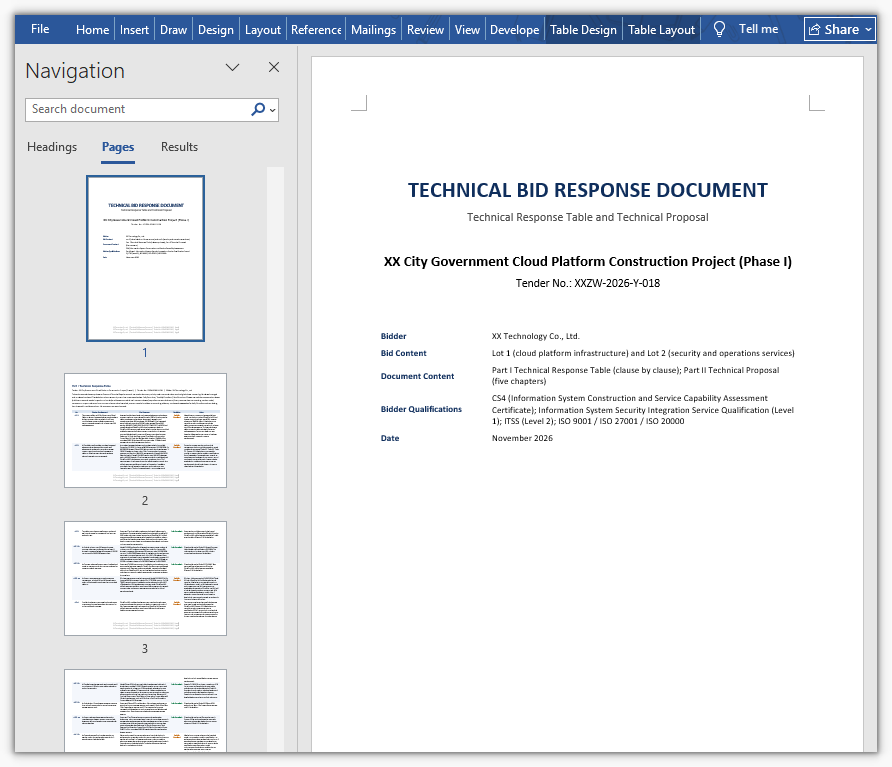
In the generated document the technical response table follows the tender document's original clause numbers one by one, and each row states the response and the deviation. Clauses with matching evidence cite specific product models and project references; the proposal body expands from the response table into the five chapters on project understanding, technical solution, implementation plan, quality assurance and after-sales service. The bidding specialist only has to check that the deviation assessments match reality and supply the materials that are missing, then move on to internal sign-off.
Multiple lots: batch output from several tender documents, one consistent standard
When a project is divided into several lots, each lot's tender document carries different technical requirements, but all lots use the same enterprise technical materials, which makes a single batch call a good fit. Set options.WorkDir to the output directory, pass null as savePath, and hand in every lot's tender document as an attachment — one call then produces several files, each named by the AI after its lot. Because all lots share the same materials and the same instruction, the assessment standard stays consistent by construction.
One caveat: a single call runs against a timeout budget (about 300 seconds by default), so a multi-lot batch should raise options.TimeoutMs; otherwise the call is cut off when the budget runs out.
using Spire.Agent.Office.AI;
using Spire.Agent.Office.Extensions;
using Spire.Doc;

// Tender documents for the lots (data source files)
string[] lotFiles = new string[] {
    @"E:\Input\Lot-1-Technical-Requirements.docx",  // Lot 1 tender document
    @"E:\Input\Lot-2-Technical-Requirements.docx"   // Lot 2 tender document
};
// All lots share the same enterprise technical materials
string materialPath = @"E:\Input\Enterprise-Technical-Materials.docx";
// Output directory
string OutDir = @"E:\Output";
// SpireToken key
string key = "**************************";
// Natural language instruction
string instruction =
    "Based on the attached tender documents and enterprise technical materials, generate a Technical Response Table clause by clause under that lot's original numbering (No. | Tender Requirement | Our Response | Deviation | Notes), one to one with that lot's requirements and with none omitted; " +
    "deviation takes only Fully Compliant / Partially Compliant / Non-Compliant, assessed as met or better → Fully Compliant, differences that do not affect use → Partially Compliant, cannot be met → Non-Compliant; " +
    "the response must cite the matching model, parameters or project reference from the materials, while any clause without support is assessed Partially Compliant with the missing items noted and nothing invented; " +
    "after the table, continue with a five-chapter technical proposal body: project understanding, technical solution, implementation plan, quality assurance and after-sales service; " +
    "the attachments hold two lots, so produce one document per lot, 2 files in total, each named with an 'output' prefix plus the lot and written directly into the working directory with no .csx script.";

// Attachments: two lot tender documents + the shared enterprise technical materials
string[] attachmentPaths = new string[] { lotFiles[0], lotFiles[1], materialPath };

// Call the Word document processing function
AIResult result = ExecuteDemoWordMultiLot(instruction, null, key, OutDir, attachmentPaths);


// Run the Word document AI processing
static AIResult ExecuteDemoWordMultiLot(string instruction, string? savePath, string key, string output, string[] attachmentPaths)
{
    // Create the AIOptions configuration object
    AIOptions options = new AIOptions();
    // Set the working directory to the output directory
    options.WorkDir = output;
    // Set the single-call timeout budget (ms)
    options.TimeoutMs = 3600000;
    // Set the SpireToken key
    options.SpireToken = key;

    // Process the Word document with a Document object
    using (Document doc = new Document())
    {
        // Create the AI document processor
        AIDocumentProcessor processor = doc.AI(options);

        // Execute the AI instruction
        return processor.ExecuteInstruction(doc, instruction, savePath, attachmentPaths);
    }
}
The technical bid response documents generated in batch by the AI (one per lot, named after the lot)
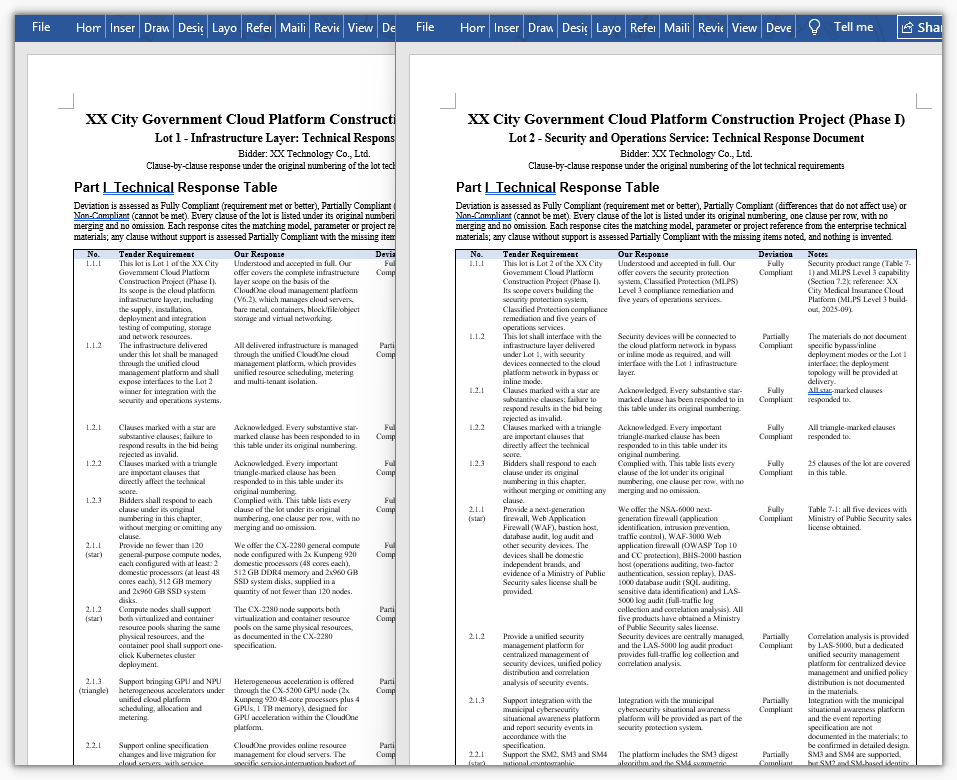
One call produces one independent response document per lot, named after the lot so that each can be submitted separately. Because all lots share the same deviation criteria and the same technical materials, the response standard stays consistent across lots — the same capability is not assessed "Fully Compliant" in one lot and "Partially Compliant" in another.
Common Questions
Response clauses are missing and the count does not match the tender document
Cause: the technical requirements in a tender document are often laid out as multi-level numbering, cross-page tables or even images, and the AI may merge adjacent clauses when splitting, or miss the entries that continue on the following page.
Solution: state in the instruction that each clause must be extracted individually and never merged or summarized, and require that the number of response clauses match the technical requirements in the tender document. For projects with many clauses, first have the AI output a clause list on its own (number + original text), check the count manually, and only then generate the responses — a two-step flow of "split first, respond second".
Responses are generic and do not reflect the company's actual capability
Cause: only the tender document was attached and no enterprise technical materials, so the AI can only write generic wording.
Solution: attach product manuals, test reports, qualification certificates and references for similar projects, and require in the instruction that "clauses with matching evidence must cite the specific product model, technical parameters or project reference".
Invented parameters, certificates or project references appear
Cause: when tender requirements and enterprise materials diverge, the AI tends to write extra content to fill the response table.
Solution: state in the instruction that "inventing parameters, certificates or project references to reach full compliance is forbidden; anything that cannot be confirmed is left blank and marked for manual confirmation", and write "any clause with no corresponding content in the materials is assessed as Partially Compliant" in as a hard rule.
Every deviation is assessed as "Fully Compliant"
Cause: no deviation criteria were given, so the AI sets its own standard, which usually leans lenient.
Solution: write the assessment standard into the instruction, for example "tender requirements fully met or better → Fully Compliant; differences that do not affect use → Partially Compliant; cannot be met → Non-Compliant". For stricter assessment, add "Fully Compliant may be assessed only when the enterprise materials provide explicit parameters or project references".
The response table layout breaks down and long clauses run together
Cause: a response table has many columns and long cell contents, so the AI may reorder columns or produce abnormal row heights when laying it out.
Solution: fix the column names and column order in the instruction (No. | Tender Requirement | Our Response | Deviation | Notes), and add layout requirements as needed (table centered, header row bold, body 12 pt, 1.5 line spacing); for very long clauses, require that "the Tender Requirement column keeps the original sentence, truncated at 80 characters with a trailing ellipsis".
Get the SpireToken Key
- Contact [email protected] or visit https://www.e-iceblue.com/TemLicense.html for a trial or commercial API key
Configure it in code:
AIOptions options = new AIOptions();
options.SpireToken = key;
How to Reconstruct Word Structure with Spire.Agent.Office in C#
Editing content in Word is not difficult, but realigning the table of contents, page numbers, headers and footers afterwards is often more troublesome. As soon as a document goes through a few rounds of additions and deletions, chapter order adjustments, or migration from another template, its original table of contents entries, page numbers, and the chapter name in the header easily fall out of sync with the body text — clicking a TOC entry jumps to the wrong page, page numbers fail to continue from a certain section onward, and the header still carries the chapter title from the previous version. Checking item by item by hand is time-consuming and prone to omissions, and the longer the document, the harder it is to guarantee consistency.
Comparison with Traditional SDK API Processing
| Traditional Spire.Office for .NET API | Spire.Agent.Office | |
|---|---|---|
| Driving approach | Write code to handle each item: iterate paragraphs to determine levels → update the TOC field → reorder page numbers → modify headers and footers; every step requires code control | Describe in natural language which structures to reconstruct, and AI completes it automatically |
| Code volume | The TOC field, sectioned page numbers, header fields and so on each require a separate set of processing logic | Only configuration code + 1 natural language instruction |
| Heading level recognition | Relies on rigid judgment by style name or outline level, which is easily misjudged when styles are not standardized | AI determines heading levels by combining semantics and styles |
| Section and field handling | Section breaks, page number start values, and fields such as PAGE/STYLEREF must each be set manually | Automatically identifies sections and field reference relationships and updates them as a group |
| Maintainability | After the document template or structure changes, the code must be modified and a new version released | The reconstruction scope and rules can be adjusted at any time in natural language |
This article explains how to use the Word AI capability of Spire.Agent.Office to complete document structure reconstruction, covering two typical categories of problems, from the table of contents to page numbers, headers and footers: first let AI scan the heading levels and section information and regenerate the table of contents according to the actual headings in the body, then refresh page numbers and update the dynamic fields in headers and footers, keeping the table of contents, page numbers, headers and footers consistent with the body text.
For product installation and SpireToken configuration, refer to Integrating Spire.Agent.Office in a .NET Project. The examples below assume Spire.Agent.Office is installed and SpireToken is configured.
Table of Contents Structure Reconstruction
A table of contents that no longer matches is usually because the TOC was not updated after the body text was modified, or because the original TOC was static text typed by hand. The core idea of structure reconstruction is: load the existing document, let AI scan the headings at each level in the body, determine the hierarchical relationships and check the section positions, and regenerate a table of contents field with page numbers according to the actual headings in the body, making the TOC entries and levels correspond one-to-one with the body text, while only adjusting heading styles and not touching the body content.
using Spire.Agent.Office.AI;
using Spire.Agent.Office.Extensions;
using Spire.Doc;

// The document whose structure is to be reconstructed
string inputPath = "E:\\Input\\XX_Project_Implementation_Plan.docx";
// Save path
string savePath = "E:\\Output\\XX_Project_Implementation_Plan-Reconstructed.docx";
// SpireToken Key
string key = "**********************";
// Natural language instruction
string instruction =
    "Please reconstruct the table of contents structure of the current document: " +
    "1. Scan the headings in the body, identify the hierarchical relationships of the headings at each level, and unify the heading styles (use Heading 1 for level-1 headings, Heading 2 for level-2 headings, and so on); " +
    "2. Check the positions of the section breaks to ensure the chapter divisions are consistent with the heading levels; " +
    "3. Delete the original table of contents and regenerate a table of contents field before the body, containing headings at each level with their corresponding page numbers, fully consistent with the actual headings and levels in the body; " +
    "4. Only adjust the heading styles and the table of contents, and keep the body content unchanged. " +
    "Finally save and output in DOCX format";

// Call the Word document processing function
AIResult result = ExecuteDemoWord(instruction, inputPath, savePath, key, null);

// Execute Word document AI processing
static AIResult ExecuteDemoWord(string instruction, string inputPath, string savePath, string key, string[] attachmentPaths)
{
    // Create an AIOptions configuration object
    AIOptions options = new AIOptions();
    // Set the SpireToken Key
    options.SpireToken = key;

    // Use the Document object to process the Word document
    using (Document doc = new Document())
    {
        // Load the document whose structure is to be reconstructed
        if (!string.IsNullOrEmpty(inputPath) && File.Exists(inputPath))
        {
            doc.LoadFromFile(inputPath);
        }
        // Create the AI document processor
        AIDocumentProcessor processor = doc.AI(options);

        // Execute the AI instruction
        return processor.ExecuteInstruction(doc, instruction, savePath, attachmentPaths);
    }
}
Reconstructed table of contents
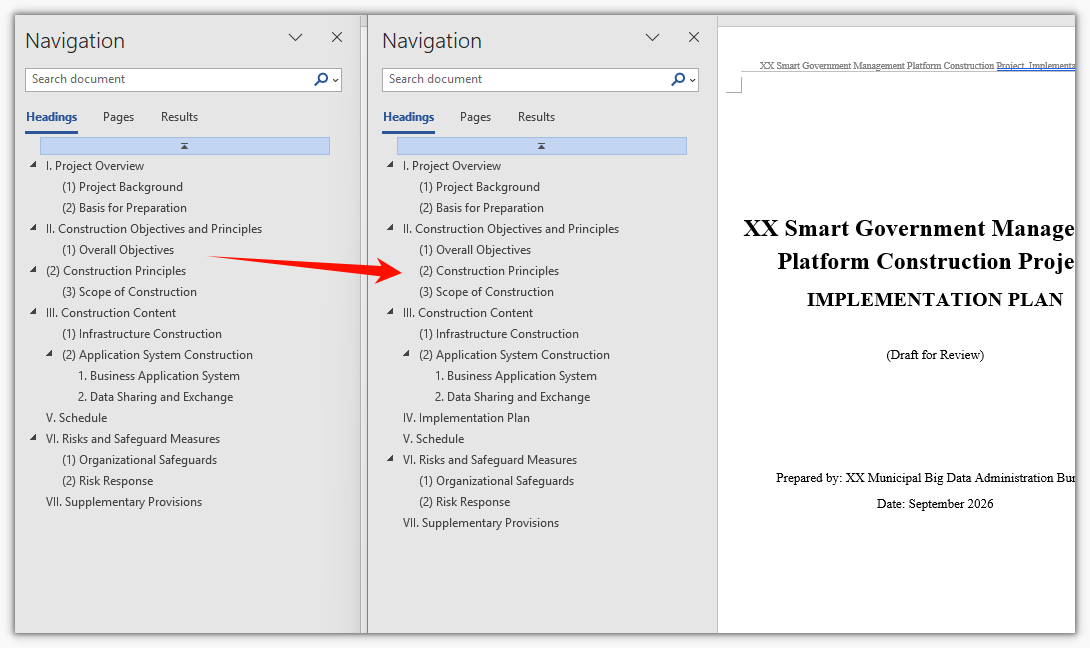
After reconstruction, the TOC entries and levels correspond one-to-one with the body headings, and clicking an entry jumps to the correct position, with no more entries pointing to old chapters or missing. For documents with major structural changes, regenerating the TOC directly is more convenient than manually adding and deleting TOC entries, and far less likely to miss a change.
Page Number, Header and Footer Refresh
After the TOC is reconstructed, the page numbers, headers and footers also need to be realigned. Page number misalignment usually comes from the section settings, and the chapter name or total page count in the header shows the old value of the field. The core idea of this step is: let AI refresh the page numbers of the whole document and set the start value and continuation method according to sections, and at the same time update the dynamic fields in the headers and footers (such as chapter name, total page count, and date) so that the values of these fields match the current content of the body.
using Spire.Agent.Office.AI;
using Spire.Agent.Office.Extensions;
using Spire.Doc;

// The document whose page numbers are to be refreshed (can follow the reconstructed document from the previous section)
string inputPath = "E:\\Input\\XX_Project_Implementation_Plan-Reconstructed.docx";
// Save path
string savePath = "E:\\Output\\XX_Project_Implementation_Plan-Final.docx";
// SpireToken Key
string key = "**********************";
// Natural language instruction
string instruction =
    "Please refresh the page numbers of the current document and update the dynamic fields in the headers and footers: " +
    "1. Recalculate and refresh the page numbers of the whole document, with the body page numbers numbered consecutively starting from page 1; " +
    "2. Set page numbers by section, do not number the cover page and the table of contents, and start the body on a separate page with restarted numbering; " +
    "3. Update the dynamic fields such as the chapter name in the header (taken from the heading at the corresponding level) and the total page count, so that they match the current content of the body; " +
    "4. Unify the footer page number format as \"Page X of Y\". " +
    "Only update the above structural information, do not modify the body content, and finally save and output in DOCX format";

// Call the Word document processing function
AIResult result = ExecuteDemoWord(instruction, inputPath, savePath, key, null);

// Execute Word document AI processing
static AIResult ExecuteDemoWord(string instruction, string inputPath, string savePath, string key, string[] attachmentPaths)
{
    // Create an AIOptions configuration object
    AIOptions options = new AIOptions();
    // Set the SpireToken Key
    options.SpireToken = key;

    // Use the Document object to process the Word document
    using (Document doc = new Document())
    {
        // Load the document whose page numbers are to be refreshed
        if (!string.IsNullOrEmpty(inputPath) && File.Exists(inputPath))
        {
            doc.LoadFromFile(inputPath);
        }
        // Create the AI document processor
        AIDocumentProcessor processor = doc.AI(options);

        // Execute the AI instruction
        return processor.ExecuteInstruction(doc, instruction, savePath, attachmentPaths);
    }
}
Document after refreshing the page numbers, headers and footers
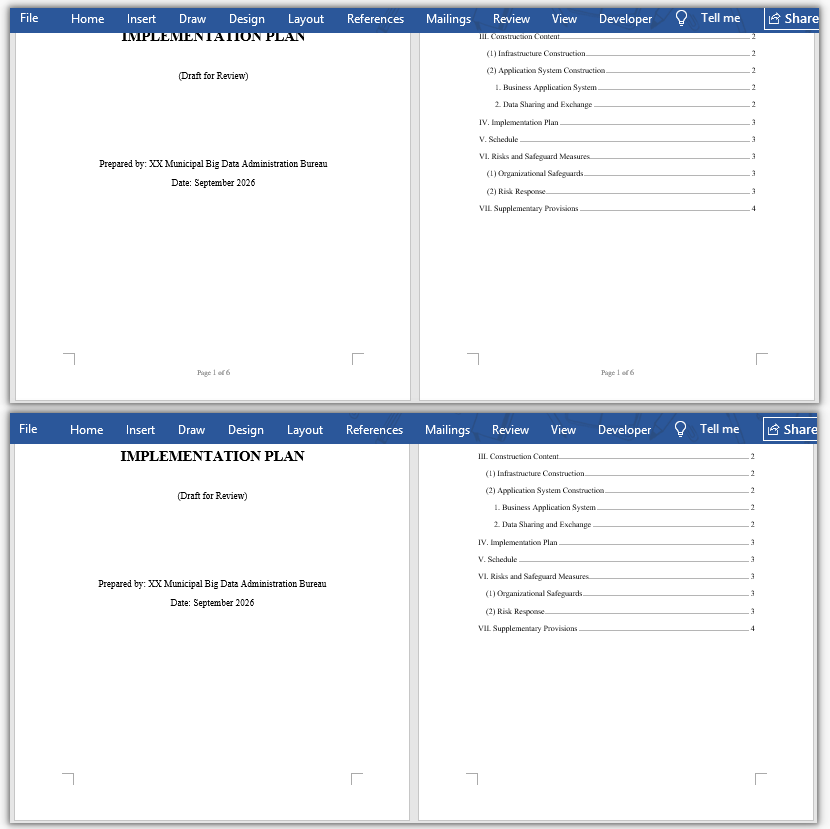
After refreshing, the body page numbers are consecutive, the section start values are correct, and the chapter name and total page count in the header stay consistent with the body. For documents processed in batches, the same set of instructions can be used to unify the page number rules and the header and footer formats, saving the time of opening each document and checking each item.
FAQ
The reconstructed table of contents still shows old entries or gains extra items
Reason: The original document's table of contents is static text rather than a TOC field, or the heading styles are not unified, causing deviations in the recognized levels.
Solution: In the instruction, explicitly require "delete the original table of contents and regenerate a table of contents field according to the body headings", and state the basis for recognizing headings (by style name or outline level) to reduce misjudgment.
Page numbers do not match starting from a certain section or repeat
Reason: The page number start value and continuation method of the section breaks do not meet the requirements, and it is easy to miss a section when setting them manually.
Solution: Write out the page number requirements of each section one by one in the instruction, such as "do not number the cover page and the table of contents, start the body from page 1, and number each section consecutively", and let AI set them uniformly by section.
The chapter name or total page count in the header does not change
Reason: The chapter name and total page count are mostly dynamic fields such as STYLEREF and NUMPAGES, and still show cached values when not refreshed.
Solution: Require "update the values of all dynamic fields in the headers and footers", and explain the source of the fields, such as the chapter name taken from the heading at the corresponding level and the total page count taken from the whole document.
The body formatting is changed along with the structure reconstruction
Reason: The operation scope was not limited, and AI adjusted the fonts and paragraph formats of the body while unifying the heading styles.
Solution: In the instruction, clearly state "only adjust structural information such as heading styles, the table of contents, page numbers, headers and footers, and keep the body fonts and paragraph formats unchanged".
Get the SpireToken Key
- Contact [email protected] or visit https://www.e-iceblue.com/TemLicense.html to obtain a trial/commercial API key
Configure it in your code:
AIOptions options = new AIOptions();
options.SpireToken = key;
How to Generate Government Documents with an AI Agent in C#
In the day-to-day work of government agencies and public institutions, drafting and formatting official documents—notices, directives, reports, and memoranda—is a frequent and highly standardized task. Before an official document is issued, it must be authoritative in tone, precise in wording, and rigorous in logic, and it must also follow a consistent, professional layout: the typeface and size of the title and body text, the hierarchy and formatting of section headings, margins, line spacing, and page numbers should all look uniform across the documents an agency produces. The traditional approach relies on clerical staff to draft documents manually, proofread them repeatedly, and typeset them item by item; a single notice can take more than half a day from draft to a clean, consistent layout, and the formatting details produced by different people often vary.
Comparison with Traditional SDK API Processing
| Traditional Spire.Office for .NET API | Spire.Agent.Office | |
|---|---|---|
| Driving approach | Write code to assemble the official document according to a template: load document → iterate paragraphs → map fields → apply the layout; every step requires code control | Describe the issuing elements in natural language, and AI automatically composes the document and typesets it according to the requested layout |
| Code volume | Requires a large amount of code to maintain official document templates, field mappings, and format rule libraries | Only configuration code + one natural language instruction |
| Style and wording | Can only replace placeholders, unable to handle formal government tone, official titles, and standard administrative expressions | AI generates an authoritative and formal official-document style based on semantics, automatically handling heading hierarchies and transitions |
| Layout rules | Font typefaces and sizes, margins, line spacing, and other formats must be hard-coded into the program, and any change requires a new release | A single phrase such as "format it in the standard official document layout" in the instruction applies the desired layout |
| Maintainability | Different document types and different agencies' requirements need to be developed and maintained with separate templates | Document types, elements, and layout requirements can be adjusted at any time in natural language |
This article explains how to use the Word AI capability of Spire.Agent.Office to achieve intelligent drafting and format standardization of official documents. Together, the two form a complete pipeline from drafting to finalization: first use AI to automatically generate a stylistically standardized, structurally complete first draft based on the issuing points, and then normalize the format of the draft or of existing official documents with one click, so documents from different sources all follow the same standard official document layout.
For product installation and SpireToken configuration, refer to Integrating Spire.Agent.Office in a .NET Project. The examples below assume Spire.Agent.Office is installed and SpireToken is configured.
Intelligent Generation of Official Document Drafts
Intelligent generation of official document drafts is the starting point of the drafting stage, suitable for quickly producing a first draft from scratch. The core idea is: describe in natural language the issuing agency, document type, main recipients, subject matter, and the key points of the body to the AI; the AI automatically composes the document in a formal official-document style with a clear structure, while simultaneously applying the requested standard official document layout, producing a draft that can go directly into the review process in one pass.
using Spire.Agent.Office.AI;
using Spire.Agent.Office.Extensions;
using Spire.Doc;

// Save path
string savePath = "E:\\Output\\output-AirQualityNotice.docx";
// SpireToken Key
string key = "**********************";
// Natural language instruction
string instruction =
    "Please draft a formal public notice in standard official document style. " +
    "1. Issuing authority: [City] Department of Environmental Protection. " +
    "2. Subject: 2026 Fall-Winter Air Quality Initiative. " +
    "3. Recipients: all residents and businesses in the city. " +
    "4. Body: General Requirements; Key Tasks (residential wood smoke and open burning restrictions, vehicle idling reduction, industrial emission compliance); Implementation Requirements. " +
    "Format the notice in a standard official document layout: 12 pt Times New Roman body text, 1-inch margins, double-spaced, justified; bold section headings (I./ II./ III.) and bold-italic subheadings (A./ B./ C.); include the issuing authority, the date, and a distribution list. Save as DOCX.";

// Call the Word document processing function
AIResult result = ExecuteDemoWord(instruction, savePath, key, null);

// Execute Word document AI processing
static AIResult ExecuteDemoWord(string instruction, string savePath, string key, string[] attachmentPaths)
{
    // Create an AIOptions configuration object
    AIOptions options = new AIOptions();
    // Set the SpireToken Key
    options.SpireToken = key;

    // Use the Document object to process the Word document
    using (Document doc = new Document())
    {
        // Create the AI document processor
        AIDocumentProcessor processor = doc.AI(options);

        // Execute the AI instruction
        return processor.ExecuteInstruction(doc, instruction, savePath, attachmentPaths);
    }
}
AI-generated official document draft 
The generated draft is formal in tone and clear in hierarchy; the font typefaces and sizes of the title, body text, and headings at all levels, as well as the margins and line spacing, all follow the requested standard official document layout. Clerical staff only need to verify the facts and figures and add the signer's name and the date before sending it for review, compressing the writing time from hours to a few minutes. For high-frequency document types of the same agency (notices, directives, reports, and memoranda), frequently used elements can also be fixed into a unified instruction to achieve one-click drafting of routine official documents.
Standardization of the Official Document Format
For existing official documents, drafts submitted by field offices, or AI-generated drafts, one-click format standardization can unify their layout to the standard official document format you specify. The core idea is: load an existing official document and let the AI standardize the title, body text, hierarchical headings, margins, line spacing, and page numbers item by item according to the layout rules you describe, while also correcting typos and grammatical errors, so that official documents from different sources present a consistent, professional layout.
using Spire.Agent.Office.AI;
using Spire.Agent.Office.Extensions;
using Spire.Doc;

// Path of the official document to be standardized
string inputPath = "E:\\Input\\Field_Office_Submission.docx";
// Save path
string savePath = "E:\\Output\\Field_Office_Submission-Standardized.docx";
// SpireToken Key
string key = "**********************";
// Natural language instruction
string instruction =
    "Please standardize the layout of the current document to the official document format described below. " +
    "1. Title: 16 pt Times New Roman Bold, centered. " +
    "2. Body: 12 pt Times New Roman, justified, double-spaced. " +
    "3. Section headings (I./ II./ III.): 12 pt Times New Roman Bold; subheadings (A./ B./ C.): 12 pt Times New Roman Bold Italic. " +
    "4. Page margins: 1 inch on all sides. " +
    "5. Page numbers: centered at the bottom of the page, 12 pt. " +
    "6. Correct typos and grammatical errors without altering the original meaning. " +
    "Save and output in DOCX format.";

// Call the Word document processing function
AIResult result = ExecuteDemoWord(instruction, inputPath, savePath, key, null);

// Execute Word document AI processing
static AIResult ExecuteDemoWord(string instruction, string inputPath, string savePath, string key, string[] attachmentPaths)
{
    // Create an AIOptions configuration object
    AIOptions options = new AIOptions();
    // Set the SpireToken Key
    options.SpireToken = key;

    // Use the Document object to process the Word document
    using (Document doc = new Document())
    {
        // Load the official document to be standardized
        if (!string.IsNullOrEmpty(inputPath) && File.Exists(inputPath))
        {
            doc.LoadFromFile(inputPath);
        }
        // Create the AI document processor
        AIDocumentProcessor processor = doc.AI(options);

        // Execute the AI instruction
        return processor.ExecuteInstruction(doc, instruction, savePath, attachmentPaths);
    }
}
Official document after format standardization 
After format standardization, the title, body text, hierarchical headings, margins, line spacing, and page numbers of the official document all conform to the specified official document layout, and the same instruction can be applied to multiple documents in batch. For drafts submitted by field offices, the appearance of official documents across an entire agency can be quickly unified; you can also ask the AI to correct obvious grammatical errors during standardization, reducing the burden of manual review.
FAQ
The generated official document style is nonstandard or too colloquial
Reason: AI's grasp of the official document style depends on the description of the document type, the issuing agency and recipients, and the intended tone in the instruction; when the description is too general, the wording may become colloquial.
Solution: Clearly specify the document type, issuing agency, and main recipients in the instruction, and add requirements such as "use a formal official-document style and tone, with precise and concise wording". If necessary, attach a sample document your agency has already issued as a reference attachment.
The layout is inconsistent with your agency's requirements after format standardization
Reason: Different agencies may have special layout requirements for their own official documents (such as the style of the letterhead, dedicated fonts, and the arrangement of the signature and date), which a general instruction does not fully cover.
Solution: Supplement the instruction with your own agency's detailed layout rules (margins, font typefaces and sizes, letterhead, and the position of the signature and date, etc.), or pass the agency's layout template as an attachment so that AI applies it according to the template.
The generated official document content contains fabricated information
Reason: The writing points are described too briefly, and AI supplements content such as dates and figures on its own to complete the structure.
Solution: Write key elements such as the basis for issuance, time frames, and any figures into the instruction, and explicitly require that "elements not provided should be marked as blank or placeholders and must not be fabricated".
Layouts are not uniform after processing multiple official documents
Reason: The details described differ between instructions, or documents from different sources differ greatly in their base styles, so the formats may diverge after individual processing.
Solution: Use exactly the same layout description for documents in the same batch, fix the rule that "all documents must be typeset strictly according to the same layout rules", and repeatedly emphasize the key formatting items (such as fixed line spacing and a first-line indent of 2 characters) in the instruction.
Get the SpireToken Key
- Contact [email protected] or visit https://www.e-iceblue.com/TemLicense.html to obtain a trial/commercial API key
Configure it in your code:
AIOptions options = new AIOptions();
options.SpireToken = key;
Intelligent Textbook Analysis and Automated Word Lesson Plan Generation with Spire.Agent.Office
In teaching work, lesson preparation is the most time-consuming and skill-demanding task for every teacher. When you receive a textbook, you need to read through each chapter and section, distill core knowledge points, organize the knowledge logic, and then design teaching objectives, determine teaching key and difficult points, arrange the complete teaching process of introduction — new teaching — consolidation — summary, and finally compile it into a standardized lesson plan. A complete lesson plan often takes several hours, and different teachers vary greatly in analysis depth and lesson plan structure, making it difficult to ensure consistent quality.
Comparison with Traditional SDK API Processing
| Traditional Spire.Office for .NET API | Spire.Agent.Office | |
|---|---|---|
| Driving approach | Write code to parse the textbook paragraph by paragraph: load document → iterate paragraphs → extract keywords → manually assemble the lesson plan; every step requires code control | Describe the parsing and generation goals in natural language, and AI automatically understands the textbook and generates the lesson plan |
| Code volume | Requires a large amount of code to maintain the knowledge point library, paragraph classification rules, and lesson plan template logic | Only configuration code + 1 natural language instruction |
| Lesson plan structure | Teaching objectives, key/difficult points, and teaching process must each be hard-coded with a set of generation logic | AI automatically generates a structurally complete lesson plan according to subject standards |
| Textbook understanding | Can only match mechanically by keywords, unable to understand the relationships and hierarchy between knowledge points | AI understands the textbook based on semantics, extracting chapter themes, test points, and teaching suggestions |
| Maintainability | Different subjects and textbook versions require separate development and maintenance | The analysis scope and lesson plan style can be adjusted at any time in natural language |
This article explains how to use the Word AI capability of Spire.Agent.Office to analyze textbooks and automatically generate lesson plans. Together, they form a complete lesson preparation pipeline: first use AI to parse the textbook PDF, organize unit key points and key/difficult points, then generate a standardized, content-complete lesson plan based on the analysis results.
For product installation and SpireToken configuration, refer to Integrating Spire.Agent.Office in a .NET Project. The examples below assume Spire.Agent.Office is installed and SpireToken is configured.
Intelligent Textbook Analysis
Intelligent textbook analysis is the starting point of the entire lesson preparation workflow, suitable for quickly establishing an overall understanding of the textbook before reading the whole book. The core idea is: pass the electronic textbook PDF as an attachment, let AI parse the textbook content, organize the core knowledge, key and difficult points, learning suggestions, and the connections between chapters according to the chapters, and generate a Word unit textbook analysis document. Teachers can use it to complete unit teaching planning, and subsequent lesson plan generation is also based on it.
using Spire.Agent.Office.AI;
using Spire.Agent.Office.Extensions;
using Spire.Doc;

// Textbook PDF (multiple chapters can be passed in)
string[] attachments = new string[] {
    "E:\\Input\\Textbook-Rational_Numbers.pdf",
    "E:\\Input\\Textbook-Addition_and_Subtraction_of_Algebraic_Expressions.pdf",
    "E:\\Input\\Textbook-Linear_Equations_in_One_Variable.pdf"
};
// Save path
string savePath = "E:\\Output\\Textbook_Analysis.docx";
// SpireToken Key
string key = "**********************";
// Natural language instruction
string instruction =
    "Please analyze the textbook content in the attached PDFs, and from the perspective of a lesson-preparing teacher, help me organize a textbook analysis suitable for daily lesson preparation.\n" +
    "For each chapter, explain the chapter's core knowledge content, teaching key and difficult points, and recommended class hours.\n" +
    "Try to preserve the key concepts and typical example points of each section, and supplement the common difficulties and error-prone points students encounter when learning this chapter.\n" +
    "Also describe the connections between chapters. Please strictly analyze based on the actual content of the textbook in the PDFs and do not fabricate anything.\n" +
    "Generate a Word document with a clear structure so that I can arrange the unit teaching plan accordingly, and subsequent lesson plans will also be based on this analysis.";

// Call the Word document processing function
AIResult result = ExecuteDemoWord(instruction, savePath, key, attachments);

// Execute Word document AI processing
static AIResult ExecuteDemoWord(string instruction, string savePath, string key, string[] attachments)
{
    // Create an AIOptions configuration object
    AIOptions options = new AIOptions();
    // Set the SpireToken Key
    options.SpireToken = key;

    // Use the Document object to process the Word document
    using (Document doc = new Document())
    {
        // Create the AI document processor
        AIDocumentProcessor processor = doc.AI(options);

        // Execute the AI instruction
        return processor.ExecuteInstruction(doc, instruction, savePath, attachments);
    }
}
AI-generated Word textbook analysis document 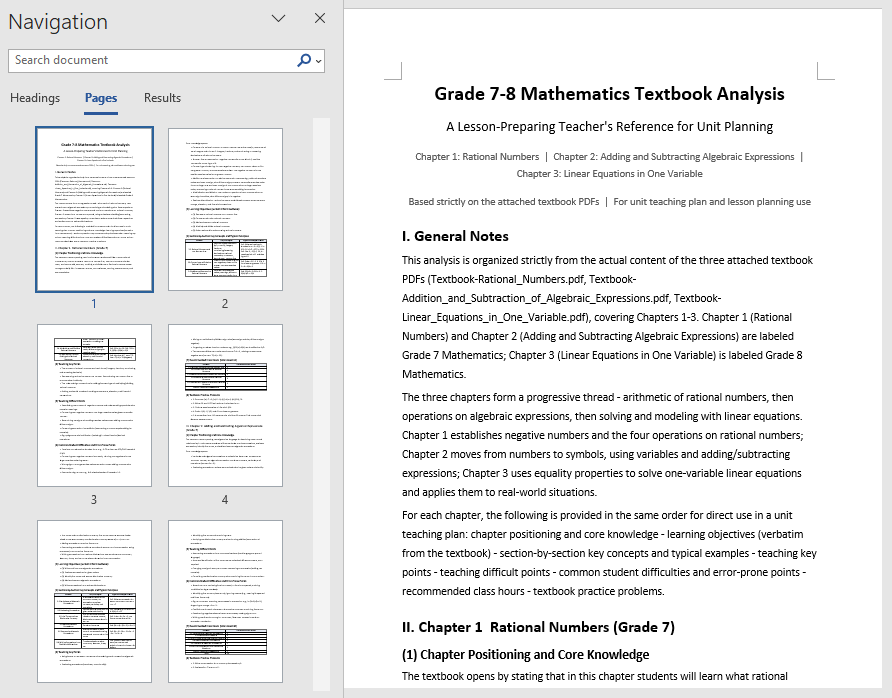
The analysis document unfolds by chapter, clearly explaining each chapter's core knowledge, key and difficult points, and recommended class hours, and also supplements students' common learning difficulties, error-prone points, and the connections between chapters. Teachers only need to provide the electronic PDF of the textbook to complete the whole-book analysis, quickly identify key chapters, and reasonably allocate class hours; this unit textbook analysis can also be directly used as background material for the subsequent lesson plan generation.
Automated Word Lesson Plan Generation
Fine-grained lesson preparation for a single class can be further advanced on the basis of the textbook analysis in the first section. The core idea is: directly use the unit textbook analysis generated in the first section as input, and let AI generate a structurally complete, ready-to-use lesson plan based on the analysis of the relevant section, including student analysis, teaching objectives, teaching key and difficult points, teaching preparation, teaching process, blackboard design, and tiered after-class assignments.
using Spire.Agent.Office.AI;
using Spire.Agent.Office.Extensions;
using Spire.Doc;

// The unit textbook analysis generated in the first section (already includes the analysis of the relevant section content)
string inputPath = "E:\\Input\\Textbook_Analysis.docx";
// Save path
string savePath = "E:\\Output\\Linear_Equations_in_One_Variable-Lesson_Plan.docx";
// SpireToken Key
string key = "**********************";
// Natural language instruction
string instruction =
    "Based on the content of the \"Linear Equations in One Variable\" section in the unit textbook analysis document, " +
    "help me write a complete lesson plan Word document. It is recommended to include: " +
    "student analysis, teaching objectives (knowledge and skills, process and methods, emotional attitude and values), teaching key and difficult points, teaching preparation, " +
    "teaching process (introduction, new teaching, consolidation practice, class summary), blackboard design, and tiered after-class assignments. " +
    "The teaching objectives and key/difficult points must closely match the textbook content, and the teaching process must be specific about how the teacher guides and how students learn in each segment. " +
    "The after-class assignments should be tiered into basic and advanced questions. Please format according to a standardized lesson plan layout, unify the heading levels and fonts, and finally save and output in DOCX format";

// Call the Word document processing function
AIResult result = ExecuteDemoWord(instruction, inputPath, savePath, key, null);

// Execute Word document AI processing
static AIResult ExecuteDemoWord(string instruction, string inputPath, string savePath, string key, string[] attachmentPaths)
{
    // Create an AIOptions configuration object
    AIOptions options = new AIOptions();
    // Set the SpireToken Key
    options.SpireToken = key;

    // Use the Document object to process the Word document
    using (Document doc = new Document())
    {
        // Load the unit textbook analysis document as the context for lesson plan generation
        if (!string.IsNullOrEmpty(inputPath) && File.Exists(inputPath))
        {
            doc.LoadFromFile(inputPath);
        }
        // Create the AI document processor
        AIDocumentProcessor processor = doc.AI(options);

        // Execute the AI instruction
        return processor.ExecuteInstruction(doc, instruction, savePath, attachmentPaths);
    }
}
AI-generated Word lesson plan document 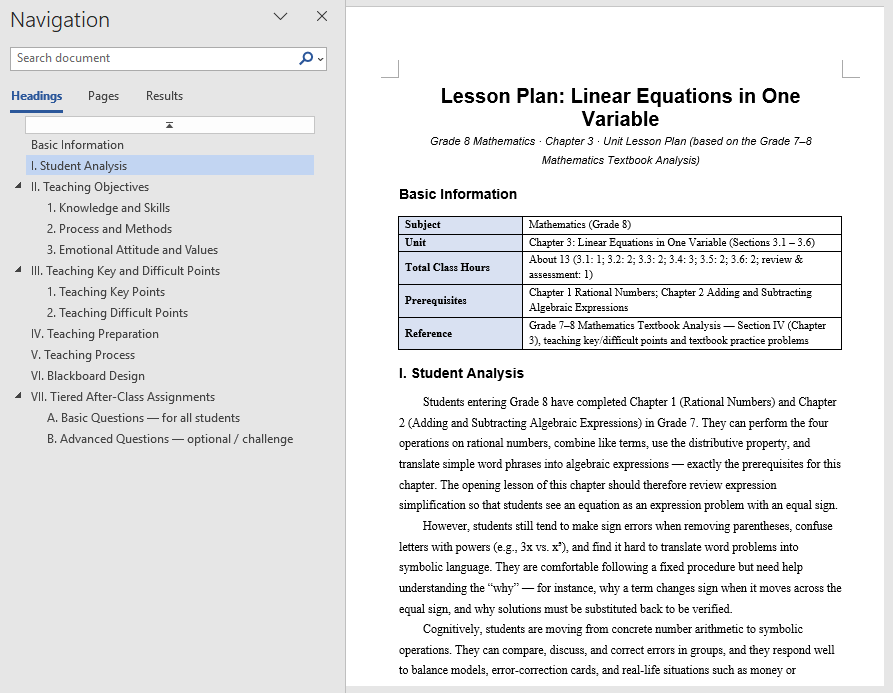
The generated lesson plan has a complete structure and content that closely matches the textbook, covering student analysis and tiered after-class assignments as well. Based directly on the unit textbook analysis, teachers can get a first draft of the lesson, then adjust and polish it, saving the time of writing from scratch. For multiple classes in the same unit, the same unit textbook analysis can be reused to generate lesson plans section by section and then proofread them uniformly, turning lesson preparation from "writing word by word" into "localized modification".
FAQ
Teaching objectives not matching the textbook content
Reason: AI's generation of teaching objectives depends on its understanding of the textbook theme. If the textbook content is too extensive or the instruction is too general, the objectives may diverge from the actual teaching content.
Solution: Limit the analysis scope in the instruction (such as specifying the chapter name), explicitly require the objectives to be developed from three dimensions, and bind the requirement "must be written based on the actual textbook content".
Lesson plan structure not standardized, missing sections
Reason: The section structure that the lesson plan should contain is not specified in the instruction, and the structure AI generates by default may not match the school template.
Solution: List the sections the lesson plan must include in order in the instruction (such as introduction, new teaching, consolidation, summary), and AI will output strictly according to this structure.
Analysis report missing test points or knowledge points
Reason: The textbook has too many chapters, or the same knowledge point is scattered across multiple chapters, making the analysis report incomplete.
Solution: Pass the complete textbook or the PDFs of relevant chapters as attachments, and specify the knowledge types to focus on in the instruction (such as "focus on frequently tested question types and examples").
Inconsistent formatting in the generated lesson plan
Reason: The layout requirements of the lesson plan are not specified in the instruction, and the heading levels, fonts, and paragraph styles output by AI may be inconsistent.
Solution: Add descriptions such as "format according to a standardized lesson plan layout and unify heading levels and fonts" to the instruction.
Get the SpireToken Key
- Contact [email protected] or visit https://www.e-iceblue.com/TemLicense.html to obtain a trial/commercial API key
Configure it in your code:
AIOptions options = new AIOptions();
options.SpireToken = key;
Legal Contract Clause Review and Annotation with Spire.Agent.Office
In corporate legal and compliance management scenarios, contract review is one of the most time-consuming and error-prone tasks. Every contract involves a large number of rights and obligations clauses — liquidated damages, payment terms, disclaimer clauses, breach liability, dispute resolution, and more. Any clause that is unfavorable to your side or ambiguously worded may lead to legal disputes or financial losses in the future. Traditional approaches rely on legal professionals reading and annotating each clause manually; a single contract of dozens of pages often takes hours, and review standards vary from person to person.
Comparison with Traditional SDK API Processing
| Traditional Spire.Office for .NET API | Spire.Agent.Office | |
|---|---|---|
| Driving approach | Write code to parse clauses one by one: load document → iterate paragraphs → regex match keywords → judge risk → highlight and annotate; every step requires code control | Describe the review goal in natural language, and AI automatically identifies and annotates risk clauses |
| Code volume | Requires a large amount of code to maintain the clause risk rule library, keyword matching, and annotation logic | Only configuration code + 1 natural language instruction |
| Risk rules | Risk judgment relies on hard-coded keywords; new risk types require code changes | AI understands clauses semantically and can identify new risks not covered by the rules |
| Review stance | Review logic for each contract type must be developed separately | A single phrase like "review from our side" in the instruction switches the review stance |
| Maintainability | The risk rule library requires continuous manual maintenance | Review scope and rules can be adjusted at any time in natural language |
This article explains how to use the Word AI capability of Spire.Agent.Office to review contract clauses and annotate risks. You can choose to highlight risk clauses on the original contract and add comments, or batch review and output a structured risk review report, meeting contract review needs of different scales and scenarios.
For product installation and SpireToken configuration, refer to Integrating Spire.Agent.Office in a .NET Project. The examples below assume Spire.Agent.Office is installed and SpireToken is configured.
Risk Clause Highlighting and Annotation
Risk clause highlighting and annotation suits in-depth review of important contracts. The core idea is: let AI review contract clauses one by one, identify clauses that are unfavorable to your side or carry legal risks, highlight them in yellow in place and add comments, so legal professionals can view the risk points directly on the contract.
using Spire.Agent.Office.AI;
using Spire.Agent.Office.Extensions;
using Spire.Doc;

// Path of the contract file to be reviewed
string inputPath = "E:\\Input\\Software_Contract.docx";
// Save path
string savePath = "E:\\Output\\Review.docx";
// Output directory
string OutDir = "E:\\Output";
// SpireToken Key
string key = "xxxxx";
// Natural language instruction
string instruction =
    "Review all clauses in the current contract document and identify clauses that are unfavorable to the purchaser or carry legal risks, including but not limited to: " +
    "excessively high liquidated damages, stringent payment terms, overly broad disclaimer clauses, missing breach liability provisions, unfavorable court jurisdiction agreements, unclear intellectual property ownership, etc. " +
    "For each risk clause, perform the following operations: 1. Highlight the risk clause text in yellow; 2. Add a comment in place, noting the risk point, risk level (high/medium/low), and modification suggestions. " +
    "After processing, keep the same layout, styles, and fonts as the original document, and finally save and output in DOCX format";

// Call the Word document processing function
AIResult result = ExecuteDemoWord(instruction, inputPath, savePath, key, OutDir, null);

// Execute Word document AI processing
static AIResult ExecuteDemoWord(string instruction, string inputPath, string savePath, string key, string output, string[] attachmentPaths)
{
    // Create an AIOptions configuration object
    AIOptions options = new AIOptions();
    // Set the working directory to the output directory
    options.WorkDir = output;
    // Set the SpireToken Key
    options.SpireToken = key;

    // Use the Document object to process the Word document
    using (Document doc = new Document())
    {
        // Load the contract document from file
        if (!string.IsNullOrEmpty(inputPath) && File.Exists(inputPath))
        {
            doc.LoadFromFile(inputPath);
        }
        // Create the AI document processor
        AIDocumentProcessor processor = doc.AI(options);

        // Execute the AI instruction
        return processor.ExecuteInstruction(doc, instruction, savePath, attachmentPaths);
    }
}
Contract after AI highlighting and annotation 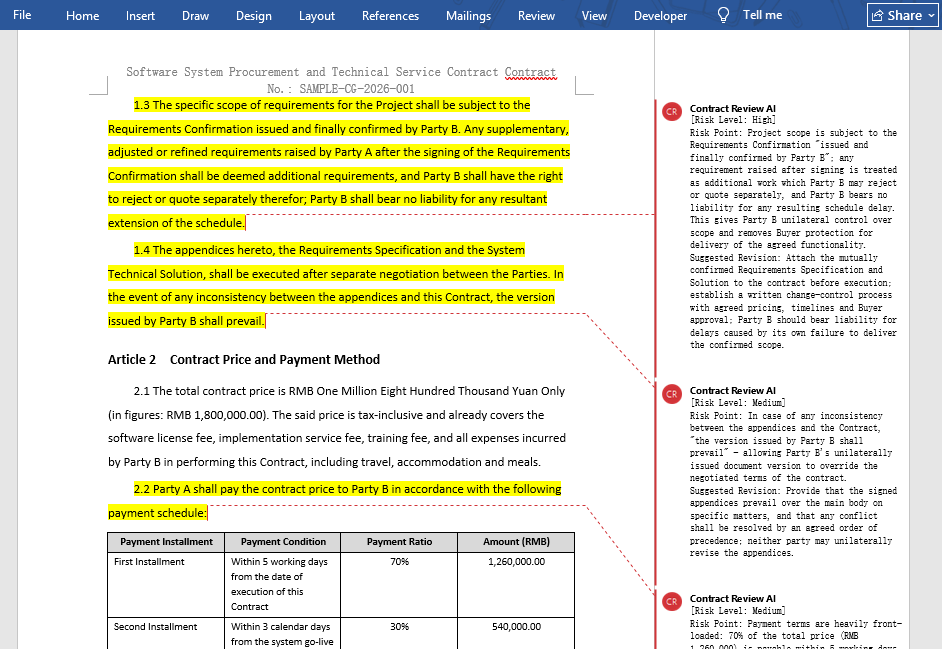
In the reviewed contract, risk clauses are highlighted in yellow, and the comments clearly state the risk points and modification suggestions. Legal professionals can quickly locate the highlighted positions without reading the original text line by line, and can directly discuss modification plans with the business side based on the comments.
Batch Review and Review Report
For quick screening of large batches of contracts (such as contract renewal or supplier qualification review), batch review with a structured review report is more suitable. The core idea is: let AI review multiple contracts one by one, consolidate the risk clauses of each contract into a risk list, and output it as an MD report for statistics, tracking, and tiered processing.
using Spire.Agent.Office.AI;
using Spire.Agent.Office.Extensions;
using Spire.Doc;

// Paths of multiple contract files to be reviewed
string[] attachments = new string[] {
    "E:\\Input\\Purchase_Contract_EN.docx",   // Purchase contract
    "E:\\Input\\Sales_Contract_EN.docx",   // Sales contract
    "E:\\Input\\Labor_Contract_EN.docx"    // Labor contract
};
// Save path (null here; the output folder path set below will be used)
string savePath = "E:\\Output\\Structural_Review_Output.md";
// Output directory
string OutDir = "E:\\Output";
// SpireToken Key
string key = "xxxxx";
// Natural language instruction
string instruction =
    "Review the contract documents in the attachments one by one, extract risk clauses, and output a Markdown review report: " +
    "The report contains a table with fixed columns: Contract Name | Clause Number | Clause Original Text | Risk Level (High/Medium/Low) | Risk Type | Risk Description | Modification Suggestion. " +
    "Sort by risk level from high to low; the clause original text must be quoted from the contract, truncated with … after 20 characters, and must not be fabricated.";

// Call the Word document processing function
AIResult result = ExecuteDemoWord(instruction, savePath, key, OutDir, attachments);

// Execute Word document AI processing
static AIResult ExecuteDemoWord(string instruction, string savePath, string key, string output, string[] attachments)
{
    // Create an AIOptions configuration object
    AIOptions options = new AIOptions();
    // Set the working directory to the output directory
    options.WorkDir = output;
    // Set the SpireToken Key
    options.SpireToken = key;

    // Use the Document object to process the Word document
    using (Document doc = new Document())
    {
        // Create the AI document processor
        AIDocumentProcessor processor = doc.AI(options);

        // Execute the AI instruction
        return processor.ExecuteInstruction(doc, instruction, savePath, attachments);
    }
}
Contract risk review report output by AI 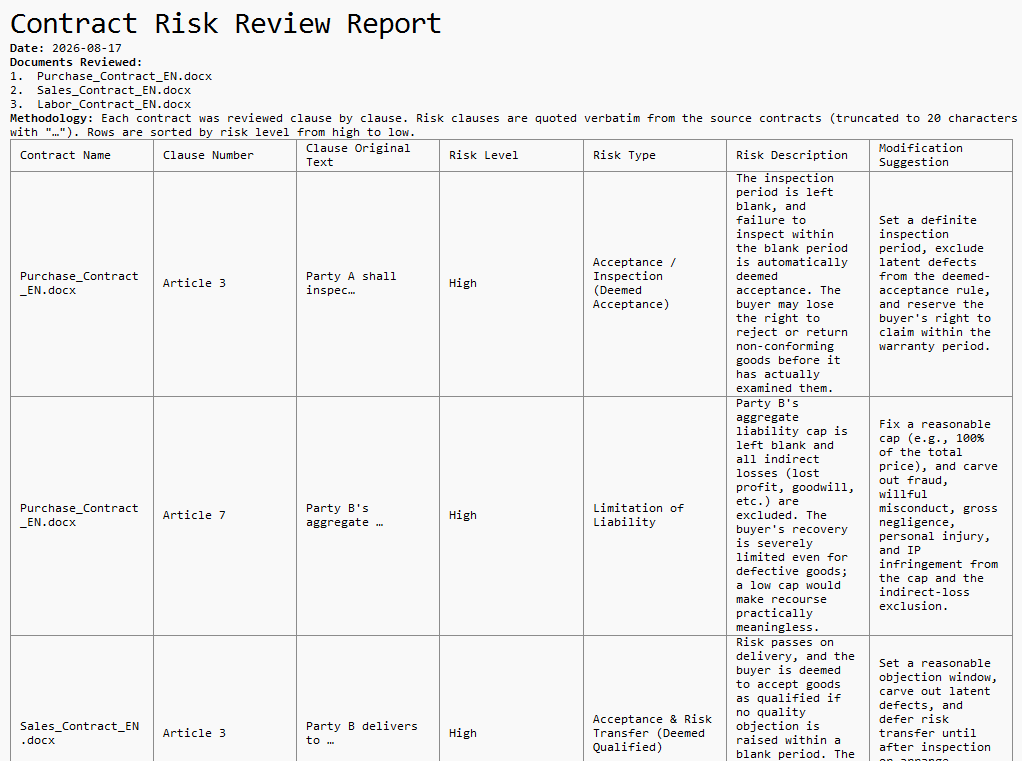
Each row in the review report corresponds to a risk clause and contains the clause original text, risk level, risk type, and modification suggestion. Legal professionals can sort by risk level to prioritize high-risk clauses, or export the report for risk ledger tracking in a contract management system.
FAQ
Risk clauses identified inaccurately
Reason: AI's judgment of "unfavorable clauses" depends on the review stance. From your side's perspective versus the counterparty's perspective, the risk judgment for the same clause may be completely opposite.
Solution: Specify the review stance clearly in the instruction, such as "review from the purchaser's perspective", and add a list of risk types to focus on. AI will strictly follow this stance and scope.
Document style changes after highlighting
Reason: The AI model automatically modified or added content during processing.
Solution: Add a description such as "keep the same layout, styles, and fonts as the original document" to the instruction.
Review report does not accurately correspond to contract clauses
Reason: Clause numbers are inconsistent, or the same clause is scattered across multiple places in the contract, causing the clause original text in the report to not match the contract.
Solution: In the instruction, require AI to quote the clause original text and note the source of the clause number, for easy manual verification and location.
Get the SpireToken Key
- Contact [email protected] or visit https://www.e-iceblue.com/TemLicense.html to obtain a trial/commercial API key
Configure it in your code:
AIOptions options = new AIOptions();
options.SpireToken = key;
AI Contract Review in C#: Automate Contract Processing in .NET
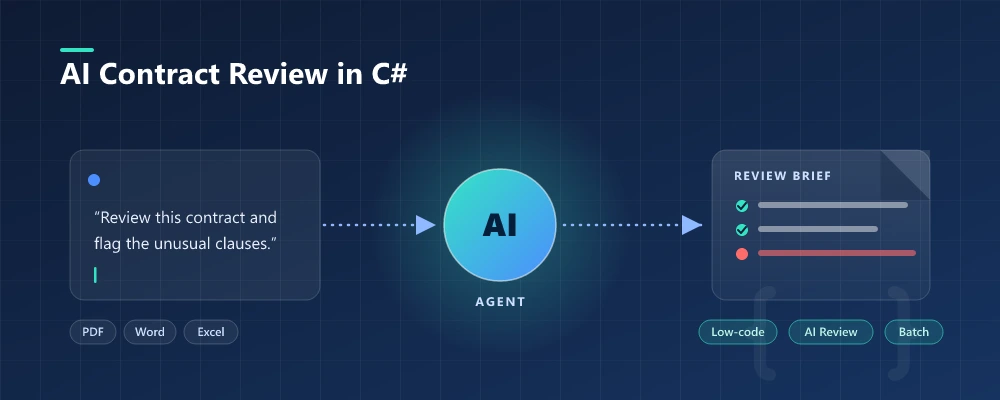
AI contract automation in C# means combining AI language understanding with document-processing capabilities inside your .NET application, so developers can review, extract, and generate contract documents by describing the task in natural language instead of writing field-mapping and layout code for every template. In practice, this is document automation in .NET where a natural-language instruction replaces the field-mapping code. Spire.Agent.Office is a document AI agent SDK that handles the language; a deterministic document layer guarantees real, well-formed Word and PDF files.
Quick Navigation
- Why Contract Review Is a Good Fit for AI
- What an AI Contract Agent Can and Cannot Do
- Common Contract Automation Scenarios
- Three Ways to Automate Contract Processing in .NET
- A Working Example: Contract Review and Generation in C#
- Why Use Spire.Agent.Office for AI Contract Automation
- FAQ
1. Why Contract Review Is a Good Fit for AI
Contract work in a developer's world is three repetitive jobs: reading (extracting parties, dates, payment terms, and obligations from agreements that arrive as PDFs and Word files), checking (spotting missing clauses or unusual language), and producing (turning a list of employees or vendors into signed-ready contracts).
For .NET developers, the challenge is not only understanding contract content; it is turning unstructured documents into structured, repeatable workflows your application can own.
Three properties make these tasks ideal for a language model rather than hand-written rules:
- The input is unstructured. Incoming contracts arrive in whatever format the other side sends. Rules that handle one layout break on the next; an LLM reads text directly.
- The output is document-shaped. The deliverable is a real
.docxor.pdfwith correct formatting, not a text blob. This is where a document layer earns its keep. - The volume changes constantly. Onboarding 50 employees or reviewing 200 vendor agreements in a month means a config-driven solution, not re-coding per template.
In practice, review and generation go together: teams want existing contracts summarized and red-flagged, and new contracts generated from a template plus structured data.
2. What an AI Contract Agent Can and Cannot Do
| Can do | Cannot do |
|---|---|
| Extract parties, effective dates, payment terms, obligations | Replace professional legal review for high-risk agreements |
| Summarize long agreements into a one-page brief | Guarantee compliance with local laws |
| Generate contracts in batches from a template + data source | Negotiate or accept terms on your behalf |
| Keep formatting, table styles, and fonts intact | Guarantee output is error-free without review |
| Run inside your own application (no cloud upload) | Interpret new or ambiguous regulations; route to counsel |
| Flag clauses that look unusual for a standard agreement | Reveal hidden risks in intentionally vague clauses |
The division of labor: the agent automates the reading, extraction, and drafting (the hours a paralegal would spend), while a human lawyer owns the final judgment. That boundary is what keeps the tool useful and the process defensible.
3. Common Contract Automation Scenarios
Contract automation spans more than hiring. The same pattern (an instruction, a template, and optional data) covers the scenarios teams search for most:
| Scenario | Example instruction |
|---|---|
| Vendor agreement review | "Review this vendor agreement and flag payment terms, liability caps, and termination conditions that differ from our standard terms." |
| Employment contract generation | "Generate one employment contract per row in 'employees.xlsx' using the template, preserving layout and styling." |
| NDA processing | "Summarize this NDA: confidentiality period, permitted disclosures, and remedies on breach." |
| Lease agreement analysis | "Extract rent, term, renewal options, and maintenance obligations from this lease, and list any unusual clauses." |
Each scenario is the same architecture: an instruction in, a real document out.
4. Three Ways to Automate Contract Processing in .NET
| Approach | Code volume | Format fidelity | Maintenance | Best for |
|---|---|---|---|---|
| Document AI agent (LLM + document layer) | One instruction + ~10 lines | High (real Word/PDF files) | Low (change behavior by editing instructions) | Teams automating contracts without building an LLM pipeline |
| Raw LLM API (OpenAI/Claude + your own code) | High (prompts, parsing, file I/O) | Low (LLMs don't natively read/write Office files) | High (you own RAG, routing, errors) | Teams that already run an LLM stack |
| Traditional SDK (Spire.Office or similar) | Dozens of lines per document type | High (deterministic) | High (every mapping is code) | Fixed, well-specified documents that rarely change |
The key point: an LLM cannot edit a contract template without a document-processing layer, and a traditional SDK cannot understand a natural-language request. A document AI agent combines both.
That is not to say the traditional route is wrong. For fixed, well-specified documents that rarely change, a deterministic SDK is often the right call, and Spire.Office still serves that need. The agent earns its place when templates, inputs, and requirements change often enough that re-coding becomes the bottleneck.
Why a Raw LLM API Is Not Enough for Contracts
Calling gpt-4 or claude directly to "generate a contract" fails in three ways that matter in production:
- It cannot reliably read or write Office files. LLMs see text, not
.docxand.pdfstructure. Reading a Word template, keeping a table intact, or producing a valid PDF usually requires a separate extraction and reconstruction pipeline you have to build yourself. - Formatting is not guaranteed. Contract templates carry clause numbering, tables, and fonts that matter to the recipient. A raw LLM returns text, and the formatting you lose is exactly what legal and HR departments care about.
- You reimplement the whole orchestration. Prompt design, field mapping, error handling, file I/O, and output validation become your code to own and maintain.
A document AI agent pairs the model's language understanding with deterministic document APIs: the model decides what to extract or fill, and the document layer guarantees the file is real and well-formed. That is the difference between a demo and a workflow a team can ship.
5. A Working Example: Contract Review and Generation in C#
Below is a task the legal and procurement teams repeat every week: reviewing newly arrived supplier agreements, then issuing contracts for the vendors that get approved. The implementation uses Spire.Agent.Office for .NET, an AI agent that processes Word, Excel, PowerPoint, and PDF documents through natural-language instructions. The example is designed around that workflow rather than copied from a tutorial; the official Getting Started and Batch Contract Generation tutorials document the API setup step by step, while this section focuses on the C# integration patterns.
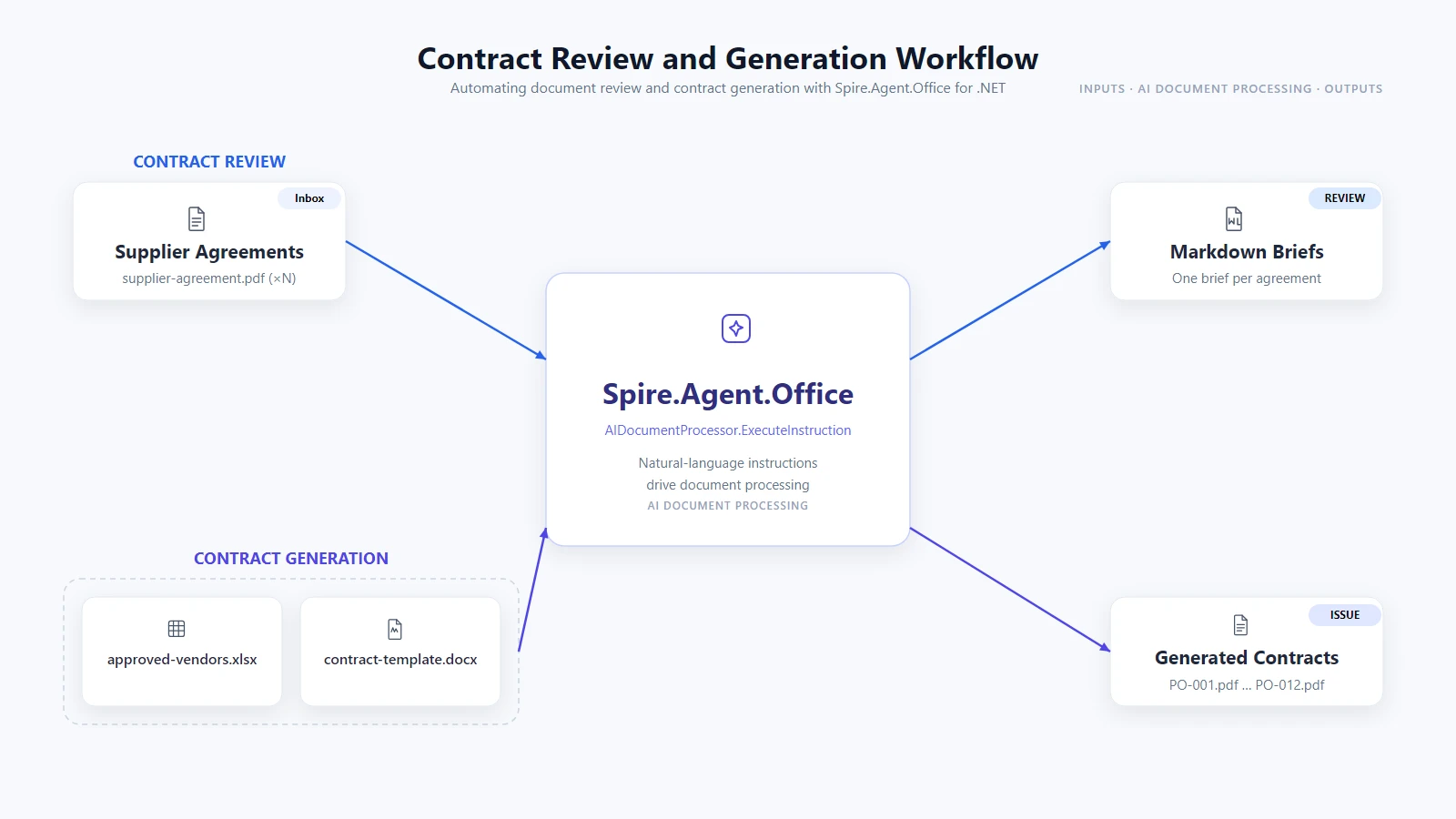
1. Review every agreement that arrived this week. Configure the agent once, then read the inbox folder and have each agreement summarized as a Markdown brief you can paste into a review tracker:
using System.IO;
using Spire.Agent.Office.AI;
using Spire.Agent.Office.Extensions;
using Spire.Doc;
using Spire.Pdf;

AIOptions agentOptions = new AIOptions();
agentOptions.WorkDir = @"C:\legal-ops\output";
agentOptions.SpireToken = spireToken;

string reviewPrompt =
    "Review this supplier agreement and write a Markdown brief: a one-row table with " +
    "the parties, effective date, payment terms, and termination clause, then a bullet " +
    "list of any clauses that look unusual for a standard supplier agreement. " +
    "Save the brief to the specified output path as Markdown.";

Directory.CreateDirectory(@"C:\legal-ops\output");

foreach (string file in Directory.GetFiles(@"C:\legal-ops\inbox", "*.pdf"))
{
    string briefPath = Path.Combine(
        @"C:\legal-ops\output", Path.GetFileNameWithoutExtension(file) + ".md");

    using (PdfDocument agreement = new PdfDocument())
    {
        agreement.LoadFromFile(file);
        AIResult result = agreement.AI(agentOptions).ExecuteInstruction(
            agreement, reviewPrompt, briefPath, new string[] { });

        if (result == null || !result.Success)
        {
            throw new InvalidOperationException(
                $"Review failed for {Path.GetFileName(file)}: {result?.ErrorMessage}");
        }
    }
}
Key API Calls
PdfDocument.LoadFromFile()-- opens the supplier agreement PDFagreement.AI(agentOptions)-- attaches the AI document processorExecuteInstruction(doc, instruction, savePath, attachments)-- runs the review and writes the Markdown briefAIResult.Success/AIResult.ErrorMessage-- verifies the result and surfaces errors
Output
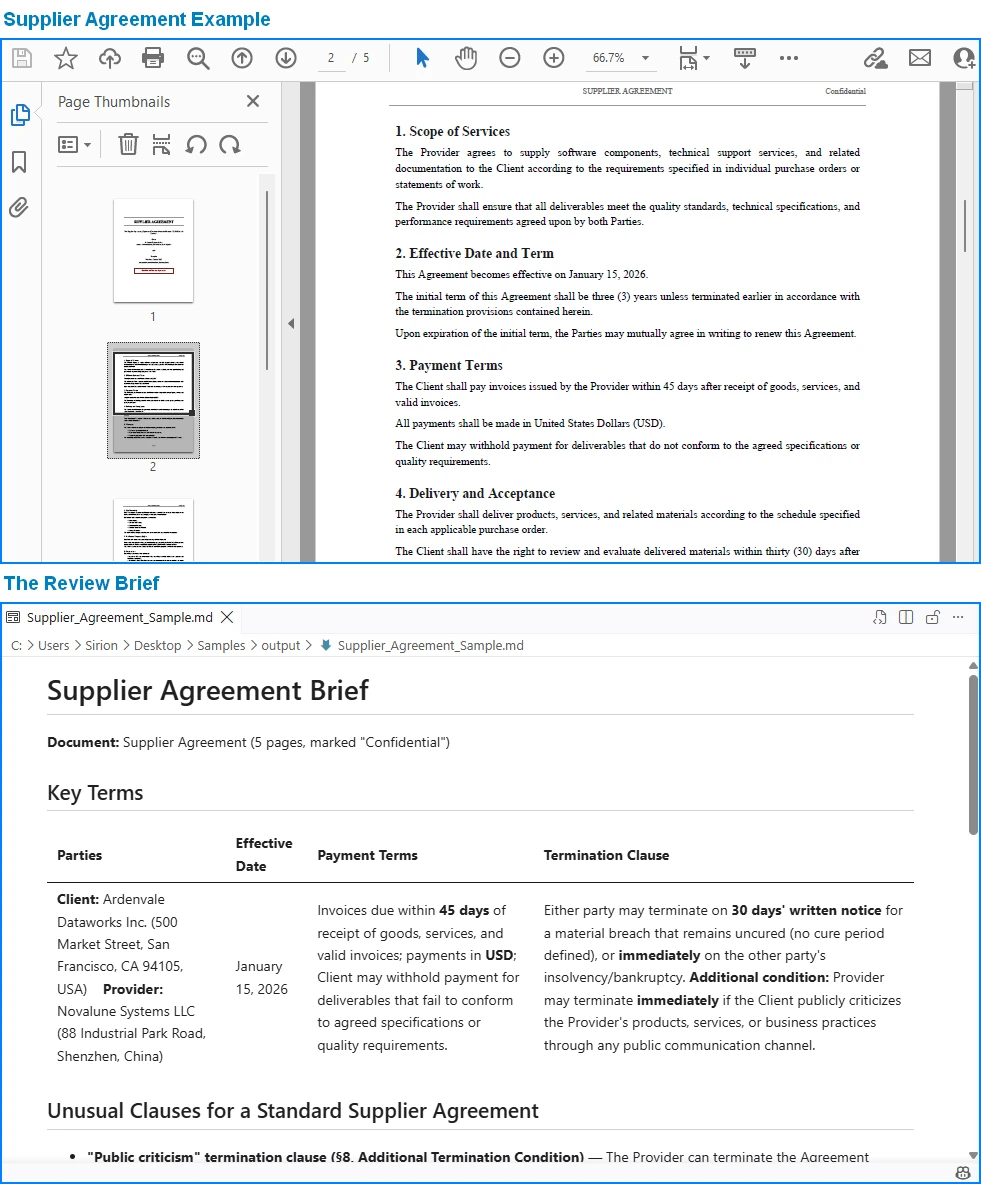
2. Issue contracts for the vendors you approved. One template plus the approval list. The template holds {{Placeholder}} markers for the vendor data; pass null as the output path so the agent writes one independent PDF per vendor into the working directory:
string[] attachments = { @"C:\legal-ops\data\approved-vendors.xlsx" };

using (Document contract = new Document())
{
    contract.LoadFromFile(@"C:\legal-ops\templates\supplier-contract.docx");
    AIResult result = contract.AI(agentOptions).ExecuteInstruction(
        contract,
        "Issue one purchase contract per approved vendor: read 'approved-vendors.xlsx' " +
        "row by row, fill the {{Placeholder}} fields in this template with each vendor's " +
        "data, preserve the template layout and styling, and save each contract as an " +
        "independent PDF in the work directory.",
        null,   // null output path -> the agent writes each contract into WorkDir
        attachments);

    if (result == null || !result.Success)
    {
        throw new InvalidOperationException(
            $"Contract issuing failed: {result?.ErrorMessage}");
    }
}
Key API Calls
Document.LoadFromFile()-- loads the contract templatecontract.AI(agentOptions)-- attaches the AI document processorExecuteInstruction(doc, instruction, savePath, attachments)-- issues one independent contract per vendor rowAIResult.Success/AIResult.ErrorMessage-- verifies the result and surfaces errors
Output
Each contract is written to a session subfolder the agent manages under WorkDir (e.g. output\.office_use_tmp\Word\<session>\output_contracts), so point WorkDir at your archive folder and collect the issued contracts from there.
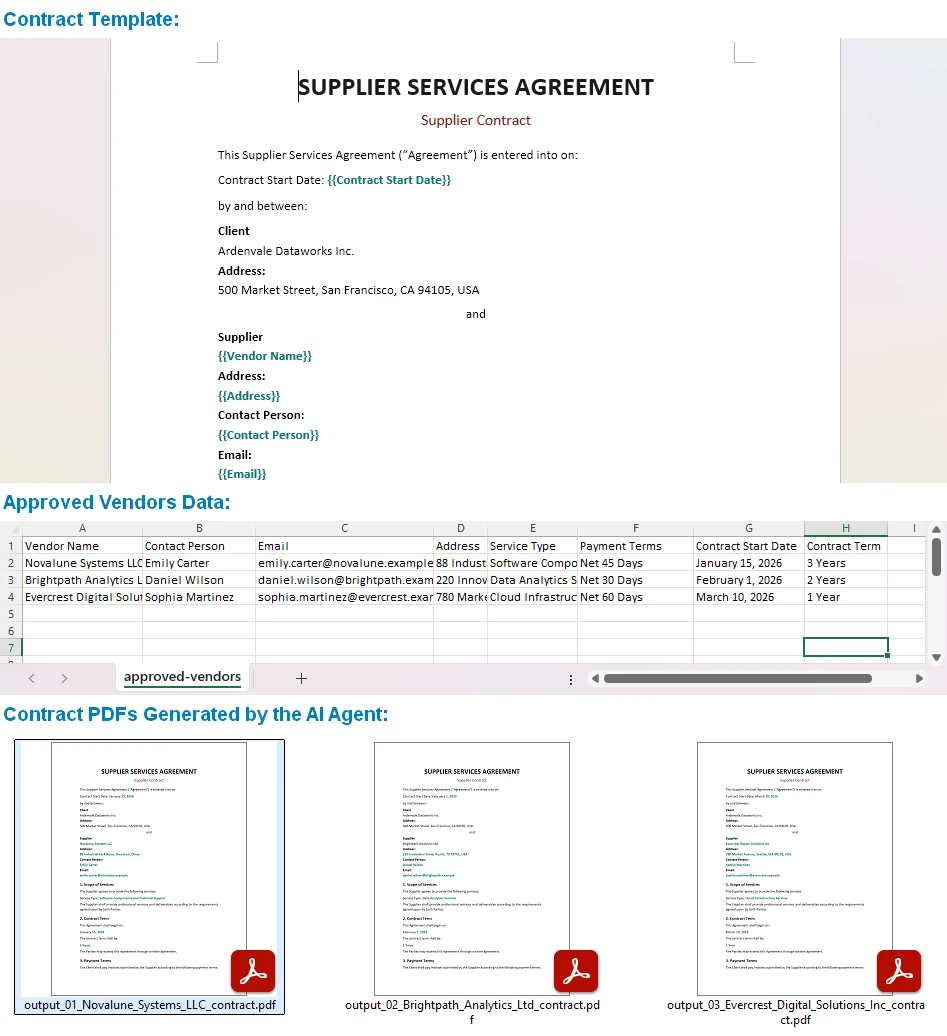
One template, one spreadsheet, and the same instruction drives every contract, each issued with its formatting intact. Output can be saved as PDF, DOCX, DOC, HTML, Markdown, or XPS to fit your archiving workflow. You can also build more complex templates than simple field filling -- the official Generate Various Word Templates tutorial covers placeholders, conditional sections, and other template patterns the agent can fill.
Why This Is Different: Traditional SDK vs. AI Agent
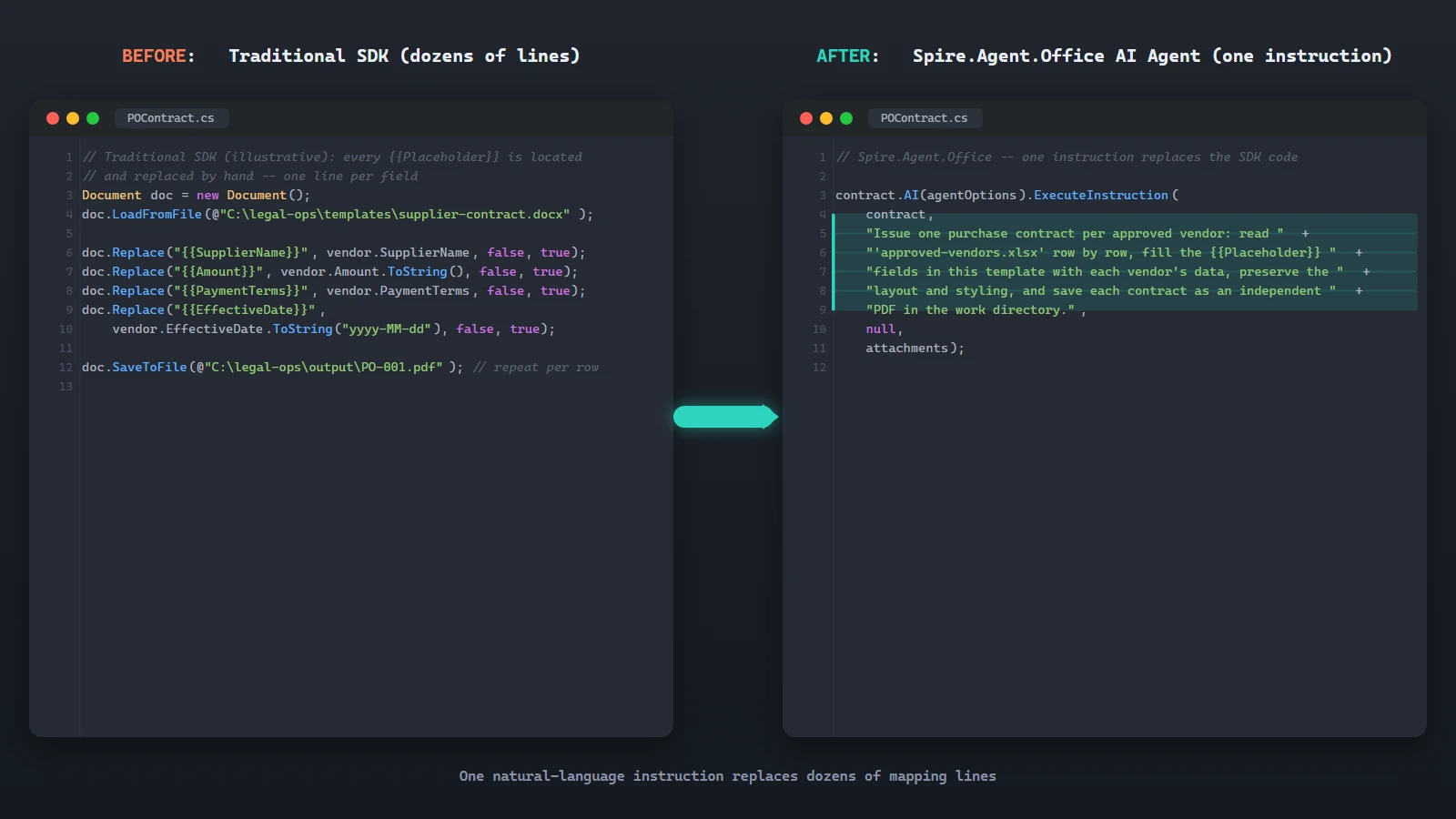
The value of the agent is clearest side by side. With the traditional SDK you locate each {{Placeholder}} and replace it by hand, one line per field, map every spreadsheet column to its placeholder, then loop the rows and export one file per row. That is dozens of lines you maintain every time the template or the data layout changes. The sketch below (simplified for illustration) shows the shape of that work:
// Traditional SDK (illustrative): every {{Placeholder}} is located and
// replaced by hand -- one line per field
Document doc = new Document();
doc.LoadFromFile(@"C:\legal-ops\templates\supplier-contract.docx");

doc.Replace("{{SupplierName}}", vendor.SupplierName, false, true);
doc.Replace("{{Amount}}", vendor.Amount.ToString(), false, true);
doc.Replace("{{PaymentTerms}}", vendor.PaymentTerms, false, true);
doc.Replace("{{EffectiveDate}}", vendor.EffectiveDate.ToString("yyyy-MM-dd"), false, true);

doc.SaveToFile(@"C:\legal-ops\output\PO-001.pdf"); // ...repeat for each vendor row
The AI agent replaces that orchestration with one instruction:
contract.AI(agentOptions).ExecuteInstruction(
    contract,
    "Issue one purchase contract per approved vendor: read 'approved-vendors.xlsx' " +
    "row by row, fill the {{Placeholder}} fields in this template with each vendor's " +
    "data, preserve the template layout and styling, and save each contract as an " +
    "independent PDF in the work directory.",
    null,
    attachments);
Both produce the same contracts. Where the SDK grows a Replace call for every placeholder and a mapping for every column, the agent absorbs the same work into one instruction. When the template or the data layout changes, you edit the instruction, not the code.
6. Why Use Spire.Agent.Office for AI Contract Automation
The three-way comparison above is deliberately product-neutral; the same pattern works with any capable LLM. Where Spire.Agent.Office earns its place for .NET teams is in three specific areas:
- Native Office document processing. Word, Excel, PowerPoint, and PDF are first-class citizens, not formats you bolt on. The agent reads and writes real files across all four.
- Formatting is preserved. Enterprise contracts carry clause numbering, tables, and fonts that must survive processing. The agent's document layer keeps them intact. Include "preserve the original document layout and styling" in your instruction and the output stays true to the template.
- Native .NET integration. It is a C# SDK that drops into an existing .NET application. No separate document-processing service to build or maintain, no cross-service plumbing. The example above is the whole integration surface.
If you already run Spire.Office for document processing, the agent is the natural next layer: the same Document object gains an AI() processor that turns instructions into executed workflows.
7. FAQ
Can AI contract review work with text-based PDFs?
Yes. The review example above loads a supplier-agreement.pdf directly, and the agent reads and analyzes the document in its native format. Support covers standard and encrypted text-based PDFs. Image-only scans have no extractable text layer, so convert them to searchable text first (for example with OCR) before running the review.
Can contract data stay inside my environment?
Yes, with one important nuance. Spire.Agent.Office runs from your own application, so the SDK, templates, and document processing stay inside your environment. Contract files are not uploaded to a third-party document service for storage or conversion. To analyze contract content, the AI needs the relevant text, and it is sent to the model for processing; that is an inherent step of any AI workflow. If you deploy your own model on your local network, the content stays entirely within your infrastructure. If you connect through a hosted model API such as OpenAI or Azure OpenAI, the relevant content is transmitted to that provider over the network per your configuration.
Can I use my own AI model with Spire.Agent.Office?
Yes. Spire.Agent.Office supports flexible AI model integration and is compatible with mainstream AI infrastructure, including hosted model APIs and privately deployed models. You can point the agent at your own endpoint. See the integration tutorial for setup details; for questions about which providers are supported in your deployment, contact your account team at [email protected].
Which model does Spire.Agent.Office use for contract review?
Spire.Agent.Office connects to a large language model behind a SpireToken key. You describe the review or generation task in natural language, and the agent orchestrates the underlying document-processing tools. The model handles understanding; the document layer guarantees formatting and file fidelity.
Can it generate contracts in batches?
Yes. One contract template plus a data source such as an Excel sheet, and one instruction produces one contract per data row. Both field filling and placeholder replacement are supported. For the agent to pick up every row, keep the first row of the data source as the header, put one vendor per row, and avoid blank rows; if the number of generated contracts does not match the data rows, check the data source first.
Will the AI change my contract's formatting?
Not if you say so. Include a phrase like "preserve the original document layout, styling, and fonts" in your instruction; the official tutorial documents this exact fix.
How is this different from using a raw LLM API?
A raw LLM cannot reliably read, edit, or write Word and PDF files on its own; it needs a document-processing layer. A document AI agent pairs the LLM's language understanding with deterministic document APIs, so the output is a real, well-formed file.
Ready to Automate Your Contract Workflow?
Contract review and batch generation are the fastest places to get value: one template, one data source, one natural-language instruction, and real Word or PDF files out. Follow the Getting Started tutorial to run your first document workflow in .NET.
Further Reading
- Spire.Agent.Office product overview -- AI agent SDKs for every Office document format
- Generate Various Word Templates tutorial -- building templates the agent can fill
Generate Various Word Templates with Spire.Agent.Office
Word templates are the foundation of enterprise business workflows. HR needs standard employment contracts and offer letters, sales teams need professional quotation and report templates, and administration needs unified meeting notices and certification documents. With the Word AI capabilities of Spire.Agent.Office, you simply describe the desired template style and content structure in natural language — for example, "Create a contract template with mail merge fields for 'Name, Position, Department, Salary, Start Date, End Date, Contract Type, Probation Period (months), Location'" and AI delivers the template directly.
Comparison with Traditional SDK API Approach
| Traditional Spire.Office for .NET API | Spire.Agent.Office | |
|---|---|---|
| Development Approach | Call APIs to build document structure line by line, paragraph by paragraph | Describe template style and structure in natural language; AI automatically composes and generates the complete template document |
| Code Volume | Hundreds of lines of document-building code per template | Just 1 natural language instruction |
| Style Adjustment | Font, color, border, and other styles require complex code-based formatting | Simply describe in natural language |
| Template Flexibility | Template structure changes require rewriting underlying document-building logic — high maintenance cost | Adjust the instruction description, AI regenerates — flexibly responds to changing requirements |
Several typical business scenario Word template examples:
- Word Employment Contract Template
- Word Quotation Template
- Word Certificate Template
- Budget Report Template
For product installation and SpireToken configuration, please refer to Integrating Spire.Agent.Office in a .NET Project. The examples below assume Spire.Agent.Office is already installed and SpireToken is configured.
Word Employment Contract Template
The most commonly used employment contracts in HR departments all share a relatively fixed structure: title, party information, main body clauses, signature section, etc.
using Spire.Agent.Office.AI;
using Spire.Agent.Office.Extensions;
using Spire.Doc;

string inputPath = @"";
// Result document path
string savePath = @"employmentContract.docx"; ;
// SpireToken Key
string key = "s******************************r";
// Natural language instruction
string instruction =
    "Generate a Word employment contract template. " +
    "The main title is 'Employment Contract', in No. 2 font size, bold, and centered. " +
    "The body text uses Arial font throughout, in Small No. 4 font size (12pt), with a first-line indent of 2 characters per paragraph. " +
    "Add a light blue watermark with the text 'E-iceblue' throughout the entire document. " +
    "Include the following fields as mail merge fields: Name, Position/Department, Salary, Start Date, End Date, Contract Type, Probation Period (months), and Location. " +
    "The overall style should be formal and professional, suitable for legal document scenarios.";
// AI generation
AIResult result = ExecuteAIWord(instruction, inputPath, savePath, key);

// Word AI processing
static AIResult ExecuteAIWord(string instruction, string inputPath, string savePath, string key)
{
    // Create AI processor options instance
    AIOptions options = new AIOptions();
    options.SpireToken = key;
    // Create Word document object
    using (Document doc = new Document())
    {
        if (!string.IsNullOrEmpty(inputPath) && File.Exists(inputPath))
        {
            doc.LoadFromFile(inputPath);
        }
        // Create AI document processor instance
         AIDocumentProcessor processor = doc.AI(options);

        // Process the document according to the instruction and save the result to the specified path
        return processor.ExecuteInstruction(doc, instruction, savePath);
    }
}
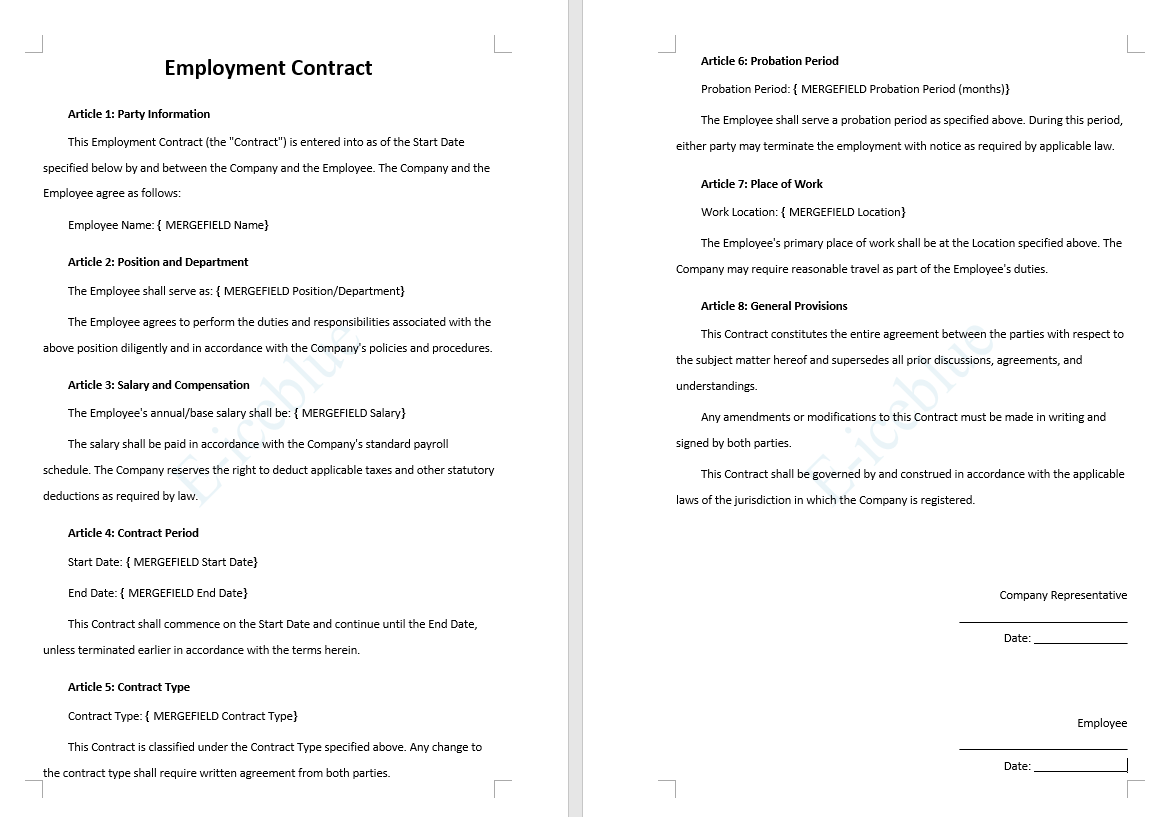
Word Quotation Template
The most commonly used quotation templates in sales and business departments all share a relatively fixed structure: title, company information, client information, product quotation table, amount summary, quotation terms, signature section, etc.
using Spire.Agent.Office.AI;
using Spire.Agent.Office.Extensions;
using Spire.Doc;

string inputPath = @"";
// Result document path
string savePath = @"QuotationTemplate.docx"; ;
// SpireToken Key
string key = "s******************************r";
// Natural language instruction
string instruction =
    "Generate a professional quotation template with the following styling requirements: " +
    "Main title: 'Quotation' , font size equivalent to  26pt, bold, centered, using 'Arial' font. " +
    "Body text: Calibri font, size 12pt , with 1.5× line spacing. " +
    "Template structure must include: Company logo placeholder area, company information (address, phone number, email), client information (client name, contact person), product quotation table (including Serial Number, Product Name, Specifications, Quantity, Unit Price, Subtotal, Remarks), total price (in words + in digits), quotation validity period, company stamp/seal area. \n" +
    "Use {{ }} as placeholder markers throughout the template, for example: {{Company Name}}, {{Client Name}}, {{Product Name}}, {{Unit Price}}, {{Quantity}}, {{Subtotal}}, {{Total Price in Words}}, {{Total Price in Digits}}.";

// AI generation
AIResult result = ExecuteAIWord(instruction, inputPath, savePath, key);

// Word AI processing
static AIResult ExecuteAIWord(string instruction, string inputPath, string savePath, string key)
{
    // Create AI processor options instance
    AIOptions options = new AIOptions();
    options.SpireToken = key;
    // Create Word document object
    using (Document doc = new Document())
    {
        if (!string.IsNullOrEmpty(inputPath) && File.Exists(inputPath))
        {
            doc.LoadFromFile(inputPath);
        }
        // Create AI document processor instance
         AIDocumentProcessor processor = doc.AI(options);

        // Process the document according to the instruction and save the result to the specified path
        return processor.ExecuteInstruction(doc, instruction, savePath);
    }
}
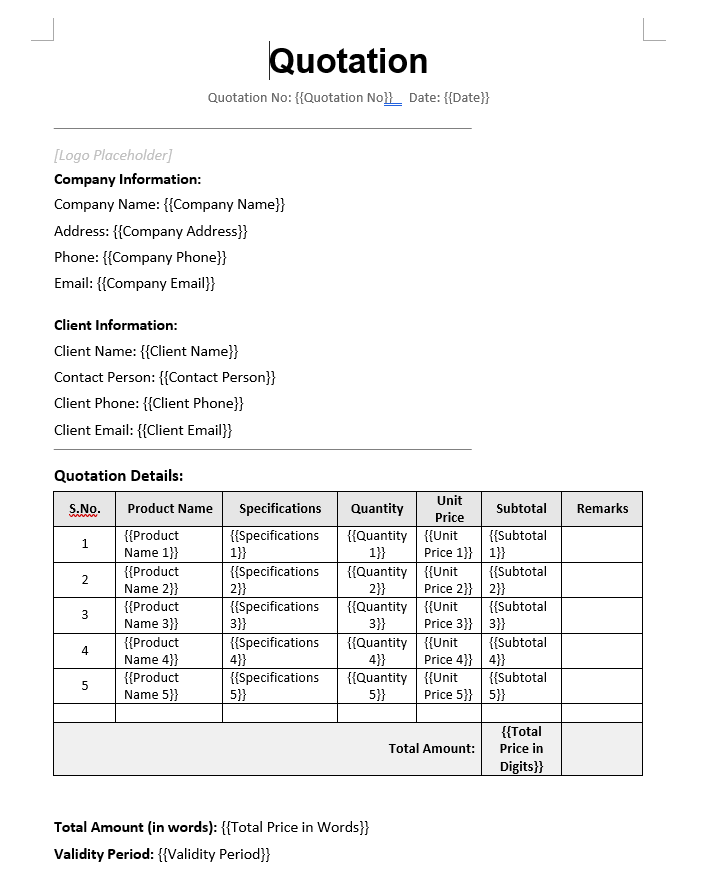
Word Certificate Template
Certificate templates are widely used in scenarios such as training certification, commendation and awards, event participation, etc. Their core structure typically includes: certificate title (e.g., "Certificate of Honor", "Certificate of Completion"), certificate number, etc.
using Spire.Agent.Office.AI;
using Spire.Agent.Office.Extensions;
using Spire.Doc;

string inputPath = @"";
// Result document path
string savePath = @"WordCertificateTemplate.docx"; ;
// SpireToken Key
string key = "s******************************r";
// Natural language instruction
string instruction =
"Generate a one-page honor certificate template with the following style requirements: " +
"Overall classical and solemn style, with a gold double-line border, using Times New Roman font." +
"Centered at the top: certificate title 'CERTIFICATE OF HONOR' — 24pt, bold, gold color." +
"Center-aligned body layout with the following structure:" +
"  Line 1: 'This is to certify that';" +
"  Line 2: '{{Full Name}}' — bold, red color;" +
"  Line 3: 'has demonstrated outstanding performance during the {{Year}} work year and is hereby awarded:';" +
"  Line 4: '{{Honor Title}}' — bold, gold color;" +
"  Line 5: 'This certificate is presented in recognition of this achievement.'." +
"Signatory area: bottom right, two lines right-aligned: '{{Issuing Authority}}' and '{{Date}}'." +
"Bottom left: certificate number displayed as 'No.: {{Certificate Number}}'." +
"Overall style: formal, solemn, and dignified, suitable for government or corporate honorary certificate presentations.";

// AI generation
AIResult result = ExecuteAIWord(instruction, inputPath, savePath, key);

// Word AI processing
static AIResult ExecuteAIWord(string instruction, string inputPath, string savePath, string key)
{
    // Create AI processor options instance
    AIOptions options = new AIOptions();
    options.SpireToken = key;
    // Create Word document object
    using (Document doc = new Document())
    {
        if (!string.IsNullOrEmpty(inputPath) && File.Exists(inputPath))
        {
            doc.LoadFromFile(inputPath);
        }
        // Create AI document processor instance
         AIDocumentProcessor processor = doc.AI(options);

        // Process the document according to the instruction and save the result to the specified path
        return processor.ExecuteInstruction(doc, instruction, savePath);
    }
}
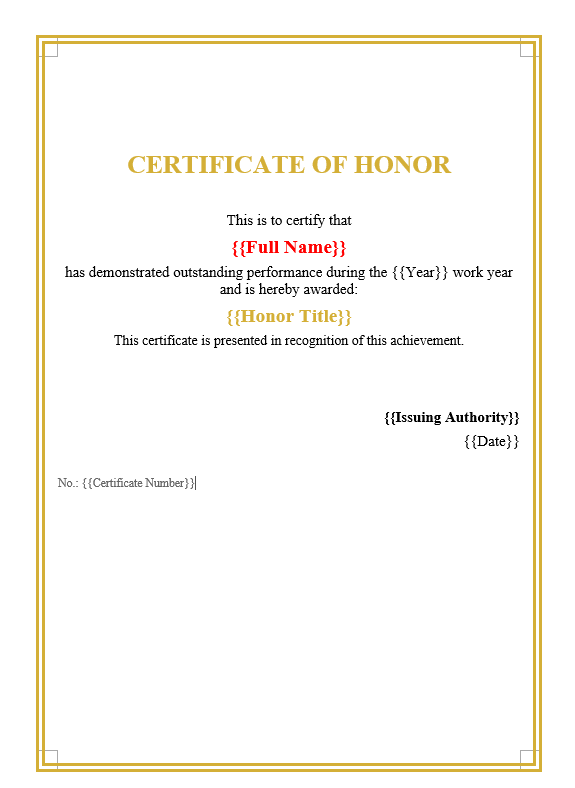
Budget Report Template
Budget report templates are commonly used document tools in enterprises or organizations for financial planning, project proposals, and annual planning. Their core structure typically includes: report title (e.g., "XX Annual Budget Report", "XX Project Budget Plan"), preparing unit and date, budget preparation notes, etc.
using Spire.Agent.Office.AI;
using Spire.Agent.Office.Extensions;
using Spire.Doc;

string inputPath = @"";
// Result document path
string savePath = @"BudgetReportTemplate.docx"; ;
// SpireToken Key
string key = "s******************************r";
// Natural language instruction
string instruction =
"Generate a professional budget report template with the following style requirements:" +
"Main title: '{{Year}} Annual Budget Report' — font size No.1 (approx. 26pt), bold, centered, using Arial." +
"Add a subtitle below the title: 'Prepared by: {{Department Name}} | Date: {{Preparation Date}}', font size No.4 small (approx. 12pt), centered." +
"The body is divided into four sections:\n" +
"  Section 1 (Budget Overview): At the top, display four key metrics in a card-style horizontal layout with light background shading — 'Annual Budget Total: {{Total Budget}} ten-thousand yuan', 'Amount Executed: {{Executed Amount}} ten-thousand yuan', 'Execution Rate: {{Execution Rate}}%', 'Remaining Budget: {{Remaining Budget}} ten-thousand yuan'. The four data cards are placed side by side with numeric values bolded and enlarged.\n" +
"  Section 2 (Detailed Budget Table): A detailed budget table with columns — Account Code, Account Name, Annual Budget (ten-thousand yuan), Q1 Execution, Q2 Execution, Q3 Execution, Q4 Execution, Total Executed, Execution Rate (%), Remaining Budget (ten-thousand yuan). Table header: dark green background (#1E5631), white bold font; all numeric columns: retain two decimal places; data rows: alternating row colors.\n" +
"  Section 4 (Budget Notes): At the bottom of the page, add a 'Budget Notes' section — '{{Budget Preparation Notes}}'." +
"Overall style: formal, professional, and elegant — suitable for a formal budget report presented to management.";

// AI generation
AIResult result = ExecuteAIWord(instruction, inputPath, savePath, key);

// Word AI processing
static AIResult ExecuteAIWord(string instruction, string inputPath, string savePath, string key)
{
    // Create AI processor options instance
    AIOptions options = new AIOptions();
    options.SpireToken = key;
    // Create Word document object
    using (Document doc = new Document())
    {
        if (!string.IsNullOrEmpty(inputPath) && File.Exists(inputPath))
        {
            doc.LoadFromFile(inputPath);
        }
        // Create AI document processor instance
         AIDocumentProcessor processor = doc.AI(options);

        // Process the document according to the instruction and save the result to the specified path
        return processor.ExecuteInstruction(doc, instruction, savePath);
    }
}
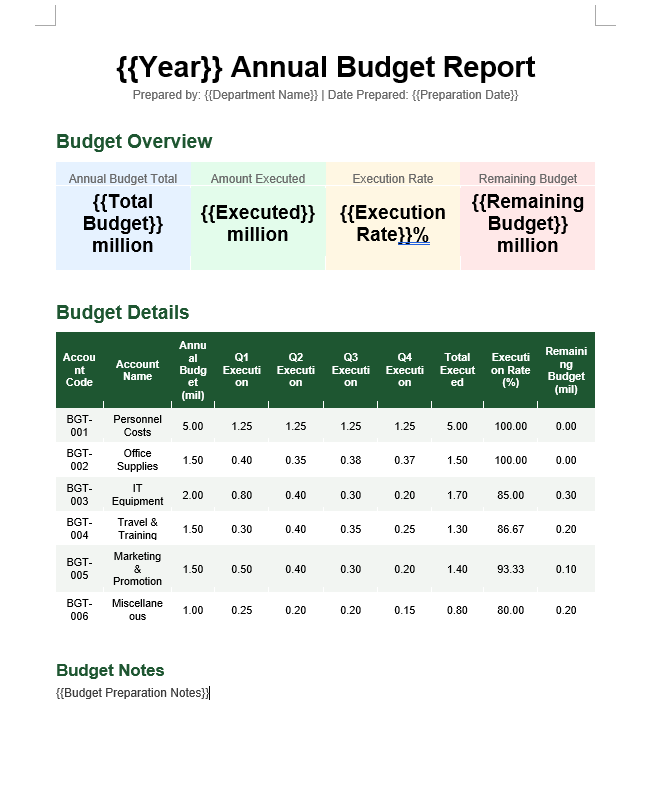
Frequently Asked Questions
Generated template style does not fully match expectations
Cause: The style description in the instruction is not specific enough.
Solution: Specify details such as font name explicitly in the instruction.
Already generated template needs modification
Cause: Business requirements have changed, requiring template adjustments.
Solution: Directly describe the modifications in the instruction and regenerate, or use the current document as input for AI secondary processing.
Generated template shows garbled Chinese characters or incorrect fonts
Cause: The font specified in the instruction is not installed on the system.
Solution: Ensure the font mentioned in the instruction is installed on the system, or use common system fonts in the instruction.
Getting a SpireToken Key
- Contact [email protected] or visit https://www.e-iceblue.com/TemLicense.html to obtain a trial/commercial API key
Configure in code:
AIOptions options = new AIOptions();
options.SpireToken = key;
Batch Contract Generation with Spire.Agent.Office
In enterprise HR scenarios, batch contract generation is one of the most common document processing needs — monthly new employee onboarding, contract renewals, labor agreement changes often involve processing dozens or even hundreds of contracts at once. Each contract needs personalized information such as employee name, position, salary, and contract term.
Comparison with Traditional SDK API Processing
| Traditional Spire.Office for .NET API | Spire.Agent.Office | |
|---|---|---|
| Approach | Write code for traditional API processing: load template → get fields → read data → fill row by row → save, every step requires code control | Describe the goal in natural language, AI automatically orchestrates and completes all processing steps |
| Code Volume | Requires dozens of lines of code for data reading, field mapping, loop writing, and format control | Only configuration code + 1 natural language instruction |
| Field Mapping | Hard-code the mapping between merge fields and Excel columns; data source changes require code updates | AI automatically understands semantic correspondence between column names and template fields; data source changes require no code changes |
| Flexibility | Template field changes require code changes → compilation → redeployment | Just adjust the template or data source; existing instructions are reusable |
| Maintainability | Relies on development team to maintain code | Templates and data sources can be maintained directly by business users |
This article introduces how to use Spire.Agent.Office Word AI capabilities to automatically write Excel employee data into Word templates and generate contracts in PDF format in batches, using both mail merge and placeholder replacement approaches. You are also free to save as DOCX, DOC, HTML, OFD, Markdown, XPS, and other formats to meet different archiving needs.
For product installation and SpireToken configuration, please refer to Integrating Spire.Agent.Office in a .NET Project. The following examples assume Spire.Agent.Office is already installed and SpireToken is configured.
Mail Merge Approach
Mail merge is the standard solution for batch Word document generation and the most commonly used pattern in HR scenarios. The core idea is: a contract template Word document with merge fields and a data source, letting AI complete the data-to-template merge.
using Spire.Agent.Office.AI;
using Spire.Agent.Office.Extensions;
using Spire.Doc;

// Multiple document paths (data source files)
string[] attachmentPaths = new string[] { @"E:\data.xlsx" };

// Word template file path
string inputPath = @"E:\template-mailmerge.docx";
// Result document path (null here — will use the output folder path set below)
string savePath = null;
// Output directory
string OutDir = @"E:\output";
// SpireToken Key
string key = "**************************";
// Natural language instruction
string instruction =
      "Execute mail merge: populate employee data from the attachment 'data.xlsx' into the merge fields of the contract template row by row; " +
      "preserve the original document layout and styling after merging; " +
      "generate one independent contract document per employee and save the output in PDF format";

// Call the Word document processing function
AIResult result = ExecuteDemoWord(instruction, inputPath, savePath, key, OutDir, attachmentPaths);

// Record processing log
WriteLog(result, "word", @"E:\log\");


// Execute Word document AI processing
static AIResult ExecuteDemoWord(string instruction, string inputPath, string savePath, string key, string output, string[] attachmentPaths)
{
    // Create AIOptions configuration object
    AIOptions options = new AIOptions();
    // Set working directory to output directory
    options.WorkDir = output;
    // Set SpireToken Key
    options.SpireToken = key;

    // Use Document object to process Word document
    using (Document doc = new Document())
    {
        // Load Word template from file
        if (!string.IsNullOrEmpty(inputPath) && File.Exists(inputPath))
        {
            doc.LoadFromFile(inputPath);
        }
        // Create AI document processor
        AIDocumentProcessor processor = doc.AI(options);

        // Execute AI instruction
        return processor.ExecuteInstruction(doc, instruction, savePath, attachmentPaths);
    }
}
Original Word template (with mail merge fields) and Excel data 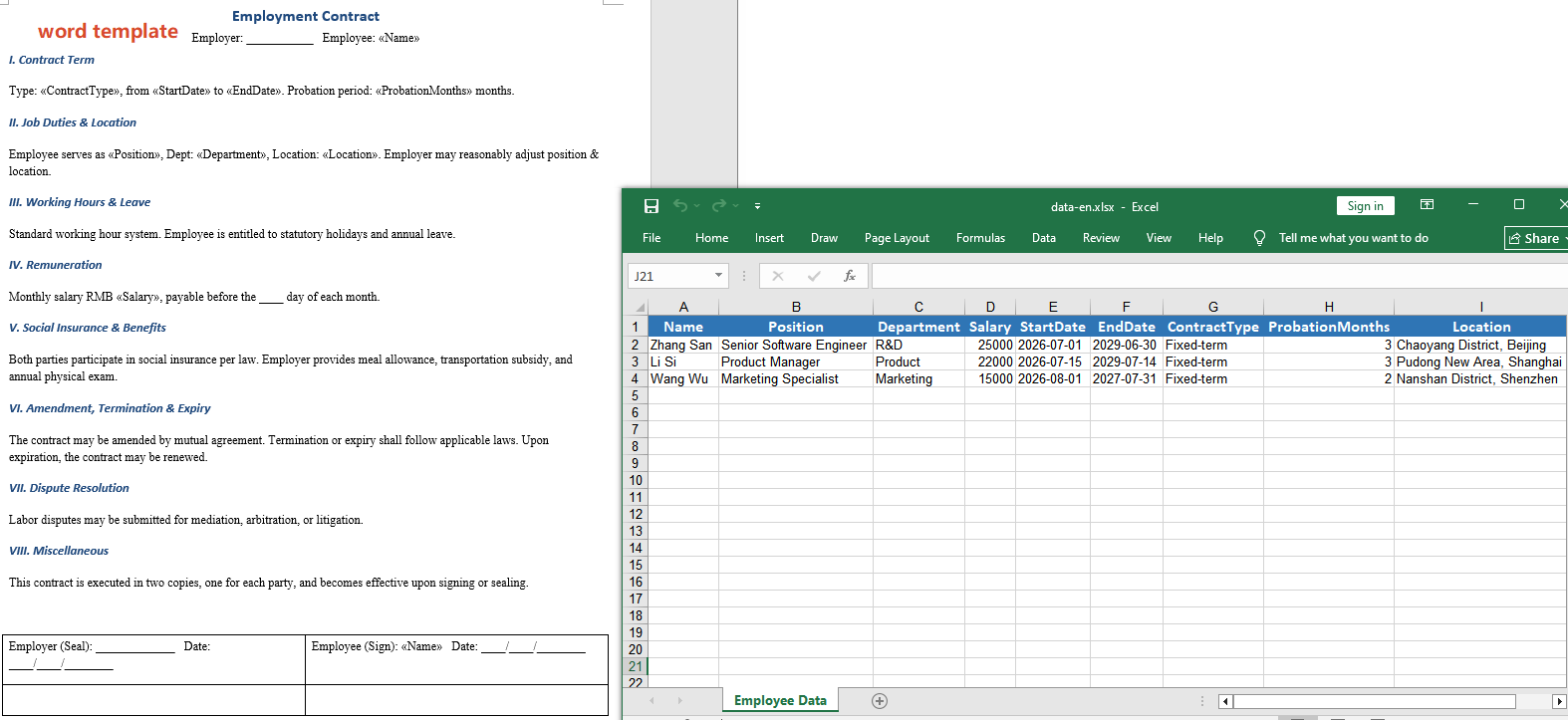 Output generated via mail merge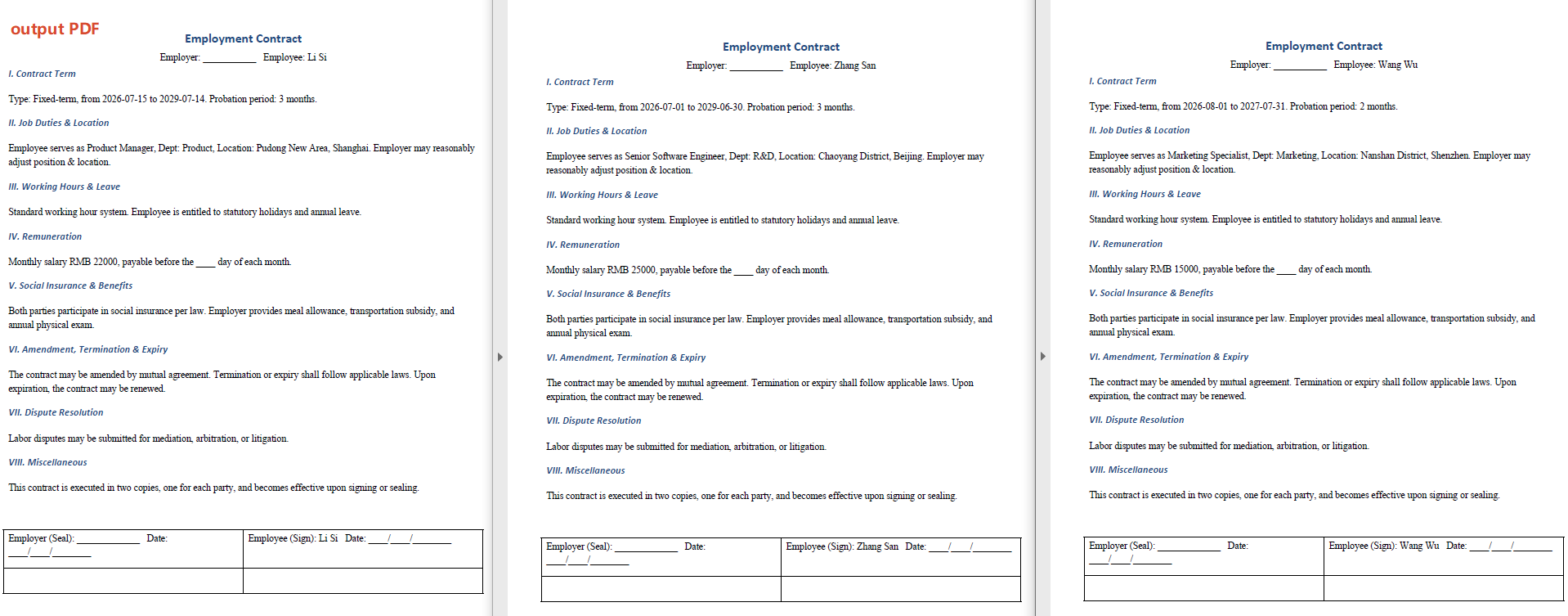
Each generated contract fully preserves the template's formatting, table styles, and font settings, with all merge fields replaced by the corresponding employee data. If 50 new employees are being onboarded, just one template + one Excel file + one instruction is all it takes to generate all contracts.
Placeholder Replacement Approach
The placeholder replacement approach does not require predefining mail merge fields in the template. Instead, it uses custom placeholder markers (such as {{Name}}, {{Salary}}) directly in the document, which the AI agent identifies and replaces.
// Multiple document paths (data source files)
string[] attachmentPaths = new string[] { @"E:\data.xlsx" };

// Contract template file path
string inputPath = @"E:\template.docx";
// Save path (null here — will use the output folder path set below)
string savePath = null;
// Output directory
string OutDir = @"E:\output";
// SpireToken Key
string key = "**************************";

// Natural language instruction
string instruction =
    "Read employee data from 'data.xlsx' and replace the corresponding placeholders in the contract template row by row" +
    "Highlight the replaced field content, preserve the original document layout, styling, and fonts after replacement," +
    "Generate one independent contract document per employee and save the output in PDF format";

// Call the AI Word document processing method
AIResult result = ExecuteDemoWord1(instruction, inputPath, savePath, key, OutDir, attachmentPaths);

// Record processing log
WriteLog(result, "word", @"E:\log\");


// Execute Word document AI processing
static AIResult ExecuteDemoWord(string instruction, string inputPath, string savePath, string key, string output, string[] attachmentPaths)
{
    // Create AIOptions configuration object
    AIOptions options = new AIOptions();
    // Set working directory to output directory
    options.WorkDir = output;
    // Set SpireToken Key
    options.SpireToken = key;

    // Use Document object to process Word document
    using (Document doc = new Document())
    {
        // Load Word template from file
        if (!string.IsNullOrEmpty(inputPath) && File.Exists(inputPath))
        {
            doc.LoadFromFile(inputPath);
        }
        // Create AI document processor
        AIDocumentProcessor processor = doc.AI(options);

        // Execute AI instruction
        return processor.ExecuteInstruction(doc, instruction, savePath, attachmentPaths);
    }
}
Original Word template (with {{}} placeholders) and Excel data 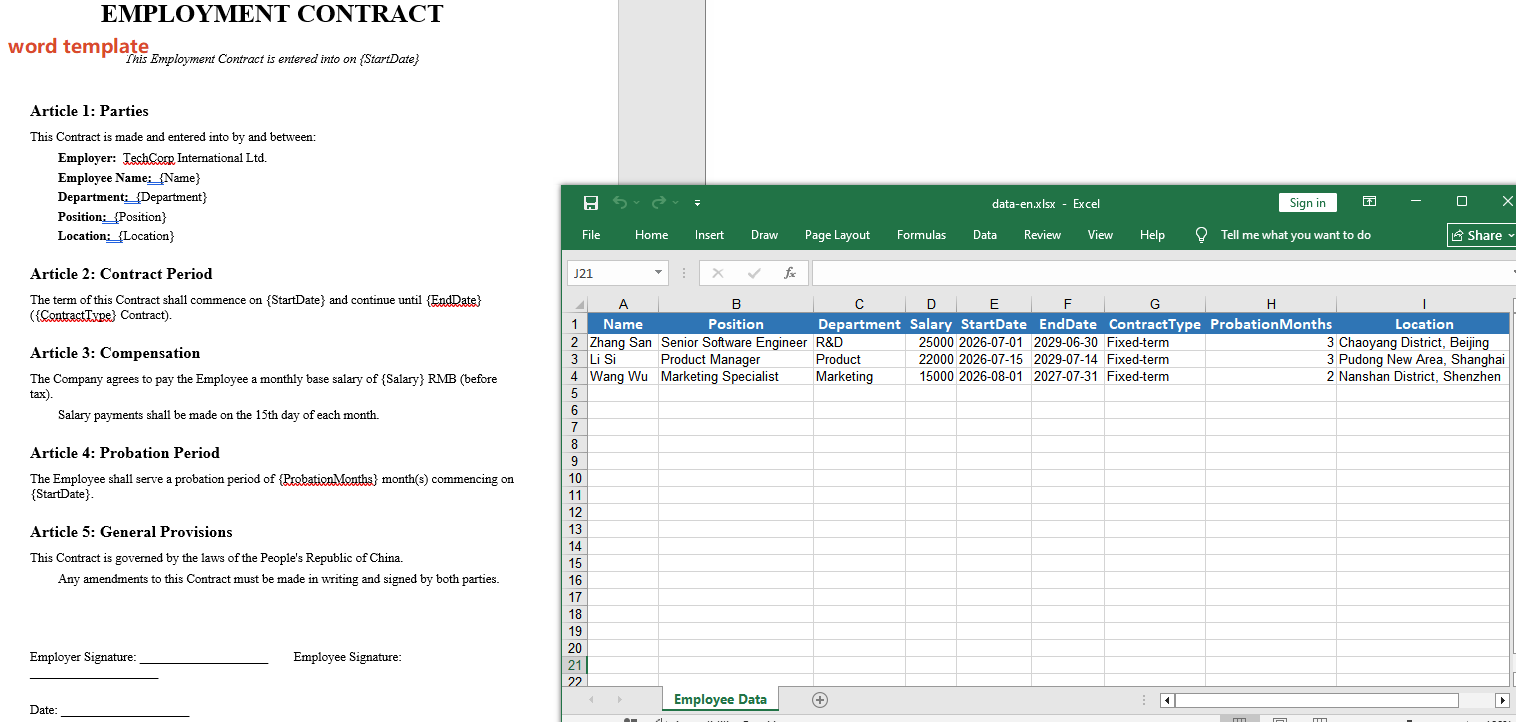 Output generated via placeholder replacement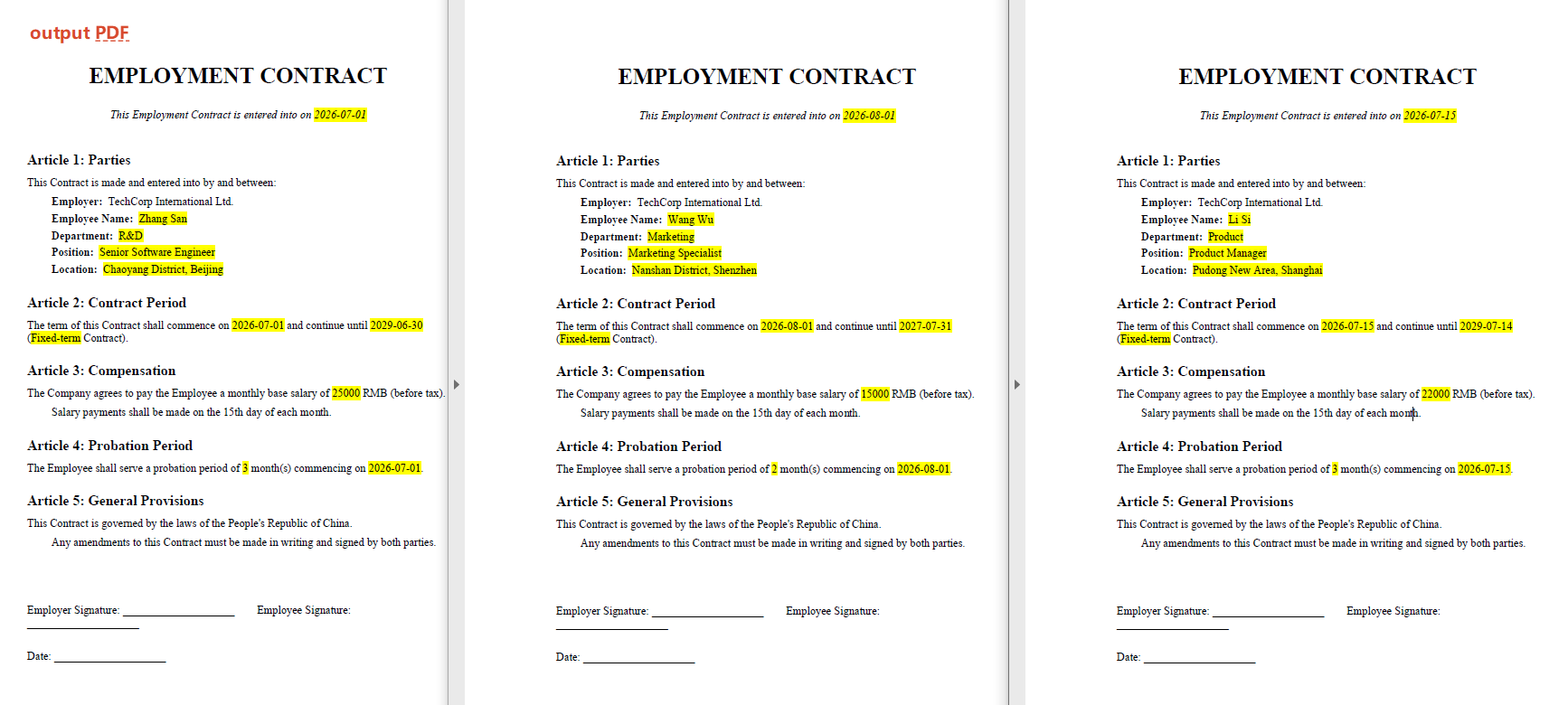
Two Approaches Compared
| Mail Merge Approach | Placeholder Replacement Approach | |
|---|---|---|
| Template Creation | Requires inserting mail merge fields | Directly type {{}} placeholders |
| Learning Curve | Requires knowledge of Word mail merge functionality | Nearly zero learning cost |
| Flexibility | Fixed one-to-one field mapping | Supports dynamic calculation and formatting during replacement |
| Data Source | Requires structured data | Supports structured data, can also be defined in the instruction |
For creating Word templates with Spire.Agent.Office, please refer to the article "Creating Various Word Templates with Spire.Agent.Office".
Frequently Asked Questions
Generated document style changed
Cause: The AI model may modify or add content during processing.
Solution: Add a description like "preserve the original document layout, styling, and fonts" to the instruction.
Number of generated documents does not match the number of data rows after mail merge
Cause: Empty rows or merged cells in the data source Excel file, causing inaccurate row counting.
Solution: Ensure the first row of the data source contains column headers, with each subsequent row corresponding to one employee record and no empty rows in between. If the issue persists, add a sequence number column to the data source for validation.
Obtaining a SpireToken Key
- Contact [email protected] or visit https://www.e-iceblue.com/TemLicense.html to obtain a trial or commercial API key.
Configure it in code:
AIOptions options = new AIOptions();
options.SpireToken = key;