A more common situation in real-world work is a document that is already written and has a complete chapter structure, but no table of contents was generated at the time. There is no need to rearrange the content — adding a TOC field on top of the existing heading styles is enough to produce a complete table of contents with page numbers and hyperlinks. The table of contents is generated and saved entirely in the browser, so files such as contracts and proposals never have to be uploaded to a server, which removes one step from the handling process.
This article takes a "2026 Annual Product and Technology Report" as an example and introduces four ways to add a table of contents to an existing document. The sample is based on Spire.Doc for JavaScript. The library runs in the browser as a WebAssembly module, and reads and writes fonts and document files through a virtual file system (VFS).
Compared with creating a new document, adding a table of contents to an existing document involves two extra key steps: loading the original document from VFS with LoadFromFile, and specifying the position of the TOC paragraph with Paragraphs.Insert. AddParagraph always appends a new paragraph to the end of its section, so inserting the TOC field directly on it makes the table of contents appear at the end of the document, which is the most common problem with existing documents.
This article covers the following topics:
- Add a Table of Contents at the Start of the Document
- Add a Table of Contents at a Specified Position
- Add a Custom Table of Contents
- Update the Page Numbers of an Existing Table of Contents
For installation and project setup, refer to Integrating Spire.Doc for JavaScript in a React Project. The examples below assume that Spire.Doc is installed and the WebAssembly module is initialized, and that the sample document AddTocToExisting.docx is placed in the public/data/ directory of the project.
Add a Table of Contents at the Start of the Document
To add a table of contents at the start of the document, first write the TOC field into a new paragraph with AppendTOC, then move that paragraph to the very beginning of the document with Paragraphs.Insert(0, tocPara). AppendTOC takes a start level and an end level, and the table of contents collects only the headings that fall within that range:
| Usage | Scope |
|---|---|
AppendTOC(1, 3) |
Heading 1 to Heading 3 |
AppendTOC(1, 2) |
Heading 1 to Heading 2 |
AppendTOC(2, 3) |
Heading 2 to Heading 3 |
The example passes (1, 3), so the table of contents collects four chapters, ten second-level headings and two third-level headings, 16 entries in total. A page break is appended to the end of the TOC paragraph, so the existing content moves back by one page and the table of contents takes page 1 on its own.
The specific steps are as follows:
- Get the Spire.Doc WASM module and confirm that it is ready.
- Load the body font
msyh.ttc, the bold fontmsyhbd.ttcand the sample documentAddTocToExisting.docxinto the virtual file system (VFS). - Create a
Documentobject, load the existing document withLoadFromFile, and get the first section. - Create a new paragraph, call
AppendTOC(1, 3)to write the TOC field, and append a page break withAppendBreak. - Move the TOC paragraph to the very beginning of the document with
Paragraphs.Insert(0, tocPara), and insert a "Table of Contents" heading paragraph above it. - Call
UpdateTableOfContentsto update the entries and page numbers, save the document withSaveToFile, and read the result from VFS to trigger the download.
The code for adding a table of contents at the start of the document is as follows:
function App() {
  const addTocAtStart = async () => {
    // Get the Spire.Doc WASM module
    const docModule = window.wasmModule?.spiredoc;

    // Make sure the WASM module has fully loaded
    if (!docModule) {
      alert('Spire.Doc is not ready yet');
      return;
    }

    // Load the fonts and the sample document into VFS
    await window.spire.FetchFileToVFS('msyh.ttc', '/Library/Fonts/', `${process.env.PUBLIC_URL}/font/`);
    await window.spire.FetchFileToVFS('msyhbd.ttc', '/Library/Fonts/', `${process.env.PUBLIC_URL}/font/`);
    const inputFileName = 'AddTocToExisting.docx';
    await window.spire.FetchFileToVFS(inputFileName, '', `${process.env.PUBLIC_URL}/data/`);

    // Create a document instance and load the existing document
    const doc = new docModule.Document();
    doc.LoadFromFile({ fileName: inputFileName });

    // Get the first section of the document
    const section = doc.Sections.get_Item(0);

    // Create a new paragraph and insert the TOC field, collecting Heading 1 through Heading 3 entries
    const tocPara = section.AddParagraph();
    tocPara.AppendTOC(1, 3);

    // The TOC takes a page of its own, so the existing content starts on a new page
    tocPara.AppendBreak(docModule.BreakType.PageBreak);

    // Move the TOC paragraph to the very beginning of the document
    section.Paragraphs.Insert(0, tocPara);

    // TOC page header: the TOC entries carry no heading line, so a "Table of Contents" line is added here
    const titleFormat = new docModule.CharacterFormat(doc);
    titleFormat.FontName = 'Microsoft YaHei';
    titleFormat.FontSize = 18;
    titleFormat.Bold = true;
    titleFormat.TextColor = docModule.Color.FromArgb(31, 40, 70);
    const titlePara = section.AddParagraph();
    titlePara.AppendText('Table of Contents').ApplyCharacterFormat(titleFormat);
    titlePara.Format.AfterSpacing = 14;
    section.Paragraphs.Insert(0, titlePara);

    // Update the TOC to fill in entries and page numbers
    doc.UpdateTableOfContents();

    // Define the output file name and save
    const outputFileName = 'Add a TOC at the Start of the Document.docx';
    doc.SaveToFile({ fileName: outputFileName, fileFormat: docModule.FileFormat.Docx2013 });

    // Release resources
    doc.Dispose();

    // Read the generated file from VFS and trigger the download
    const fileArray = window.dotnetRuntime.Module.FS.readFile(outputFileName);
    const blob = new Blob([fileArray], { type: 'application/vnd.openxmlformats-officedocument.wordprocessingml.document' });
    const url = URL.createObjectURL(blob);
    const a = document.createElement('a');
    a.href = url;
    a.download = outputFileName;
    a.click();
    URL.revokeObjectURL(url);
  };

  return (
    <div style={{ textAlign: 'center', height: '300px' }}>
      <h1>Add a Table of Contents at the Start of the Document</h1>
      <button onClick={addTocAtStart}>
        Generate
      </button>
    </div>
  );
}

export default App;
The table of contents is placed at the very beginning of the document and takes a page of its own, while the original cover, body text and footer page numbering stay unchanged. Because the table of contents occupies page 1, Chapter 1 of the body moves to page 3, and the page numbers in the table of contents are refreshed accordingly:
Table of contents page after adding a table of contents at the start of the document

Add a Table of Contents at a Specified Position
To add a table of contents at a specified position, only one thing changes: the index passed to Paragraphs.Insert is no longer 0 but the target position. The index is calculated in the order of the child objects in the body, and every paragraph and table takes one position, so the index in the paragraph collection cannot be used directly to find the insertion point. The example first walks Body.ChildObjects, finds the paragraph that has the Heading 1 style applied, and passes that object position to Paragraphs.Insert, so the table of contents lands before Chapter 1: the cover stays on page 1 and the table of contents starts on page 2.
The specific steps are as follows:
- Get the Spire.Doc WASM module and confirm that it is ready.
- Load the body font
msyh.ttc, the bold fontmsyhbd.ttcand the sample documentAddTocToExisting.docxinto the virtual file system (VFS). - Create a
Documentobject, load the existing document, and get the first section. - Walk the
Body.ChildObjectsof the first section, find the position of the first Heading 1 paragraph, and use it as the insertion index for the table of contents. - Create a new paragraph, call
AppendTOC(1, 3)to write the TOC field and append a page break, insert it before Chapter 1 withParagraphs.Insert(index, tocPara), and add the "Table of Contents" heading paragraph. - Call
UpdateTableOfContentsto update the entries and page numbers, save the document, and read the result from VFS to trigger the download.
The code for adding a table of contents at a specified position is as follows:
function App() {
  const addTocAtPosition = async () => {
    // Get the Spire.Doc WASM module
    const docModule = window.wasmModule?.spiredoc;

    // Make sure the WASM module has fully loaded
    if (!docModule) {
      alert('Spire.Doc is not ready yet');
      return;
    }

    // Load the fonts and the sample document into VFS
    await window.spire.FetchFileToVFS('msyh.ttc', '/Library/Fonts/', `${process.env.PUBLIC_URL}/font/`);
    await window.spire.FetchFileToVFS('msyhbd.ttc', '/Library/Fonts/', `${process.env.PUBLIC_URL}/font/`);
    const inputFileName = 'AddTocToExisting.docx';
    await window.spire.FetchFileToVFS(inputFileName, '', `${process.env.PUBLIC_URL}/data/`);

    // Create a document instance and load the existing document
    const doc = new docModule.Document();
    doc.LoadFromFile({ fileName: inputFileName });

    // Get the first section of the document
    const section = doc.Sections.get_Item(0);

    // Locate the Chapter 1 heading among the body objects; tables also take a position, so paragraph-collection indexes cannot be used directly
    let insertIndex = 0;
    const children = section.Body.ChildObjects;
    for (let i = 0; i < children.Count; i++) {
      const obj = children.get_Item(i);
      if (obj.DocumentObjectType === docModule.DocumentObjectType.Paragraph && obj.StyleName === 'Heading1') {
        insertIndex = i;
        break;
      }
    }

    // Create a new paragraph and insert the TOC field, collecting Heading 1 through Heading 3 entries
    const tocPara = section.AddParagraph();
    tocPara.AppendTOC(1, 3);
    tocPara.AppendBreak(docModule.BreakType.PageBreak);

    // Insert the TOC before Chapter 1: cover → TOC → body
    section.Paragraphs.Insert(insertIndex, tocPara);

    // TOC page header
    const titleFormat = new docModule.CharacterFormat(doc);
    titleFormat.FontName = 'Microsoft YaHei';
    titleFormat.FontSize = 18;
    titleFormat.Bold = true;
    titleFormat.TextColor = docModule.Color.FromArgb(31, 40, 70);
    const titlePara = section.AddParagraph();
    titlePara.AppendText('Table of Contents').ApplyCharacterFormat(titleFormat);
    titlePara.Format.AfterSpacing = 14;
    section.Paragraphs.Insert(insertIndex, titlePara);

    // Update the TOC to fill in entries and page numbers
    doc.UpdateTableOfContents();

    // Define the output file name and save
    const outputFileName = 'Add a TOC at a Specified Position.docx';
    doc.SaveToFile({ fileName: outputFileName, fileFormat: docModule.FileFormat.Docx2013 });

    // Release resources
    doc.Dispose();

    // Read the generated file from VFS and trigger the download
    const fileArray = window.dotnetRuntime.Module.FS.readFile(outputFileName);
    const blob = new Blob([fileArray], { type: 'application/vnd.openxmlformats-officedocument.wordprocessingml.document' });
    const url = URL.createObjectURL(blob);
    const a = document.createElement('a');
    a.href = url;
    a.download = outputFileName;
    a.click();
    URL.revokeObjectURL(url);
  };

  return (
    <div style={{ textAlign: 'center', height: '300px' }}>
      <h1>Add a Table of Contents at a Specified Position</h1>
      <button onClick={addTocAtPosition}>
        Generate
      </button>
    </div>
  );
}

export default App;
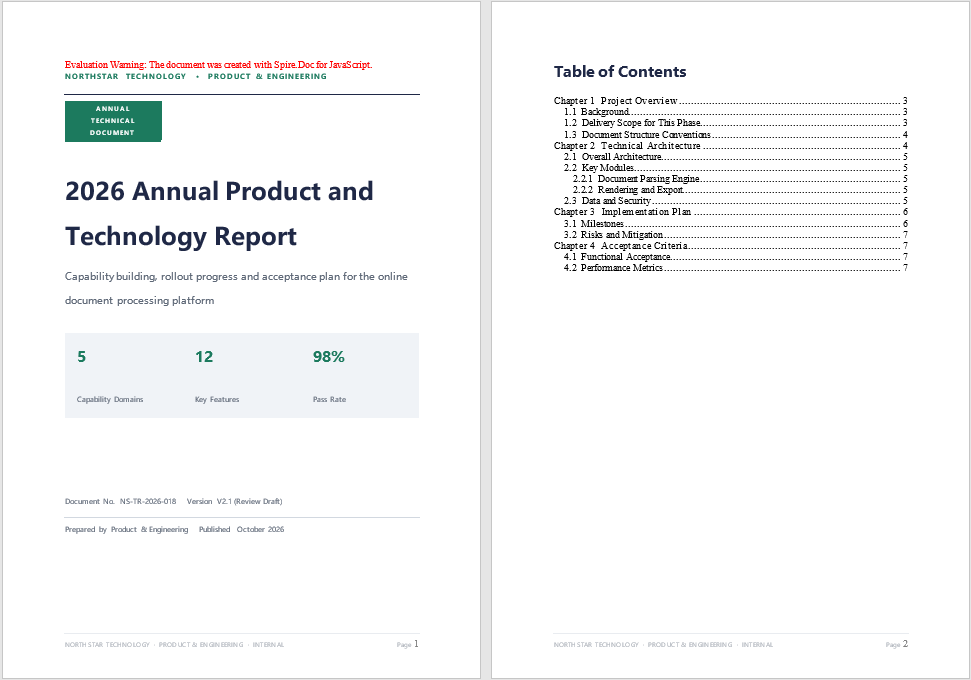
The table of contents lands between the cover and the body text: the cover is still page 1, the table of contents starts on page 2, and the body starts on page 3:
Table of contents inserted after the cover
Add a Custom Table of Contents
To add a custom table of contents, construct a TableOfContent object instead and pass a field switch string to its constructor. The difference from AppendTOC lies in how it is inserted: the TOC object has to be added to a paragraph manually, the field separator and field end marks have to be completed, and the object then has to be assigned to Document.TOC. The commonly used field switches are as follows:
| Switch | Description |
|---|---|
\o "1-2" |
Collects entries by built-in heading styles; here it means collecting Heading 1 to Heading 2 |
\h |
Writes hyperlinks for the TOC entries, so that a click jumps to the corresponding chapter |
\z |
Hides page numbers and tab leaders in Web Layout view |
\u |
Collects entries by the outline level of the paragraphs |
The example uses \o "1-2" \h \z \u, so the table of contents collects only four chapters and ten second-level headings, 14 entries in total, and third-level headings such as 2.2.1 and 2.2.2 no longer appear.
The specific steps are as follows:
- Get the Spire.Doc WASM module and confirm that it is ready.
- Load the body font
msyh.ttc, the bold fontmsyhbd.ttcand the sample documentAddTocToExisting.docxinto the virtual file system (VFS). - Create a
Documentobject, load the existing document, and get the first section. - Construct the TOC object with
new TableOfContent(doc, '{\\o "1-2" \\h \\z \\u}'), add it to a new paragraph, and complete the field separator and field end marks. - Assign the TOC object to
doc.TOC, insert it at the very beginning of the document withParagraphs.Insert(0, tocPara), and add the "Table of Contents" heading paragraph. - Call
UpdateTableOfContentsto update the entries and page numbers, save the document, and read the result from VFS to trigger the download.
The code for adding a custom table of contents is as follows:
function App() {
  const addCustomToc = async () => {
    // Get the Spire.Doc WASM module
    const docModule = window.wasmModule?.spiredoc;

    // Make sure the WASM module has fully loaded
    if (!docModule) {
      alert('Spire.Doc is not ready yet');
      return;
    }

    // Load the fonts and the sample document into VFS
    await window.spire.FetchFileToVFS('msyh.ttc', '/Library/Fonts/', `${process.env.PUBLIC_URL}/font/`);
    await window.spire.FetchFileToVFS('msyhbd.ttc', '/Library/Fonts/', `${process.env.PUBLIC_URL}/font/`);
    const inputFileName = 'AddTocToExisting.docx';
    await window.spire.FetchFileToVFS(inputFileName, '', `${process.env.PUBLIC_URL}/data/`);

    // Create a document instance and load the existing document
    const doc = new docModule.Document();
    doc.LoadFromFile({ fileName: inputFileName });

    // Get the first section of the document
    const section = doc.Sections.get_Item(0);

    // Build a TOC object with custom field switches: collect Heading 1 to Heading 2, with hyperlinked entries
    const toc = new docModule.TableOfContent(doc, '{\\o "1-2" \\h \\z \\u}');
    const tocPara = section.AddParagraph();
    tocPara.Items.Add(toc);

    // Complete the field separator and field end marks
    tocPara.AppendFieldMark(docModule.FieldMarkType.FieldSeparator);
    tocPara.AppendText('TOC');
    tocPara.AppendFieldMark(docModule.FieldMarkType.FieldEnd);
    tocPara.AppendBreak(docModule.BreakType.PageBreak);

    // Bind this TOC to the document
    doc.TOC = toc;

    // Move the TOC paragraph to the very beginning of the document
    section.Paragraphs.Insert(0, tocPara);

    // TOC page header
    const titleFormat = new docModule.CharacterFormat(doc);
    titleFormat.FontName = 'Microsoft YaHei';
    titleFormat.FontSize = 18;
    titleFormat.Bold = true;
    titleFormat.TextColor = docModule.Color.FromArgb(31, 40, 70);
    const titlePara = section.AddParagraph();
    titlePara.AppendText('Table of Contents').ApplyCharacterFormat(titleFormat);
    titlePara.Format.AfterSpacing = 14;
    section.Paragraphs.Insert(0, titlePara);

    // Update the TOC to fill in entries and page numbers
    doc.UpdateTableOfContents();

    // Define the output file name and save
    const outputFileName = 'Add a Custom TOC.docx';
    doc.SaveToFile({ fileName: outputFileName, fileFormat: docModule.FileFormat.Docx2013 });

    // Release resources
    doc.Dispose();

    // Read the generated file from VFS and trigger the download
    const fileArray = window.dotnetRuntime.Module.FS.readFile(outputFileName);
    const blob = new Blob([fileArray], { type: 'application/vnd.openxmlformats-officedocument.wordprocessingml.document' });
    const url = URL.createObjectURL(blob);
    const a = document.createElement('a');
    a.href = url;
    a.download = outputFileName;
    a.click();
    URL.revokeObjectURL(url);
  };

  return (
    <div style={{ textAlign: 'center', height: '300px' }}>
      <h1>Add a Custom Table of Contents</h1>
      <button onClick={addCustomToc}>
        Generate
      </button>
    </div>
  );
}

export default App;
The TOC entries stop at second-level headings, and the original third-level headings no longer enter the table of contents:
Two-level table of contents generated by the custom table of contents

Limit the Collected Levels with Field Switches
The field switch string determines the behavior of the table of contents, and adjusting the level range after \o changes the collection scope: change it to \o "1-3" and third-level headings enter the table of contents again; remove \h and the entries no longer carry hyperlinks, so the table of contents becomes a plain text page reference:
// Collect third-level headings and no longer write hyperlinks
const toc = new docModule.TableOfContent(doc, '{\\o "1-3" \\z \\u}');
Update the Page Numbers of an Existing Table of Contents
To update the page numbers of an existing table of contents, call UpdateTableOfContents before saving. The TOC entries and page numbers are the result of a field calculation, and they are written according to the layout at the moment the field is updated, so the TOC object does not have to be rebuilt. The example loads a document that already has a table of contents (the result of the first feature), appends Chapter 5 to the end of the body text, and then updates the table of contents.
The specific steps are as follows:
- Get the Spire.Doc WASM module and confirm that it is ready.
- Load the fonts and the sample document
WithTOC.docx, which already has a table of contents, into the virtual file system (VFS). - Create a
Documentobject, load the document, and get the first section. - Append a page break, a Chapter 5 heading and a paragraph of body text to the end of the body: apply the Heading 1 style to the heading, and keep the font and size of the original document for the body text.
- Call
UpdateTableOfContentsto update the table of contents, so that the entry and page number of the new chapter are written as well. - Save the result with
SaveToFile, and read the file from VFS to trigger the download.
The code for updating the page numbers of an existing table of contents is as follows:
function App() {
  const updateToc = async () => {
    // Get the Spire.Doc WASM module
    const docModule = window.wasmModule?.spiredoc;

    // Make sure the WASM module has fully loaded
    if (!docModule) {
      alert('Spire.Doc is not ready yet');
      return;
    }

    // Load the fonts and the sample document that already has a TOC into VFS
    await window.spire.FetchFileToVFS('msyh.ttc', '/Library/Fonts/', `${process.env.PUBLIC_URL}/font/`);
    await window.spire.FetchFileToVFS('msyhbd.ttc', '/Library/Fonts/', `${process.env.PUBLIC_URL}/font/`);
    const inputFileName = 'WithTOC.docx';
    await window.spire.FetchFileToVFS(inputFileName, '', `${process.env.PUBLIC_URL}/data/`);

    // Create a document instance and load the existing document
    const doc = new docModule.Document();
    doc.LoadFromFile({ fileName: inputFileName });

    // Get the first section of the document
    const section = doc.Sections.get_Item(0);

    // Append a chapter at the end of the body: page break first, then the heading and the text
    const breakPara = section.AddParagraph();
    breakPara.AppendBreak(docModule.BreakType.PageBreak);

    const headingPara = section.AddParagraph();
    headingPara.AppendText('Chapter 5  Follow-up Plan');
    headingPara.ApplyStyle({ builtinStyle: docModule.BuiltinStyle.Heading1 });

    // The appended text keeps the font of the original document
    const bodyFormat = new docModule.CharacterFormat(doc);
    bodyFormat.FontName = 'Microsoft YaHei';
    bodyFormat.FontSize = 10.5;
    const bodyPara = section.AddParagraph();
    bodyPara.AppendText('The 2027 plan brings template management and permission auditing into the platform and opens a batch-fill API for business systems to call directly.').ApplyCharacterFormat(bodyFormat);

    // Update the TOC so the new chapter's entry and page number are written
    doc.UpdateTableOfContents();

    // Define the output file name and save
    const outputFileName = 'Update TOC Page Numbers.docx';
    doc.SaveToFile({ fileName: outputFileName, fileFormat: docModule.FileFormat.Docx2013 });

    // Release resources
    doc.Dispose();

    // Read the generated file from VFS and trigger the download
    const fileArray = window.dotnetRuntime.Module.FS.readFile(outputFileName);
    const blob = new Blob([fileArray], { type: 'application/vnd.openxmlformats-officedocument.wordprocessingml.document' });
    const url = URL.createObjectURL(blob);
    const a = document.createElement('a');
    a.href = url;
    a.download = outputFileName;
    a.click();
    URL.revokeObjectURL(url);
  };

  return (
    <div style={{ textAlign: 'center', height: '300px' }}>
      <h1>Update the Page Numbers of an Existing Table of Contents</h1>
      <button onClick={updateToc}>
        Generate
      </button>
    </div>
  );
}

export default App;
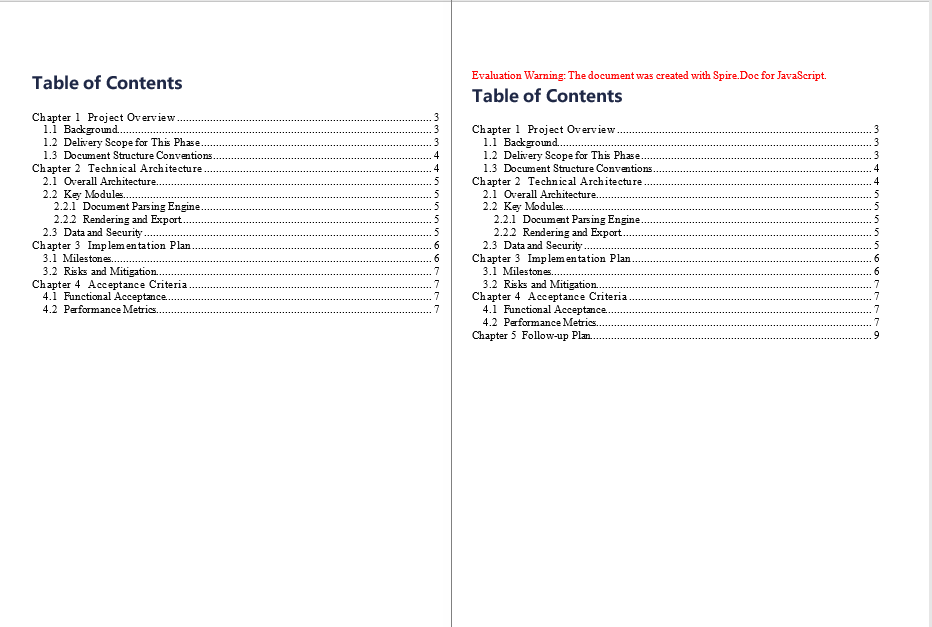
After the page numbers are updated, a "Chapter 5 Follow-up Plan" entry is added at the end of the table of contents, its page number points to page 9, and the original entries stay unchanged:
Chapter 5 appended to the end of the table of contents after its page numbers are updated
FAQ
Why does the table of contents I add appear at the end of the document
Cause: AddParagraph appends the new paragraph to the end of its section, so calling AppendTOC on it or adding a TableOfContent object to it naturally places the table of contents at the end. The content of an existing document has already been laid out, and its position does not move forward by itself.
Solution: Create the TOC paragraph first, then move it to the target position with Paragraphs.Insert:
const tocPara = section.AddParagraph();
tocPara.AppendTOC(1, 3);
section.Paragraphs.Insert(0, tocPara);
Why are the body headings missing from the table of contents
Cause: The table of contents collects entries by heading style or outline level. If the chapter headings in the original document were only made bold manually or given a larger font size, without built-in heading styles such as Heading 1 to Heading 3 applied, no collectable paragraph can be found after updating, and the table of contents may be empty or only report "No table of contents entries found".
Solution: After loading the document, call ApplyStyle on the paragraphs that should appear in the table of contents to apply a built-in heading style, and then update the table of contents:
const headingPara = section.Paragraphs.get_Item(2);
headingPara.ApplyStyle({ builtinStyle: docModule.BuiltinStyle.Heading1 });
Why is the position of the table of contents a few paragraphs off after specifying an index with Paragraphs.Insert
Cause: The index of Paragraphs.Insert is calculated in the order of the child objects in the body, and every paragraph and table takes one position. The more tables a document contains, the further the position of the same paragraph drifts between the paragraph collection and the body objects, so using the index of the paragraph collection directly is often a few paragraphs off.
Solution: Walk Body.ChildObjects to find the target paragraph and use its object position as the index:
let insertIndex = 0;
const children = section.Body.ChildObjects;
for (let i = 0; i < children.Count; i++) {
  const obj = children.get_Item(i);
  if (obj.DocumentObjectType === docModule.DocumentObjectType.Paragraph && obj.StyleName === 'Heading1') {
    insertIndex = i;
    break;
  }
}
The page numbers in the table of contents do not match the actual pages
Cause: The page numbers of the table of contents are written from the layout at the moment the field is updated, and they are not synchronized automatically if content or headings are added or removed afterwards. In addition, inserting a table of contents at the start of the document moves the existing content back as a whole, so the page numbers change accordingly, which is an expected result.
Solution: Call UpdateTableOfContents again before saving, so that the entries and page numbers are recalculated from the latest content:
doc.UpdateTableOfContents();
doc.SaveToFile({ fileName: outputFileName, fileFormat: docModule.FileFormat.Docx2013 });
Updating a custom table of contents throws ArgumentOutOfRange, or shows only the word TOC
Cause: After a TableOfContent object is added to a paragraph, if the field separator, the field end mark, or the assignment to Document.TOC is missing, the TOC field is incomplete: without the marks the page may show only placeholder text, and without the binding, updating is likely to throw an index-out-of-range exception.
Solution: The following three steps have to be completed together before the update is called:
const toc = new docModule.TableOfContent(doc, '{\\o "1-2" \\h \\z \\u}');
const tocPara = section.AddParagraph();
tocPara.Items.Add(toc);

tocPara.AppendFieldMark(docModule.FieldMarkType.FieldSeparator);
tocPara.AppendText('TOC');
tocPara.AppendFieldMark(docModule.FieldMarkType.FieldEnd);

doc.TOC = toc;
Get a Free License
Spire.Doc for JavaScript offers a 30-day full-featured free trial license with no functional limitations. Apply here to evaluate before purchasing.