Close


Thursday, 04 August 2011 03:01

Export data from Listview to XML

Why Export Listview to XML?

XML has its own advantages. XML, or Extensible Markup Language is a set of rules for encoding documents in machine-readable form. The real power of XML comes from the fact that with XML, not only can you define your own set of tags, but the rules specified by those tags need not be limited to formatting rules. And the most benefit of XML is that because you are writing your own markup language, you are not restricted to a limited set of tags defined by proprietary vendors. Furthermore, XML allows you to define all sorts of tags with all sorts of rules, such as tags representing business rules or tags representing data description or data relationships.

How to Export Listview to XML?

As a professional and powerful .NET component suit for data exporting, Spire.DataExport for .NET can export data from Database to MS Excel,MS Word, HTML, XML, PDF, MS Access, DBF, SQL Script, SYLK, DIF, CSV ,MS Clipboard format and of course enable to export ListView to XML.
Spire.DataExport for .NET offers an easy solution on Exporting listview to XML. Download Spire.DataExport (or Spire.Office) with .NET framework 2.0 (or above) together and use the code below to Export Listview to XML:

C# Listview to XML
[C#]
this.xmlExport1.ActionAfterExport = Spire.DataExport.Common.ActionType.OpenView;
			this.xmlExport1.DataFormats.CultureName = "zh-CN";
			this.xmlExport1.DataFormats.Currency = "c";
			this.xmlExport1.DataFormats.DateTime = "yyyy-M-d H:mm";
			this.xmlExport1.DataFormats.Float = "g";
			this.xmlExport1.DataFormats.Integer = "g";
			this.xmlExport1.DataFormats.Time = "H:mm";
			this.xmlExport1.FileName = "sample.xml";
            this.xmlExport1.DataSource = Common.ExportSource.ListView;
            this.xmlExport1.ListView = this.listView1;
oleDbConnection1.Open();
try{
xmlExport1.SaveToFile();
}
Finally
{
oleDbConnection1.Close();

}
          
VB.NET Listview to XML
[Visual Basic]
Me.xmlExport1.ActionAfterExport = Spire.DataExport.Common.ActionType.OpenView
            Me.xmlExport1.DataFormats.CultureName = "zh-CN"
            Me.xmlExport1.DataFormats.Currency = "c"
            Me.xmlExport1.DataFormats.DateTime = "yyyy-M-d H:mm"
            Me.xmlExport1.DataFormats.Float = "g"
            Me.xmlExport1.DataFormats.Integer = "g"
            Me.xmlExport1.DataFormats.Time = "H:mm"
            Me.xmlExport1.FileName = "sample.xml"
            Me.xmlExport1.DataSource = Common.ExportSource.ListView
            Me.xmlExport1.ListView = Me.listView1
oleDbConnection1.Open()
            Try
                 xmlExport1.SaveToFile()
Finally
                Me.oleDbConnection1.Close()
            End Try
          
More about Spire.DataExport
Download Spire.DataExport
Purchase Spire.DataExport

Published in Program Guide
Monday, 24 January 2011 09:49

Save Excel Document with C# and VB.NET

In general, we need to create a new Excel workbook, initialize worksheet and then edit it, finally save it to a file. This section will show you how to saveas it via Spire.XLS for C#/.NET.

Workbook Save in MS

In Microsoft Office, we can save the file as different formats. You can save it as XML spreadsheet, XML data, single flie web page, web page and template. When saving it, you may specify the file name. Furthermore, you may come aross some problems. Remember that after you install MS Office, in VB.NET excel 2007 you should add the COM reference. In the solution explorer, choose COM TAB, and then reference Microsoft Word 11.0 Object Library. Then add the namespace: using System.Reflection, and reference C# Microsoft.Office.Interop.Excel.

C# excel workbook.saveas via Spire.XLS

Spire.XLS presents you an easy way to saveas an Excel document. When you finish writing the Excel workbook, you may want to save it. You can use workbook.SaveAsXml method to save the Excel workbook as XML format. When you use C# excel workbook.saveas, you may set the name of your file.
The following code is about C# excel workbook.saveas:
[C#]
using Spire.Xls;

namespace Saveas
{
    class Program
    {
        static void Main(string[] args)
        {
            //Create a new workbook
            Workbook workbook = new Workbook();

            //Initialize worksheet
            Worksheet sheet = workbook.Worksheets[0];

            //Append text
            sheet.Range["A1"].Text = "demo";
           
            //Save it as XML file
            workbook.SaveAsXml("Sample.xml");

            //Launch the file
            System.Diagnostics.Process.Start("Sample.xml");
        }
    }
}
          
[Visual Basic]
Imports Spire.Xls

Module Module1

    Sub Main()
        'Create a new workbook
        Dim workbook As New Workbook()

        'Initialize worksheet
        Dim sheet As Worksheet = workbook.Worksheets(0)

        'Append text
        sheet.Range("A1").Text = "demo"

        'Save it as XML file.
        workbook.SaveAsXml("Sample.xml")

        'Launching the MS Word file.
        System.Diagnostics.Process.Start("Sample.xml")

    End Sub
End Module
          
Published in Program Guide

Basic Knowledge about XML

When talking about XML, we may think of HTML. Actually, XML is similar to HTML both are tag-based languages. The difference between XML and HTML is that the tags which XML uses are not predefined. If we want to create own tags within XML, we need to follow a few rules.
Firstly, only one root element is contained in XML document. The root element is often taken as document element and appears after the prolog section. Besides, all the XML elements should contain end tags. Both start and end tag should be identical. Also, the elements can’t overlap. What’s more, all attribute values must use quotation marks and we can’t use some special characters within the text. After following the rules, the XML document will be well formatted.

Use C#/VB.NET Convert Doc to XML via Spire.Doc

Spire.Doc (Spire.Office) presents you an easy way to convert Doc to XML. In this way, we can convert an exist Word doc file to XML format with a few clicks. Now, just follow the simple steps.

Step 1 Create Project

Download Spire.Doc and install on system. Create a project through Visual Studio and add Spire.Doc DLL as reference.
Note: Please make sure Spire.Doc and Visual Studio are correctly installed on system

Step 2 Load Word Doc File

Load local Word doc file which we need to convert to XML format. The following code can help us load it.
            Document document = new Document();
            document.LoadFromFile(@"D:\Sample.doc");

Step 3 Convert Doc to XML

Spire.Doc supports convert Word Doc files to most of popular file formats such as PDF, HTML, XML, EPub, RTF, Dot, Text, etc. Now, use the code below to convert Word to XML.
            document.SaveToFile("Sample.xml", FileFormat.Xml);

Step 4 Full Code

Now, write the full code into your project and press F5 to start the program.
[C#]
using System;
using System.Windows.Forms;
using Spire.Doc;
using Spire.Doc.Documents;

namespace toXML
{
    public partial class Form1 : Form
    {
        public Form1()
        {
            InitializeComponent();
        }

        private void button1_Click(object sender, EventArgs e)
        {
            //Create word document
            Document document = new Document();
            document.LoadFromFile(@"D:\Sample.doc");

            //Save doc file.
            document.SaveToFile("Sample.xml", FileFormat.Xml);

            //Launching the MS Word file.
            WordDocViewer("Sample.xml");
        }

        private void WordDocViewer(string fileName)
        {
            try
            {
                System.Diagnostics.Process.Start(fileName);
            }
            catch { }
        }

    }
}
 
[Visual Basic]
Imports System
Imports System.Windows.Forms
Imports Spire.Doc
Imports Spire.Doc.Documents

Namespace toXML
	Partial Public Class Form1
		Inherits Form
		Public Sub New()
			InitializeComponent()
		End Sub

		Private Sub button1_Click(ByVal sender As Object, ByVal e As EventArgs)
			'Create word document
			Dim document As New Document()
			document.LoadFromFile("D:\Sample.doc")

			'Save doc file.
			document.SaveToFile("Sample.xml", FileFormat.Xml)

			'Launching the MS Word file.
			WordDocViewer("Sample.xml")
		End Sub

		Private Sub WordDocViewer(ByVal fileName As String)
			Try
				System.Diagnostics.Process.Start(fileName)
			Catch
			End Try
		End Sub
	End Class
End Namespace
        
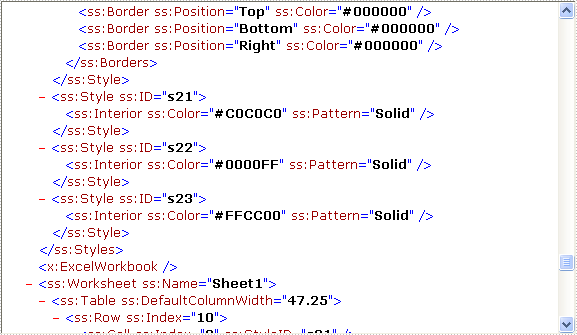
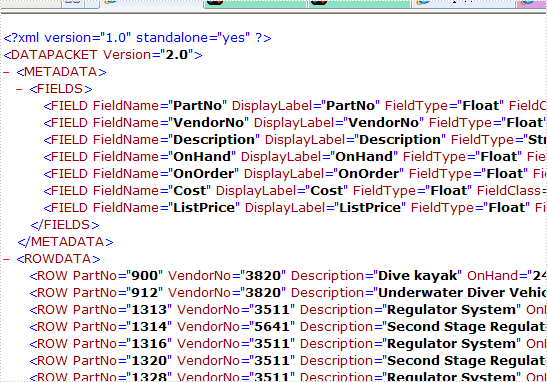
After running the demo, you may find a XML document launched on your browser:

Spire.Doc is an MS Word component which enables user to perform a wide range of Word document processing tasks directly, such as generate, read, write and modify Word document for .NET and Silverlight. Click to Learn more...

Published in Program Guide
Sunday, 01 August 2010 18:38

Data Export XML for C#, VB.NET

This sample demonstrates how to export data table into xml file.

Published in Demo
Saturday, 03 July 2010 14:15

EXCEL XLSX for C#, VB.NET


 The sample demonstrates how to load excel 2007 format file.

XLSX.gif

Published in Excel2007
Saturday, 03 July 2010 10:46

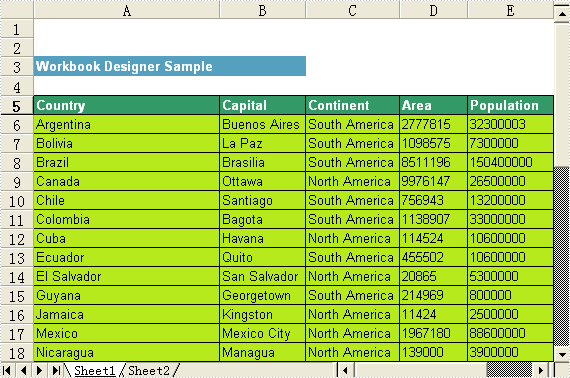
Excel XML for C#, VB.NET


The sample demonstrates how to write an excel workbook to an XML file.

WriteXML.gif

Published in XML