Wednesday, 06 April 2011 09:13
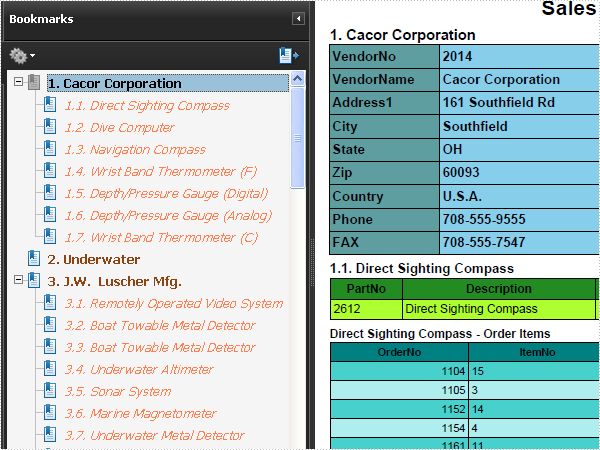
PDF Bookmark in C#, VB.NET
using System;
using System.Data;
using System.Data.OleDb;
using System.Drawing;
using Spire.Pdf;
using Spire.Pdf.Actions;
using Spire.Pdf.Bookmarks;
using Spire.Pdf.General;
using Spire.Pdf.Graphics;
using Spire.Pdf.Grid;
using Spire.Pdf.Tables;

namespace Bookmark
{
    class Program
    {
        static void Main(string[] args)
        {
            //Create a pdf document.
            PdfDocument doc = new PdfDocument();

            //margin
            PdfUnitConvertor unitCvtr = new PdfUnitConvertor();
            PdfMargins margin = new PdfMargins();
            margin.Top = unitCvtr.ConvertUnits(2.54f, PdfGraphicsUnit.Centimeter, PdfGraphicsUnit.Point);
            margin.Bottom = margin.Top;
            margin.Left = unitCvtr.ConvertUnits(3.17f, PdfGraphicsUnit.Centimeter, PdfGraphicsUnit.Point);
            margin.Right = margin.Left;

            //create section
            PdfSection section = doc.Sections.Add();
            section.PageSettings.Size = PdfPageSize.A4;
            section.PageSettings.Margins = margin;

            // Create one page
            PdfPageBase page = section.Pages.Add();

            float y = 10;

            //title
            PdfBrush brush1 = PdfBrushes.Black;
            PdfTrueTypeFont font1 = new PdfTrueTypeFont(new Font("Arial", 16f, FontStyle.Bold));
            PdfStringFormat format1 = new PdfStringFormat(PdfTextAlignment.Center);
            page.Canvas.DrawString("Sales Report", font1, brush1, page.Canvas.ClientSize.Width / 2, y, format1);
            y = y + font1.MeasureString("Sales Report", format1).Height;
            y = y + 5;

            PdfTrueTypeFont font2 = new PdfTrueTypeFont(new Font("Arial", 11f, FontStyle.Bold));
            PdfTrueTypeFont font3 = new PdfTrueTypeFont(new Font("Arial", 10f, FontStyle.Bold));
            using (OleDbConnection conn = new OleDbConnection())
            {
                conn.ConnectionString = @"Provider=Microsoft.Jet.OLEDB.4.0;Data Source=demo.mdb";
                conn.Open();

                OleDbCommand partQueryCommand = PreparePartQueryCommand(conn);
                OleDbCommand orderItemQueryCommand = PrepareOrderItemQueryCommand(conn);

                DataTable vendors = GetVendors(conn);
                for (int i = 0; i < vendors.Rows.Count; i++)
                {
                    if (i > 0)
                    {
                        //next page
                        page = section.Pages.Add();
                        y = 0;
                    }
                    //draw vendor
                    String vendorTitle = String.Format("{0}. {1}", i + 1, vendors.Rows[i].ItemArray[1]);
                    PdfLayoutResult drawVendorLayoutResult = DrawVendor(page, vendors, i, vendorTitle, y);

                    //add vendor bookmark
                    PdfDestination vendorBookmarkDest = new PdfDestination(page, new PointF(0, y));
                    PdfBookmark vendorBookmark = doc.Bookmarks.Add(vendorTitle);
                    vendorBookmark.Color = Color.SaddleBrown;
                    vendorBookmark.DisplayStyle = PdfTextStyle.Bold;
                    vendorBookmark.Action = new PdfGoToAction(vendorBookmarkDest);

                    y = drawVendorLayoutResult.Bounds.Bottom + 5;
                    page = drawVendorLayoutResult.Page;

                    //get parts of vendor
                    DataTable parts = GetParts(partQueryCommand, (double)vendors.Rows[i].ItemArray[0]);
                    for (int j = 0; j < parts.Rows.Count; j++)
                    {
                        if (j > 0)
                        {
                            //next page
                            page = section.Pages.Add();
                            y = 0;
                        }
                        //draw part
                        String partTitle = String.Format("{0}.{1}. {2}", i + 1, j + 1, parts.Rows[j].ItemArray[1]);
                        PdfLayoutResult drawPartLayoutResult = DrawPart(page, parts, j, partTitle, y);

                        //add part bookmark
                        PdfDestination partBookmarkDest = new PdfDestination(page, new PointF(0, y));
                        PdfBookmark partBookmark = vendorBookmark.Add(partTitle);
                        partBookmark.Color = Color.Coral;
                        partBookmark.DisplayStyle = PdfTextStyle.Italic;
                        partBookmark.Action = new PdfGoToAction(partBookmarkDest);

                        y = drawPartLayoutResult.Bounds.Bottom + 5;
                        page = drawPartLayoutResult.Page;

                        //get order items
                        String orderItemsTitle = String.Format("{0} - Order Items", parts.Rows[j].ItemArray[1]);
                        DataTable orderItems = GetOrderItems(orderItemQueryCommand, (double)parts.Rows[j].ItemArray[0]);
                        DrawOrderItems(page, orderItems, orderItemsTitle, y);
                    }
                }
            }

            //Save pdf file.
            doc.SaveToFile("Bookmark.pdf");
            doc.Close();

            //Launching the Pdf file.
            System.Diagnostics.Process.Start("Bookmark.pdf");
        }

        private static DataTable GetVendors(OleDbConnection conn)
        {
            String query
                = " SELECT VendorNo, VendorName, Address1, City, State, Zip, Country, Phone, FAX "
                + " FROM vendors ";
            using (OleDbDataAdapter adapter = new OleDbDataAdapter(query, conn))
            {
                DataTable dataTable = new DataTable();
                adapter.Fill(dataTable);

                return dataTable;
            }
        }

        private static DataTable GetParts(OleDbCommand query, double vendorId)
        {
            query.Parameters[0].Value = vendorId;
            using (OleDbDataAdapter adapter = new OleDbDataAdapter(query))
            {
                DataTable dataTable = new DataTable();
                adapter.Fill(dataTable);

                return dataTable;
            }
        }

        private static DataTable GetOrderItems(OleDbCommand query, double partId)
        {
            query.Parameters[0].Value = partId;
            using (OleDbDataAdapter adapter = new OleDbDataAdapter(query))
            {
                DataTable dataTable = new DataTable();
                adapter.Fill(dataTable);

                return dataTable;
            }
        }

        private static PdfLayoutResult DrawVendor(PdfPageBase page, DataTable vendors, int index, String title, float y)
        {
            //draw title
            PdfTrueTypeFont font1 = new PdfTrueTypeFont(new Font("Arial", 11f, FontStyle.Bold));
            DataRow row = vendors.Rows[index];
            page.Canvas.DrawString(title, font1, PdfBrushes.Black, 0, y);
            y = y + font1.MeasureString(title).Height + 1;

            //draw table
            Object[][] data = new Object[vendors.Columns.Count][];
            for (int i = 0; i < vendors.Columns.Count; i++)
            {
                data[i] = new Object[2];
                data[i][0] = vendors.Columns[i].ColumnName;
                data[i][1] = vendors.Rows[index].ItemArray[i];
            }

            PdfGrid grid = new PdfGrid();
            grid.Style.CellPadding = new PdfPaddings(2, 2, 1, 1);
            grid.DataSource = data;

            float width
                = page.Canvas.ClientSize.Width
                    - (grid.Columns.Count + 1) * 0.75f;
            grid.Columns[0].Width = width * 0.20f;
            grid.Columns[1].Width = width * 0.80f;

            PdfTrueTypeFont font2 = new PdfTrueTypeFont(new Font("Arial", 10f, FontStyle.Bold));
            PdfTrueTypeFont font3 = new PdfTrueTypeFont(new Font("Arial", 10f));
            for (int i = 0; i < grid.Rows.Count; i++)
            {
                grid.Rows[i].Style.Font = font2;
                grid.Rows[i].Cells[0].Style.BackgroundBrush = PdfBrushes.CadetBlue;
                grid.Rows[i].Cells[1].Style.BackgroundBrush = PdfBrushes.SkyBlue;
            }

            PdfGridLayoutFormat layout = new PdfGridLayoutFormat();
            layout.Break = PdfLayoutBreakType.FitPage;
            layout.Layout = PdfLayoutType.Paginate;

            return grid.Draw(page, new PointF(0, y), layout);
        }

        private static PdfLayoutResult DrawPart(PdfPageBase page, DataTable parts, int index, String title, float y)
        {
            //draw title
            PdfTrueTypeFont font1 = new PdfTrueTypeFont(new Font("Arial", 10f, FontStyle.Bold));
            DataRow row = parts.Rows[index];
            page.Canvas.DrawString(title, font1, PdfBrushes.Black, 0, y);
            y = y + font1.MeasureString(title).Height + 1;

            //draw table
            Object[][] data = new Object[2][];
            data[0] = new String[parts.Columns.Count];
            for (int i = 0; i < parts.Columns.Count; i++)
            {
                data[0][i] = parts.Columns[i].ColumnName;
            }
            data[1] = row.ItemArray;

            PdfTable table = new PdfTable();
            table.Style.CellPadding = 2;
            table.Style.BorderPen = new PdfPen(PdfBrushes.Black, 0.75f);
            table.Style.DefaultStyle.BackgroundBrush = PdfBrushes.GreenYellow;
            table.Style.DefaultStyle.Font = new PdfTrueTypeFont(new Font("Arial", 9f));
            table.Style.HeaderSource = PdfHeaderSource.Rows;
            table.Style.HeaderRowCount = 1;
            table.Style.HeaderStyle.BackgroundBrush = PdfBrushes.ForestGreen;
            table.Style.HeaderStyle.Font = new PdfTrueTypeFont(new Font("Arial", 9f, FontStyle.Bold));
            table.Style.HeaderStyle.StringFormat = new PdfStringFormat(PdfTextAlignment.Center);
            table.Style.ShowHeader = true;
            table.DataSource = data;

            float width
                = page.Canvas.ClientSize.Width
                    - (table.Columns.Count + 1) * table.Style.BorderPen.Width;
            for (int i = 0; i < table.Columns.Count; i++)
            {
                table.Columns[i].Width = i == 1 ? width * 0.35f : width * 0.13f;
            }

            PdfTableLayoutFormat tableLayout = new PdfTableLayoutFormat();
            tableLayout.Break = PdfLayoutBreakType.FitPage;
            tableLayout.Layout = PdfLayoutType.Paginate;

            return table.Draw(page, new PointF(0, y), tableLayout);
        }

        private static PdfLayoutResult DrawOrderItems(PdfPageBase page, DataTable orderItems, String title, float y)
        {
            //draw title
            PdfTrueTypeFont font1 = new PdfTrueTypeFont(new Font("Arial", 9f, FontStyle.Bold));
            page.Canvas.DrawString(title, font1, PdfBrushes.Black, 0, y);
            y = y + font1.MeasureString(title).Height + 1;

            PdfTable table = new PdfTable();
            table.Style.CellPadding = 2;
            table.Style.BorderPen = new PdfPen(PdfBrushes.Black, 0.75f);
            table.Style.DefaultStyle.BackgroundBrush = PdfBrushes.MediumTurquoise;
            table.Style.DefaultStyle.Font = new PdfTrueTypeFont(new Font("Arial", 8f));
            table.Style.AlternateStyle = new PdfCellStyle();
            table.Style.AlternateStyle.BackgroundBrush = PdfBrushes.PaleTurquoise;
            table.Style.AlternateStyle.Font = new PdfTrueTypeFont(new Font("Arial", 8f));
            table.Style.HeaderSource = PdfHeaderSource.ColumnCaptions;
            table.Style.HeaderStyle.BackgroundBrush = PdfBrushes.Teal;
            table.Style.HeaderStyle.Font = new PdfTrueTypeFont(new Font("Arial", 8f, FontStyle.Bold));
            table.Style.HeaderStyle.StringFormat = new PdfStringFormat(PdfTextAlignment.Center);
            table.Style.ShowHeader = true;
            table.DataSource = orderItems;
            for (int i = 2; i < table.Columns.Count; i++)
            {
                table.Columns[0].StringFormat = new PdfStringFormat(PdfTextAlignment.Right);
            }

            PdfTableLayoutFormat tableLayout = new PdfTableLayoutFormat();
            tableLayout.Break = PdfLayoutBreakType.FitPage;
            tableLayout.Layout = PdfLayoutType.Paginate;

            return table.Draw(page, new PointF(0, y), tableLayout);
        }

        private static OleDbCommand PreparePartQueryCommand(OleDbConnection conn)
        {
            OleDbCommand command = new OleDbCommand();
            command.CommandText
                = " SELECT PartNo, Description, OnHand, OnOrder, Cost, ListPrice "
                + " FROM parts WHERE VendorNo = @VendorNo";
            OleDbParameter param = new OleDbParameter("@VendorNo", OleDbType.Double);
            command.Parameters.Add(param);
            command.Connection = conn;
            return command;
        }

        private static OleDbCommand PrepareOrderItemQueryCommand(OleDbConnection conn)
        {
            OleDbCommand command = new OleDbCommand();
            command.CommandText
                = " SELECT OrderNo, ItemNo, Qty, Discount "
                + " FROM items WHERE PartNo = @PartNo";
            OleDbParameter param = new OleDbParameter("@PartNo", OleDbType.Double);
            command.Parameters.Add(param);
            command.Connection = conn;
            return command;
        }
    }
}
Imports System
Imports System.Data
Imports System.Data.OleDb
Imports System.Drawing
Imports Spire.Pdf
Imports Spire.Pdf.Actions
Imports Spire.Pdf.Bookmarks
Imports Spire.Pdf.General
Imports Spire.Pdf.Graphics
Imports Spire.Pdf.Grid
Imports Spire.Pdf.Tables

Namespace Bookmark
    Friend Class Program
        Shared Sub Main(ByVal args() As String)
            'Create a pdf document.
            Dim doc As New PdfDocument()

            'margin
            Dim unitCvtr As New PdfUnitConvertor()
            Dim margin As New PdfMargins()
            margin.Top = unitCvtr.ConvertUnits(2.54F, PdfGraphicsUnit.Centimeter, PdfGraphicsUnit.Point)
            margin.Bottom = margin.Top
            margin.Left = unitCvtr.ConvertUnits(3.17F, PdfGraphicsUnit.Centimeter, PdfGraphicsUnit.Point)
            margin.Right = margin.Left

            'create section
            Dim section As PdfSection = doc.Sections.Add()
            section.PageSettings.Size = PdfPageSize.A4
            section.PageSettings.Margins = margin

            ' Create one page
            Dim page As PdfPageBase = section.Pages.Add()

            Dim y As Single = 10

            'title
            Dim brush1 As PdfBrush = PdfBrushes.Black
            Dim font1 As New PdfTrueTypeFont(New Font("Arial", 16.0F, FontStyle.Bold))
            Dim format1 As New PdfStringFormat(PdfTextAlignment.Center)
            page.Canvas.DrawString("Sales Report", font1, brush1, page.Canvas.ClientSize.Width \ 2, y, format1)
            y = y + font1.MeasureString("Sales Report", format1).Height
            y = y + 5

            Dim font2 As New PdfTrueTypeFont(New Font("Arial", 11.0F, FontStyle.Bold))
            Dim font3 As New PdfTrueTypeFont(New Font("Arial", 10.0F, FontStyle.Bold))
            Using conn As New OleDbConnection()
                conn.ConnectionString = "Provider=Microsoft.Jet.OLEDB.4.0;Data Source=demo.mdb"
                conn.Open()

                Dim partQueryCommand As OleDbCommand = PreparePartQueryCommand(conn)
                Dim orderItemQueryCommand As OleDbCommand = PrepareOrderItemQueryCommand(conn)

                Dim vendors As DataTable = GetVendors(conn)
                For i As Integer = 0 To vendors.Rows.Count - 1
                    If i > 0 Then
                        'next page
                        page = section.Pages.Add()
                        y = 0
                    End If
                    'draw vendor
                    Dim vendorTitle As String = String.Format("{0}. {1}", i + 1, vendors.Rows(i).ItemArray(1))
                    Dim drawVendorLayoutResult As PdfLayoutResult = DrawVendor(page, vendors, i, vendorTitle, y)

                    'add vendor bookmark
                    Dim vendorBookmarkDest As New PdfDestination(page, New PointF(0, y))
                    Dim vendorBookmark As PdfBookmark = doc.Bookmarks.Add(vendorTitle)
                    vendorBookmark.Color = Color.SaddleBrown
                    vendorBookmark.DisplayStyle = PdfTextStyle.Bold
                    vendorBookmark.Action = New PdfGoToAction(vendorBookmarkDest)

                    y = drawVendorLayoutResult.Bounds.Bottom + 5
                    page = drawVendorLayoutResult.Page

                    'get parts of vendor
                    Dim parts As DataTable = GetParts(partQueryCommand, CDbl(vendors.Rows(i).ItemArray(0)))
                    For j As Integer = 0 To parts.Rows.Count - 1
                        If j > 0 Then
                            'next page
                            page = section.Pages.Add()
                            y = 0
                        End If
                        'draw part
                        Dim partTitle As String _
                            = String.Format("{0}.{1}. {2}", i + 1, j + 1, parts.Rows(j).ItemArray(1))
                        Dim drawPartLayoutResult As PdfLayoutResult = DrawPart(page, parts, j, partTitle, y)

                        'add part bookmark
                        Dim partBookmarkDest As New PdfDestination(page, New PointF(0, y))
                        Dim partBookmark As PdfBookmark = vendorBookmark.Add(partTitle)
                        partBookmark.Color = Color.Coral
                        partBookmark.DisplayStyle = PdfTextStyle.Italic
                        partBookmark.Action = New PdfGoToAction(partBookmarkDest)

                        y = drawPartLayoutResult.Bounds.Bottom + 5
                        page = drawPartLayoutResult.Page

                        'get order items
                        Dim orderItemsTitle As String _
                            = String.Format("{0} - Order Items", parts.Rows(j).ItemArray(1))
                        Dim orderItems As DataTable _
                            = GetOrderItems(orderItemQueryCommand, CDbl(parts.Rows(j).ItemArray(0)))
                        DrawOrderItems(page, orderItems, orderItemsTitle, y)
                    Next j
                Next i
            End Using

            'Save pdf file.
            doc.SaveToFile("Bookmark.pdf")
            doc.Close()

            'Launching the Pdf file.
            Process.Start("Bookmark.pdf")
        End Sub

        Private Shared Function GetVendors(ByVal conn As OleDbConnection) As DataTable
            Dim query As String _
                = " SELECT VendorNo, VendorName, Address1, City, State, Zip, Country, Phone, FAX " _
                & " FROM vendors "
            Using adapter As New OleDbDataAdapter(query, conn)
                Dim dataTable As New DataTable()
                adapter.Fill(dataTable)

                Return dataTable
            End Using
        End Function

        Private Shared Function GetParts(ByVal query As OleDbCommand, ByVal vendorId As Double) As DataTable
            query.Parameters(0).Value = vendorId
            Using adapter As New OleDbDataAdapter(query)
                Dim dataTable As New DataTable()
                adapter.Fill(dataTable)

                Return dataTable
            End Using
        End Function

        Private Shared Function GetOrderItems(ByVal query As OleDbCommand, ByVal partId As Double) As DataTable
            query.Parameters(0).Value = partId
            Using adapter As New OleDbDataAdapter(query)
                Dim dataTable As New DataTable()
                adapter.Fill(dataTable)

                Return dataTable
            End Using
        End Function

        Private Shared Function DrawVendor(ByVal page As PdfPageBase, ByVal vendors As DataTable, _
                        ByVal index As Integer, ByVal title As String, ByVal y As Single) As PdfLayoutResult
            'draw title
            Dim font1 As New PdfTrueTypeFont(New Font("Arial", 11.0F, FontStyle.Bold))
            Dim row As DataRow = vendors.Rows(index)
            page.Canvas.DrawString(title, font1, PdfBrushes.Black, 0, y)
            y = y + font1.MeasureString(title).Height + 1

            'draw table
            Dim data(vendors.Columns.Count - 1)() As Object
            For i As Integer = 0 To vendors.Columns.Count - 1
                data(i) = New Object(1) {}
                data(i)(0) = vendors.Columns(i).ColumnName
                data(i)(1) = vendors.Rows(index).ItemArray(i)
            Next i

            Dim grid As New PdfGrid()
            grid.Style.CellPadding = New PdfPaddings(2, 2, 1, 1)
            grid.DataSource = data

            Dim width As Single = page.Canvas.ClientSize.Width - (grid.Columns.Count + 1) * 0.75F
            grid.Columns(0).Width = width * 0.2F
            grid.Columns(1).Width = width * 0.8F

            Dim font2 As New PdfTrueTypeFont(New Font("Arial", 10.0F, FontStyle.Bold))
            Dim font3 As New PdfTrueTypeFont(New Font("Arial", 10.0F))
            For i As Integer = 0 To grid.Rows.Count - 1
                grid.Rows(i).Style.Font = font2
                grid.Rows(i).Cells(0).Style.BackgroundBrush = PdfBrushes.CadetBlue
                grid.Rows(i).Cells(1).Style.BackgroundBrush = PdfBrushes.SkyBlue
            Next i

            Dim layout As New PdfGridLayoutFormat()
            layout.Break = PdfLayoutBreakType.FitPage
            layout.Layout = PdfLayoutType.Paginate

            Return grid.Draw(page, New PointF(0, y), layout)
        End Function

        Private Shared Function DrawPart(ByVal page As PdfPageBase, ByVal parts As DataTable, ByVal index As Integer, _
                                         ByVal title As String, ByVal y As Single) As PdfLayoutResult
            'draw title
            Dim font1 As New PdfTrueTypeFont(New Font("Arial", 10.0F, FontStyle.Bold))
            Dim row As DataRow = parts.Rows(index)
            page.Canvas.DrawString(title, font1, PdfBrushes.Black, 0, y)
            y = y + font1.MeasureString(title).Height + 1

            'draw table
            Dim data(1)() As Object
            data(0) = New String(parts.Columns.Count - 1) {}
            For i As Integer = 0 To parts.Columns.Count - 1
                data(0)(i) = parts.Columns(i).ColumnName
            Next i
            data(1) = row.ItemArray

            Dim table As New PdfTable()
            table.Style.CellPadding = 2
            table.Style.BorderPen = New PdfPen(PdfBrushes.Black, 0.75F)
            table.Style.DefaultStyle.BackgroundBrush = PdfBrushes.GreenYellow
            table.Style.DefaultStyle.Font = New PdfTrueTypeFont(New Font("Arial", 9.0F))
            table.Style.HeaderSource = PdfHeaderSource.Rows
            table.Style.HeaderRowCount = 1
            table.Style.HeaderStyle.BackgroundBrush = PdfBrushes.ForestGreen
            table.Style.HeaderStyle.Font = New PdfTrueTypeFont(New Font("Arial", 9.0F, FontStyle.Bold))
            table.Style.HeaderStyle.StringFormat = New PdfStringFormat(PdfTextAlignment.Center)
            table.Style.ShowHeader = True
            table.DataSource = data

            Dim width As Single _
                = page.Canvas.ClientSize.Width - (table.Columns.Count + 1) * table.Style.BorderPen.Width
            For i As Integer = 0 To table.Columns.Count - 1
                table.Columns(i).Width = If(i = 1, width * 0.35F, width * 0.13F)
            Next i

            Dim tableLayout As New PdfTableLayoutFormat()
            tableLayout.Break = PdfLayoutBreakType.FitPage
            tableLayout.Layout = PdfLayoutType.Paginate

            Return table.Draw(page, New PointF(0, y), tableLayout)
        End Function

        Private Shared Function DrawOrderItems(ByVal page As PdfPageBase, ByVal orderItems As DataTable, _
                                               ByVal title As String, ByVal y As Single) As PdfLayoutResult
            'draw title
            Dim font1 As New PdfTrueTypeFont(New Font("Arial", 9.0F, FontStyle.Bold))
            page.Canvas.DrawString(title, font1, PdfBrushes.Black, 0, y)
            y = y + font1.MeasureString(title).Height + 1

            Dim table As New PdfTable()
            table.Style.CellPadding = 2
            table.Style.BorderPen = New PdfPen(PdfBrushes.Black, 0.75F)
            table.Style.DefaultStyle.BackgroundBrush = PdfBrushes.MediumTurquoise
            table.Style.DefaultStyle.Font = New PdfTrueTypeFont(New Font("Arial", 8.0F))
            table.Style.AlternateStyle = New PdfCellStyle()
            table.Style.AlternateStyle.BackgroundBrush = PdfBrushes.PaleTurquoise
            table.Style.AlternateStyle.Font = New PdfTrueTypeFont(New Font("Arial", 8.0F))
            table.Style.HeaderSource = PdfHeaderSource.ColumnCaptions
            table.Style.HeaderStyle.BackgroundBrush = PdfBrushes.Teal
            table.Style.HeaderStyle.Font = New PdfTrueTypeFont(New Font("Arial", 8.0F, FontStyle.Bold))
            table.Style.HeaderStyle.StringFormat = New PdfStringFormat(PdfTextAlignment.Center)
            table.Style.ShowHeader = True
            table.DataSource = orderItems
            For i As Integer = 2 To table.Columns.Count - 1
                table.Columns(0).StringFormat = New PdfStringFormat(PdfTextAlignment.Right)
            Next i

            Dim tableLayout As New PdfTableLayoutFormat()
            tableLayout.Break = PdfLayoutBreakType.FitPage
            tableLayout.Layout = PdfLayoutType.Paginate

            Return table.Draw(page, New PointF(0, y), tableLayout)
        End Function

        Private Shared Function PreparePartQueryCommand(ByVal conn As OleDbConnection) As OleDbCommand
            Dim command As New OleDbCommand()
            command.CommandText _
                = " SELECT PartNo, Description, OnHand, OnOrder, Cost, ListPrice " _
                & " FROM parts WHERE VendorNo = @VendorNo"
            Dim param As New OleDbParameter("@VendorNo", OleDbType.Double)
            command.Parameters.Add(param)
            command.Connection = conn
            Return command
        End Function

        Private Shared Function PrepareOrderItemQueryCommand(ByVal conn As OleDbConnection) As OleDbCommand
            Dim command As New OleDbCommand()
            command.CommandText _
                = " SELECT OrderNo, ItemNo, Qty, Discount " _
                & " FROM items WHERE PartNo = @PartNo"
            Dim param As New OleDbParameter("@PartNo", OleDbType.Double)
            command.Parameters.Add(param)
            command.Connection = conn
            Return command
        End Function
    End Class
End Namespace
Published in
Interaction
Wednesday, 06 April 2011 05:30
PDF TableLayout in C#, VB.NET

using System;
using System.Data;
using System.Data.OleDb;
using System.Drawing;
using Spire.Pdf;
using Spire.Pdf.Graphics;
using Spire.Pdf.Tables;

namespace TableLayout
{
    class Program
    {
        static void Main(string[] args)
        {
            //Create a pdf document.
            PdfDocument doc = new PdfDocument();

            //margin
            PdfUnitConvertor unitCvtr = new PdfUnitConvertor();
            PdfMargins margin = new PdfMargins();
            margin.Top = unitCvtr.ConvertUnits(2.54f, PdfGraphicsUnit.Centimeter, PdfGraphicsUnit.Point);
            margin.Bottom = margin.Top;
            margin.Left = unitCvtr.ConvertUnits(3.17f, PdfGraphicsUnit.Centimeter, PdfGraphicsUnit.Point);
            margin.Right = margin.Left;

            // Create one page
            PdfPageBase page = doc.Pages.Add(PdfPageSize.A4, margin);

            float y = 10;

            //title
            PdfBrush brush1 = PdfBrushes.Black;
            PdfTrueTypeFont font1 = new PdfTrueTypeFont(new Font("Arial", 16f, FontStyle.Bold));
            PdfStringFormat format1 = new PdfStringFormat(PdfTextAlignment.Center);
            page.Canvas.DrawString("Part List", font1, brush1, page.Canvas.ClientSize.Width / 2, y, format1);
            y = y + font1.MeasureString("Part List", format1).Height;
            y = y + 5;

            //create data table
            PdfTable table = new PdfTable();
            table.Style.CellPadding = 1;
            table.Style.BorderPen = new PdfPen(brush1, 0.75f);
            table.Style.DefaultStyle.BackgroundBrush = PdfBrushes.SkyBlue;
            table.Style.DefaultStyle.Font = new PdfTrueTypeFont(new Font("Arial", 10f), true);
            table.Style.HeaderSource = PdfHeaderSource.ColumnCaptions;
            table.Style.HeaderStyle.BackgroundBrush = PdfBrushes.CadetBlue;
            table.Style.HeaderStyle.Font = new PdfTrueTypeFont(new Font("Arial", 11f, FontStyle.Bold), true);
            table.Style.HeaderStyle.StringFormat = new PdfStringFormat(PdfTextAlignment.Center);
            table.Style.ShowHeader = true;
            table.Style.RepeatHeader = true;
            using (OleDbConnection conn = new OleDbConnection())
            {
                conn.ConnectionString = @"Provider=Microsoft.Jet.OLEDB.4.0;Data Source=demo.mdb";
                OleDbCommand command = new OleDbCommand();
                command.CommandText
                    = " select * from parts ";
                command.Connection = conn;
                using (OleDbDataAdapter dataAdapter = new OleDbDataAdapter(command))
                {
                    DataTable dataTable = new DataTable();
                    dataAdapter.Fill(dataTable);
                    dataTable.Columns.RemoveAt(1);
                    table.DataSourceType = PdfTableDataSourceType.TableDirect;
                    table.DataSource = dataTable;
                }
            }
            float width
                = page.Canvas.ClientSize.Width
                    - (table.Columns.Count + 1) * table.Style.BorderPen.Width;
            for (int i = 0; i < table.Columns.Count; i++)
            {
                if (i == 1)
                {
                    table.Columns[i].Width = width * 0.4f * width;
                    table.Columns[i].StringFormat
                        = new PdfStringFormat(PdfTextAlignment.Left, PdfVerticalAlignment.Middle);
                }
                else
                {
                    table.Columns[i].Width = width * 0.12f * width;
                    table.Columns[i].StringFormat
                        = new PdfStringFormat(PdfTextAlignment.Right, PdfVerticalAlignment.Middle);
                }
            }
            table.BeginRowLayout += new BeginRowLayoutEventHandler(table_BeginRowLayout);

            PdfTableLayoutFormat tableLayout = new PdfTableLayoutFormat();
            tableLayout.Break = PdfLayoutBreakType.FitElement;
            tableLayout.Layout = PdfLayoutType.Paginate;
            PdfLayoutResult result = table.Draw(page, new PointF(0, y), tableLayout);
            y = result.Bounds.Bottom + 5;

            PdfBrush brush2 = PdfBrushes.Gray;
            PdfTrueTypeFont font2 = new PdfTrueTypeFont(new Font("Arial", 9f));
            result.Page.Canvas.DrawString(String.Format("* All {0} parts in the list", table.Rows.Count),
                font2, brush2, 5, y);

            //Save pdf file.
            doc.SaveToFile("TableLayout.pdf");
            doc.Close();

            //Launching the Pdf file.
            System.Diagnostics.Process.Start("TableLayout.pdf");
        }

        static void table_BeginRowLayout(object sender, BeginRowLayoutEventArgs args)
        {
            if (args.RowIndex < 0)
            {
                //header
                return;
            }
            if (args.RowIndex % 3 == 0)
            {
                args.CellStyle.BackgroundBrush = PdfBrushes.LightYellow;
            }
            else
            {
                args.CellStyle.BackgroundBrush = PdfBrushes.SkyBlue;
            }
        }
    }
}
Imports Spire.Pdf
Imports Spire.Pdf.Graphics
Imports Spire.Pdf.Tables
Imports System.Data.OleDb

Imports System.Data
Imports System.Data.OleDb
Imports System.Drawing
Imports Spire.Pdf
Imports Spire.Pdf.Graphics
Imports Spire.Pdf.Tables

Namespace SimpleTable
    Friend Class Program
        Shared Sub Main(ByVal args() As String)
            'Create a pdf document.
            Dim doc As New PdfDocument()

            'margin
            Dim unitCvtr As New PdfUnitConvertor()
            Dim margin As New PdfMargins()
            margin.Top = unitCvtr.ConvertUnits(2.54F, PdfGraphicsUnit.Centimeter, PdfGraphicsUnit.Point)
            margin.Bottom = margin.Top
            margin.Left = unitCvtr.ConvertUnits(3.17F, PdfGraphicsUnit.Centimeter, PdfGraphicsUnit.Point)
            margin.Right = margin.Left

            ' Create one page
            Dim page As PdfPageBase = doc.Pages.Add(PdfPageSize.A4, margin)

            Dim y As Single = 10

            'title
            Dim brush1 As PdfBrush = PdfBrushes.Black
            Dim font1 As New PdfTrueTypeFont(New Font("Arial", 16.0F, FontStyle.Bold))
            Dim format1 As New PdfStringFormat(PdfTextAlignment.Center)
            page.Canvas.DrawString("Part List", font1, brush1, page.Canvas.ClientSize.Width \ 2, y, format1)
            y = y + font1.MeasureString("Part List", format1).Height
            y = y + 5

            'create data table
            Dim table As New PdfTable()
            table.Style.CellPadding = 1
            table.Style.BorderPen = New PdfPen(brush1, 0.75F)
            table.Style.DefaultStyle.BackgroundBrush = PdfBrushes.SkyBlue
            table.Style.DefaultStyle.Font = New PdfTrueTypeFont(New Font("Arial", 10.0F), True)
            table.Style.HeaderSource = PdfHeaderSource.ColumnCaptions
            table.Style.HeaderStyle.BackgroundBrush = PdfBrushes.CadetBlue
            table.Style.HeaderStyle.Font = New PdfTrueTypeFont(New Font("Arial", 11.0F, FontStyle.Bold), True)
            table.Style.HeaderStyle.StringFormat = New PdfStringFormat(PdfTextAlignment.Center)
            table.Style.ShowHeader = True
            table.Style.RepeatHeader = True
            Using conn As New OleDbConnection()
                conn.ConnectionString = "Provider=Microsoft.Jet.OLEDB.4.0;Data Source=demo.mdb"
                Dim command As New OleDbCommand()
                command.CommandText = " select * from parts "
                command.Connection = conn
                Using dataAdapter As New OleDbDataAdapter(command)
                    Dim dataTable As New DataTable()
                    dataAdapter.Fill(dataTable)
                    dataTable.Columns.RemoveAt(1)
                    table.DataSourceType = PdfTableDataSourceType.TableDirect
                    table.DataSource = dataTable
                End Using
            End Using
            Dim width As Single = page.Canvas.ClientSize.Width - (table.Columns.Count + 1) * table.Style.BorderPen.Width
            For i As Integer = 0 To table.Columns.Count - 1
                If i = 1 Then
                    table.Columns(i).Width = width * 0.4F * width
                    table.Columns(i).StringFormat = New PdfStringFormat(PdfTextAlignment.Left, PdfVerticalAlignment.Middle)
                Else
                    table.Columns(i).Width = width * 0.12F * width
                    table.Columns(i).StringFormat = New PdfStringFormat(PdfTextAlignment.Right, PdfVerticalAlignment.Middle)
                End If
            Next i
            AddHandler table.BeginRowLayout, AddressOf table_BeginRowLayout

            Dim tableLayout As New PdfTableLayoutFormat()
            tableLayout.Break = PdfLayoutBreakType.FitElement
            tableLayout.Layout = PdfLayoutType.Paginate
            Dim result As PdfLayoutResult = table.Draw(page, New PointF(0, y), tableLayout)
            y = result.Bounds.Bottom + 5

            Dim brush2 As PdfBrush = PdfBrushes.Gray
            Dim font2 As New PdfTrueTypeFont(New Font("Arial", 9.0F))
            result.Page.Canvas.DrawString(String.Format("* All {0} parts in the list", table.Rows.Count), font2, brush2, 5, y)

            'Save pdf file.
            doc.SaveToFile("TableLayout.pdf")
            doc.Close()

            'Launching the Pdf file.
            Process.Start("TableLayout.pdf")
        End Sub

        Private Shared Sub table_BeginRowLayout(ByVal sender As Object, ByVal args As BeginRowLayoutEventArgs)
            If args.RowIndex < 0 Then
                'header
                Return
            End If
            If args.RowIndex Mod 3 = 0 Then
                args.CellStyle.BackgroundBrush = PdfBrushes.LightYellow
            Else
                args.CellStyle.BackgroundBrush = PdfBrushes.SkyBlue
            End If
        End Sub
    End Class
End Namespace
Published in
Table
Wednesday, 06 April 2011 05:25
PDF ImageTable in C#, VB.NET
The sample demonstrates how to export data and pictures from database into a table in PDF document and set table format.

using System;
using System.Data;
using System.Data.OleDb;
using System.Drawing;
using System.IO;
using Spire.Pdf;
using Spire.Pdf.Graphics;
using Spire.Pdf.Tables;

namespace ImageTable
{
    class Program
    {
        static void Main(string[] args)
        {
            //Create a pdf document.
            PdfDocument doc = new PdfDocument();

            //margin
            PdfUnitConvertor unitCvtr = new PdfUnitConvertor();
            PdfMargins margin = new PdfMargins();
            margin.Top = unitCvtr.ConvertUnits(2.54f, PdfGraphicsUnit.Centimeter, PdfGraphicsUnit.Point);
            margin.Bottom = margin.Top;
            margin.Left = unitCvtr.ConvertUnits(3.17f, PdfGraphicsUnit.Centimeter, PdfGraphicsUnit.Point);
            margin.Right = margin.Left;

            // Create one page
            PdfPageBase page = doc.Pages.Add(PdfPageSize.A4, margin);

            float y = 10;

            //title
            PdfBrush brush1 = PdfBrushes.Black;
            PdfTrueTypeFont font1 = new PdfTrueTypeFont(new Font("Arial", 16f, FontStyle.Bold));
            PdfStringFormat format1 = new PdfStringFormat(PdfTextAlignment.Center);
            page.Canvas.DrawString("Country List", font1, brush1, page.Canvas.ClientSize.Width / 2, y, format1);
            y = y + font1.MeasureString("Country List", format1).Height;
            y = y + 5;

            //create data table
            PdfTable table = new PdfTable();
            table.Style.CellPadding = 2;
            table.Style.BorderPen = new PdfPen(brush1, 0.75f);
            table.Style.DefaultStyle.BackgroundBrush = PdfBrushes.SkyBlue;
            table.Style.DefaultStyle.Font = new PdfTrueTypeFont(new Font("Arial", 10f));
            table.Style.AlternateStyle = new PdfCellStyle();
            table.Style.AlternateStyle.BackgroundBrush = PdfBrushes.LightYellow;
            table.Style.AlternateStyle.Font = new PdfTrueTypeFont(new Font("Arial", 10f));
            table.Style.HeaderSource = PdfHeaderSource.ColumnCaptions;
            table.Style.HeaderStyle.BackgroundBrush = PdfBrushes.CadetBlue;
            table.Style.HeaderStyle.Font = new PdfTrueTypeFont(new Font("Arial", 11f, FontStyle.Bold));
            table.Style.HeaderStyle.StringFormat = new PdfStringFormat(PdfTextAlignment.Center);
            table.Style.ShowHeader = true;

            using (OleDbConnection conn = new OleDbConnection())
            {
                conn.ConnectionString = @"Provider=Microsoft.Jet.OLEDB.4.0;Data Source=demo.mdb";
                OleDbCommand command = new OleDbCommand();
                command.CommandText
                    = " select Name, '' as Flag, Capital, Continent, Area, Population, Flag as FlagData from country ";
                command.Connection = conn;
                using (OleDbDataAdapter dataAdapter = new OleDbDataAdapter(command))
                {
                    DataTable dataTable = new DataTable();
                    dataAdapter.Fill(dataTable);
                    dataTable.Columns.Add(new DataColumn("FlagImage", typeof(PdfImage)));
                    table.DataSourceType = PdfTableDataSourceType.TableDirect;
                    table.DataSource = dataTable;
                }
            }
            float width
                = page.Canvas.ClientSize.Width
                    - (table.Columns.Count + 1) * table.Style.BorderPen.Width;
            table.Columns[0].Width = width * 0.21f;
            table.Columns[0].StringFormat
                = new PdfStringFormat(PdfTextAlignment.Left, PdfVerticalAlignment.Middle);
            table.Columns[1].Width = width * 0.10f;
            table.Columns[1].StringFormat
                = new PdfStringFormat(PdfTextAlignment.Left, PdfVerticalAlignment.Middle);
            table.Columns[2].Width = width * 0.19f;
            table.Columns[2].StringFormat
                = new PdfStringFormat(PdfTextAlignment.Left, PdfVerticalAlignment.Middle);
            table.Columns[3].Width = width * 0.21f;
            table.Columns[3].StringFormat
                = new PdfStringFormat(PdfTextAlignment.Left, PdfVerticalAlignment.Middle);
            table.Columns[4].Width = width * 0.12f;
            table.Columns[4].StringFormat
                = new PdfStringFormat(PdfTextAlignment.Right, PdfVerticalAlignment.Middle);
            table.Columns[5].Width = width * 0.17f;
            table.Columns[5].StringFormat
                = new PdfStringFormat(PdfTextAlignment.Right, PdfVerticalAlignment.Middle);

            table.BeginRowLayout += new BeginRowLayoutEventHandler(table_BeginRowLayout);
            table.EndCellLayout += new EndCellLayoutEventHandler(table_EndCellLayout);

            PdfTableLayoutFormat tableLayout = new PdfTableLayoutFormat();
            tableLayout.Break = PdfLayoutBreakType.FitElement;
            tableLayout.Layout = PdfLayoutType.Paginate;
            tableLayout.EndColumnIndex = table.Columns.Count - 2 - 1;

            PdfLayoutResult result = table.Draw(page, new PointF(0, y), tableLayout);
            y = y + result.Bounds.Height + 5;

            PdfBrush brush2 = PdfBrushes.Gray;
            PdfTrueTypeFont font2 = new PdfTrueTypeFont(new Font("Arial", 9f));
            page.Canvas.DrawString(String.Format("* {0} countries in the list.", table.Rows.Count),
                font2, brush2, 5, y);

            //Save pdf file.
            doc.SaveToFile("ImageTable.pdf");
            doc.Close();

            //Launching the Pdf file.
            System.Diagnostics.Process.Start("ImageTable.pdf");
        }

        static void table_EndCellLayout(object sender, EndCellLayoutEventArgs args)
        {
            if (args.RowIndex < 0)
            {
                //header
                return;
            }
            if (args.CellIndex == 1)
            {
                DataTable dataTable = (sender as PdfTable).DataSource as DataTable;
                PdfImage image = dataTable.Rows[args.RowIndex][7] as PdfImage;
                float x = (args.Bounds.Width - image.PhysicalDimension.Width) / 2 + args.Bounds.X;
                float y = (args.Bounds.Height - image.PhysicalDimension.Height) / 2 + args.Bounds.Y;
                args.Graphics.DrawImage(image, x, y);
            }
        }

        static void table_BeginRowLayout(object sender, BeginRowLayoutEventArgs args)
        {
            if (args.RowIndex < 0)
            {
                //header
                return;
            }
            DataTable dataTable = (sender as PdfTable).DataSource as DataTable;
            byte[] imageData = dataTable.Rows[args.RowIndex][6] as byte[];
            using (MemoryStream stream = new MemoryStream(imageData))
            {
                PdfImage image = PdfImage.FromStream(stream);
                args.MinimalHeight = 4 + image.PhysicalDimension.Height;
                dataTable.Rows[args.RowIndex][7] = image;
            }
        }
    }
}
Imports System.Data
Imports System.Data.OleDb
Imports System.Drawing
Imports System.IO
Imports Spire.Pdf
Imports Spire.Pdf.Graphics
Imports Spire.Pdf.Tables

Namespace ImageTable
    Friend Class Program
        Shared Sub Main(ByVal args() As String)
            'Create a pdf document.
            Dim doc As New PdfDocument()

            'margin
            Dim unitCvtr As New PdfUnitConvertor()
            Dim margin As New PdfMargins()
            margin.Top = unitCvtr.ConvertUnits(2.54F, PdfGraphicsUnit.Centimeter, PdfGraphicsUnit.Point)
            margin.Bottom = margin.Top
            margin.Left = unitCvtr.ConvertUnits(3.17F, PdfGraphicsUnit.Centimeter, PdfGraphicsUnit.Point)
            margin.Right = margin.Left

            ' Create one page
            Dim page As PdfPageBase = doc.Pages.Add(PdfPageSize.A4, margin)

            Dim y As Single = 10

            'title
            Dim brush1 As PdfBrush = PdfBrushes.Black
            Dim font1 As New PdfTrueTypeFont(New Font("Arial", 16.0F, FontStyle.Bold))
            Dim format1 As New PdfStringFormat(PdfTextAlignment.Center)
            page.Canvas.DrawString("Country List", font1, brush1, page.Canvas.ClientSize.Width \ 2, y, format1)
            y = y + font1.MeasureString("Country List", format1).Height
            y = y + 5

            'create data table
            Dim table As New PdfTable()
            table.Style.CellPadding = 2
            table.Style.BorderPen = New PdfPen(brush1, 0.75F)
            table.Style.DefaultStyle.BackgroundBrush = PdfBrushes.SkyBlue
            table.Style.DefaultStyle.Font = New PdfTrueTypeFont(New Font("Arial", 10.0F))
            table.Style.AlternateStyle = New PdfCellStyle()
            table.Style.AlternateStyle.BackgroundBrush = PdfBrushes.LightYellow
            table.Style.AlternateStyle.Font = New PdfTrueTypeFont(New Font("Arial", 10.0F))
            table.Style.HeaderSource = PdfHeaderSource.ColumnCaptions
            table.Style.HeaderStyle.BackgroundBrush = PdfBrushes.CadetBlue
            table.Style.HeaderStyle.Font = New PdfTrueTypeFont(New Font("Arial", 11.0F, FontStyle.Bold))
            table.Style.HeaderStyle.StringFormat = New PdfStringFormat(PdfTextAlignment.Center)
            table.Style.ShowHeader = True

            Using conn As New OleDbConnection()
                conn.ConnectionString = "Provider=Microsoft.Jet.OLEDB.4.0;Data Source=demo.mdb"
                Dim command As New OleDbCommand()
                command.CommandText _
                    = " select Name, '' as Flag, Capital, Continent, Area, Population, Flag as FlagData from country "
                command.Connection = conn
                Using dataAdapter As New OleDbDataAdapter(command)
                    Dim dataTable As New DataTable()
                    dataAdapter.Fill(dataTable)
                    dataTable.Columns.Add(New DataColumn("FlagImage", GetType(PdfImage)))
                    table.DataSourceType = PdfTableDataSourceType.TableDirect
                    table.DataSource = dataTable
                End Using
            End Using
            Dim width As Single = page.Canvas.ClientSize.Width - (table.Columns.Count + 1) * table.Style.BorderPen.Width
            table.Columns(0).Width = width * 0.21F
            table.Columns(0).StringFormat = New PdfStringFormat(PdfTextAlignment.Left, PdfVerticalAlignment.Middle)
            table.Columns(1).Width = width * 0.1F
            table.Columns(1).StringFormat = New PdfStringFormat(PdfTextAlignment.Left, PdfVerticalAlignment.Middle)
            table.Columns(2).Width = width * 0.19F
            table.Columns(2).StringFormat = New PdfStringFormat(PdfTextAlignment.Left, PdfVerticalAlignment.Middle)
            table.Columns(3).Width = width * 0.21F
            table.Columns(3).StringFormat = New PdfStringFormat(PdfTextAlignment.Left, PdfVerticalAlignment.Middle)
            table.Columns(4).Width = width * 0.12F
            table.Columns(4).StringFormat = New PdfStringFormat(PdfTextAlignment.Right, PdfVerticalAlignment.Middle)
            table.Columns(5).Width = width * 0.17F
            table.Columns(5).StringFormat = New PdfStringFormat(PdfTextAlignment.Right, PdfVerticalAlignment.Middle)

            AddHandler table.BeginRowLayout, AddressOf table_BeginRowLayout
            AddHandler table.EndCellLayout, AddressOf table_EndCellLayout

            Dim tableLayout As New PdfTableLayoutFormat()
            tableLayout.Break = PdfLayoutBreakType.FitElement
            tableLayout.Layout = PdfLayoutType.Paginate
            tableLayout.EndColumnIndex = table.Columns.Count - 2 - 1

            Dim result As PdfLayoutResult = table.Draw(page, New PointF(0, y), tableLayout)
            y = y + result.Bounds.Height + 5

            Dim brush2 As PdfBrush = PdfBrushes.Gray
            Dim font2 As New PdfTrueTypeFont(New Font("Arial", 9.0F))
            page.Canvas.DrawString(String.Format("* {0} countries in the list.", table.Rows.Count), font2, brush2, 5, y)

            'Save pdf file.
            doc.SaveToFile("ImageTable.pdf")
            doc.Close()

            'Launching the Pdf file.
            Process.Start("ImageTable.pdf")
        End Sub

        Private Shared Sub table_EndCellLayout(ByVal sender As Object, ByVal args As EndCellLayoutEventArgs)
            If args.RowIndex < 0 Then
                'header
                Return
            End If
            If args.CellIndex = 1 Then
                Dim dataTable As DataTable = TryCast((TryCast(sender, PdfTable)).DataSource, DataTable)
                Dim image As PdfImage = TryCast(dataTable.Rows(args.RowIndex)(7), PdfImage)
                Dim x As Single = (args.Bounds.Width - image.PhysicalDimension.Width) / 2 + args.Bounds.X
                Dim y As Single = (args.Bounds.Height - image.PhysicalDimension.Height) / 2 + args.Bounds.Y
                args.Graphics.DrawImage(image, x, y)
            End If
        End Sub

        Private Shared Sub table_BeginRowLayout(ByVal sender As Object, ByVal args As BeginRowLayoutEventArgs)
            If args.RowIndex < 0 Then
                'header
                Return
            End If
            Dim dataTable As DataTable = TryCast((TryCast(sender, PdfTable)).DataSource, DataTable)
            Dim imageData() As Byte = TryCast(dataTable.Rows(args.RowIndex)(6), Byte())
            Using stream As New MemoryStream(imageData)
                Dim image As PdfImage = PdfImage.FromStream(stream)
                args.MinimalHeight = 4 + image.PhysicalDimension.Height
                dataTable.Rows(args.RowIndex)(7) = image
            End Using
        End Sub
    End Class
End Namespace
Published in
Table
Wednesday, 06 April 2011 01:56
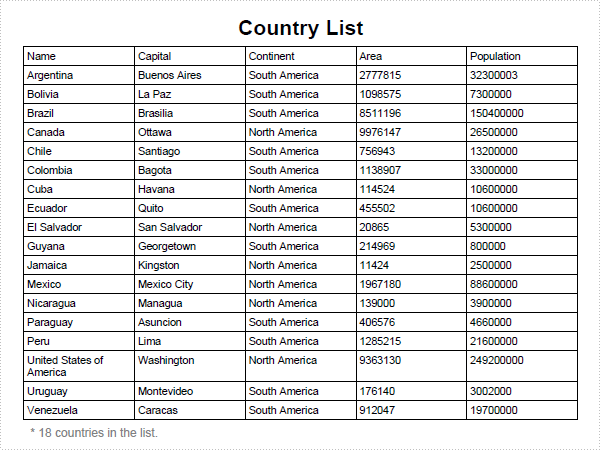
PDF SimpleTable in C#, VB.NET
using System;
using System.Drawing;
using Spire.Pdf;
using Spire.Pdf.Graphics;
using Spire.Pdf.Tables;

namespace SimpleTable
{
    class Program
    {
        static void Main(string[] args)
        {
            //Create a pdf document.
            PdfDocument doc = new PdfDocument();

            //margin
            PdfUnitConvertor unitCvtr = new PdfUnitConvertor();
            PdfMargins margin = new PdfMargins();
            margin.Top = unitCvtr.ConvertUnits(2.54f, PdfGraphicsUnit.Centimeter, PdfGraphicsUnit.Point);
            margin.Bottom = margin.Top;
            margin.Left = unitCvtr.ConvertUnits(3.17f, PdfGraphicsUnit.Centimeter, PdfGraphicsUnit.Point);
            margin.Right = margin.Left;

            // Create one page
            PdfPageBase page = doc.Pages.Add(PdfPageSize.A4, margin);

            float y = 10;

            //title
            PdfBrush brush1 = PdfBrushes.Black;
            PdfTrueTypeFont font1 = new PdfTrueTypeFont(new Font("Arial", 16f, FontStyle.Bold));
            PdfStringFormat format1 = new PdfStringFormat(PdfTextAlignment.Center);
            page.Canvas.DrawString("Country List", font1, brush1, page.Canvas.ClientSize.Width / 2, y, format1);
            y = y + font1.MeasureString("Country List", format1).Height;
            y = y + 5;

            String[] data
                = {
                    "Name;Capital;Continent;Area;Population",
                    "Argentina;Buenos Aires;South America;2777815;32300003",
                    "Bolivia;La Paz;South America;1098575;7300000",
                    "Brazil;Brasilia;South America;8511196;150400000",
                    "Canada;Ottawa;North America;9976147;26500000",
                    "Chile;Santiago;South America;756943;13200000",
                    "Colombia;Bagota;South America;1138907;33000000",
                    "Cuba;Havana;North America;114524;10600000",
                    "Ecuador;Quito;South America;455502;10600000",
                    "El Salvador;San Salvador;North America;20865;5300000",
                    "Guyana;Georgetown;South America;214969;800000",
                    "Jamaica;Kingston;North America;11424;2500000",
                    "Mexico;Mexico City;North America;1967180;88600000",
                    "Nicaragua;Managua;North America;139000;3900000",
                    "Paraguay;Asuncion;South America;406576;4660000",
                    "Peru;Lima;South America;1285215;21600000",
                    "United States of America;Washington;North America;9363130;249200000",
                    "Uruguay;Montevideo;South America;176140;3002000",
                    "Venezuela;Caracas;South America;912047;19700000"
                };

            String[][] dataSource
                = new String[data.Length][];
            for (int i = 0; i < data.Length; i++)
            {
                dataSource[i] = data[i].Split(';');
            }

            PdfTable table = new PdfTable();
            table.Style.CellPadding = 2;
            table.Style.HeaderSource = PdfHeaderSource.Rows;
            table.Style.HeaderRowCount = 1;
            table.Style.ShowHeader = true;
            table.DataSource = dataSource;

            PdfLayoutResult result = table.Draw(page, new PointF(0, y));
            y = y + result.Bounds.Height + 5;

            PdfBrush brush2 = PdfBrushes.Gray;
            PdfTrueTypeFont font2 = new PdfTrueTypeFont(new Font("Arial", 9f));
            page.Canvas.DrawString(String.Format("* {0} countries in the list.", data.Length - 1),
                font2, brush2, 5, y);

            //Save pdf file.
            doc.SaveToFile("SimpleTable.pdf");
            doc.Close();

            //Launching the Pdf file.
            System.Diagnostics.Process.Start("SimpleTable.pdf");
        }
    }
}
Imports System.Drawing
Imports Spire.Pdf
Imports Spire.Pdf.Graphics
Imports Spire.Pdf.Tables

Namespace SimpleTable
    Friend Class Program
        Shared Sub Main(ByVal args() As String)
            'Create a pdf document.
            Dim doc As New PdfDocument()

            'margin
            Dim unitCvtr As New PdfUnitConvertor()
            Dim margin As New PdfMargins()
            margin.Top = unitCvtr.ConvertUnits(2.54F, PdfGraphicsUnit.Centimeter, PdfGraphicsUnit.Point)
            margin.Bottom = margin.Top
            margin.Left = unitCvtr.ConvertUnits(3.17F, PdfGraphicsUnit.Centimeter, PdfGraphicsUnit.Point)
            margin.Right = margin.Left

            ' Create one page
            Dim page As PdfPageBase = doc.Pages.Add(PdfPageSize.A4, margin)

            Dim y As Single = 10

            'title
            Dim brush1 As PdfBrush = PdfBrushes.Black
            Dim font1 As New PdfTrueTypeFont(New Font("Arial", 16.0F, FontStyle.Bold))
            Dim format1 As New PdfStringFormat(PdfTextAlignment.Center)
            page.Canvas.DrawString("Country List", font1, brush1, page.Canvas.ClientSize.Width \ 2, y, format1)
            y = y + font1.MeasureString("Country List", format1).Height
            y = y + 5

            Dim data() As String _
                = {"Name;Capital;Continent;Area;Population", _
                   "Argentina;Buenos Aires;South America;2777815;32300003", _
                   "Bolivia;La Paz;South America;1098575;7300000", _
                   "Brazil;Brasilia;South America;8511196;150400000", _
                   "Canada;Ottawa;North America;9976147;26500000", _
                   "Chile;Santiago;South America;756943;13200000", _
                   "Colombia;Bagota;South America;1138907;33000000", _
                   "Cuba;Havana;North America;114524;10600000", _
                   "Ecuador;Quito;South America;455502;10600000", _
                   "El Salvador;San Salvador;North America;20865;5300000", _
                   "Guyana;Georgetown;South America;214969;800000", _
                   "Jamaica;Kingston;North America;11424;2500000", _
                   "Mexico;Mexico City;North America;1967180;88600000", _
                   "Nicaragua;Managua;North America;139000;3900000", _
                   "Paraguay;Asuncion;South America;406576;4660000", _
                   "Peru;Lima;South America;1285215;21600000", _
                   "United States of America;Washington;North America;9363130;249200000", _
                   "Uruguay;Montevideo;South America;176140;3002000", _
                   "Venezuela;Caracas;South America;912047;19700000"}

            Dim dataSource(data.Length - 1)() As String
            For i As Integer = 0 To data.Length - 1
                dataSource(i) = data(i).Split(";"c)
            Next i

            Dim table As New PdfTable()
            table.Style.CellPadding = 2
            table.Style.HeaderSource = PdfHeaderSource.Rows
            table.Style.HeaderRowCount = 1
            table.Style.ShowHeader = True
            table.DataSource = dataSource

            Dim result As PdfLayoutResult = table.Draw(page, New PointF(0, y))
            y = y + result.Bounds.Height + 5

            Dim brush2 As PdfBrush = PdfBrushes.Gray
            Dim font2 As New PdfTrueTypeFont(New Font("Arial", 9.0F))
            page.Canvas.DrawString(String.Format("* {0} countries in the list.", data.Length - 1), _
                                   font2, brush2, 5, y)

            'Save pdf file.
            doc.SaveToFile("SimpleTable.pdf")
            doc.Close()

            'Launching the Pdf file.
            Process.Start("SimpleTable.pdf")
        End Sub
    End Class
End Namespace
Published in
Table