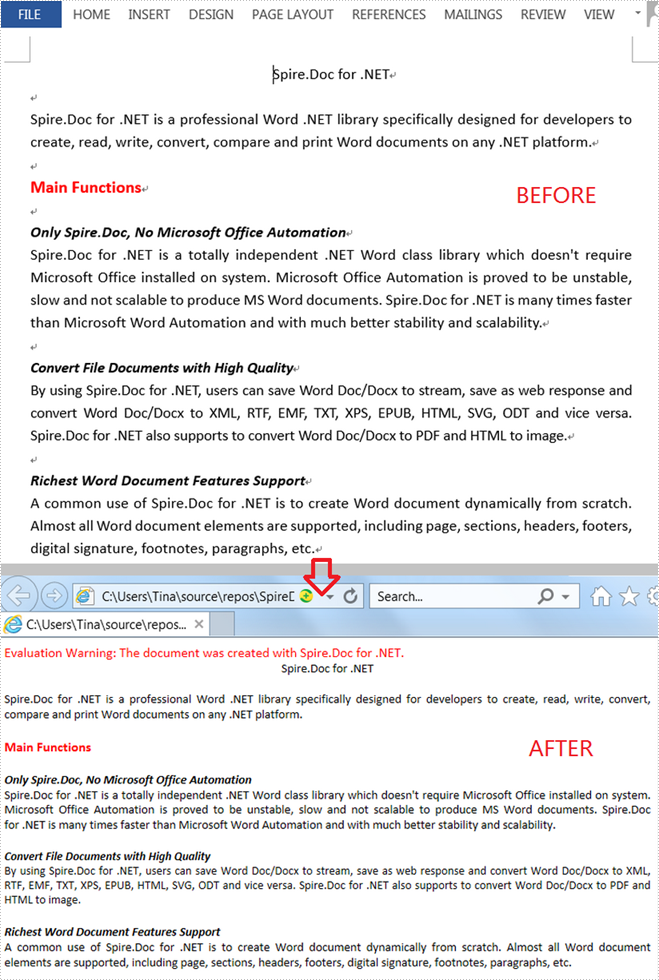
When you'd like to put a Word document on the web, it's recommended that you should convert the document to HTML in order to make it accessible via a web page. This article will demonstrate how to convert Word to HTML programmatically in C# and VB.NET using Spire.Doc for .NET.
Install Spire.Doc for .NET
To begin with, you need to add the DLL files included in the Spire.Doc for .NET package as references in your .NET project. The DLL files can be either downloaded from this link or installed via NuGet.
PM> Install-Package Spire.Doc
Convert Word to HTML
The following steps show you how to convert Word to HTML using Spire.Doc for .NET.
- Create a Document instance.
- Load a Word sample document using Document.LoadFromFile() method.
- Save the document as an HTML file using Document.SaveToFile() method.
- C#
- VB.NET
using Spire.Doc;

namespace WordToHTML
{
    class Program
    {
        static void Main(string[] args)
        {
            //Create a Document instance
            Document mydoc = new Document();

            //Load a Word document
            mydoc.LoadFromFile("sample.docx");

            //Save to HTML
            mydoc.SaveToFile("WordToHTML.html", FileFormat.Html);
        }
    }
}
Apply for a Temporary License
If you'd like to remove the evaluation message from the generated documents, or to get rid of the function limitations, please request a 30-day trial license for yourself.