
Spire.Doc for .NET (338)
Children categories
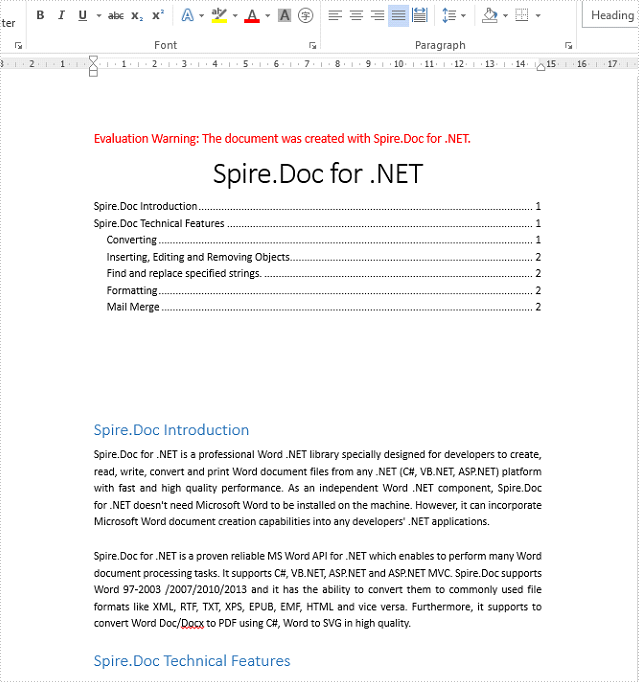
We have already demonstrated how to add a brand new TOC when we create the word documents. This article will show you how to insert a TOC to the existing word documents with styles and remove the TOC from the word document.
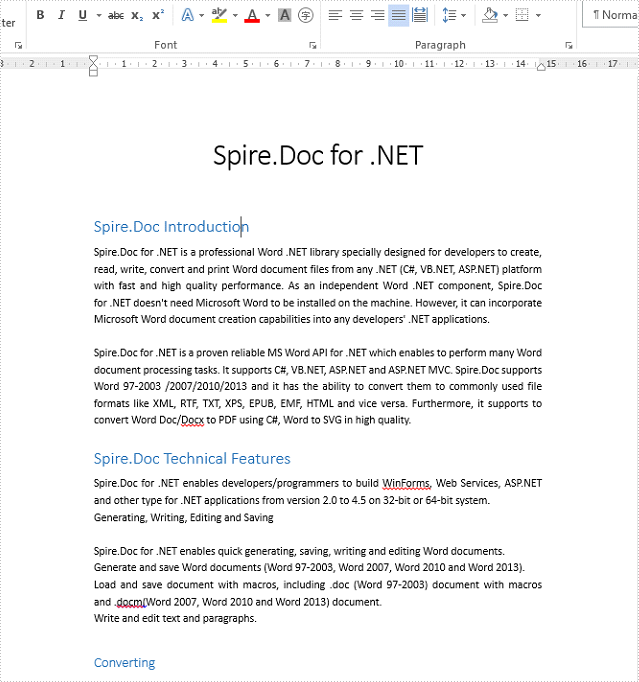
Firstly, view the sample document with Title, Heading1 and Heading 2 styles:
The below code snippet shows how to insert a Table of contents (TOC) into a document.
using Spire.Doc;
using Spire.Doc.Documents;
using Spire.Doc.Fields;
using System.Text.RegularExpressions;
namespace InsertTOC
{
    class Program
    {
        static void Main(string[] args)
        {
            //Create a new instance of Document and load the document from file.
            Document doc = new Document();
            doc.LoadFromFile("Sample.docx", FileFormat.Docx2010);

            //Add the TOC to the document
            TableOfContent toc = new TableOfContent(doc, "{\\o \"1-3\" \\h \\z \\u}");
            Paragraph p = doc.LastSection.Paragraphs[0];
            p.Items.Add(toc);
            p.AppendFieldMark(FieldMarkType.FieldSeparator);
            p.AppendText("TOC");
            p.AppendFieldMark(FieldMarkType.FieldEnd);
            doc.TOC = toc;

            //Update the table of contents
            doc.UpdateTableOfContents();

            //Save the document to file
            doc.SaveToFile("Result.docx", FileFormat.Docx);

        }
    }
}
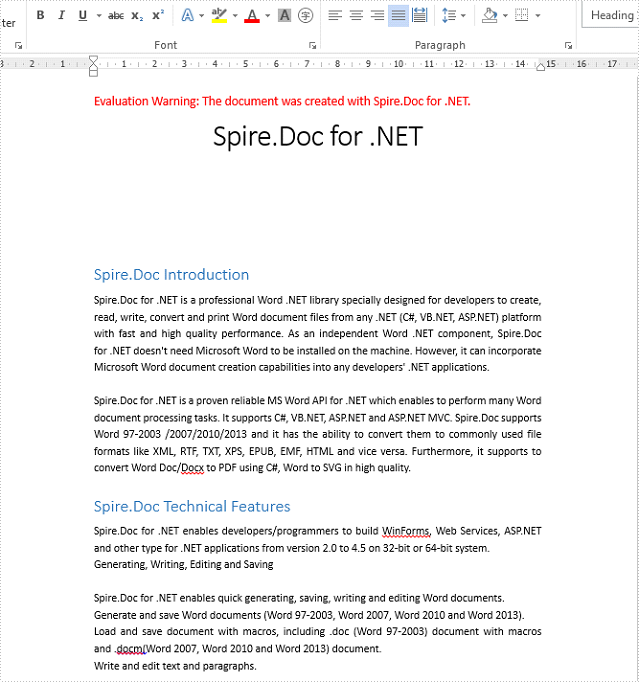
Removing a Table of Contents from the Document
using Spire.Doc;
using System.Text.RegularExpressions;
namespace RemoveTOC
{
    class Program
    {
        static void Main(string[] args)
        {
            //load the document from file with TOC
            Document doc = new Document();
            doc.LoadFromFile("Result.docx", FileFormat.Docx2010);

            //get the first body from the first section
            Body body = doc.Sections[0].Body;

            //remove TOC from first body
            Regex regex = new Regex("TOC\\w+");
            for (int i = 0; i < body.Paragraphs.Count; i++)
            {
                if (regex.IsMatch(body.Paragraphs[i].StyleName))
                {
                    body.Paragraphs.RemoveAt(i);
                    i--;
                }
            }
            //save the document to file
            doc.SaveToFile("RemoveTOC.docx", FileFormat.Docx2010);

        }
    }
}
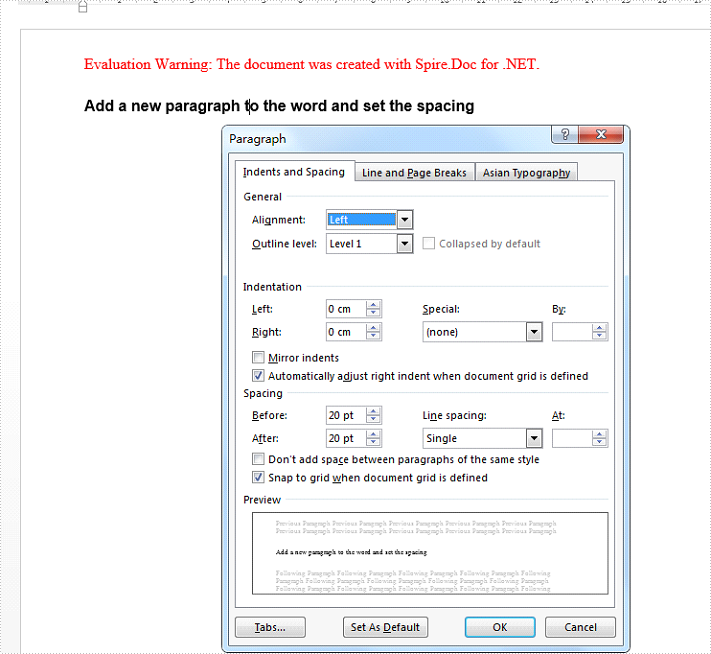
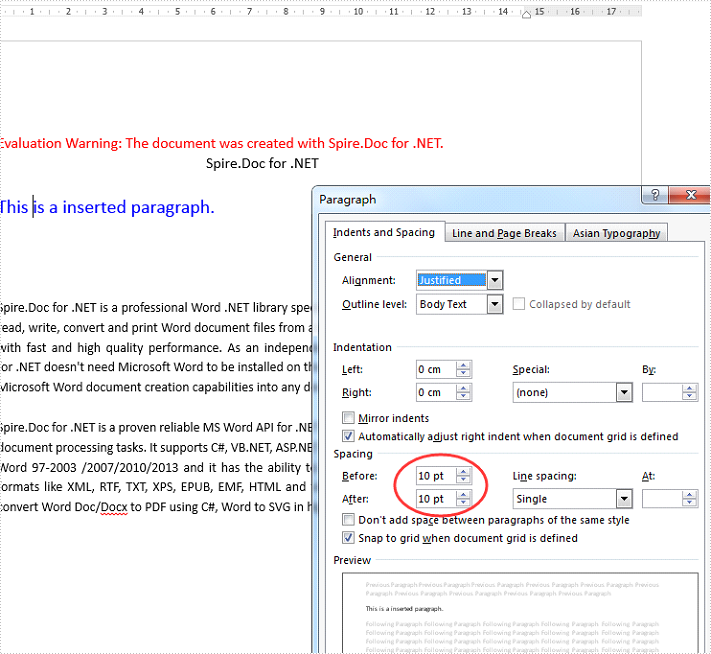
With Spire.Doc, we can set the formats for paragraph in C#. This article will focus on demonstrate how to set the spacing before and after the paragraph in C#.
Set the spacing before and after the paragraph for a newly added paragraph added by the method of paragraph.AppendHTML() to a new blank word document.
//create a new word document and add a section and paragraph to it.
Document doc = new Document();
Section sec = doc.AddSection();
Paragraph para = sec.AddParagraph();
//Add the text strings to the paragraph and set the style
para.AppendHTML("Add a new paragraph to the word and set the spacing
");
para.ApplyStyle(BuiltinStyle.Heading1);
//set the spacing before and after
para.Format.BeforeAutoSpacing = false;
para.Format.BeforeSpacing = 20;
para.Format.AfterAutoSpacing = false;
para.Format.AfterSpacing = 20;
//save the document to file
doc.SaveToFile("Result1.docx");
using Spire.Doc;
using Spire.Doc.Documents;
using Spire.Doc.Fields;
namespace SetSpacing
{
 class Program
    {

     static void Main(string[] args)
     {
         //create a new word document and load the sample from file
         Document document = new Document();
         document.LoadFromFile("sample.docx", FileFormat.Docx);

         //Add the text strings to the paragraph and set the style
         Paragraph para = new Paragraph(document);
         TextRange textRange1 = para.AppendText("This is a inserted paragraph.");
         textRange1.CharacterFormat.TextColor = Color.Blue;
         textRange1.CharacterFormat.FontSize = 15;

         //set the spacing before and after
         para.Format.BeforeAutoSpacing = false;
         para.Format.BeforeSpacing = 10;
         para.Format.AfterAutoSpacing = false;
         para.Format.AfterSpacing = 10;

         //insert the added paragraph to the word document
         document.Sections[0].Paragraphs.Insert(1, para);

         //save the document to file
         document.SaveToFile("Result2.docx", FileFormat.Docx2010);
     }

    }
}
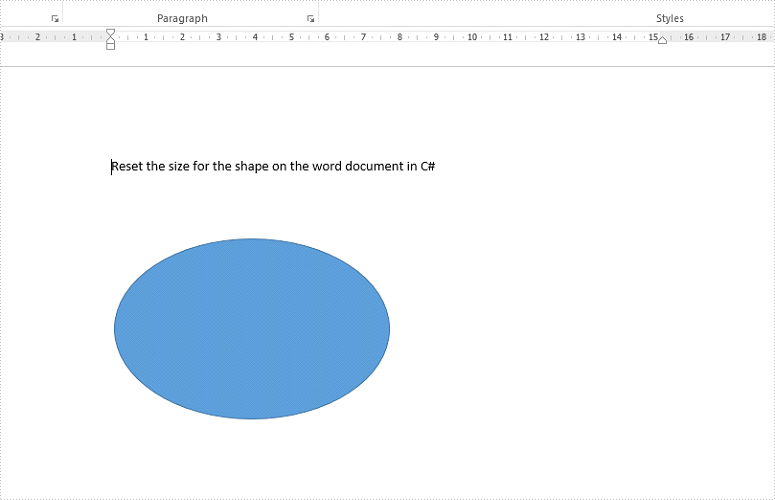
Spire.Doc supports to add new shape and shape group to the word document, it also supports to remove the shapes from the word. This article will show you how to reset the size of shape on an existing word document via Spire.Doc.
Firstly, view the original shape on the word document:
Step 1: Create a new instance of word document and load the document from file.
Document doc = new Document();
doc.LoadFromFile("Sample.docx",FileFormat.Docx2010);
Step 2: Get the first section and the third paragraph that contains the shape.
Section section = doc.Sections[0];
Paragraph para = section.Paragraphs[2];
Step 3: Get the shape and reset the width and height for the shape.
ShapeObject shape = para.ChildObjects[0] as ShapeObject;

shape.Width = 400;
shape.Height = 300;
Step 4: Save the document to file.
doc.SaveToFile("result.docx",FileFormat.Docx2010);
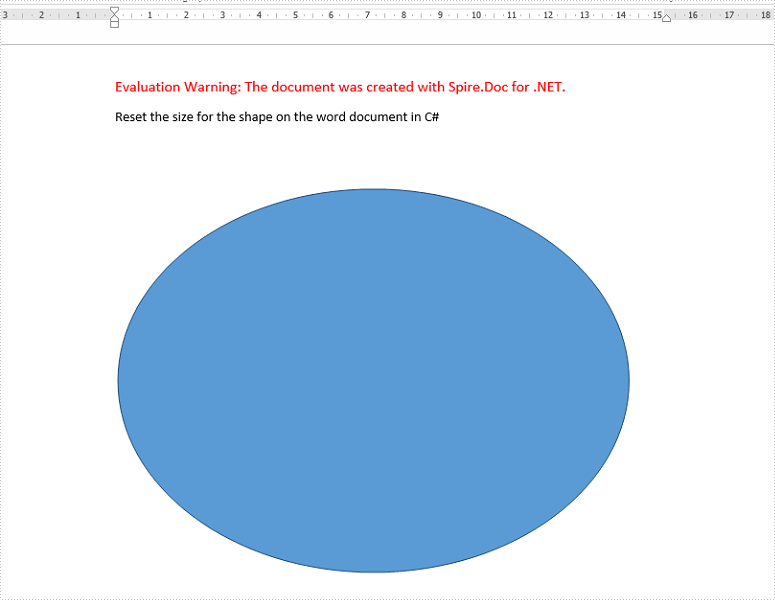
Effective screenshot of the shape after reset the size.
Full codes:
using Spire.Doc;
using Spire.Doc.Documents;
using Spire.Doc.Fields;
namespace Reset
{
    class Program
    {
        static void Main(string[] args)
        {
            Document doc = new Document();
            doc.LoadFromFile("Sample.docx", FileFormat.Docx2010);

            Section section = doc.Sections[0];
            Paragraph para = section.Paragraphs[2];

            ShapeObject shape = para.ChildObjects[0] as ShapeObject;

            shape.Width = 400;
            shape.Height = 300;

            doc.SaveToFile("result.docx", FileFormat.Docx2010);
        }
    }
}
Imports Spire.Doc
Imports Spire.Doc.Documents
Imports Spire.Doc.Fields
Namespace Reset
	Class Program
		Private Shared Sub Main(args As String())
			Dim doc As New Document()
			doc.LoadFromFile("Sample.docx", FileFormat.Docx2010)

			Dim section As Section = doc.Sections(0)
			Dim para As Paragraph = section.Paragraphs(2)

			Dim shape As ShapeObject = TryCast(para.ChildObjects(0), ShapeObject)

			shape.Width = 400
			shape.Height = 300

			doc.SaveToFile("result.docx", FileFormat.Docx2010)
		End Sub
	End Class
End Namespace
